Advanced Usage
Copy Image into Rich Text Editor
- Firstly, upload the image file to SQL Connect
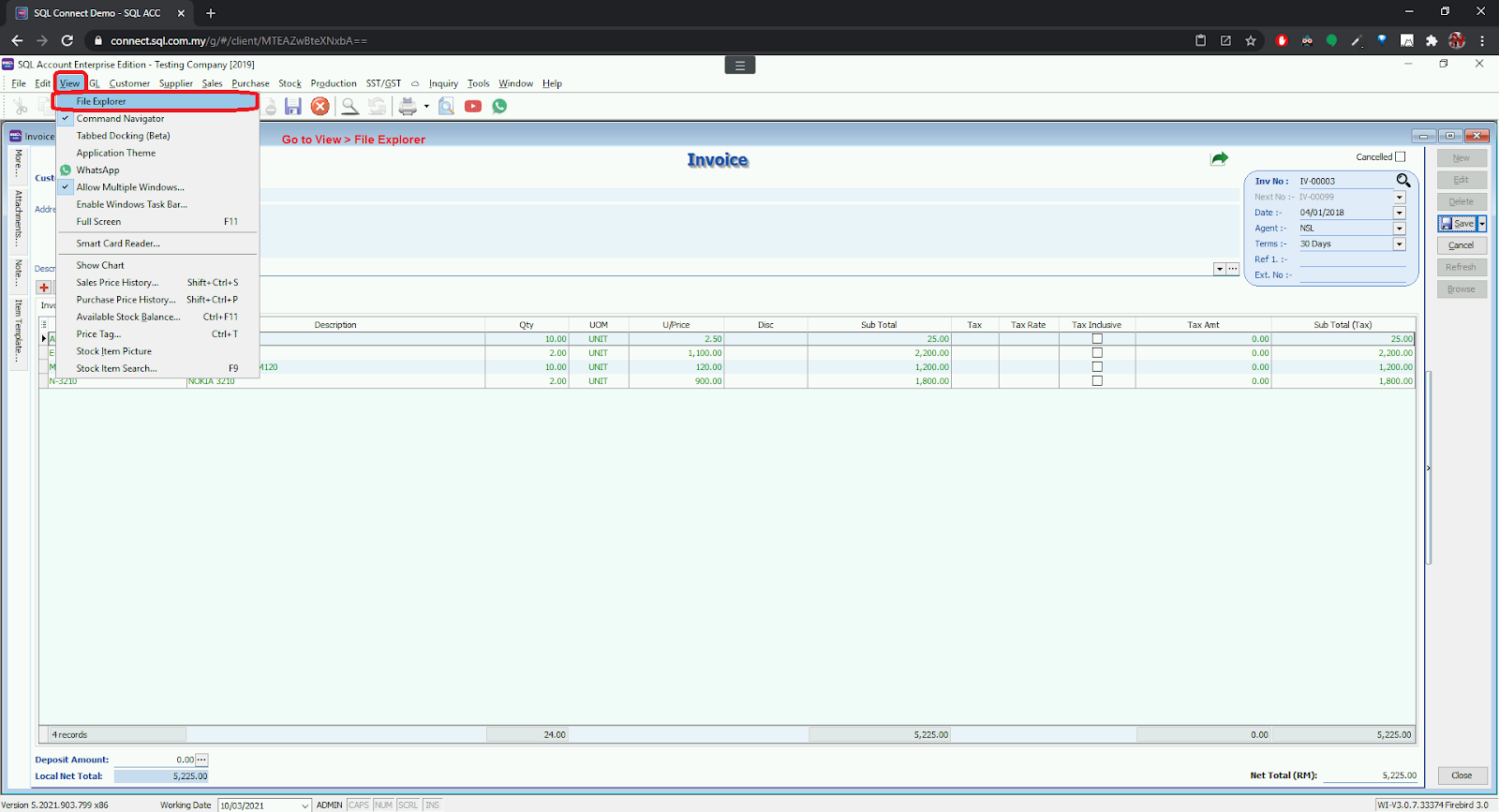
- In SQL Account / SQL Payroll, go to
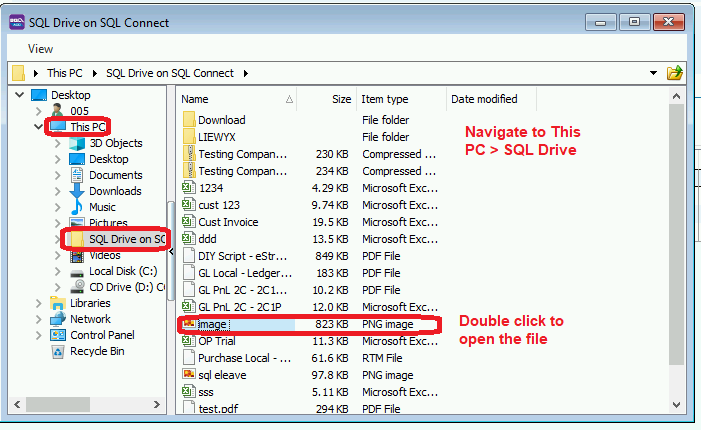
View>File Explorer - Navigate to
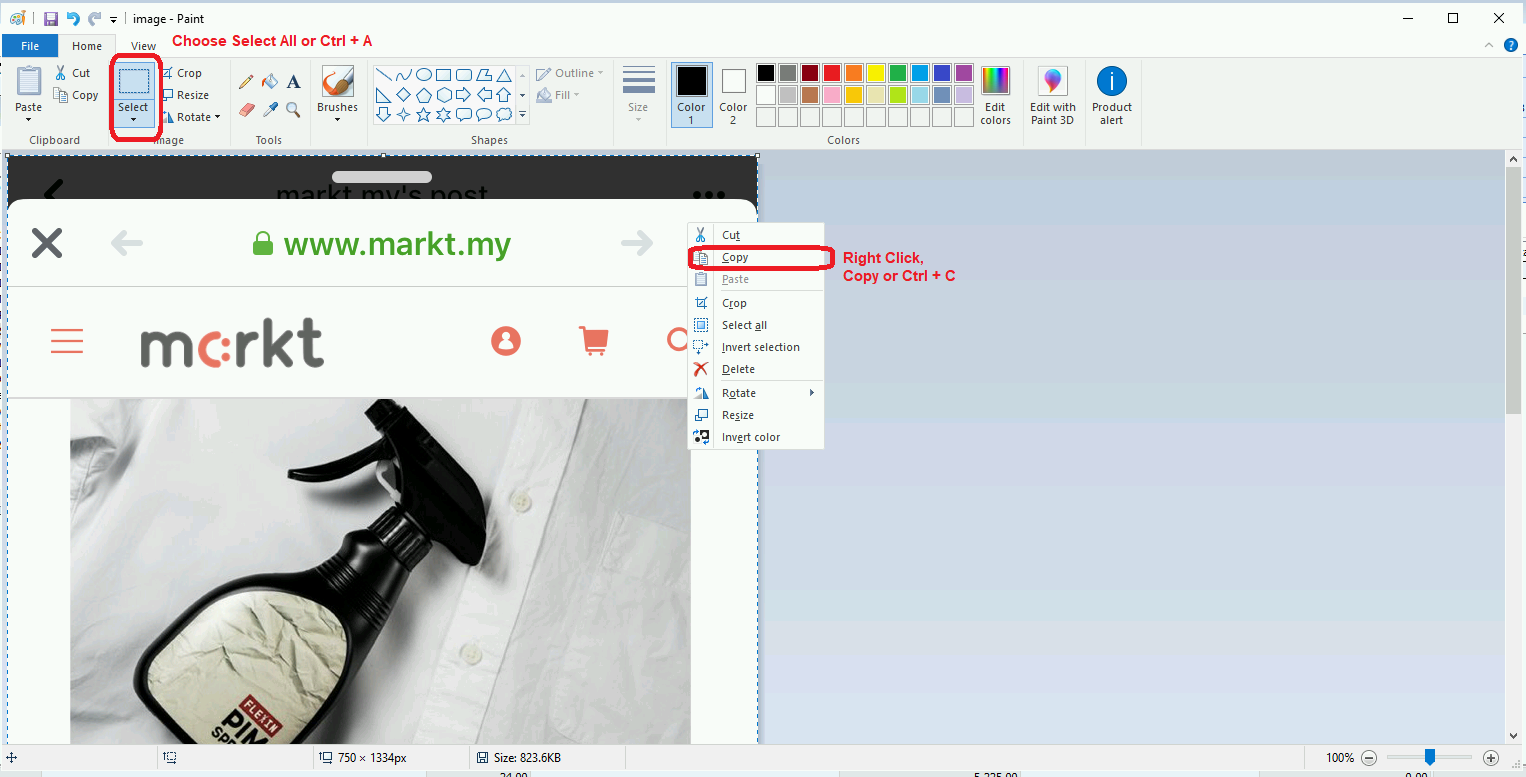
This PC>SQL Drive on SQL Connect> double click to open your image file - Select All (or press
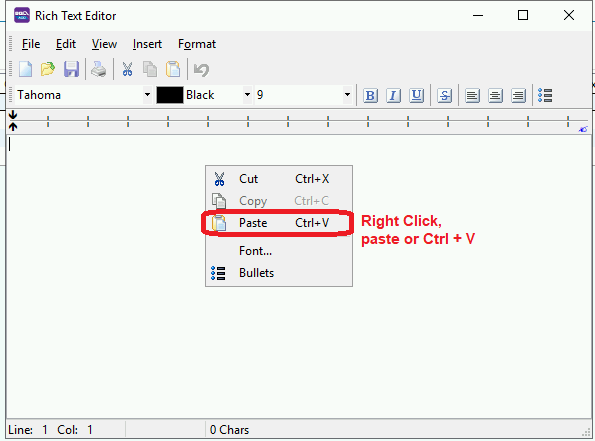
Ctrl + A), and then copy it. - Go to the rich text editor, paste the image you just copy.
Delete Files in SQL Drive
-
In SQL Account / SQL Payroll, navigate to
View>File Explorer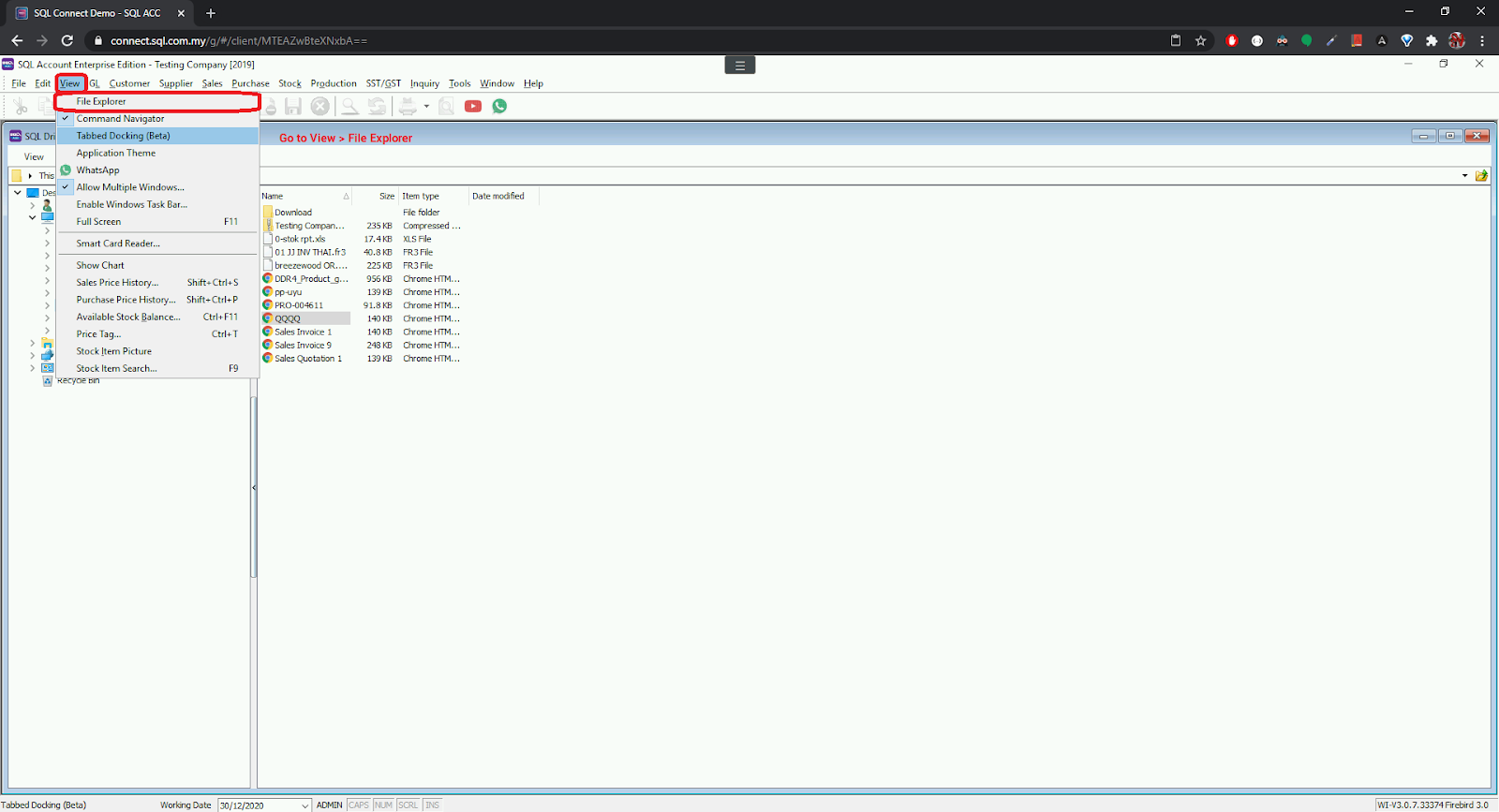
-
Go to
SQL Drive on SQL Connect, right click on the file and selectDelete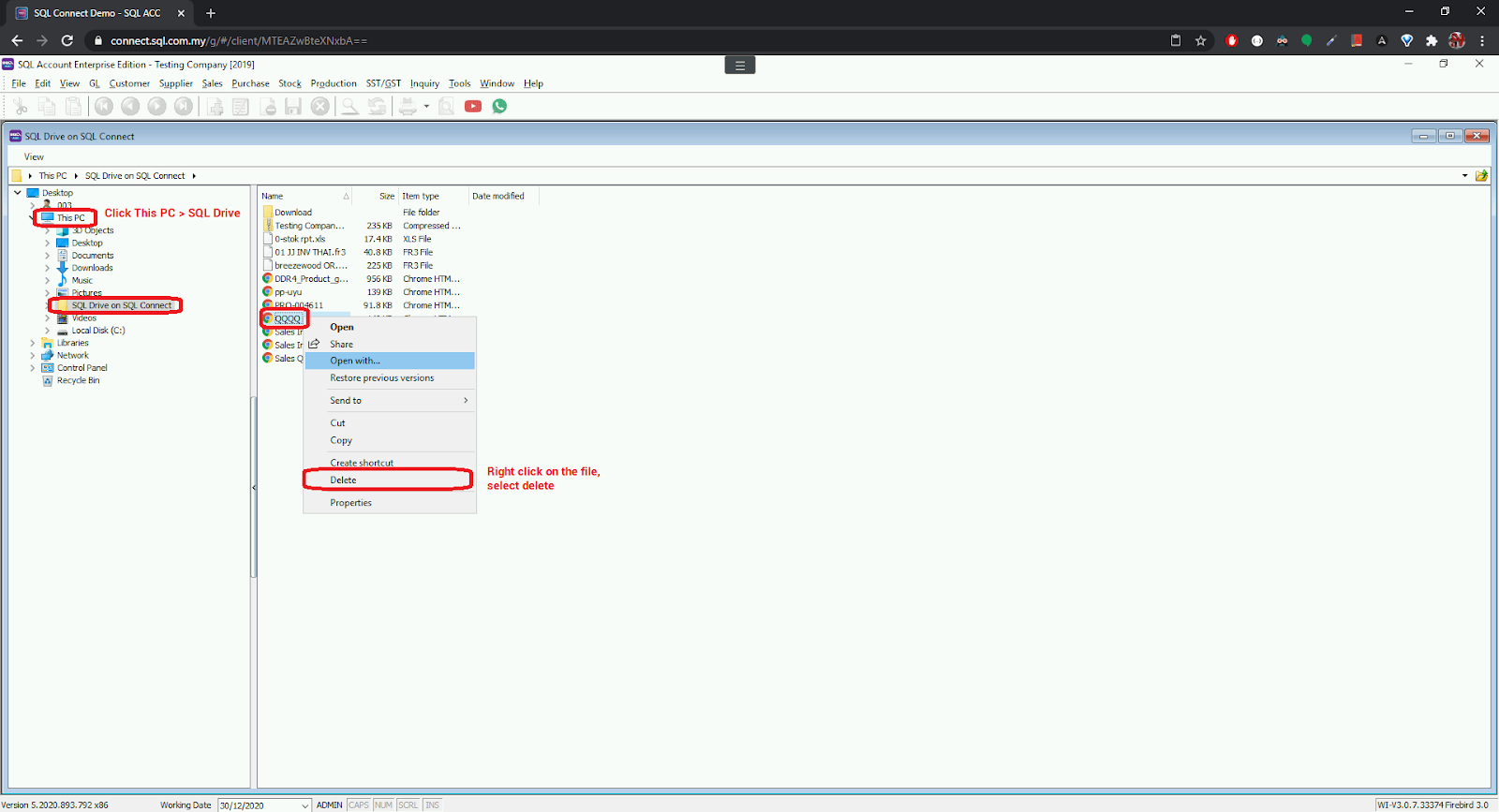
Kill Firebird Connections From Application
This action requires ADMIN user privilege
Login Screen
The last logged-in user must be ADMIN; otherwise, the process will fail.
-
In the login screen, click on the
Settings ⚙️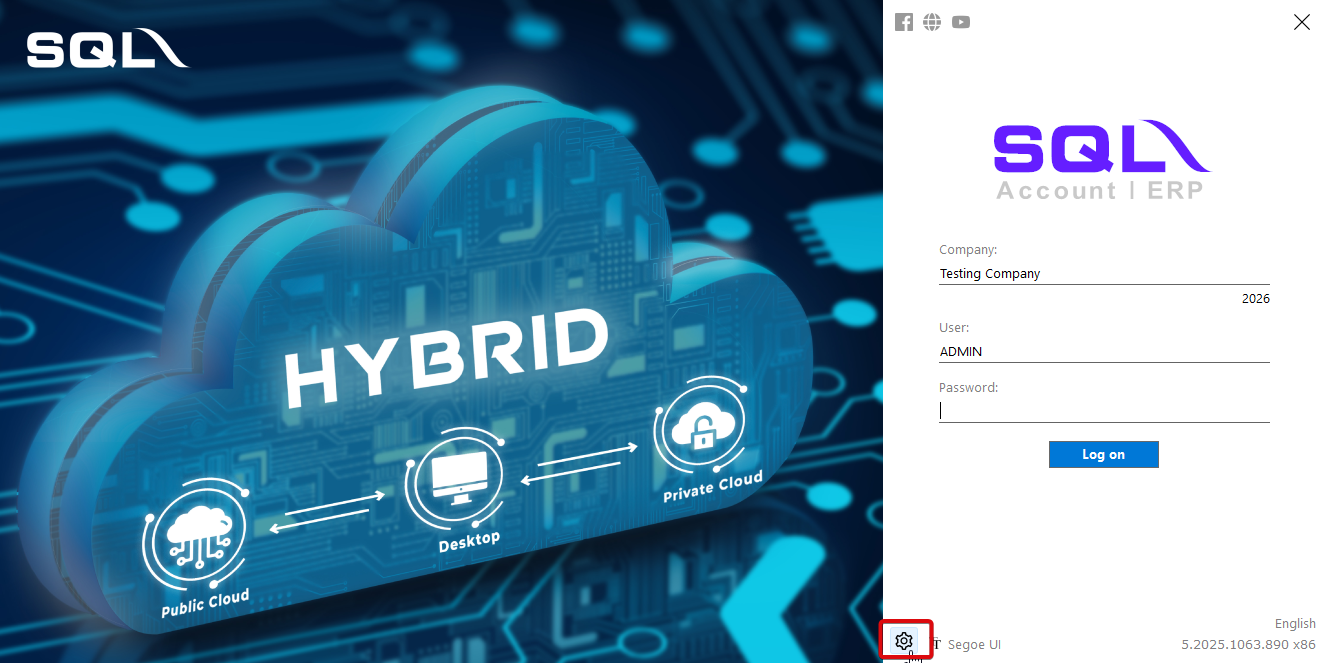
-
Right click on the database, select
Show Active Connections...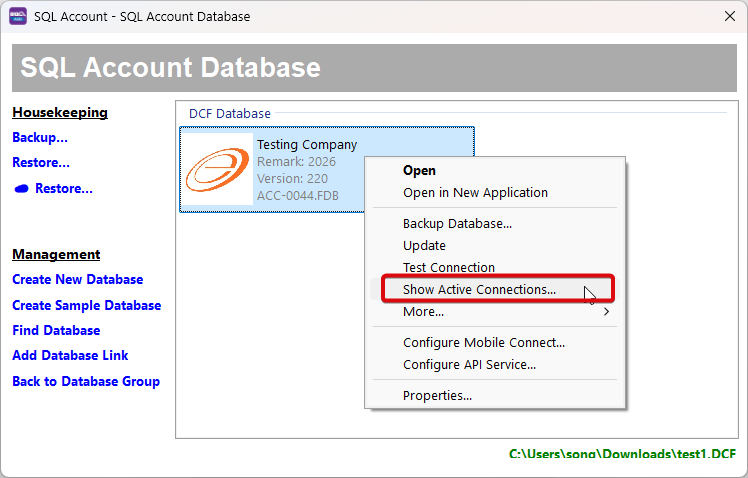
-
Press on the "Kill" button to close the connection
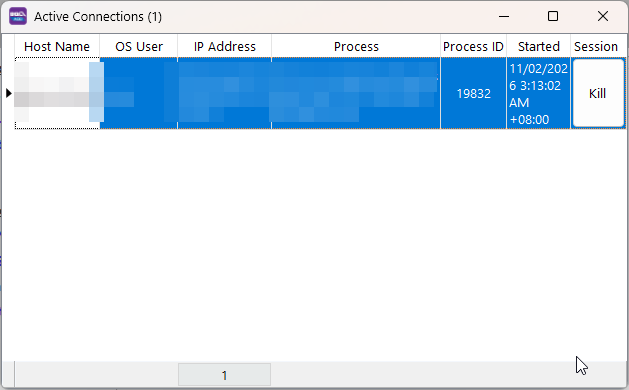
After Login
-
In the application, navigate to
File>Show Active Connections...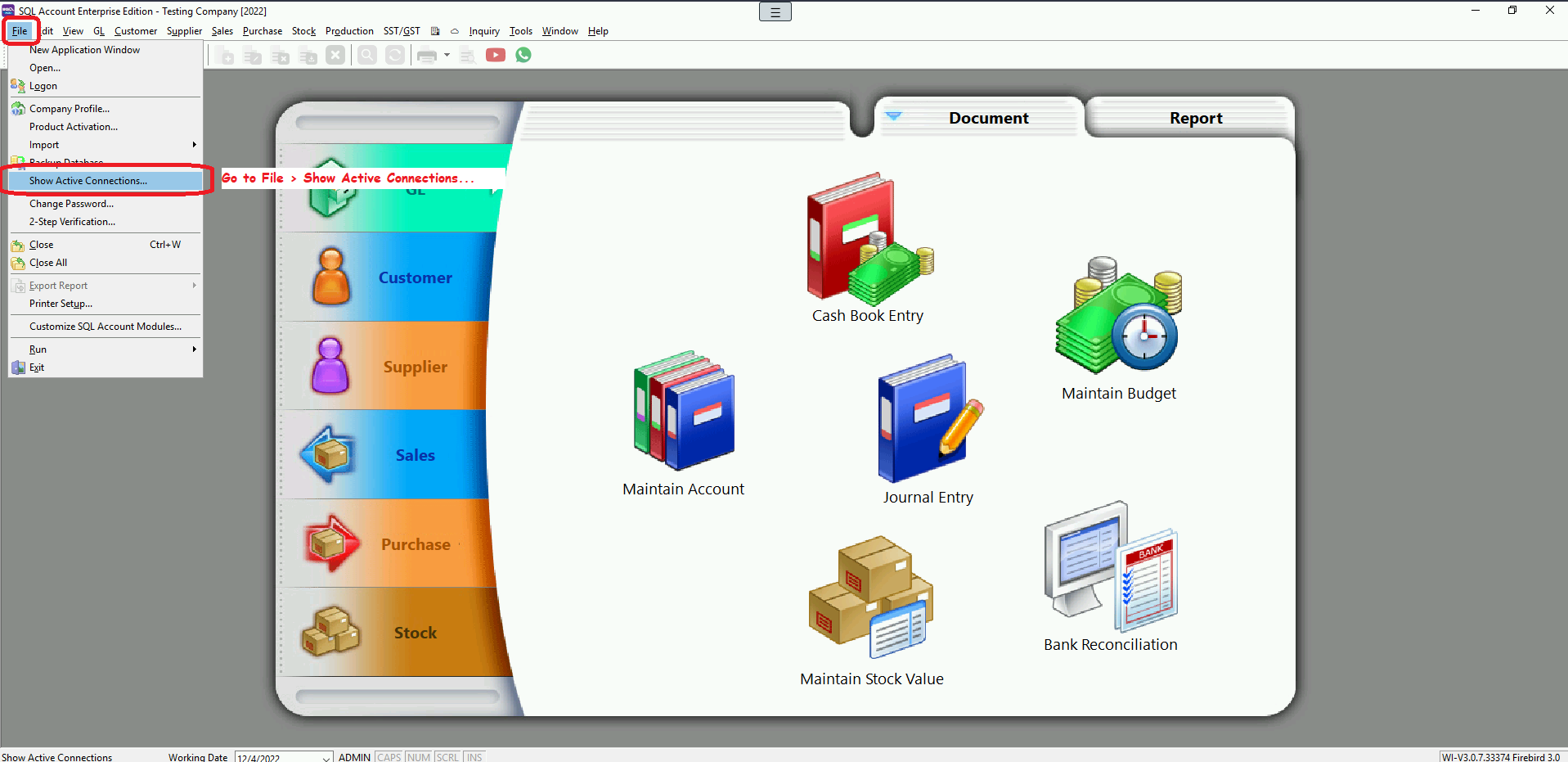
-
Press on the "Kill" button to close the connection
Link with SQL Pos
This guide applies only to the public cloud; for private‑cloud deployments, you can link as usual, similar to a local setup.
-
First, request SQL Pos integration from your support/dealers. You will receive a file link. In the file, you can find all the information required to link local SQL Pos with SQL Account. Example on how the file looks like:
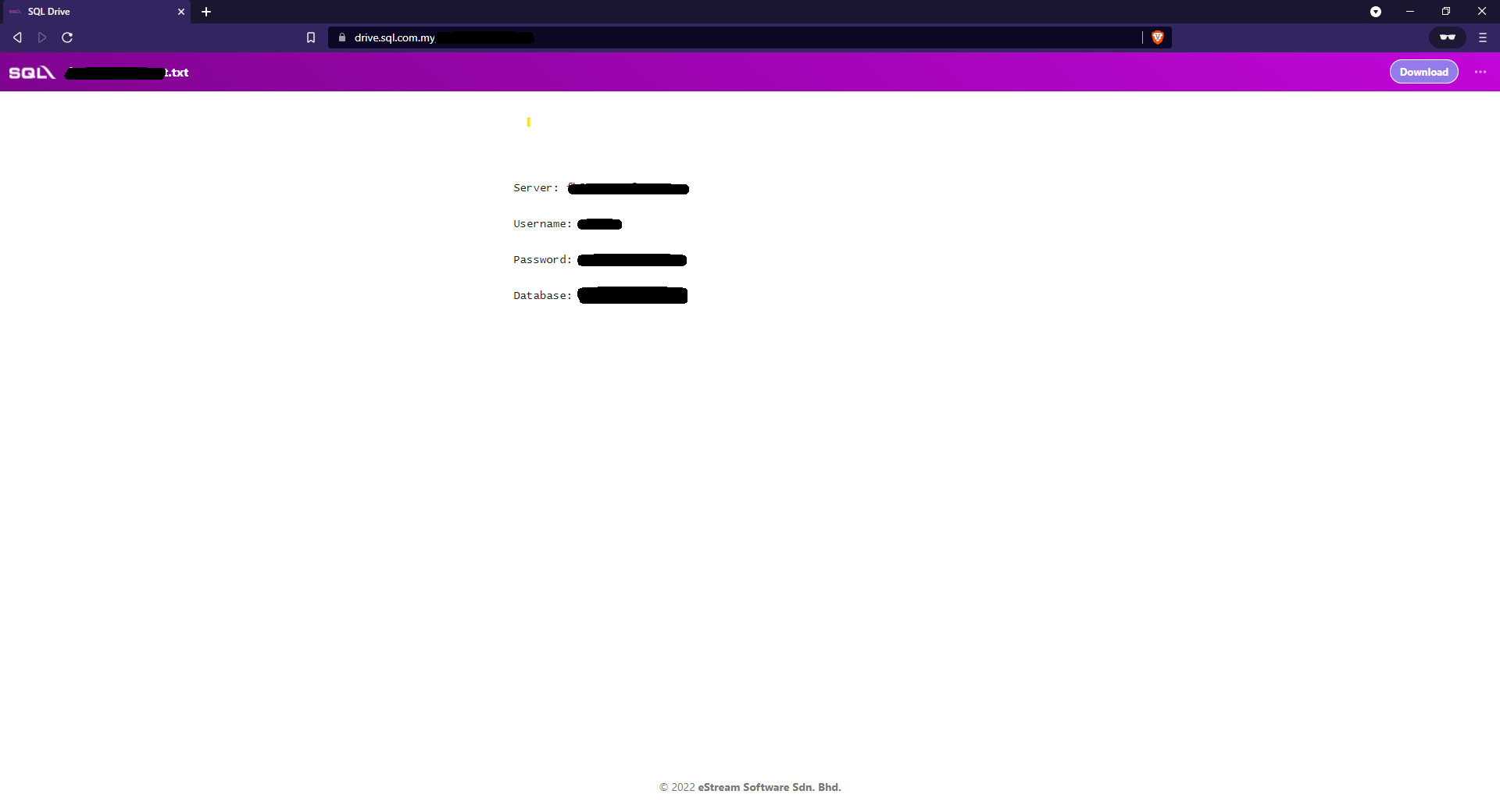
-
In SQL Pos, fill in accordingly.
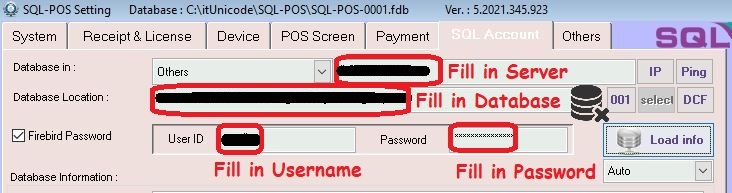
Printing Half Page
Windows 10
-
Navigate to
Control Panel>View devices and printers -
Next, select the printer and click on
Print server properties, add a new page size (half page)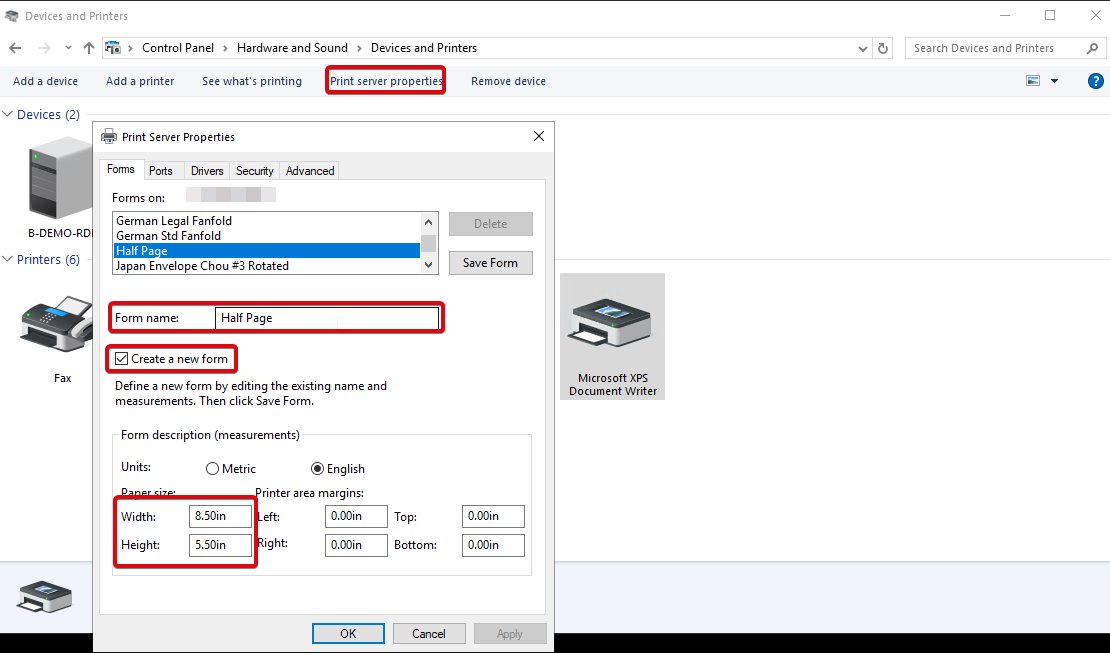
-
Close the form dialog, then click
Add a deviceat the top left of the control panel. Add a duplicate printer profile for the desired printer.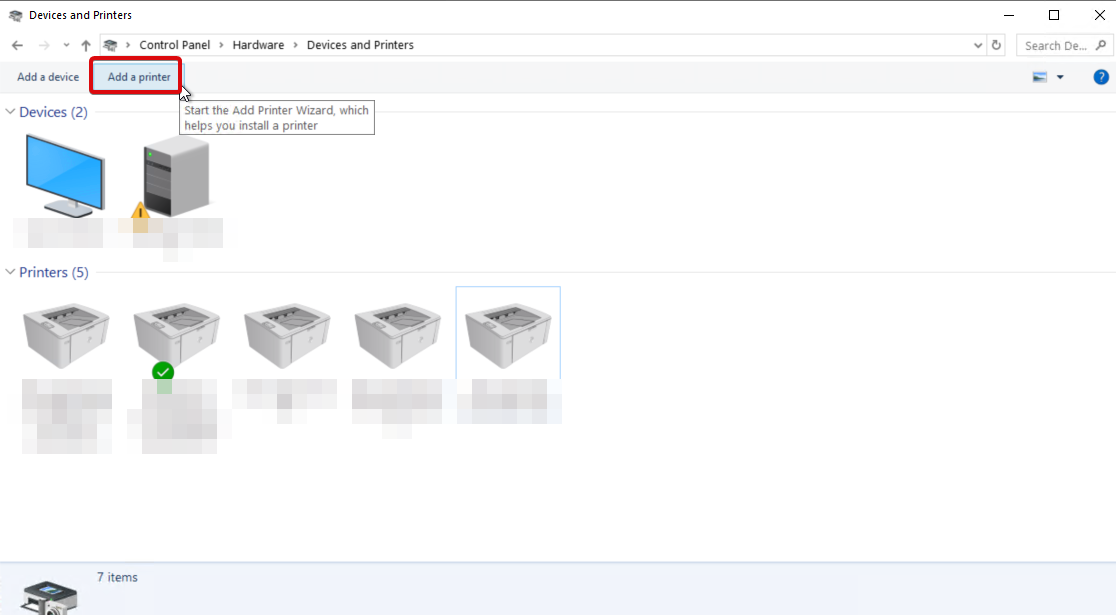
-
Right click on the printer, and go to
printer preferences, click on the profile we had created.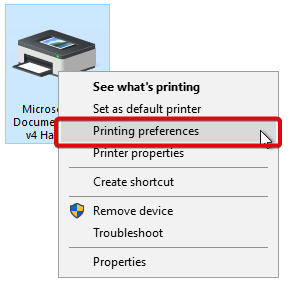
-
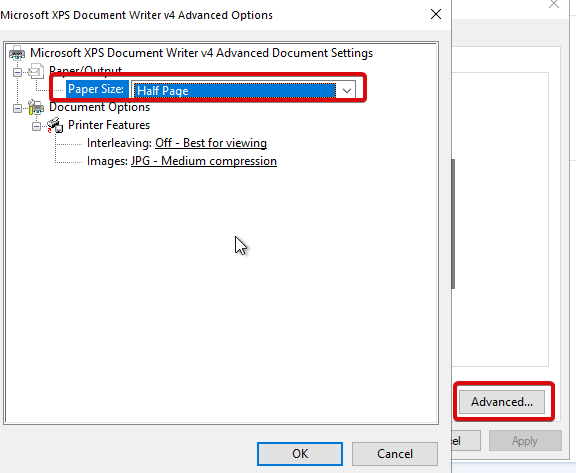
Go to "Advanced", configure the printer profile to use the paper size we created before.
-
Next, right click on the printer again, go to
printer properties.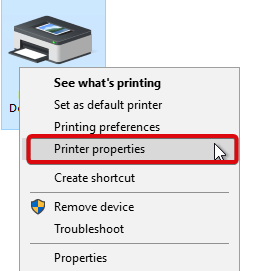
-
Set the default paper size to the custom paper size we created.
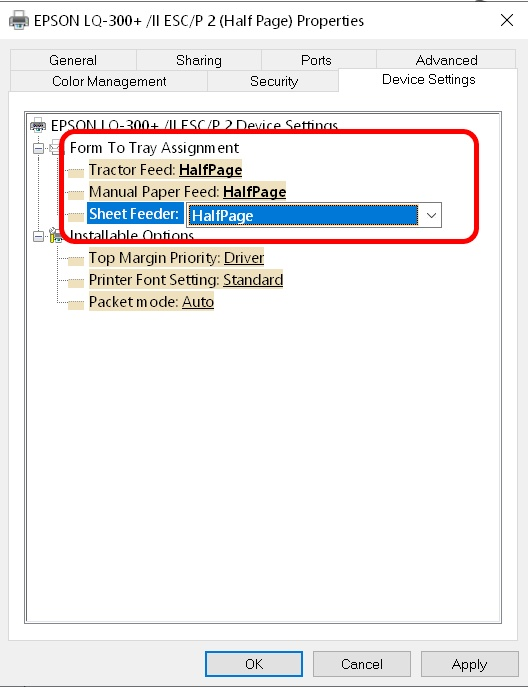
-
Once you have done with the above settings, login into your SQL Connect session and test print with the following steps:
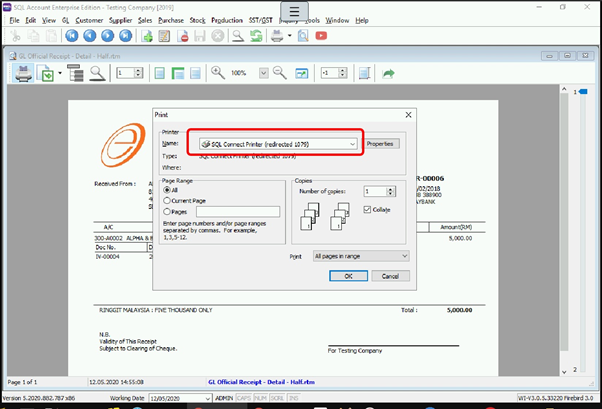
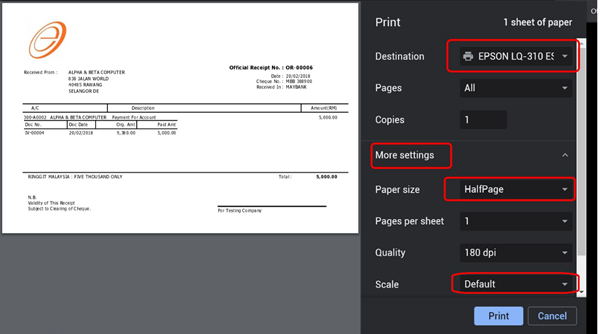
Windows 11
-
Search "Printers" in Windows search bar
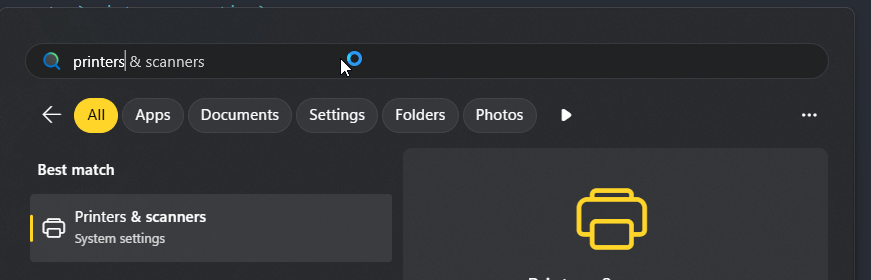
-
Select on
Print server properties, add a new page size (half page)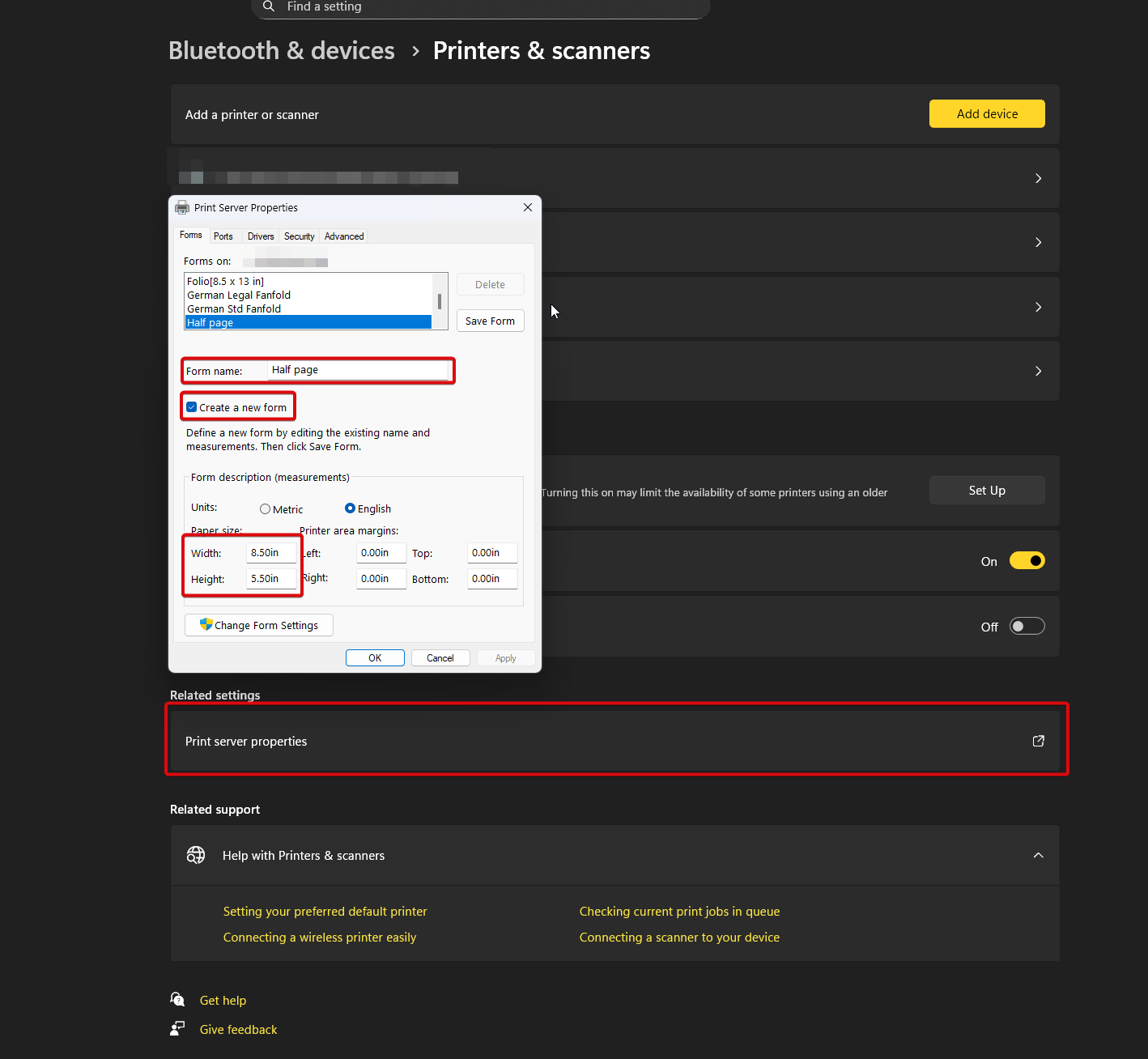
-
click
Add a deviceto add a duplicate printer profile for the desired printer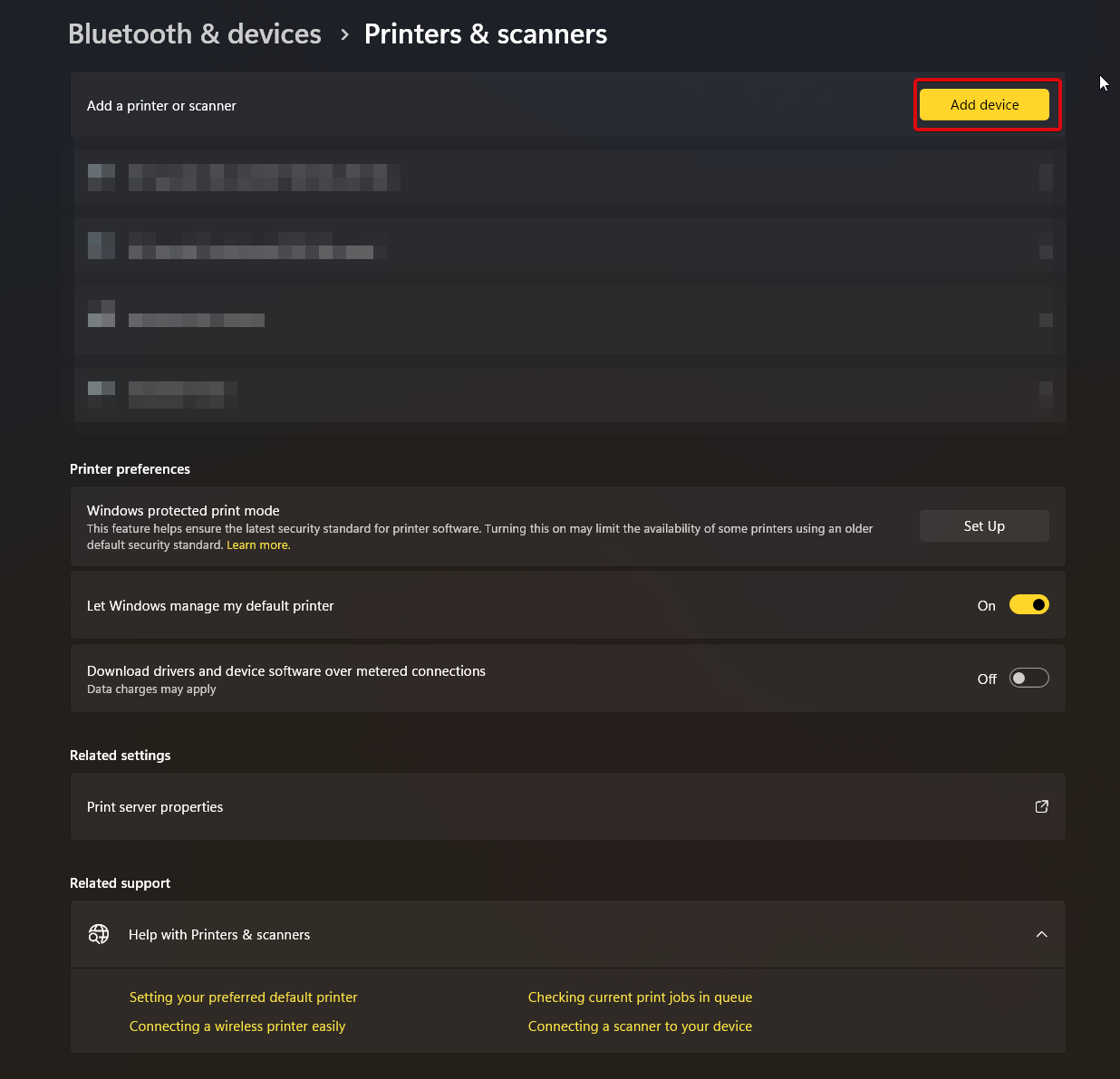
-
Click on the desired printer, go to
printer preferences, select the profile create in previous step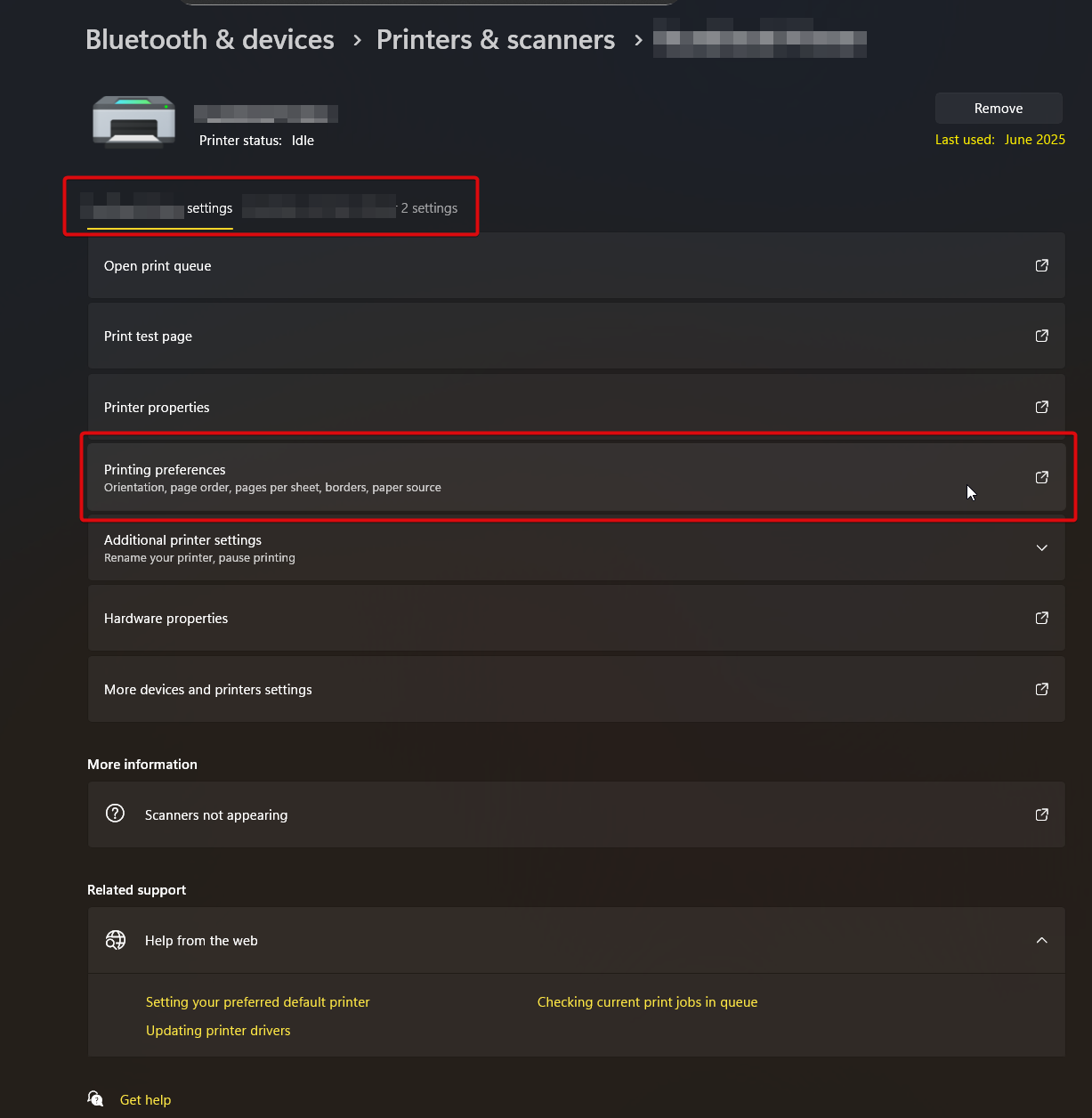
-
Go to "Advanced", configure the printer profile to use the paper size we created before.
-
Next, go to
printer properties. -
Set the default paper size to the custom paper size we created.
-
That's all. 🥳
Saving PDF
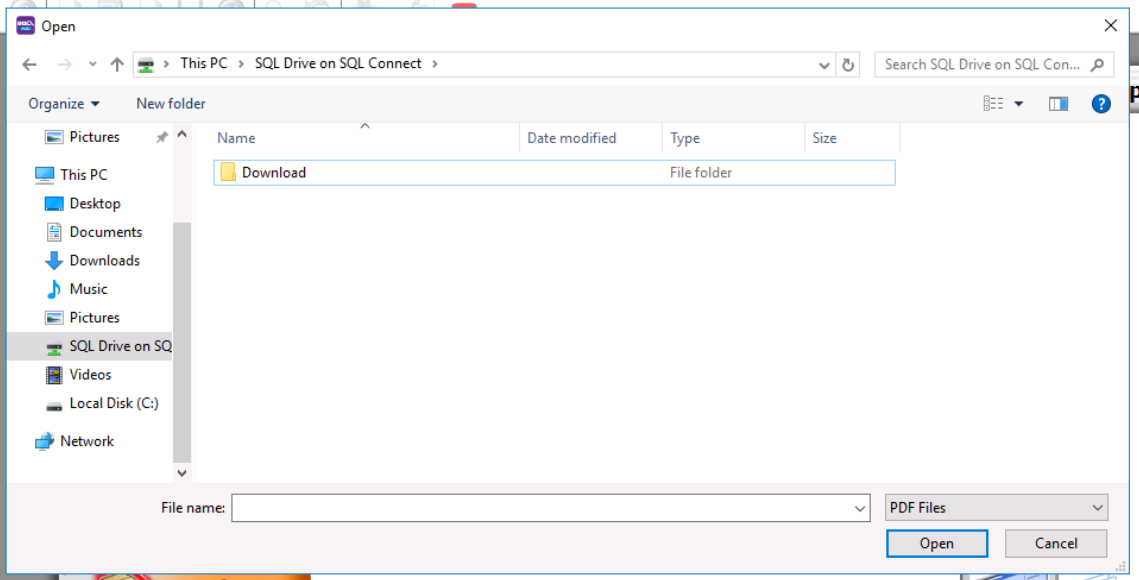
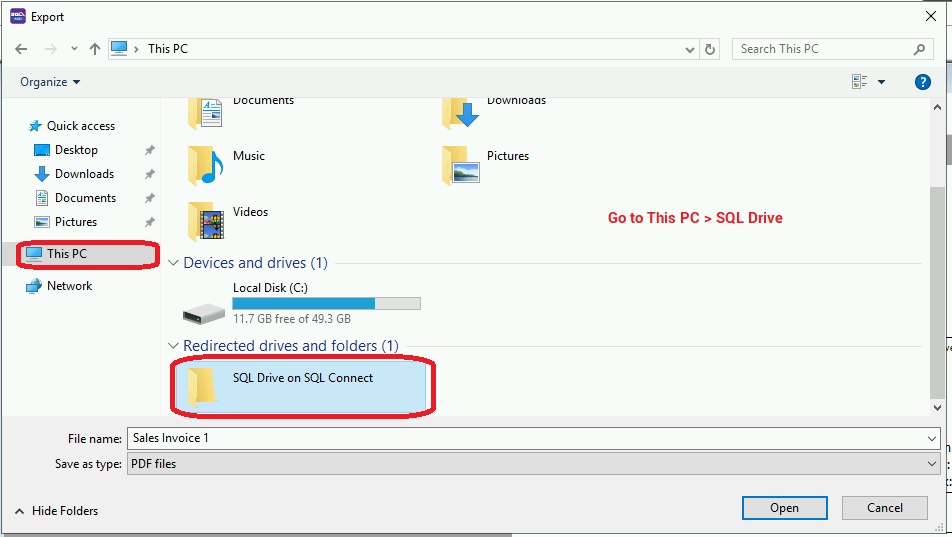
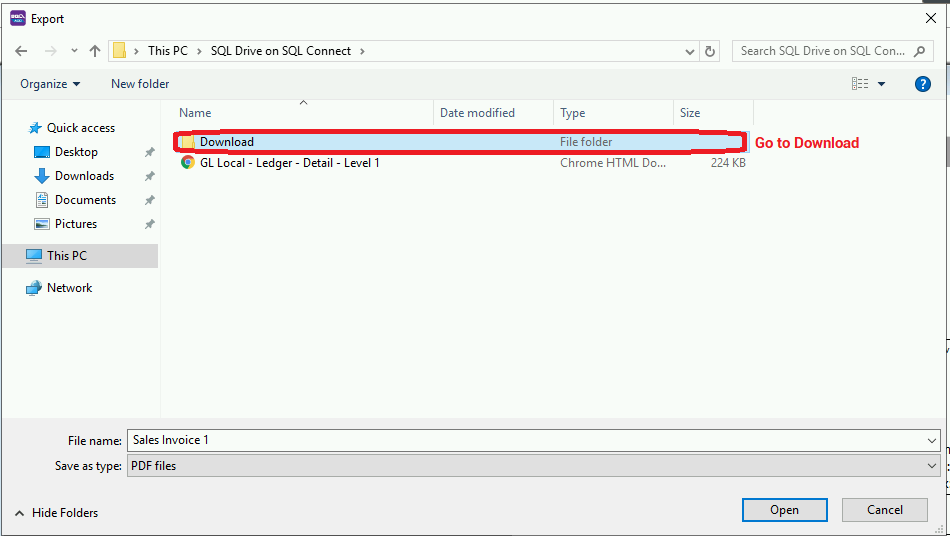
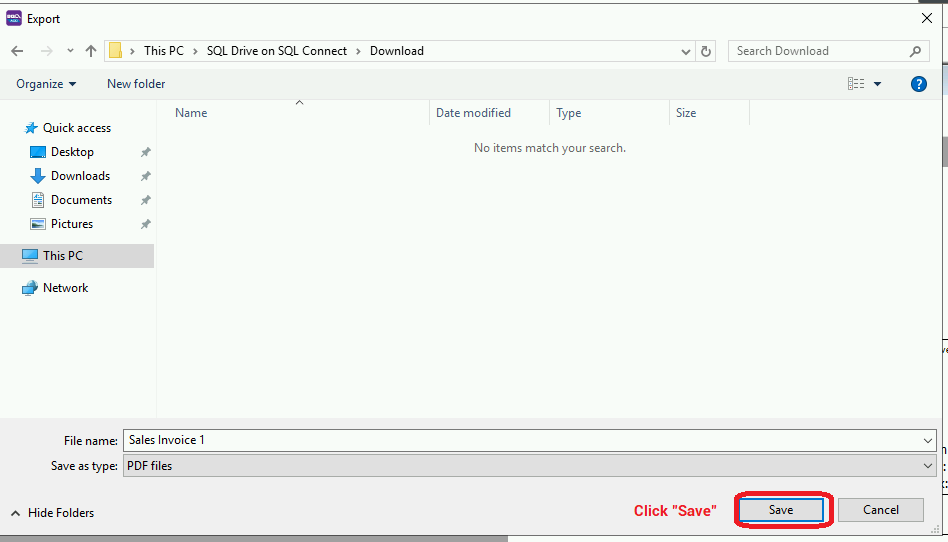
If you want to download PDF file, save it to the "Download" folder in the "SQL Drive on SQL Connect"
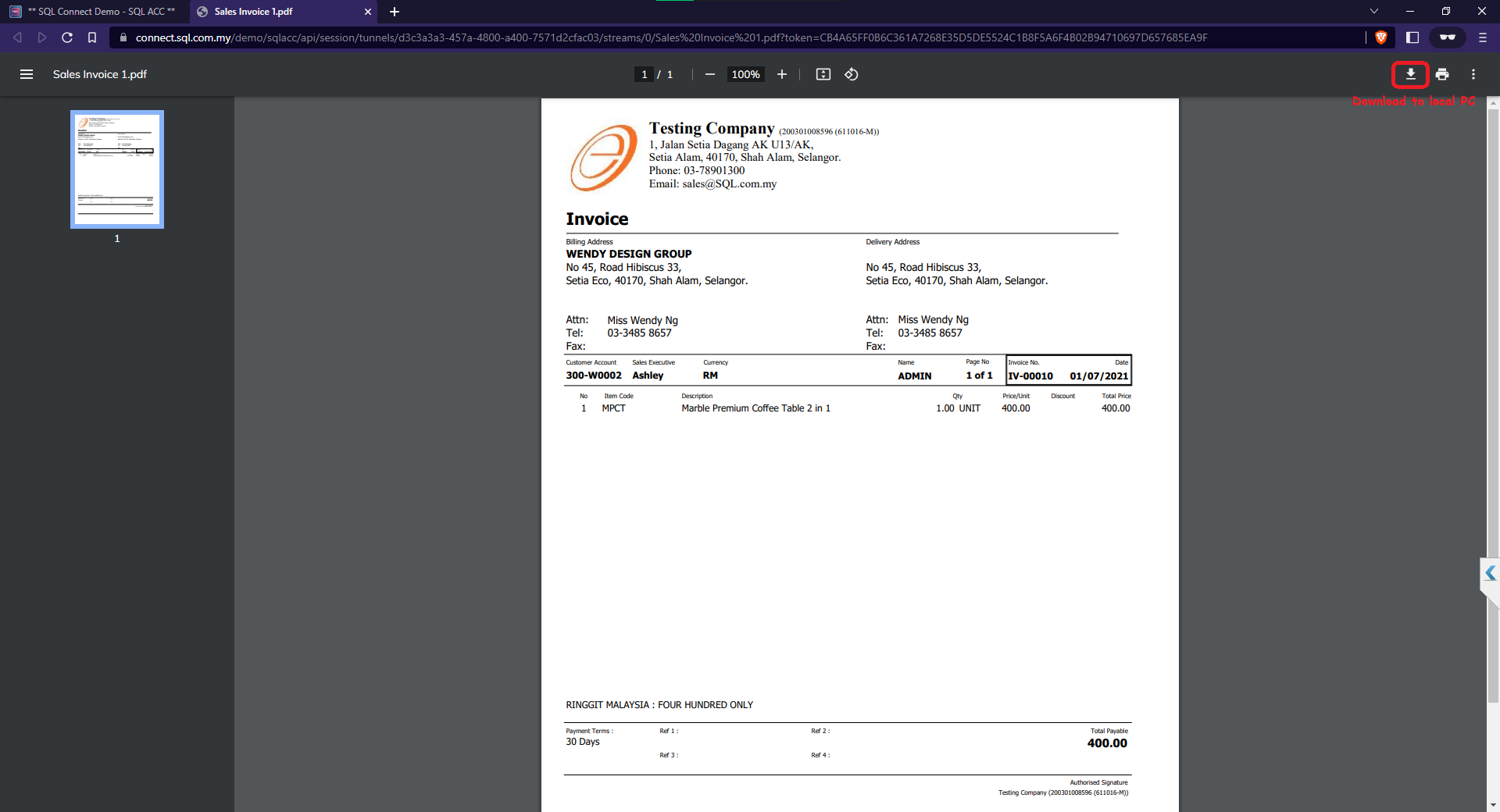
The PDF file will be opened in a new tab, click download and save the file to local PC.
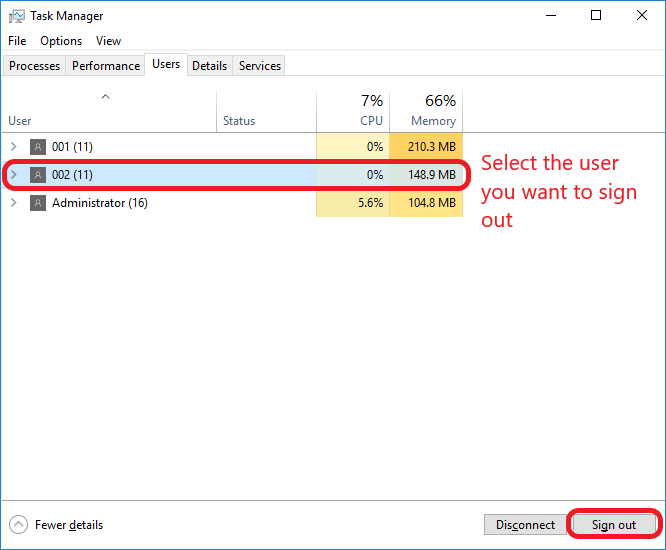
Signout (Private Cloud only)
The is exclusive for private cloud users only. In private cloud, the user has control over the server. Thus, the administrator has the right to signout connections.
SQL Connect Printing
In SQL Connect, we have two groups of users (Public cloud users & private cloud users). As a private cloud users, you gain an extra option which able to print directly to your local printer as long as the printer is accessible from your server. While for public, you can select any option listed below:
PDF Print
This feature is available in specific versions:
- SQL Account version 5.2024.976.842 and above
- SQL Payroll version 1.2024.254.204 and above
In SQL Account, go to the report preview, click on the PDF button located at the top left.
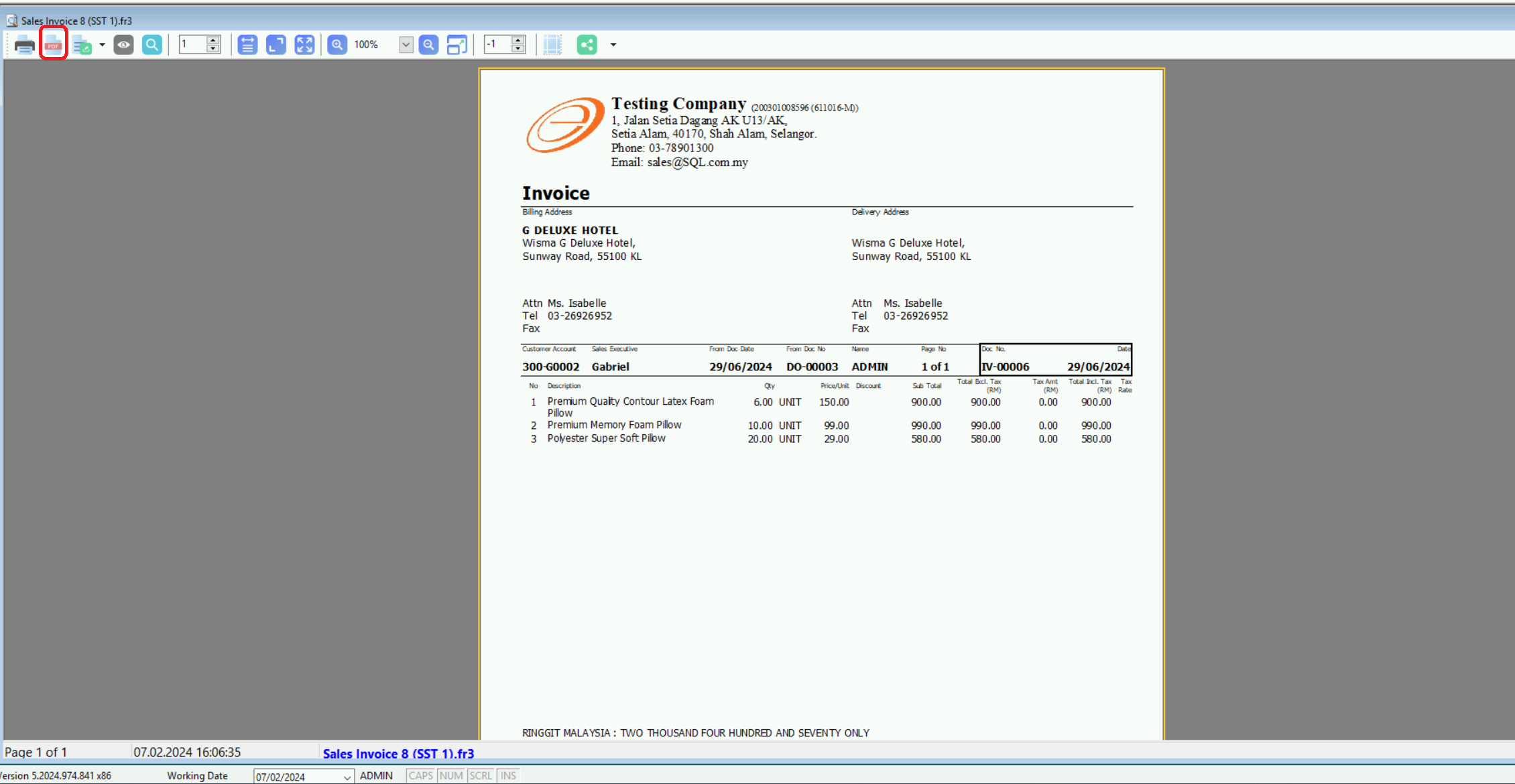
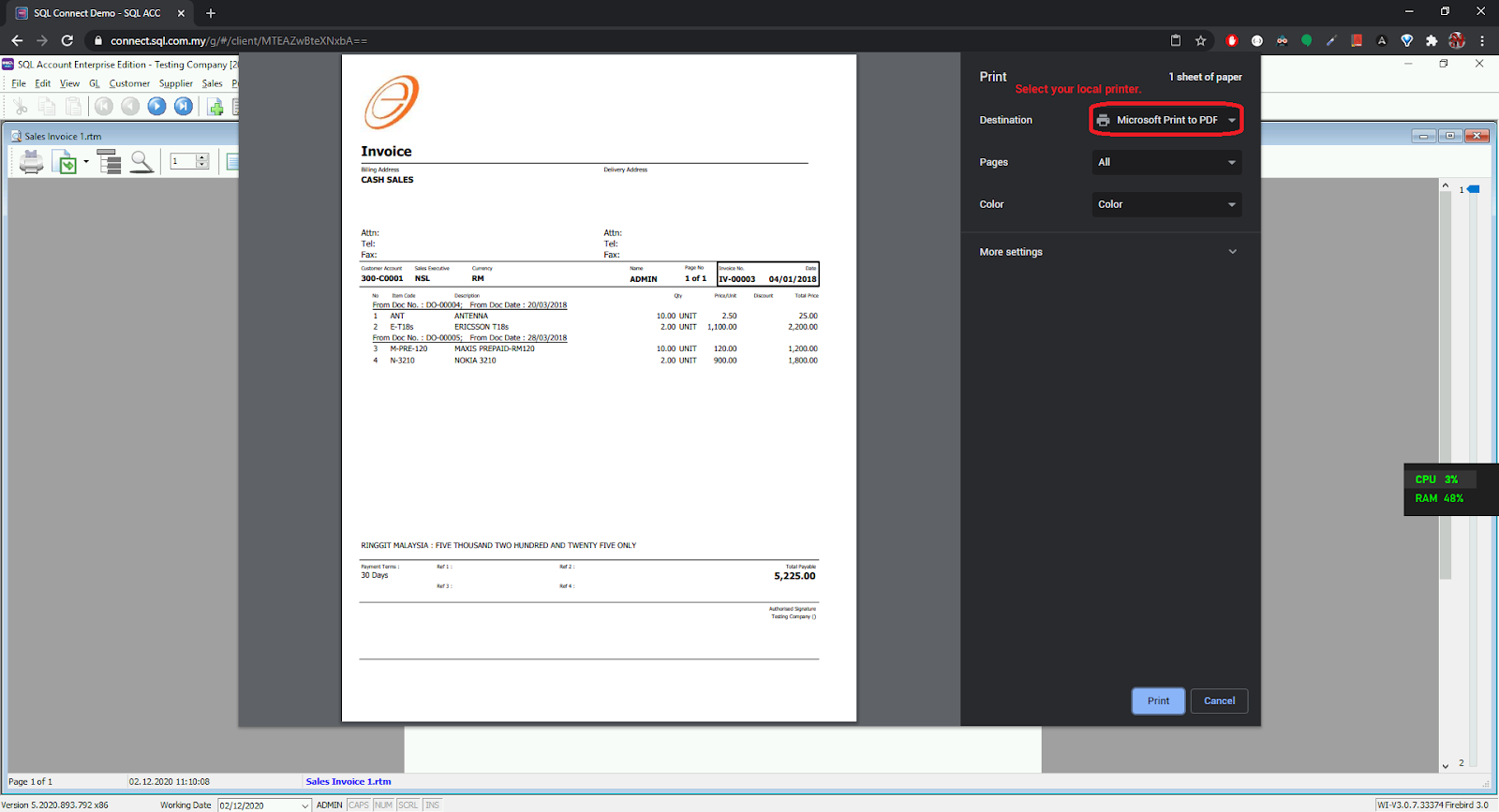
The pdf will be open in your new tab, you can then select your local printer and print.
SQL Connect Printer
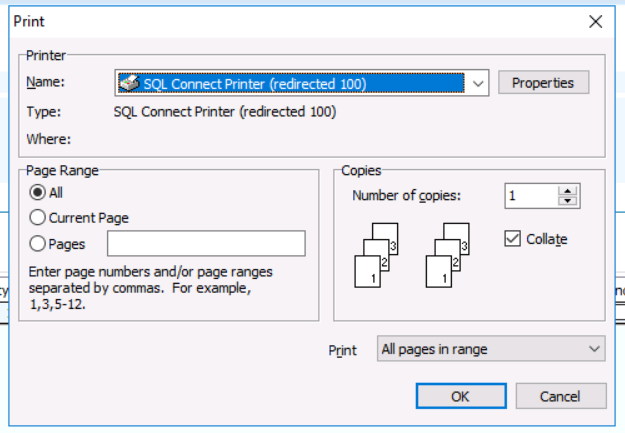
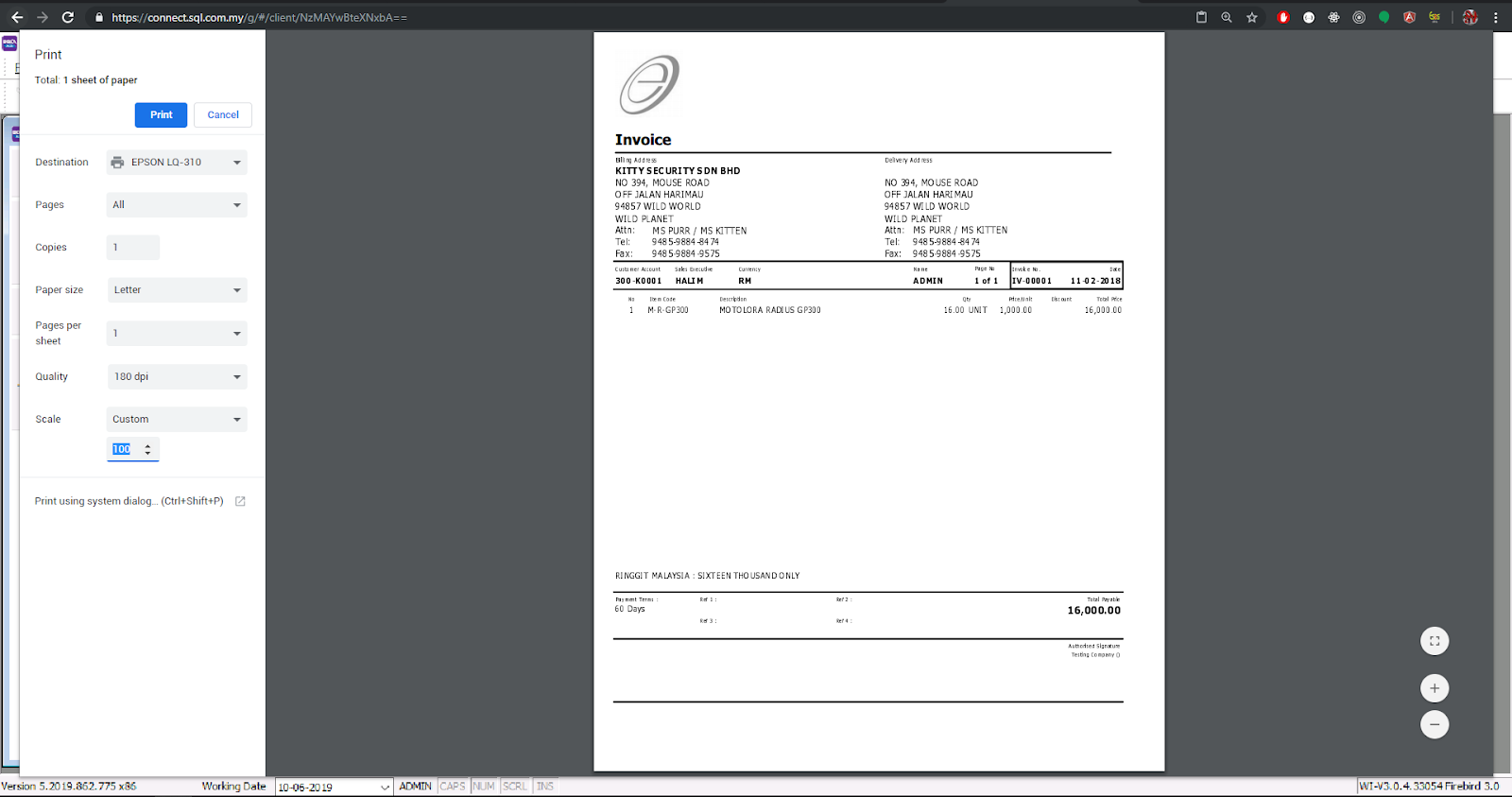
By using "SQL Connect Printer", you will then able to access the browser print dialog which has the right to utilize your local printer. From there, you can select the printer you want, size you like and so on. After select all the options you wish, click print. Below is an example of chrome print dialog:
SQL Drive method
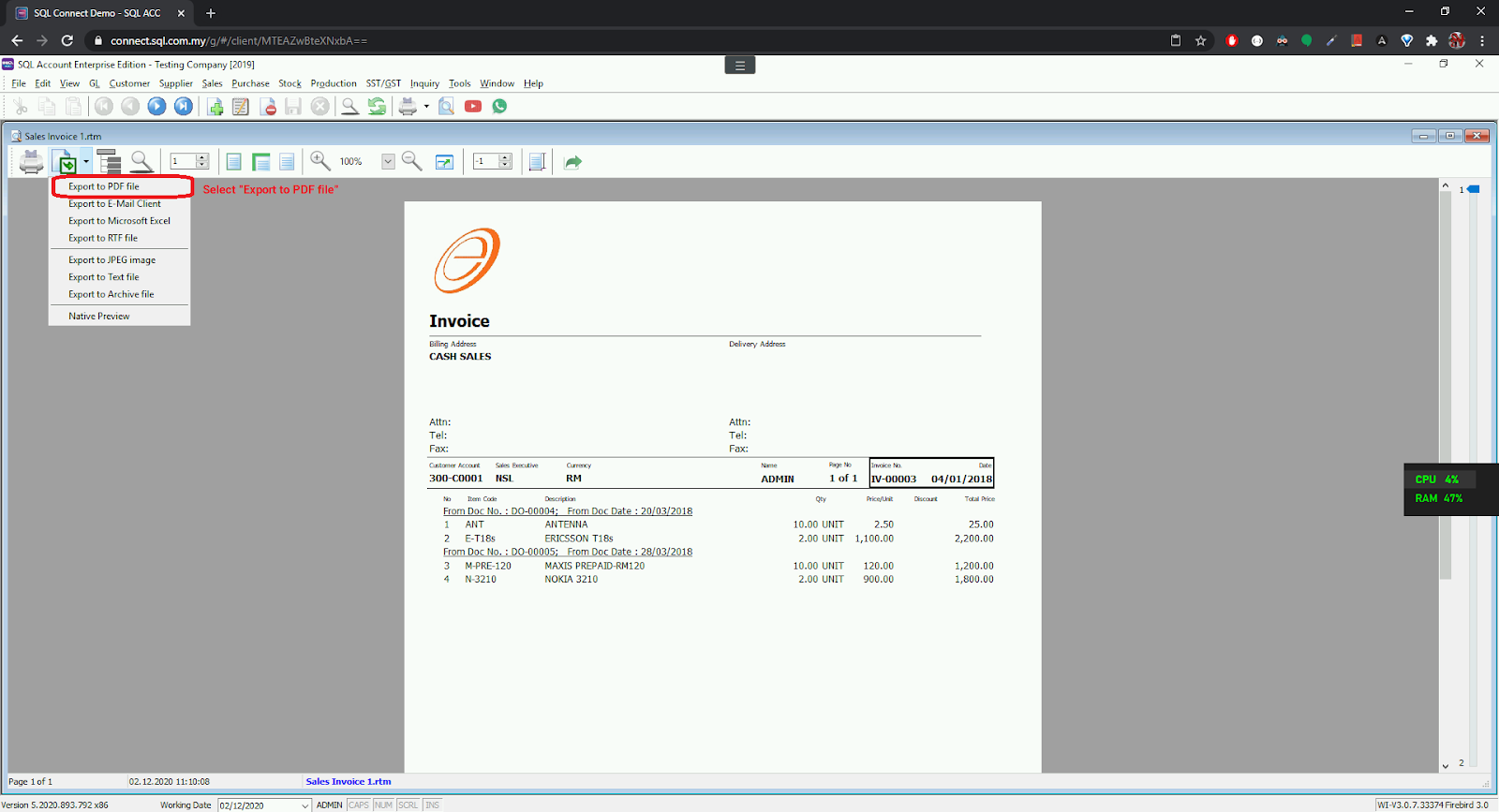
This method should produce identical result compared with PDF Print. In SQL applications, export the report as PDF and save it to "SQL Drive on SQL Connect" > Download directory
SQL Connect Subscription Checker
To check your subscription, you can open the app by following the steps below:
- Go to
File > Run - Select
SQL Connect Subscription Checker
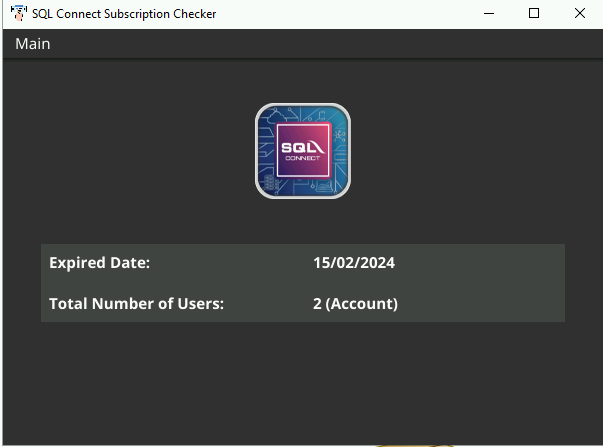
If the app is not there, you can add it manually by following the steps in SQL Utilities
SQL Utilities
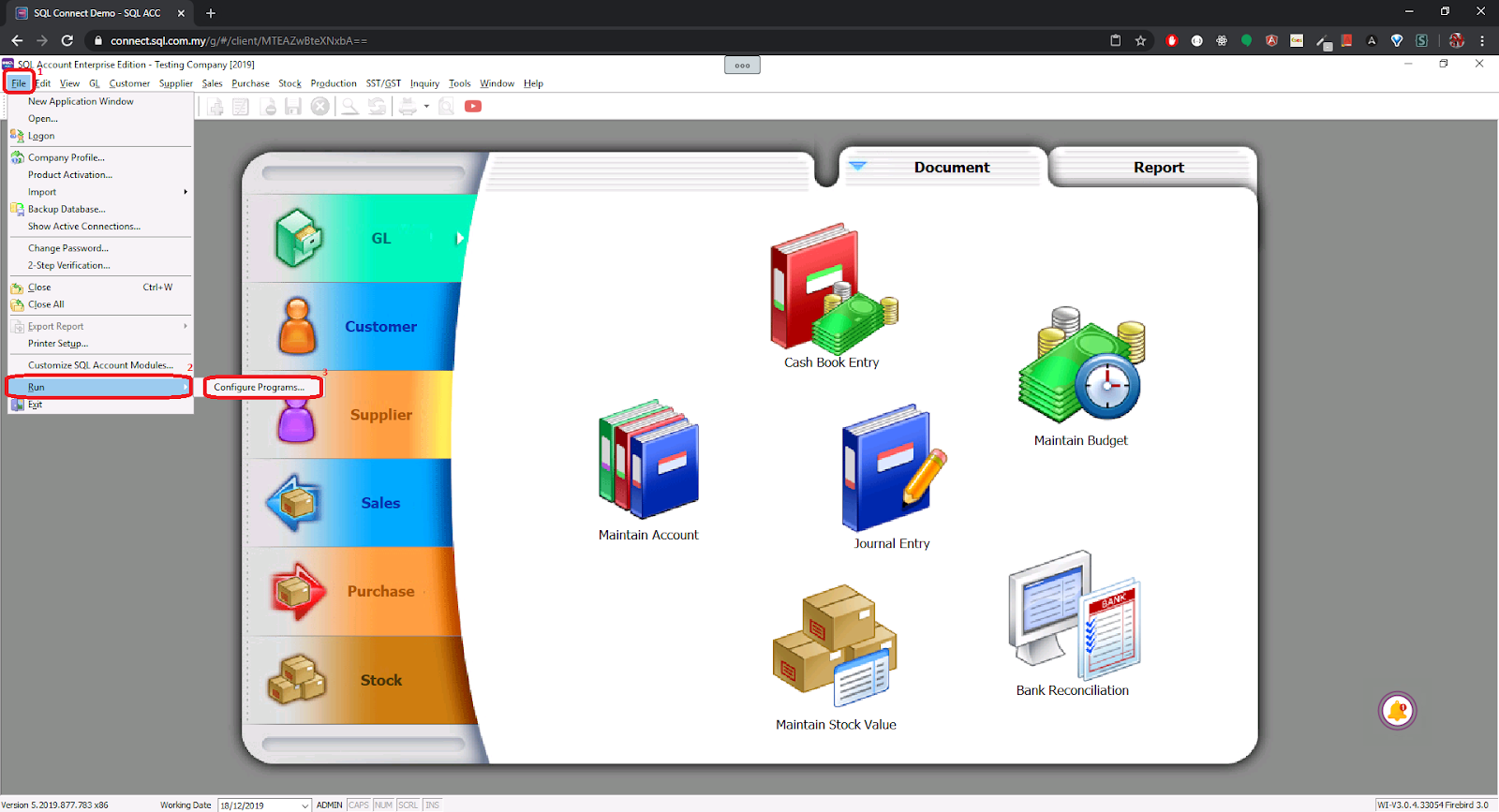
By default, SQL Connect has already generate the list when you connect to a session. But if it didn't show up, you can add them manually by following the steps below:
- Go to
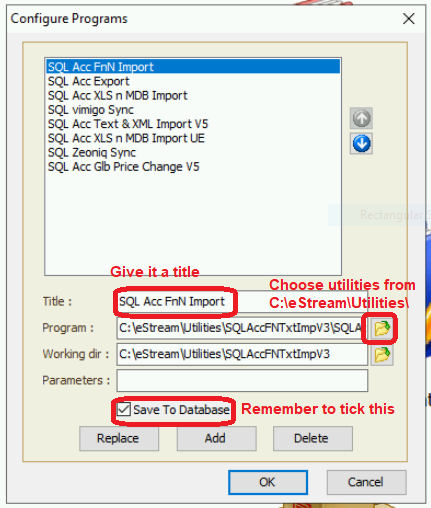
File > Run > Configure Program... - Add the utilities software from here:
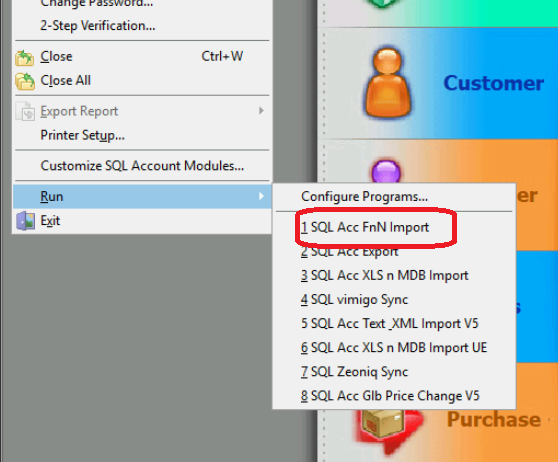
C:\eStream\Utilities - After add successfully, the program should be available at
File > Run > ...
- Summary: