Common Errors
Some solutions to common errors in SQL Connect.
Black / Blank Screen
- Perform session reset following the steps: Reset Session
Certificate Issues
Windows 7
-
Download the certificate from ISRG-ROOT-X1.
-
Run the certificate file, you will see a windows as below.
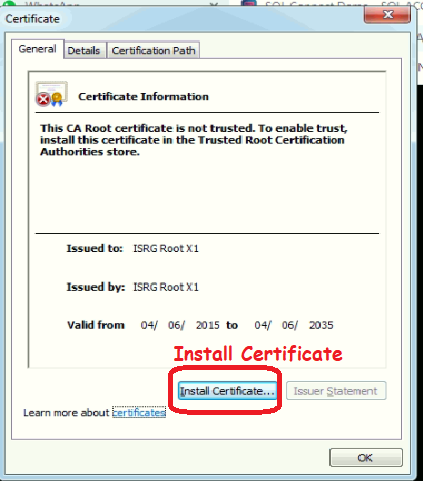
-
Install the certificate. Select the second option, click
Browse.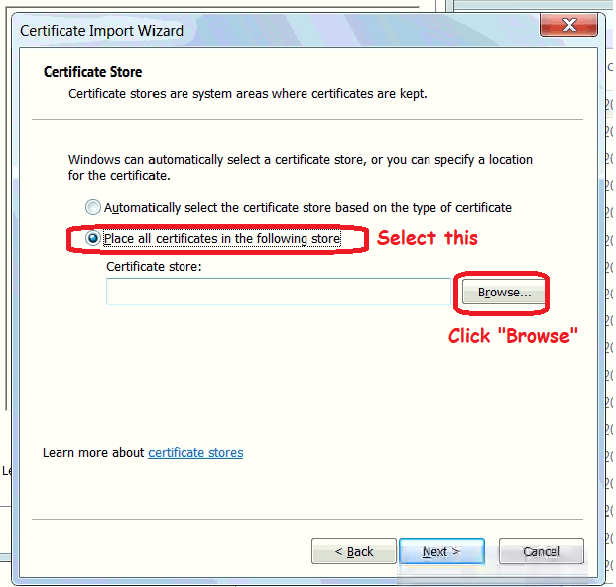
-
Select
Trusted Root Certificate Authorities.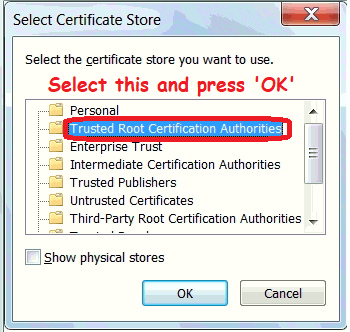
-
Reboot PC.
Windows 10
-
Update to latest Windows 10.
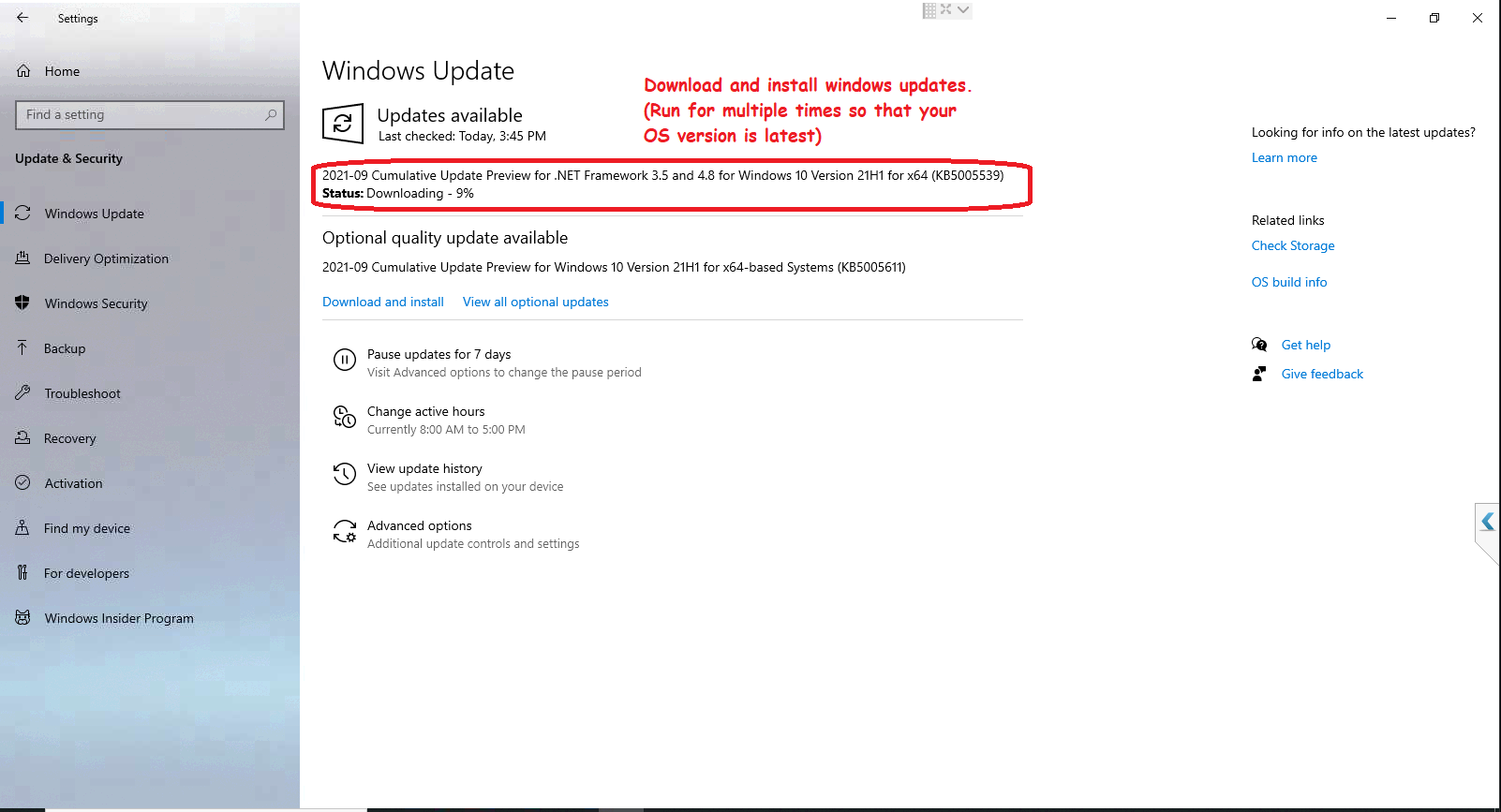
-
Download the certificate from ISRG-ROOT-X1.
-
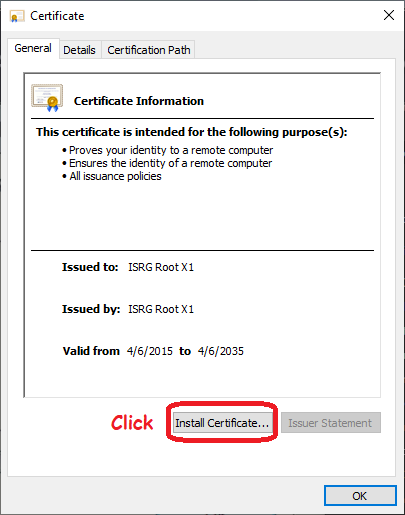
Run the certificate file, you will see a windows as below
-
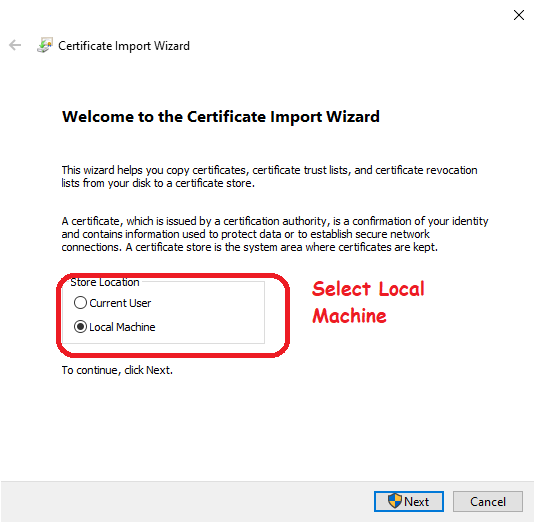
Install the certificate on Local Machine.
-
Select the second option, click
Browse.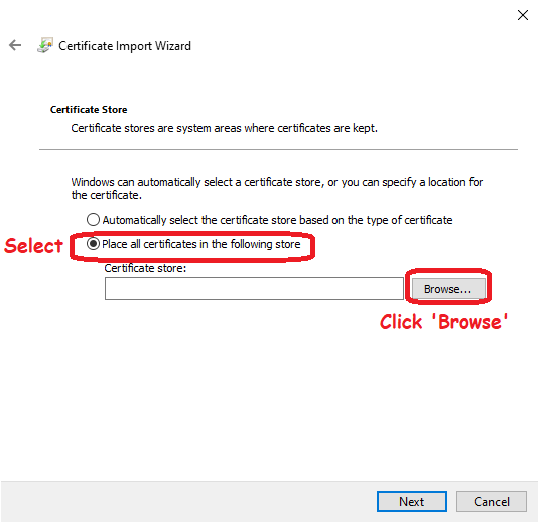
-
Select
Trusted Root Certificate Authorities.
-
Reboot PC.
Empty Homepage
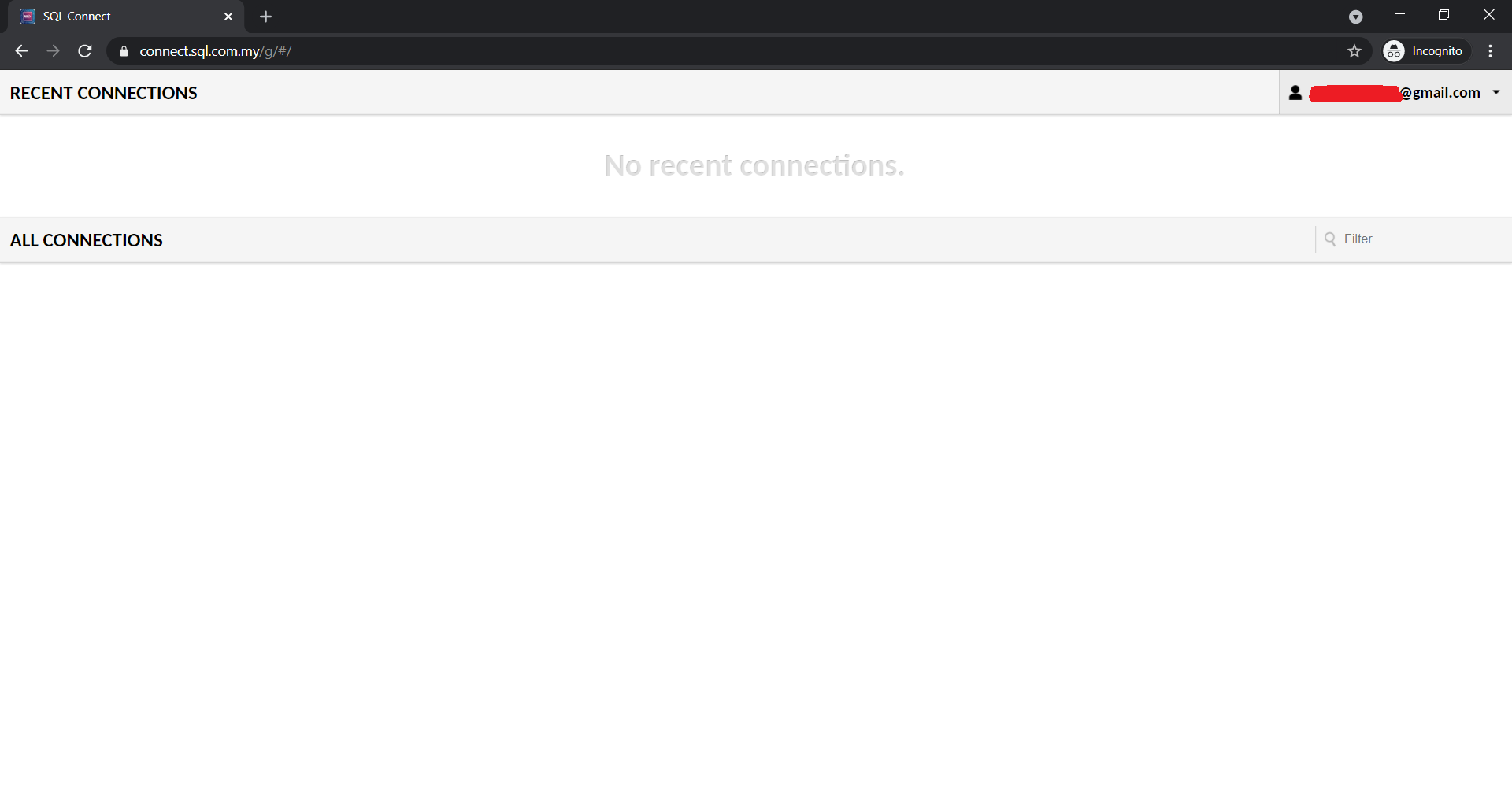
- If you see the above screen, it indicates that your account is not activated yet. Kindly contact your dealer or our support team for further checking.
Sign in error
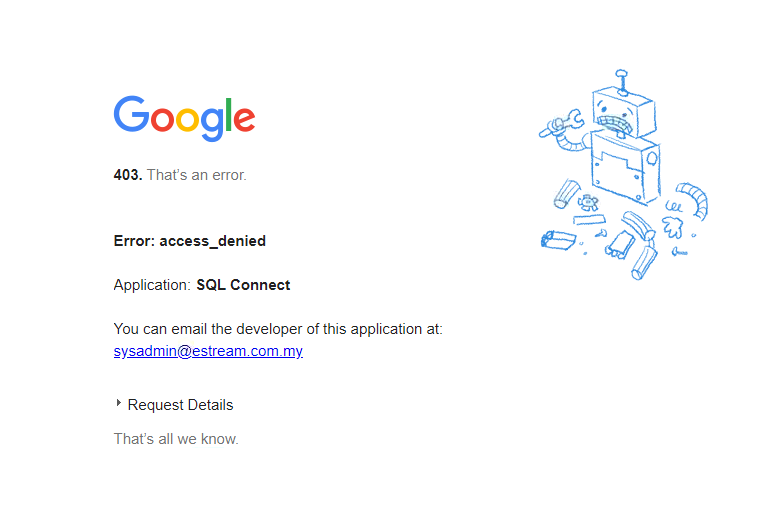
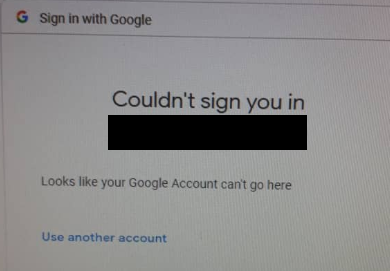
- if you see errors like above, you will have to check your email's date of birth. Google classifies email which has an age less than 18 years old as child. With a child email, you are forbidden from entering many websites available in the web including our SQL Connect services.
- Besides, make sure no Family Link email is used.
There is no default printer selected
- Do a reset on the user session: Reset Session