Statutory Submission
1 Central Provident Fund (CPF)
1.1 Setting up Company CPF Submission Number
-
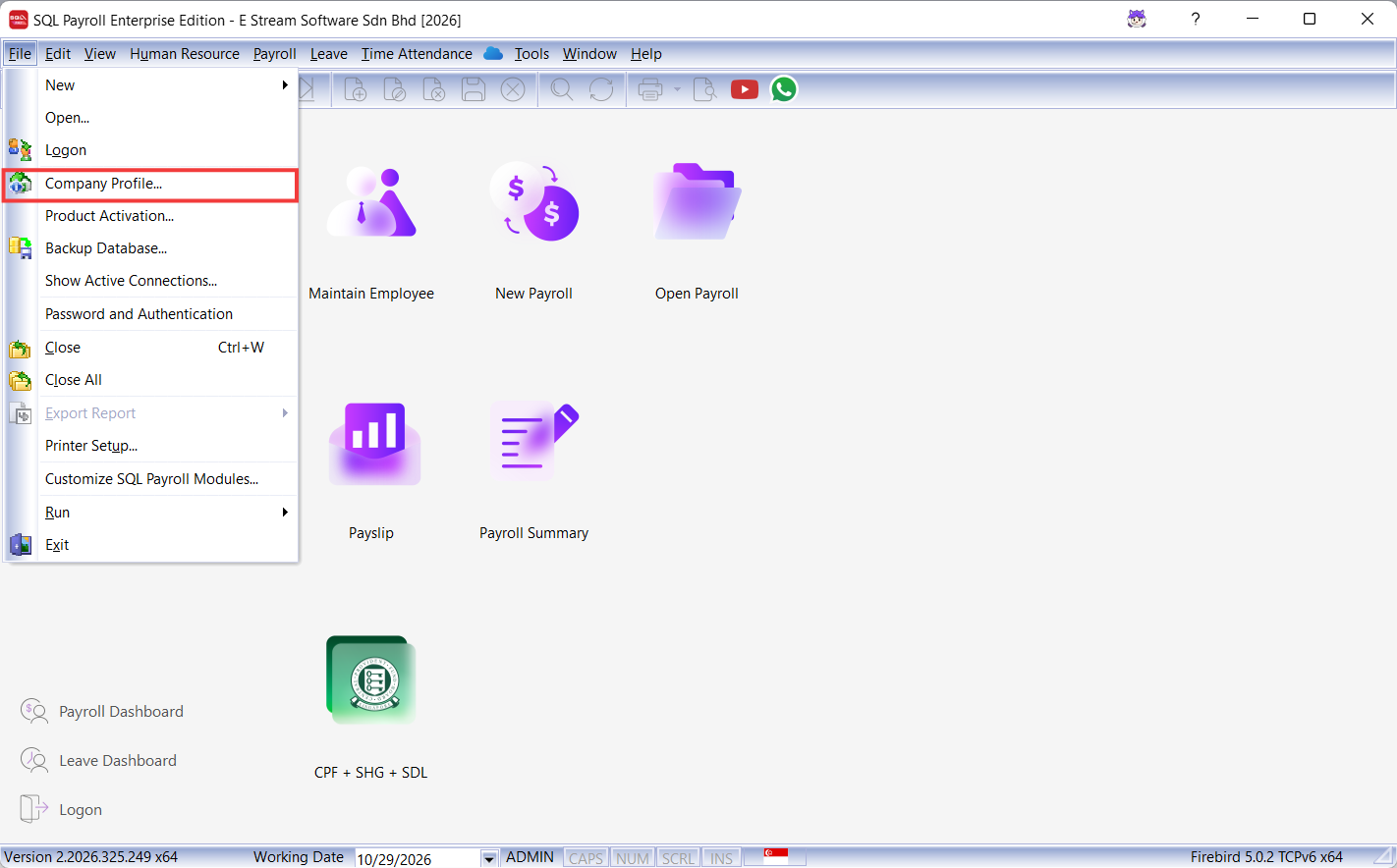
Navigate to File > Company Profile.
-
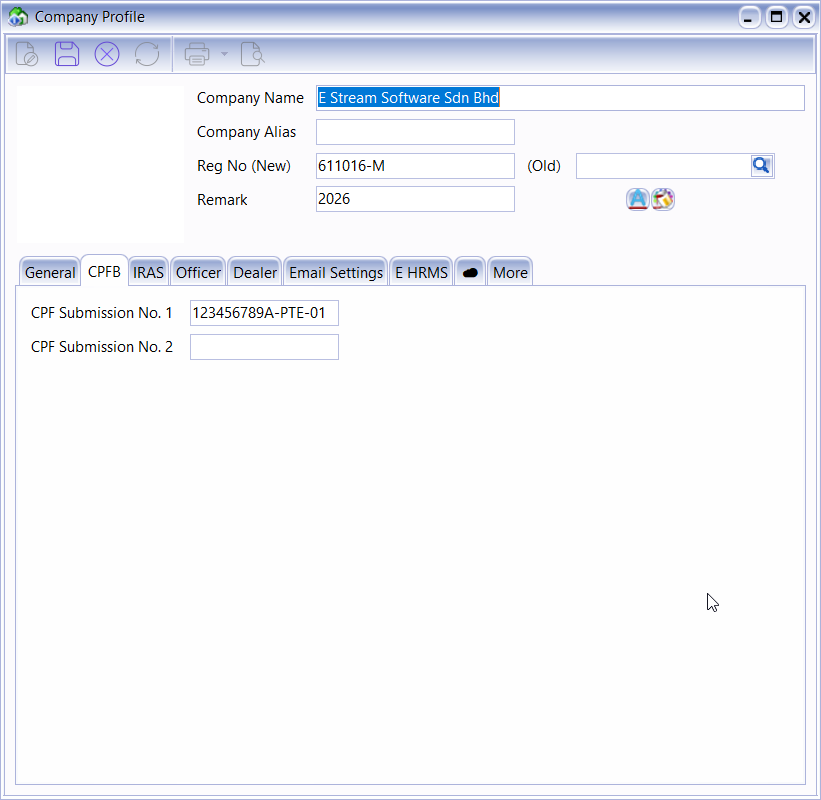
Click on CPFB tab.
-
Fill in CPF Submission No. 1 and optionally CPF Submission No. 2 if have additional CPF Submission Number.
1.2 Assign CPF Submission Number to Employee
Optional for company that only have one CPF Submission Number. Default CPF Submission No.1 is assigned to employees.
-
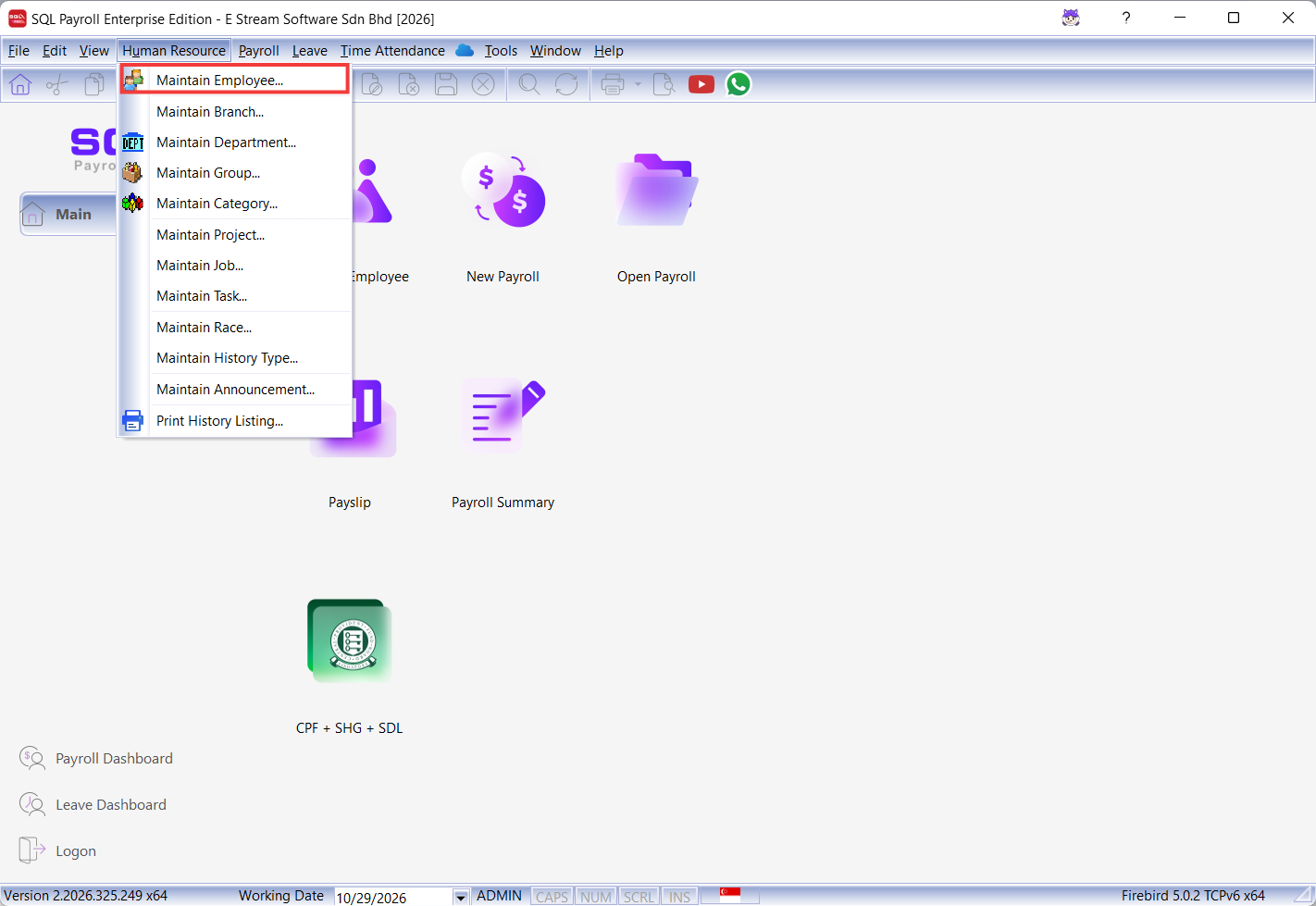
Navigate to Human Resource > Maintain Employee.
-
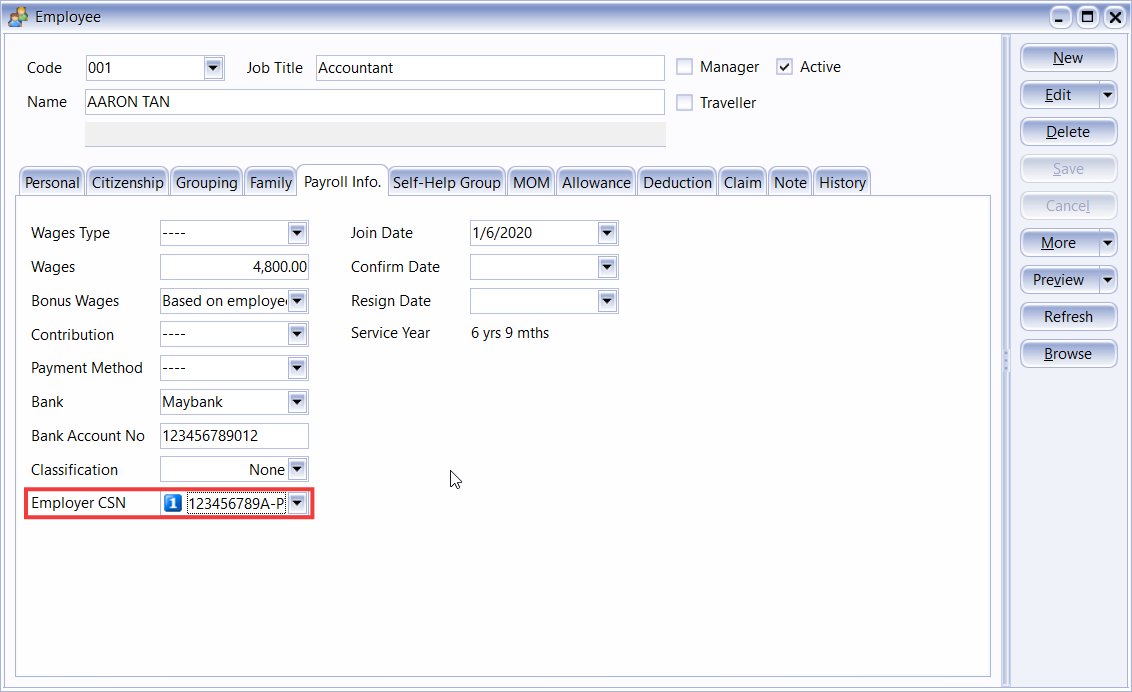
Click on Payroll Info tab.
-
Select the Employer CPF Submission No. associated with the employee.
1.3 Export CPF EZPay File
-
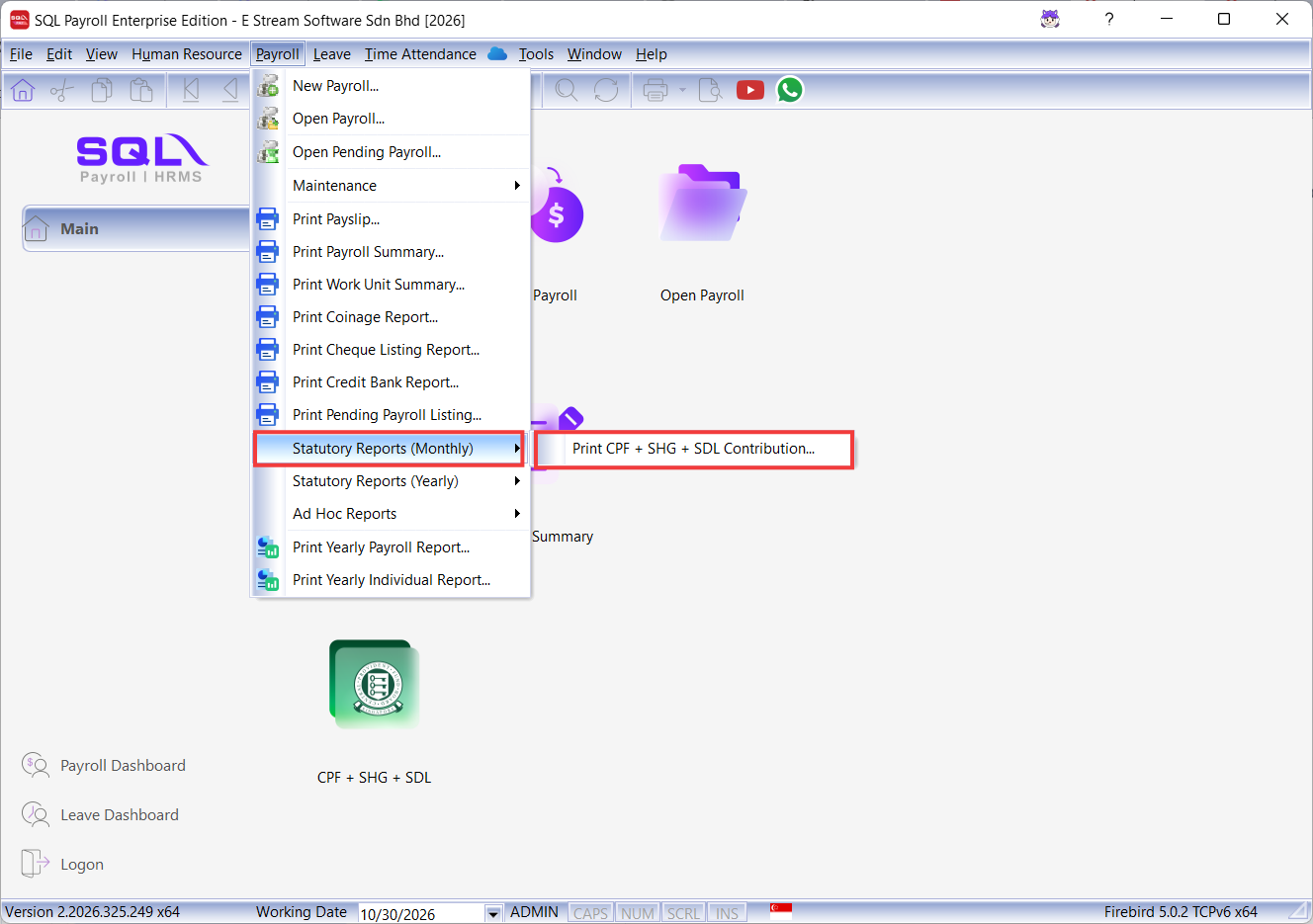
Navigate to Payroll > Statutory Report (Monthly) > Print CPF + SHG + SDL Contribution.
-
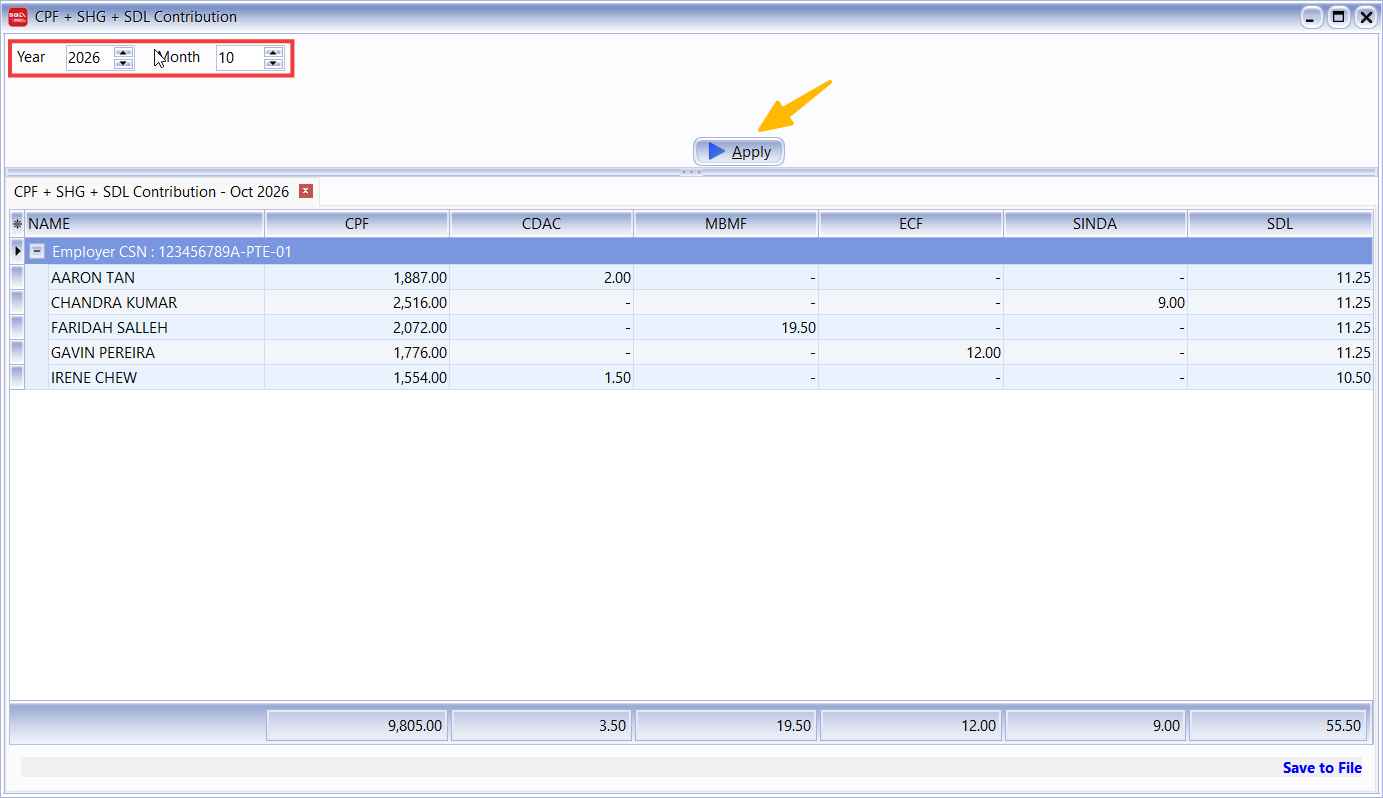
Fill in the Year and Month of submission and click ▶️Apply.
-
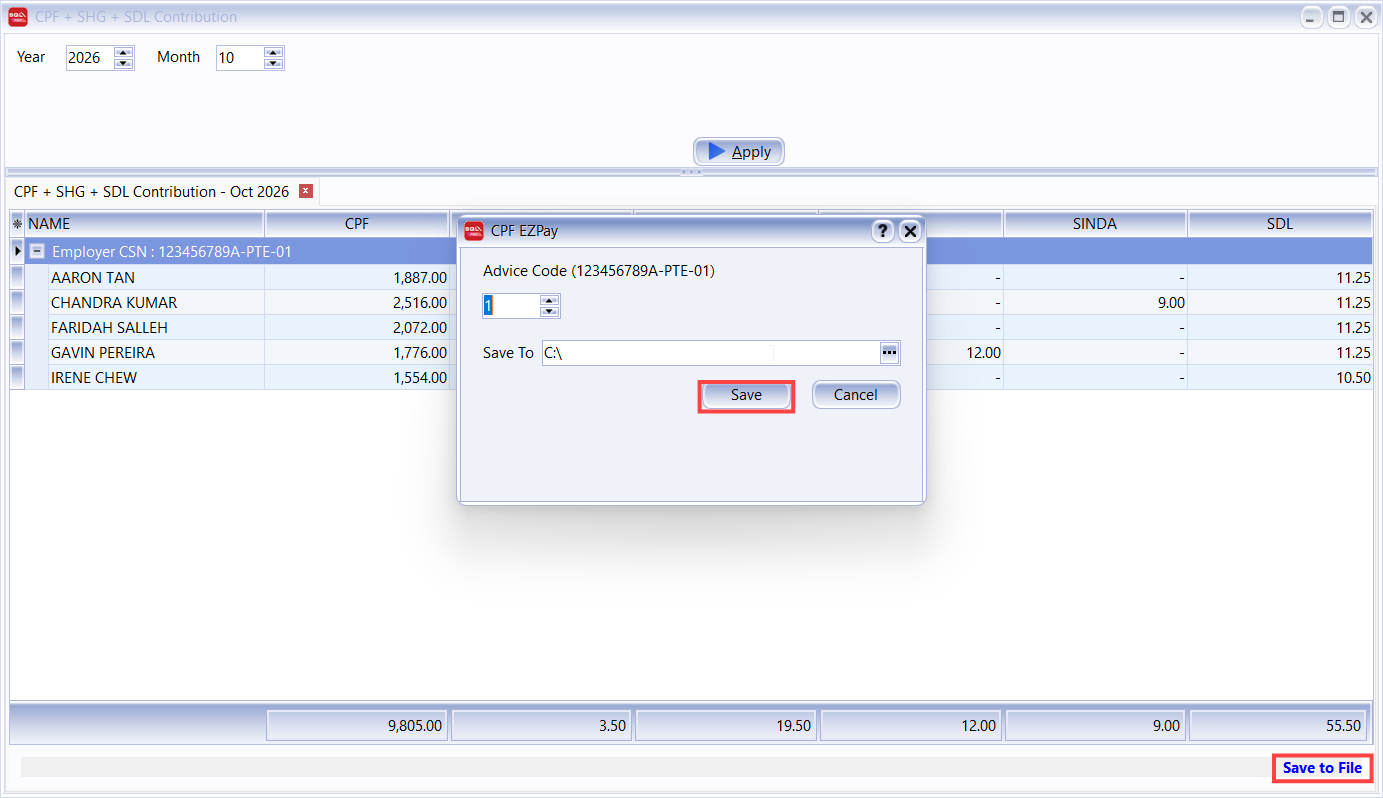
Click Save to File at the bottom right corner.
-
Key in the Advice Code and select a destination path to export to. Click Save.
1.4 Submission via API
-
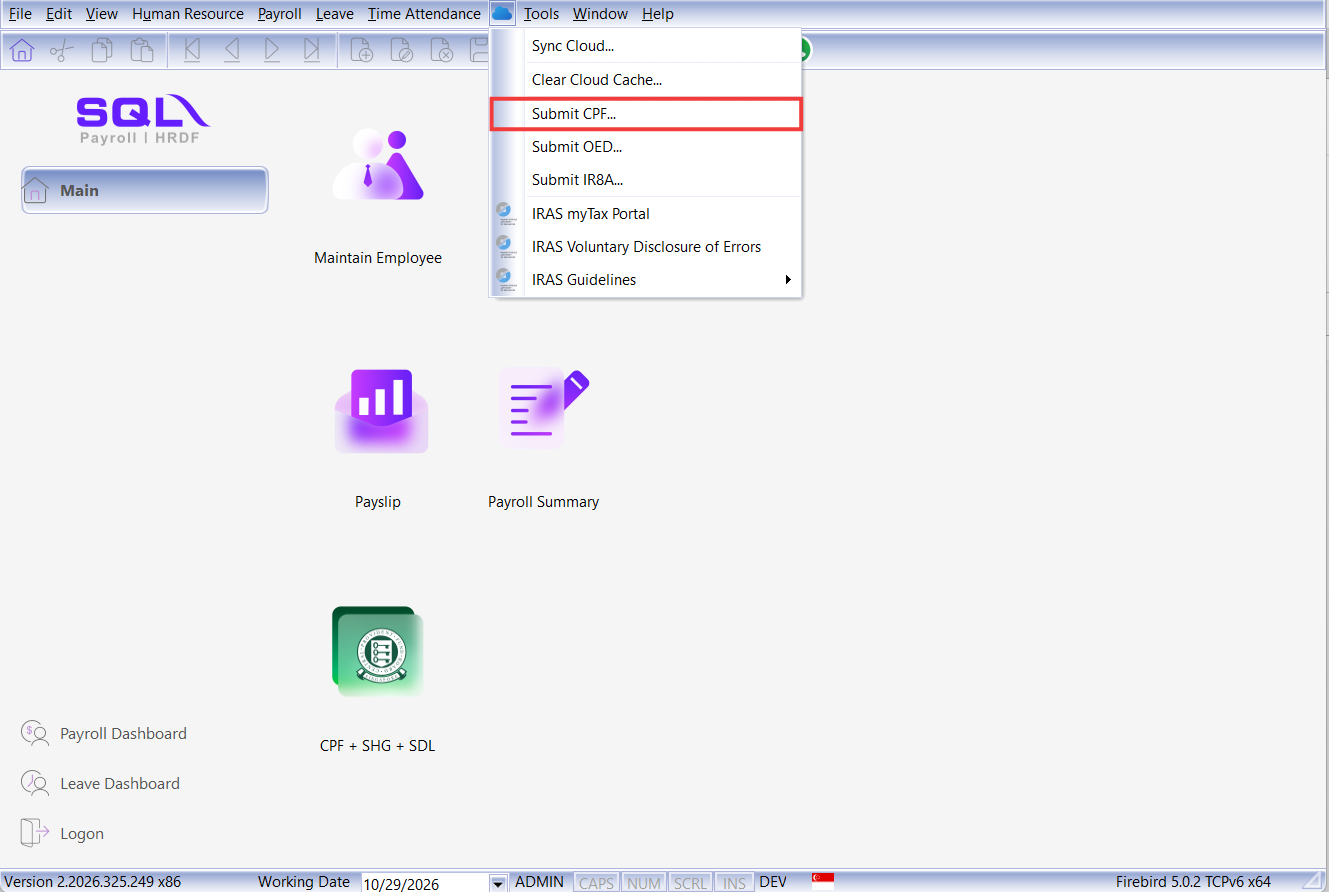
Navigate to ☁️ > Submit CPF.
-
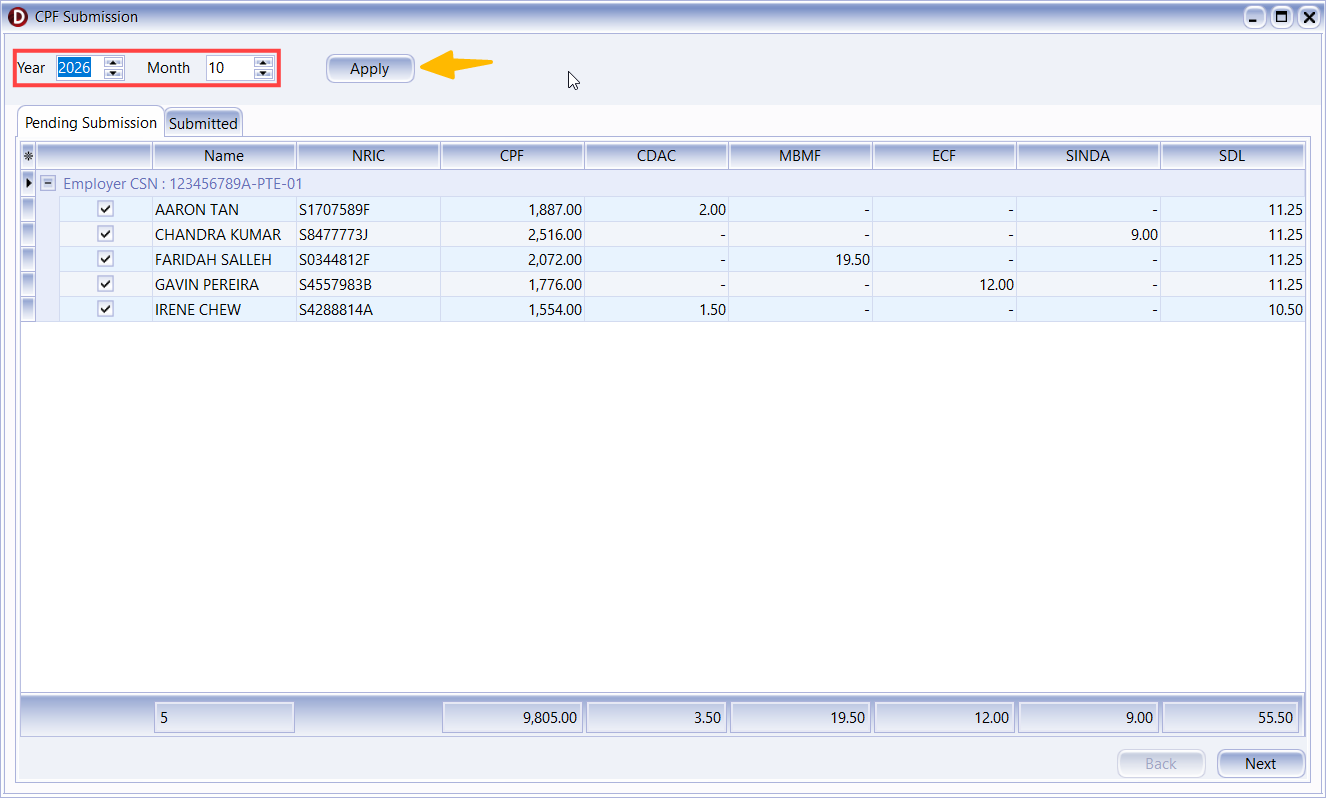
Fill in the Month and Year of submission and click ▶️Apply.
-
The Pending Submission tab displays employees whose CPF contributions have not yet been submitted for the month.
-
Click Next.
-
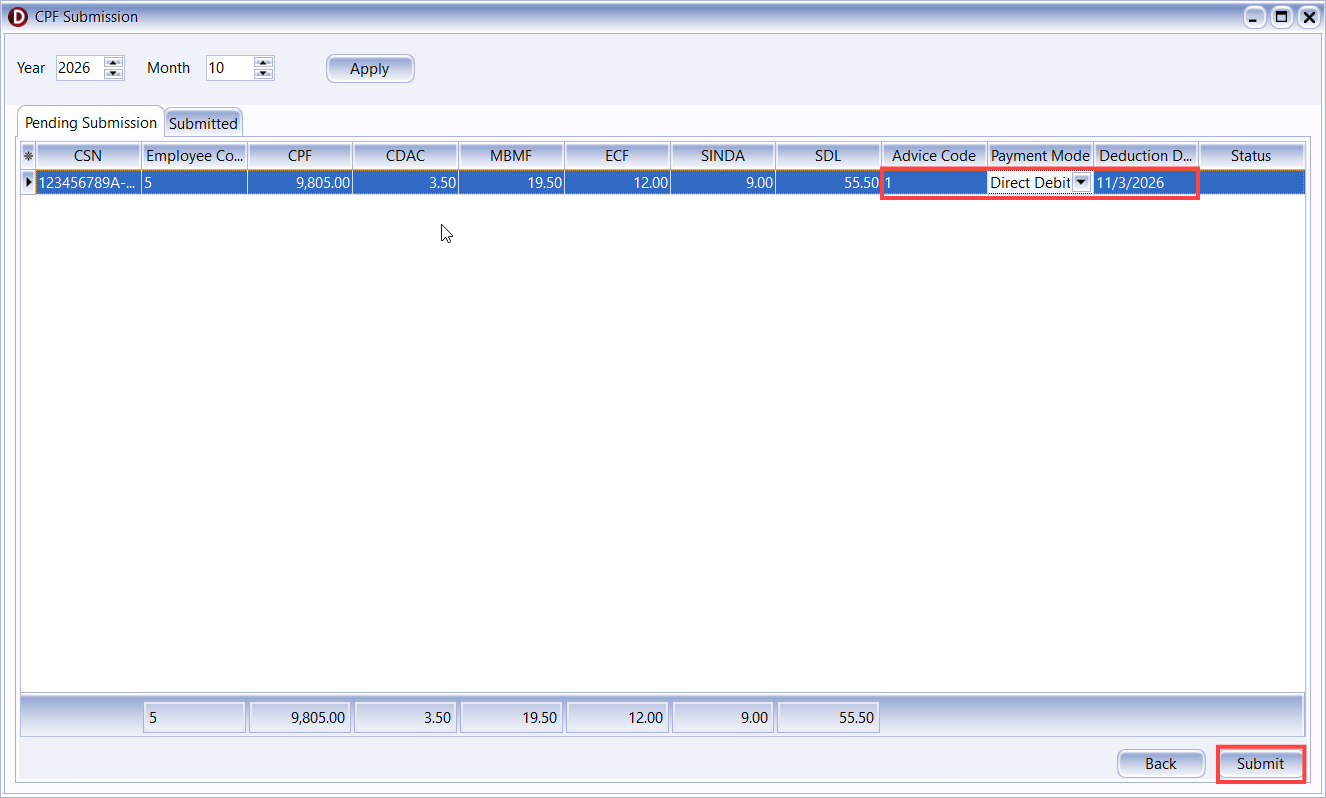
Fill in the Advice Code and select Payment Mode. Fill in Deduction Date if select Direct Debit as Payment Mode.
How to Determine Direct Debit Deduction DateIf the submission is made before 5:15 PM, the Deduction Date must be 2 working days after the submission date. Otherwise, it must be 3 working days after the submission date.
-
Click Submit.
-
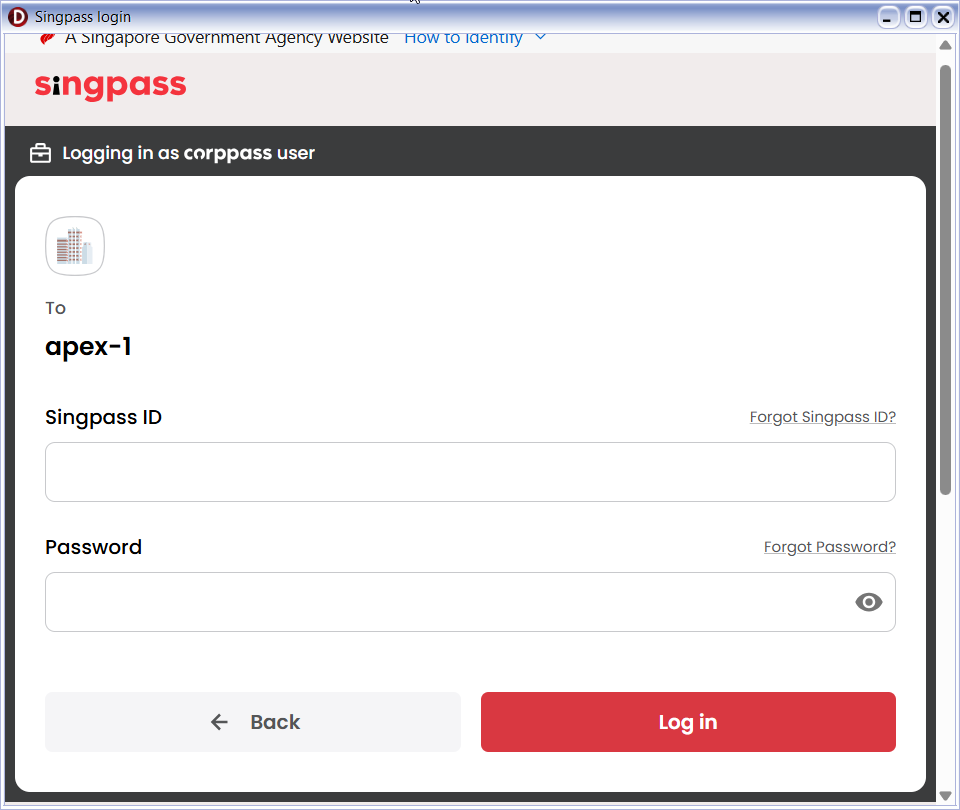
Logon using either Singpass App or Password Login.
-
Follow wizard to submit to CPF Board.
2 Occupational Employment Dataset (OED)
2.1 Export OED File
-
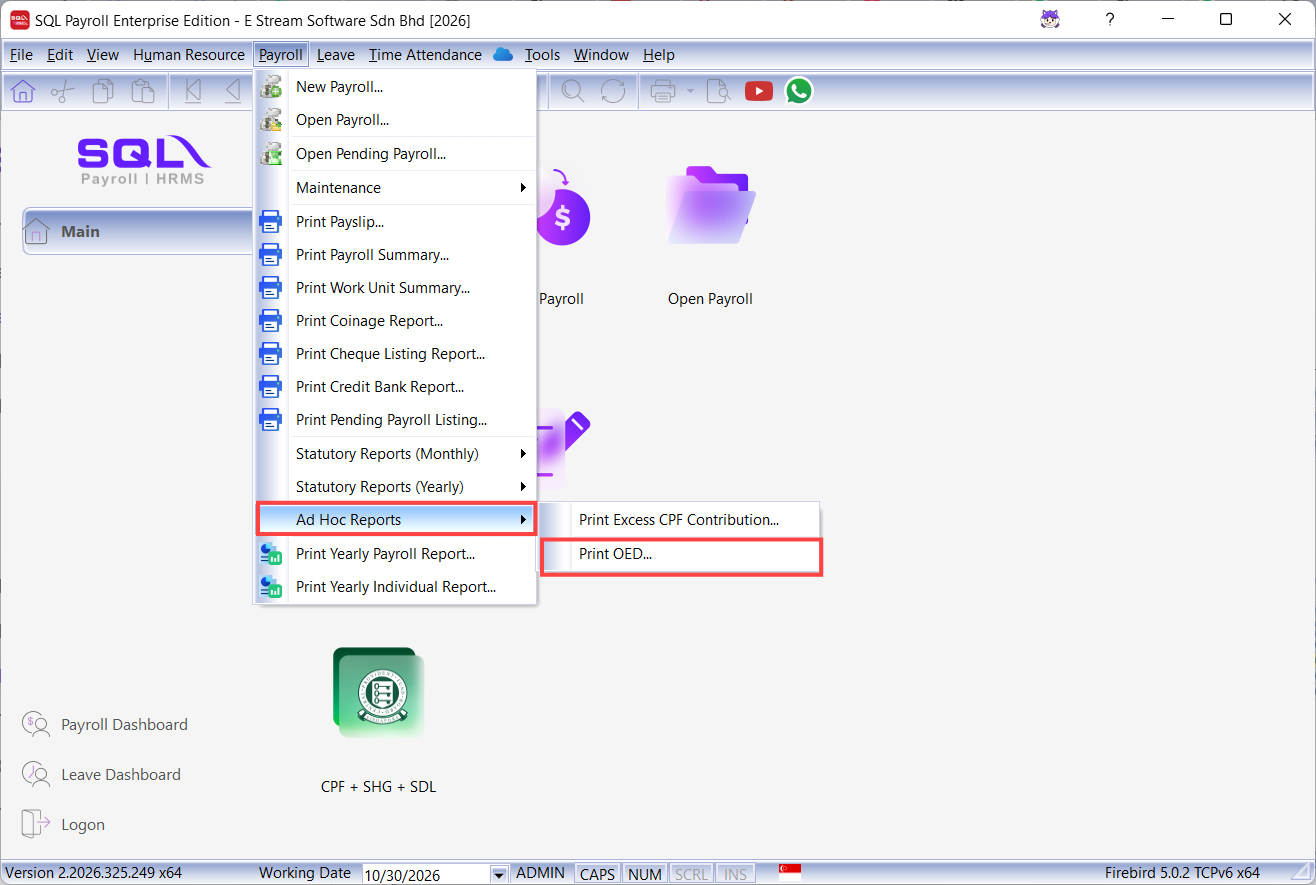
Navigate to Payroll > Ad Hoc Reports > Print OED.
-
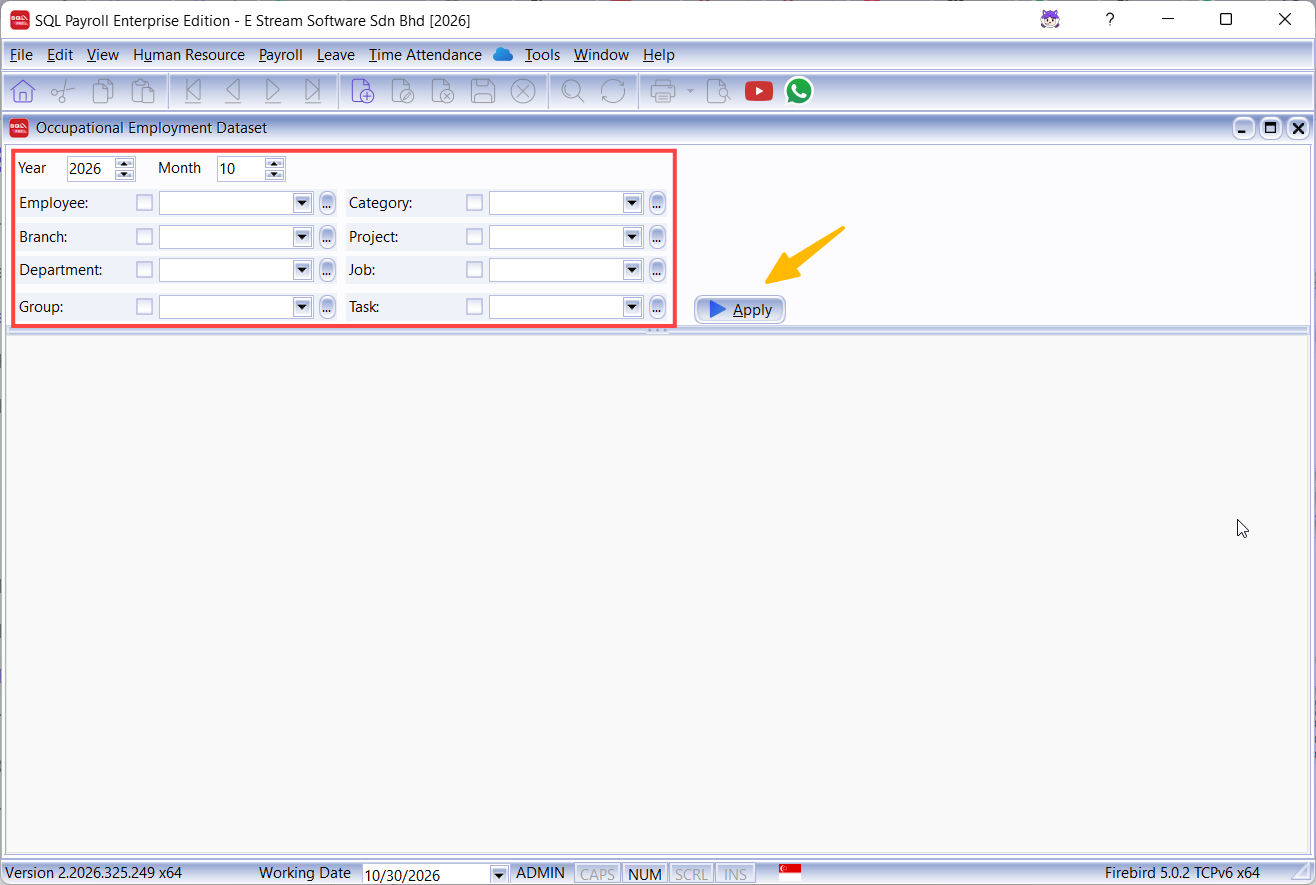
Fill in the Year and Month of submission. Fill in other details for filtering. Click ▶️Apply.
-
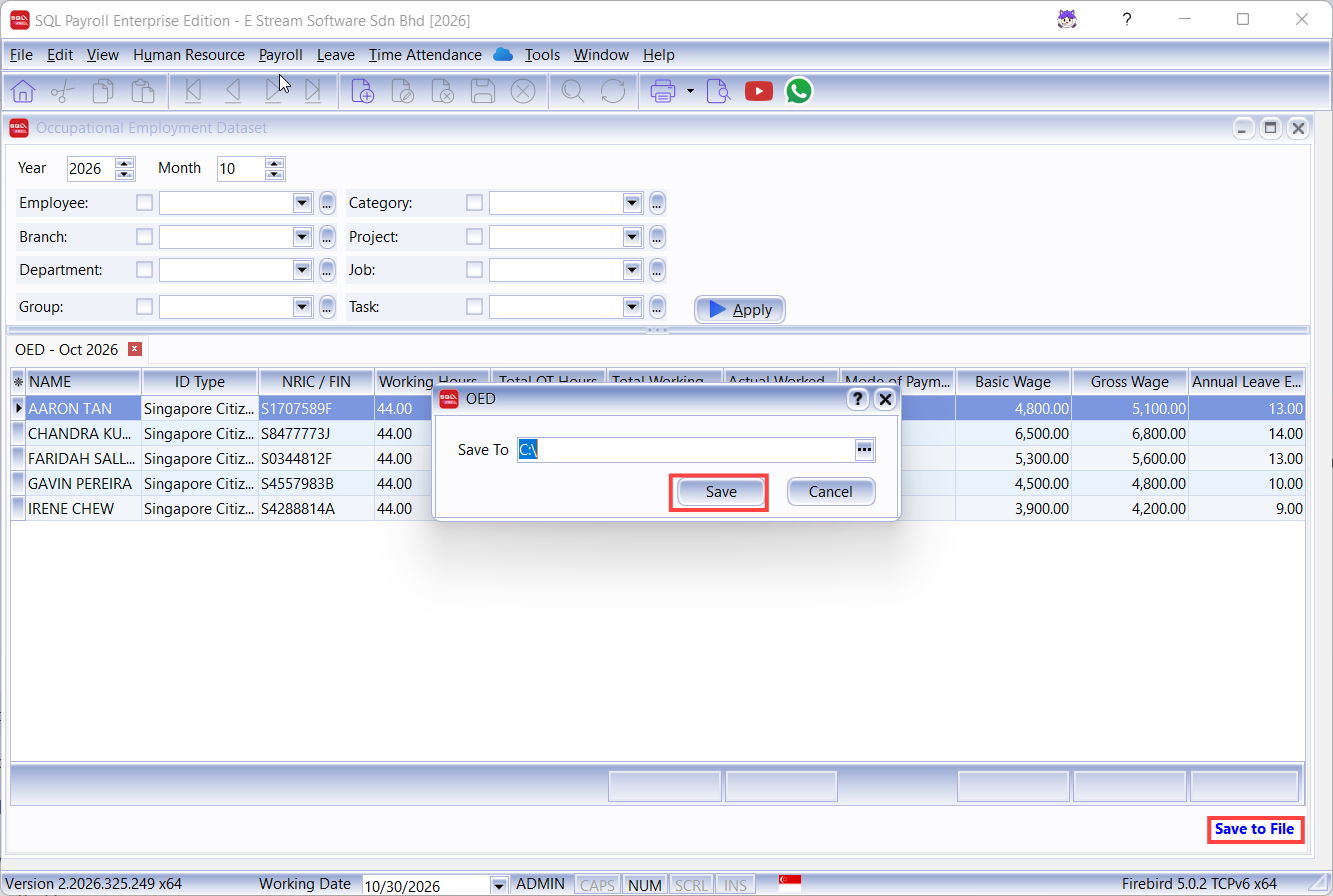
Click Save to File at the bottom right corner.
-
Select a destination path to export to. Click Save.
2.2 Submission via API
-
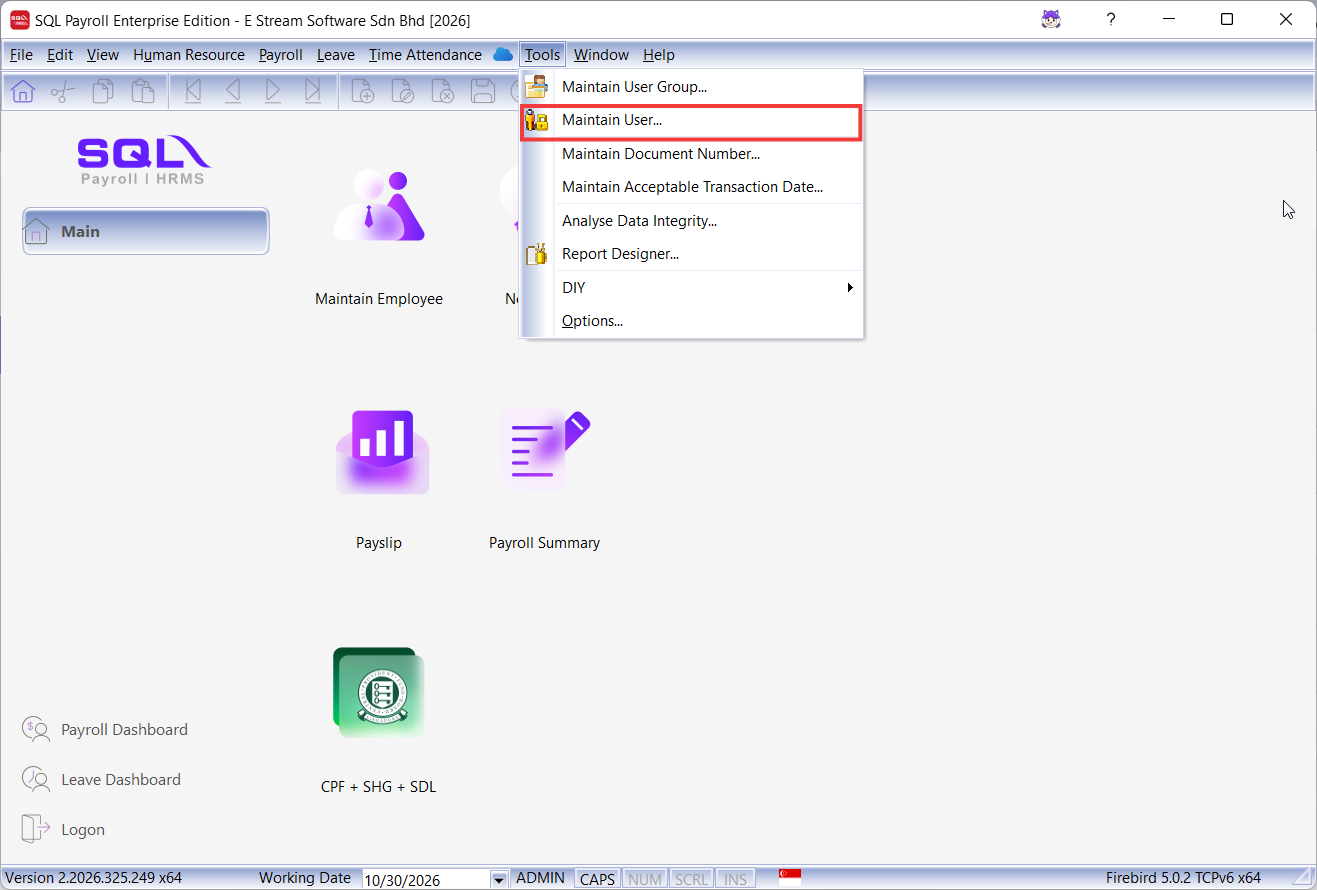
Navigate to Tools > Maintain User
-
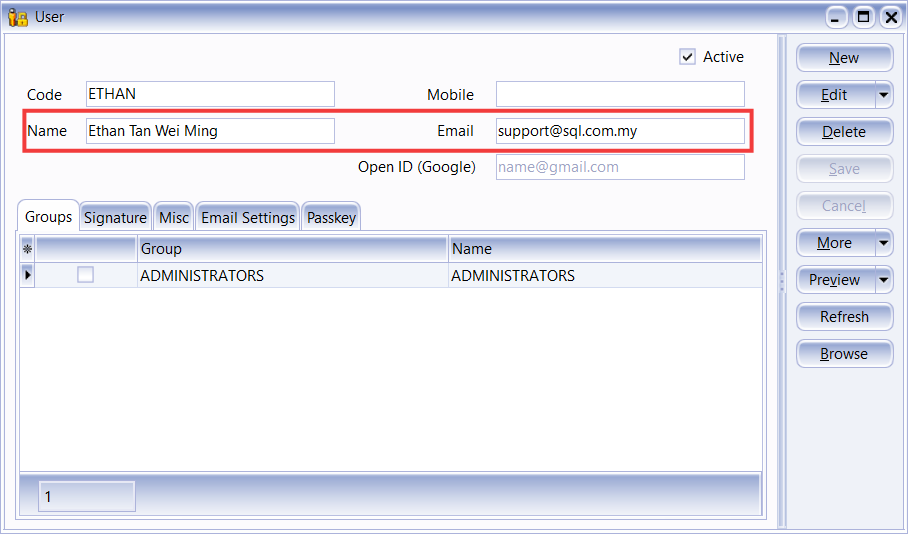
Fill in Name and Email. It will be used for requestor name and email of the submission.
infoA separate email will be sent to requestor email to ensure requestor is kept informed throughout the submission process
-
Navigate to ☁️ > Submit OED.
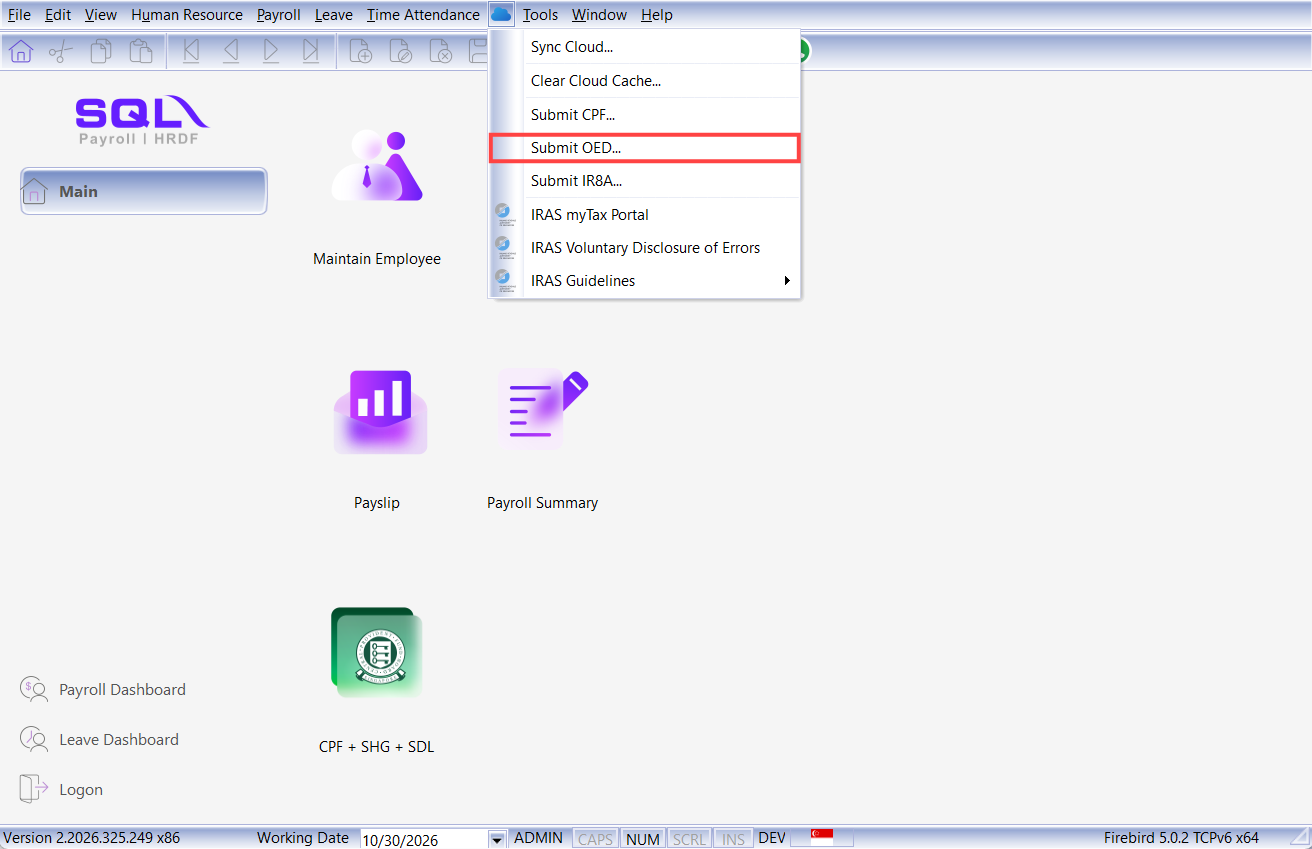
-
Fill in the Month and Year of submission and click ▶️Apply.
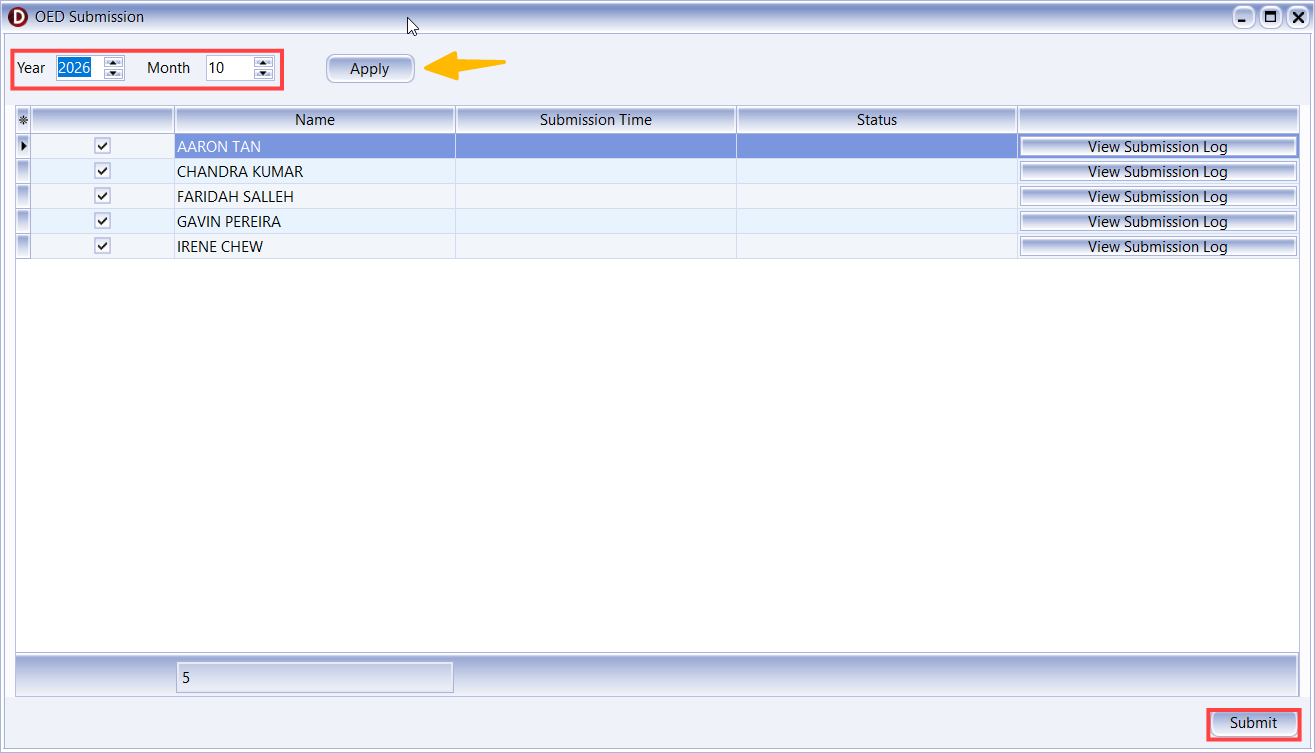
-
Click Submit.
-
Logon using either Singpass App or Password Login.
-
Follow wizard to submit to Ministry of Manpower.
3 IR8A
3.1 Print IR8A Form
-
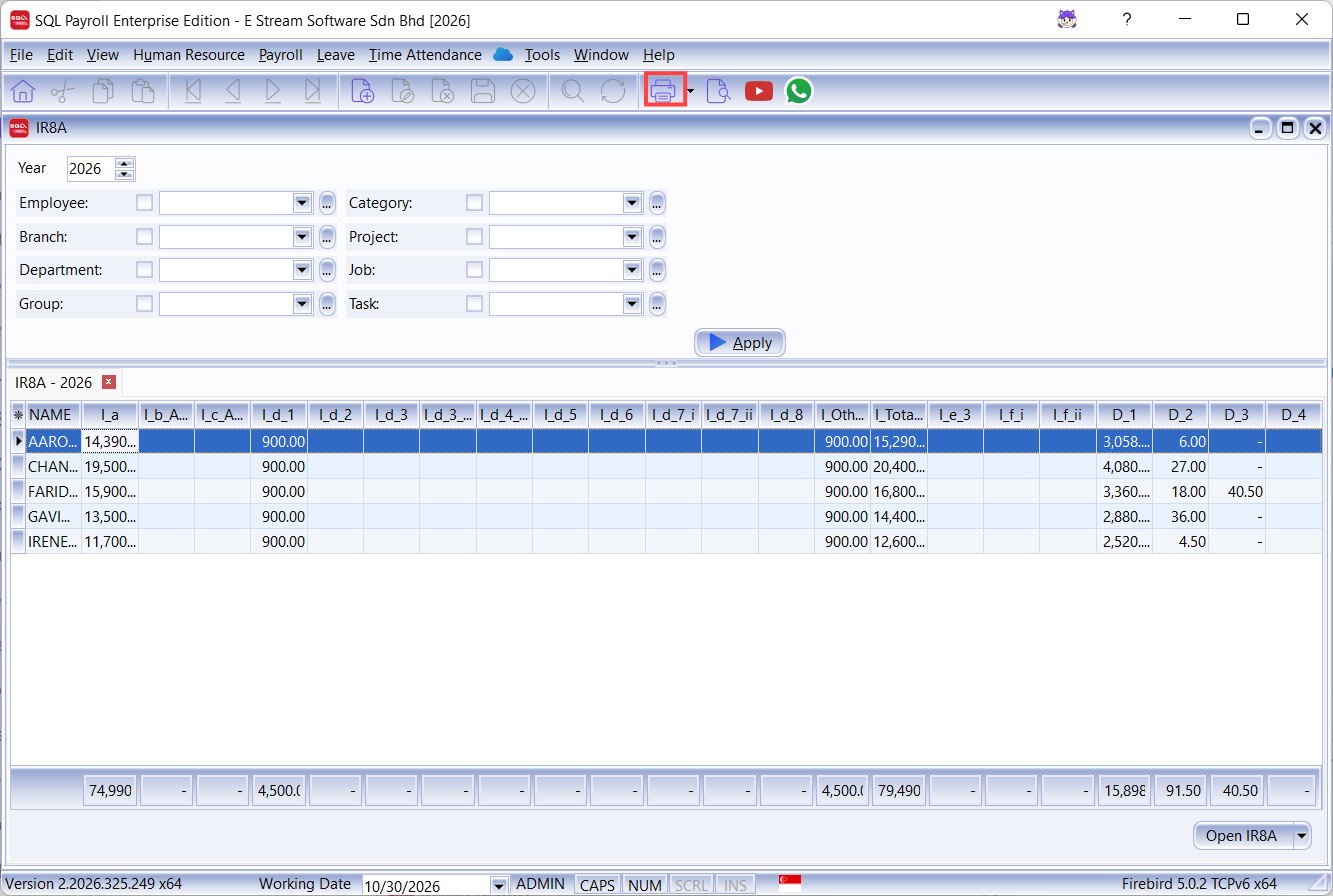
Navigate to Payroll > Statutary Reports (Yearly) > Print IR8A.
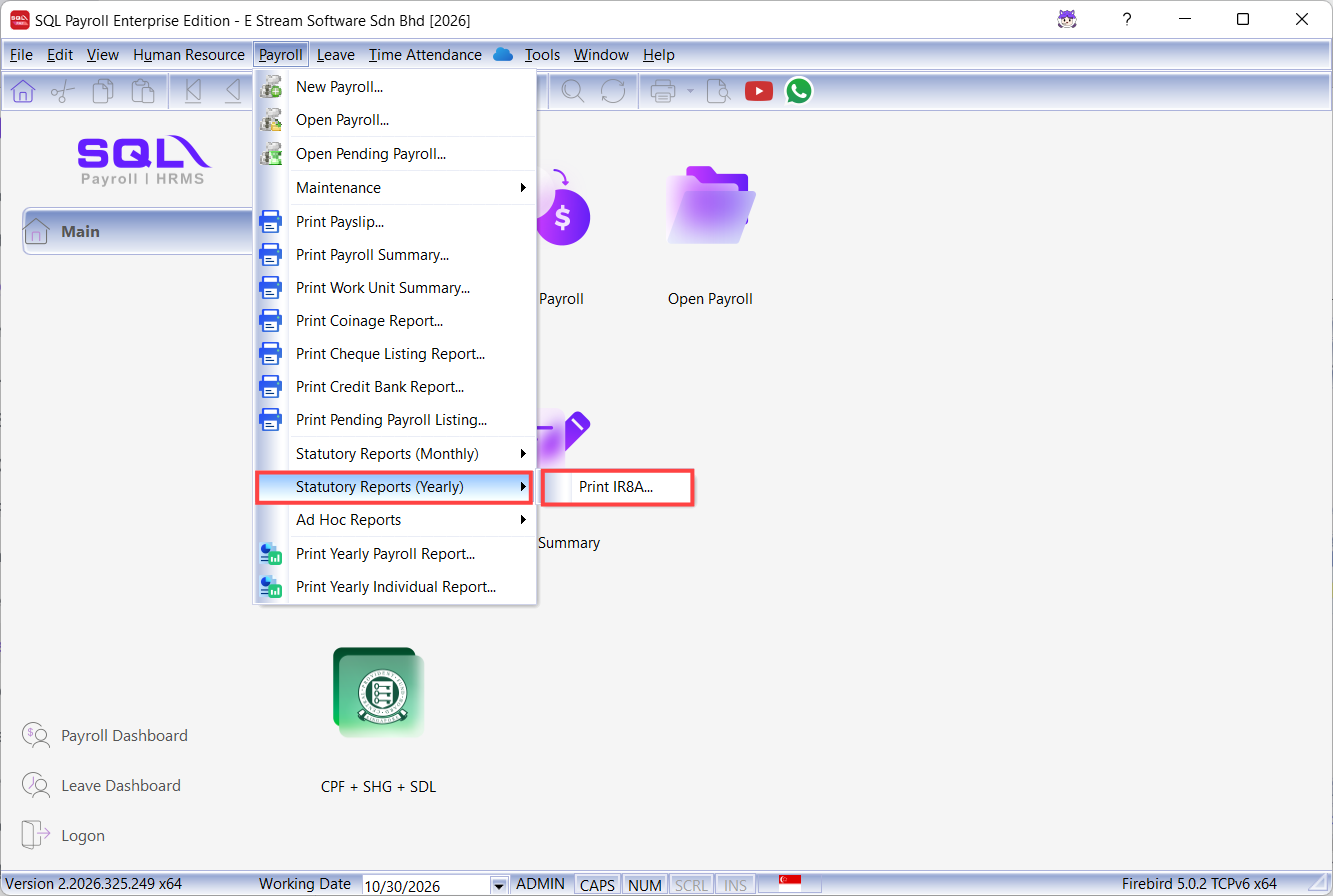
-
Fill in the Year of submission. Fill in other details for filtering. Click ▶️Apply.
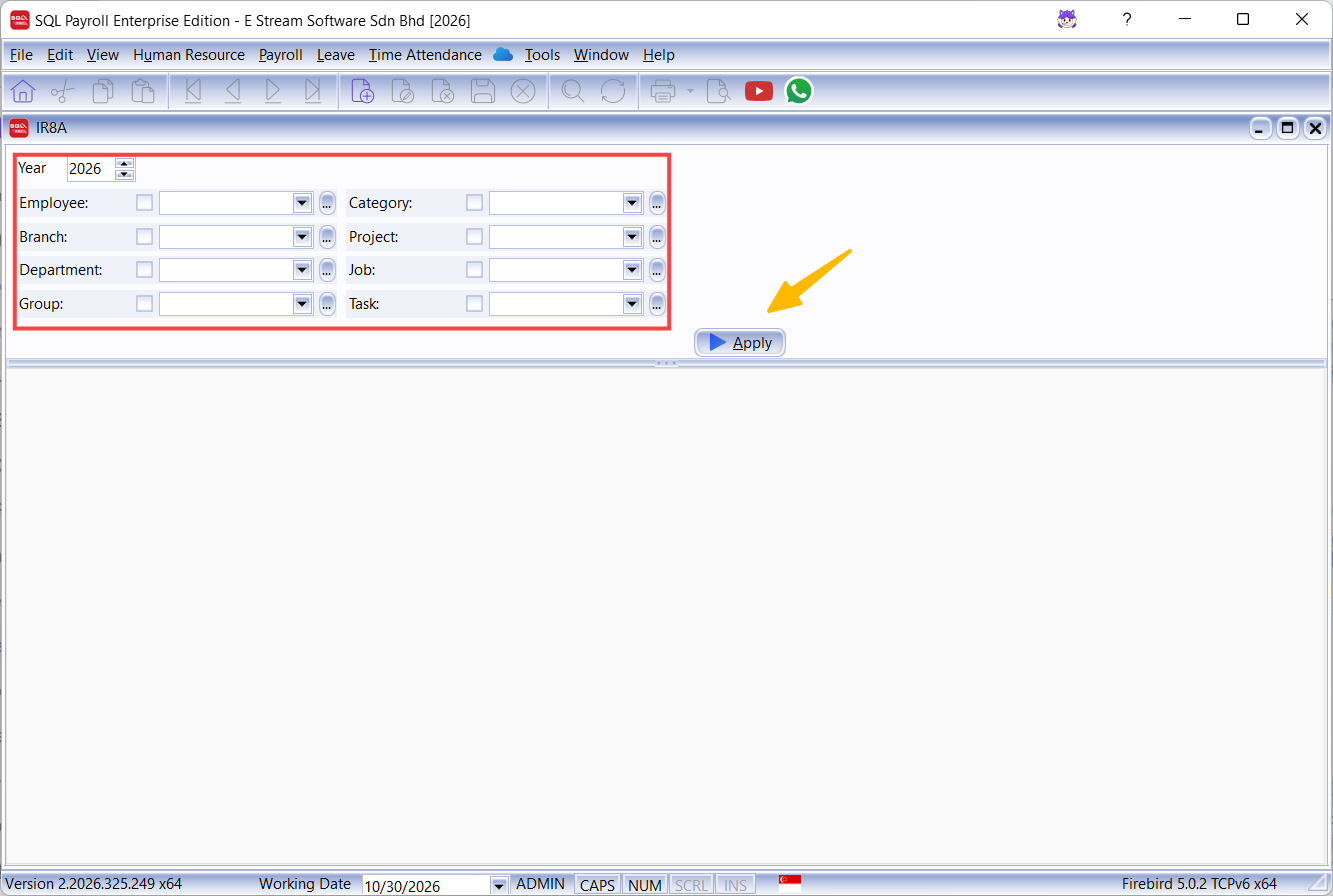 CUSTOMIZATION
In SQL Payroll, we support amending employee IR8A, Appendix 8A, and Appendix 8B form details. Refer to Customize IR8A for guidance.
-
Click 🖨️ (Print).
-
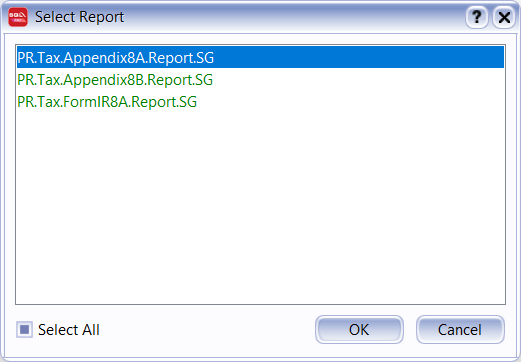
Select the report to Print (IR8A, Appendix 8A or Appendix 8B).
3.2 Customize IR8A
-
Navigate to Payroll > Statutary Reports (Yearly) > Print IR8A.
-
Fill in the Year of submission. Fill in other details for filtering. Click ▶️Apply.
-
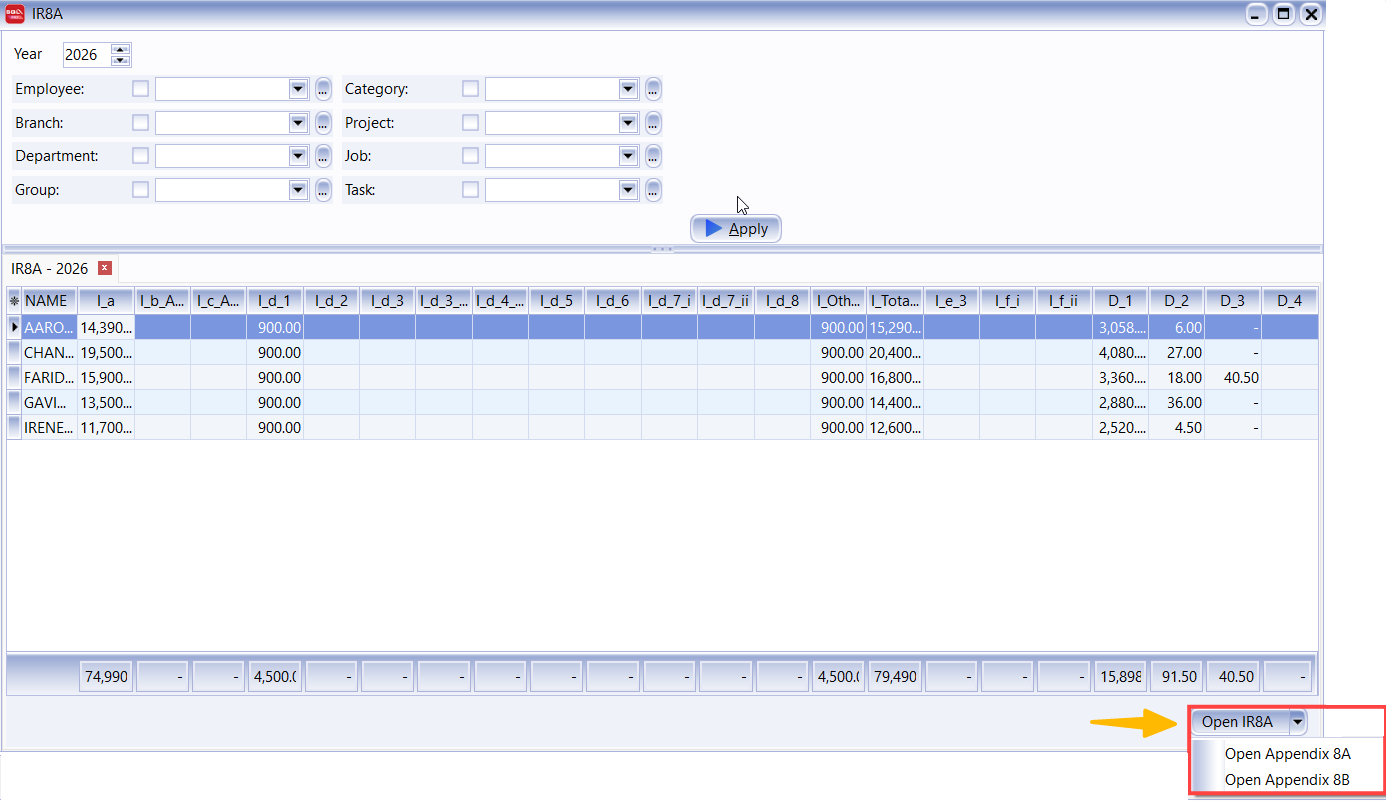
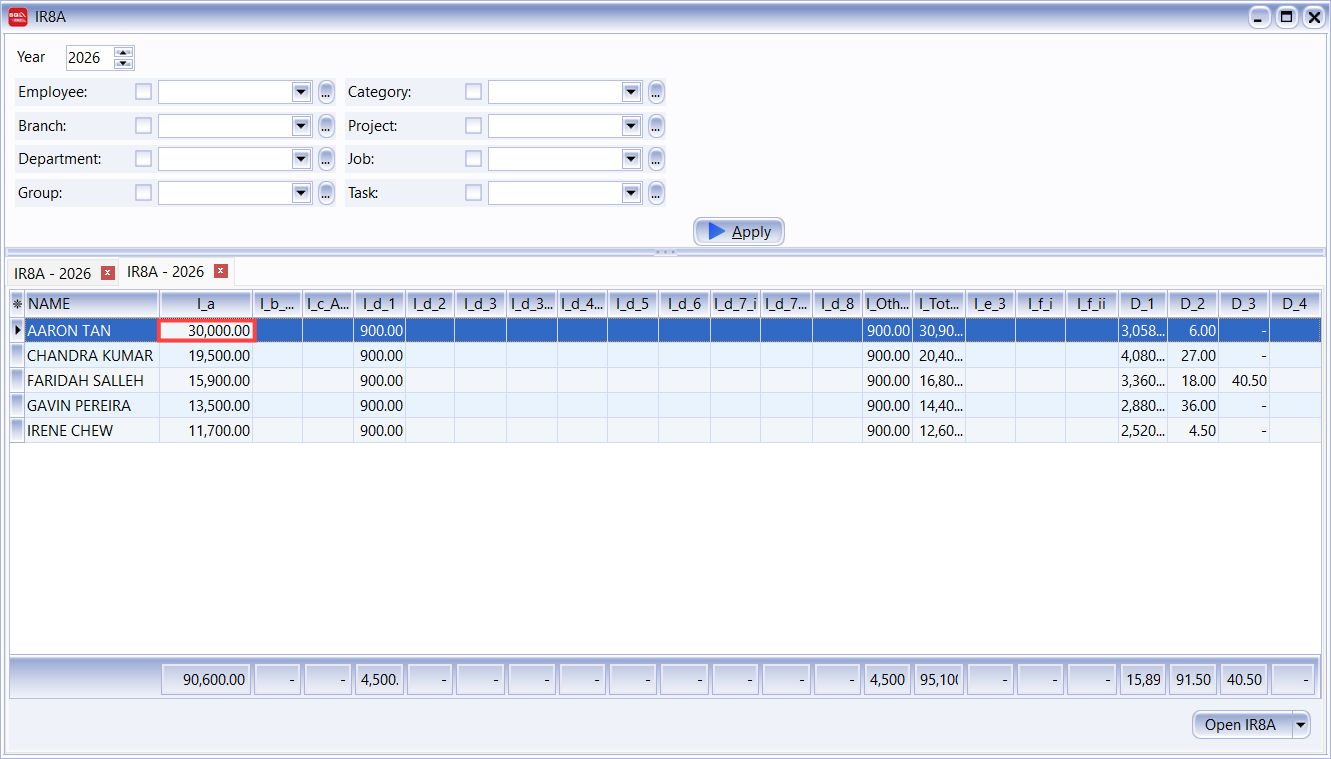
Click on Open IR8A at bottom right corner. Click on Open Appendix 8A or Open Appendix 8B to amend other forms.
-
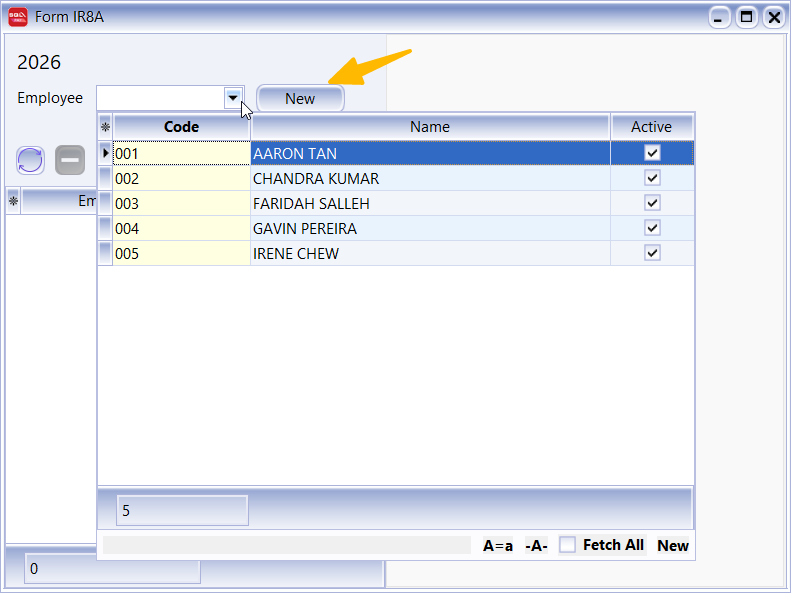
Select the employee to amend and click New.
-
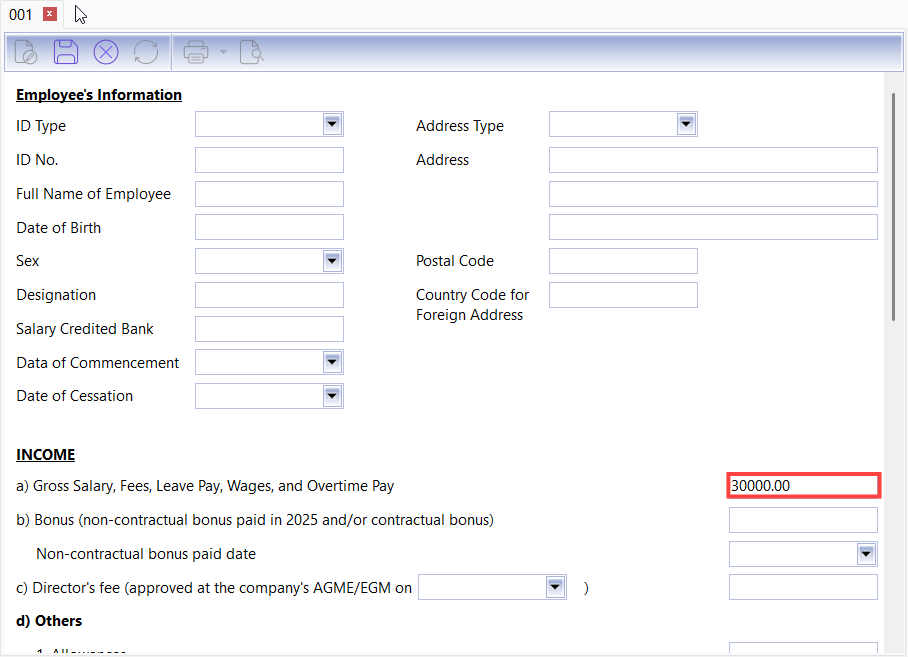
Fill in the details to amend and click 💾 (Save).
-
The amended value will replace the original value.
3.3 Submission via API (AIS)
-
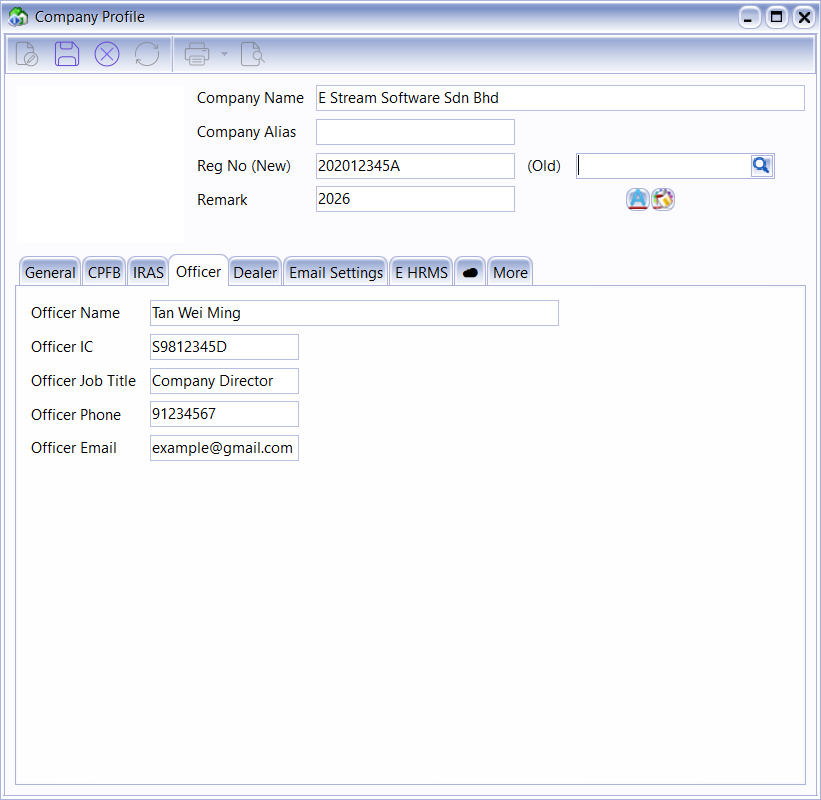
Ensure the Officer information in File > Company Profile has been filled.
-
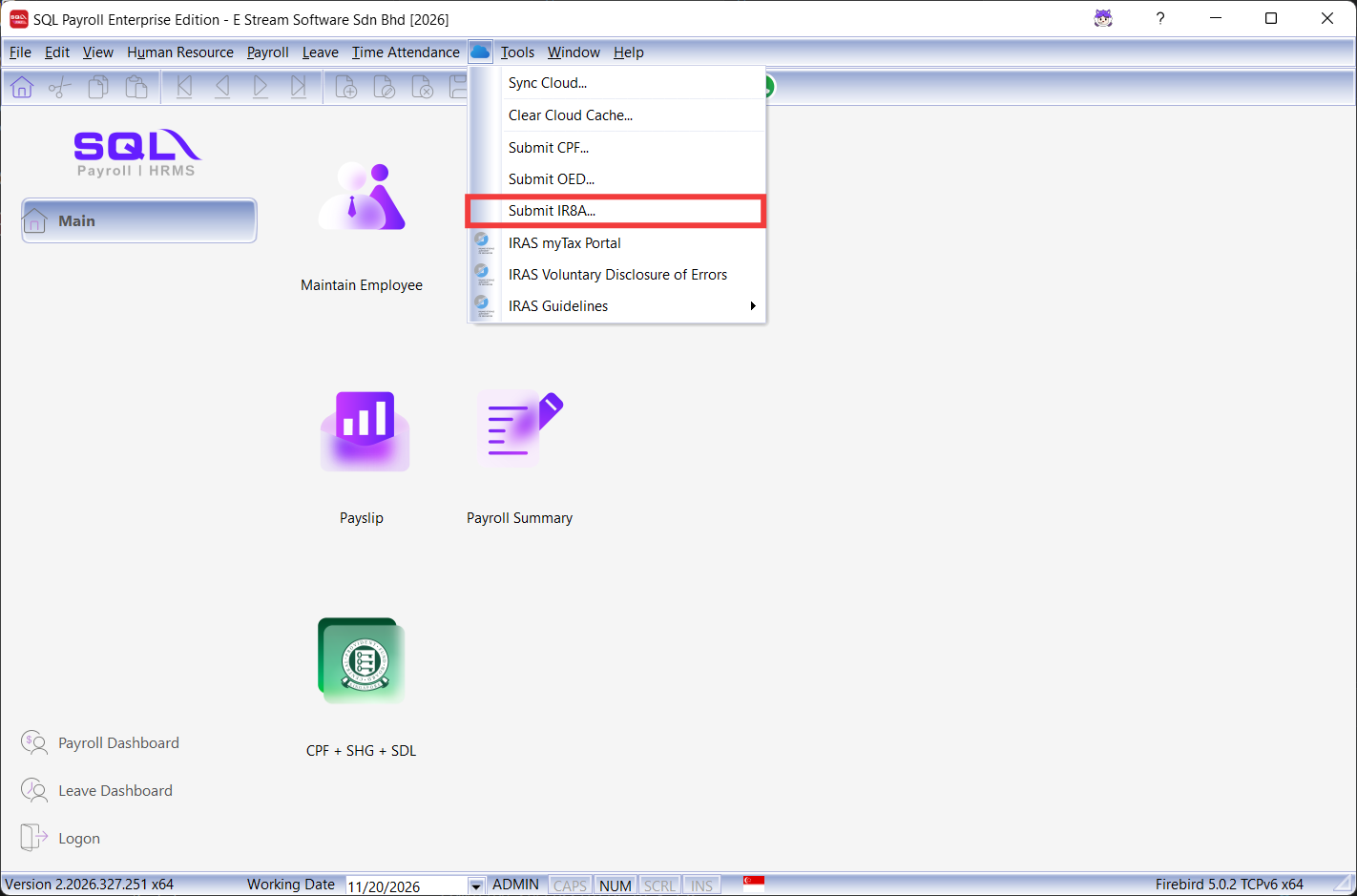
Navigate to ☁️ > Submit IR8A.
-
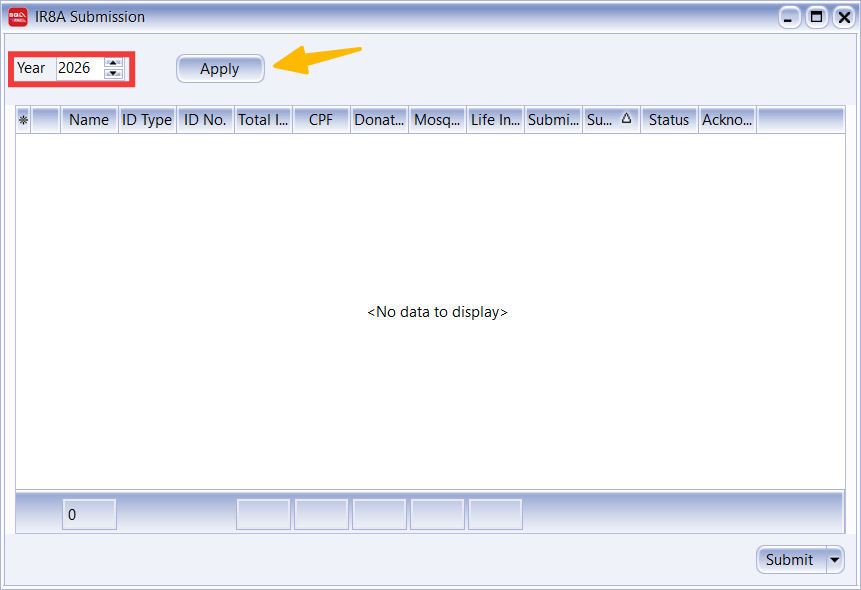
Fill in the Year of submission and click ▶️Apply.
-
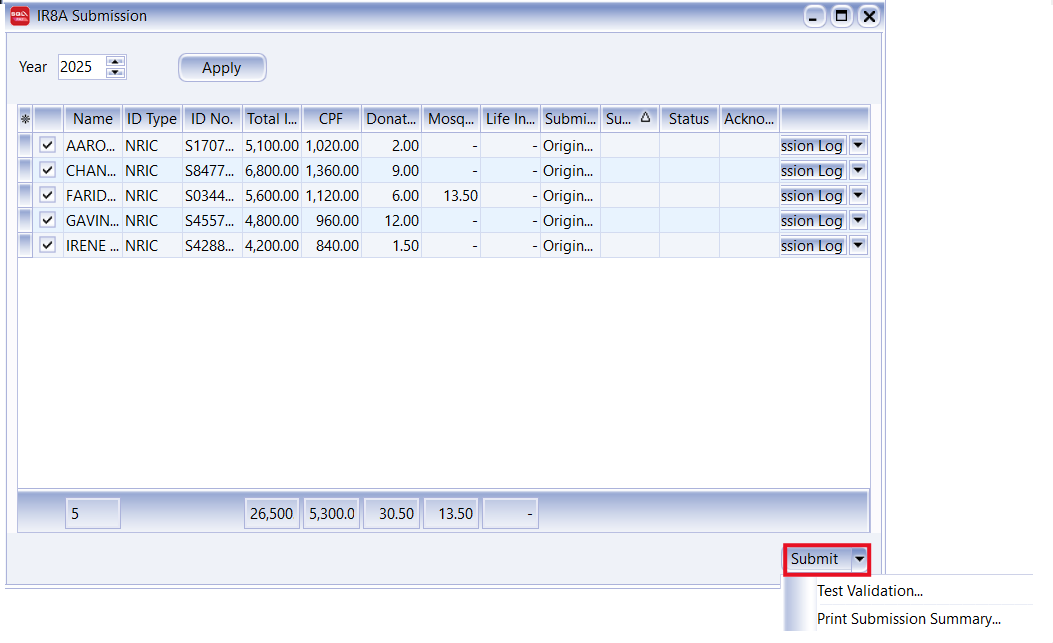
Click Submit or click Test Validation to validate before submission.
-
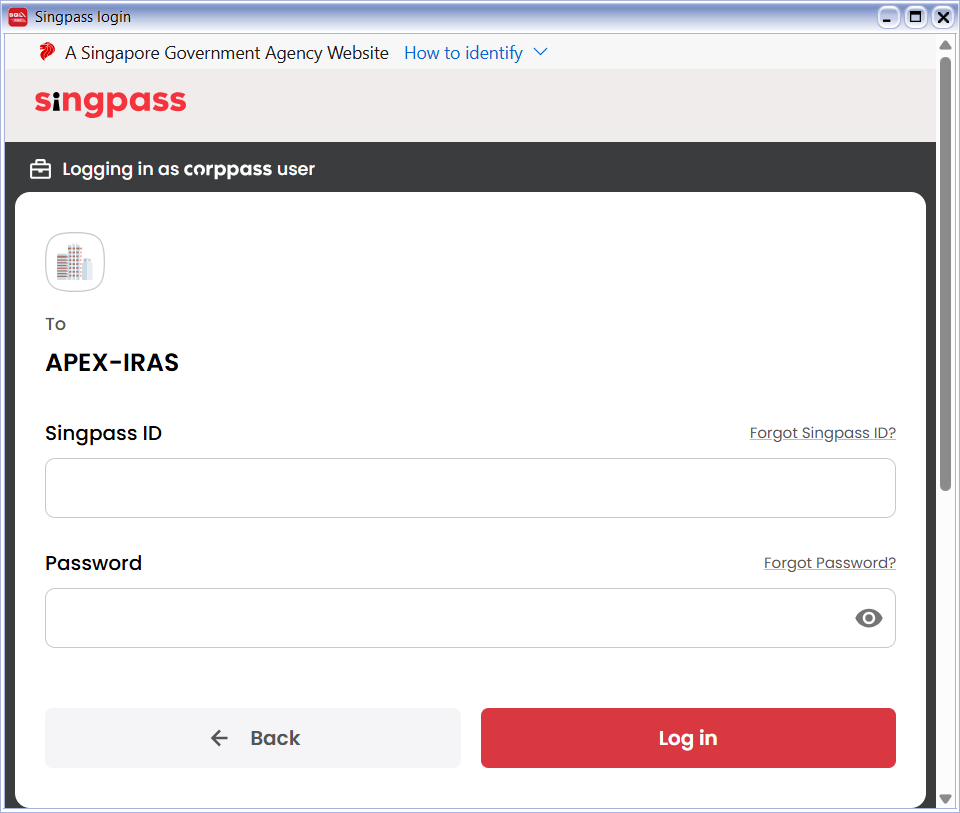
Logon using either Singpass App or Password Login.
-
Follow wizard to submit to IRAS.