Batch Email
Make sure you had done setting the template in Maintain Employee.
Setting in Maintain Employee
You can open the Batch Email guide for Fast Report (E-Mail Client Batch / E-Mail Native): Batch Email guide
-
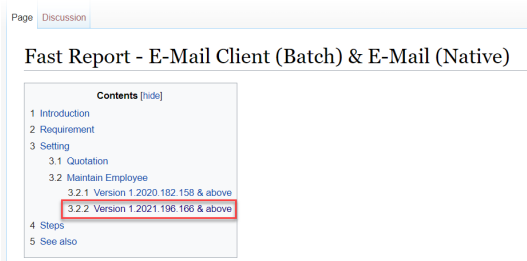
Click on 3.2.2 Version 1.2021.196.166 & above
-
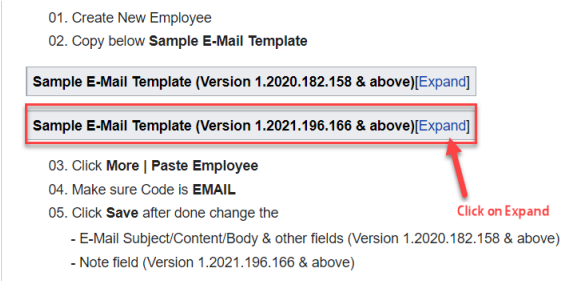
Scroll down until see this Sample E-Mail Template (Version 1.2021.196.166 & above) > Click on Expand
-
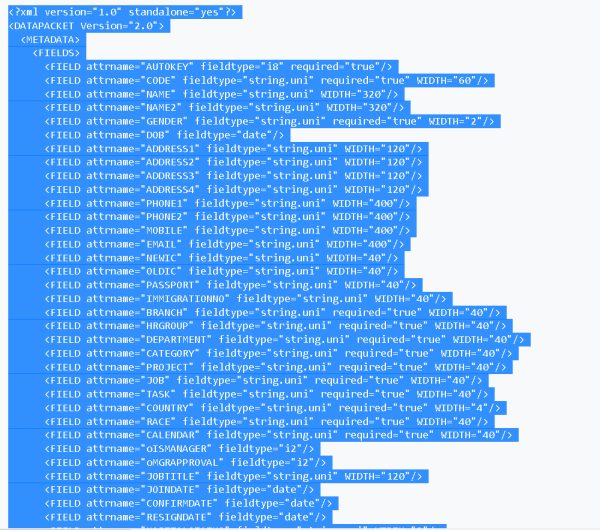
Copy all
-
Open your SQL Payroll System
-
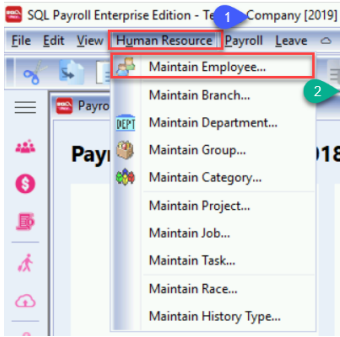
Navigate to Human Resource > Maintain Employee and click New
-
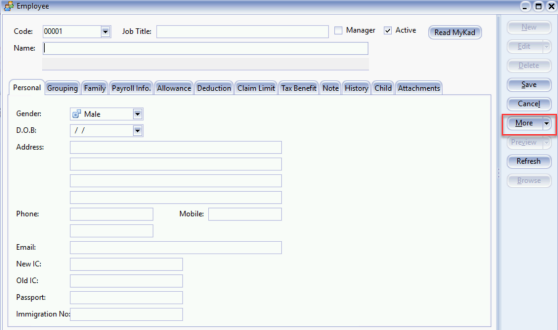
Click 🔽 beside More
-
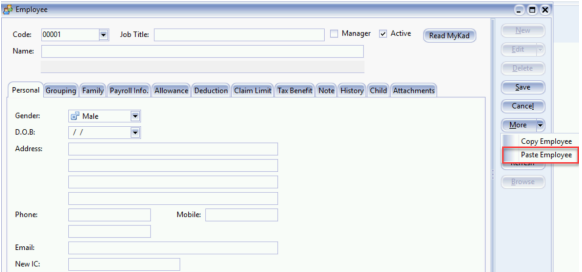
Click on Paste Employee
-
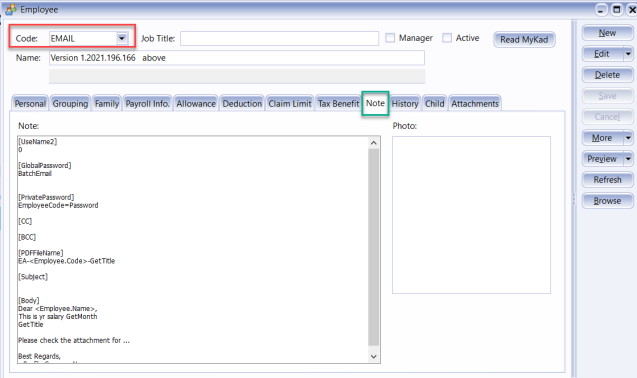
After Paste Employee you will see Employee Code as EMAIL and the PDF Password Setting at Note
Setting PDF Password
Scenario 1 : Setting Employee Name 2 as password
Only available in Version 1.2021.2066.174 & above
-
At Note Tab:
- [UseName2] Put 1 to enable it
- [GlobalPassword] and [PrivatePassword] make sure is empty
[UseName2]
1

[GlobalPassword]

[PrivatePassword]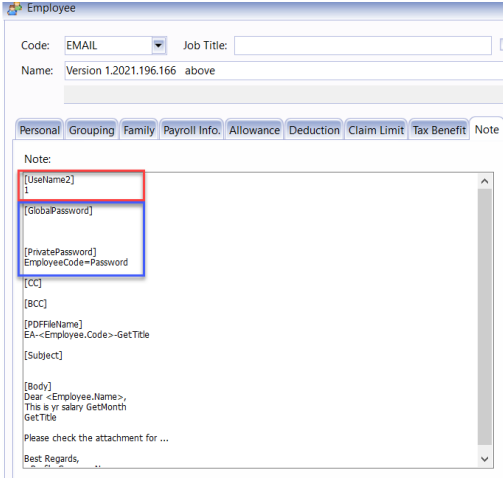
-
Under Employee profile set the password at Name 2
For Example : testing is the PDF Password

Scenario 2 : Setting Global PDF Password by UseName and ICPass
_UseNameICPass - This setting is to use Employee Name and IC set as PDF password
-
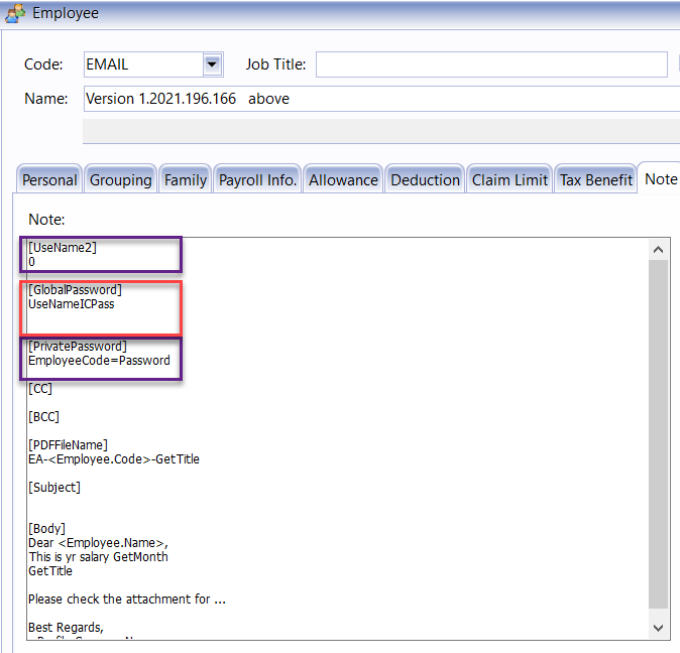
At Note Tab:
- [UseName2] Put 0 to disable it
- [PrivatePassword] is empty
[UseName2]
0

[GlobalPassword]
UseNameICPass

[PrivatePassword]
EmployeeCode=Password -
The first character of Employee Name (In Uppercase)
-
Second character is @
-
The subsequent 6 characters is the last 6 digits of NRIC or Passport Number
For example :
Name : LEE CHONG WEI
NRIC : 961212-01-4321
The password is : L@014321
Scenario 3 : Setting Global PDF Password
This settings configures all employees to have the same password
-
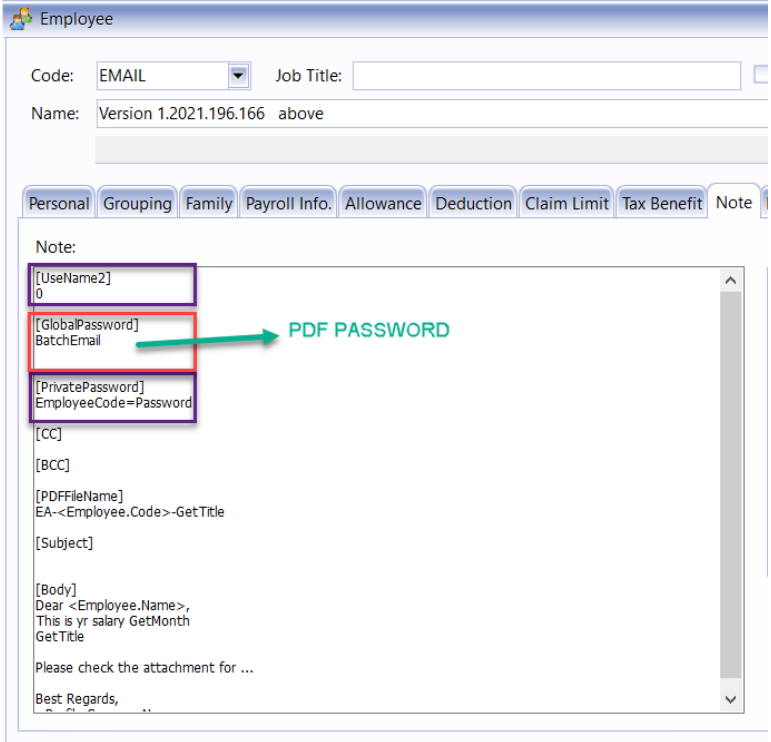
At Note Tab:
- [UseName2] Put 0 to disable it
- [PrivatePassword] is empty
[UseName2]
0

[GlobalPassword]
BatchEmail

[PrivatePassword]
EmployeeCode=Password -
set the PDF Password below [Global Password]
For example as below :
The PDF Password is ‘BatchEmail’
Scenario 4 : Setting Private/ Individual Password
Private Password - Each Employees got their own PDF Password
Must set for all Employees
-
At Note Tab:
- [UseName2] Put 0 to disable it
- [GlobalPassword] is empty
[UseName2]
0

[GlobalPassword]

[PrivatePassword]
EmployeeCode=Password
001=LEE
002=KOO -
Under [PrivatePasssword], put employee code and their password following the format below:
Format : EmployeeCode=PasswordFor Example as below :
001=LEE ('LEE' is the PDF Password)

002=KOO ('KOO' is the PDF Password)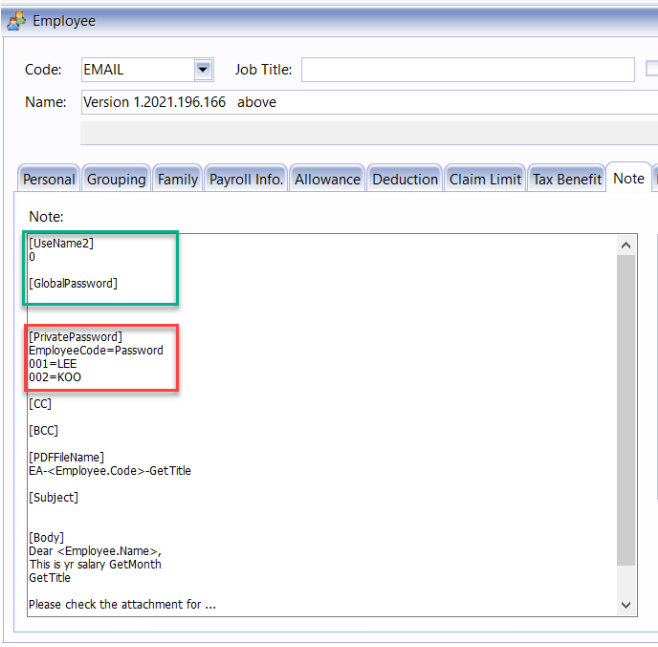
Send Payslip by Batch Email
E-Mail Client (Batch)
Make sure your pc had install window email (Ex : Outlook or Thunderbird)
-
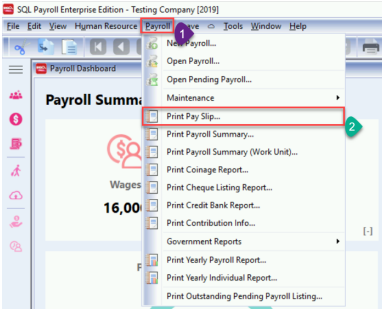
Go to Payroll > Print Pay Slip ...
-
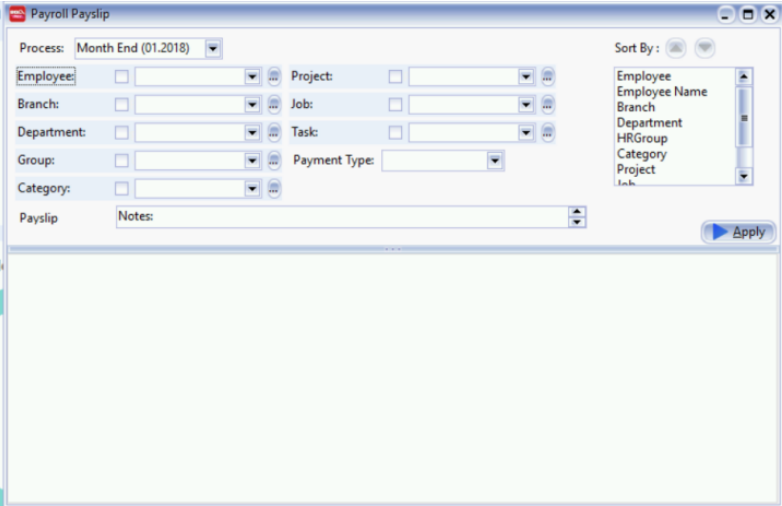
Filter your process you wish to batch email > Apply
-
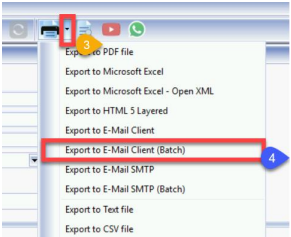
Click 🔽 Beside Printer icon
-
Click on Export to E-Mail Client (Batch)
-
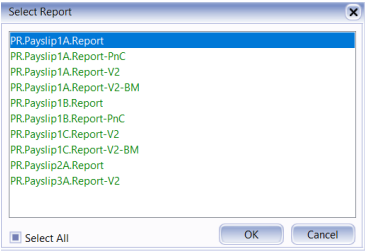
Select your payslip format > OK
-
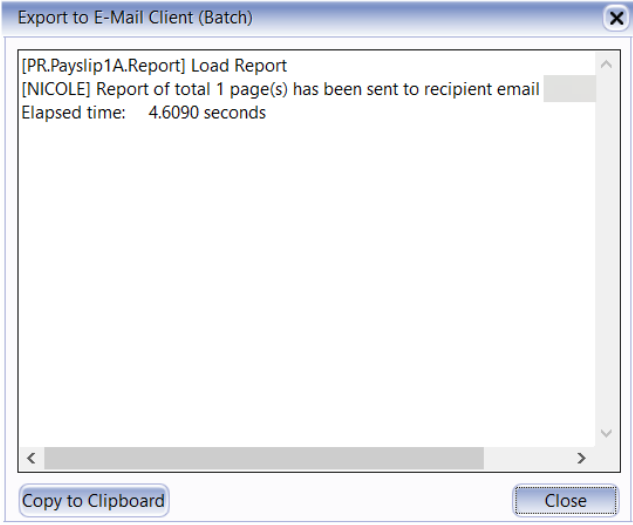
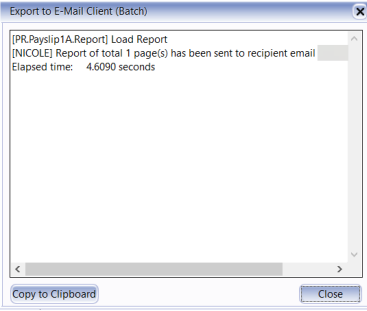
After click ok will prompt window and show has been sent to recipient email, mean success send out
E-Mail SMTP (Batch)
Make Sure you had create App Password
- If you’re using Gmail, see Google’s guide to create an App Password: Create an App Password
-
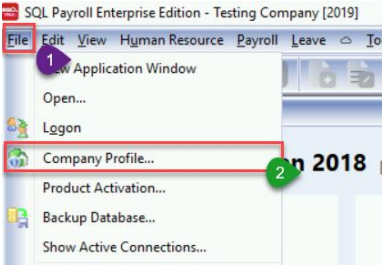
Go to File > Company Profile
-
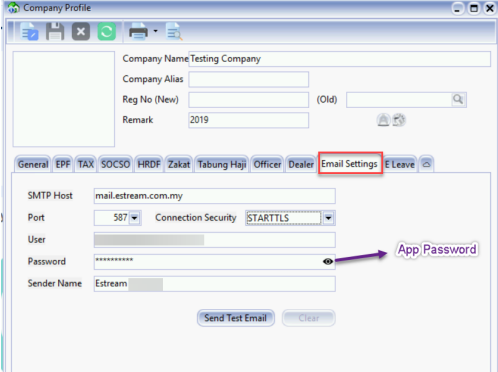
Select Email Setting from the tabs
-
Fill in your email detail
**Password : Is your App Password
-
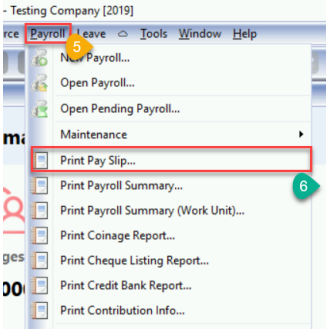
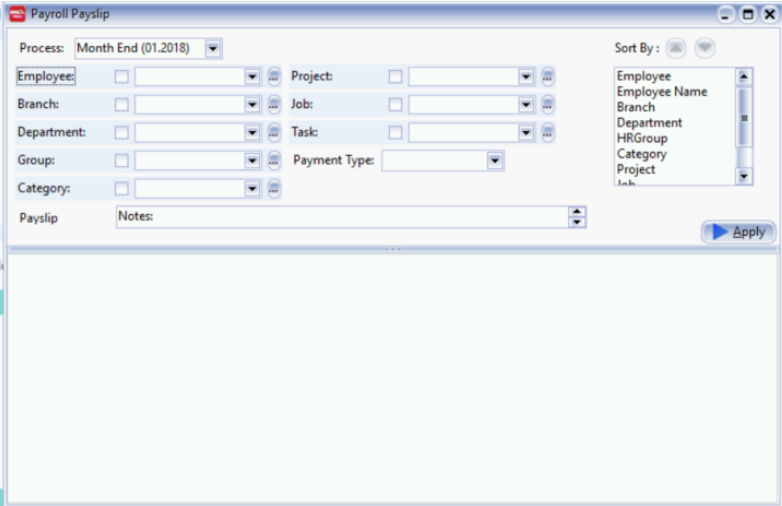
Go to Payroll, click Print Pay Slip
-
Filter your process you wish to batch email > Apply
-
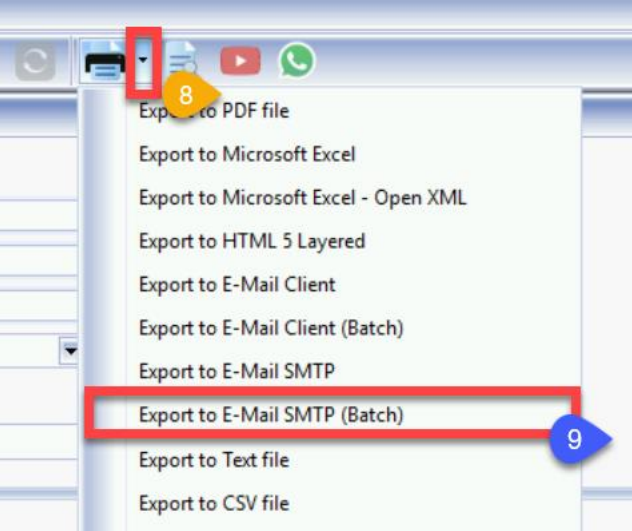
Click 🔽 Beside Printer icon
-
Click on Export to E-Mail SMTP (Batch)
-
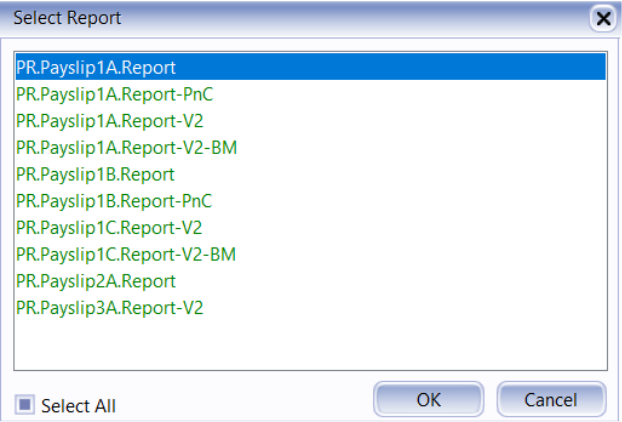
Select your payslip format > OK
-
After click ok will prompt window and show has been sent to recipient email, mean success send out