Guide
Introduction
The Leave module is used to monitor employee leave, manage the company calendar, and print attendance reports. It consists of four sections:
- Maintenance
- Leave Entitlement Processor
- Leave Application
- Reports
Leave Application
-
Records leave applied for by each employee. You can input any type of leave defined in Maintain Leave Type.
-
You can assign a calendar to individual employees in Maintain Employee. This will load the employee's leave application.
-
It monitors leave applications based on the up-to-date leave entitlement.
For example:
- Annual Leave Entitlement = 12 days
- Average Annual Leave Entitlement = 1 day per month
- Annual Leave applied for a month:
- January = 0 days
- February = 1 day
- March = 0 days
In this scenario, the total annual leave entitled up to April is 4 days (including April).
This means the remaining annual leave is (4 – 1) = 3 days.
If the employee applies for 4 days of leave in April, the system will prompt the warning: “You’ve taken 5.0 days of Annual Leave, but Annual Leave limit for April is 4.0 days.”
You can then choose to Allow, Not Allow, or treat it as Unpaid Leave. :::
-
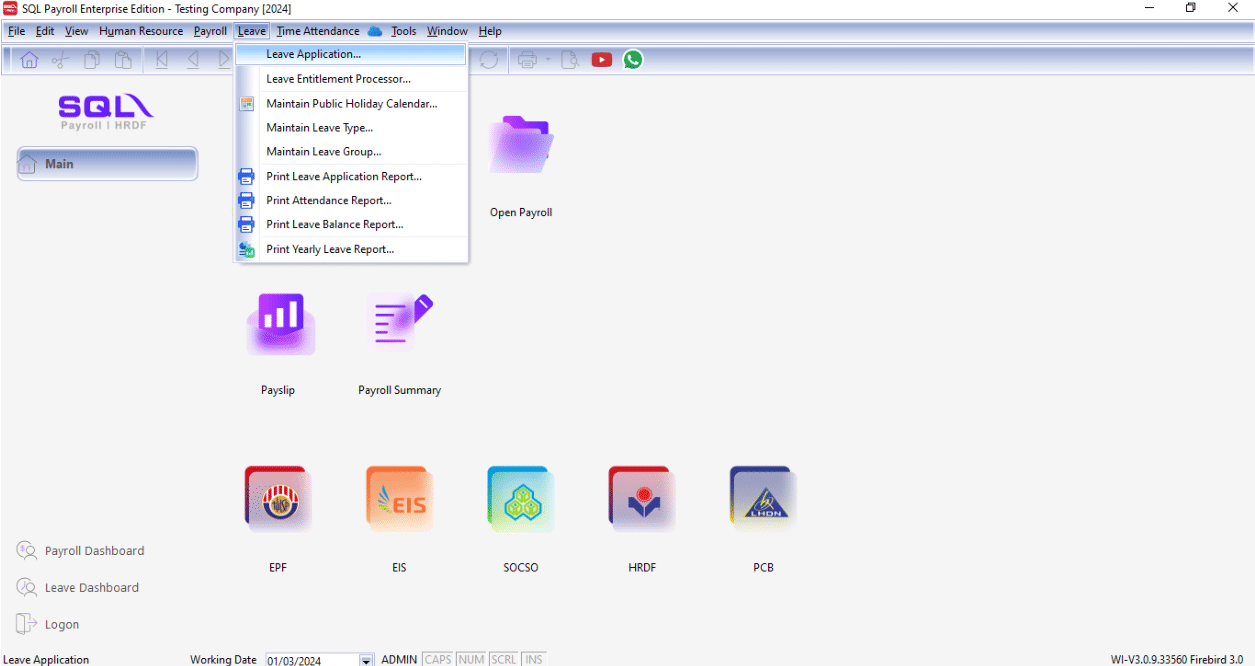
Navigate to Leave > Leave Application.
-
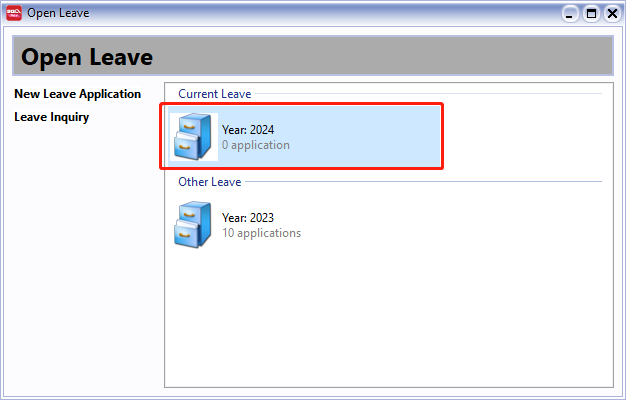
Select the year (e.g., 2015).
-
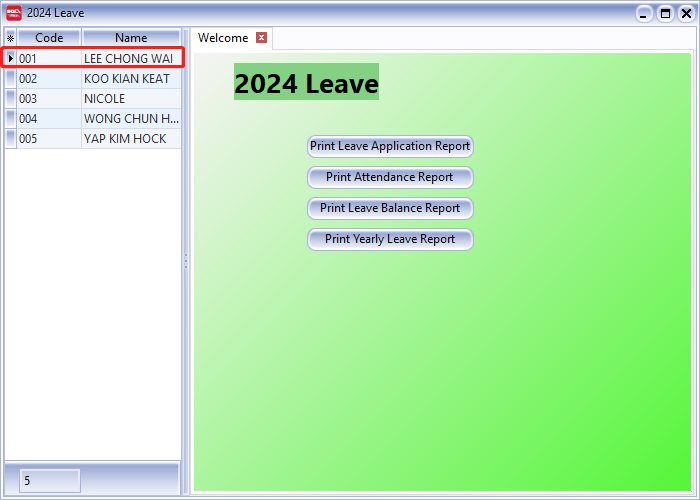
Select the employee (e.g., Lee Chong Wai).
-
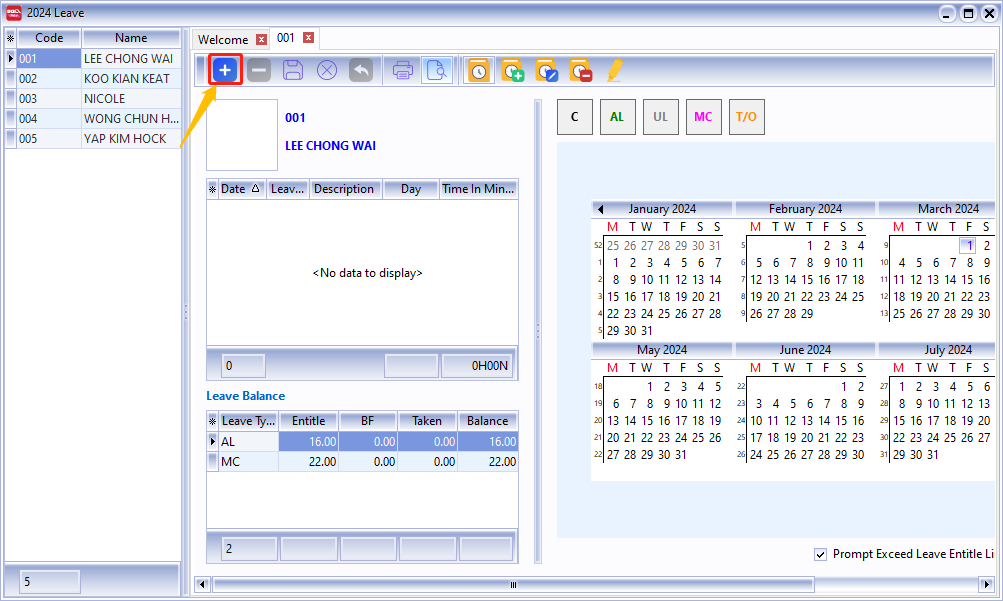
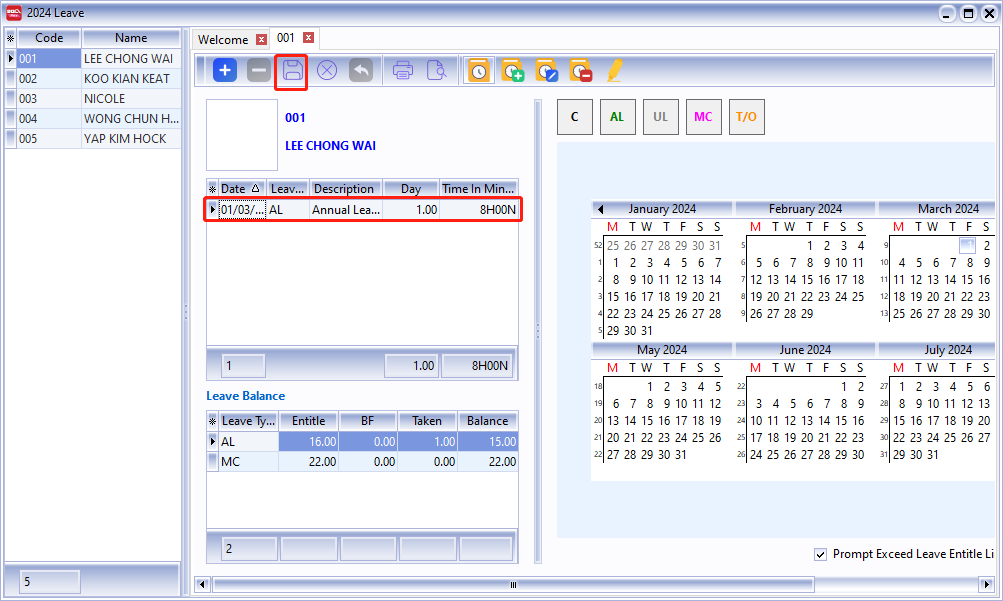
Click the + button. A row will appear where you can select the date, leave type, and number of days applied. Click Save once completed.
-
If the employee applies for half-day leave or hourly leave, use the Day As Time column (1 working day = 8 working hours).

-
Enter the duration (e.g., 3 hours). The system will automatically calculate the number of days (e.g., 0.38 days).

Hourly Leave Application
-
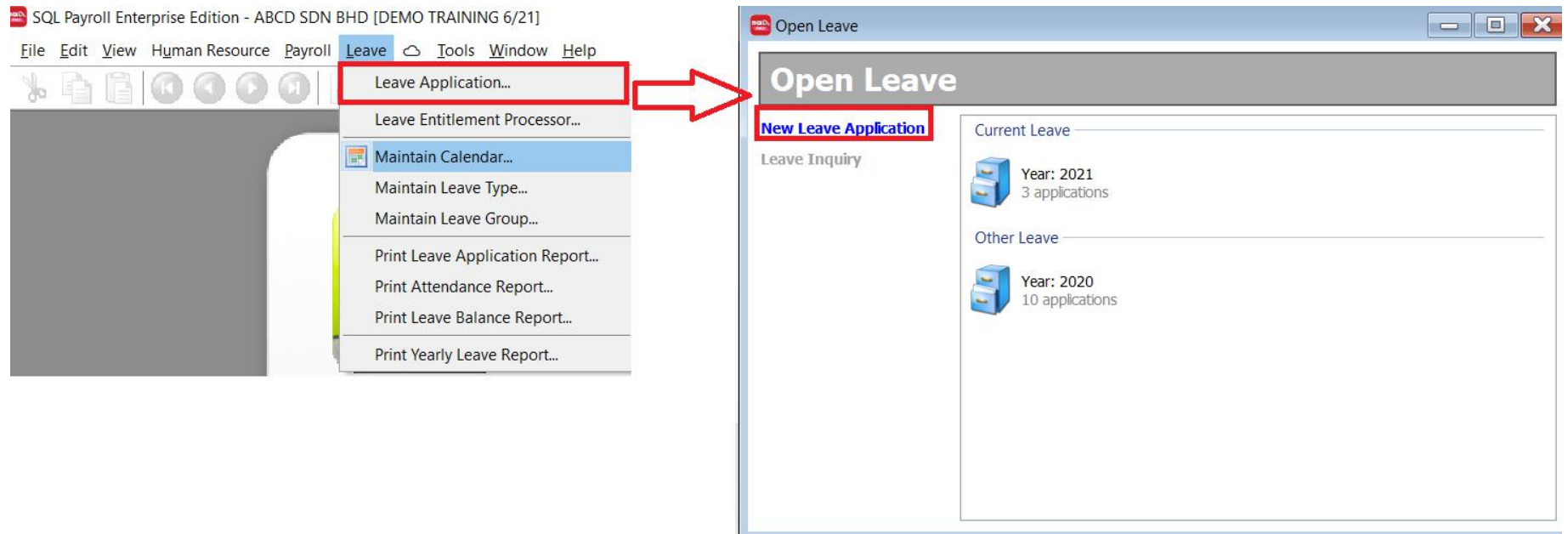
Go to Leave > Leave Application > New Leave Application.
-
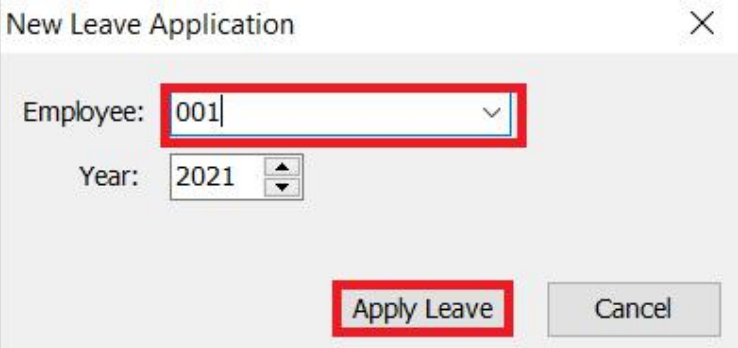
Select the employee's name, then click Apply Leave.
-
Enable the Day As Time column.
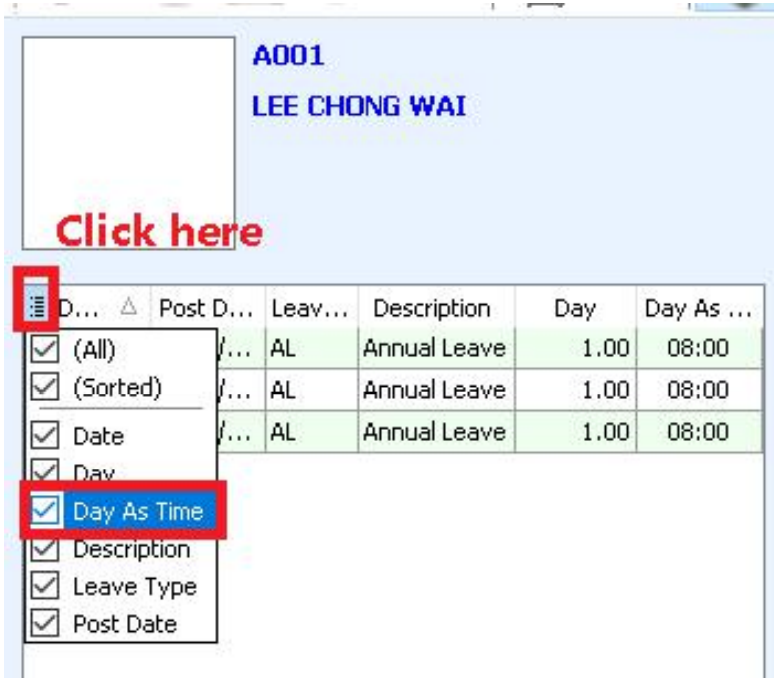
-
Select the leave type and date.
- The Day column represents the number of days, while the Day As Time column represents the hours.
Example:
- Day = 1.00 (1 day of leave)
- Day As Time = 8.00 (HH:MM, 8 hours in 1 day)
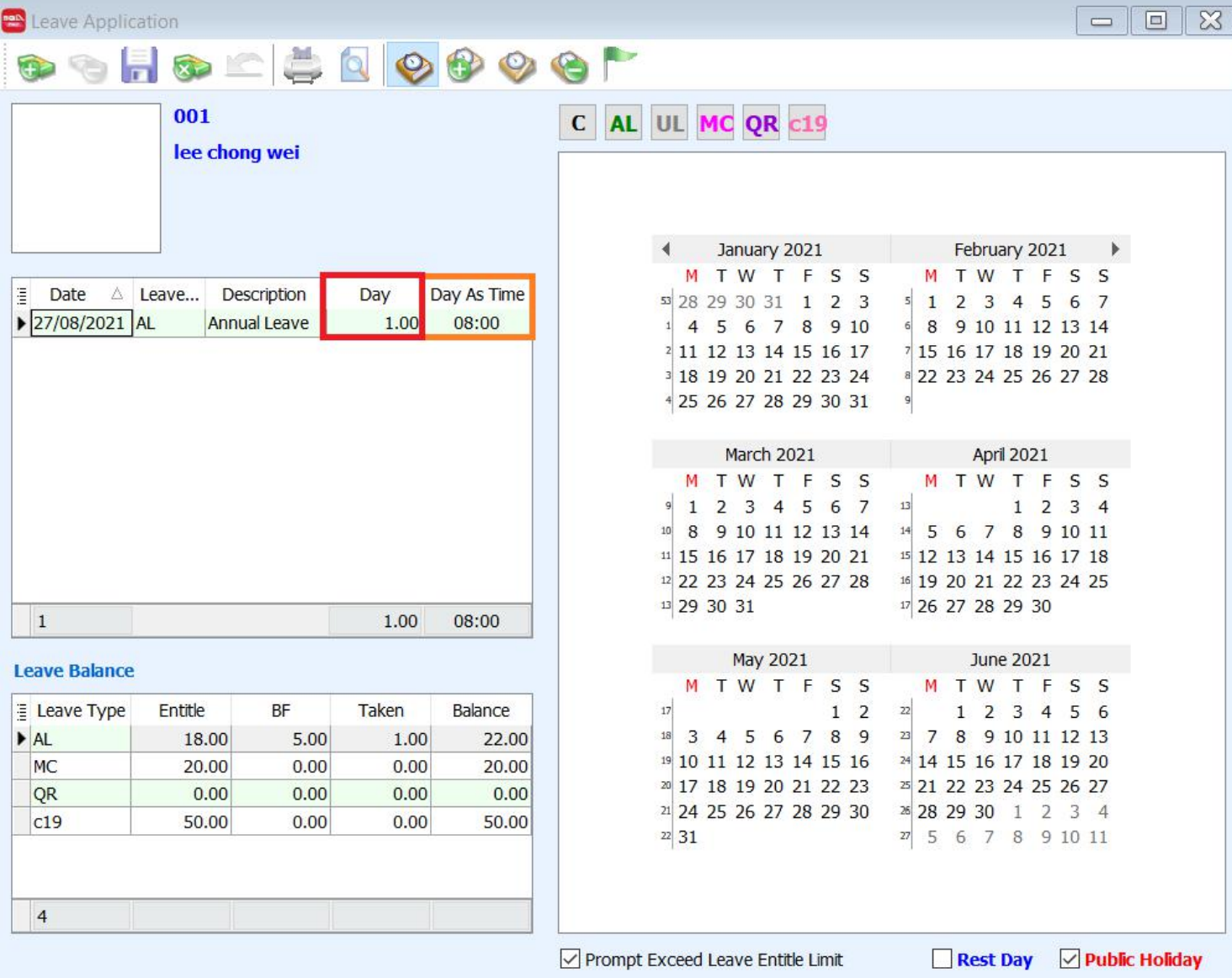
- The Day column represents the number of days, while the Day As Time column represents the hours.
-
Apply Hourly Leave.
-
If a staff member wants to apply for 2 hours of Annual Leave, enter
02:00in the Day As Time column and press Enter. -
The Day column will automatically update to
0.25.
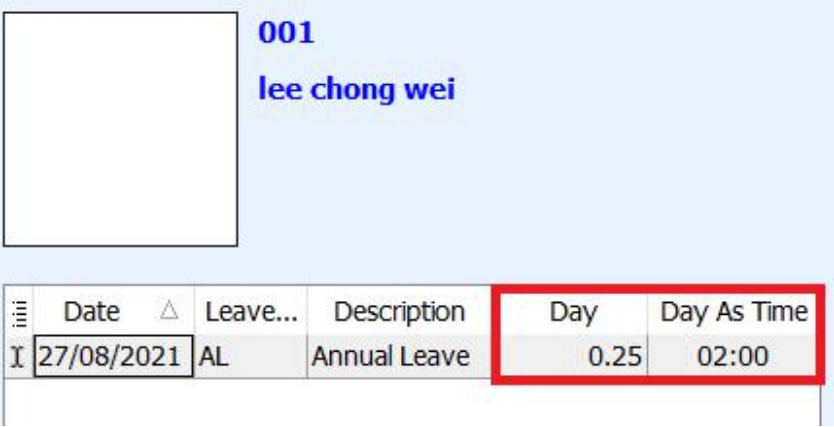
-
-
Save.
- Click the Save icon. The save is complete when the icon turns grey.
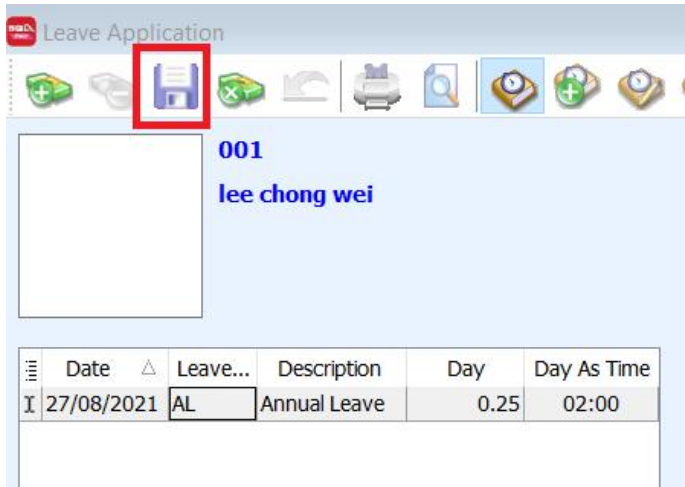
-
This method can be used for all leave types.
Leave Entitlement Processor
It processes annual leave entitlement for each employee based on their leave group.
-
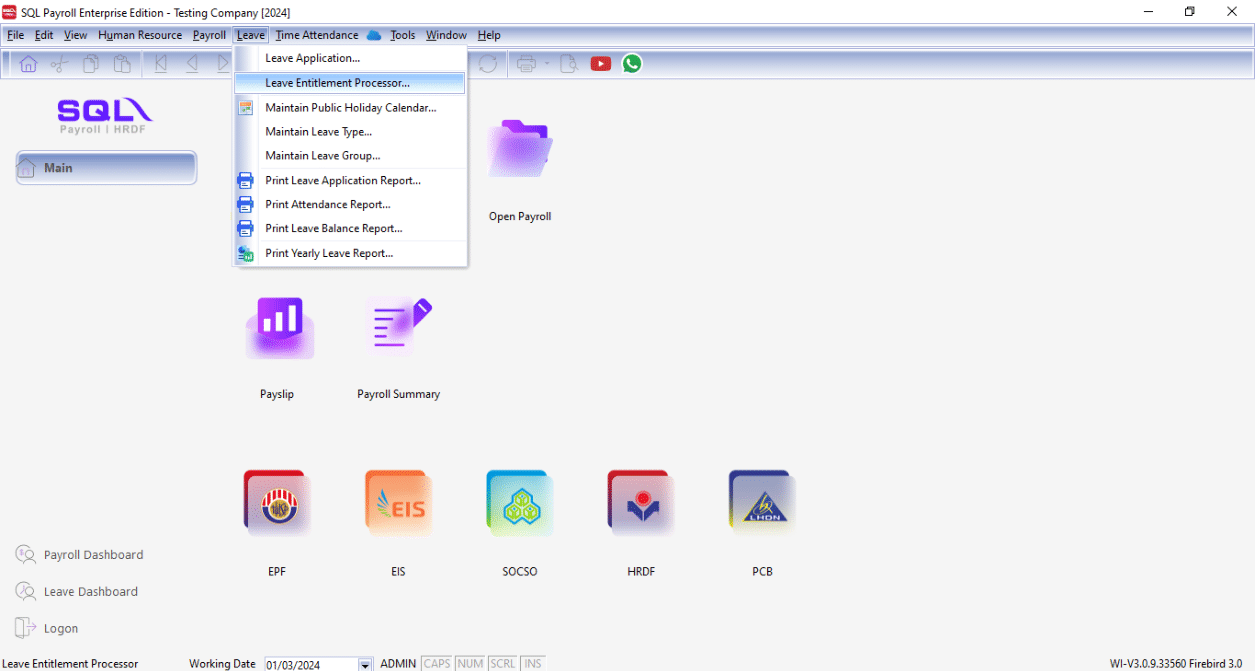
The leave entitlement process is typically performed once a year. Navigate to Leave > Leave Entitlement Processor.
-
Select the Transaction Posting Year (e.g., 2015) and click Process.

-
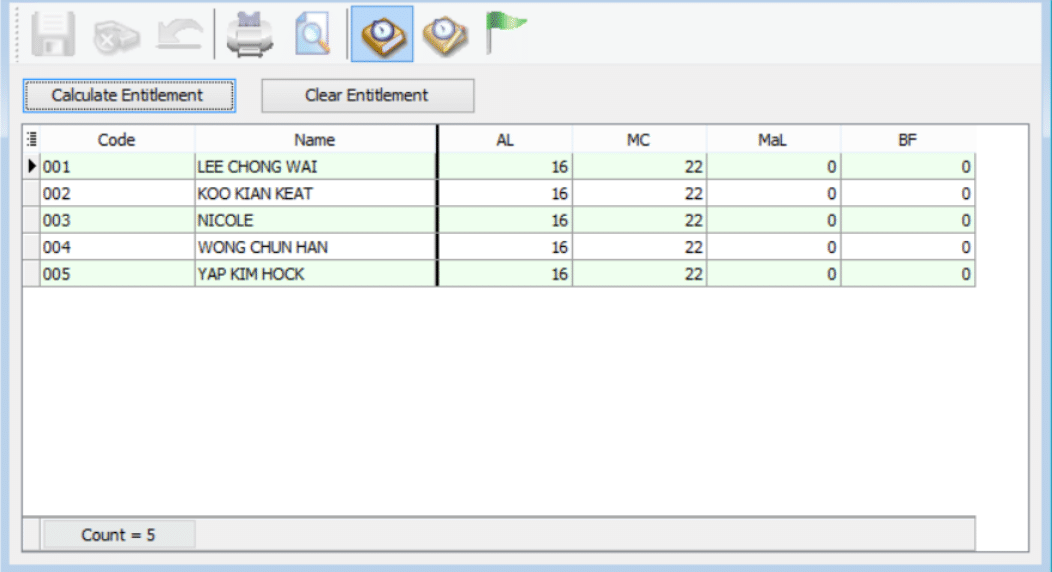
A table will display the leave entitlement for each employee for the selected year.
-
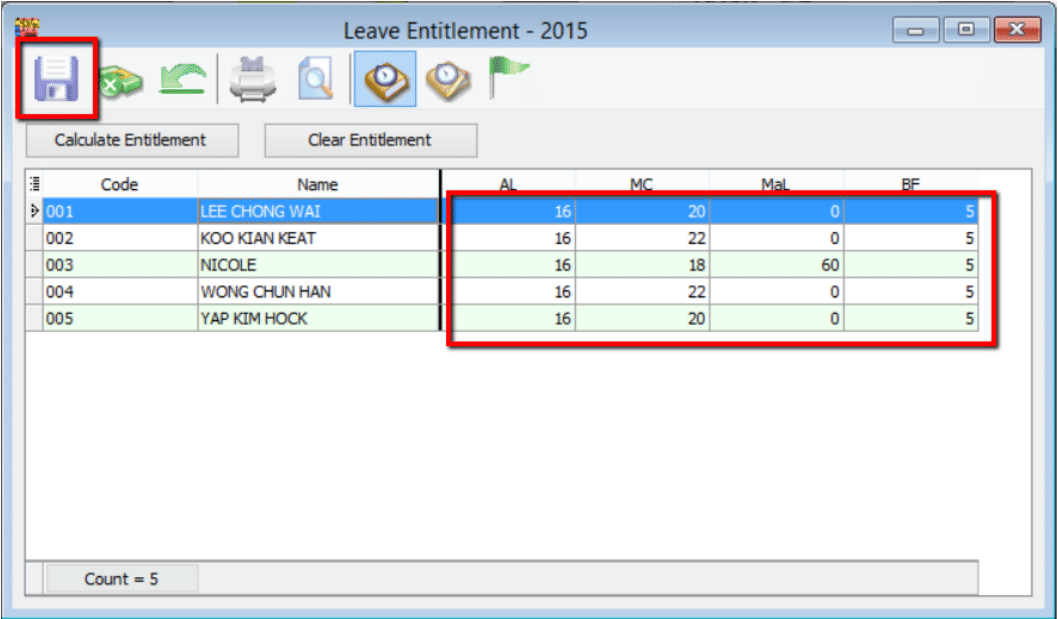
You can edit the number of days if necessary. Click Save when finished.
Maintain Public Holiday Calendar
Step 1: Go to Leave > Maintain Public Holiday Calendar.... Select a calendar or create a new one.
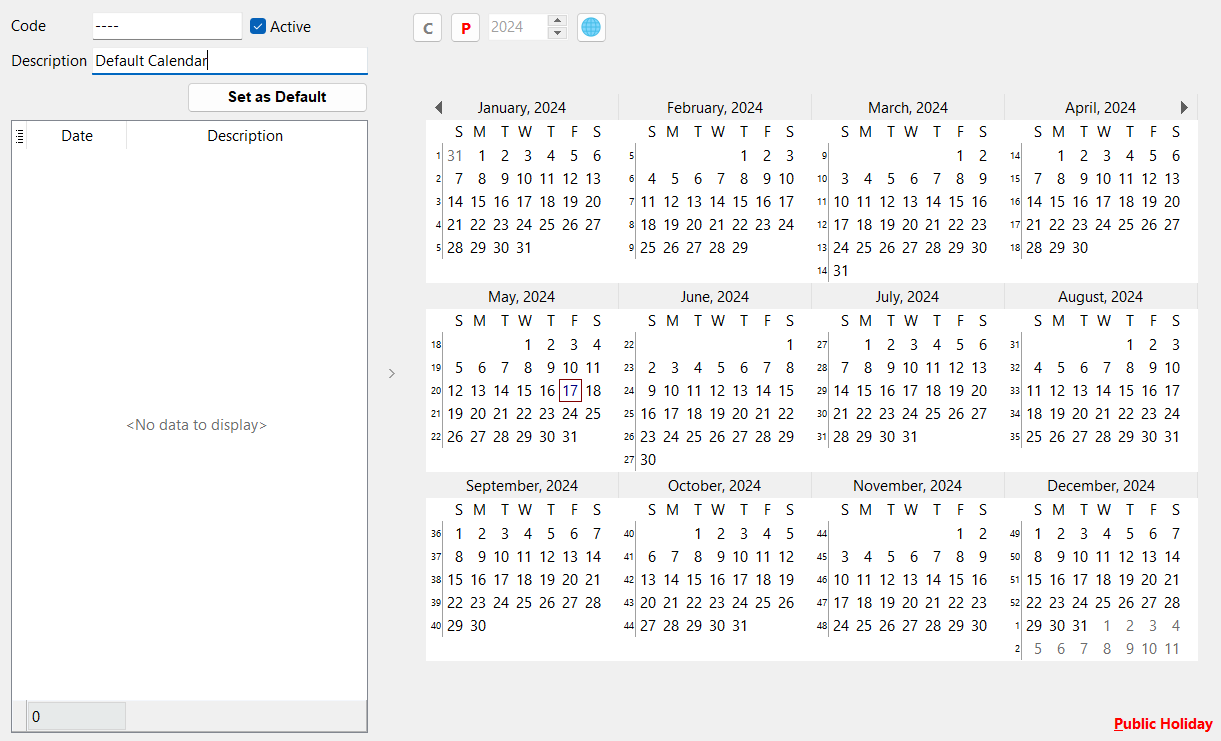
Step 2: Set public holidays You can import the default Malaysia public holiday calendar or set it manually.
Option 1: Click the Global icon, select a state, and click OK.
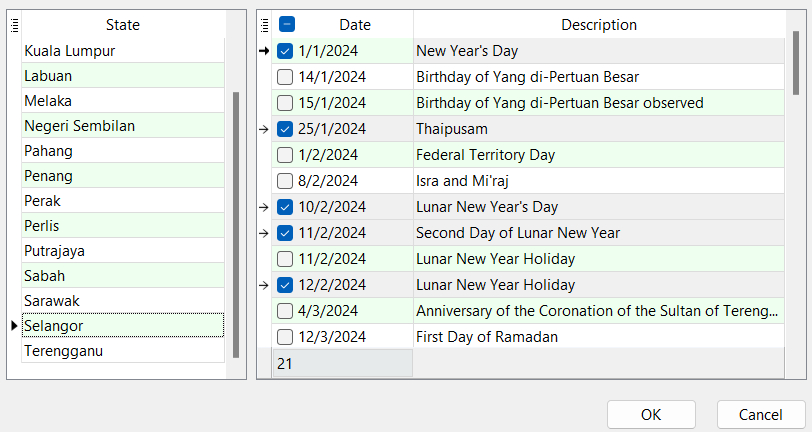
You can check or uncheck specific dates.
Option 2: Click the 'P' button and select a date.
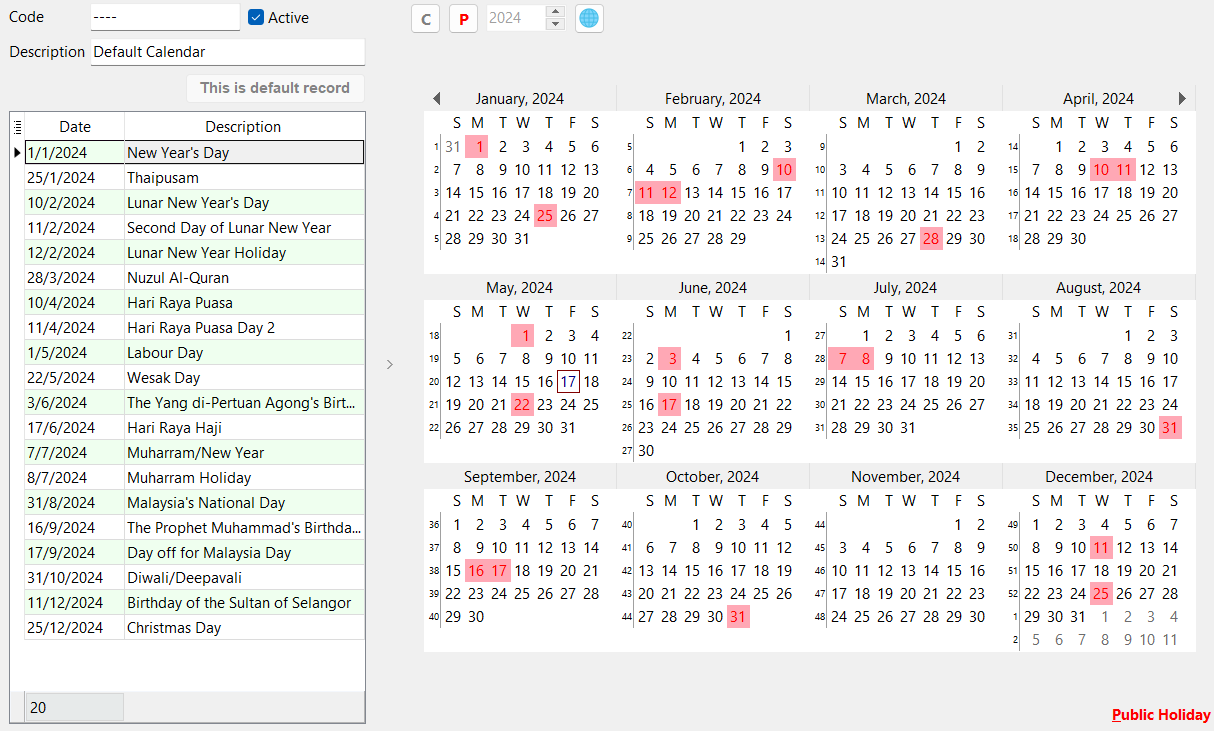
Step 3: Click Save.
Maintain Leave Type
Maintain Leave Type defines the types of leave, such as annual leave, medical leave, maternity leave, unpaid leave, etc. You can also configure settings such as:
- Is Entitled
- Is Unpaid
- Brought Forward
Before assigning a leave group to an employee, ensure that Leave Types and Leave Groups are maintained. Leave Type defines the nature of the leave, while Leave Group groups employees according to their leave entitlement.
-
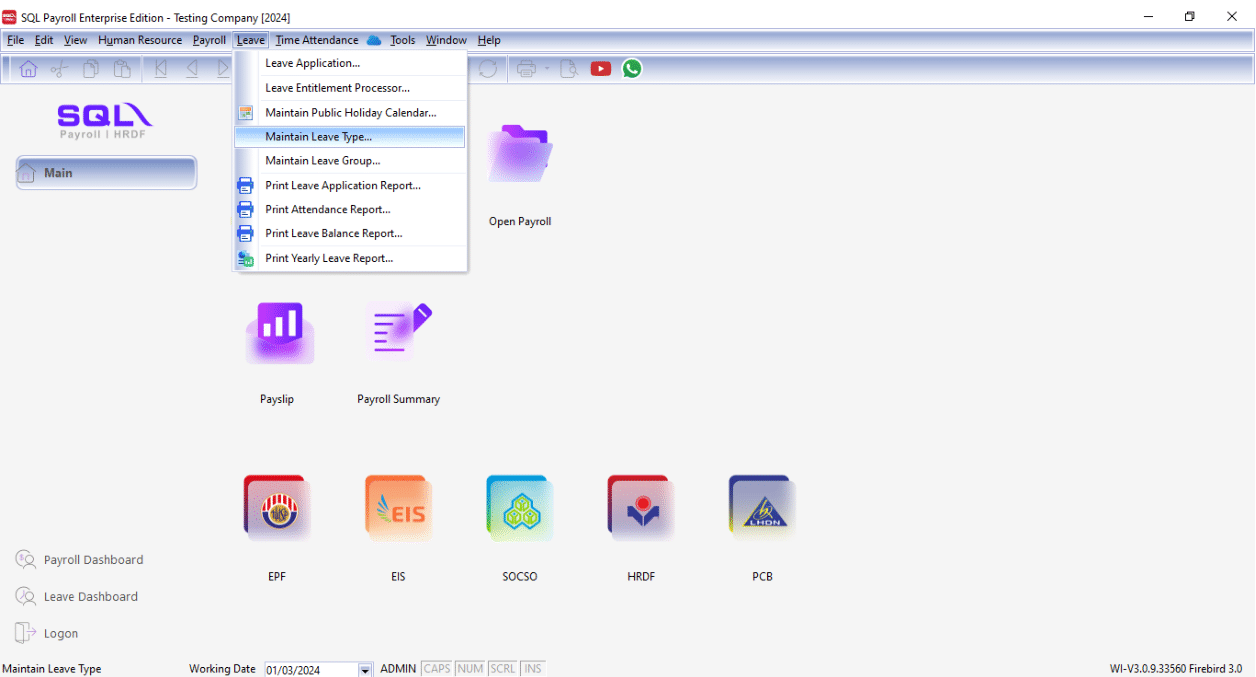
Navigate to Leave > Maintain Leave Type.
-
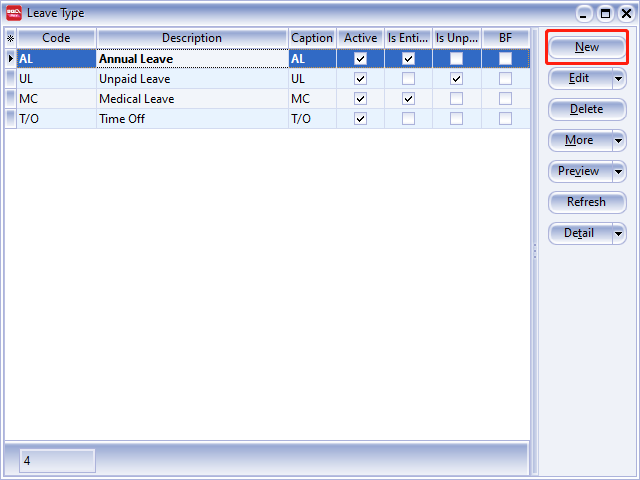
Click the New button in the top right corner to create a new leave type.
-
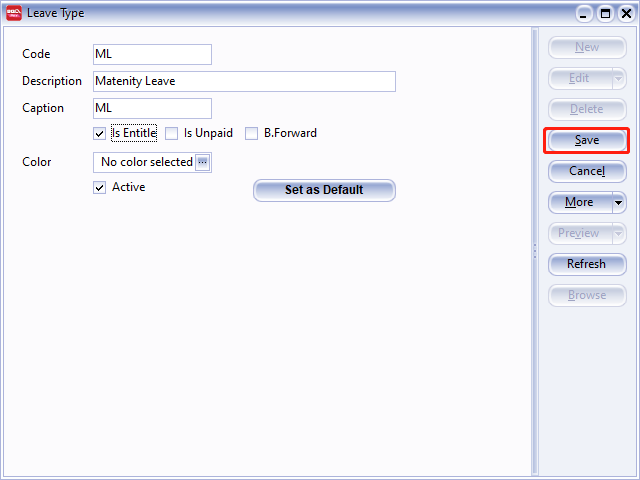
Assign a code for the leave type.
ExampleMaLfor Maternity Leave:- Check the relevant pay entitlement.
- Click Save.
-
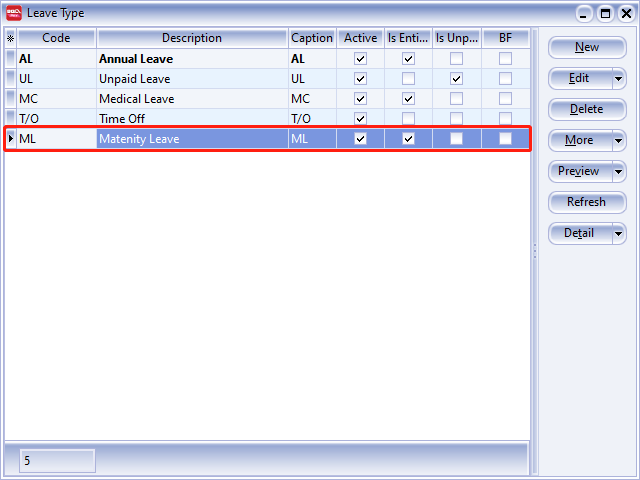
The new leave type is created.
Brought Forward Leave
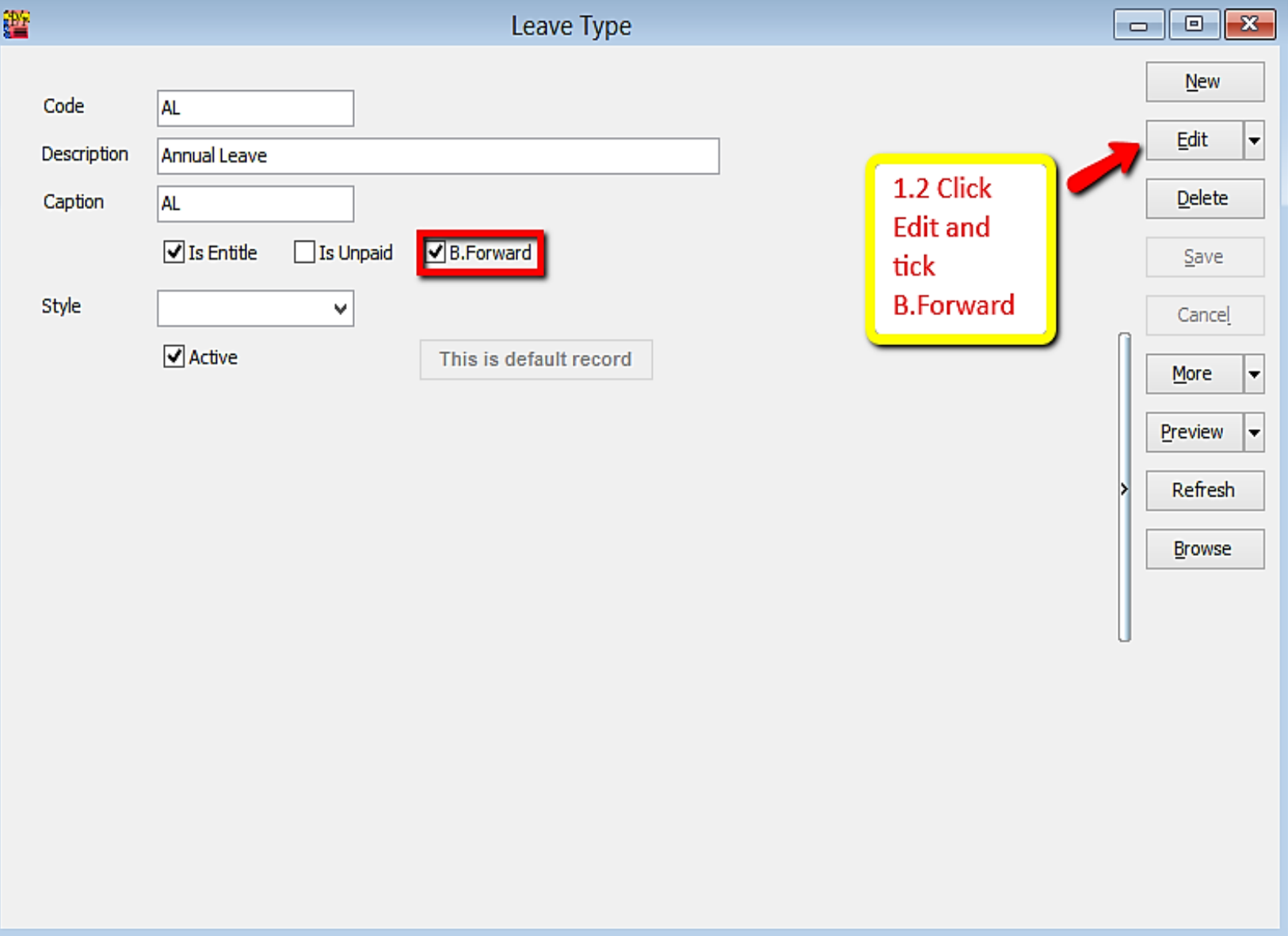
Ensure Brought Forward (BF) is checked in Maintain Leave Type.
-
Go to Leave > Maintain Leave Type
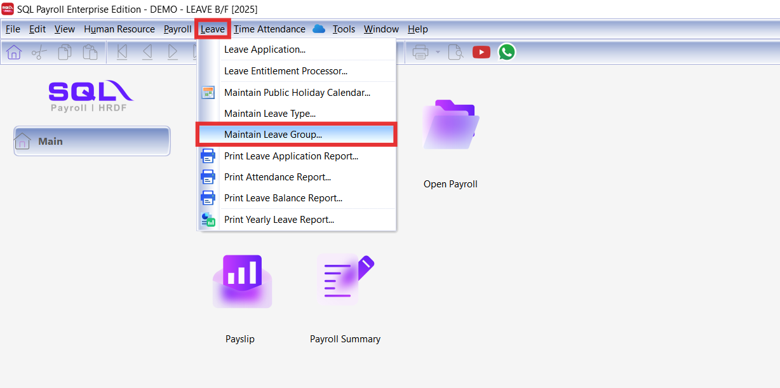
Ensure there is a calculation for the amount of leave brought forward in Maintain Leave Group.
-
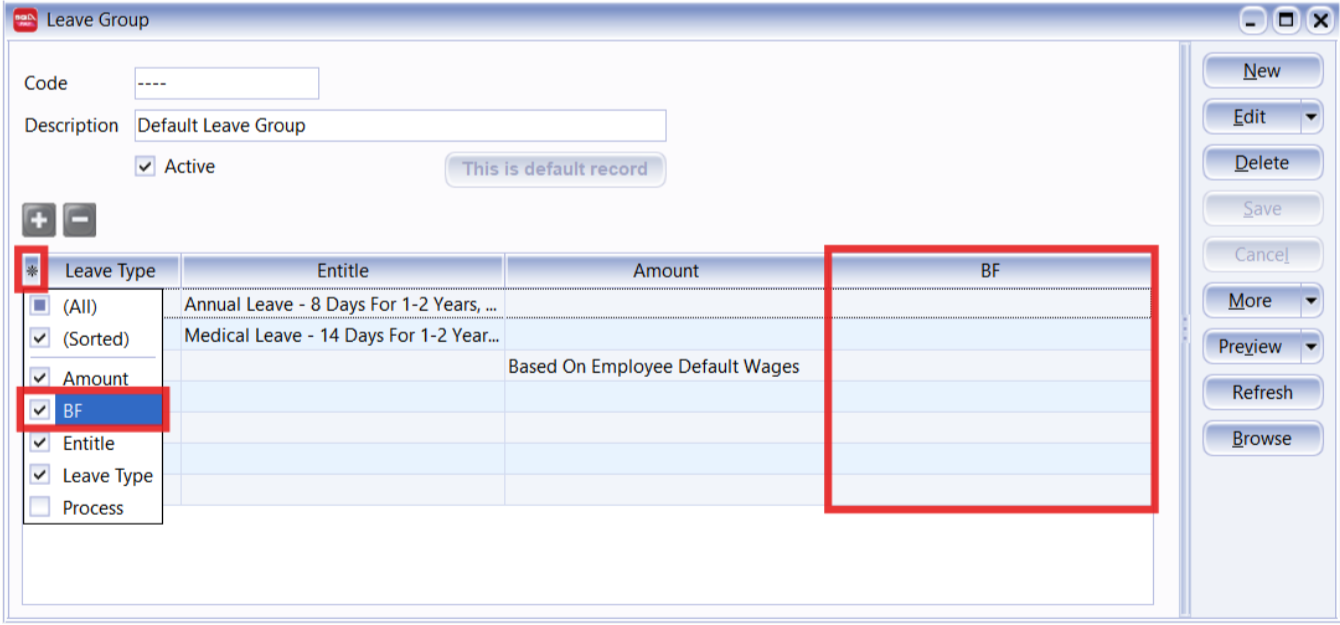
Go to Leave > Maintain Leave Group
-
Make sure the BF column is ticked
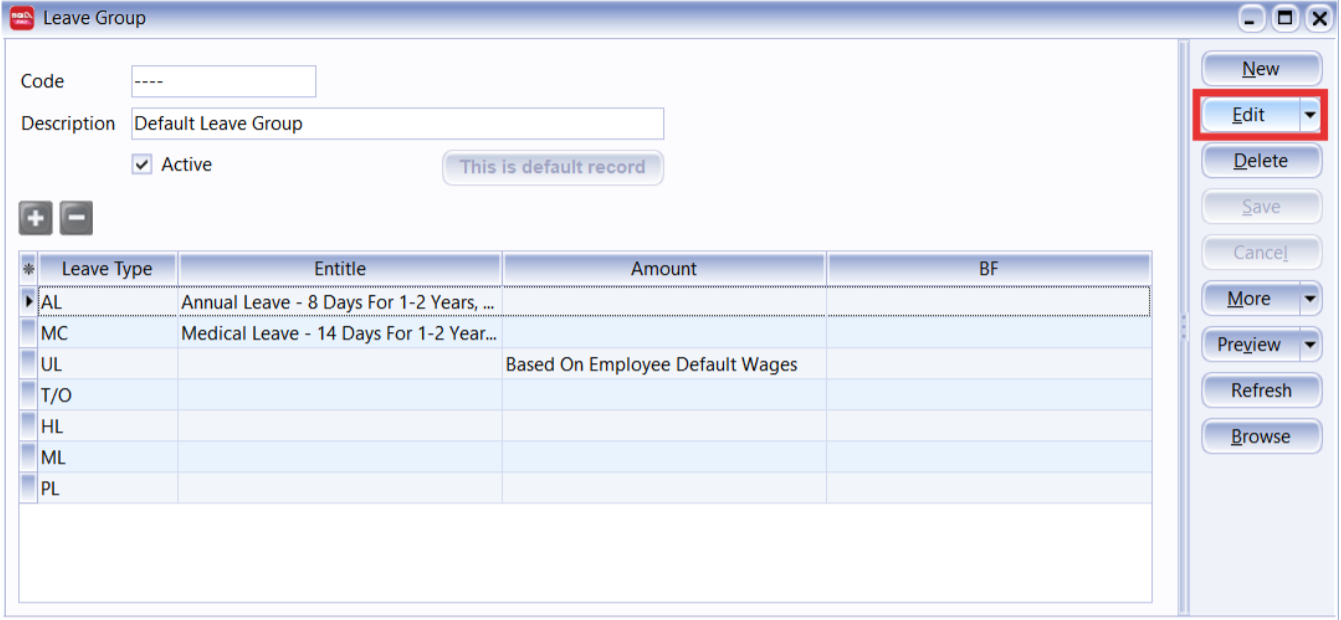
-
Click Edit
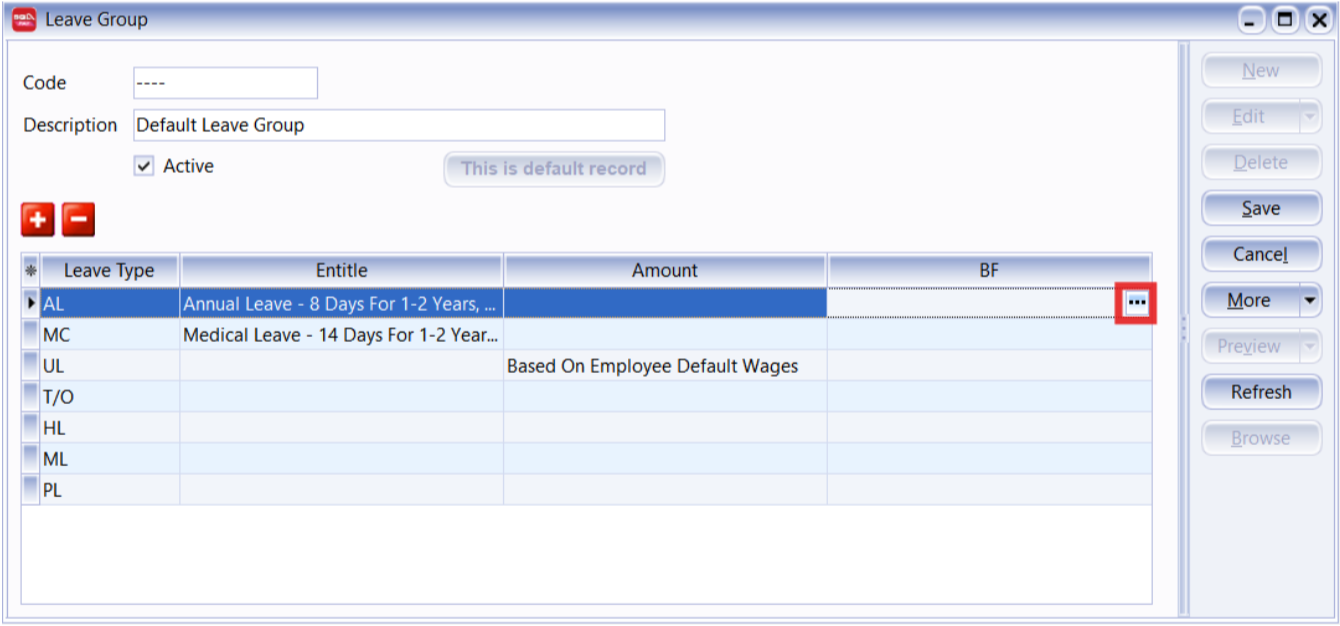
-
Click the tree-dot icon to set the Leave B/F rule
At here, you can choose to use:
- Standard Calculation, or
- Custom Calculation (script customization)
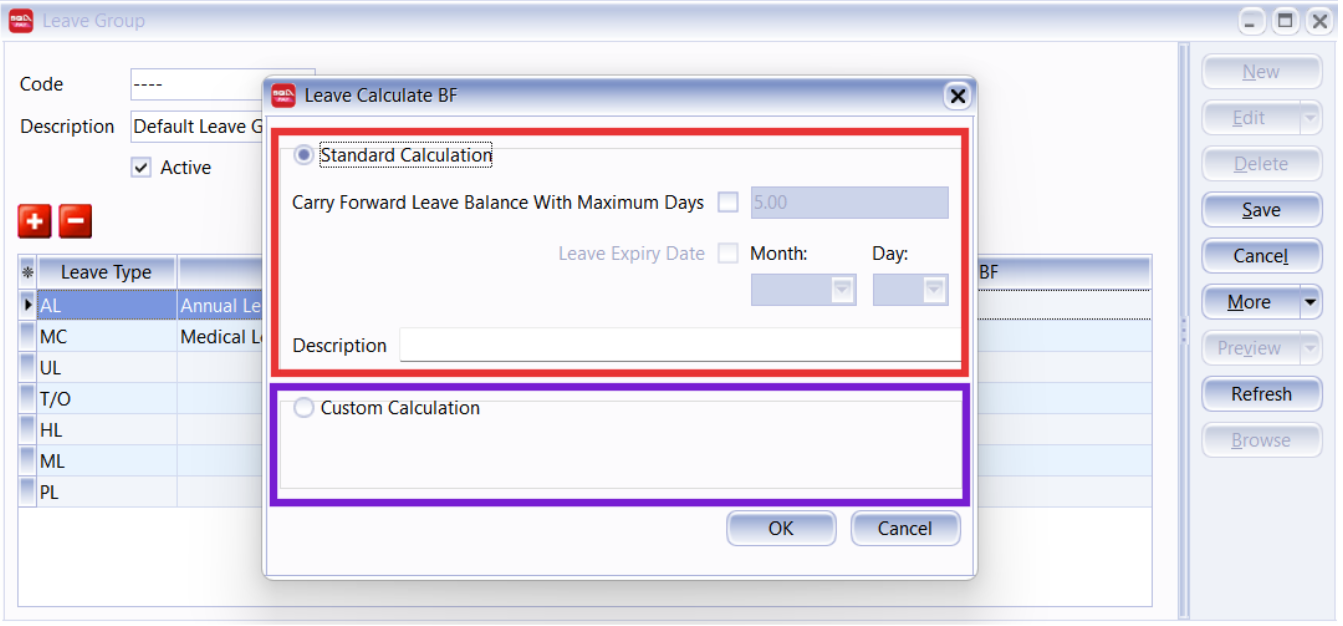
Standard vs Custom Calculation
Standard Calculation
An easy-to-use interface that allows users to configure BF Leave, including setting a fixed maximum number of carry-forward days and defining a special expiry date by which the BF leave must be utilized.
-
Tick this option and set the maximum days allowed carry forward to the next year.
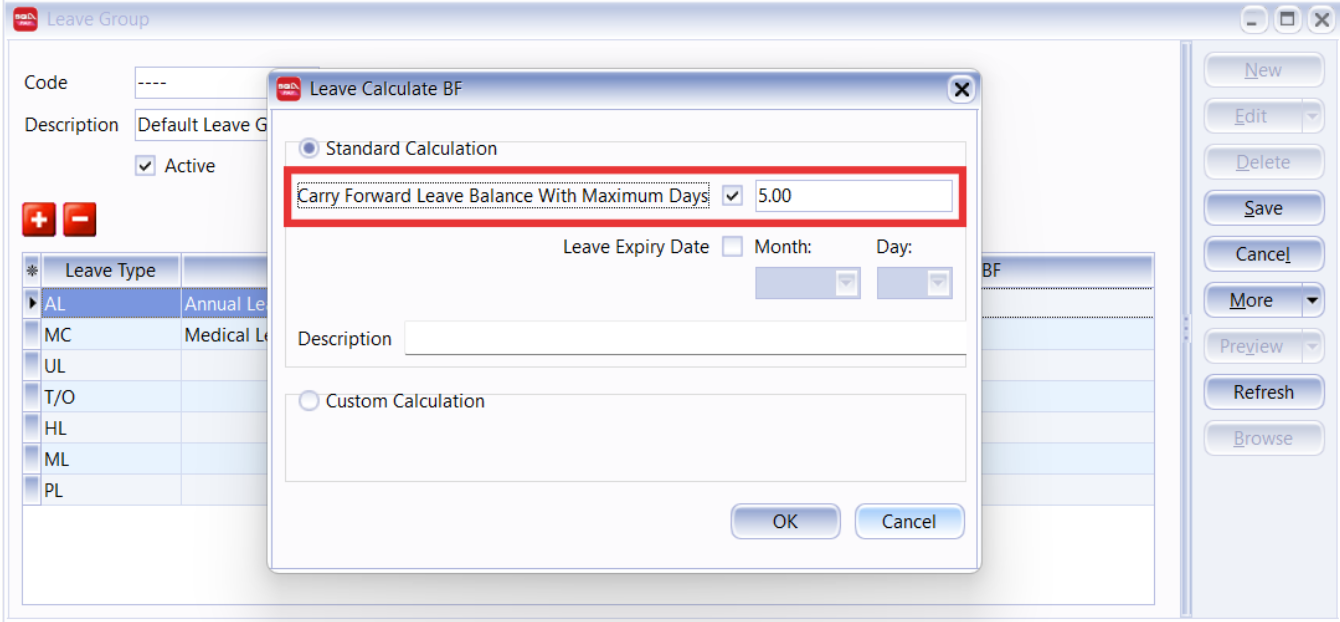
Tips: If you do not have the BF limit, you may ignore this step.
-
Tick the option to set the expiry date, and select the Month and Day
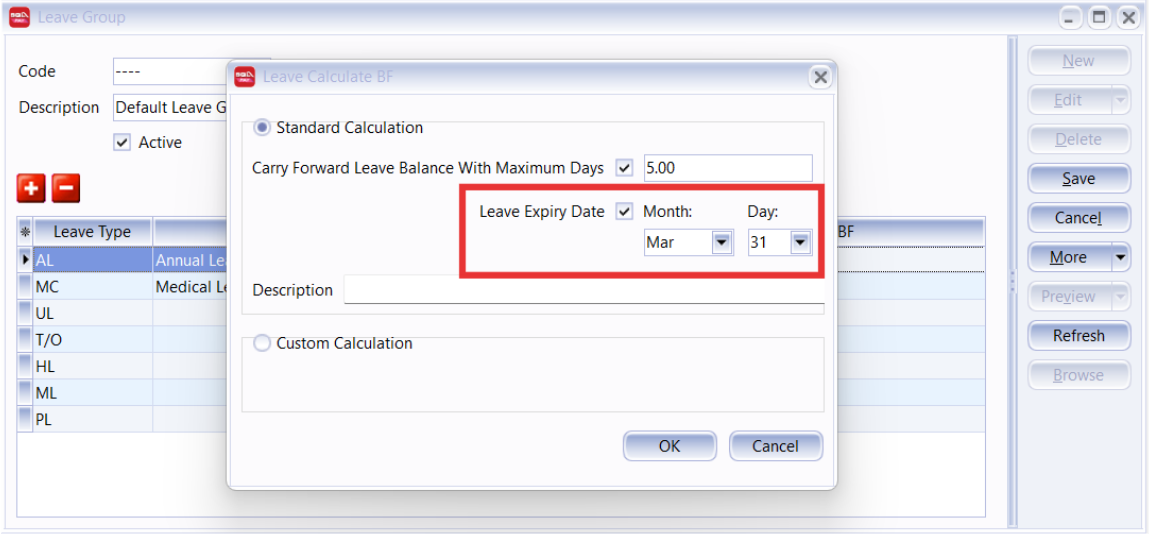 BF Leave balance will be considered forfeit at the next day of the expiry date.
For this sample : Leave Expiry Date - 31/03, Leave Forfeit - 01/04
BF Leave balance will be considered forfeit at the next day of the expiry date.
For this sample : Leave Expiry Date - 31/03, Leave Forfeit - 01/04Tips: If you do not have Bring Forward leave with an expiry date, you may ignore this step.
Custom Calculation
Extensive BF leave calculation logic is implemented through scripting and is generally developed by a programmer.
- Select this calculation method, and click the dropdown icon to load in the script
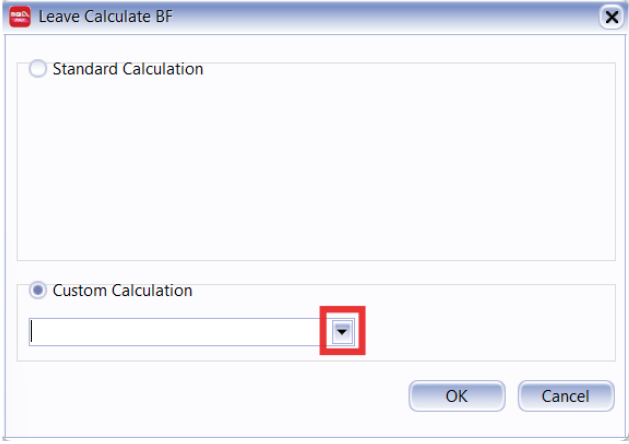
Process B/F Leave & Forfeit
-
Go to leave entitlement (refer to Leave Entitlement Processor).
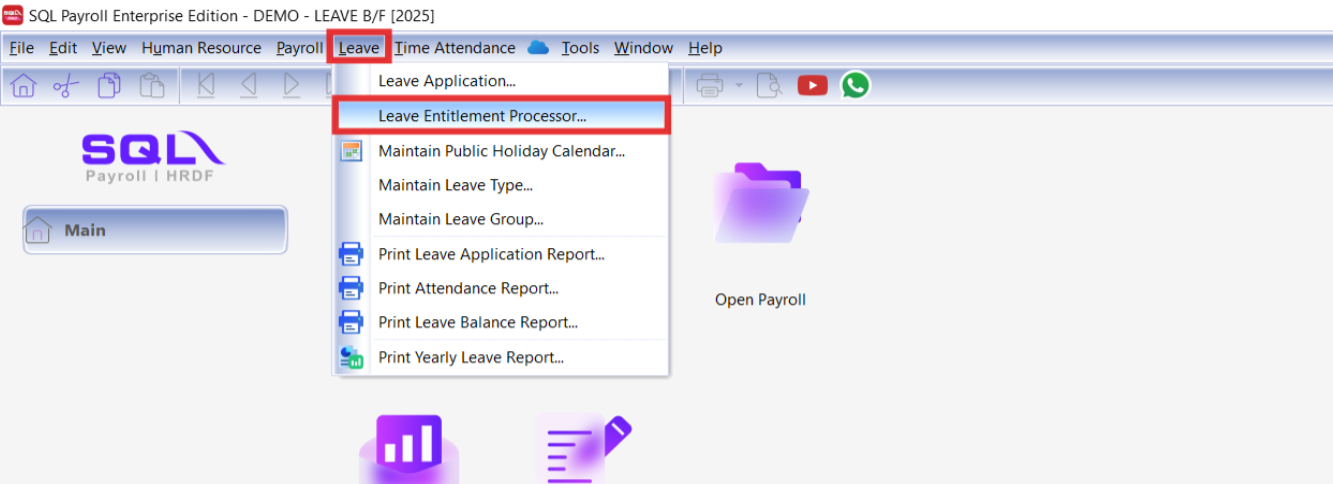
-
Select the Leave Year, and click Process
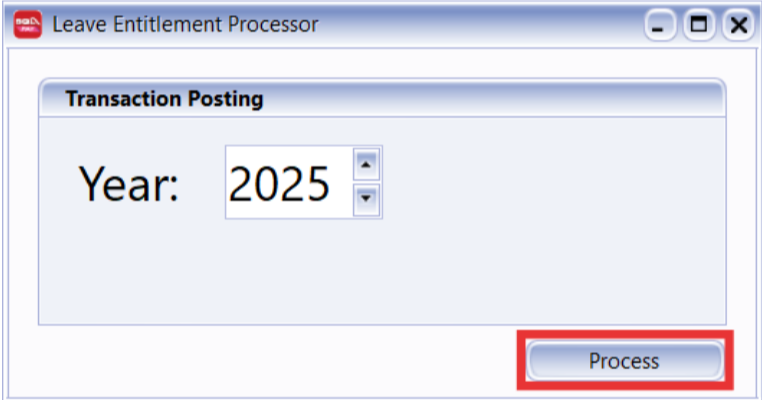
-
Click Open when showing this message
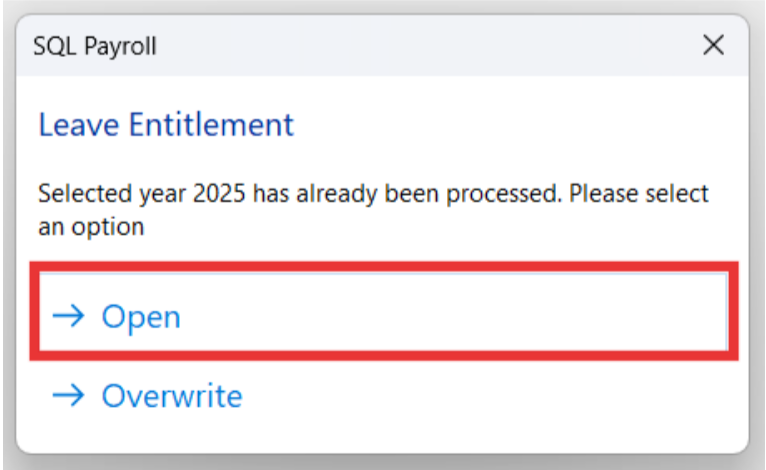
-
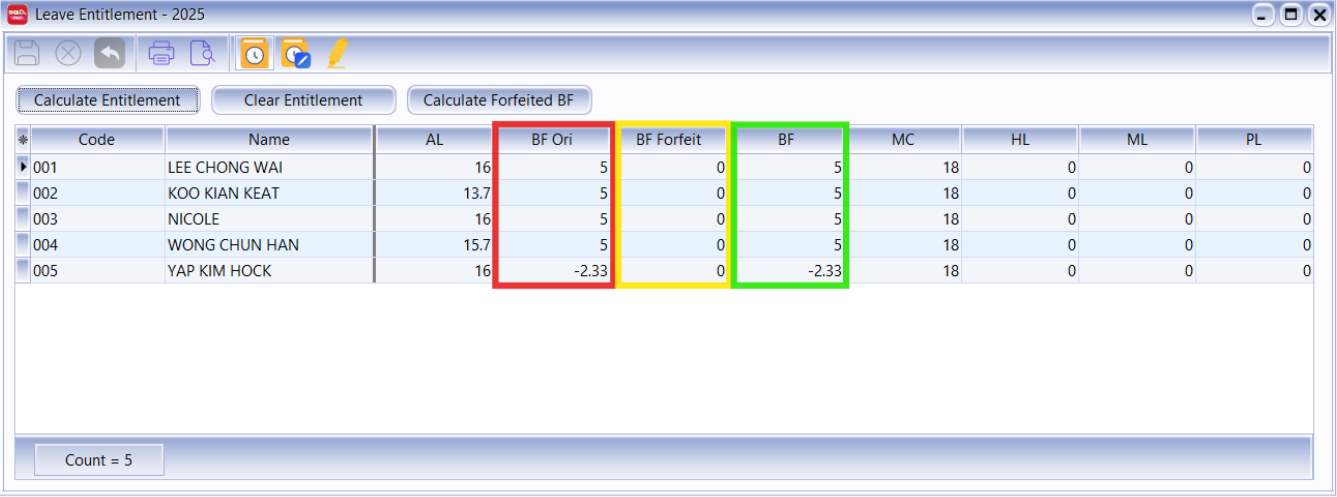
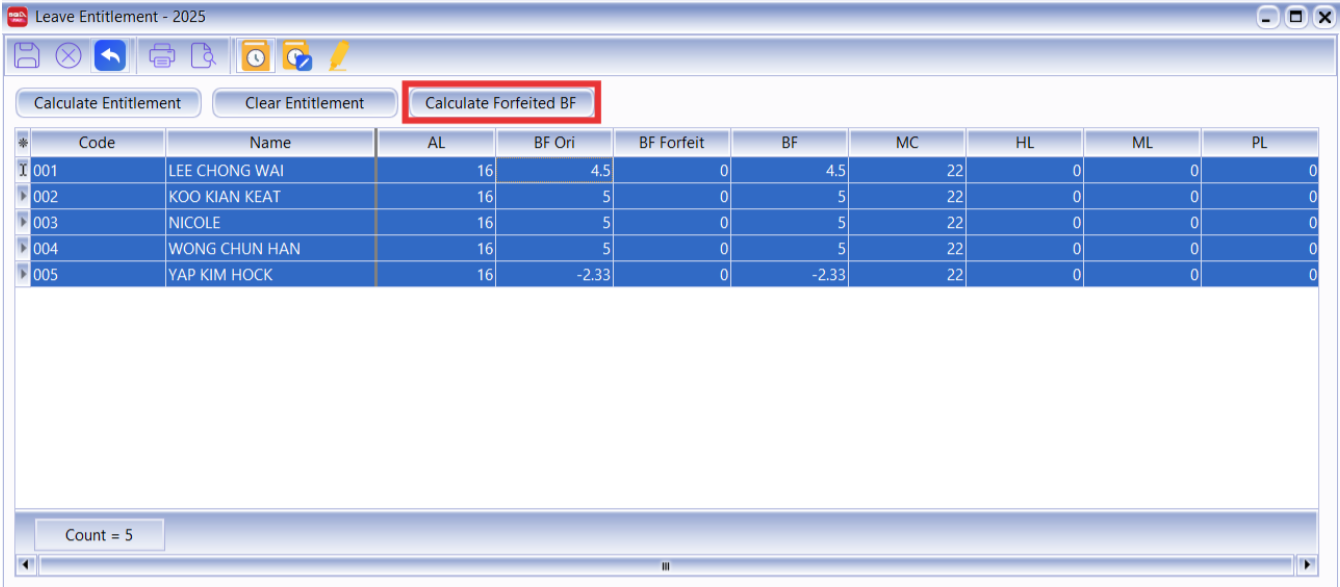
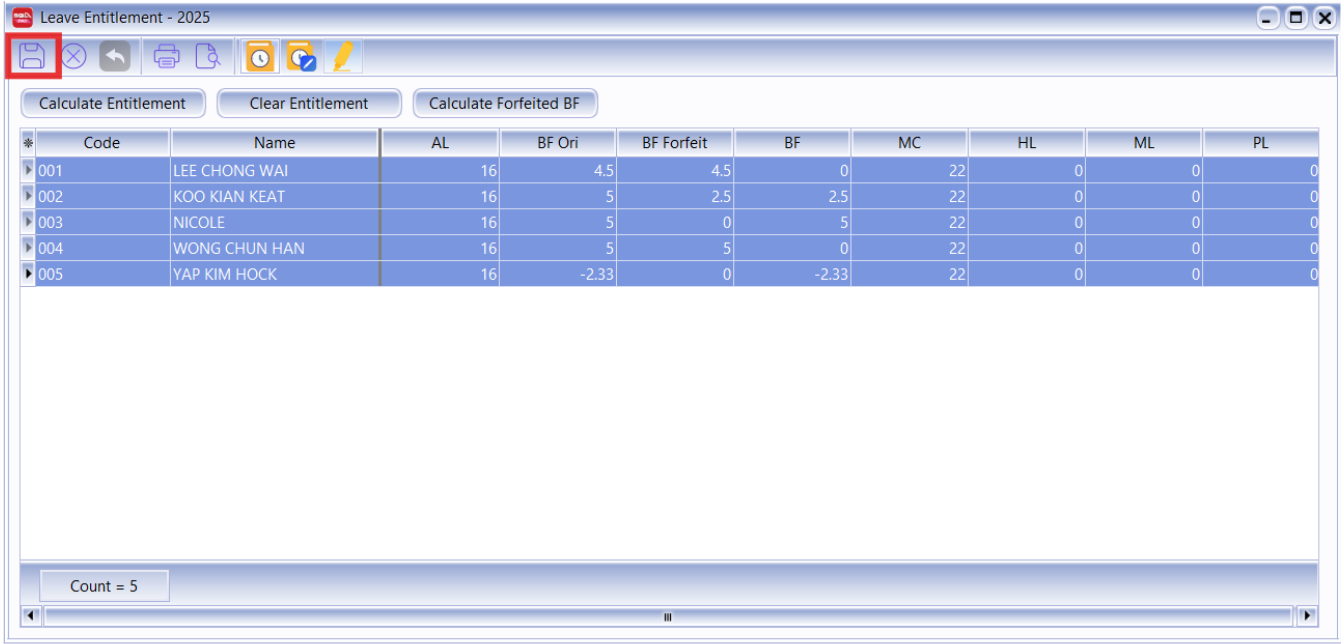
Leave BF involves 3 columns: BF Ori, BF Forfeit, and BF
- BF Ori: Original brought-forward leave from last year
- BF Forfeit: Unused B/F leave forfeited after expiry
- BF: Remaining B/F balance after forfeiture
-
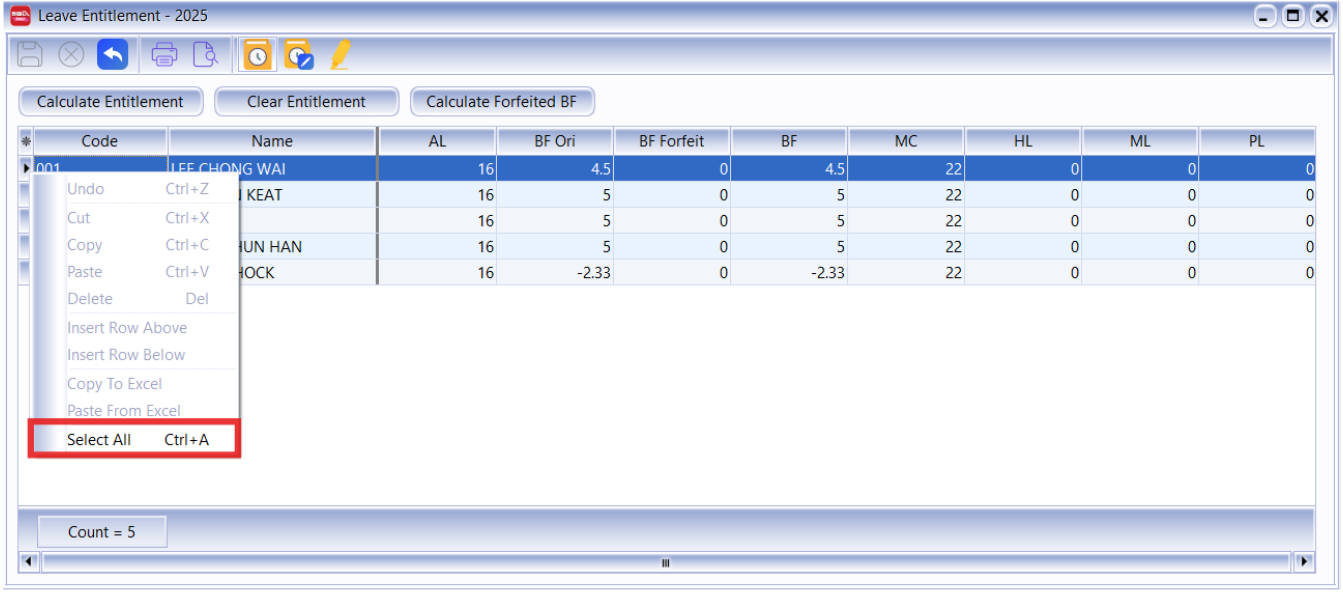
Right click and choose Select All, or use Ctrl+A to select all employees
-
Click Calculate Forfeited BF
-
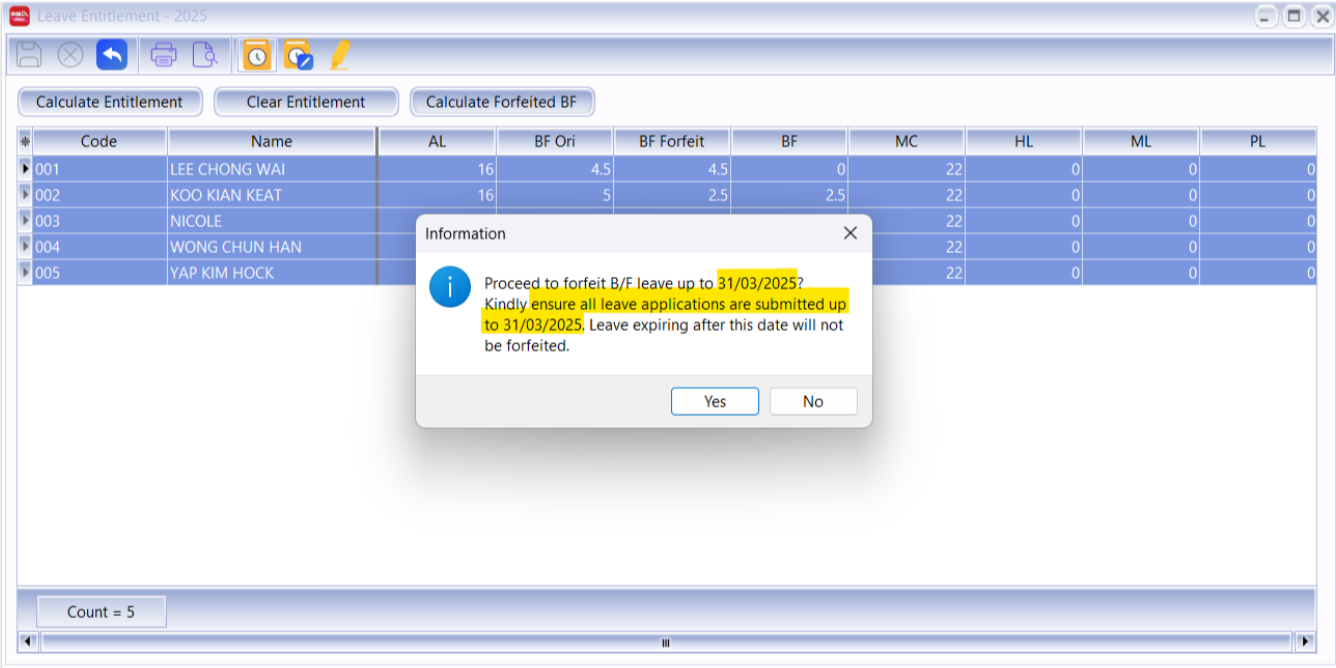
A notification will prompt out and update the Leave B/F Forfeit until the latest expiry date
Changes will only take effect once the leave expiry date is reached.Example: if the Leave Expiry Date is 31/3 and the current computer date is 26 Jan, no any Leave will be forfeited
-
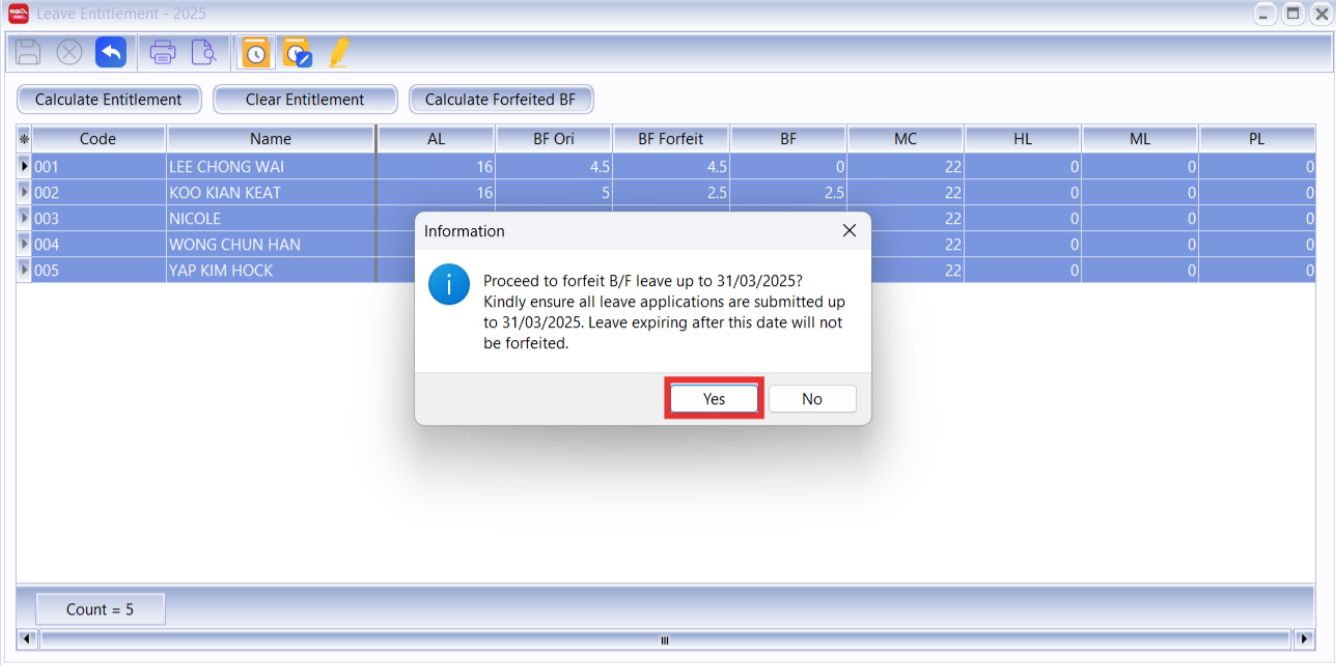
Click Yes to continue
-
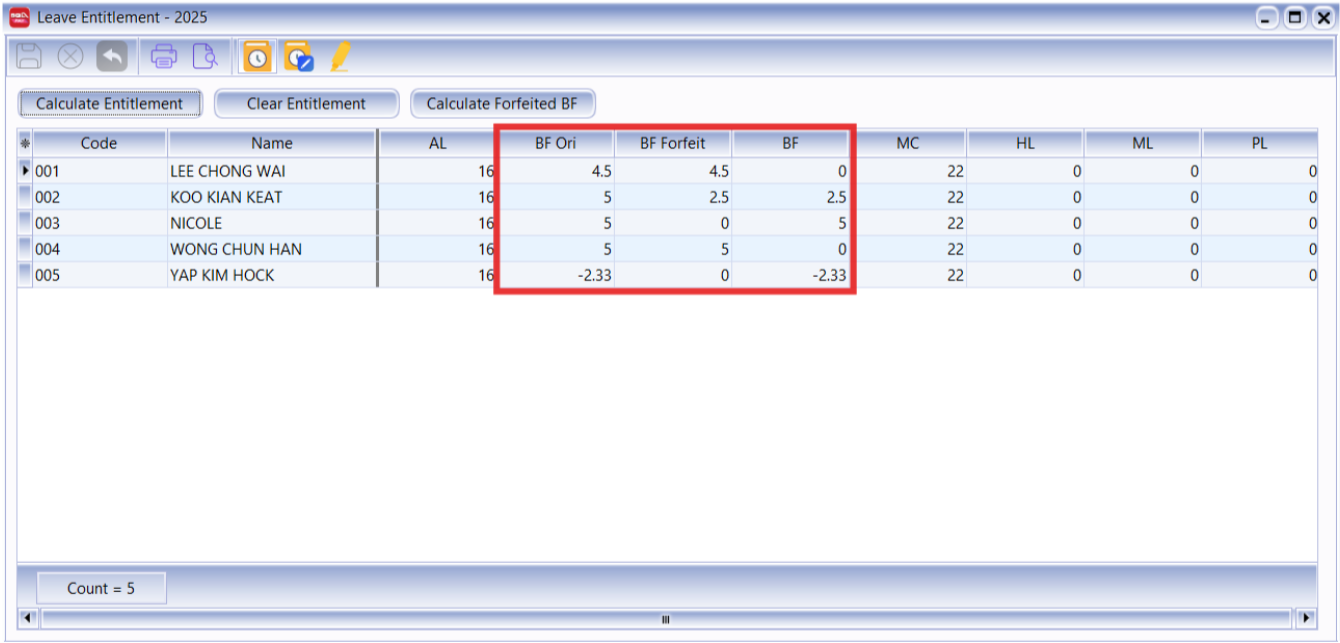
System will auto recalculate the BF Leave Forfeit
noteOnly unused B/F leave will be forfeited after the expiry date
-
Click Save once done
Maintain Leave Group
- Allows you to customize leave policies for different employee levels.
- You can customize scripts (under Tools > Maintain Script) and apply them to the leave group.
-
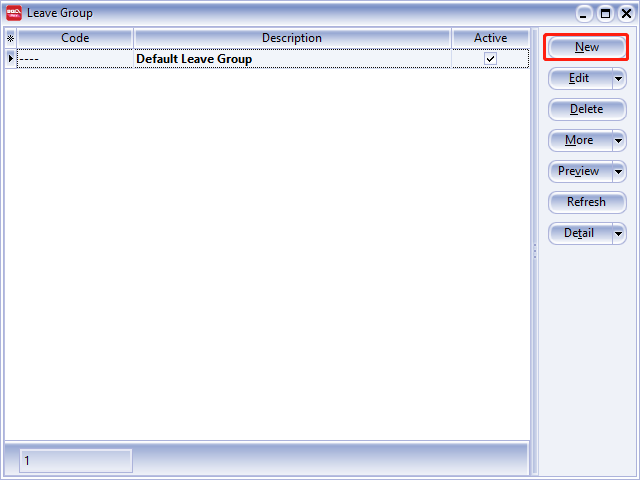
Navigate to Leave > Maintain Leave Group.
-
Click the New button in the top right corner.
-
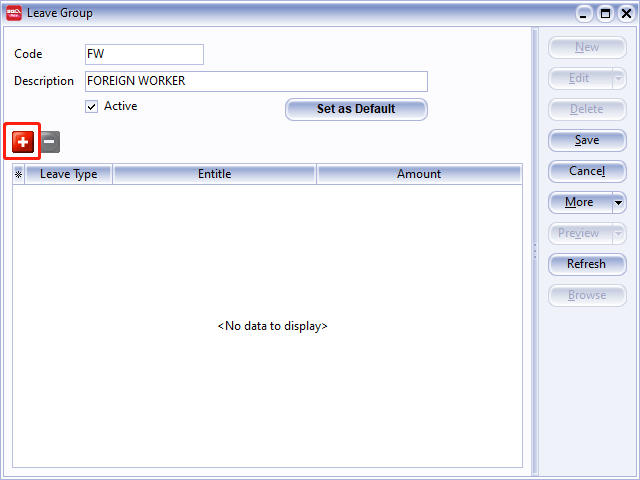
Assign a code for the new leave group.
ExampleFWfor Foreign Worker.Click the + button to select the entitled leave types for this group.
-
Taking Annual Leave (AL) as an example:
- By default, the calculation for Annual Leave is:
Year of Service (Years) Day of Leave Entitled (Days) 1 to 2 8 3 to 4 12 >4 16 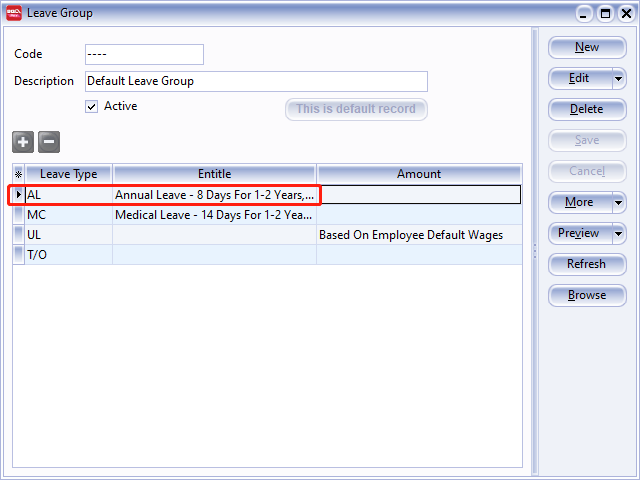
If your company follows this default policy, go to the Entitle tab and select Annual Leave Entitlement Policy. The calculation will follow the default setting.
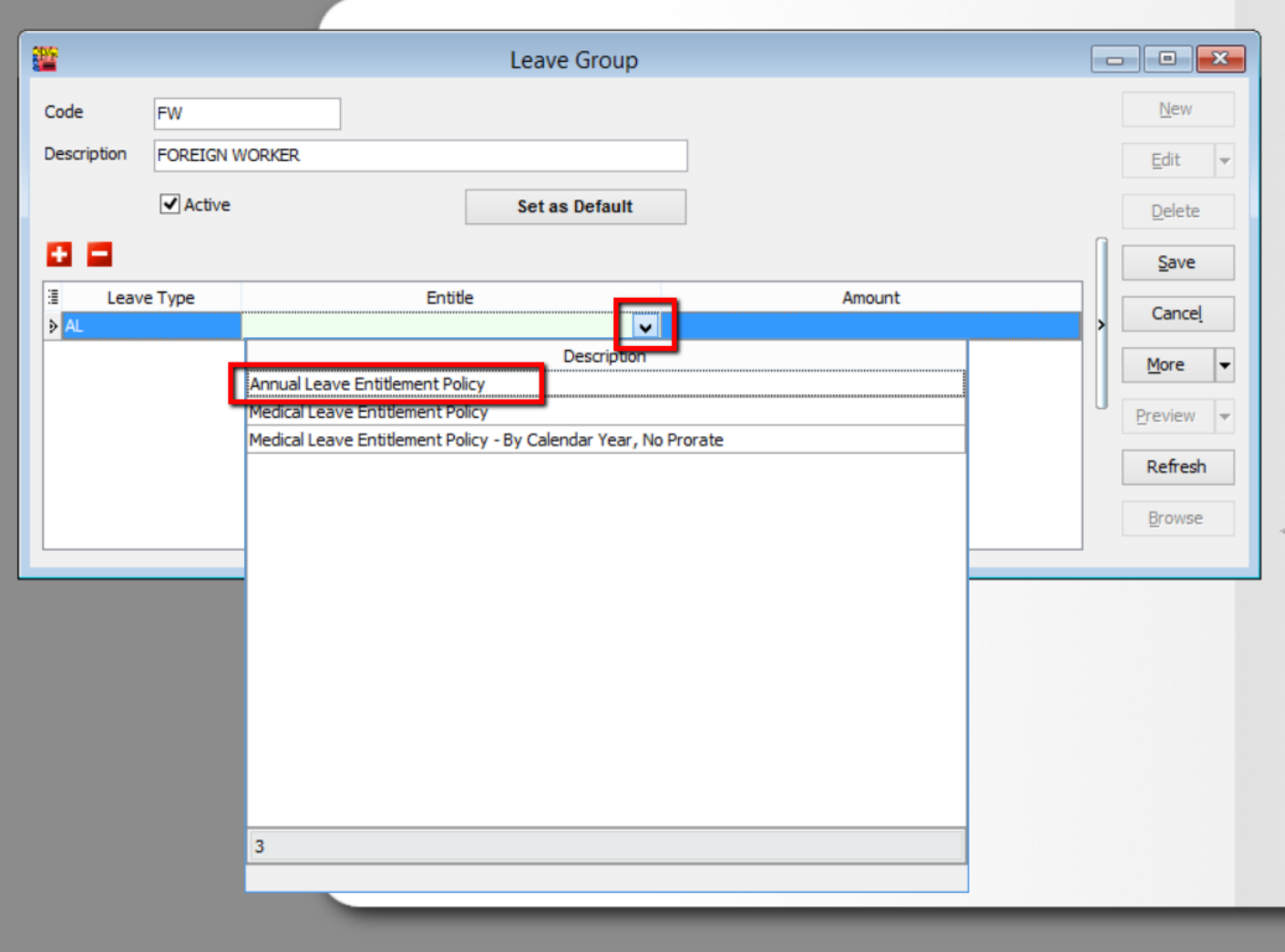
Click Save.
-
If your company uses a different policy, click Edit, then click the ... button beside the Entitle column to customize the calculation.
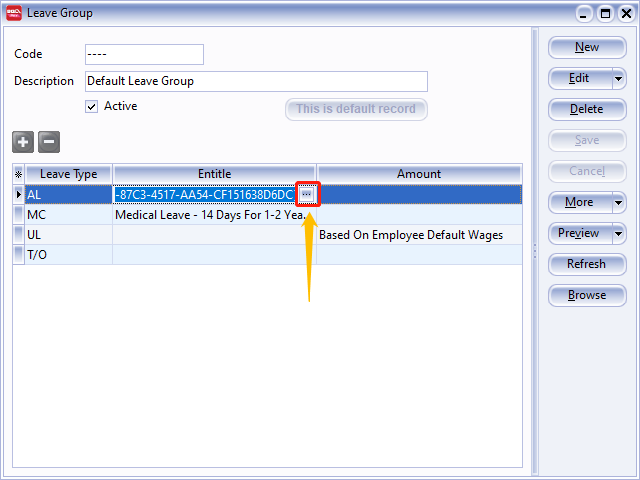
-
For example, if your company uses the following calculation:
Year of Service (Years) Day of Leave Entitled (Days) 1 to 2 8 3 to 5 12 >5 18 Enter the table as follows:
Year From Year To Days 1 2 8 3 5 12 1 99 18 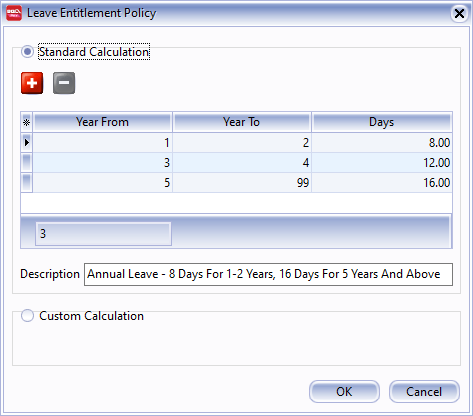
-
Click OK to finish. 🥳
Employee Leave Group Assignment
-
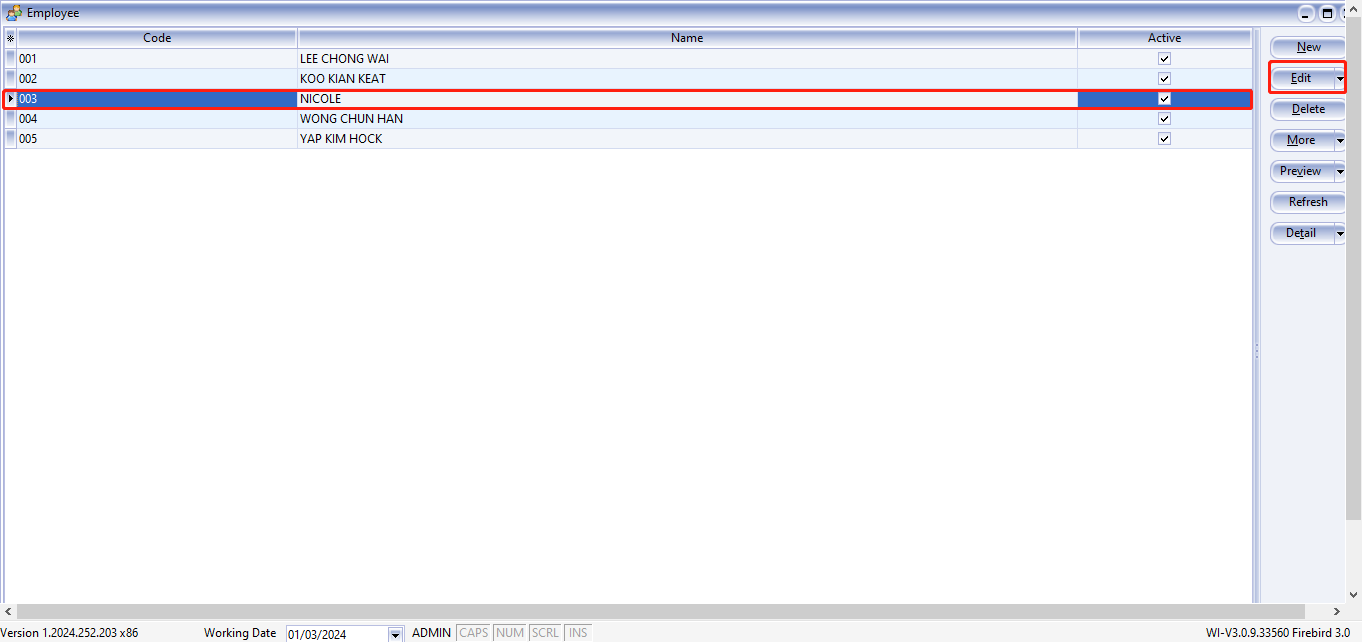
Navigate to Human Resource > Maintain Employee.
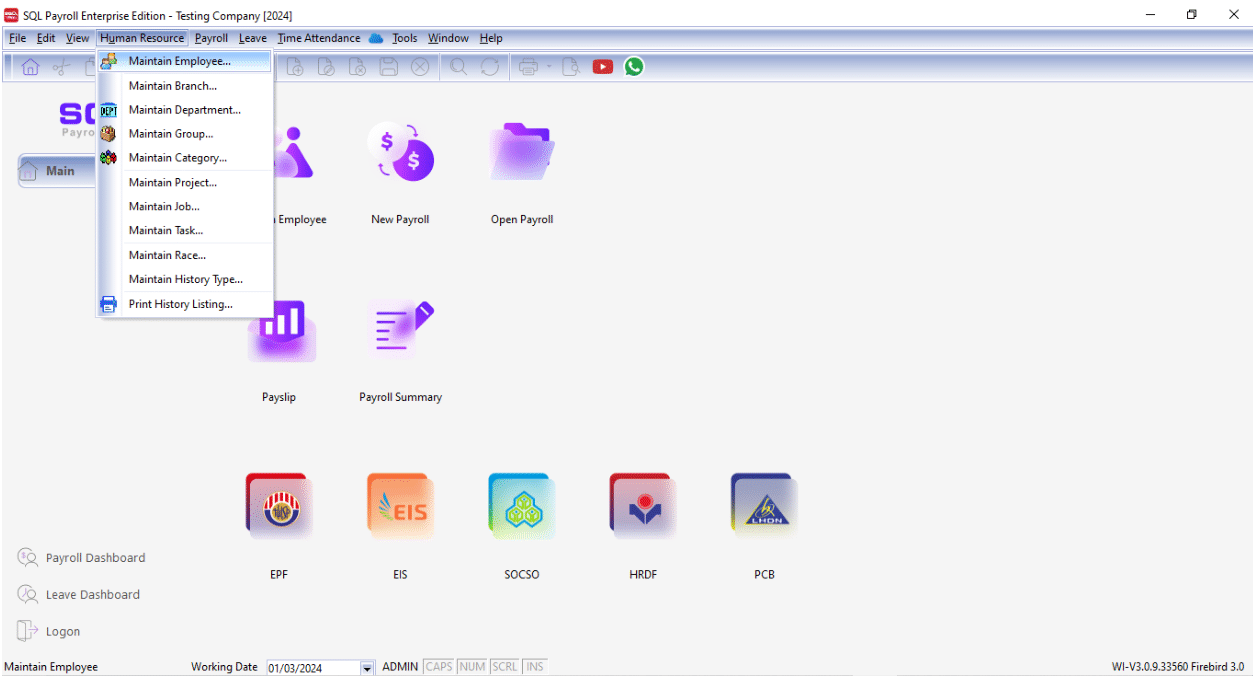
-
Select the relevant employee (e.g., Nicole) and click Edit.
-
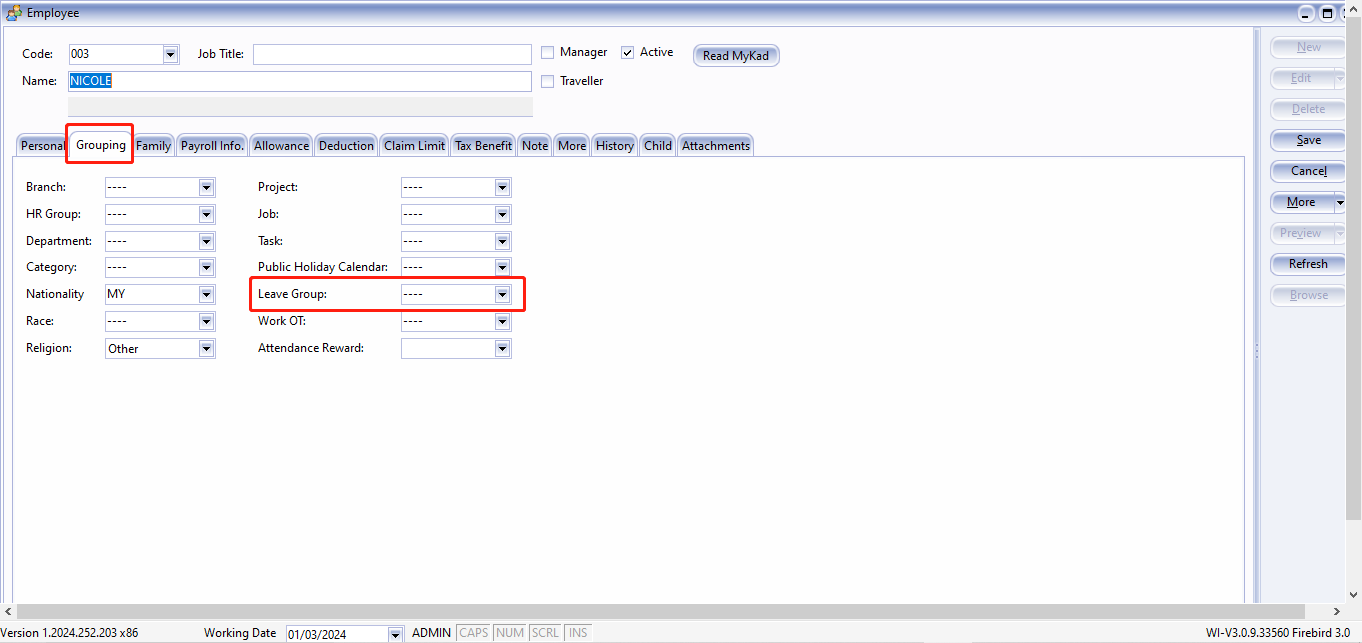
Click the Grouping tab. You will see Leave Group in the last panel.
-
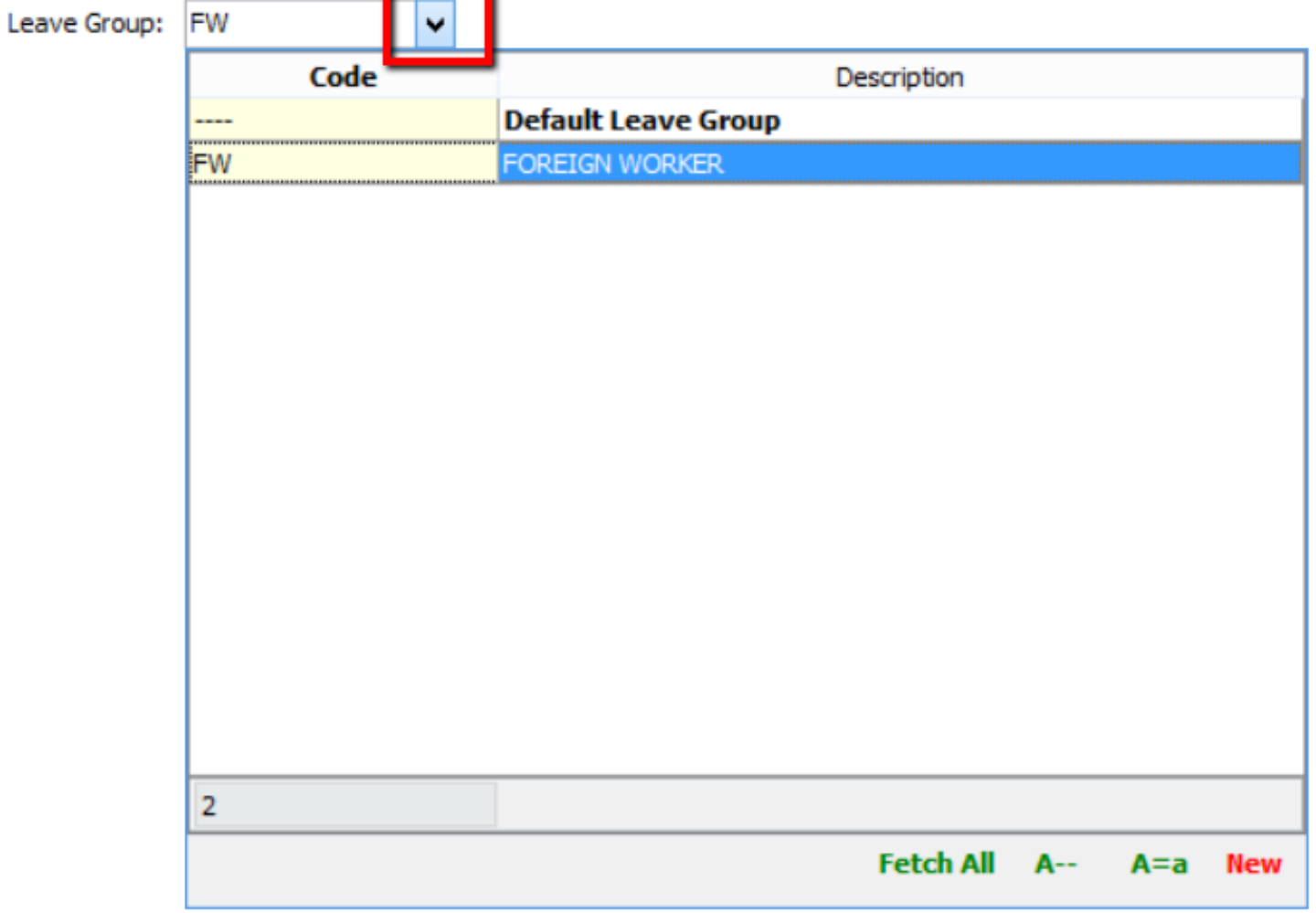
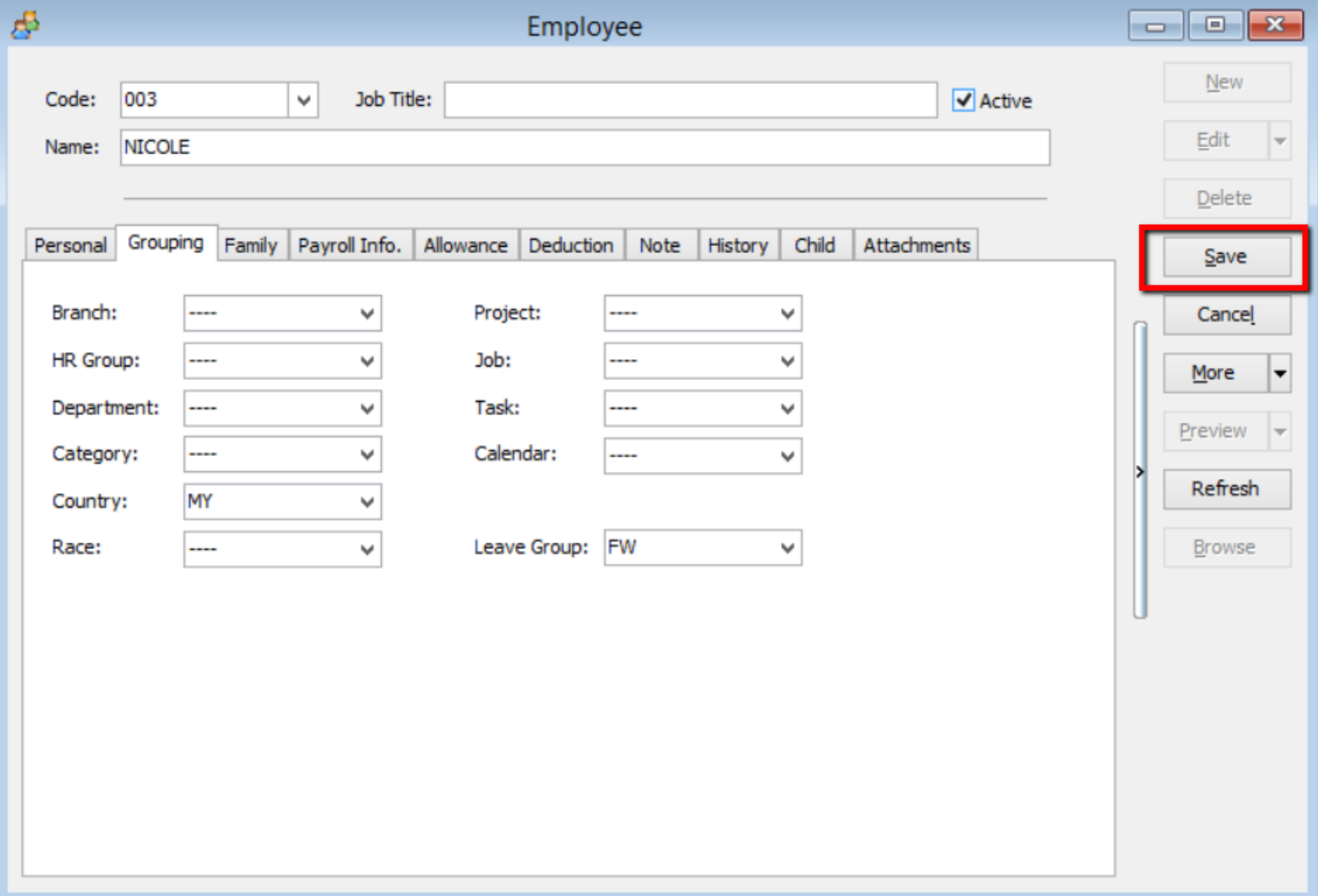
Assign the relevant leave group.
ExampleForeign Worker (FW). Click Save.
Leave Report
| Report | Description |
|---|---|
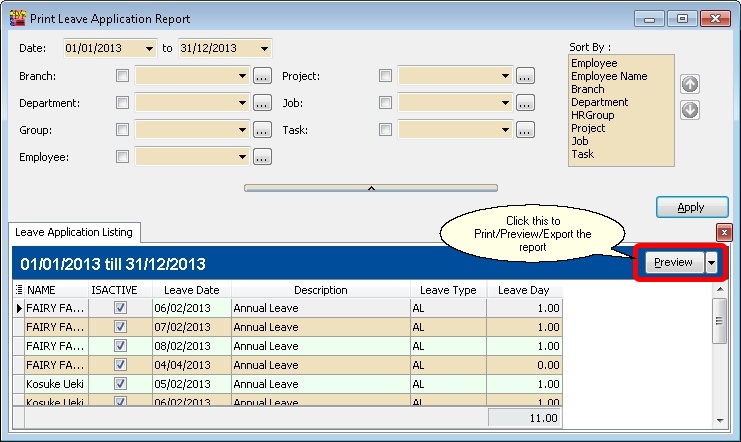
| Leave Application Report | Generates detailed leave taken by each employee for a year. |
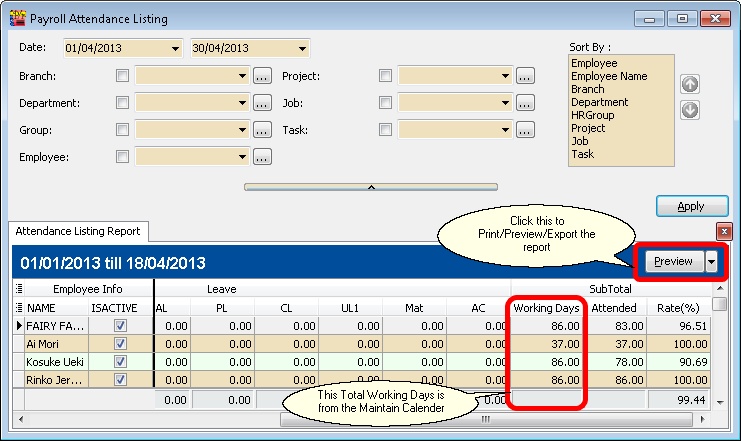
| Attendance Report | Generates attendance performance in percentage. |
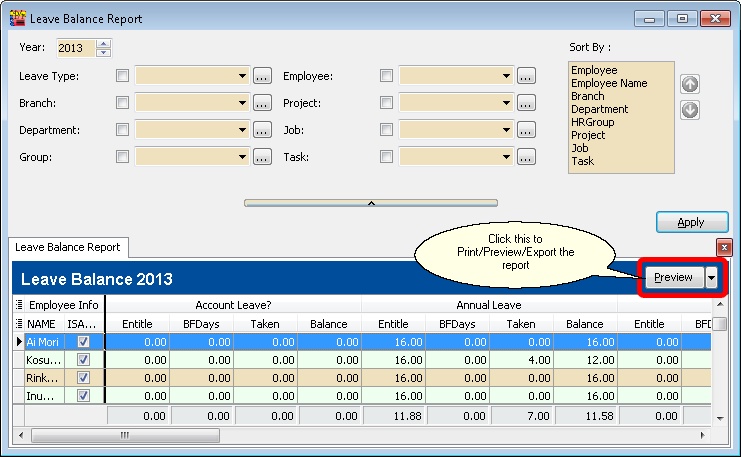
| Leave Balance Report | Analyzes the number of days taken for annual leave, medical leave, etc. |
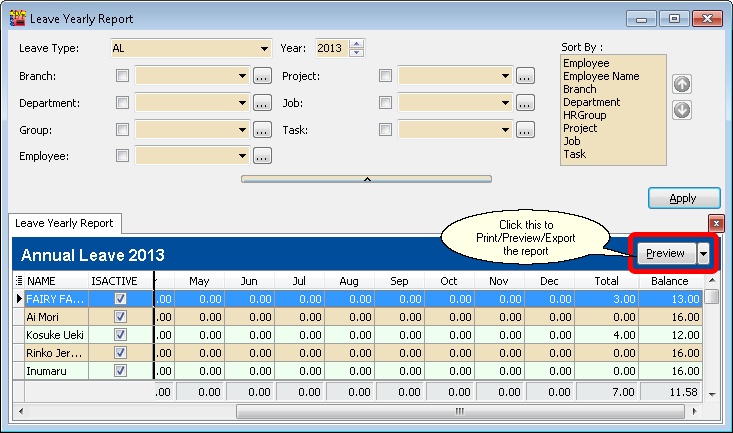
| Yearly Leave Report | Generates a 12-month summary of total leave taken for each leave type (e.g., annual leave, unpaid leave). |
Print Leave Application Report
Print Attendance Report
Print Leave Balance Report
Print Yearly Leave Report