On-Premise Setup
Prerequisites
- Microsoft Windows 11 and above (recommended with 64 bits windows)
- CPU: Intel i5, i7 and above
- RAM: at least 8 GB of RAM (Recommended 12 GB and above)
- SQL Account: version 5.2025.1038.875 and above
- Firebird: version 3.0.9 and above
- Fix server IP address (either DHCP Reservation or Static)
- Public IP Address
- Port Forwarding
Public IP Address
Make sure to have a dedicated public IP Address.
You can use SQL Connect Detector to check whether public IP is enabled by your ISP.
Make sure the last requirement Port Forward? is in
If the result is
If the provider requests a reason, you can explain that you intend to host a server and therefore need to set up port forwarding.
Setup
Step 1 - Install SQL API Service
-
On
Logon Screen> Click⚙️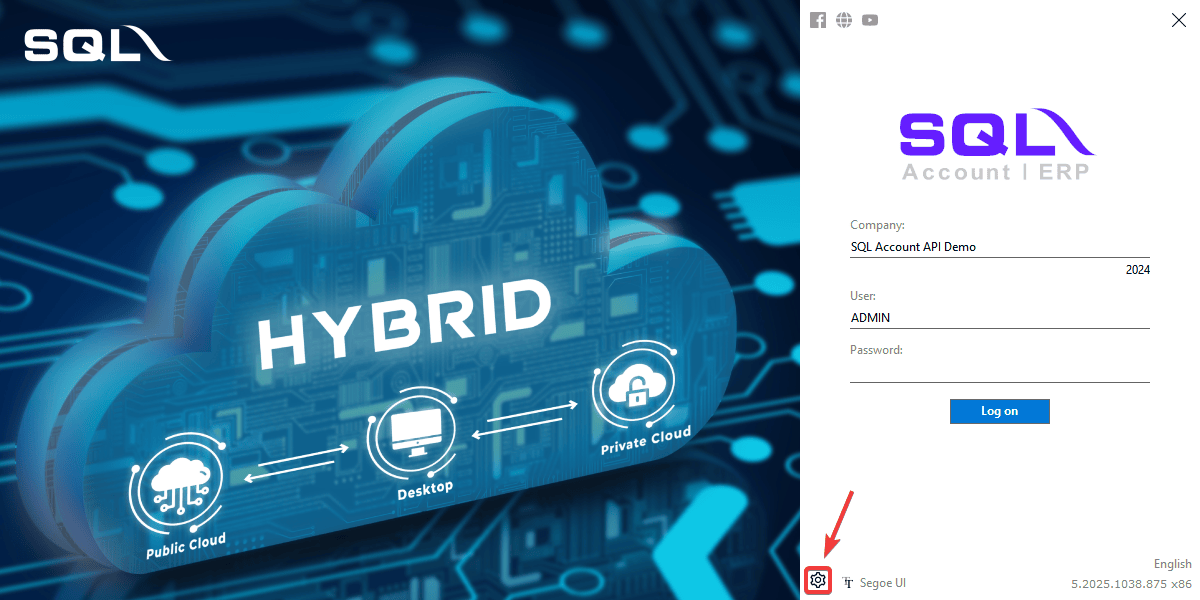
-
Right-Click on company database > Select
Configure API Service...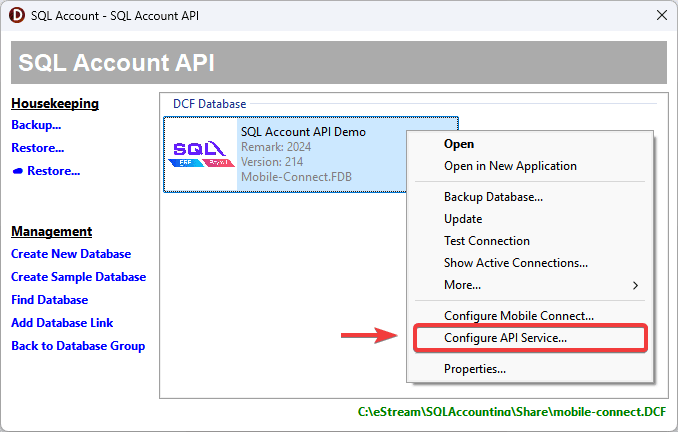
-
Click on
Installto install API service
Step 2 - Start Service
-
Start the service. Once successful,
Service is runningstatus will show on screen.
Step 3 - Port Forwarding
-
In SQL Account, you can click on the
Show Tipsto find all the information required for port forward configuration.
-
First thing first, you will need to access to your router management interface on web browser.
From SQL Account, you can click on
Show Tips>Gateway IP Address, to access login page of the router. Login with an administrator credential.warningIf you are using a firewall or serving the router's web administration interface via a different IP address, this might not work.

-
After login, navigate to the port forward config. Different router model have different naming, try to find the section with
Port Forwarding,Virtual Serviceor similar wording in the router's setting. -
Create a new port forwarding rule. (All information can get from Port Forwarding Information)
Field Value Description Service Name SQL Account API Service Descriptive name of the service Protocol TCP Service protocol External/Public Port 443 Port number to be use for external access Internal/Private Port 443 Port number of the internal service Internal IP Address E.g. 192.168.0.2 IP Address of the server -
Fill in and save the rule
-
Lastly, back to SQL Account, verify the service status by clicking on
Test Connectionto testSQL Account API Servicestatus. When✅ OKstatus is shown, it means the service is setup successfully.
Examples of Port Forward
Can refer to Sample of port forward setup on some common router