User Setup
This guide walks you through the complete process of setting up SQL Mobile Connect users and configuring the mobile application on user devices.
Overview
The setup process consists of two main parts:
- Administrator Setup - Creating users and passkeys in SQL Account
- User Setup - Registering passkeys and installing the mobile app
Part 1: Administrator Setup (SQL Account)
Step 1: Create a New Agent
-
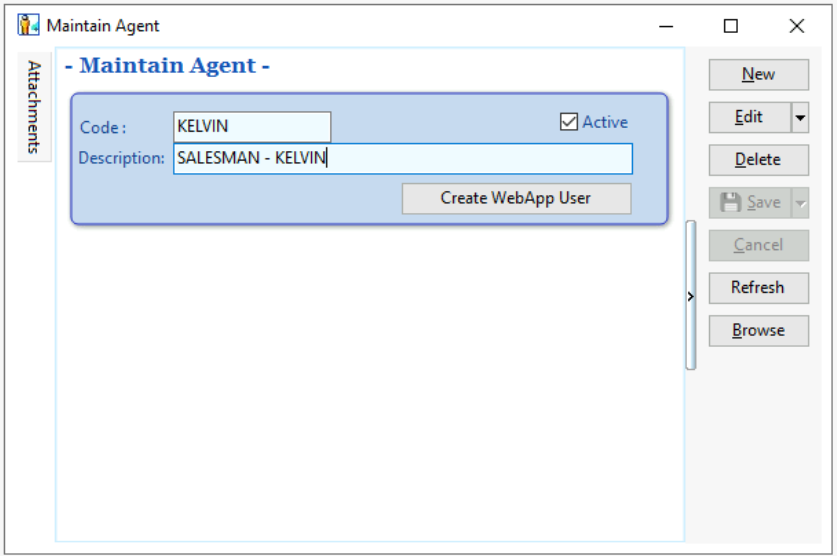
Navigate to Tools → Maintain Agent...
-
Click Create New Agent
-
Fill in the agent details and click Save
Step 2: Create WebApp User
-
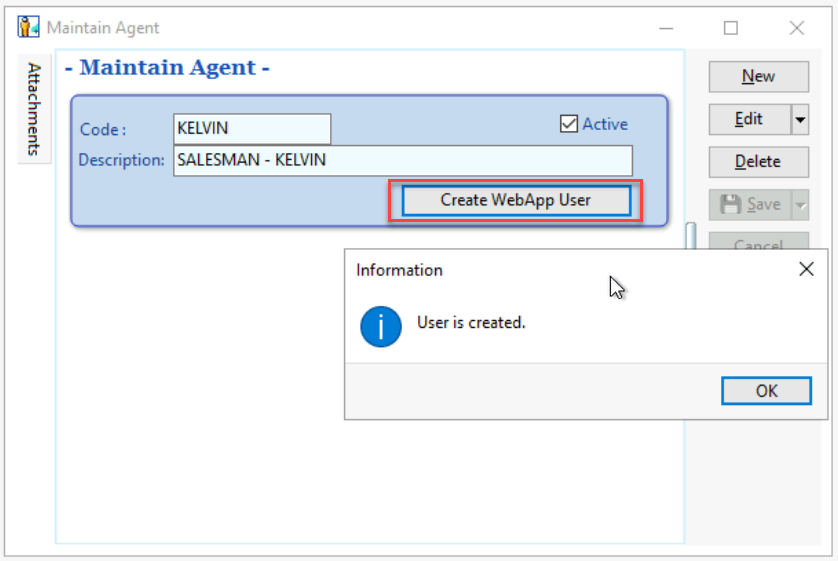
Select Create WebApp User from the agent options
-
A dialog box will appear showing "User is created"
-
Click OK to confirm
Step 3: Generate Passkey Registration
-
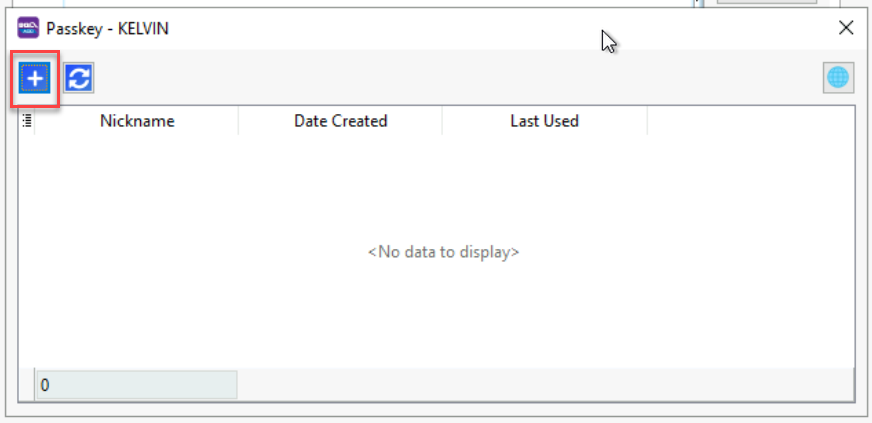
Click the + Button under the Passkey window
-
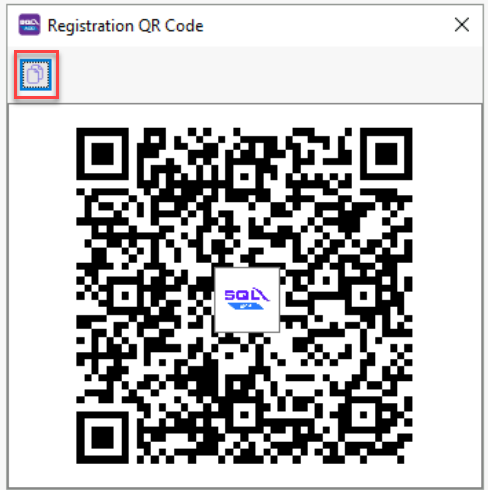
A registration screen will appear with:
- Copy Link button (highlighted in red box)
- QR Code for mobile scanning
-
Share either the link or QR code with the user for device registration
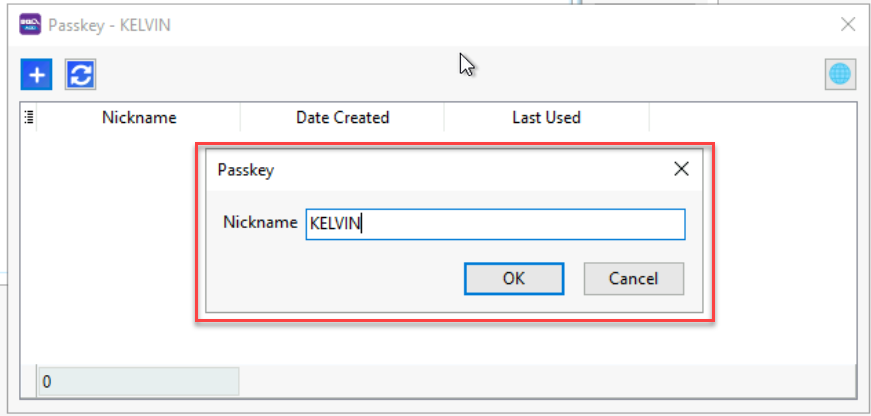
Step 4: Configure Passkey Nickname
-
Enter a descriptive Nickname for this passkey
-
Click OK to save
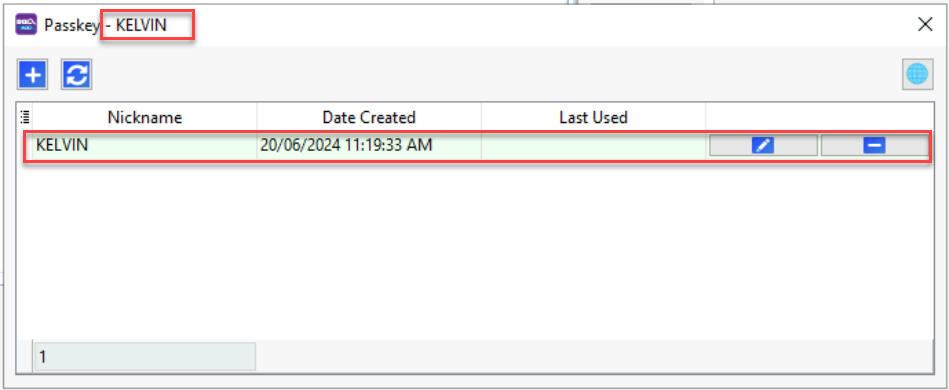
Step 5: Verify Setup Completion
The new passkey will now appear under your agent, confirming successful setup.
Part 2: User Setup (Mobile Device)
Step 1: Access Registration Link
Users can access the registration in two ways:
- Click the provided link
- Scan the QR code with their mobile device
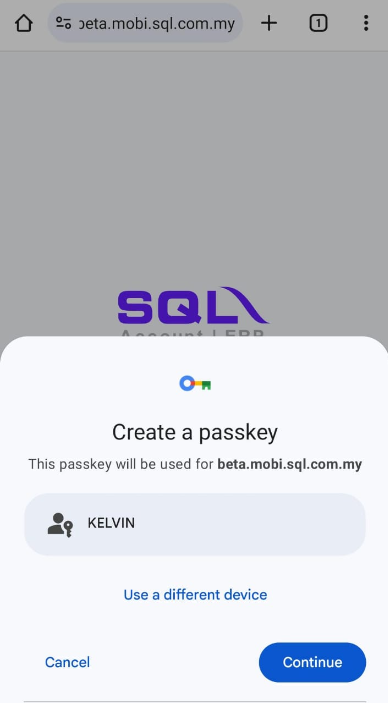
Step 2: Register Passkey
- The registration screen will appear on the user's device
- Click Continue to proceed with passkey registration
- Follow the device-specific authentication prompts (fingerprint, face ID, etc.)
Step 3: Install Mobile Application
After successful passkey registration, users will see the installation screen:
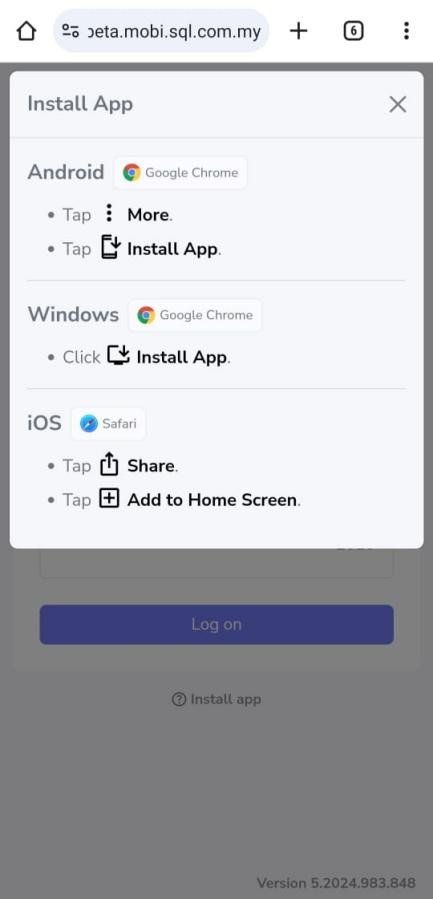
Installation Instructions by Platform
- Android: Click More → Install App
- Windows: Click Install App
- iOS: Click Share → Add to Home Screen

Step 4: Access the Application
Once installed, the SQL Mobile Connect app will appear on the device's home screen.
Alternative Access Methods
Users can also access the application by:
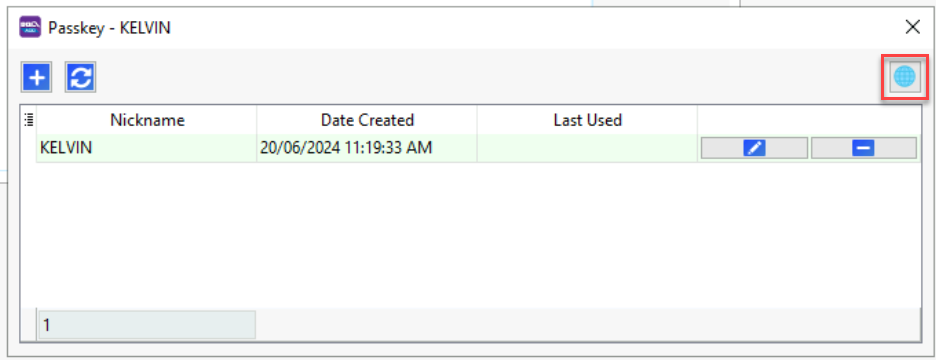
- Copying the provided link (red box)
- Scanning the QR code for quick access
Step 5: Start Using SQL Mobile Connect
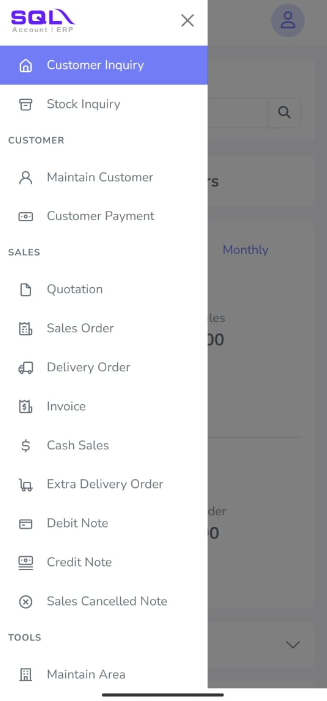
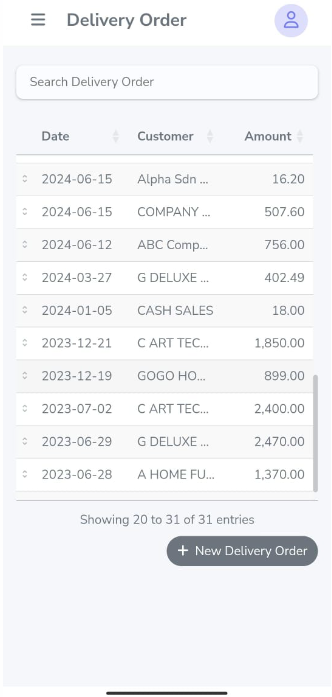
The setup is now complete! Users can begin exploring and using the SQL Mobile Connect application.
Next Steps
After successful setup, users can:
- Access real-time business data
- Generate reports on mobile devices
- Sync with SQL Account system