Setup and Configuration
Generate API Secret Key
API secret key allow the user/application to access SQL Account API Service in a secured channel.
Once an API Secret Key is generated for a user, that user will no longer be able to login on SQL Account directly. The user will be used solely for SQL Account API Service. We recommend to create a new user for the API usage.
-
In SQL Account, go to
Tools>Maintain User...>Detail -
Create a new user by clicking
New, name it "API user" -
Next, highlight on the new user, click on
More>API Secret Key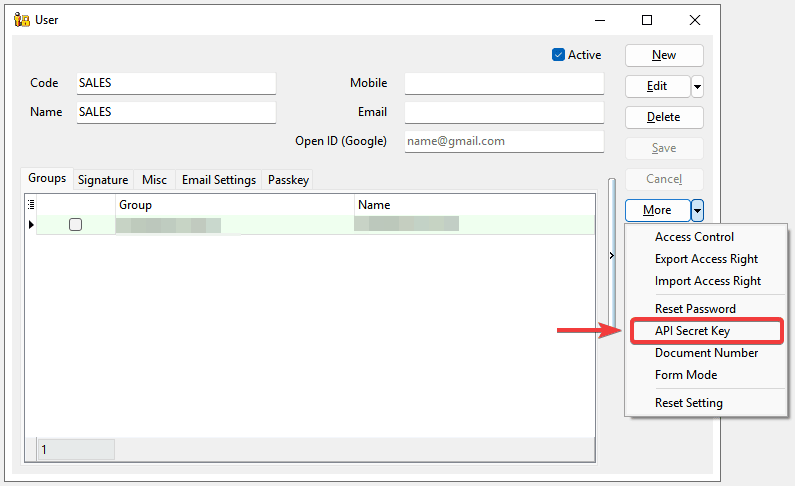
-
Click on
Generate API Secret Key
-
New
Access keyandSecret Keywill be generated and shown in the screen. Make sure to copy and save them immediately in a secure location.TipFor security purpose, API Secret Key can only be retrieved at the time of generated. If you lose it, you can
revokeandgeneratea new API Secret Key.
AWSv4 Signature
In SQL Account API, it utilizes AWS Signature v4 for authenticating requests on the endpoints. To start testing, you can click on Test Connection to test on the request with AWSv4 authorization header.
For a sample cURL request with AWSv4 authorization header, click on the copy button.

Postman Collection
In SQL Account, a Postman collection is provided to simplify request testing and accelerate API integration and development.
-
In SQL Account, click on
Download Postman Collectionto save thepostman_collection.jsonfile.
-
In postman application, click on
Importand select thepostman_collection.jsonfile downloaded to import.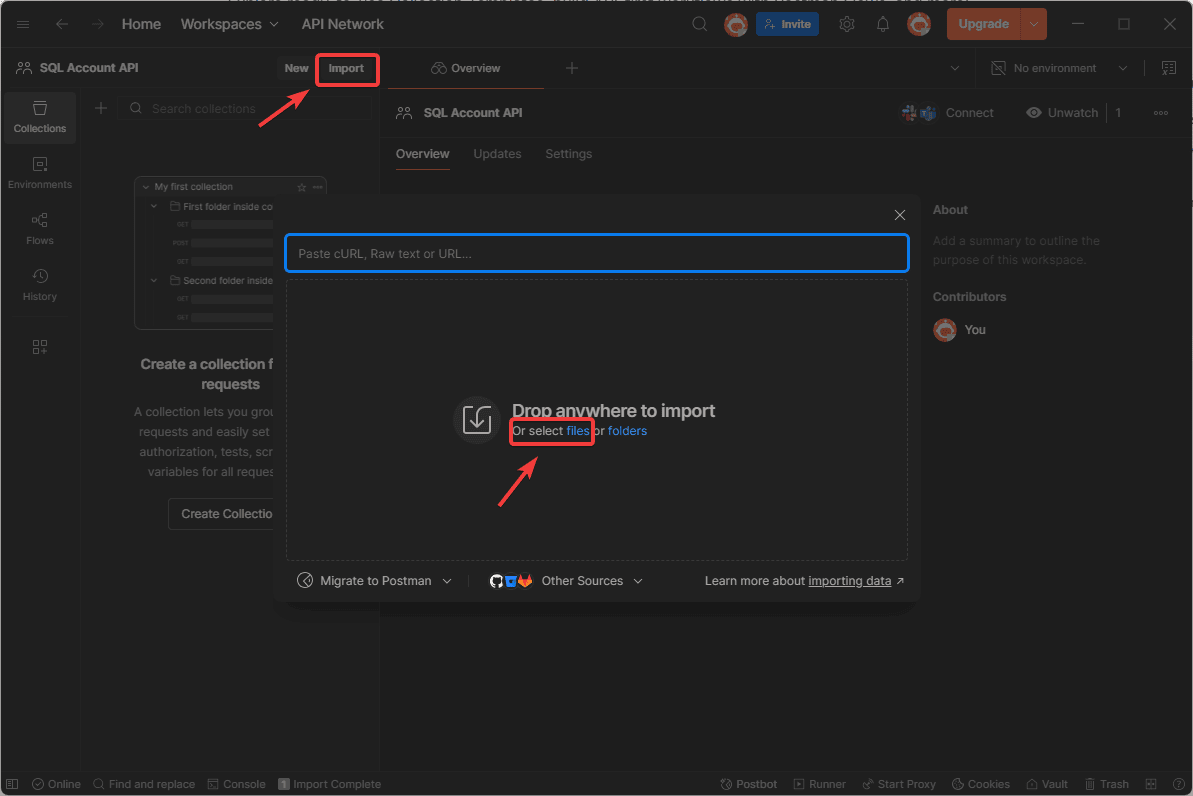
-
Next, navigate to the
Variablestab. Replace theyour_access_keyandyour_secret_keywith the Access Key and Secret Key generated earlier.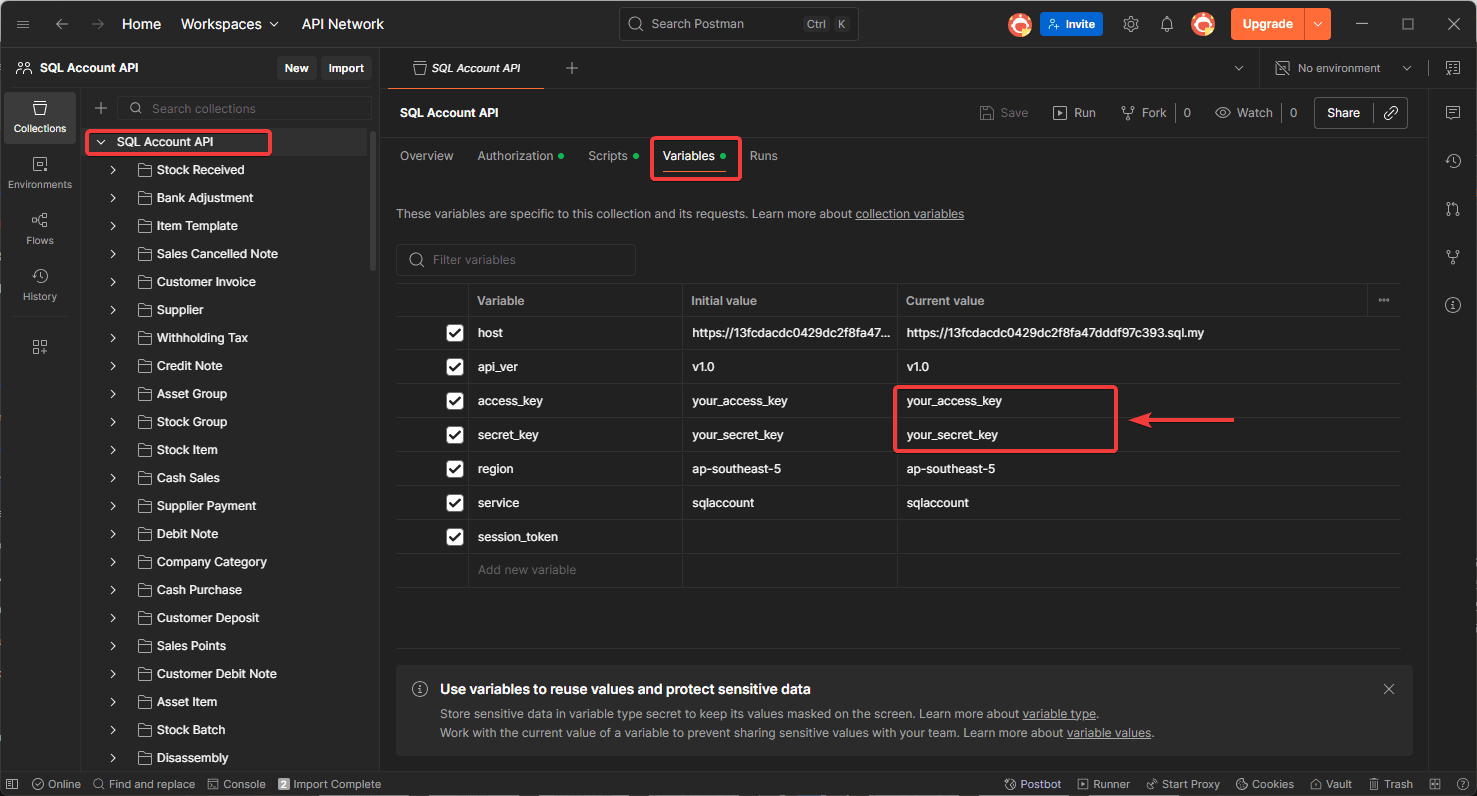
-
With the keys, you are ready to roll. Simply select on the
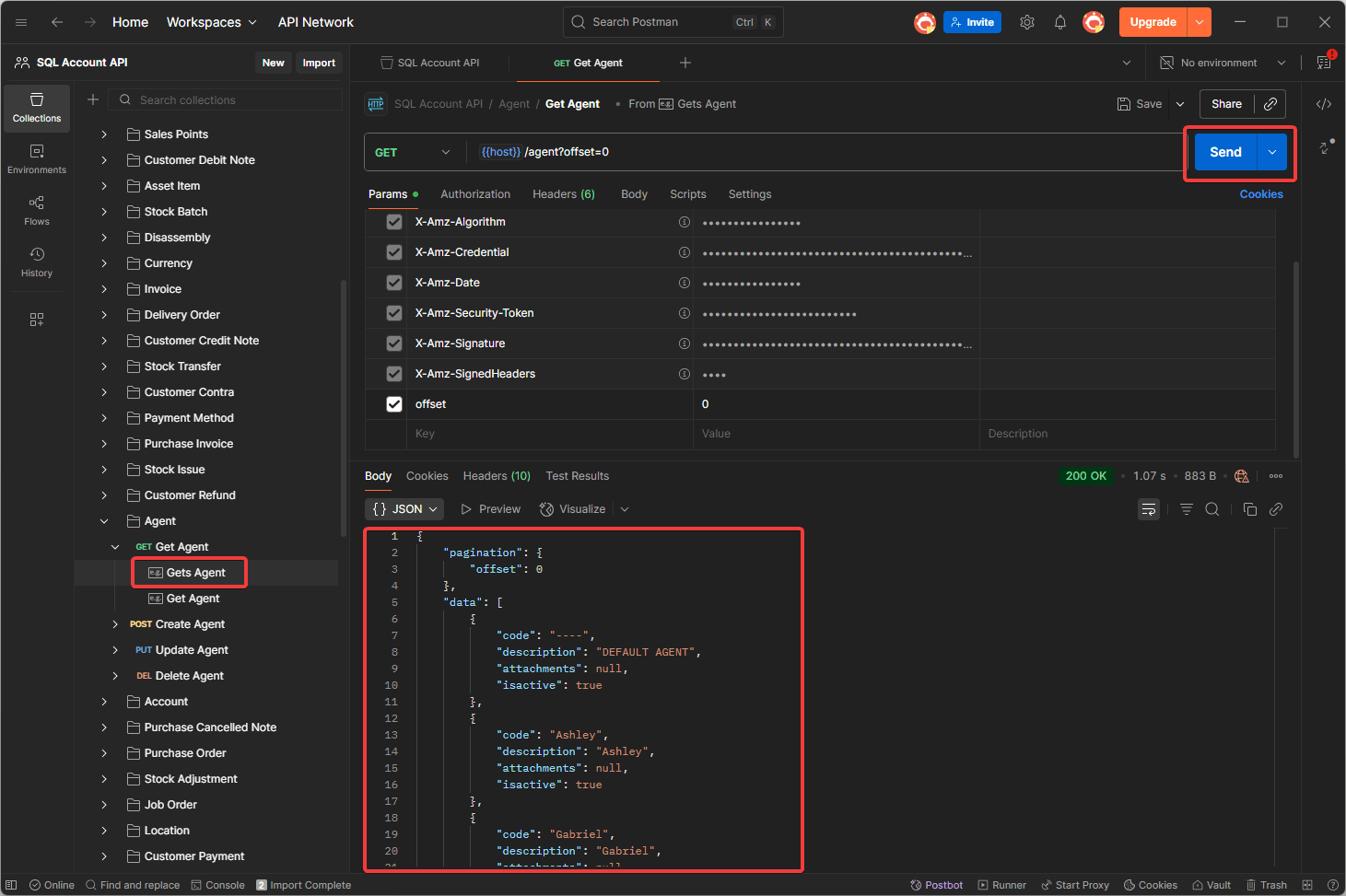
Agent, click on theSendbutton to try retrieve agent data fromSQL Account APIand theAgentjson data list will show on response body.