Main Dashboard
Quick Action Buttons
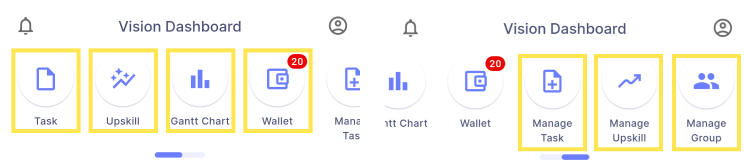
Task
- Displays all available quests and tasks assigned to the user.
Upskill
- Displays all available courses and the courses in which the user is currently enrolled.
Gantt Chart
- Displays a visual timeline of tasks and deadlines, allowing the user to track progress across project.
Wallet
- Displays earned cash and coins, transaction history, upcoming payouts and rewards available for redemption.
Manage Task
- Allows users to create, edit, and update tasks, track task progress, and review completed tasks.
Manage Upskill
- Allows users to create, edit and update courses, track course progress and review completed course.
Manage Group
- Allows user to view, create, edit and delete groups.
Status Card
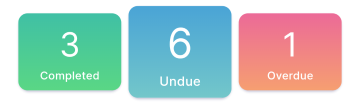
- Displays the total number of tasks categorized by their current status:
- Green: Completed tasks
- Blue: Undue tasks
- Red: Overdue tasks
- Navigation: Selecting a status card redirects the user to the task list, with the tasks automatically filtered according to the selected status.
Overdue Tasks
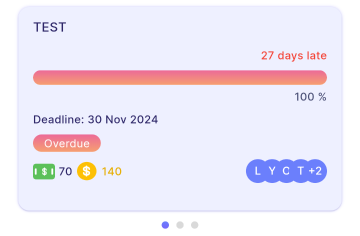
- Displays up to three tasks that have exceeded their deadlines, providing the user with a clear overview of the most urgent overdue items.
Undue Tasks
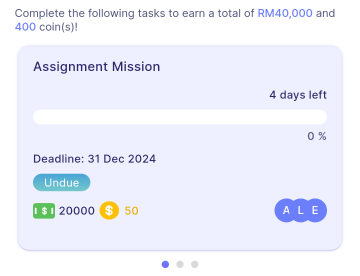
- Displays up to three tasks that are currently in progress and have not yet reached their deadlines, providing the user with a quick view of ongoing responsibilities.
Earned Card
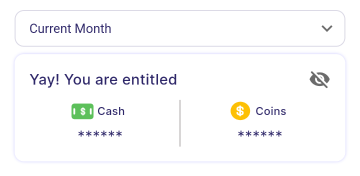
- Displays the user's cash and coin rewards for the current or previous month, allowing easy tracking of monthly earnings.
Account Setting
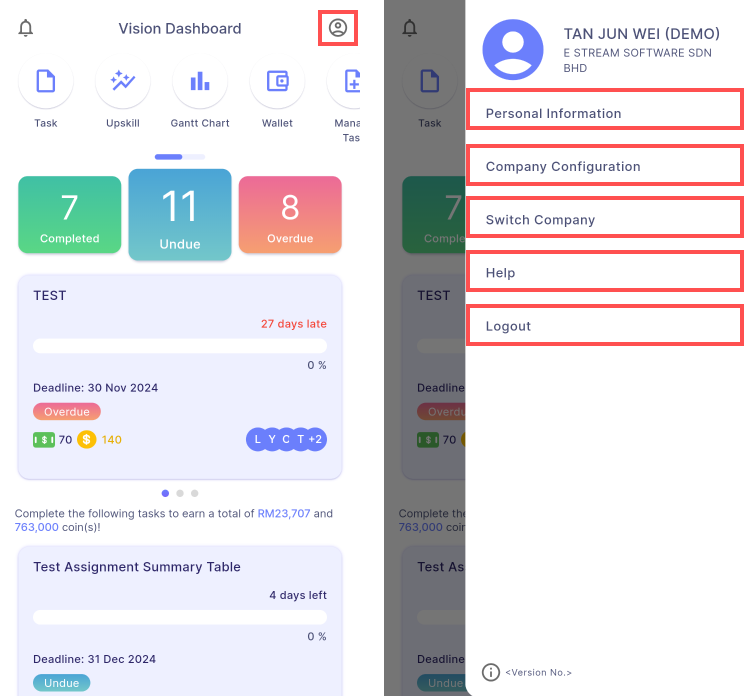
Profile
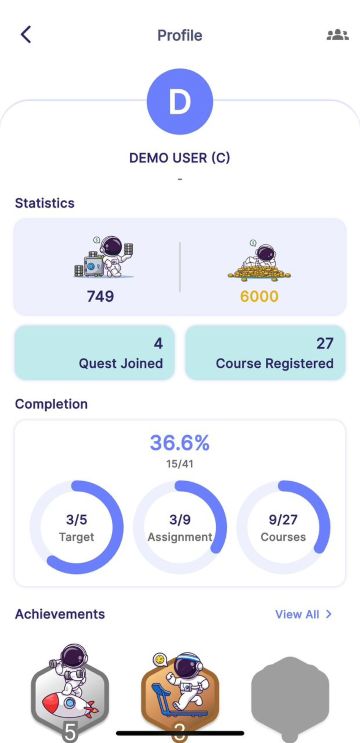
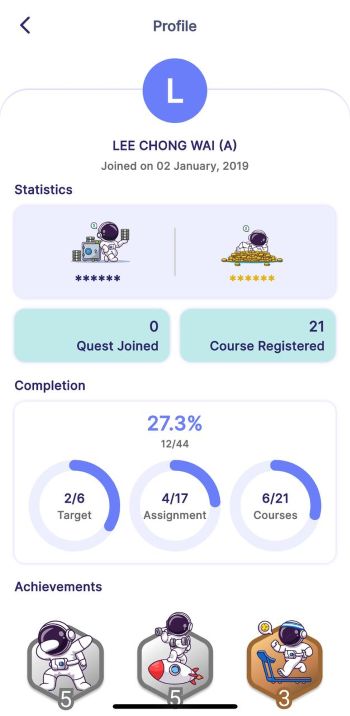
- Displays the user's basic information.
- Statistics: Shows the total cash and coin rewards earned by the user, along with the number of quests joined and courses registered.
- Completion: Provides progress indicators for targets, assignments, and courses, displaying both numeric counts and percentage completion.
- Achievements: Displays badges earned by the user for completing various activities, with an option to view all achievements.
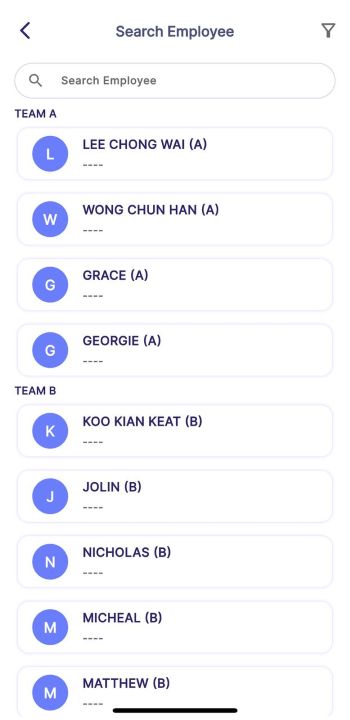
- The top-right button allows managers to search employees and view their details, but cash and points earned are not shown.
 | ➜ |  |
|---|
NOTE
Details are view-only and cannot be edited or modified from the mobile application.
Company Configuration (Manager)
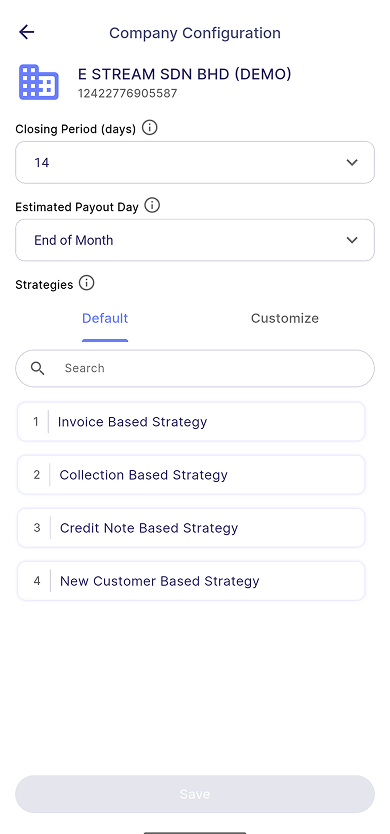
- Enables managers to view and modify company settings, including the closing period (days), estimated payout day, and payment strategies.
- Managers can view default strategies and configure custom strategies with the Default and Customize tab.
- For more details about strategy, refer to Linking to SQL Account | Strategy.
NOTE
This function is accessible only to users with manager permissions.
Switch Company
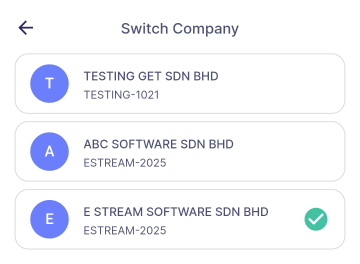
- Shows all companies the user is associated with, allowing seamless switching between different company accounts.
Storage
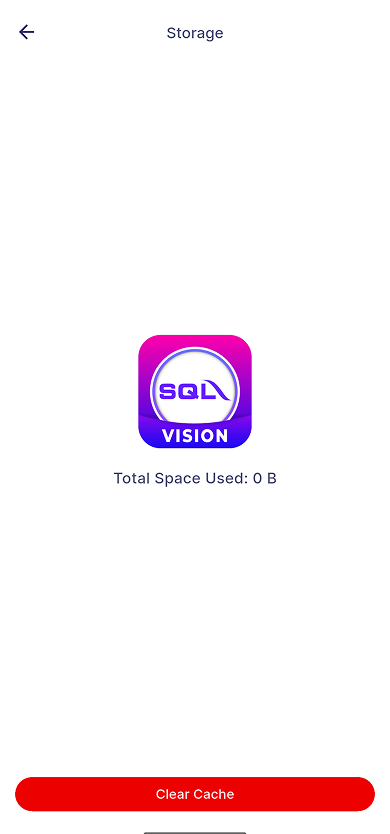
- Show the total space used by SQL Vision and provide option to clear cache.
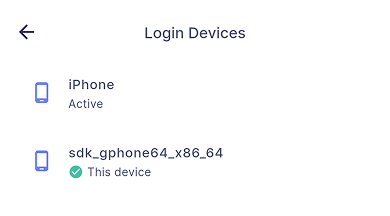
Devices
- Displays the devices currently logged into the account and allows users to manually remove any of them, except the current device.
NOTE
This function is accessible only by using the Vision application.
Help
- Directs users to SQL Vision’s documentation page for support resources and user guides.
Logout
- Ends the current session, logging the user out of the application and returning them to the login screen.
Log File Review
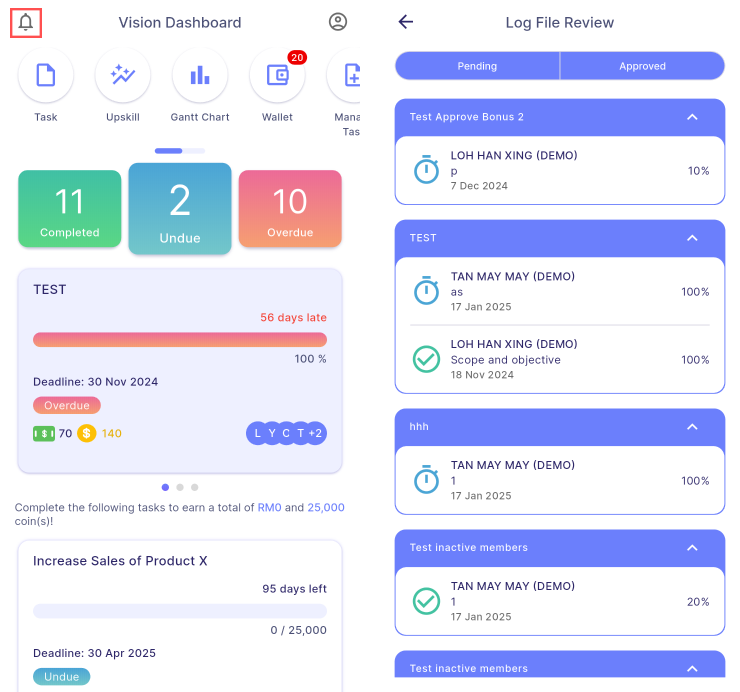
- Allows the user to view and manage pending and approved log files for assignments that have not been finalised yet.