Increase Firebird RAM Usage
Introduction
By default, Firebird does not fully utilize the available RAM. This feature allows you to manually allocate RAM size for each database, optimizing performance.
- Pros
- Fully use the available RAM in server
- Increase the database performance
- Cons
- Will slow down the Server Performance if not careful
- Not support for Standalone
- Requirement
- Firebird Server
- Minimum 16 GB RAM
- A reliable Uninterrupted Power Supply or UPS (ie. backup power battery).
Firebird Server Configuration
- Browse to Firebird folder (Normally in
C:\Program Files\Firebird\Firebird_3_0for Firebird 3). - Look for firebird.conf file & copy to Desktop.
- Open the firebird.conf at Desktop.
- Look for #DefaultDbCachePages = 2048.
- Remove the # .
- Change the 2048 to 1000000 for 16 GB RAM. (will use 8GB RAM)
- Save the file.
- Copy the firebird.conf at Desktop.
- Paste & Replace it in the Firebird folder firebird.conf file.
- Restart the Server.
Client Configuration (SQL Account)
- Click 3 dot button in the Login Screen
- Right Click the Database you wanted to set.
- Select Properties
- Enter ADMIN Password
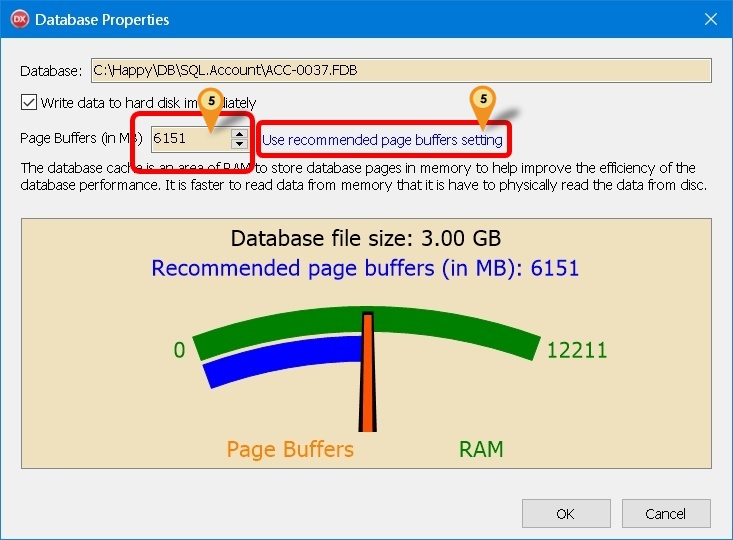
- Enter the Size you wanted or Click Use recommended page buffers setting (Default is 300 MB)
- Click OK
info
Important considerations when disabling "Write data to hard disk immediately":
- Server must be protected by a reliable UPS (backup power supply)
- Ensure proper server shutdown procedures are followed
- Minimum operating system requirements:
- Windows 11
- Windows Server 2022
- Or newer versions
| Function | Description |
|---|---|
| Write data to hard disk immediately | Enabled (Default): Data is immediately written to disk on COMMIT — provides maximum data safety Disabled: The operating system manages data writing to disk (Not recommended) |
| Page Buffers (in MB) | Default: 16 MB - Adjust based on your server's available RAM and performance requirements |