Inquiry
Account Inquiry
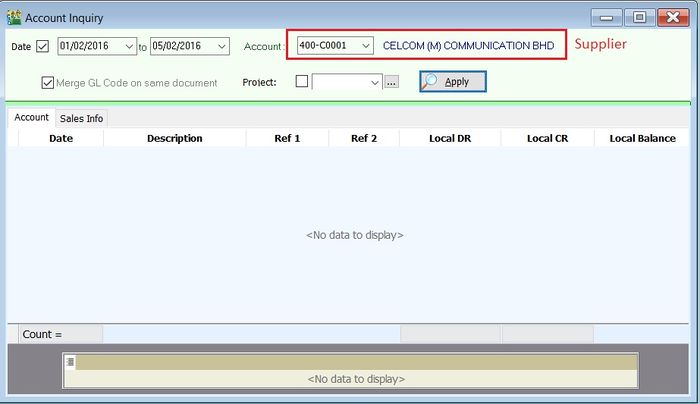
Perform a quick inquiry into the ledger transactions for the General Ledger, Sales Ledger (Customer), and Purchase Ledger (Supplier).
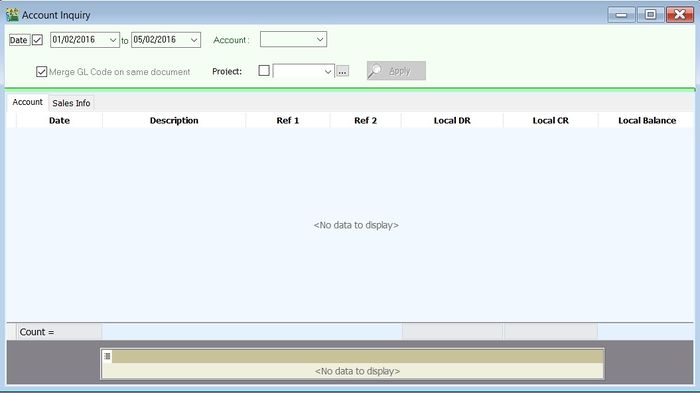
General Ledger
-
Select the Date range.
-
Select a GL Account code.
-
Click Apply.
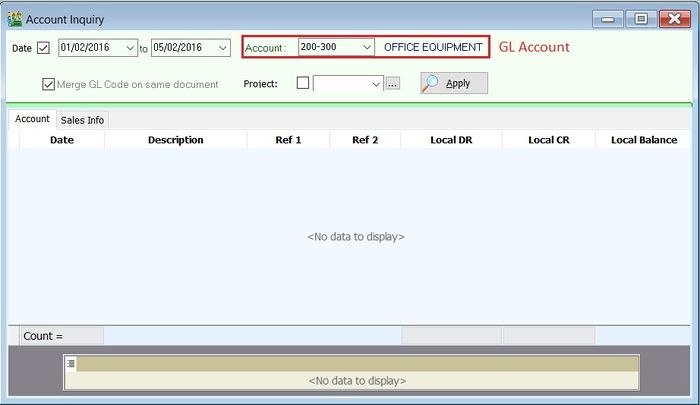
Sales Ledger (Customer)
-
Select the Date range.
-
Select a Customer account code.
-
Click Apply.
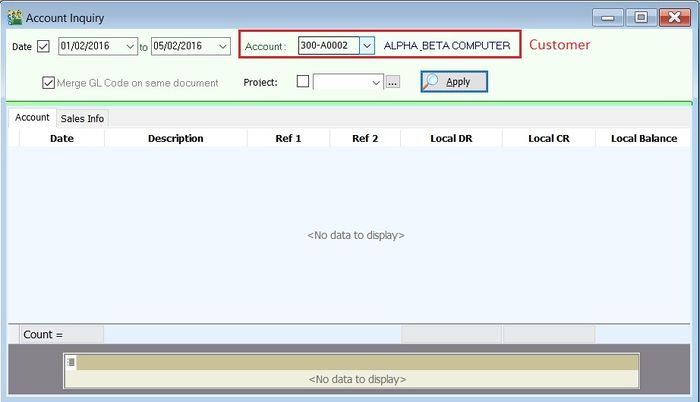
Purchase Ledger (Supplier)
-
Select the Date range.
-
Select a Supplier account code.
-
Click Apply.
Access Control in Account Inquiry
Go to Tools > Maintain User.
-
You can set the access control for General, Sales, and Purchase Ledgers.
-
Check or uncheck the Execute permission to control access:
Access Control Explanation Account Inquiry - Inquire G/L Account Allows you to inquire about G/L Accounts. Account Inquiry - Inquire Customer Account Allows you to inquire about Customer Accounts (Sales Ledger). Account Inquiry - Inquire Supplier Account Allows you to inquire about Supplier Accounts (Purchase Ledger). Account Inquiry Allows you to use the Account Inquiry feature. 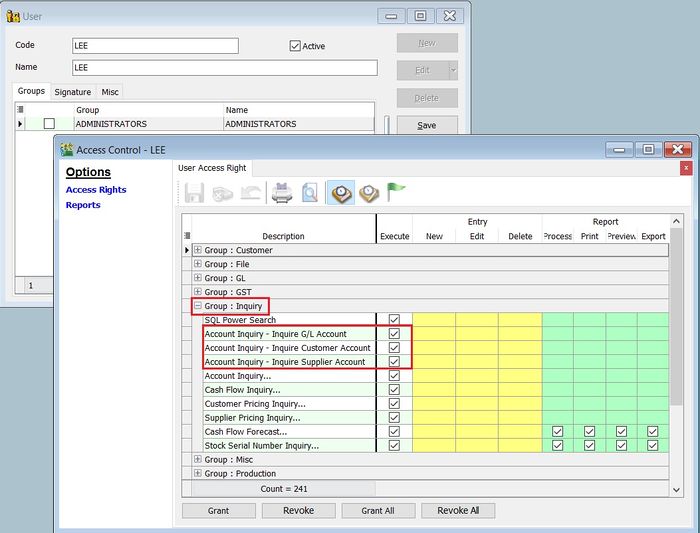
Cash Flow Inquiry
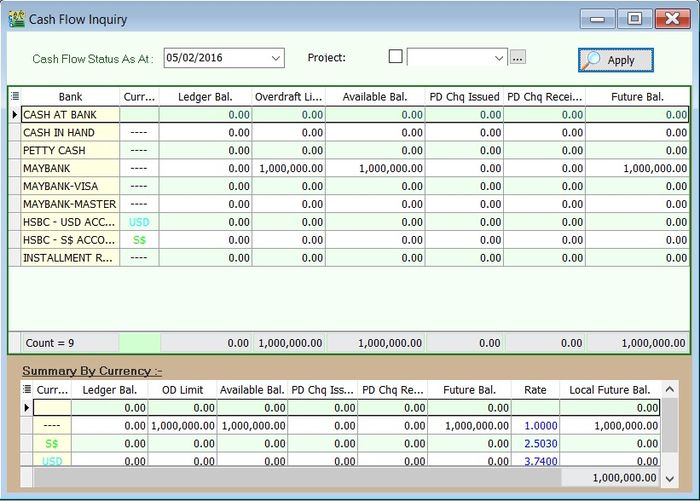
Perform a quick inquiry into the Cash Flow for all Bank and Cash account types.
Cash Flow Forecast
-
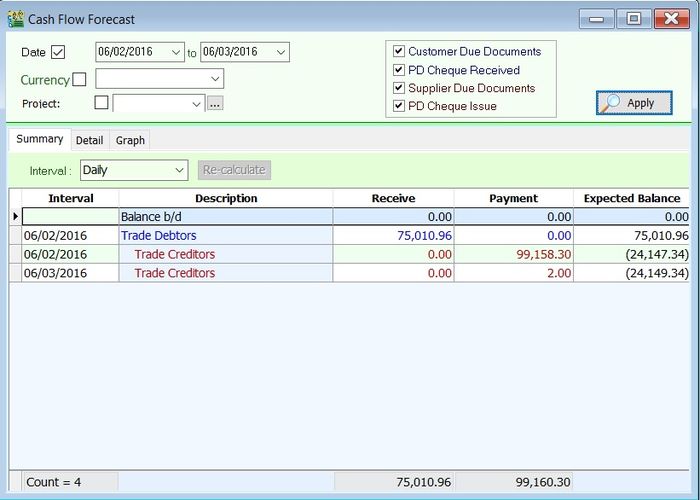
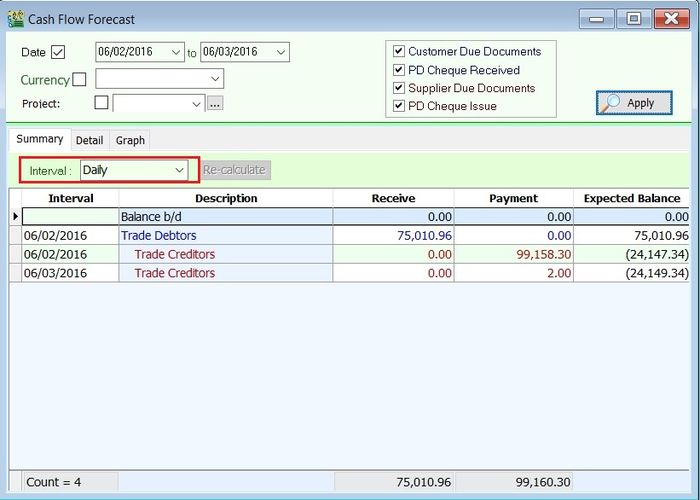
This feature forecasts cash flow based on the likelihood of converting assets to cash from Trade Debtors (Customers) and Trade Creditors (Suppliers).
-
The criteria for defining the cash flow forecast are:
- Customer Due Documents
- PD Cheque Received
- Supplier Due Documents
- PD Cheques Issued
- The Balance b/d represents the total of all Payment Methods as of the day before the selected From Date.
- The example above shows data as of 05 Feb 2016 in the GL Ledger.
Summary
-
You can select different intervals to analyze the cash flow forecast.
-
Interval selections include:
- Daily
- Weekly
- Monthly
- Quarterly
- Half-Yearly
- Yearly
Detail
-
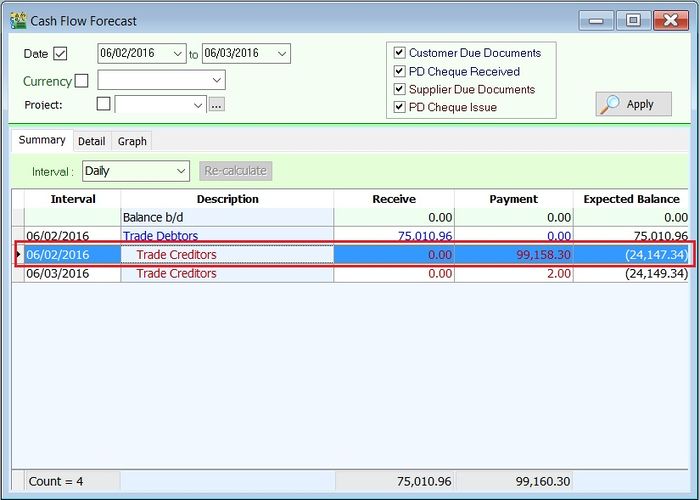
Highlight the interval.
-
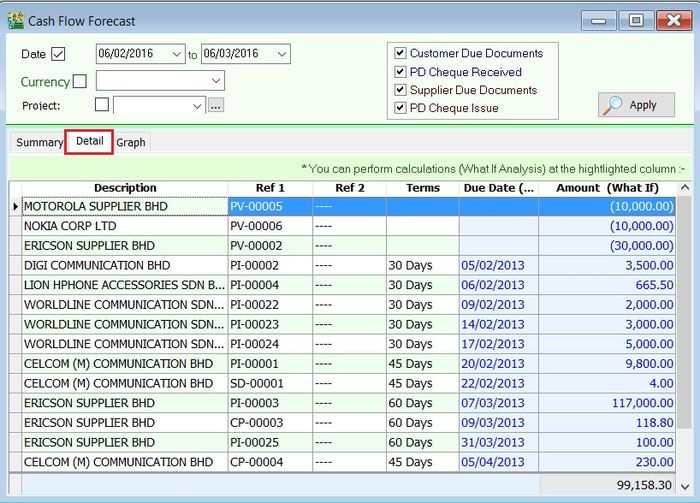
To check the details for the interval, click Detail.
Graph
-
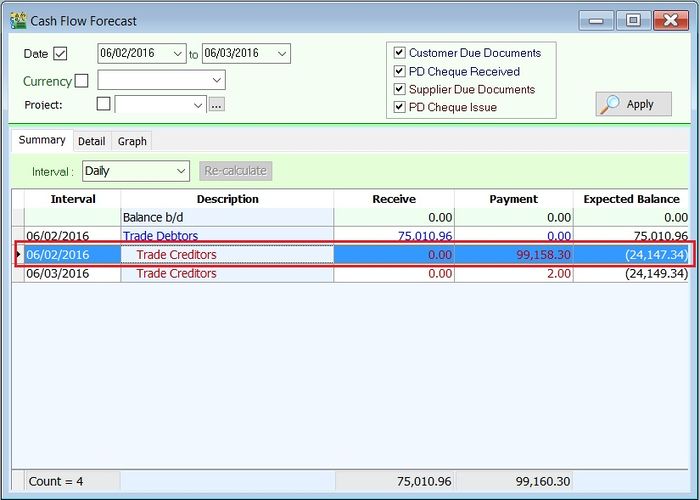
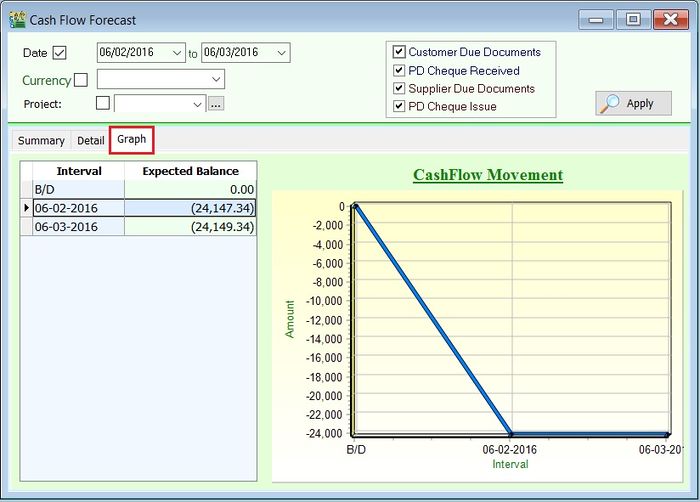
Highlight the interval.
-
To view the graph for the interval, click Graph.
Customer Pricing Inquiry
Inquire about item pricing for a customer.
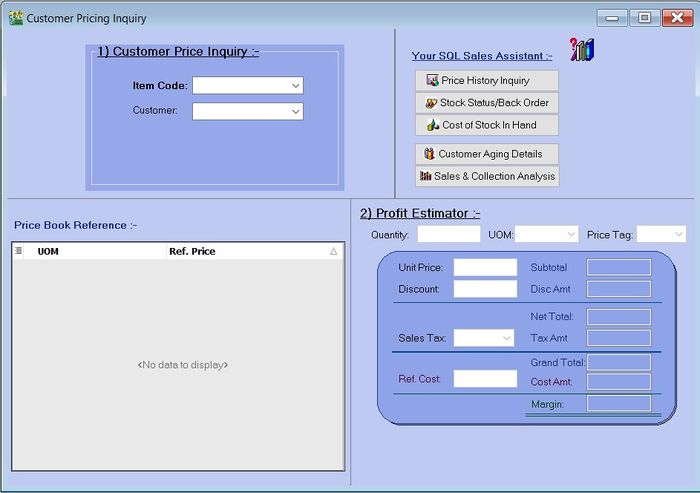
Customer Price Inquiry
-
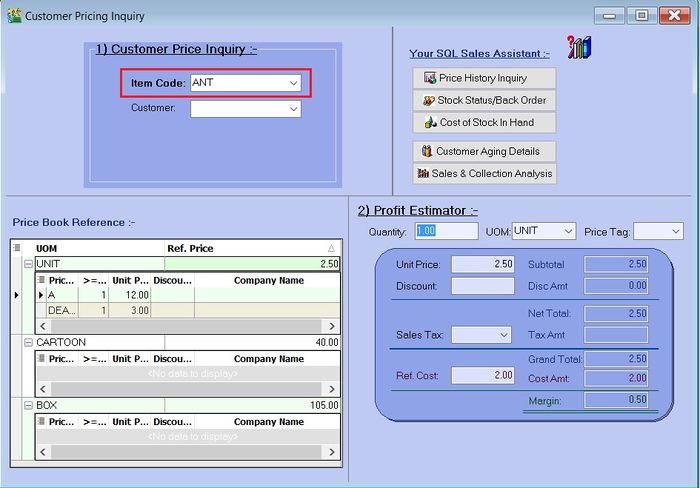
Select the Item Code to check the price.
-
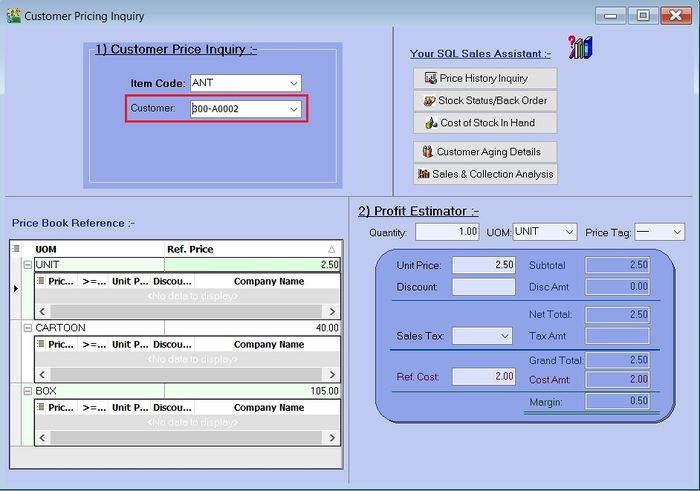
Select the Customer to check the price.
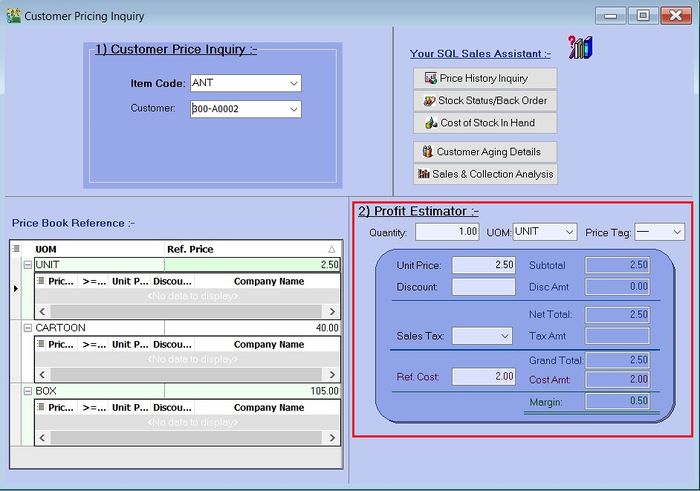
Customer Profit Estimator
Enter values (e.g., Quantity, UOM, Price Tag, Unit Price, Discount, Sales Tax (GST), and Ref. Cost) to calculate the estimated profit based on the item's cost.
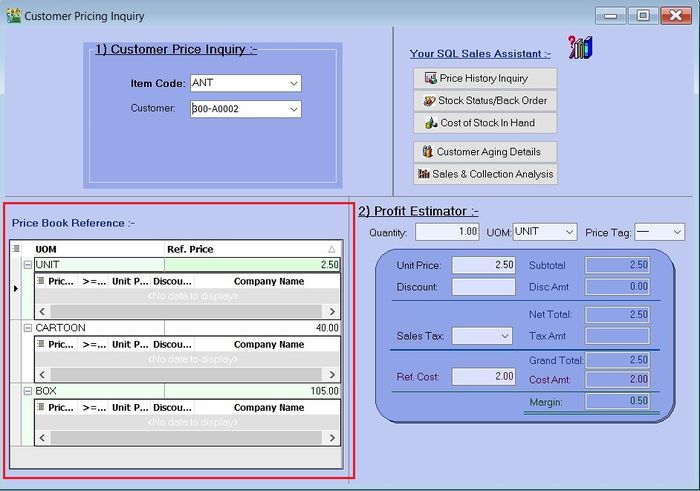
Customer Price Book Reference
Check the Reference Price for different UOMs as set in Maintain Stock Item.
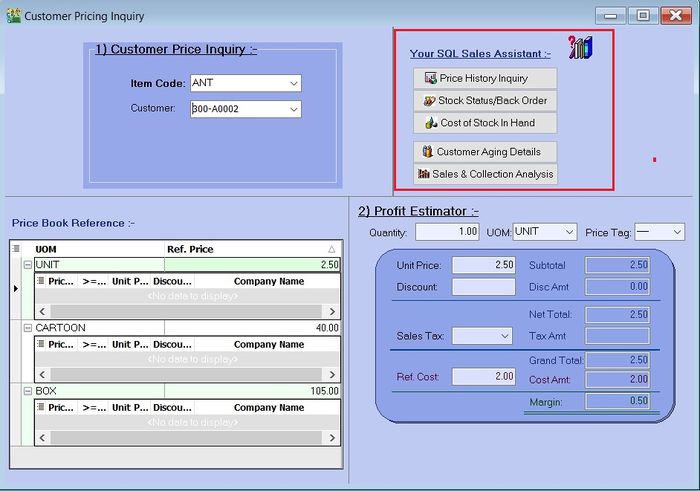
Your SQL Sales Assistant
Quick access to:
- Price History Inquiry - Sales > Print Sales Price History
- Stock Status/Back Order - Sales > Print Outstanding Sales Document Listing (Outstanding Sales Order)
- Cost of Stock in Hand - Stock > Print Stock Month End Balance
- Customer Aging Details - Customer > Print Customer Aging Report
- Sales & Collection Analysis - Customer > Print Customer Sales & Collection Analysis
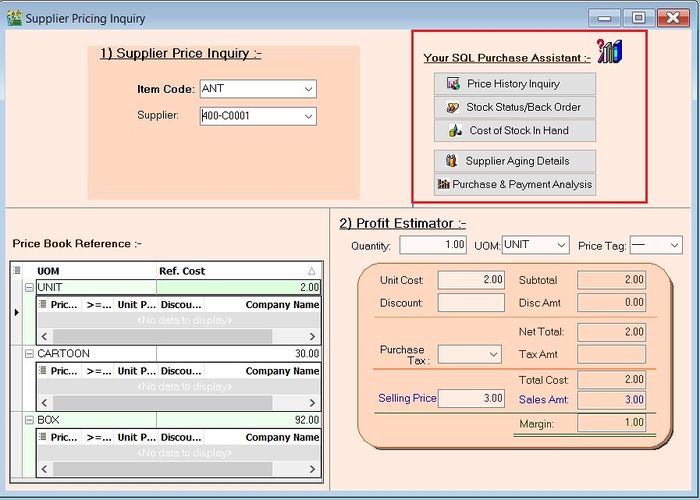
Supplier Pricing Inquiry
Inquire about item pricing for a supplier.
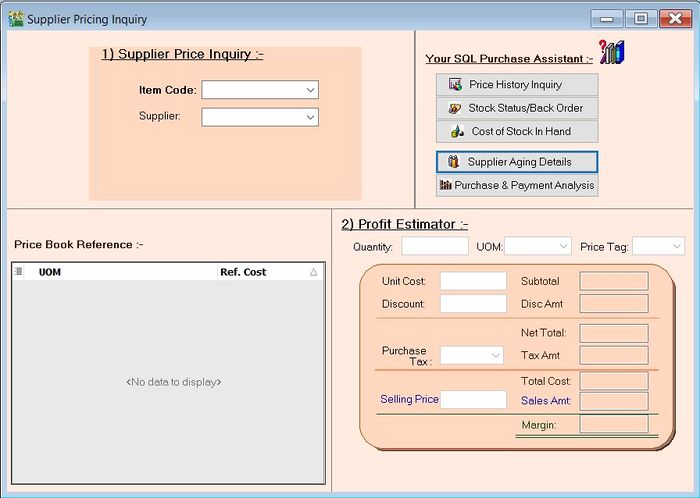
Supplier Price Inquiry
-
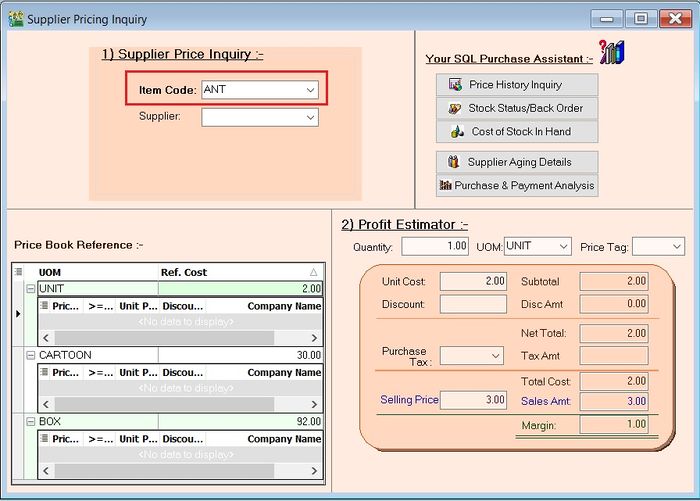
Select the Item Code to check the purchase price.
-
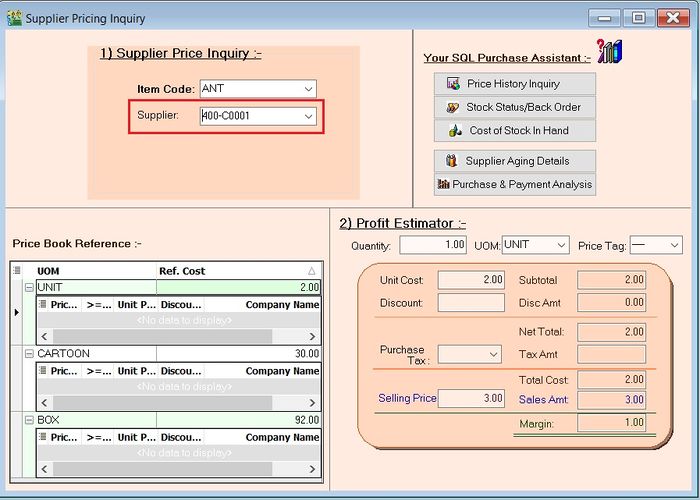
Select the Supplier to check the purchase price.
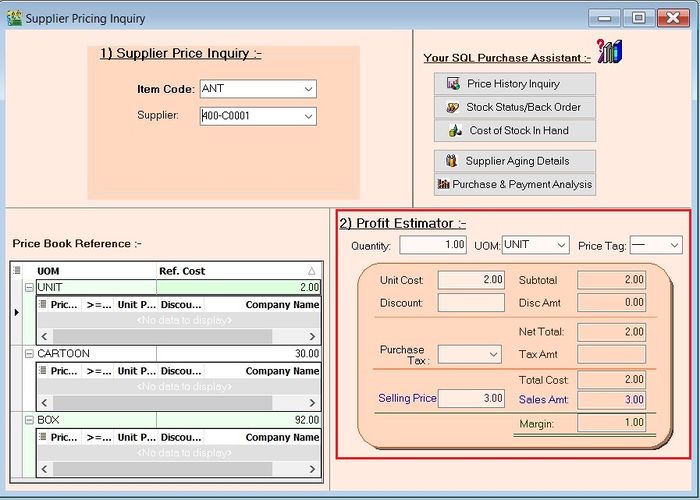
Supplier Profit Estimator
Enter values (e.g., Quantity, UOM, Price Tag, Unit Price, Discount, Sales Tax (GST), and Ref. Cost) to calculate the estimated profit based on the item's reference cost.
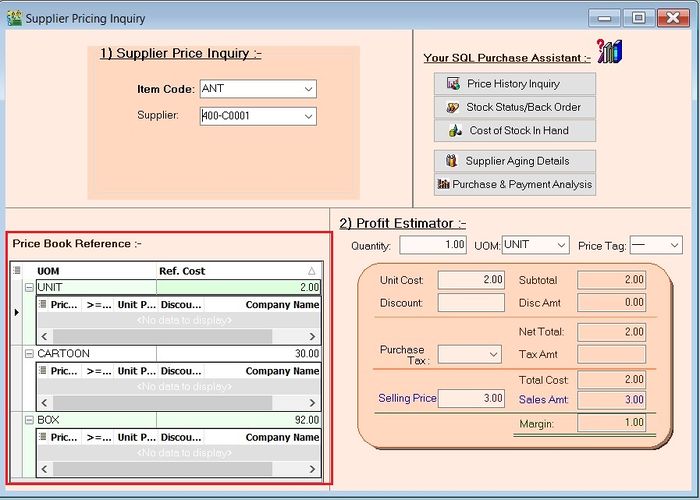
Supplier Price Book Reference
Check the Reference Cost for different UOMs as set in Maintain Stock Item.
Your SQL Purchase Assistant
Quick access to:
- Price History Inquiry - Purchase > Print Purchase Price History
- Stock Status/Back Order - Purchase > Print Outstanding Purchase Document Listing (Outstanding Purchase Order)
- Cost of Stock in Hand - Stock > Print Stock Month End Balance
- Supplier Aging Details - Supplier > Print Supplier Aging Report
- Purchase & Collection Analysis - Supplier > Print Supplier Purchase & Payment Analysis
SQL Power Search
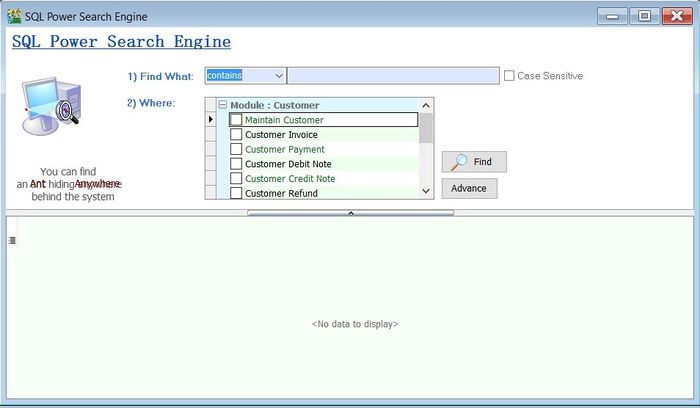
Go to Inquiry > SQL Power Search.
A powerful keyword search tool for the company database.
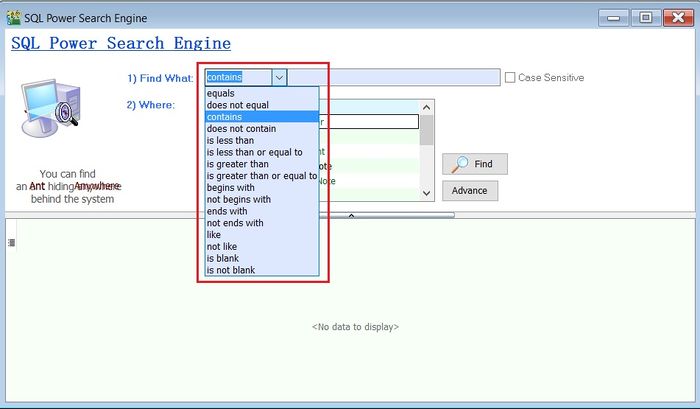
Find What
Modify the search conditions.
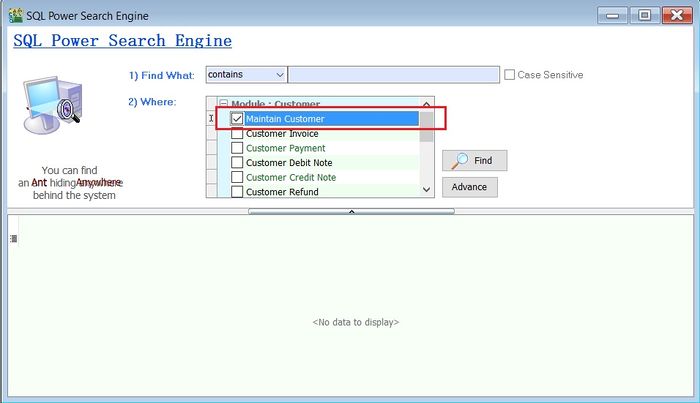
Where
-
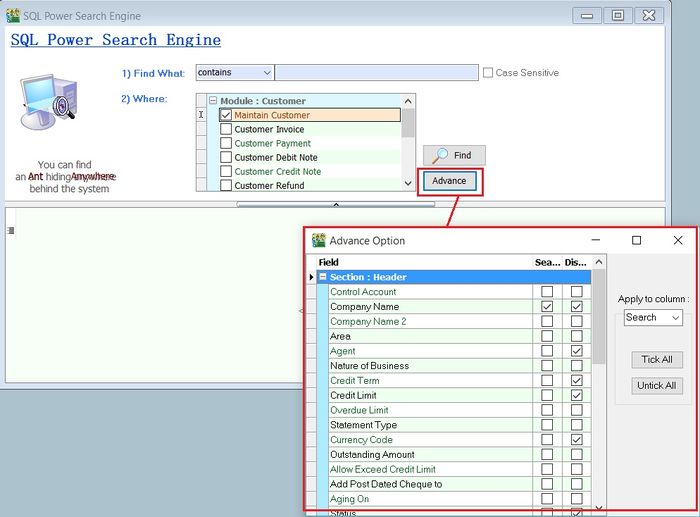
Select the modules to search.
-
Click Advance to expand more areas in the search.
-
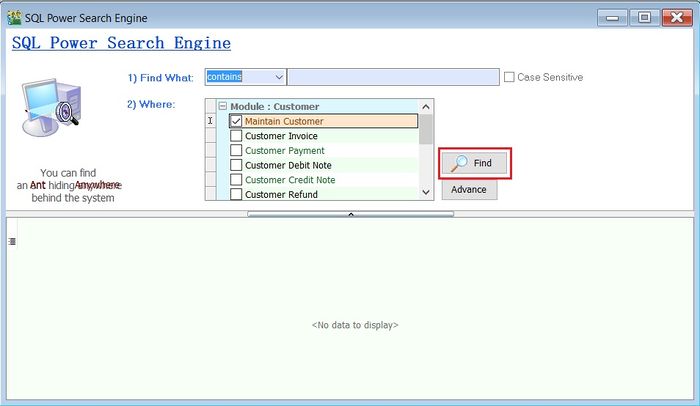
Click Find.
Search Example
-
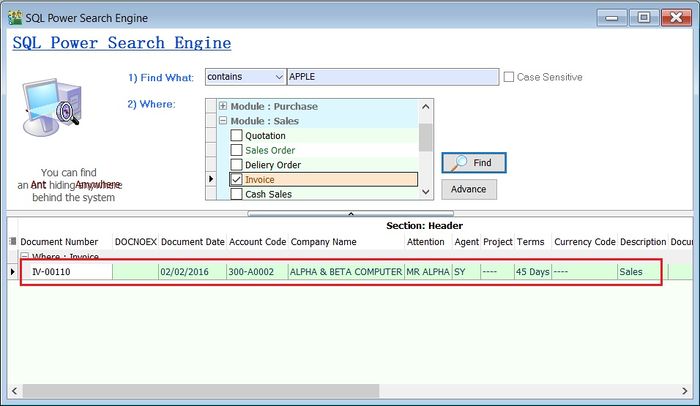
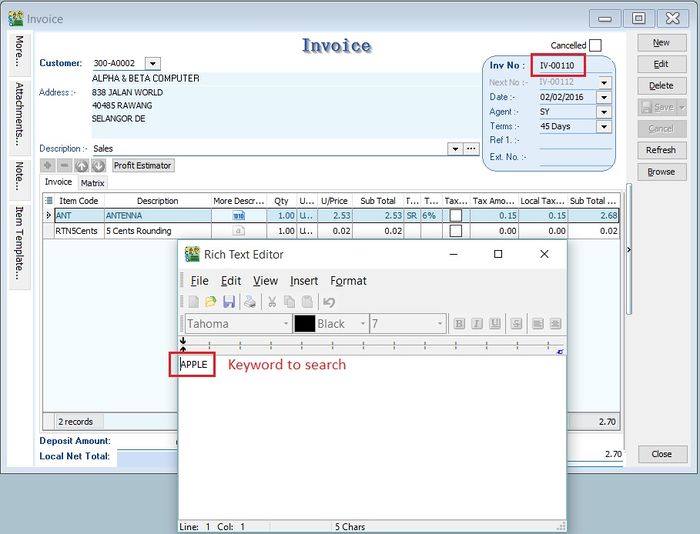
Let's try searching for the word Apple in an invoice. See the screenshot below.
-
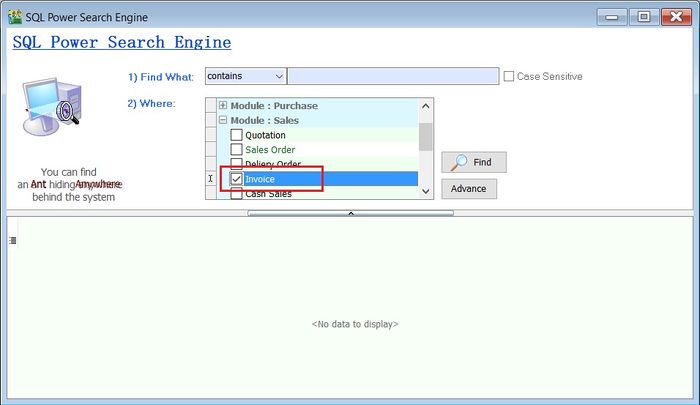
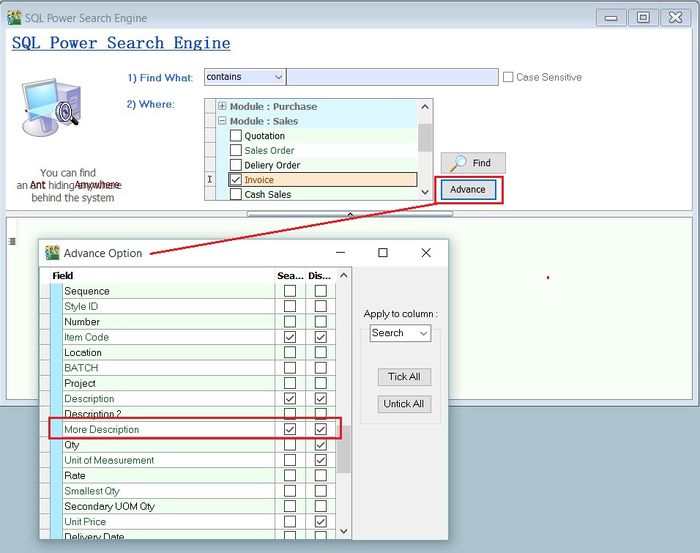
In the SQL Power Search Engine, check Invoice in the Where section.
-
To ensure the search covers More Description, click Advance. See the screenshot below.
-
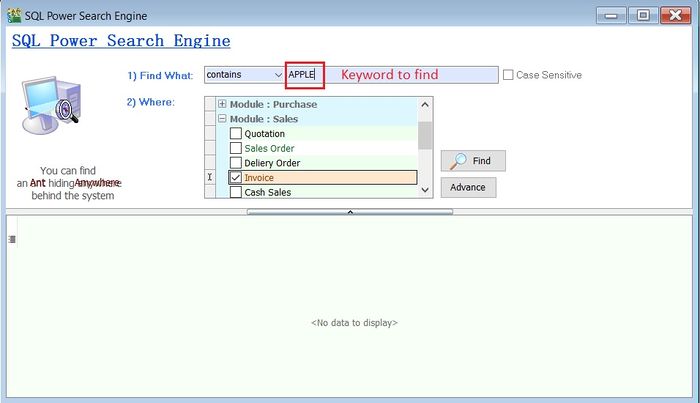
Type the keyword Apple in Find What.
-
Click the Find button.
-
The search results will appear below.