Reports
This is an additional module.
Print Job Order Listing
How to Print Job Order Listing
-
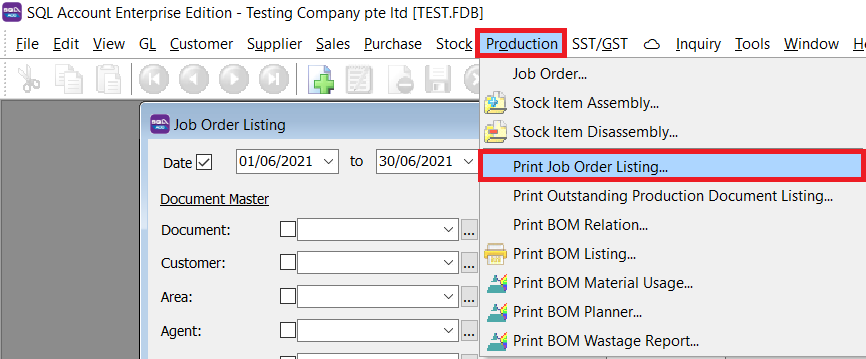
Go to Production > Job Order Listing.
-
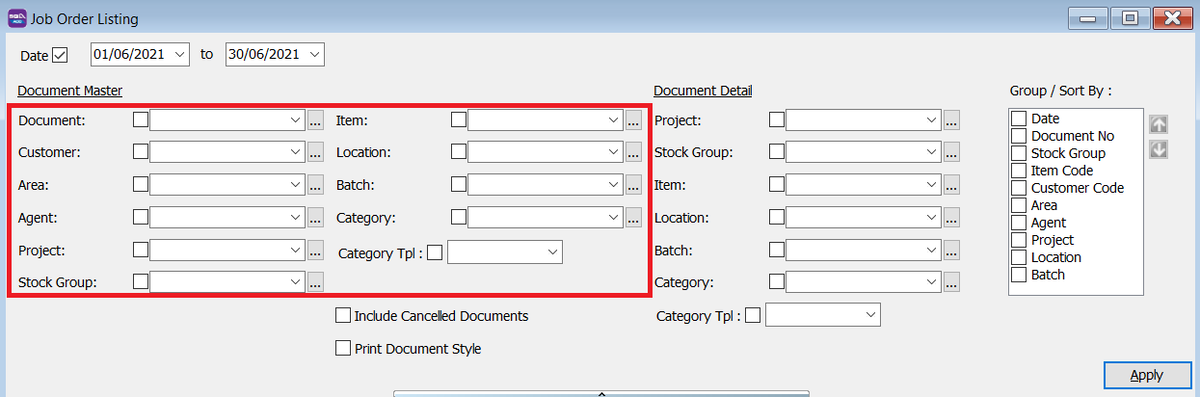
Select the Document Master Details.
-
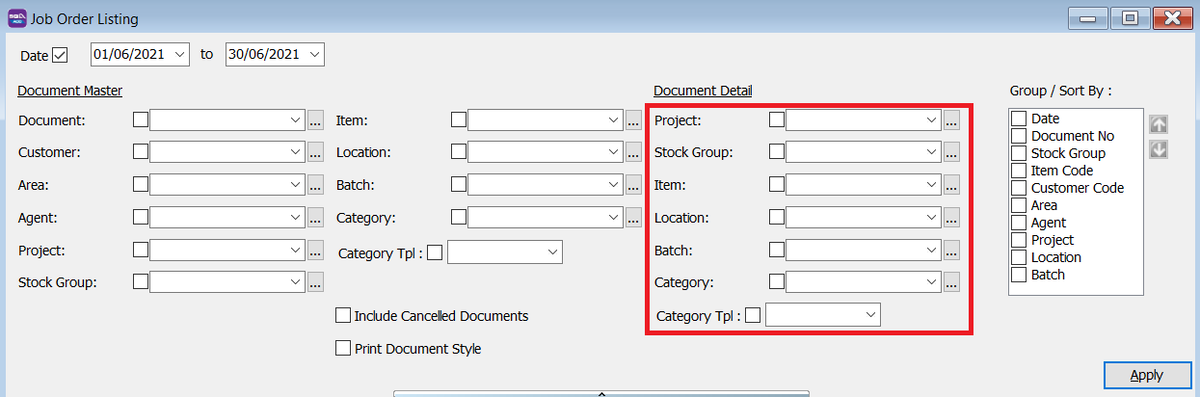
Select the Document Details.
-
Click Apply.
-
Click Preview.
- Example of job order listing report.

Print Document Style
Select the relevant checkboxes.
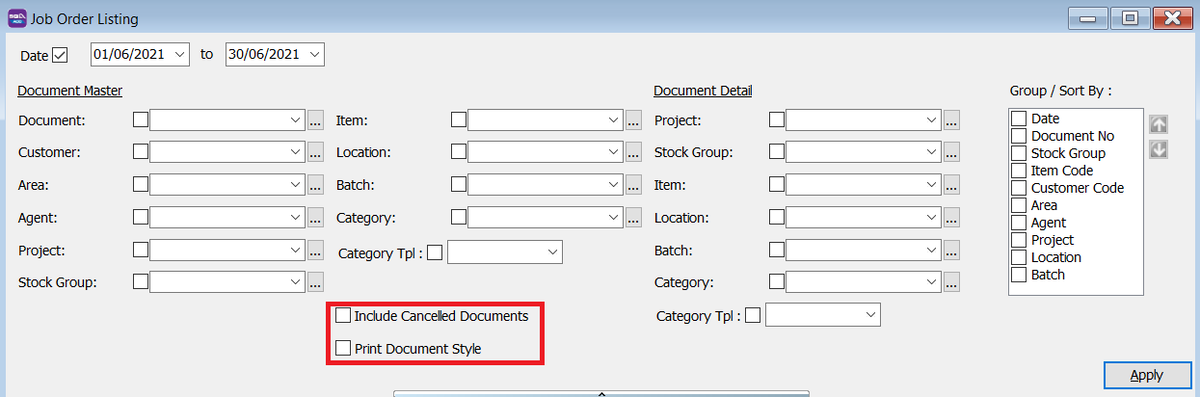
| Field Name | Explanation |
|---|---|
| Print Document Style | Tick this checkbox to print out bulk report or send batch email. |
| Include Cancelled Documents | Tick this checkbox to include cancelled documents in the listing. |
Print Outstanding Production Document Listing
How to Print Outstanding Production Document Listing
-
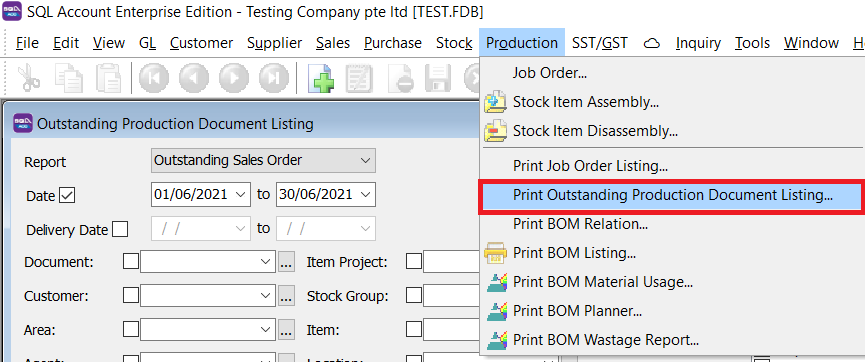
Go to Production > Outstanding Production Document Listing.
-
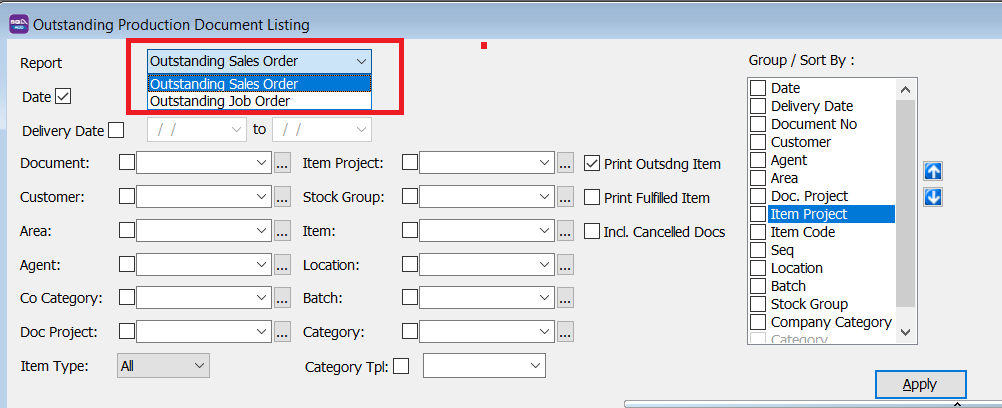
Select Outstanding Sales Order or Outstanding Job Order.
-
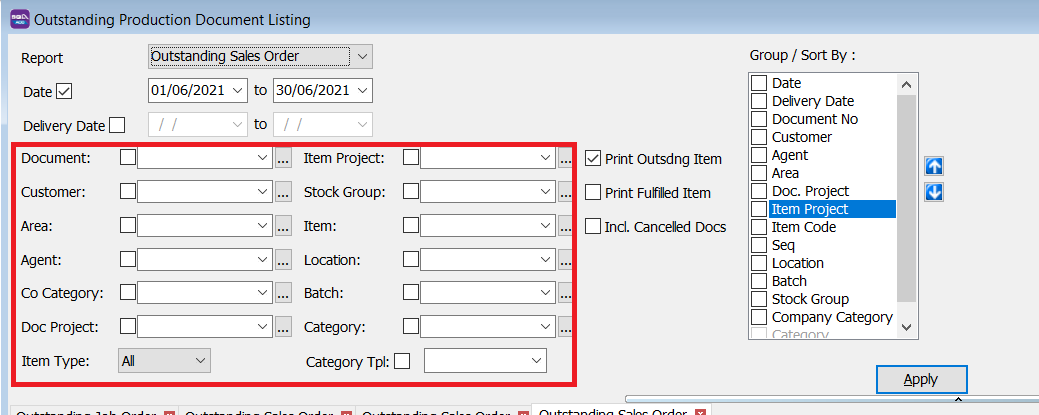
Choose how you want to filter your report.
-
Select the relevant options.
Field Name Explanation Print Outstanding Item Tick this to include documents and items that have not been transferred to other documents. Print Fulfilled Item Tick this to include documents and items that have already been transferred to other documents. Include Cancelled Document Tick this checkbox to include cancelled documents in the listing. -
Click Apply.
-
Click Preview.
-
Example of outstanding job order listing report.
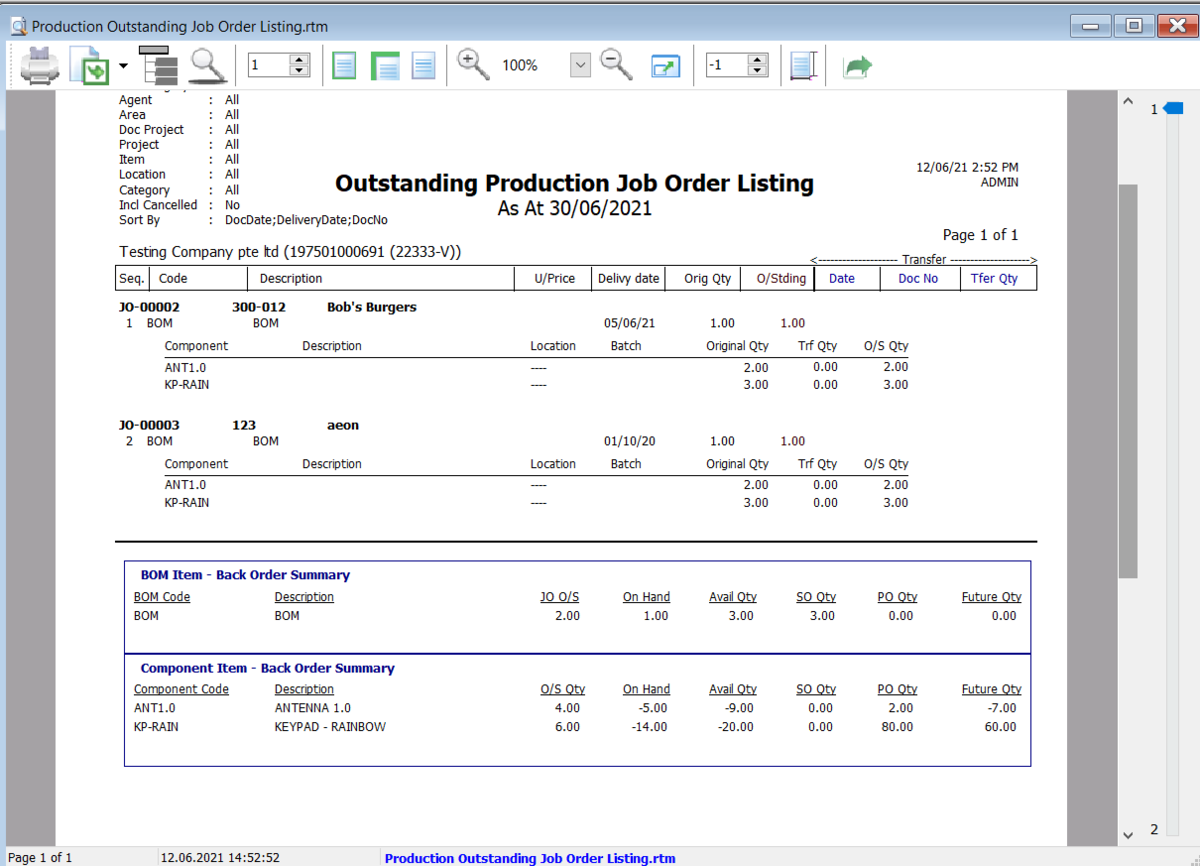
-
Example of outstanding sales order listing report.
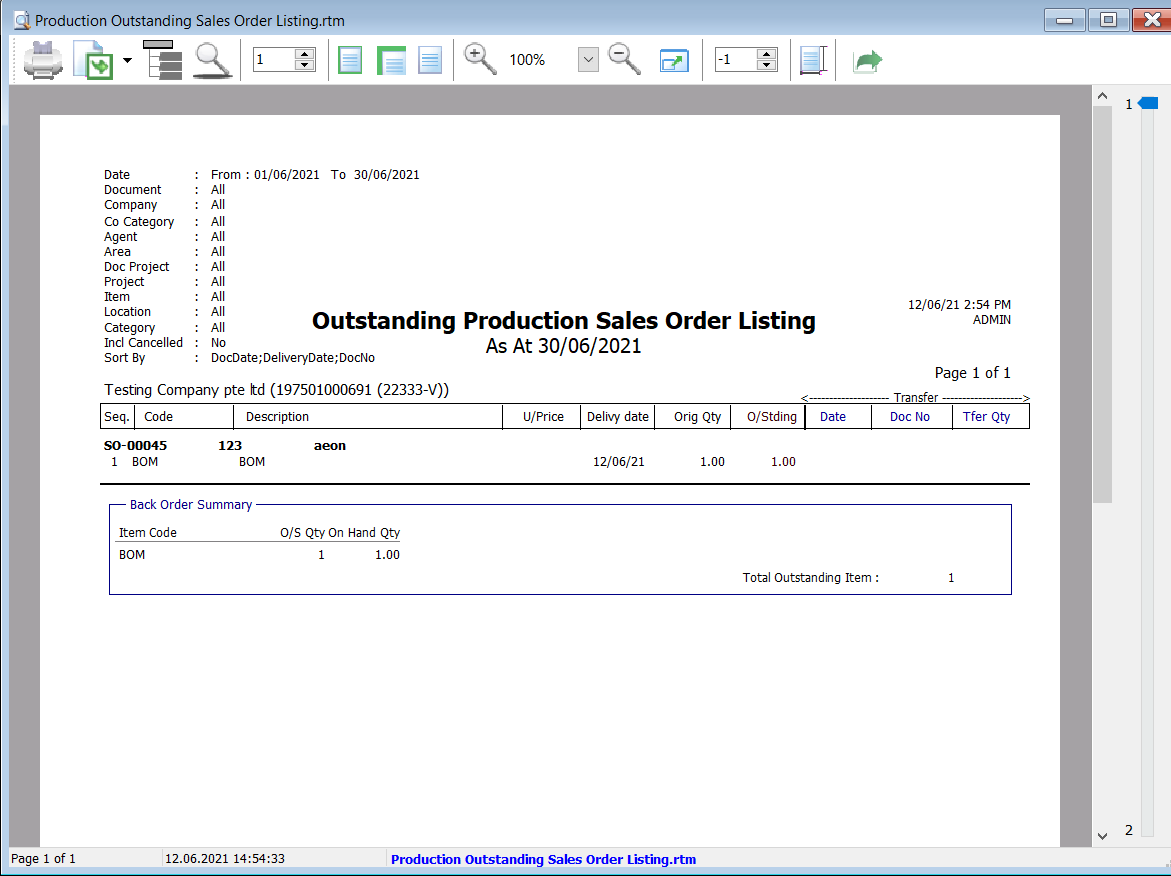
-
Print BOM Relation
How to Print BOM Relation
-
Go to Production > BOM Relation.
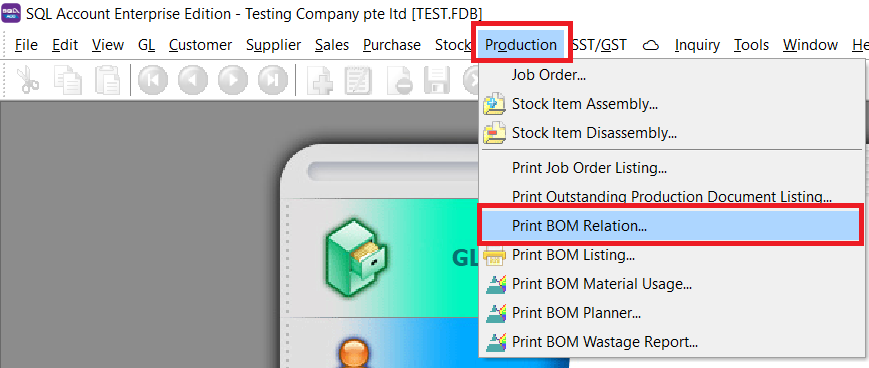
-
Select the Item Code.
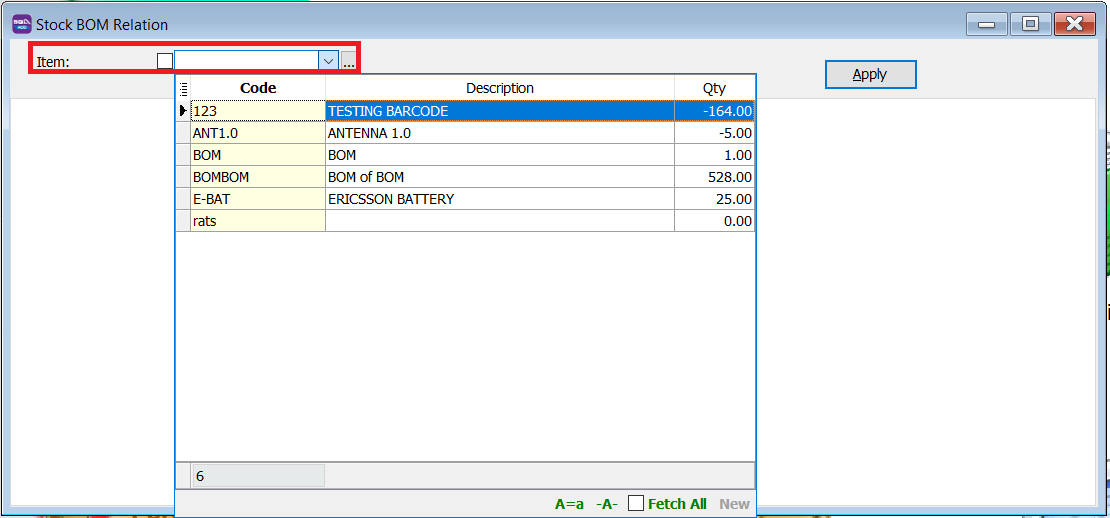
-
Click Apply.
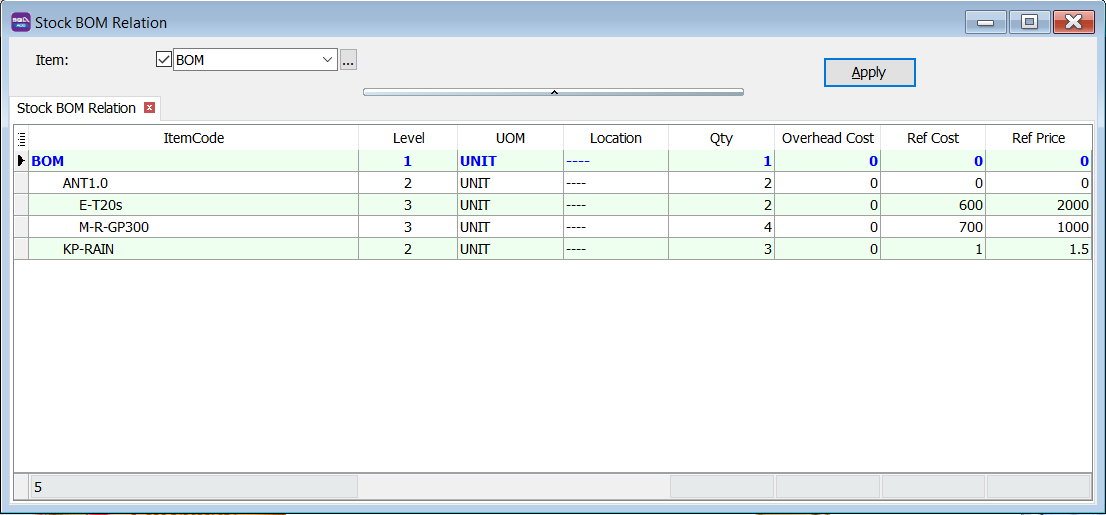
-
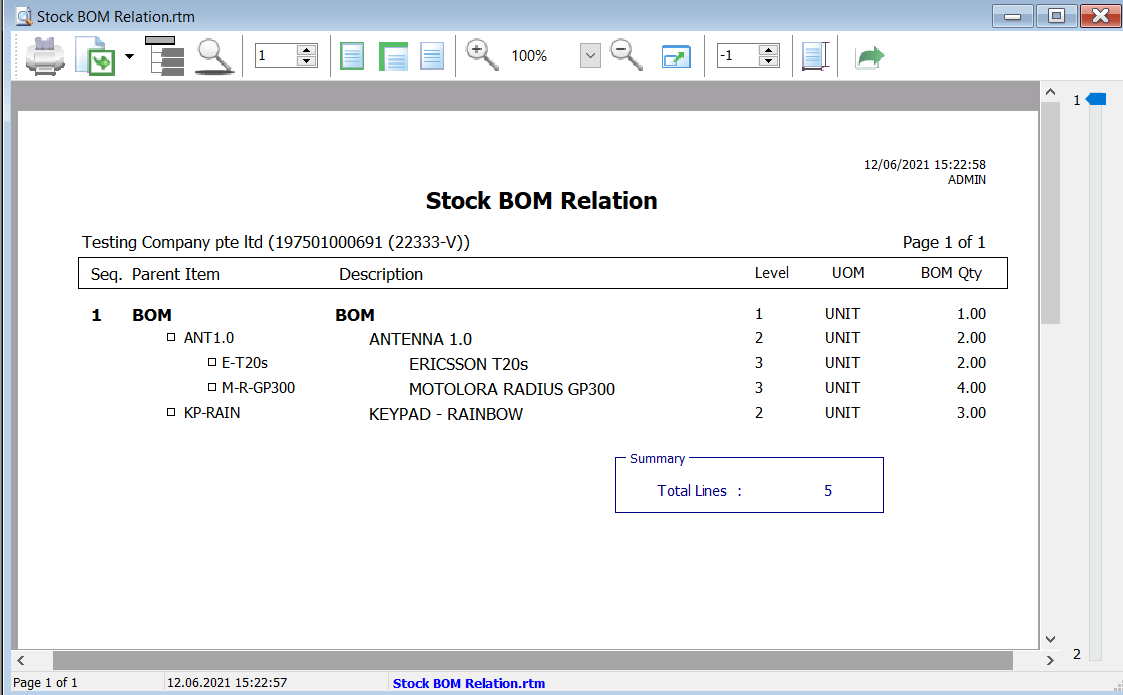
Preview the report.
Print BOM Listing
How to Print BOM Listing
-
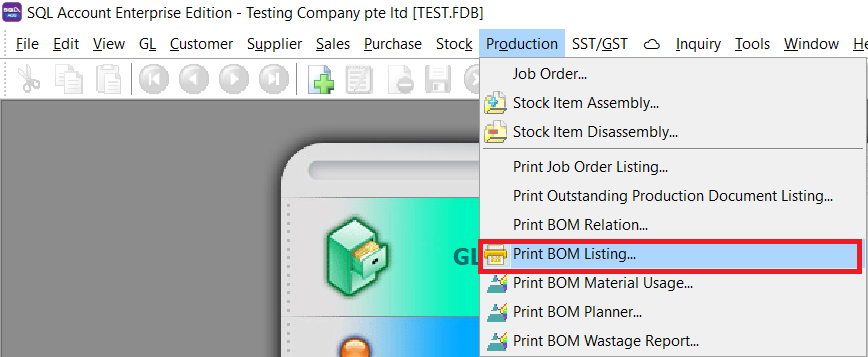
Go to Production > BOM Listing.
-
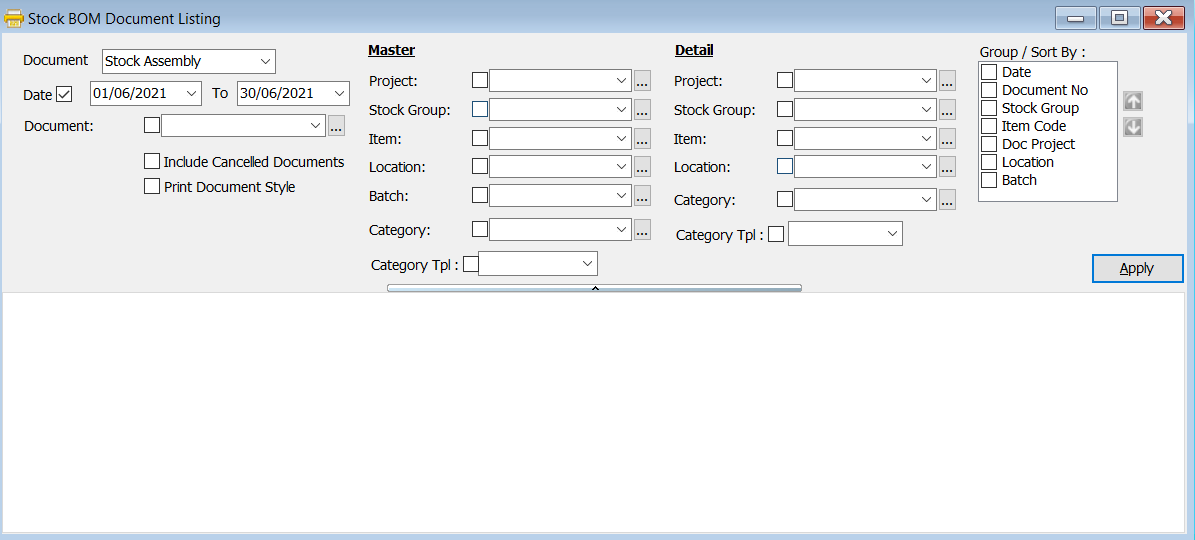
This is the browse screen.
-
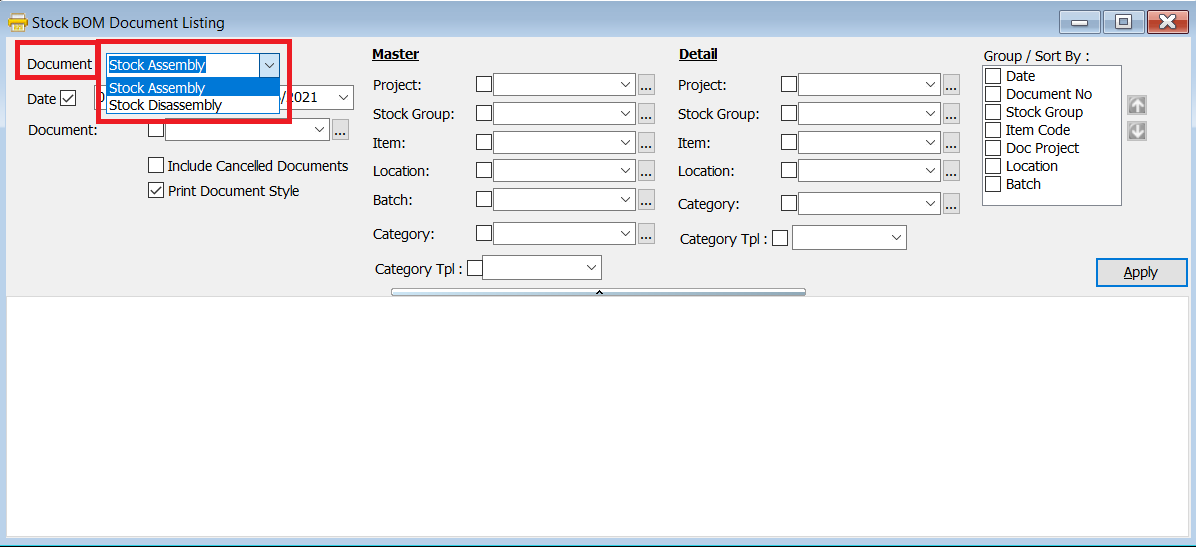
Select document type.
-
Tick relevant options.
Field Name Explanation Print Document Style Tick this to print all documents in this list as individual documents. Include Cancelled Document Tick this checkbox to include cancelled documents in the listing. 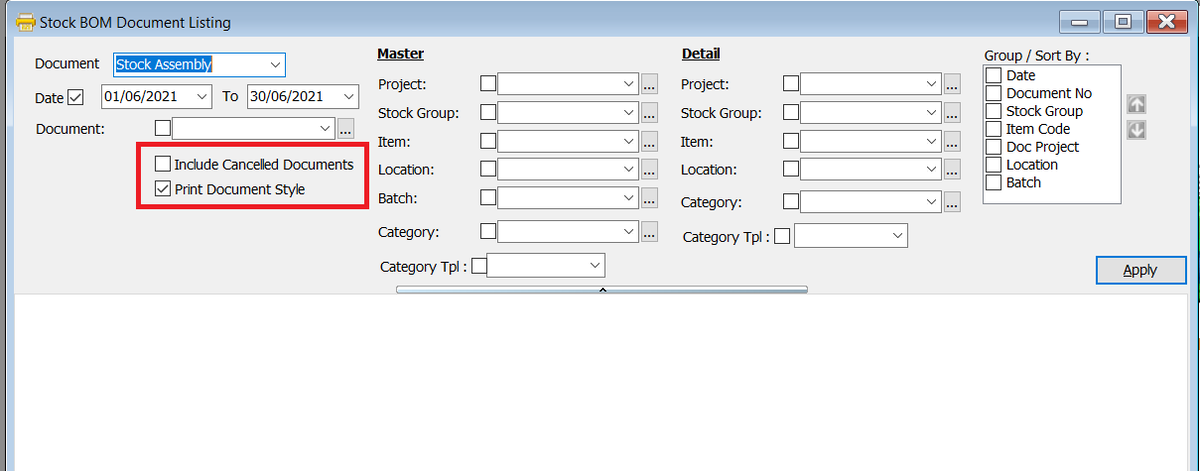
-
Filter your document listing.

-
Click Apply.
-
Preview the report. Click the Detail icon to see the detailed item information for each document.

Print BOM Material Usage
How to Print BOM Material Usage
-
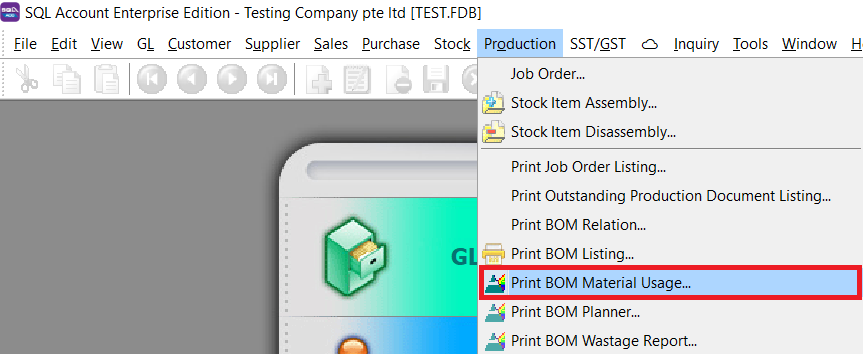
Go to Production > BOM Material Usage.
-
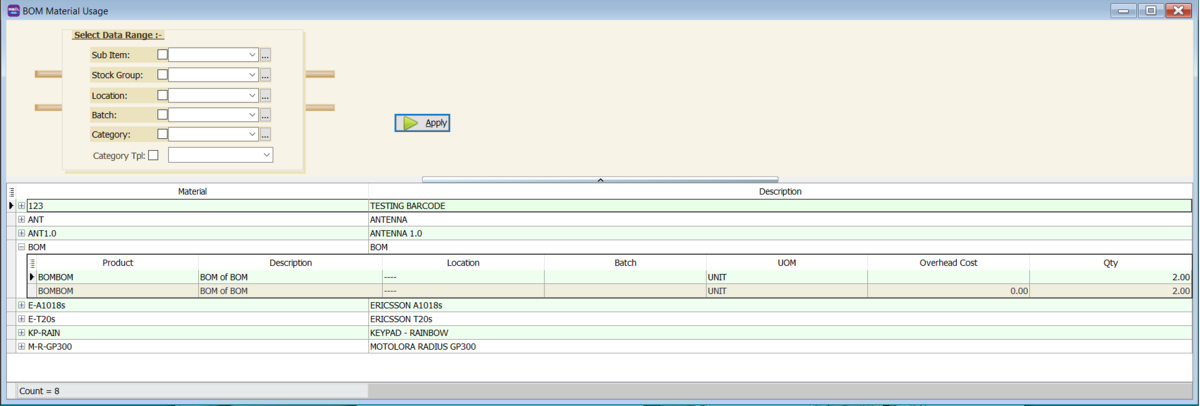
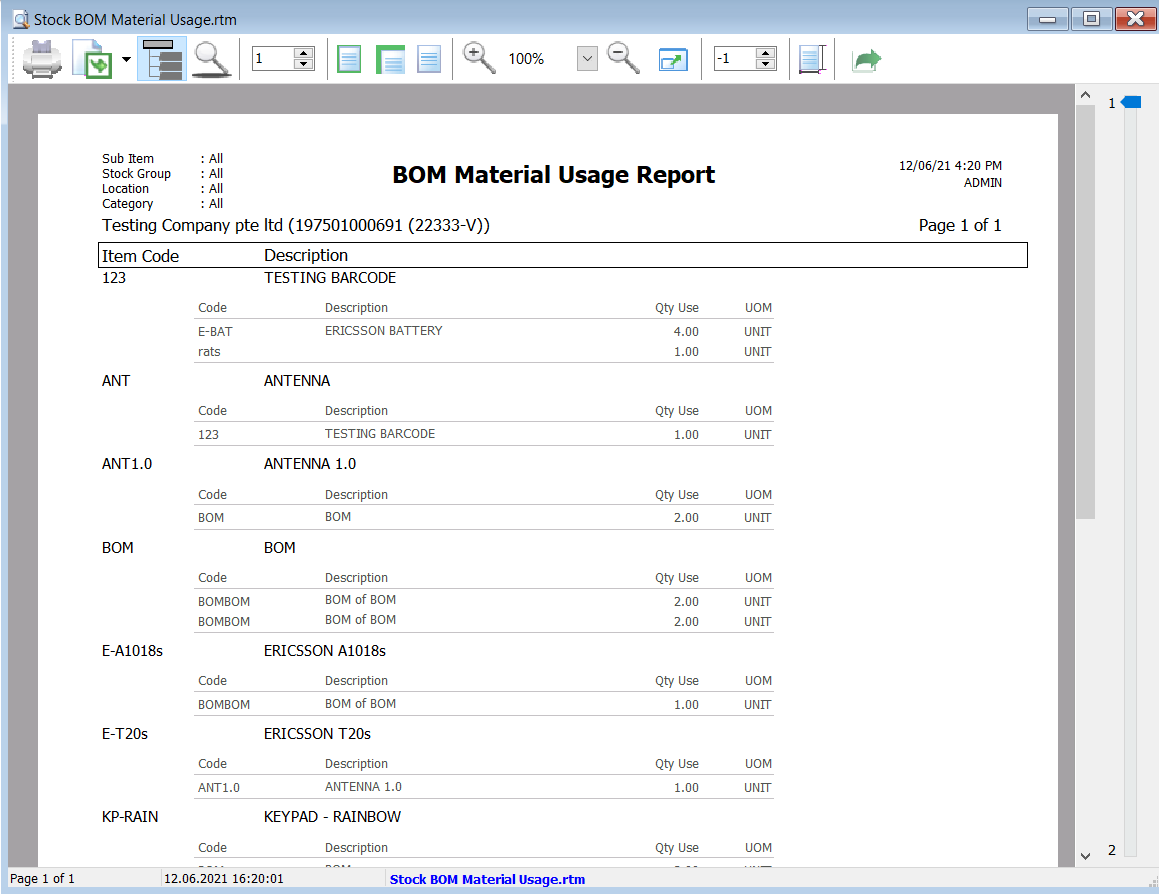
Filter by selecting the Sub Item, Location, Stock Group, Batch and Category.

-
Click Apply.
-
Preview the report.
Print BOM Planner
How to Print BOM Planner
-
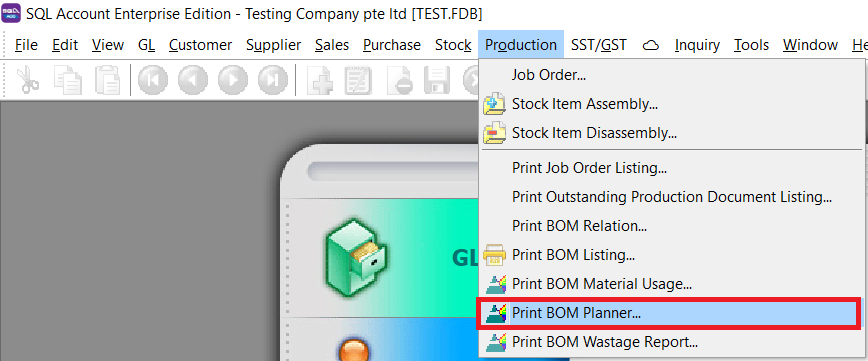
Go to Production > BOM Planner.

-
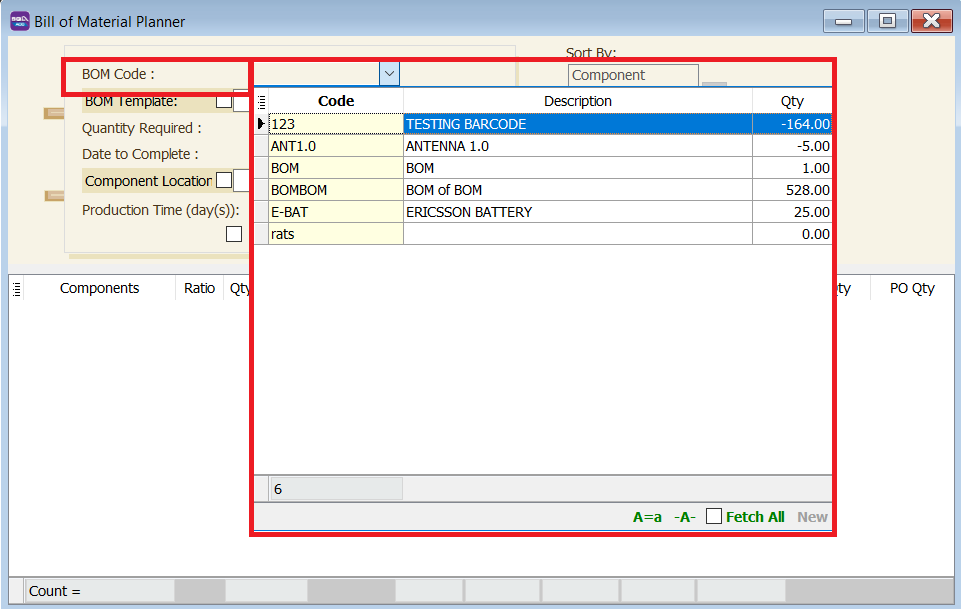
Filter by selecting the BOM Code or BOM Template.
-
Click Apply.
-
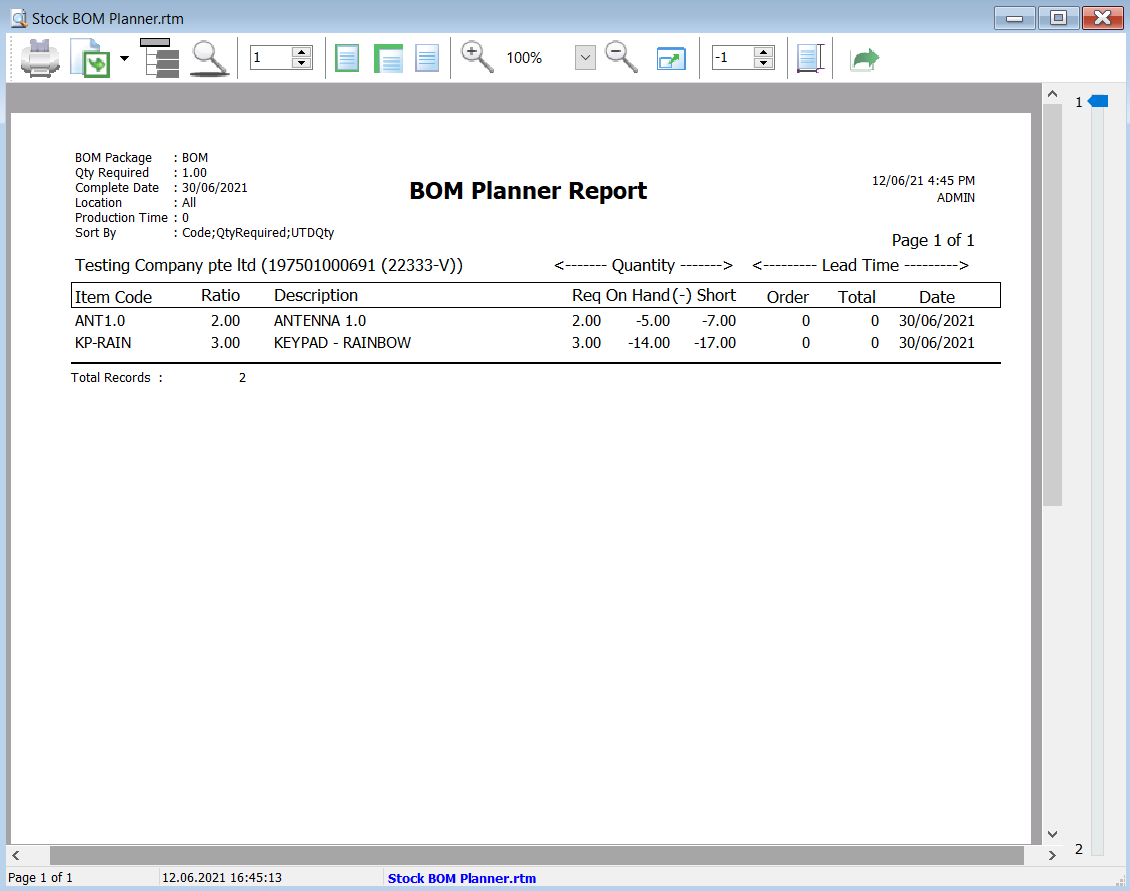
Preview the report.
Print BOM Wastage Report
How to Print BOM Wastage Report
-
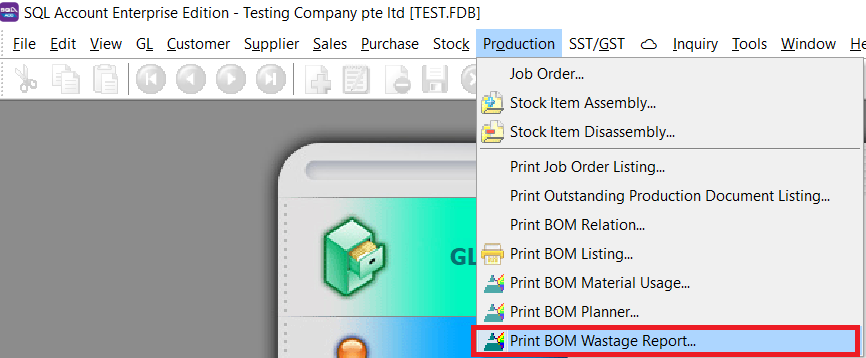
Go to Production > BOM Wastage Report.
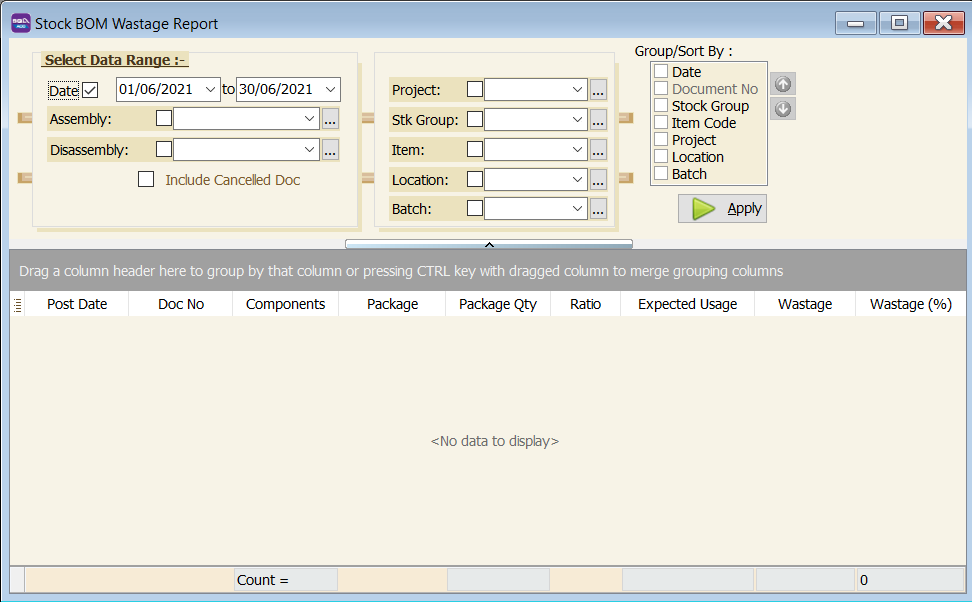
-
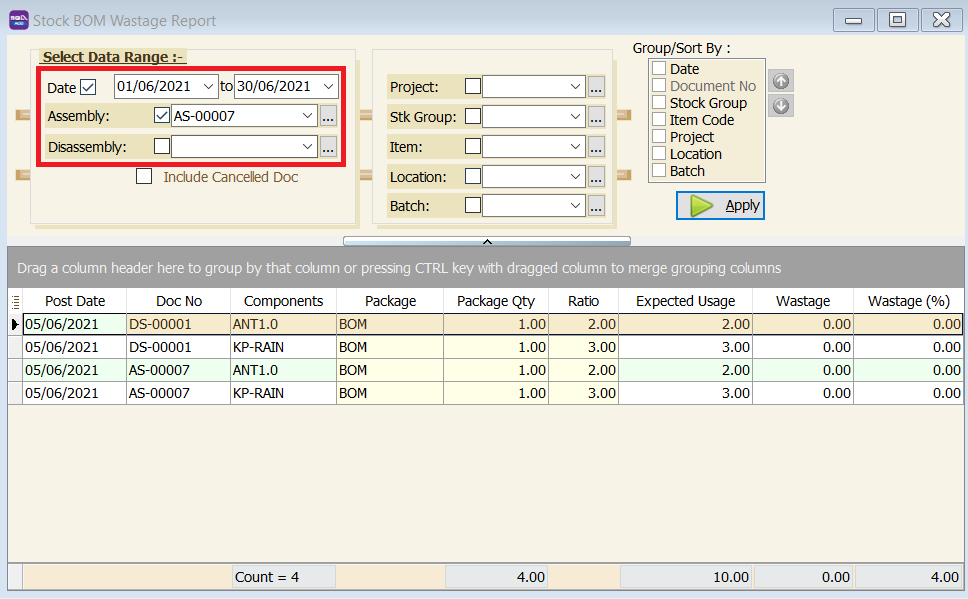
Set the date period, and select if you want to see Stock Assembly or Stock Disassembly.
-
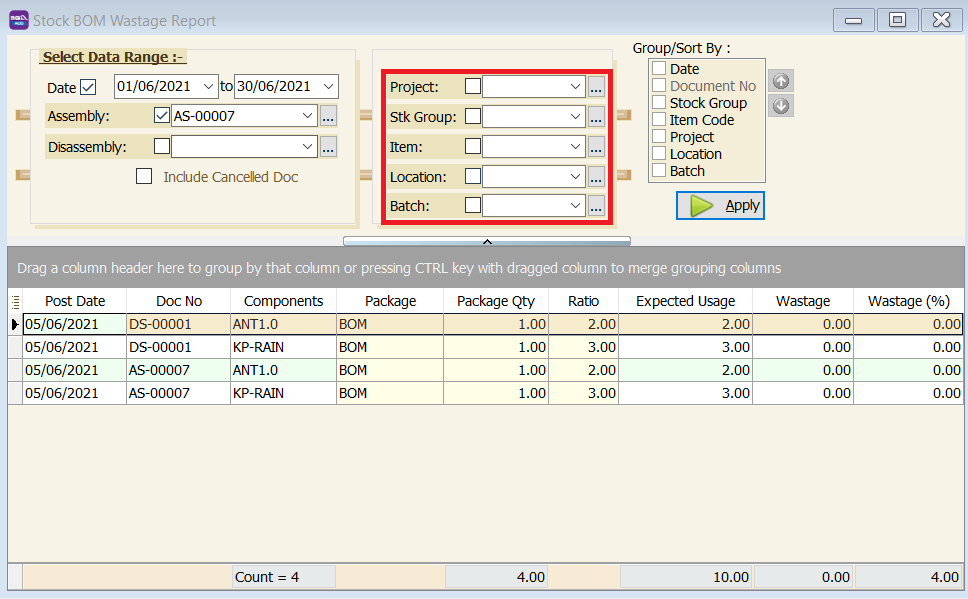
Filter based on Project, Stock Group, Item, Location, and Batch.
-
Click Apply.
-
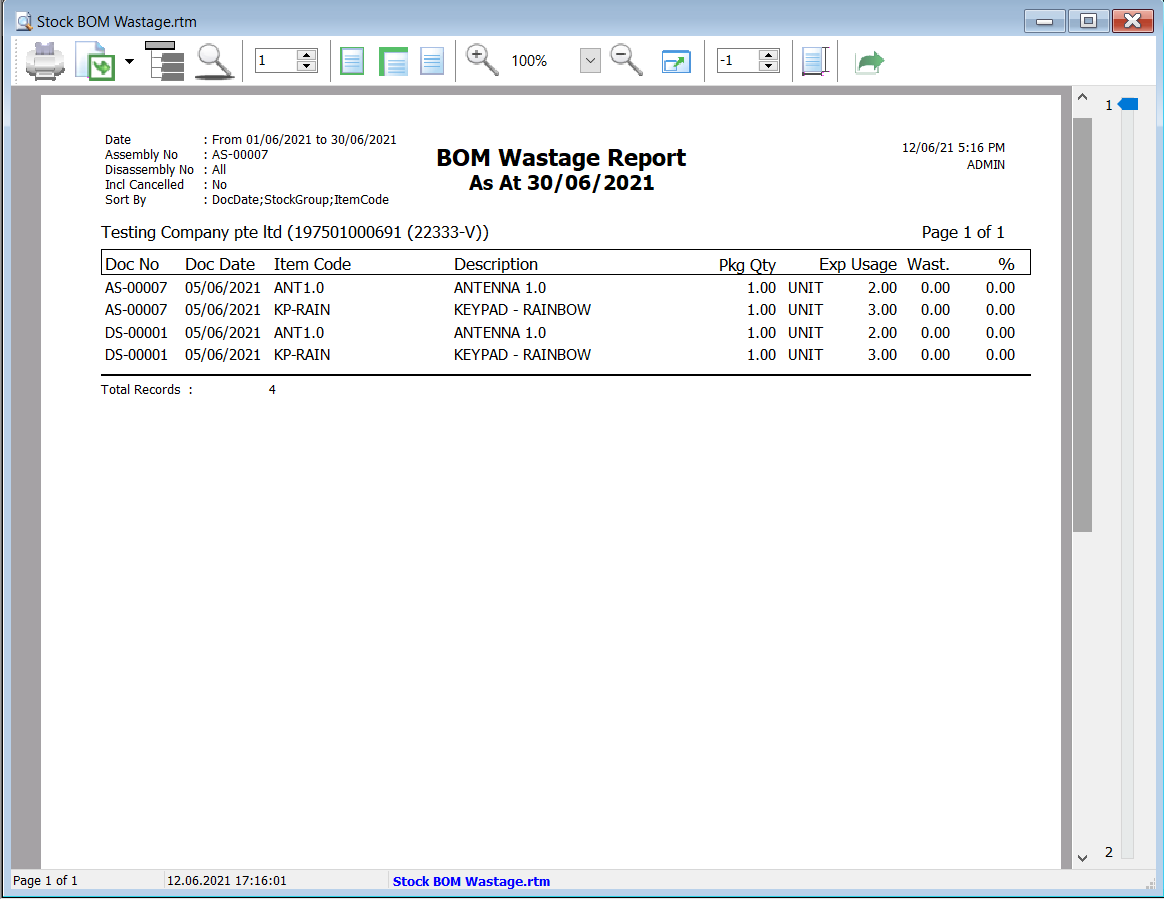
Preview the report.