Reports
Print Purchase Document Listing
How to Print Purchase Document Listing
-
Go to Purchase > Print Purchase Document Listing.
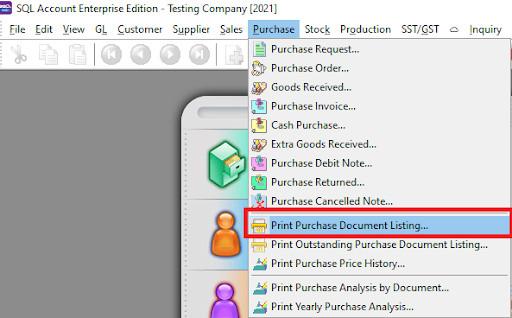
-
Select the document listing you want to view. Refer to the image below.
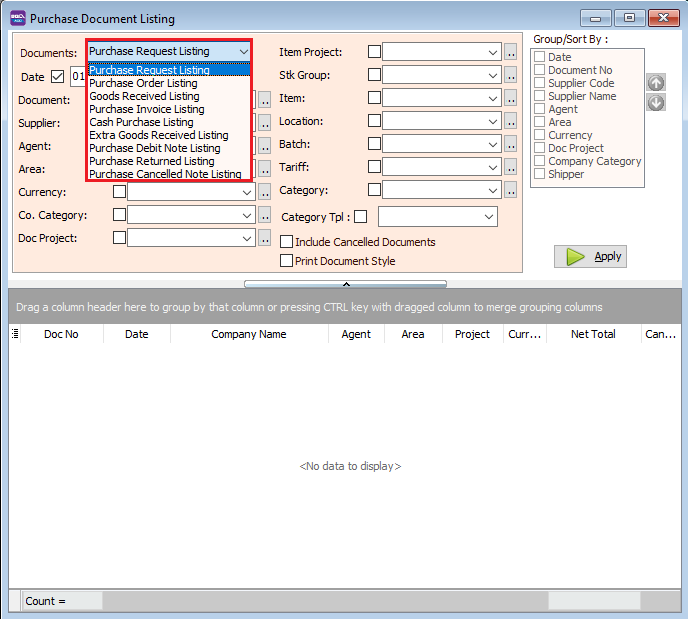
-
Click the Apply button.
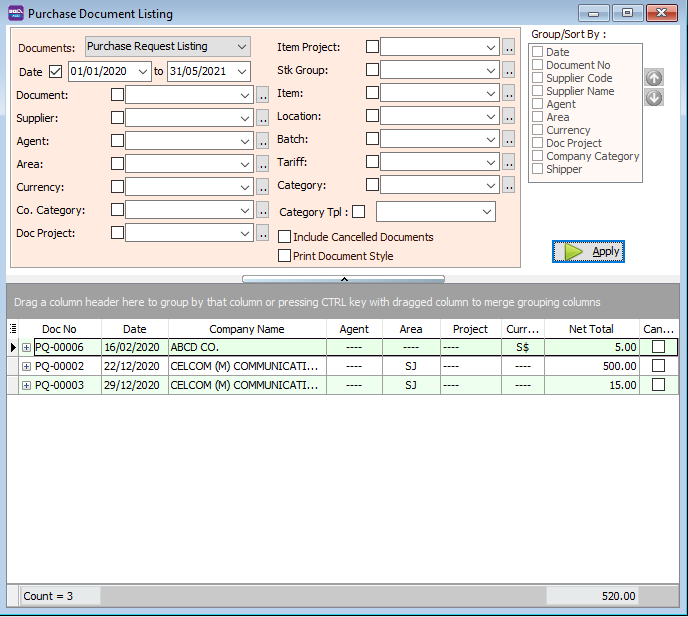
-
Click Preview and select the desired report format.

-
Example of a Purchase Invoice Listing report:
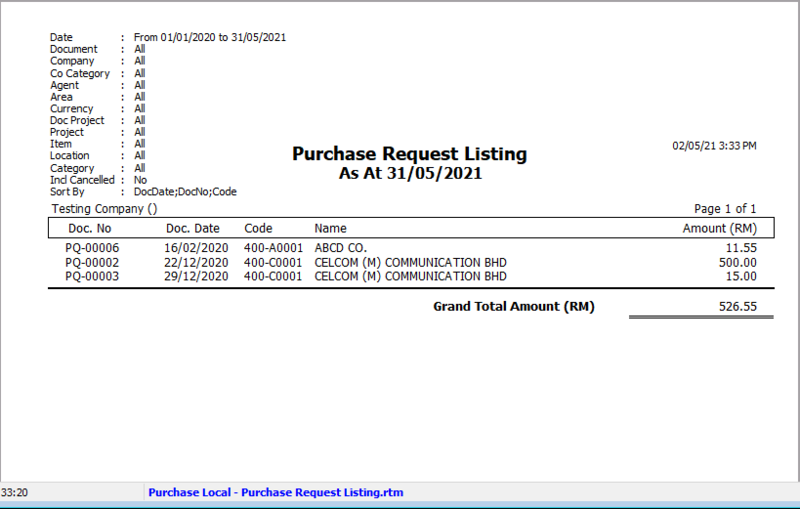
Print Document Style
Tick the relevant checkboxes as needed.
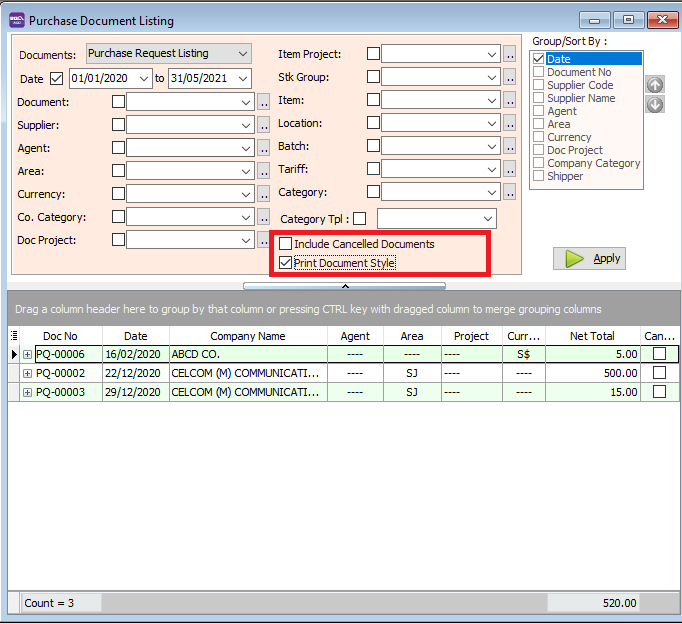
| Field Name | Explanation |
|---|---|
| Print Document Style | Tick this checkbox to print reports in bulk or send batch emails. |
| Include Cancelled Documents | Tick this checkbox to include cancelled documents in the listing. |
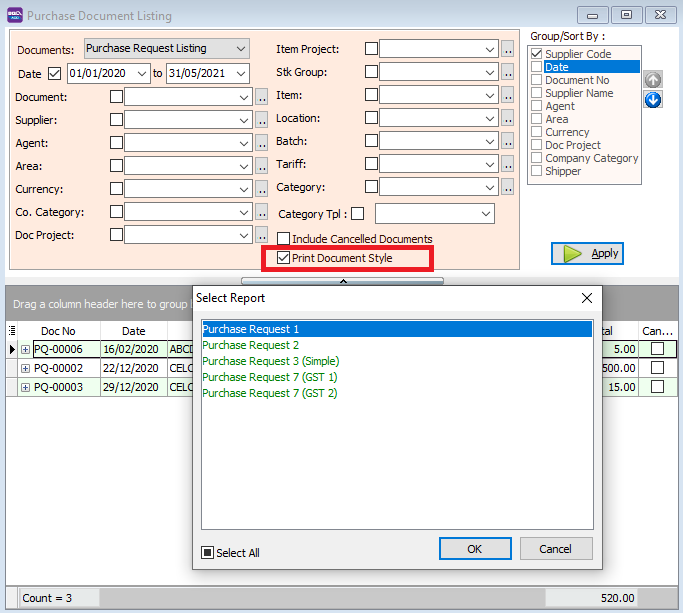
If you tick Print Document Style, you will be able to choose a specific purchase document report format.
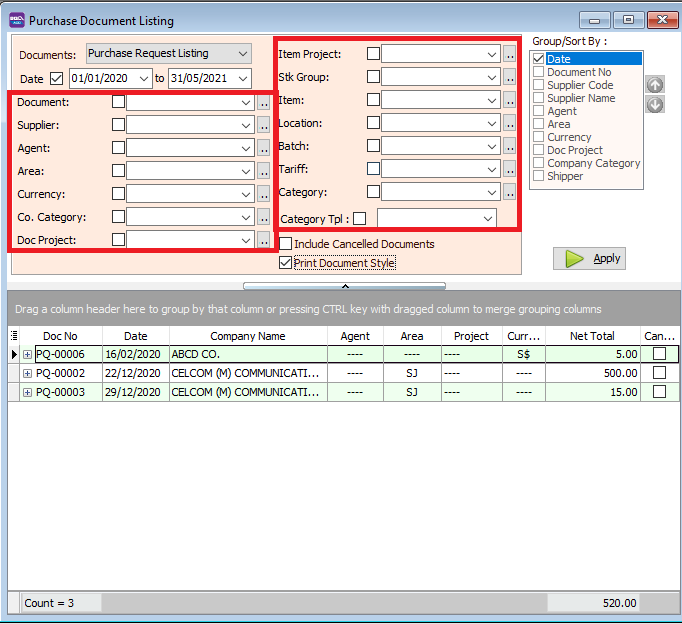
You can filter your documents based on Document, Agent, Area, Currency, Project, and Company Category.
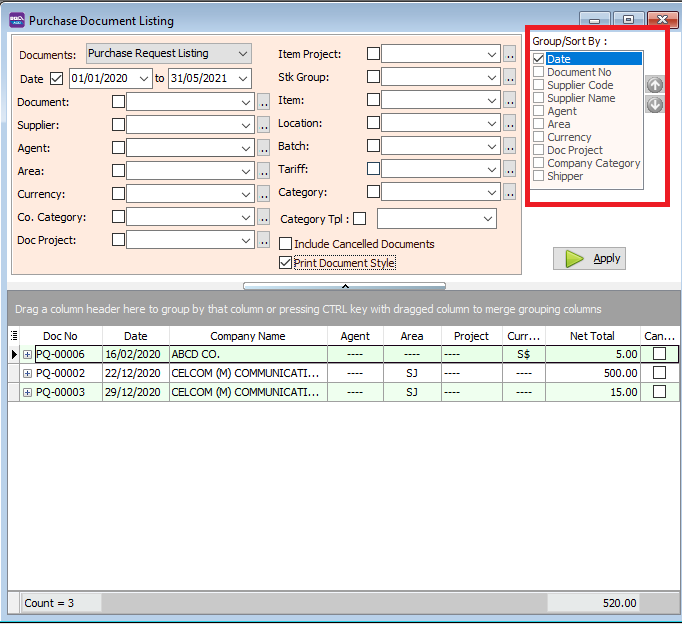
Use the Group By/Sort By table to choose how you want to organize your report listing.
Select the listing report format.

Example of a grouped report:
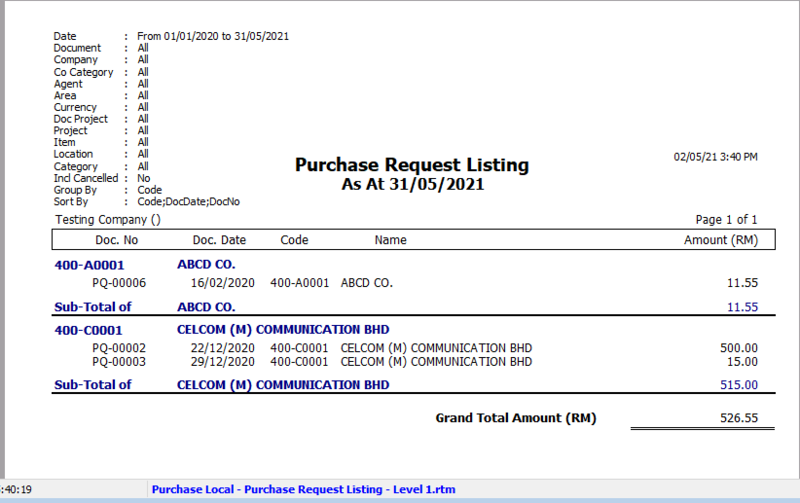
Print Outstanding Purchase Document Listing
How to Print Outstanding Purchase Document Listing
-
Go to Purchase > Print Outstanding Purchase Document Listing.
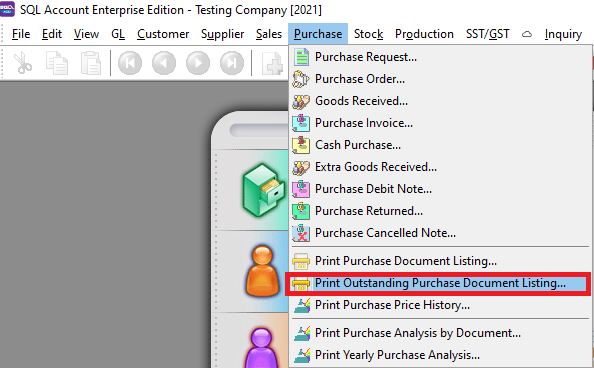
-
Select the document listing you want to view. Refer to the image below.
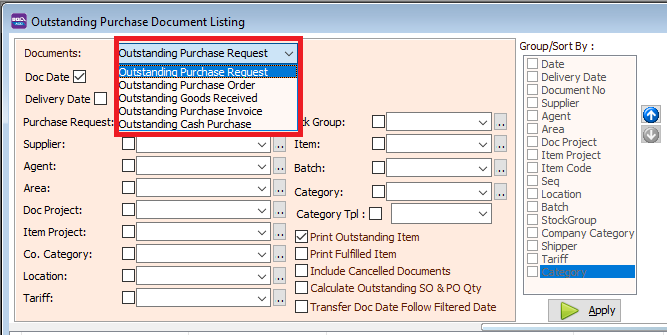
-
Click the Apply button.
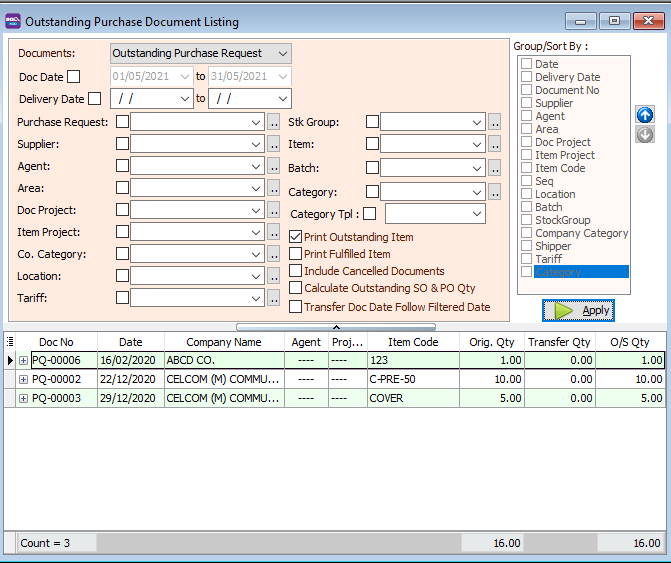
-
Click Preview and select the desired report format.

-
Example of an Outstanding Purchase Document Listing report:
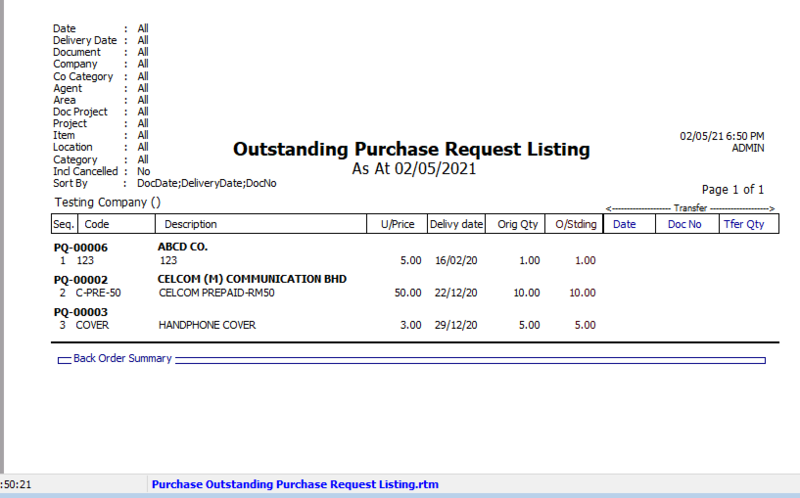
Print Outstanding Item & Print Fulfilled Item
| Field Name | Explanation |
|---|---|
| Print Outstanding Item | Tick this to include documents and items that have not yet been transferred to other documents. |
| Print Fulfilled Item | Tick this to include documents and items that have already been transferred to other documents. |
| Include Cancelled Document | Tick this checkbox to include cancelled documents in the listing. |
| Calculate Outstanding SO & PO Qty | Calculates the outstanding quantity in the report. |
| Transfer Doc Date Follow Filtered Date | Displays documents based on the transfer date. |
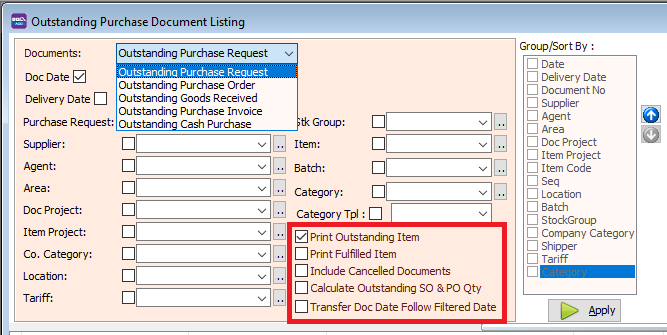
You can filter your documents based on Document, Agent, Area, Currency, Project, and Company Category.
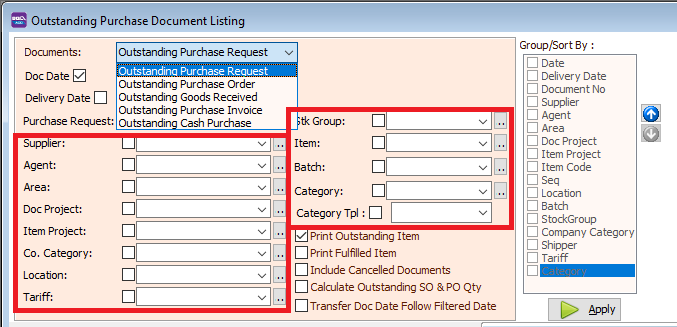
Use the Group By/Sort By table to choose how you want to organize your report listing.
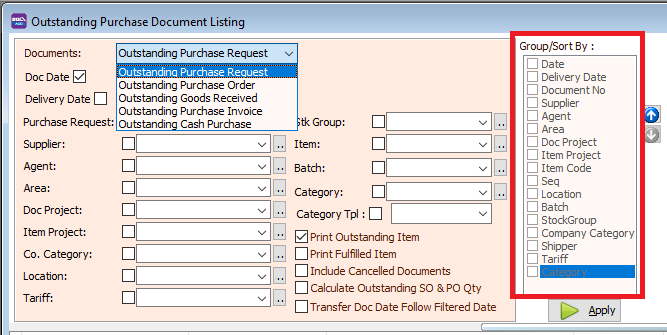
Select the listing report format.
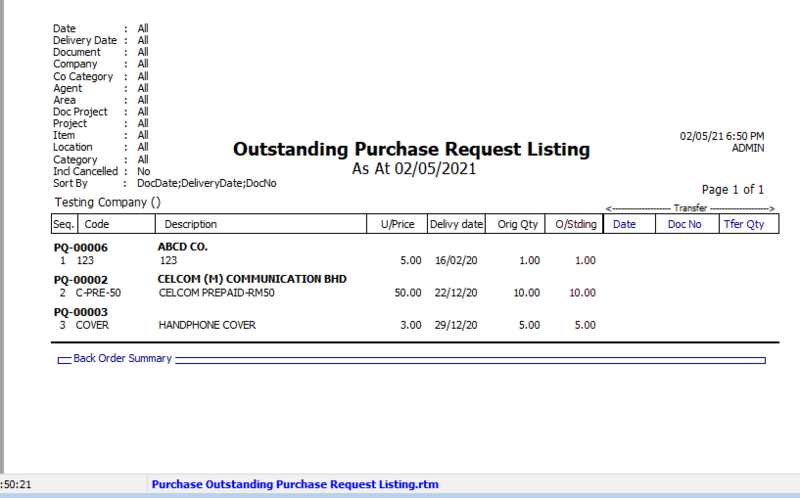
- Example of an outstanding purchase report:
Print Purchase Price History
How to Print Purchase Price History
-
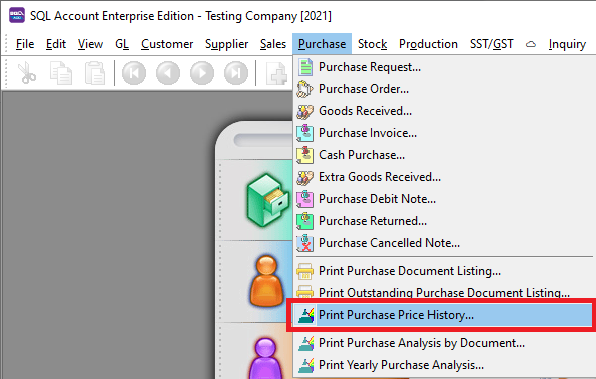
Go to Purchase > Print Purchase Price History.
-
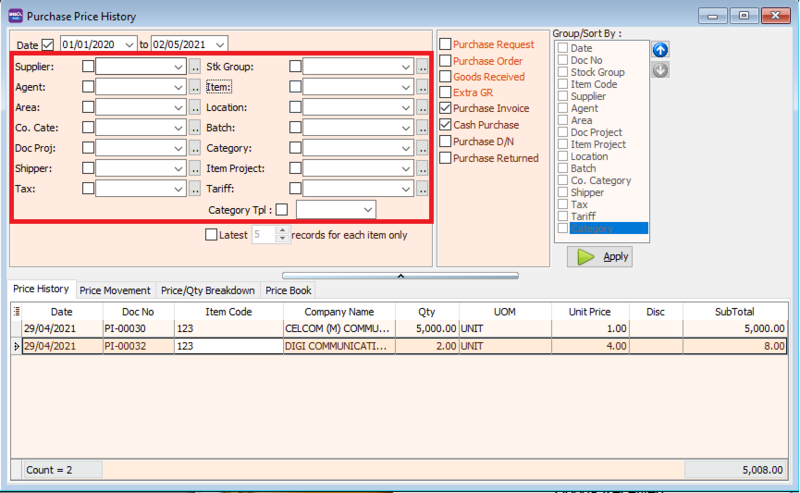
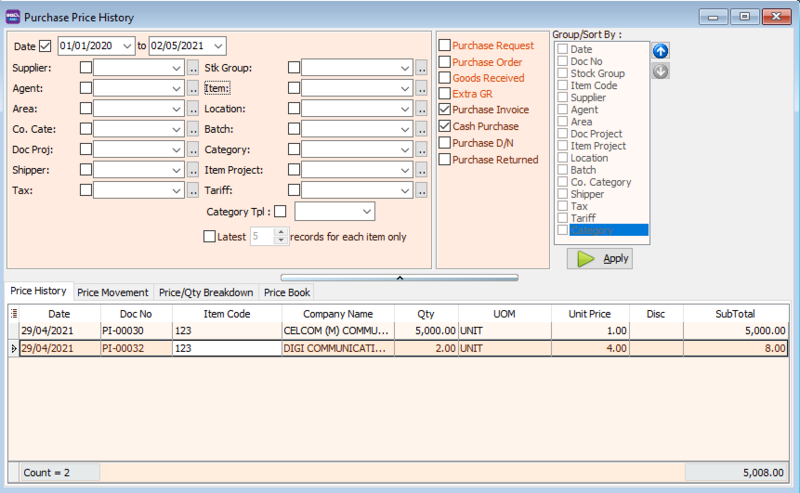
Select the document listing you want to see and filter by Supplier, Agent, Area, etc.
-
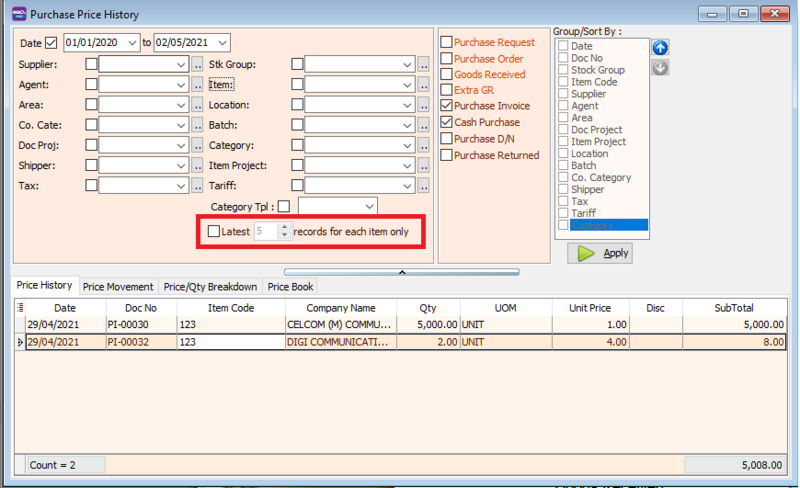
Select the number of records you want to display.
-
Click the Apply button.
-
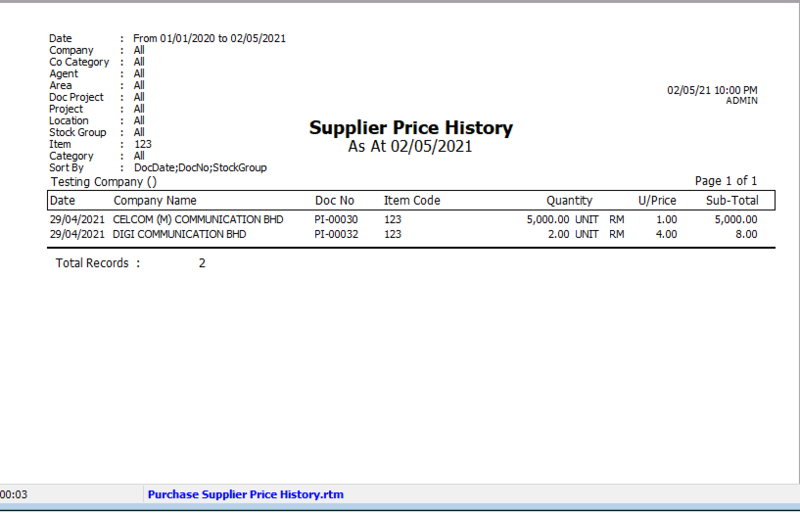
Click Preview and select the desired report format.

-
Example of a Purchase Price History report:
-
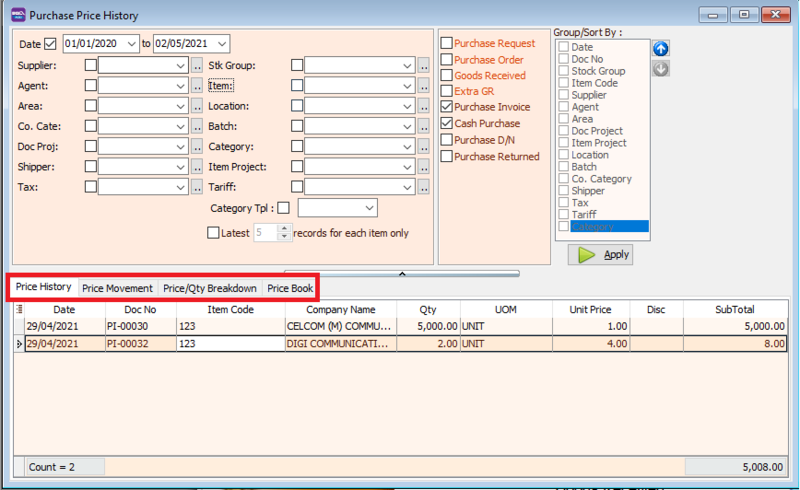
Example of Price History:
-
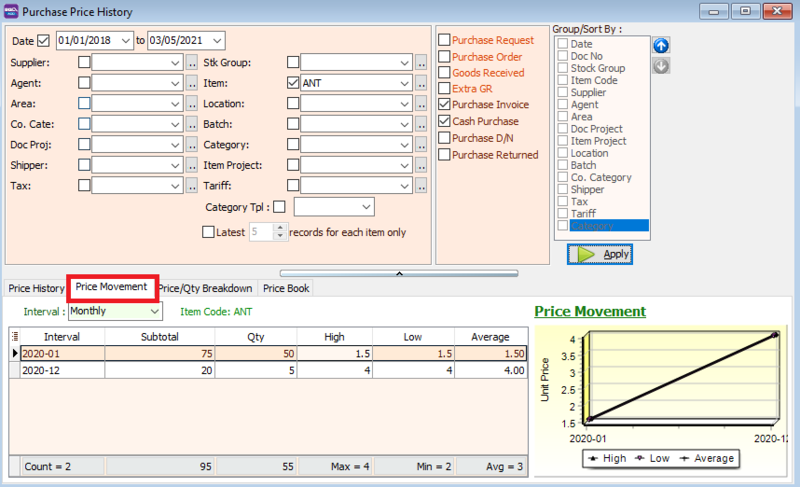
Price Movement:
-
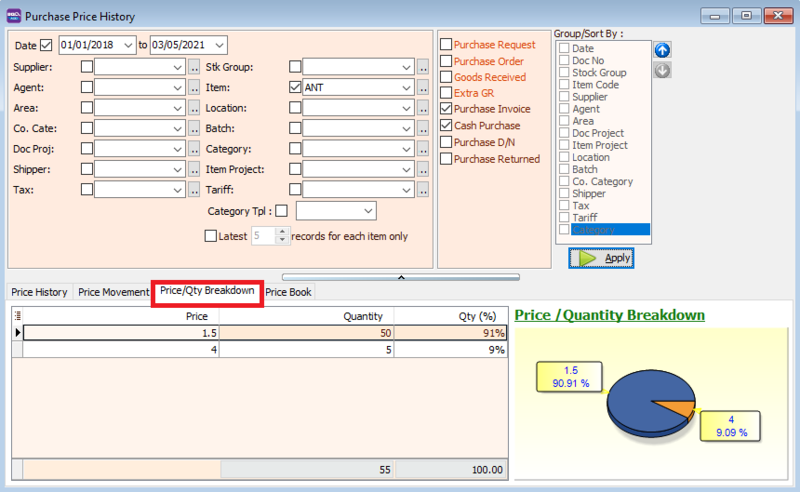
Price/Qty Breakdown:
-
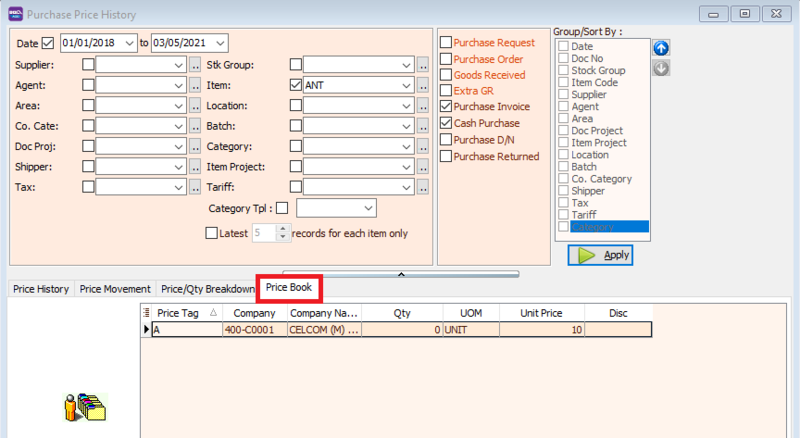
Price Book:
| Feature | Explanation |
|---|---|
| Price History | View past prices of stock items. |
| Price Movement | Observe price movements for each stock item on a line graph. |
| Price/Qty Breakdown | Analyze price breakdowns for stock items displayed on a pie chart. |
| Price Book | Review price tags for item codes. |
Group/Sort By:
You can filter your documents based on Document, Agent, Area, Currency, Project, and Company Category.
Use the Group By/Sort By table to choose how you want to organize your report listing.
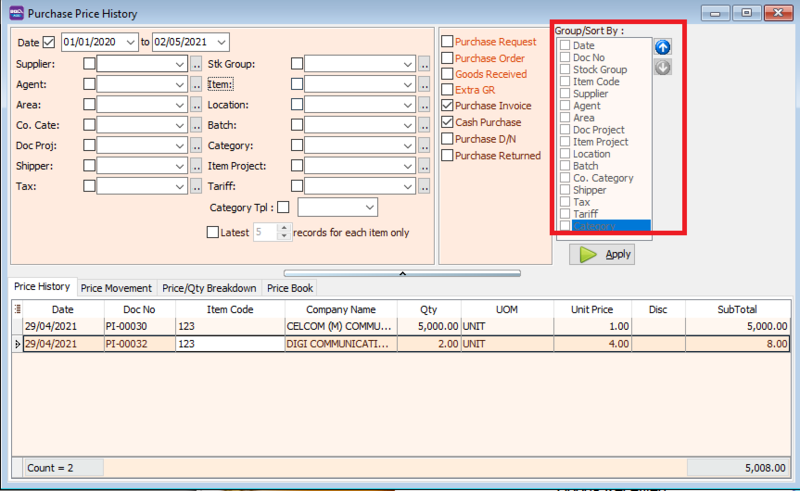
Select the listing report format.

-
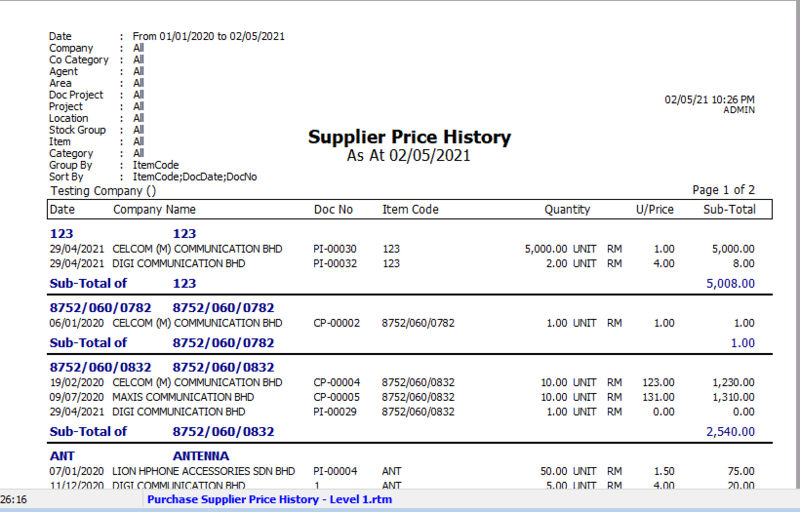
Example of a price history report:
Print Purchase Analysis by Document
How to Print Purchase Analysis by Document
-
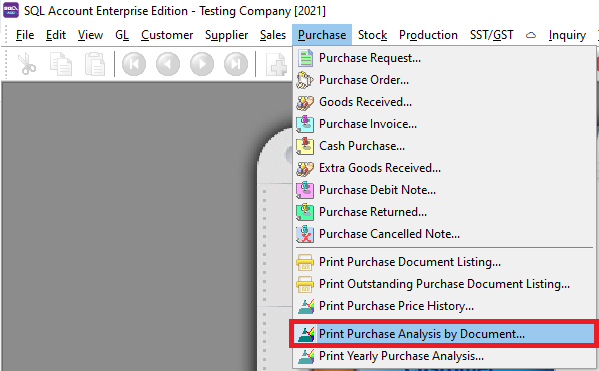
Go to Purchase > Print Purchase Analysis by Document.
-
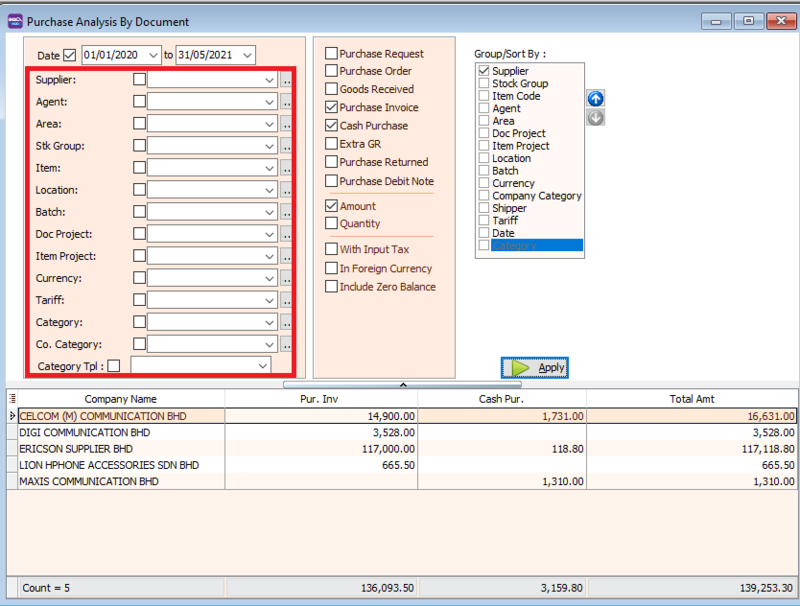
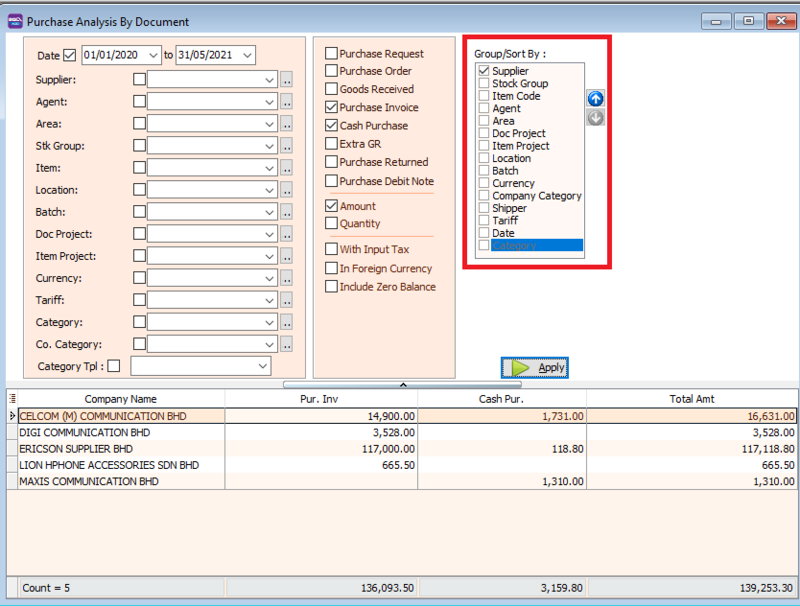
Filter the documents by Supplier, Agent, Area, etc.
-
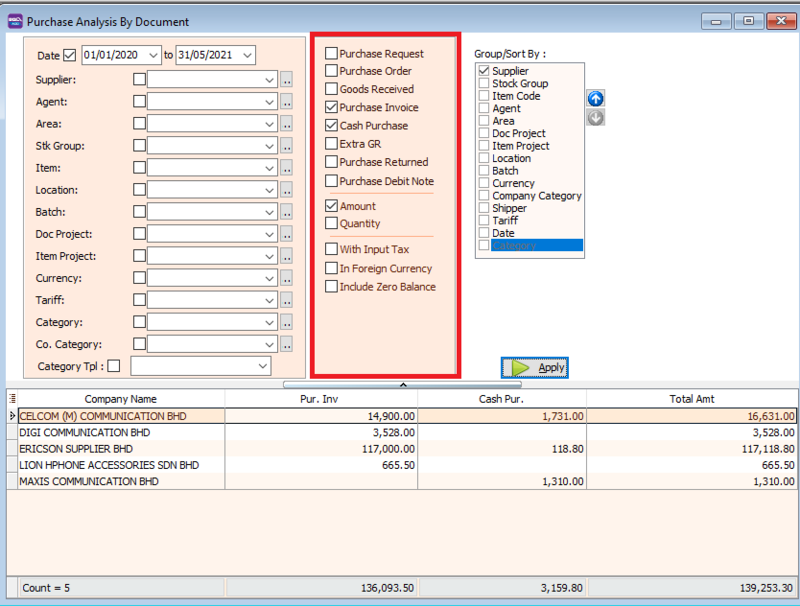
Select the documents you want to view, choose whether to see the Amount (RM) or Quantity, and decide whether to include tax and foreign currency.
-
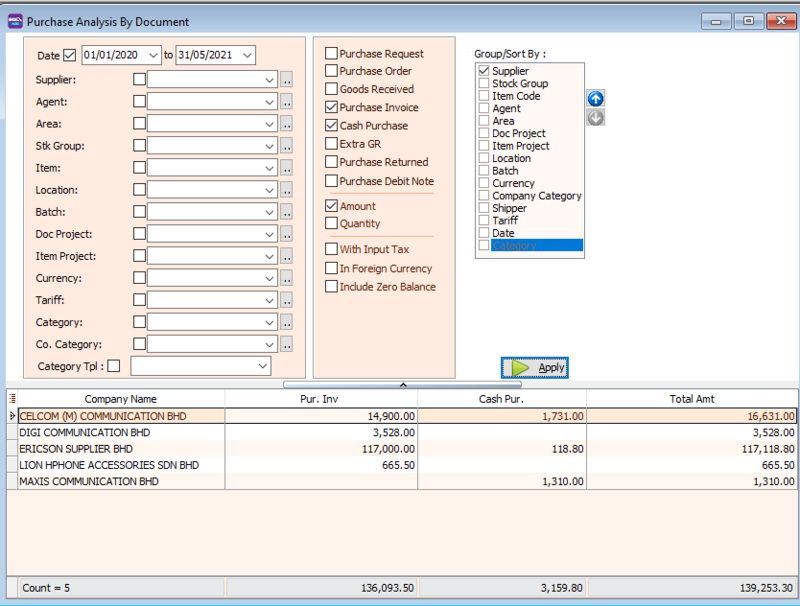
Click the Apply button.
-
Click Preview and select the desired report format.
-
Example of an analysis report:
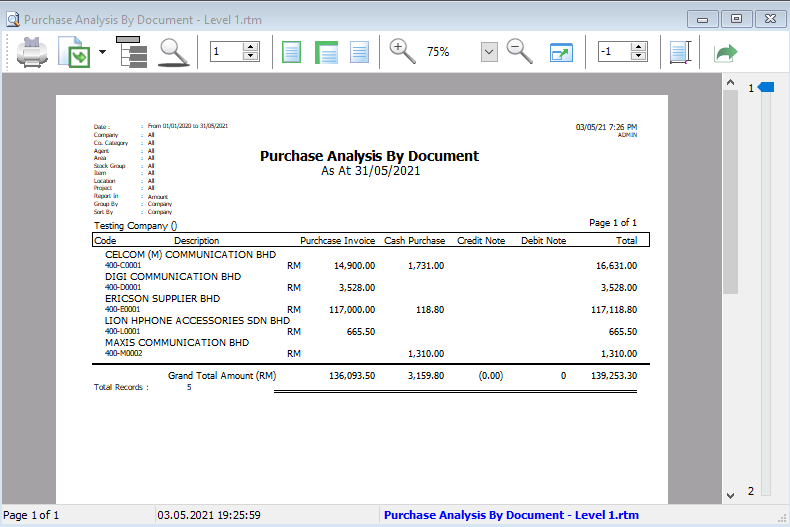
Group/Sort By:
You can filter your documents based on Document, Agent, Area, Currency, Project, and Company Category.
Use the Group By/Sort By table to choose how you want to organize your report listing.
Print Yearly Purchase Analysis
How to Print Yearly Purchase Analysis
-
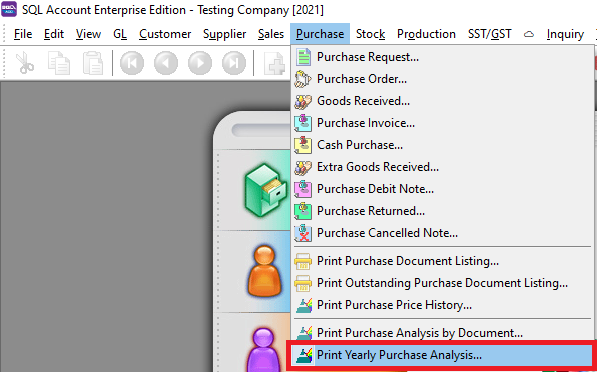
Go to Purchase > Print Yearly Purchase Analysis.
-
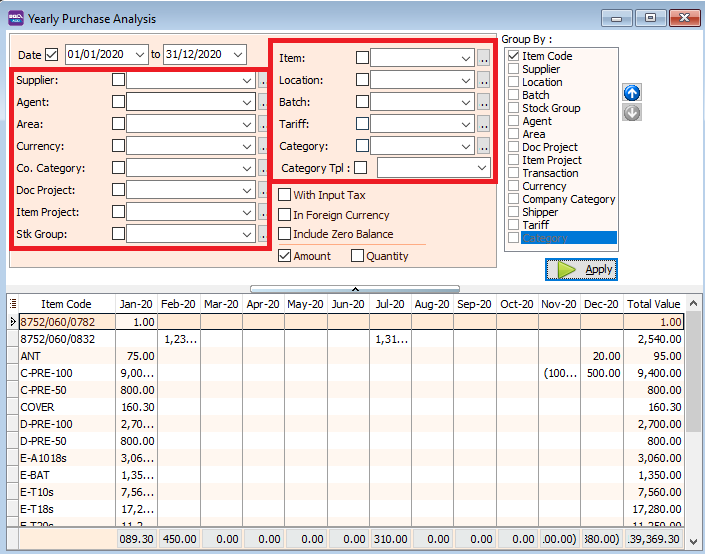
Filter the documents by Supplier, Agent, Area, etc.
-
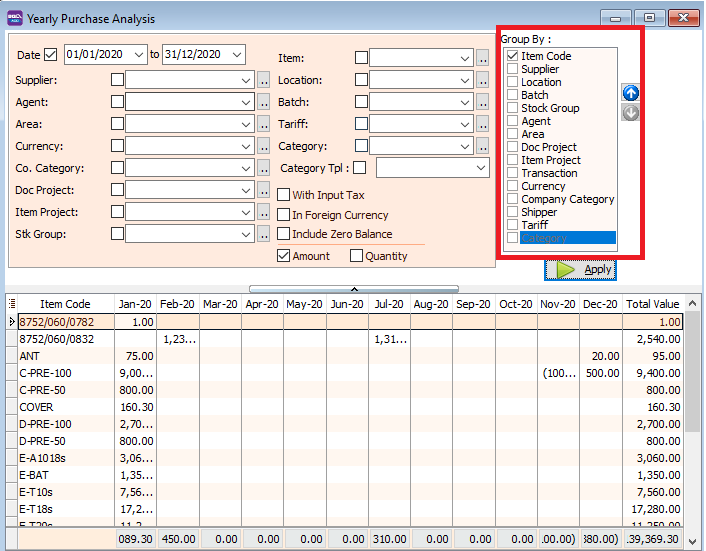
Set how you want to group the report using Group By/Sort By.
-
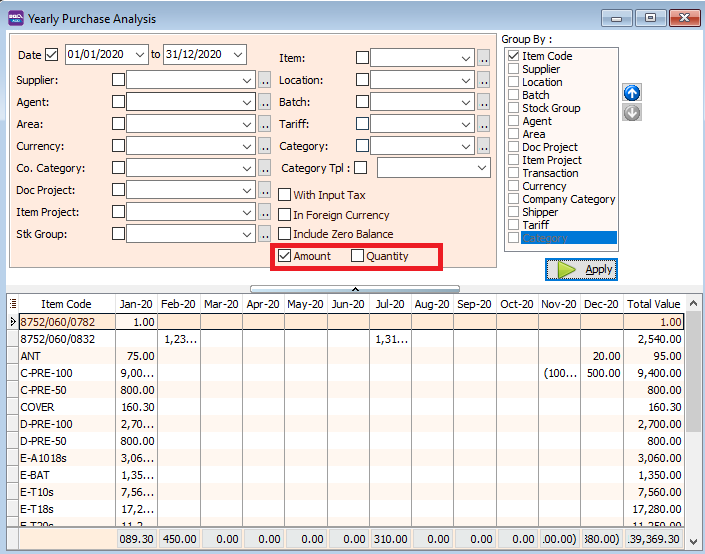
Select whether you want to view the Yearly Amount or Yearly Quantity of your purchases.
-
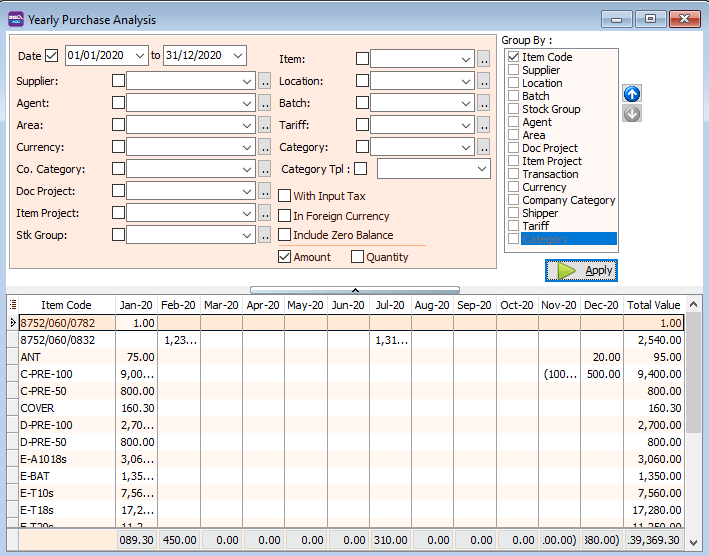
Click the Apply button.
-
Click Preview and select the desired report format.
-
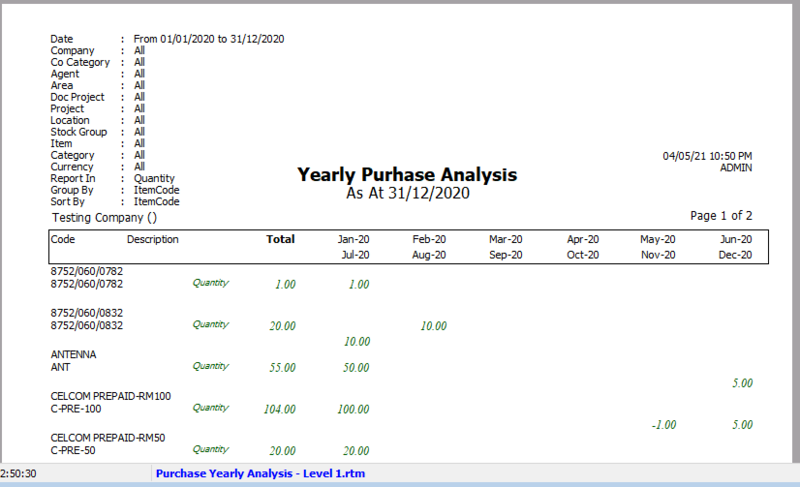
Example (Qty): If you tick Qty, the report will show the yearly quantity.
-
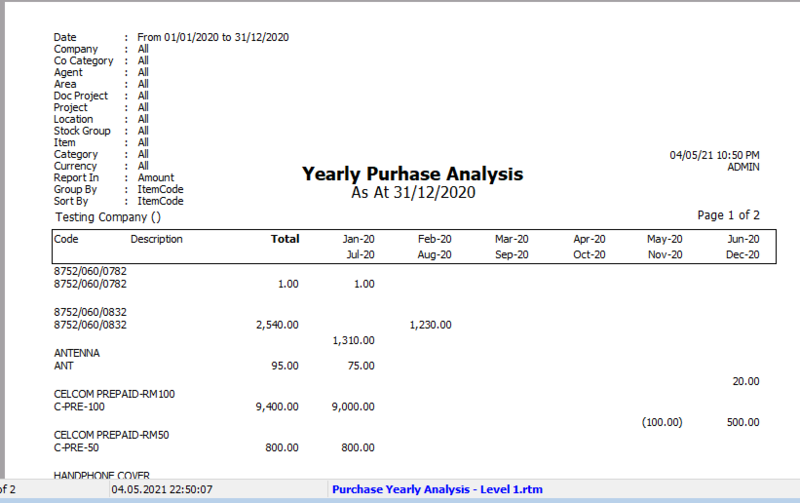
Example (Amount): If you tick Amount, the report will show the yearly amount.
-