First Time Setup
SQL Payroll Company
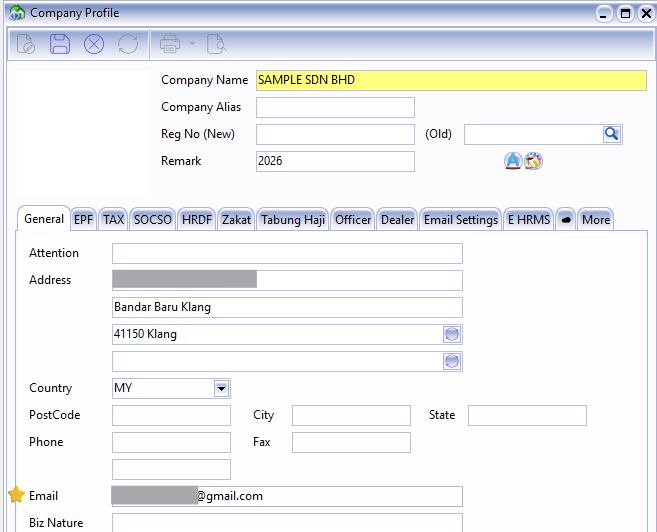
- Navigate to Files > Company Profile and enter company details
- Important Fields :
- Company Name
- Email (for getting OTP)
SQL Drive
If you wish to upload images or attachments in Gift module or Assignment module you will require this step. If no may skip to the next step.
May contact SQL support to register email address for SQL Drive.
Make sure you are logging into an ADMIN user before proceed with the steps below.
-
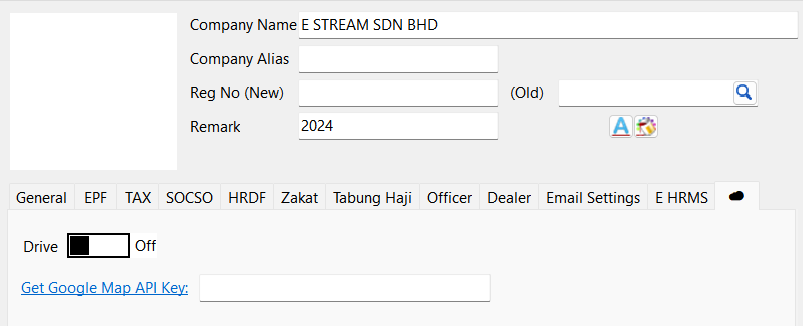
Navigate to File > Company Profile..., click on the ☁️.
-
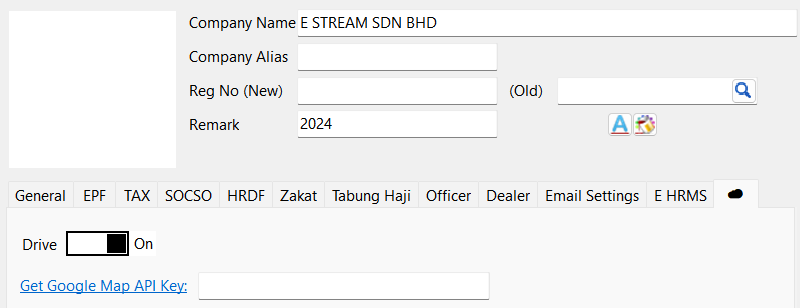
Switch on Drive.
-
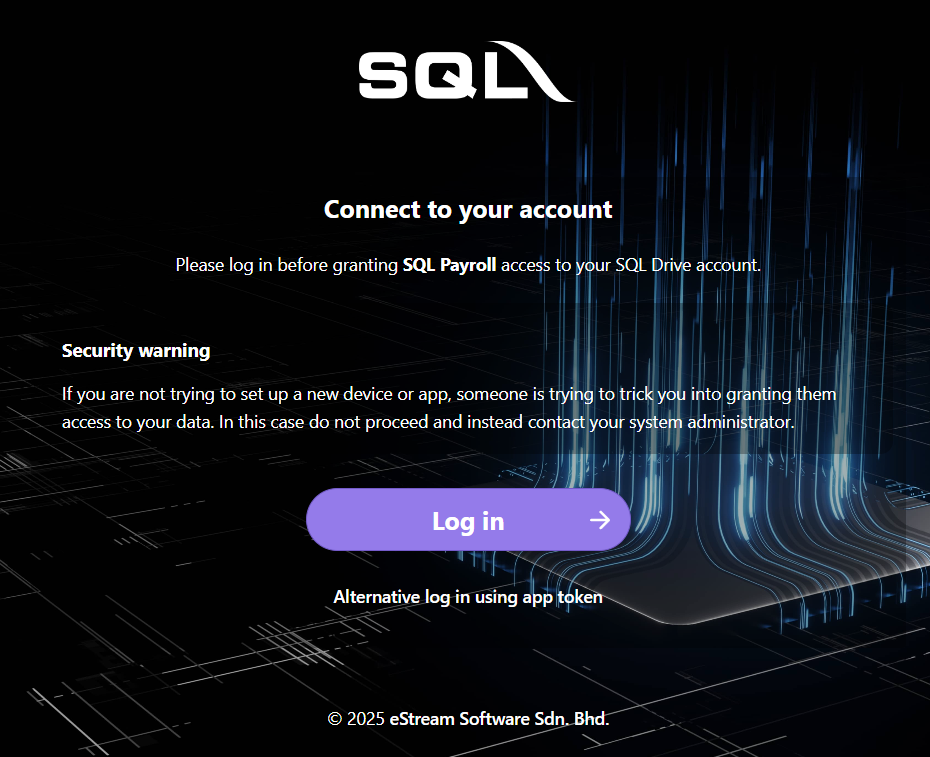
Click on "Log in" > Log in with Google. Enter your Gmail account + password and press on "Grant access".
-
Save.
SQL Payroll Employees
-
Navigate to Human Resource > Maintain Employee
-
Create New Employees or go to existing employees
-
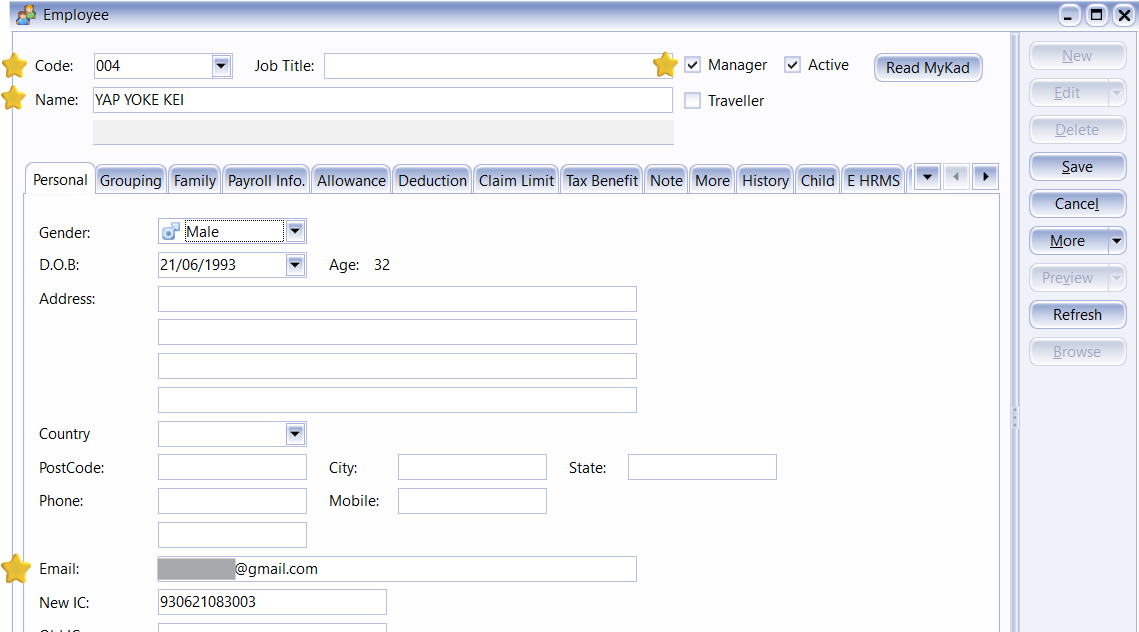
Important Fields:
- Employee Code
- Name
- Manager Tag (This will determine their role in SQL Vision)
- Active Tag
- Email (For each employee to login to their account)
-
Optional Fields:
- Group > Branch / HR Group / Department may be used to categorise employee

Sync to SQL Vision
This step will automatically sync all data to SQL Vision. If in future have any changes e.g. employee info, may perform this step again.
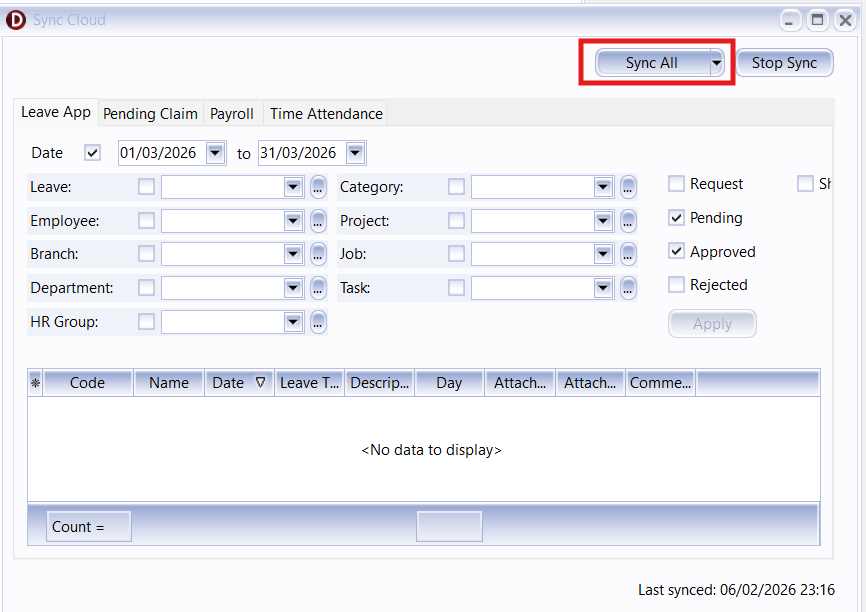
- ☁️ > Sync Cloud..
- Click Sync All
After completing the setup, you can proceed to log in to the employee account as usual.