Guide
Asset
This is an additional module.
Maintain Asset Group
Menu: Asset > Maintain Asset Group
Group asset items based on the following considerations:
-
Type of assets, e.g., Motor Vehicle, Furniture, etc.
-
GL Account mapping.
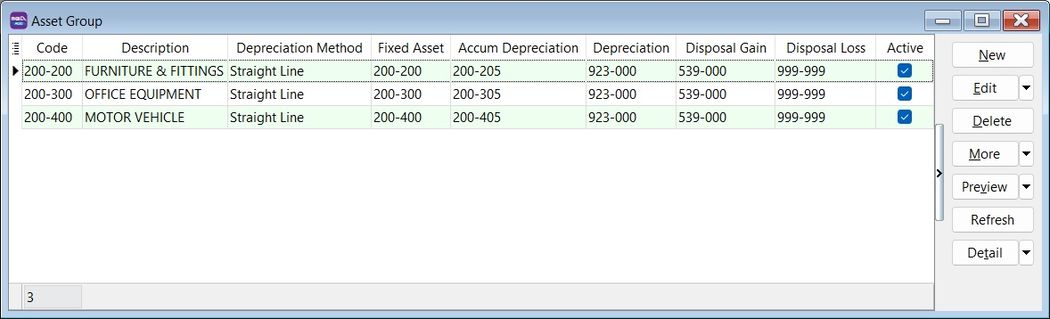
Asset Group
| Field Name | Explanation & Properties |
|---|---|
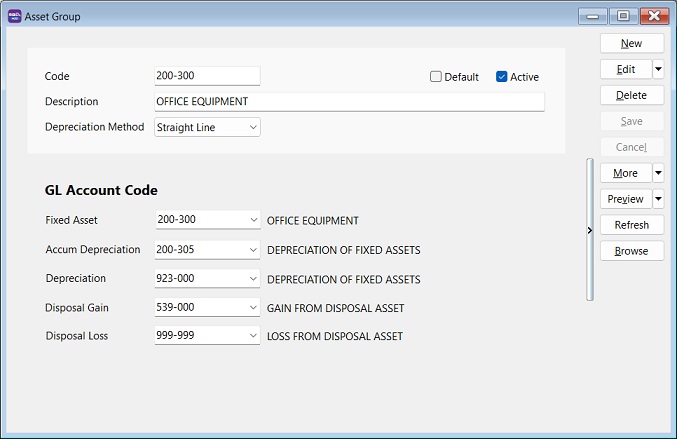
| Code | Input the new Asset Group Code. Field type: Alphanumerical; Length: 20. |
| Description | Input the Asset Group description, e.g., Furniture, Motor Vehicle. Field type: Alphanumerical; Length: 200. |
| Depreciation Method | Select an appropriate Depreciation Method to generate the depreciation value. |
| Fixed Asset | Select the Balance Sheet GL Account code for Fixed Asset. |
| Accum Depreciation | Select the Balance Sheet GL Account code for Accumulated Depreciation. |
| Depreciation | Select the P&L GL Account for Depreciation of Asset. |
| Disposal Gain | Select the P&L GL Account for Gain from Disposal of Asset. |
| Disposal Loss | Select the P&L GL Account for Loss from Disposal of Asset. |
Maintain Asset Item
Menu: Asset > Maintain Asset Item
Add new asset items:
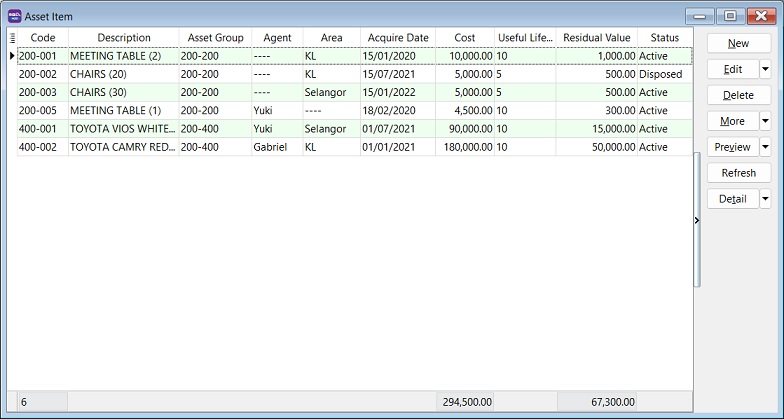
Asset Item
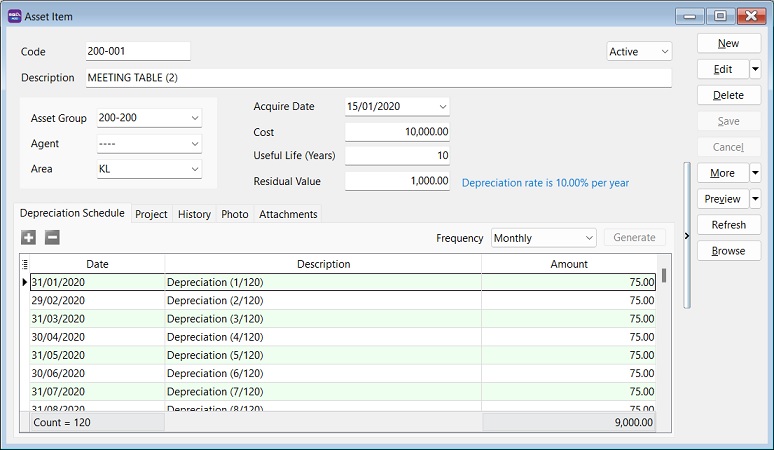
| Field Name | Field Type | Length | Explanation |
|---|---|---|---|
| Code | Alphanumerical | 20 | Input the new Asset Item Code. |
| Description | Alphanumerical | 200 | Input the Asset Item description, e.g., Meeting Table, Toyota Vios, Perodua MYVI. |
| Asset Group | Selection | – | Select an appropriate Asset Group for depreciation calculation and GL Account posting. |
| Agent | Selection | – | Select the Agent using this Asset Item. |
| Area | Selection | – | Select where the asset is located. |
| Acquire Date | Date | – | Set the acquire date for this asset. |
| Cost | Currency | – | Set the purchase cost for this asset. |
| Useful Life (Years) | Integer/Float | – | Set the useful life of this asset. |
| Residual Value | Currency/Float | – | Set the residual value for this asset. |
| Status | Selection | – | Default is Active. Can be set to Inactive with an inactive date. |
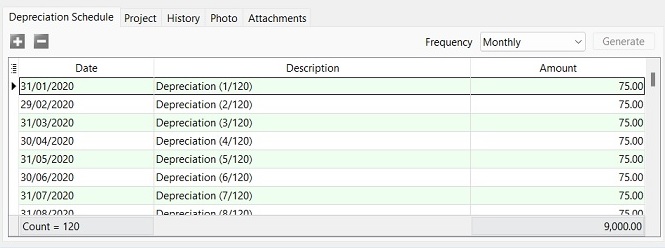
Depreciation Schedule
-
Select the frequency to generate the depreciation schedule:
- Monthly
- Quarterly
- Half Yearly
- Yearly
-
Click the Generate button.
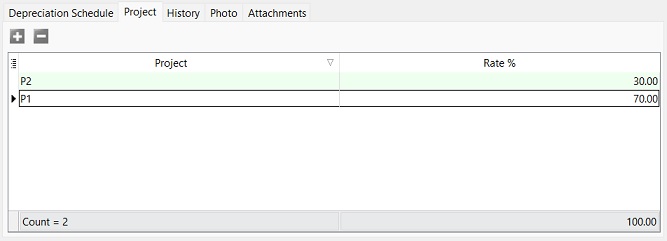
Project
Set the depreciation allocation by Project (for departmental/cost center purposes).
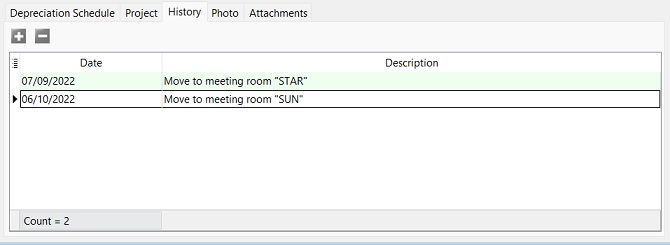
History
Add important remarks to the asset history. For example: 1. Who has borrowed/when has returned this asset? 2. Asset has been sent for repair or service... 3. Asset has been destroyed by flood.
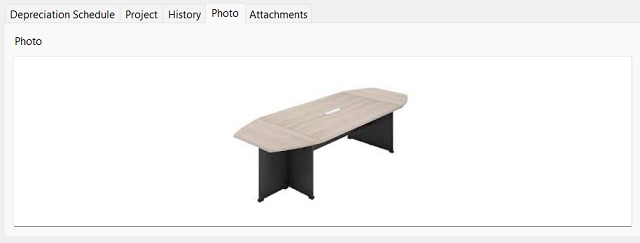
Photo
Add an asset photo.
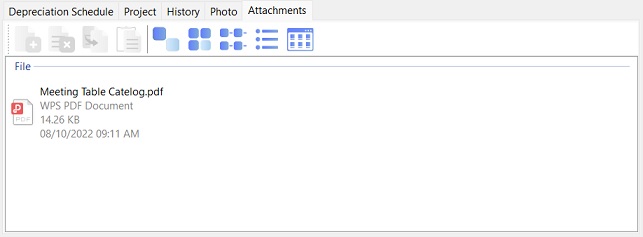
Asset Item Attachments
Add attachments for an asset.
Process Depreciation
Menu: Asset > Process Depreciation
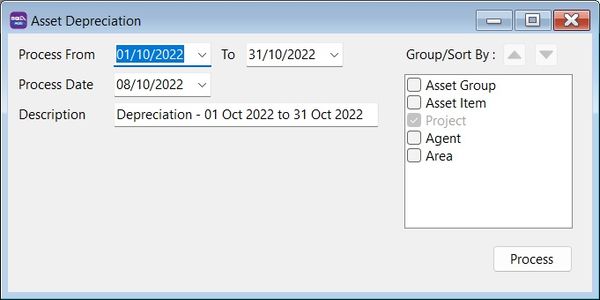
Asset Depreciation
-
Select the process date range:
Tips:- The process date range allows you to select more than one month or one year to process the depreciation.
- Allows you to process BEFORE the system conversion date (No update to Maintain Opening Balance). :::
-
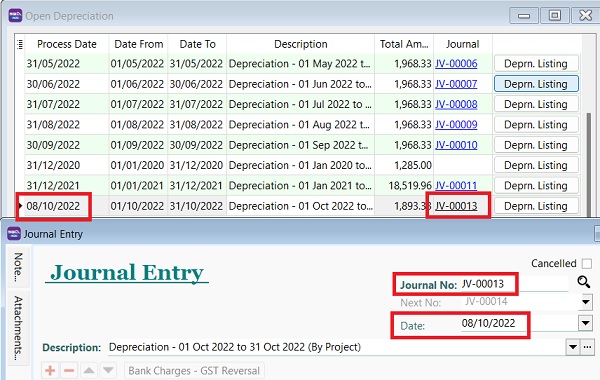
Select the Process Date.
 Tips:
Tips:The Journal Voucher date will follow this Process Date.
-
The description will be captured in the Journal Voucher description.
-
Click Process.
-
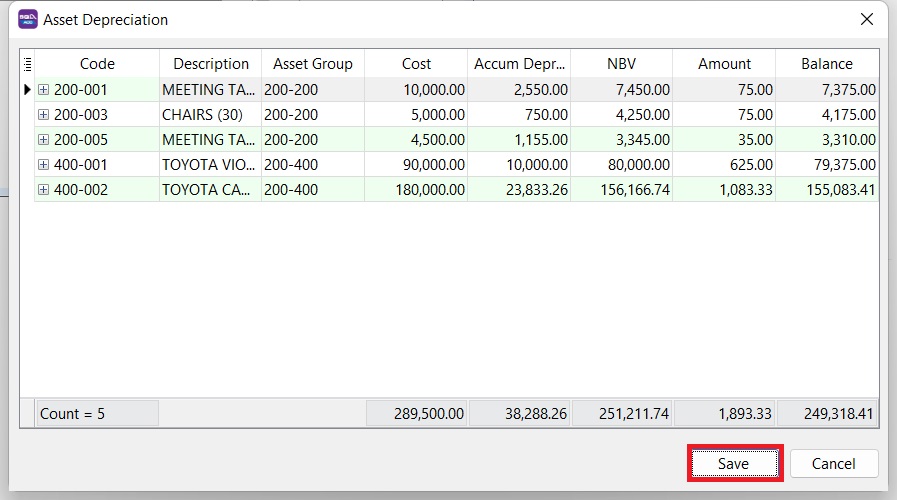
Preview the asset's depreciation value and Net Book Value (NBV) before posting to the Journal Voucher. Click Save to post it.
Open Depreciation
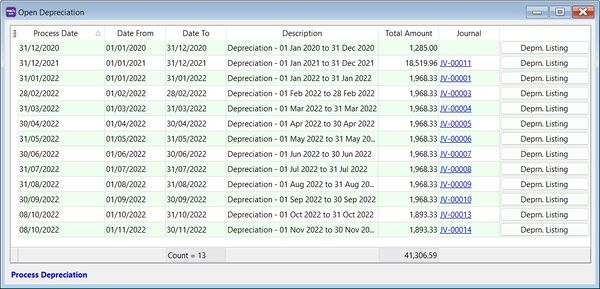
Menu: Asset > Open Depreciation
Open to view the historical Depreciation Listing.
Asset Disposal
Menu: Asset > Asset Disposal
Asset Disposal Entry
-
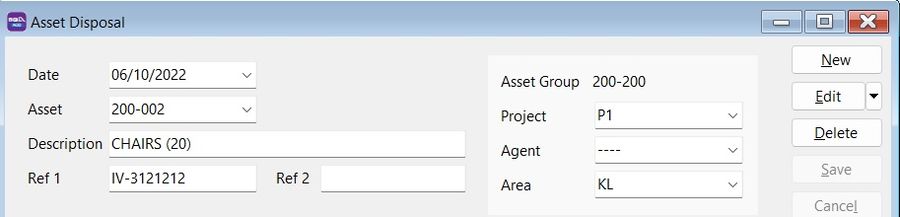
Click New.
-
Enter Date.
-
Select the asset you wish to dispose.
-
Enter Description.
-
Enter Ref1 (e.g., invoice number).
-
Enter Ref2 (if any).
-
Select Project. Defaults to the Asset Item.
-
Select Agent. Defaults to the Asset Item.
-
Select Area. Defaults to the Asset Item.
General Tab
-
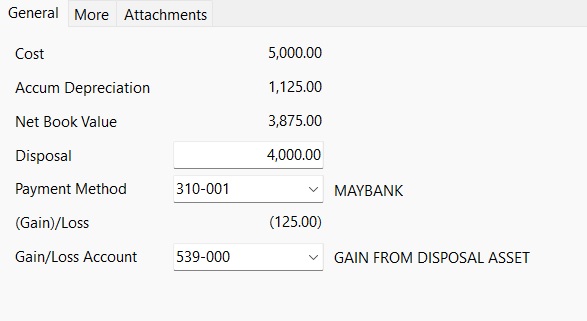
Cost, Accum Depreciation, and Net Book Value are automatically retrieved from Maintain Asset Item.
-
Enter the Disposal value.
-
Select the Payment Method to receive the disposal value.
-
The (Gain)/Loss is calculated automatically.
-
The Gain/Loss Account defaults to the one set in Maintain Asset. You may change the (Gain)/Loss Account if necessary.
More Tab
Enter a detailed Note.

Asset Disposal Attachments
Add more attachment files.

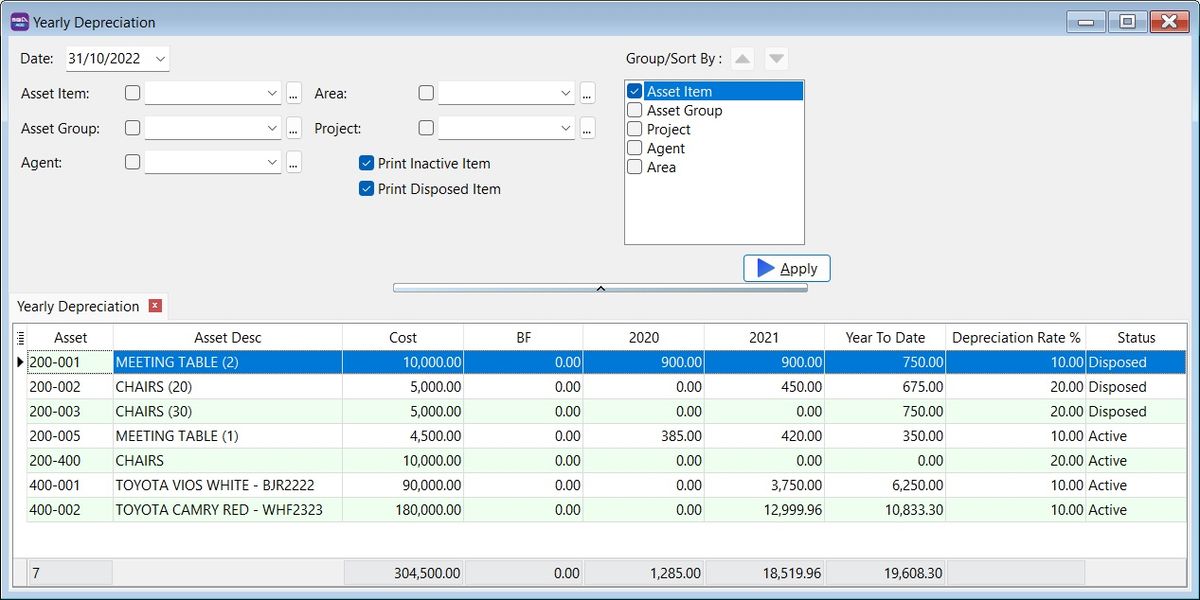
Print Yearly Depreciation
Menu: Asset > Print Yearly Depreciation
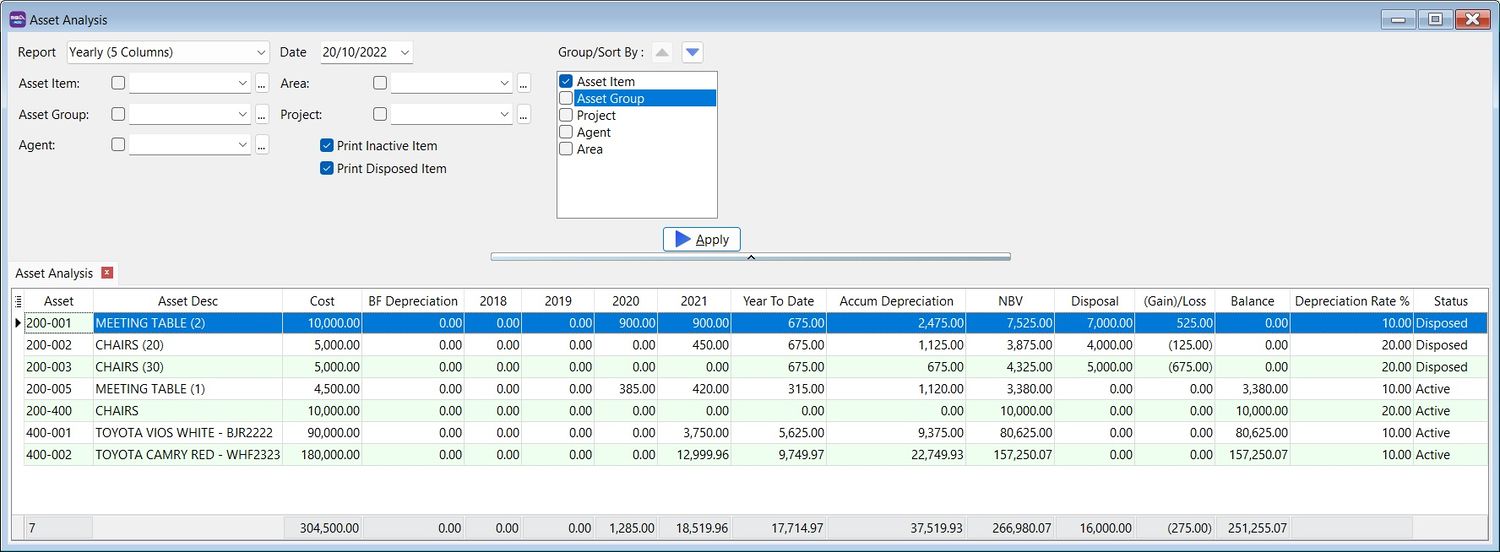
Print Yearly Analysis
Menu: Asset > Print Asset Analysis
Reports Selection
-
This will analyze the asset's Cost, Accumulated Depreciation, Net Book Value (NBV), and Disposal Value.
-
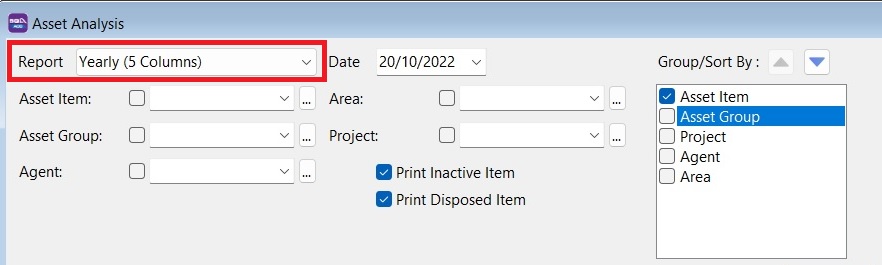
It allows you to choose and generate the following report formats:
- Monthly (12 Months)
- Quarterly (4 quarters)
- Half Yearly (First Half and 2nd Half)
- Yearly (5 Years)
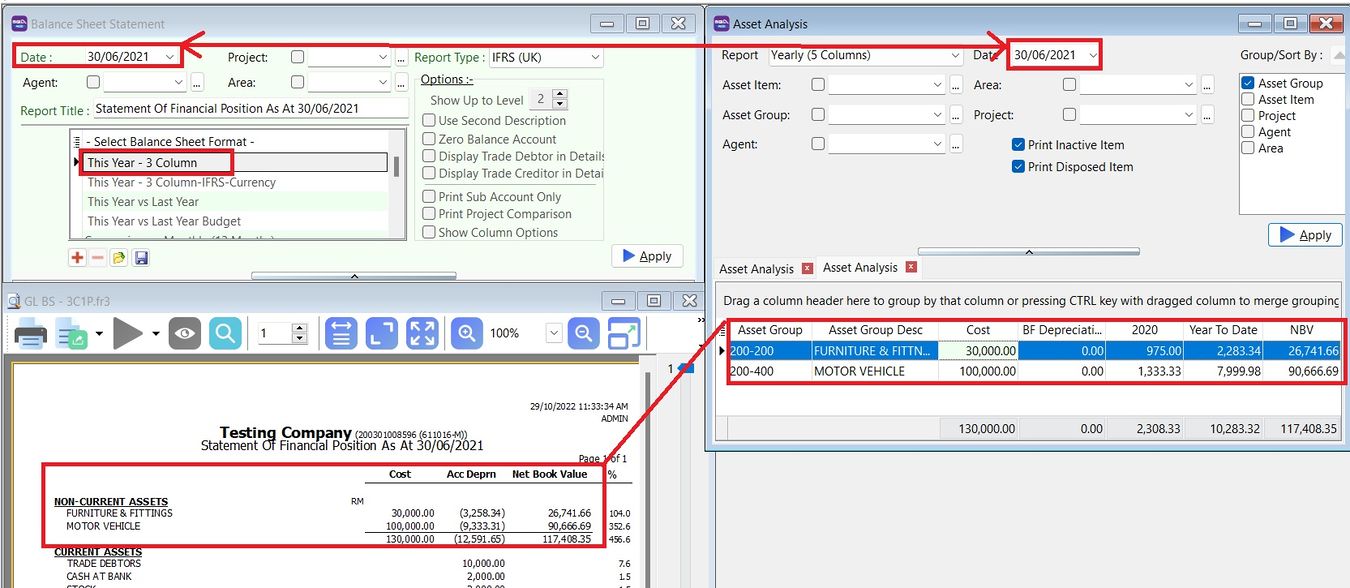
Asset Analysis vs GL Balance Sheet Report
-
At GL > Print Balance Sheet Statement..., choose the Balance Sheet Format: This Year - 3 columns.
-
At Asset > Print Asset Analysis..., choose Report: Yearly (5 columns).
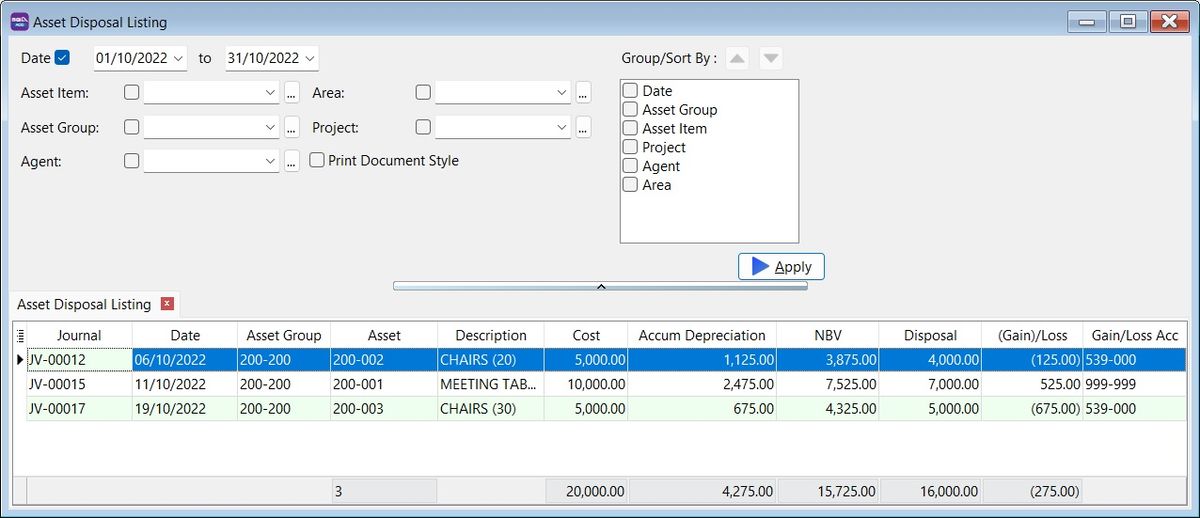
Print Asset Disposal Listing
Menu: Asset > Print Asset Disposal Listing
Importing Asset Master List
Preparation for Asset Master Import Excel Template
Download the Asset Master Template.
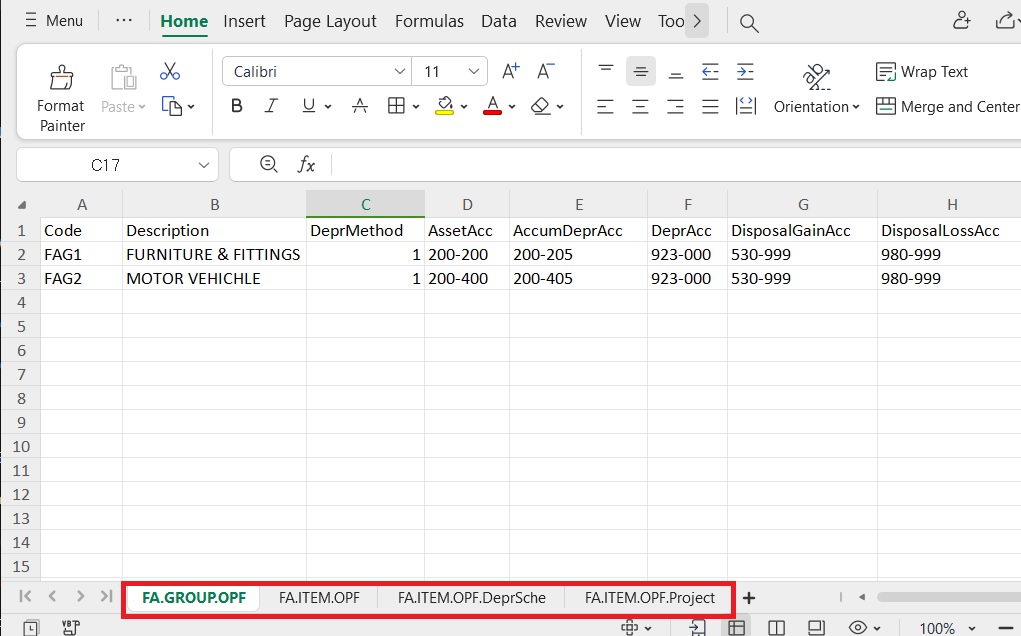
Asset Master Template (xlsx)
| Sheet Name | Refer to |
|---|---|
| FA.GROUP.OPF | Maintain Asset Group |
| FA.ITEM.OPF | Maintain Asset Item |
| FA.ITEM.OPF.DeprSche | Maintain Asset Item – Depreciation Schedule tab |
| FA.ITEM.OPF.Project | Maintain Asset Item – Project tab |
DO NOT rename the sheet name.
-
FA.GROUP.OPF (Maintain Asset Group)
Column Length Note Code 20 Asset Group Code, e.g., Furniture. Description 160 Asset Group Description, e.g., Furniture & Fittings. DeprMethod 1 (Integer) Depreciation Method, e.g., 1: Straight Line Method. AssetAcc 10 e.g., Furniture & Fittings under Non-Current Assets (B/S). AccumDeprAcc 10 e.g., Accumulated Depreciation – Furniture & Fittings under Non-Current Assets (B/S). DeprAcc 10 e.g., Depreciation account under Expenses (P&L). DisposalGainAcc 10 e.g., Disposal Gain account under Other Income / Expenses (P&L). DisposalLossAcc 10 e.g., Disposal Loss account under Expenses (P&L). - Example:
Code Description DeprMethod AssetAcc AccumDeprAcc DeprAcc DisposalGainAcc DisposalLossAcc Furniture Furniture & Fittings 1 200-200 200-205 923-000 530-999 980-999 MV Motor Vehicle 1 200-400 200-405 923-000 530-999 980-999 -
FA.ITEM.OPF (Maintain Asset Item)
| Column | Length | Note |
|-------------------|-------------|--------------------------------------------------------------------------| | Code | 20 | Asset Code, e.g., FF-0001. | | Description | 160 | Asset Description, e.g., Chairs, Table. | | Asset Group | 20 | Asset Group, e.g., Furniture. | | Agent | 10 | Assigned an agent if any. | | Area | 10 | Assigned an area if any. | | AcquireDate | Date | Purchase date. | | Cost | Currency | Purchase cost. | | UsefulLife | Float | Useful life in years, e.g., 5 years, 3.3 years. | | DeprFrequency | 1 (Integer) | Depreciation frequency options: 1 = Monthly, 2 = Quarterly, 3 = Half Yearly, 4 = Yearly. | | Residual | Float | Re-sellable value. |
- Example:
Code Description Asset Group Agent Area AcquireDate Cost UsefulLife DeprFrequency Residual FF-001 Chairs Furniture ---- KL 13/10/2022 12,000.00 10 1 (Monthly) 100.00 FF-002 Meeting Table Furniture ---- KL 23/01/2021 15,000.00 10 2 (Quarterly) 0.01 MV-001 TOYOTA VIOS 1.5 / RED MV YUKI SEL 17/03/2020 88,000.00 5 4 (Yearly) 30,000.00 -
FA.ITEM.OPF.DeprSche (Maintain Asset item-Depreciation Schedule)
Column Length Note Code 20 Asset Code, e.g., FF-0001. ScheDate Date Scheduled depreciation posting date. Description 160 Depreciation description. Amount Currency Depreciation amount based on the depreciation frequency. -
Depreciation Frequency
-
Monthly
Calculation Formula Result No. of Rows Useful life × 12 months 5 × 12 = 60 Amount per Row (RM) (Cost – Residual) ÷ No. of Rows (88,000 – 30,000) ÷ 60 = 966.67 - Quarterly
Calculation Formula Result No. of Rows Useful life × 4 quarters 5 × 4 = 20 Amount per Row (RM) (Cost – Residual) ÷ No. of Rows (88,000 – 30,000) ÷ 20 = 2,900 - Half-Yearly
Calculation Formula Result No. of Rows Useful life × 2 half-years 5 × 2 = 10 Amount per Row (RM) (Cost – Residual) ÷ No. of Rows (88,000 – 30,000) ÷ 10 = 5,800 - Yearly
Calculation Formula Result No. of Rows Useful life (years) 5 Amount per Row (RM) (Cost – Residual) ÷ No. of Rows (88,000 – 30,000) ÷ 5 = 11,600 - Example:
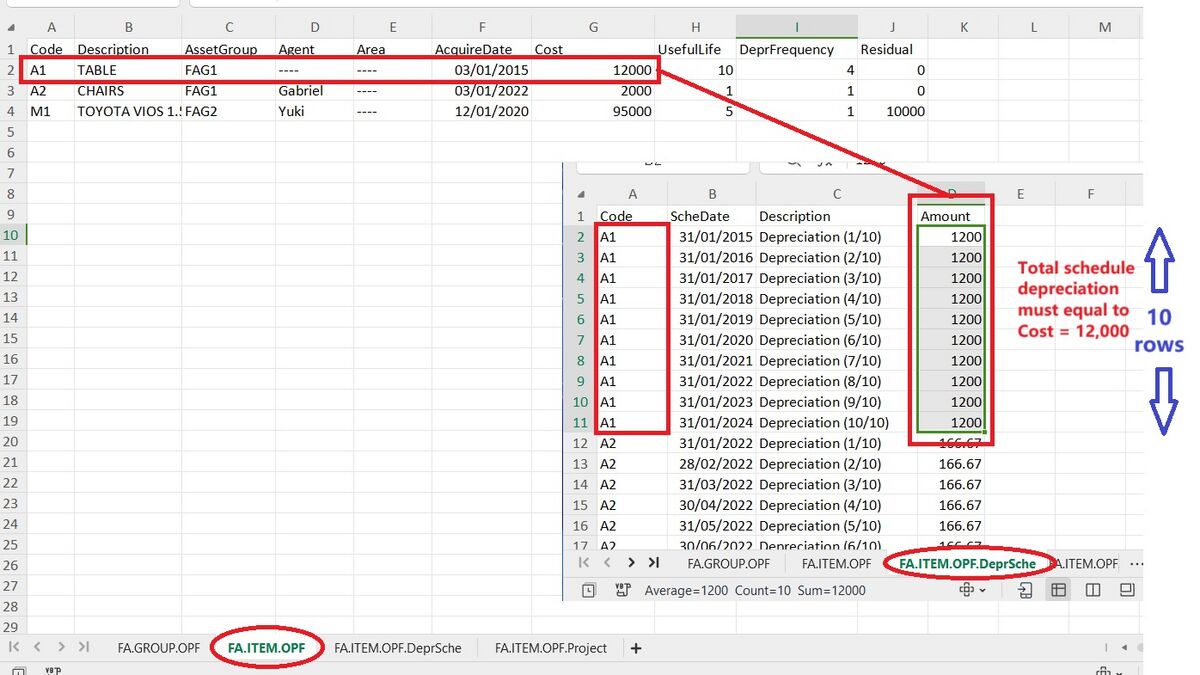
- 4. FA.ITEM.OPF.Project (Maintain Asset Item-Project)
Column Length Note Code 20 Asset Code, e.g., FF-0001. Project 20 Project Code. Rate Float Allocation percentage (%). - Example:
Code Project Rate FF-001 Project-A 30 FF-001 Project-B 70 MV-001 Project-A 100 -
Quick Import Asset List
Menu: File > Import > Excel Files
-
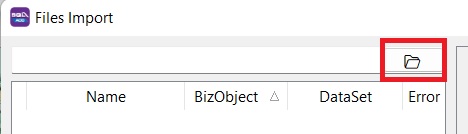
Click the Open folder button.
-
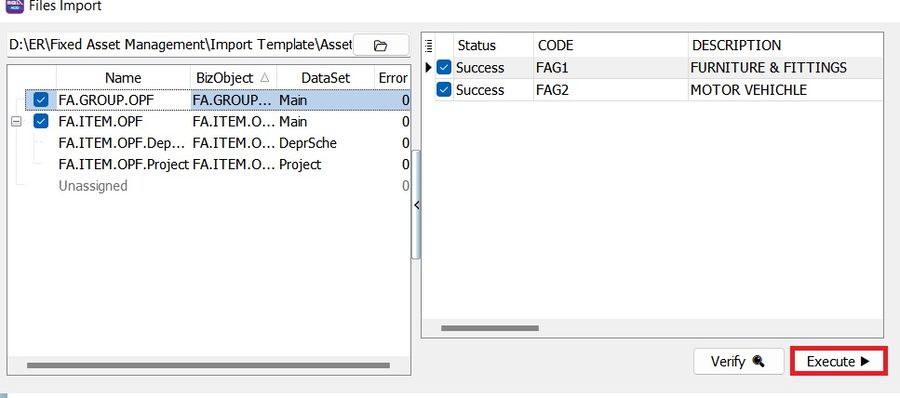
Select the Asset Template excel file...
-
Click Execute (Direct Import). Click Verify if you wish to verify the excel data before import.
 NOTE:
NOTE:Asset import function available in SQL Account version 5.2022.948.826 and above.
Generate Asset Opening vs GL Maintain Opening Balance Report
Menu: Asset > Maintain Asset Item
-
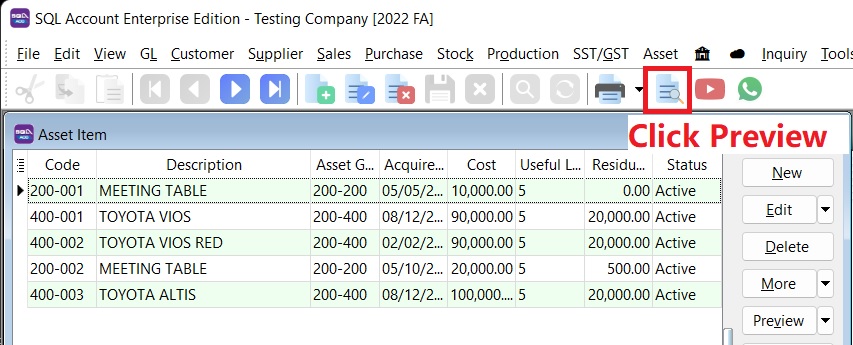
At Maintain Asset Item, click the Preview button.
-
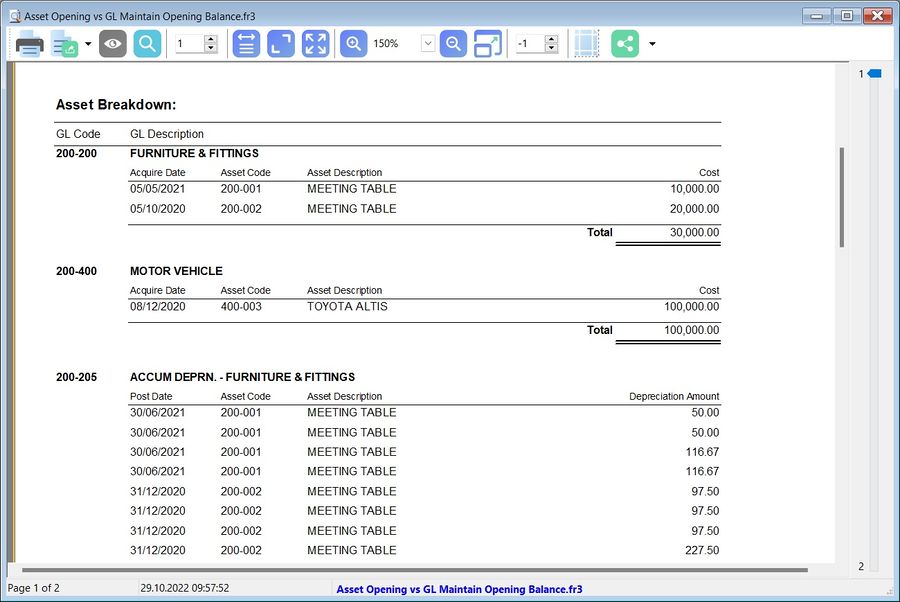
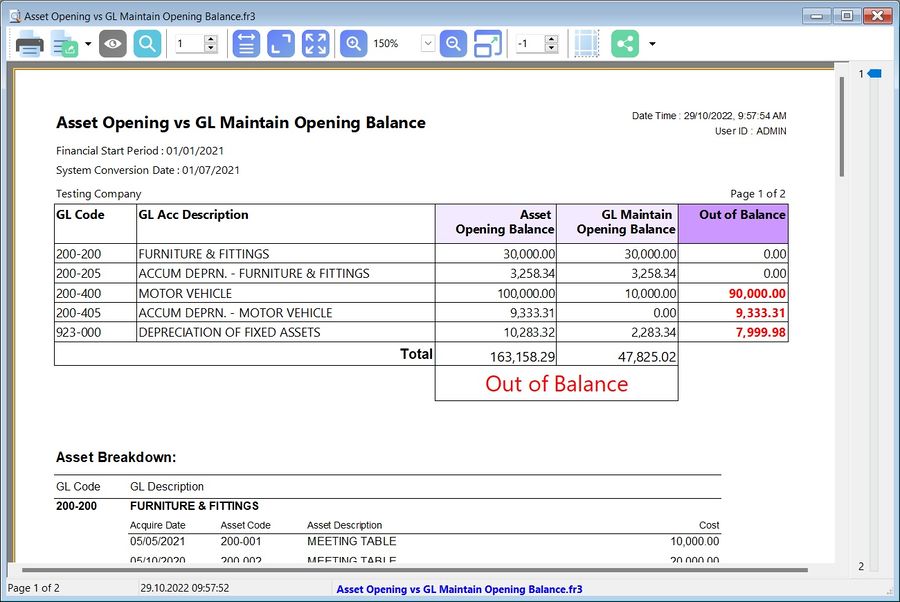
For instance, the Out of Balance result is obtained by comparing the Asset Opening Balance and the GL Maintain Opening Balance.
-
The Asset Opening Breakdown in the report helps you ensure that asset data inputs are correctly recorded in Maintain Asset Item.