Guide
Load Report Template
-
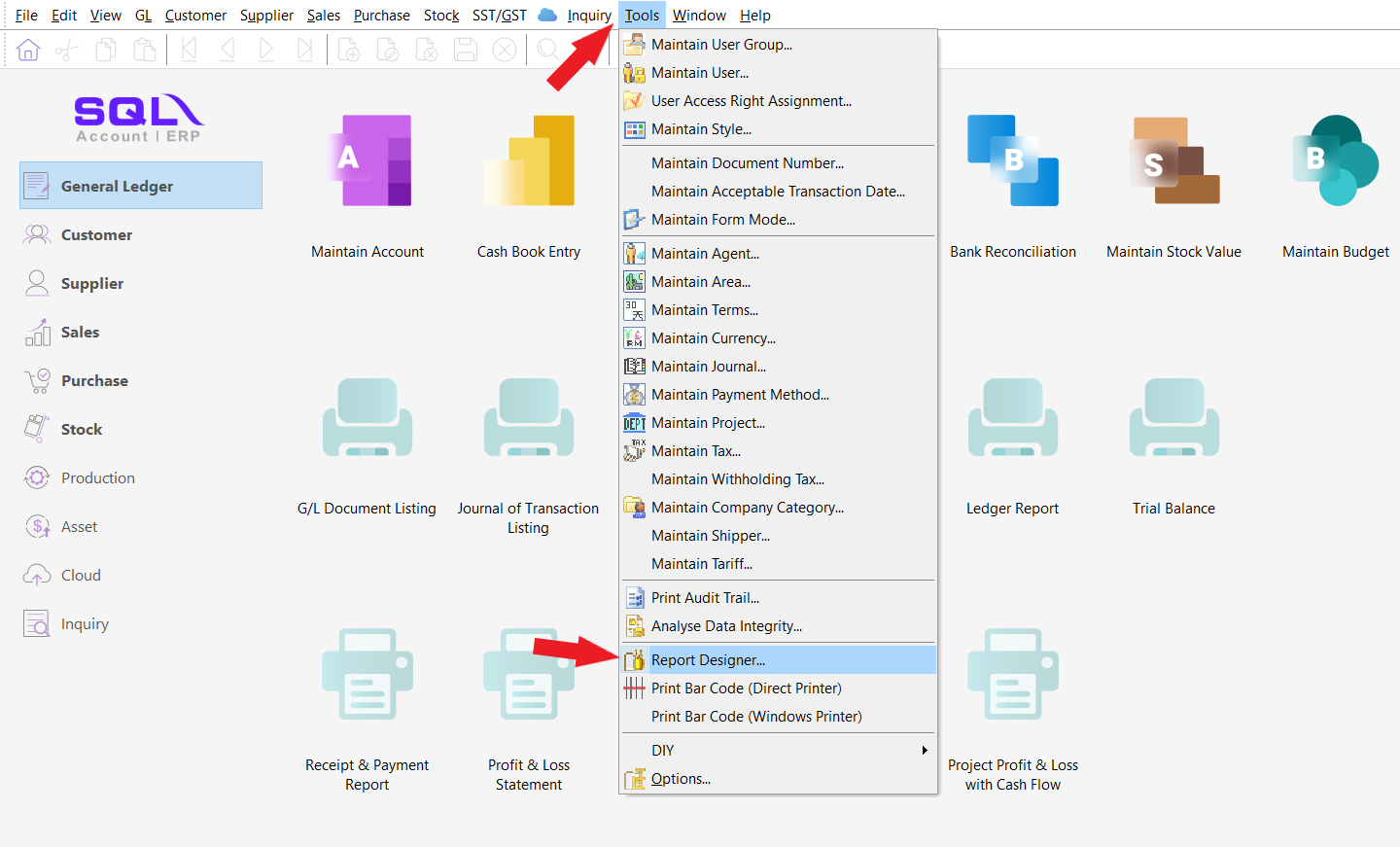
Tools > Report Designer
-
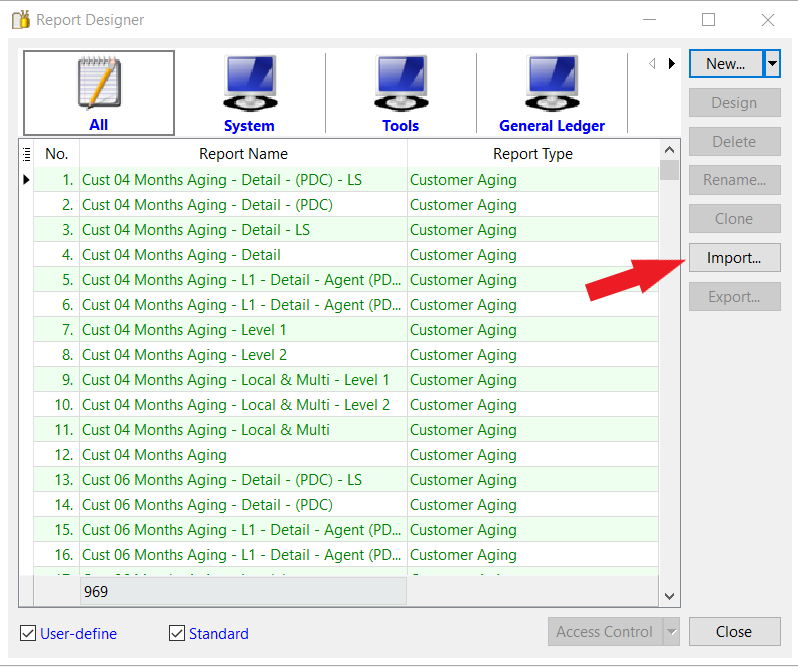
Press on IMPORT
-
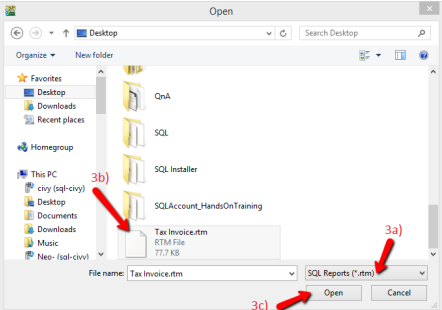
Follow the steps below :
-
Change the report type to SQL Report(rtm)
-
Select your Report
-
Press OPEN
-
Simple Calculation
- In Report Builder, you can also do some simple calculation using the Variable (The Calculator Icon)

-
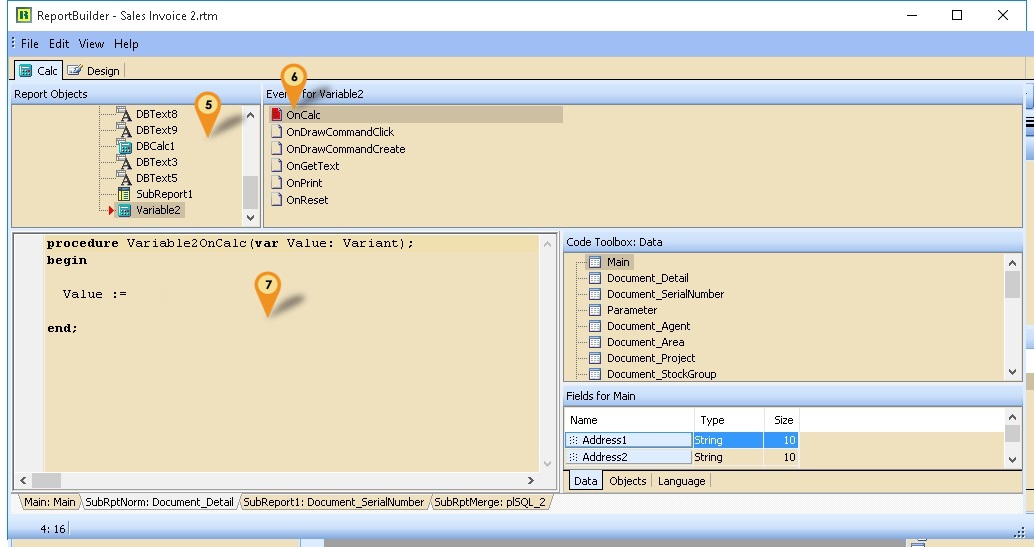
Click on SubRptNorm: Document_Detail
-
Select the Variable button (the Calculator icon)
-
Click on the place to be print/shown.
-
Click on Calc Tab
-
Right click here & Select Event & find the component just now we had placed (eg Variable2)
-
Click OnCalc
-
Click here & enter the script below:
Script
procedure Variable2OnCalc(var value: Variant);

begin

Variable2.DisplayFormat := Option.GetFieldValue('StockPriceDisplayFormat'); // Set Display Format

Value := Document_Detail.GetFieldValue('Amount')/Document_Detail.GetFieldValue('Qty');

end; -
Click File > Save As & enter New report Name after done
Get Data Directly from DB
- Sometime in the report you might wanted some extra information but you not able to select in the report design. So you had to self query to get the extra information.
Get Single Field
-
Example 1 - Get Shelf Field from Maintain Item
- Below is Example are doing following actions using Variable
- At Sales Invoice, get the Shelf field from Maintain Item
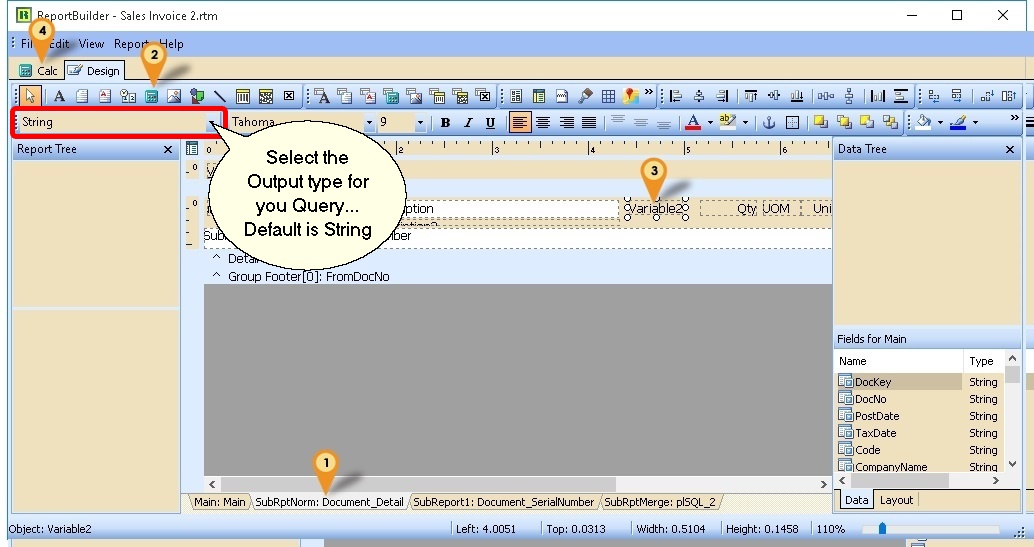
-
Click on SubRptNorm: Document_Detail
-
Select the Variable button (the Calculator icon)
-
Click on the place to be print/shown.
-
Click on Calc Tab
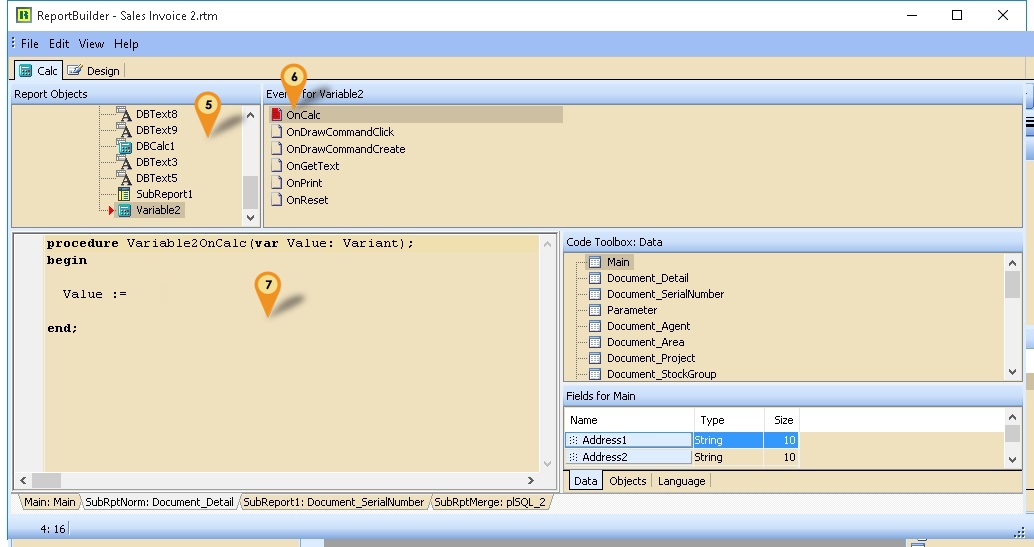
-
Right click here & Select Event & find the component just now we had placed (eg Variable2)
-
Click OnCalc
-
Click here & enter the script below:
Script
procedure Variable2OnCalc(var value: Variant);

var s: string;

begin

s := 'SELECT Shelf FROM ST_ITEM ' +

      'WHERE CODE=' + QuotedStr(Document_Detail.GetFieldValue('ItemCode'));

Value := Trim(DBSQL_GetFieldValue(s));

end; -
Click File > Save As & enter New report Name after done
Example 2 - Get Picture Field from Maintain Item
Below is Example are doing following actions using Image
At Sales Invoice, get the Picture field from Maintain Item
- Steps
-
Click on SubRptNorm: Document_Detail
-
Select the Image button (the Mountain & sun icon)
-
Click on the place to be print/shown.
-
Click on Calc Tab
-
Right click here & Select Event & find the component just now we had placed (eg Image1)
-
Click OnPrint
-
Click here & enter the below script
Script
procedure Image1OnPrint;
var s: string;
begin
s := 'SELECT Picture FROM ST_ITEM ' +
         'WHERE Code='+ QuotedStr(Document_Detail.GetFieldValue('ItemCode'));
Image1.Visible := DBSQL_GetPicture(s, Image1.Picture);
end; -
Click File > Save As & enter New report Name after done
Example 3 - Get Document Created UserName from Audit
Below is Example is to Get the who created the Document from Audit Table.
- Steps
-
Select the Variable button (the Calculator icon)
-
Click on the place to be print/shown.
-
Click on Calc Tab
-
Right click here & Select Event & find the component just now we had placed (eg Variable2)
-
Click OnCalc
-
Click here & enter the below script:
Script
procedure Variable2OnCalc(var value: Variant);
var s: string;
begin
s := 'SELECT UserName FROM AUDIT WHERE UPDATEKIND=''I'' ' +
      'AND REFERENCE LIKE ' +
      QuotedStr('%'+
      Main.GetFieldValue('DocNo')+
      '%Code: '+ //Delete this line for JV & CB
      Main.GetFieldValue('Code')+ //Delete this line for JV & CB
      ',%');
Value := Trim(DBSQL_GetFieldValue(s));
end; -
Click File > Save As & enter New report Name after done
Example 4 - Get From Doc No. in Sales Invoice
Below is Example is to Get the From Document Number at Invoice Header.
- Steps
-
Select the Variable button (the Calculator icon)
-
Click on the place to be print/shown.
-
Click on Calc Tab
-
Right click here & Select Event & find the component just now we had placed (eg Variable2)
-
Click OnCalc
-
Click here & enter the below script
Script
procedure Variable2OnCalc(var value: Variant);
var s, V : string;
begin
s := 'SELECT First 1 FromDocType FROM SL_IVDTL '+
      'WHERE Dockey=' + Main.GetFieldValue('Dockey') +
      ' AND FROMDOCTYPE IS NOT NULL';
V := Trim(DBSQL_GetFieldValue(s));
if Trim(V) \<> '' then begin
   s := 'SELECT DocNo FROM SL_' + v +
         ' WHERE DocKey=(SELECT First 1 FromDockey FROM SL_IVDTL '+
         'WHERE Dockey=' + Main.GetFieldValue('Dockey') +
         ' AND FROMDOCTYPE IS NOT NULL)';
   Value := Trim(DBSQL_GetFieldValue(s));
end else
   Value := '';
end; -
Click File > Save As & enter New report Name after done
Get Whole Table
Get Whole Table - click to expand
Example 1 - Get Maintain Batch Information
Below is Example doing following actions
- Get data information From Stock Batch
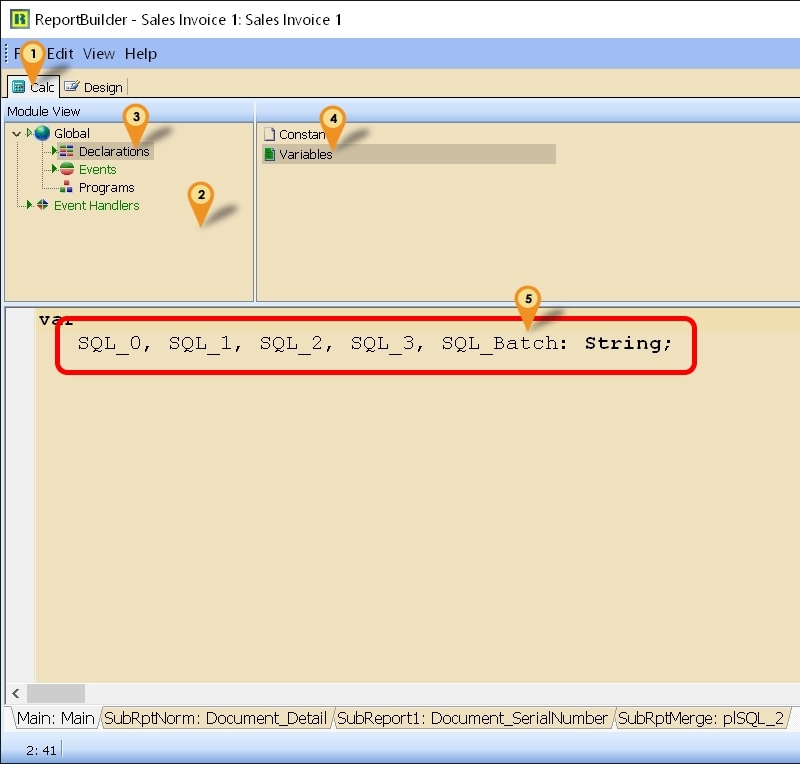
-
Click on Calc Tab
-
Right click here & Select Module
-
Select Declarations
-
Select Variables
-
Add new/to existing as below variable
var
   SQL_Batch: String;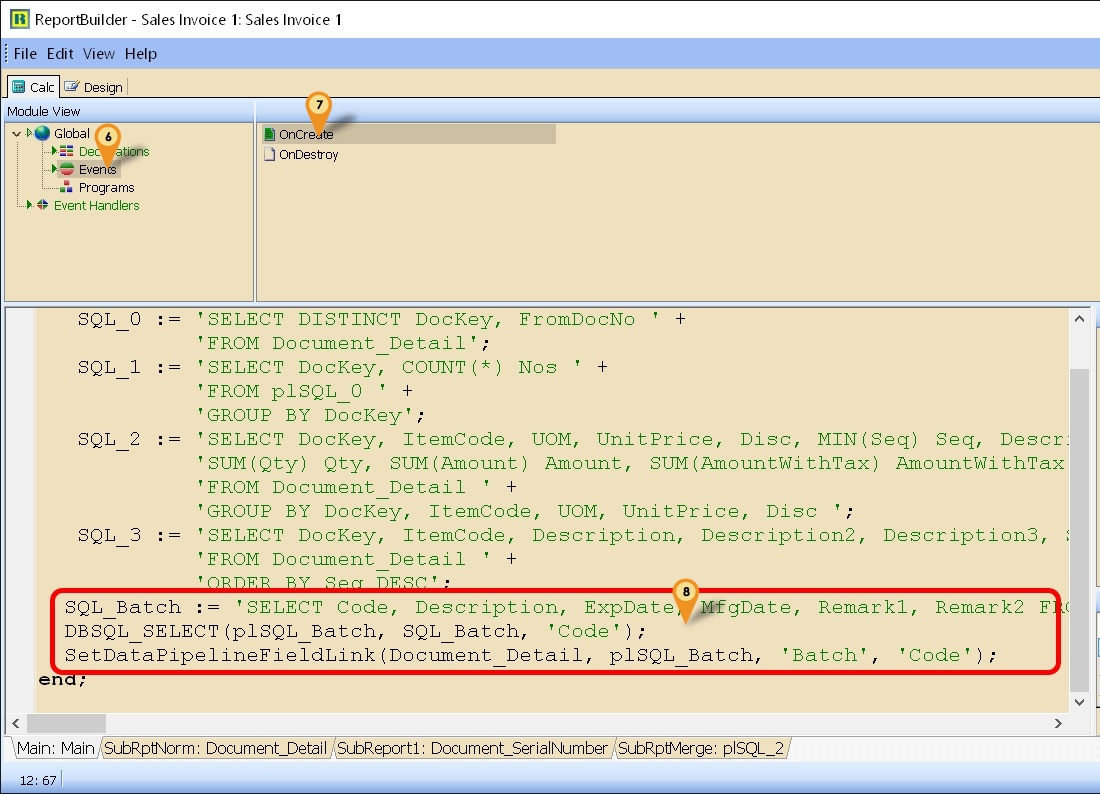
-
Select Events
-
Select OnCreate
-
Copy below script & paste to here
SQL_Batch := 'SELECT Code, Description, ExpDate, MfgDate, Remark1, Remark2 FROM ST_BATCH';
DBSQL_SELECT(plSQL_Batch, SQL_Batch, 'Code');
SetDataPipelineFieldLink(Document_Detail, plSQL_Batch, 'Batch', 'Code'); -
Click File > Save As... to save the file (eg Sales Invoice 1)
-
Click File > Exit to exit the report design
-
Click Design again in the report designer for the file just save on Steps 9 (eg Sales Invoice 1)
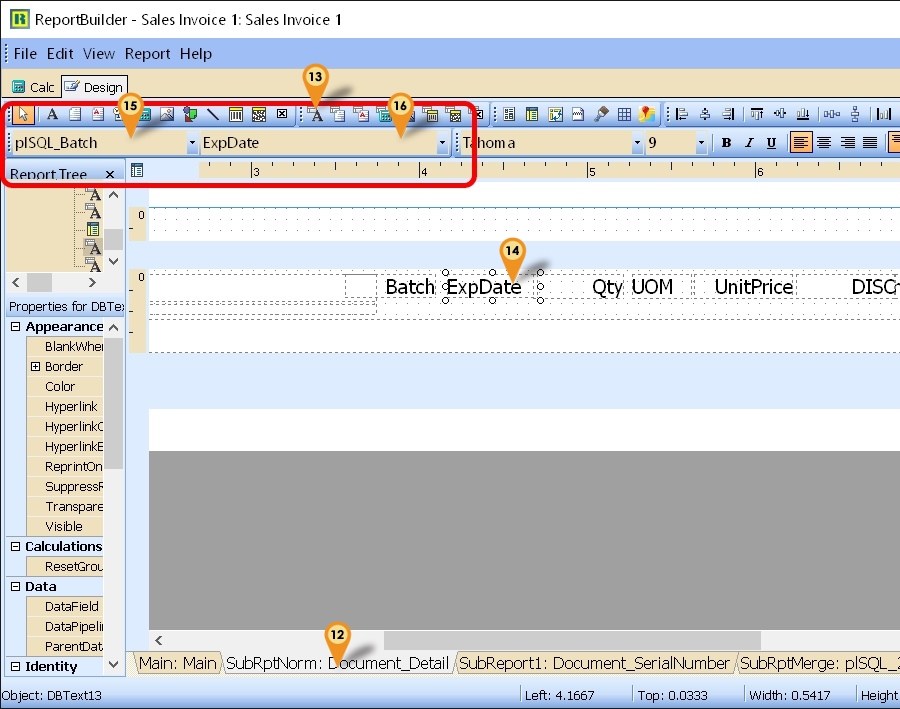
-
Click SubRptNorm:Document_Detail tab
-
Click DBText icon
-
Click the place you wanted to show/print
-
Select plSQL_Batch pipeline
-
Type ExpDate (eg to get expired Date)
-
Save the report
Example 2 - Row Number Query
Below is Example Create SEQ Field base on SQL
- Steps
-
Click on Calc Tab
-
Right click here & Select Module
-
Select Declarations
-
Select Variables
-
Add new/to existing as below variable
var
**SQL_1: String; -
Select Events
-
Select OnCreate
-
Copy below script & paste to here
SQL_1 := 'SELECT DOCKEY, DTLKEY, SEQ, ROW_NUMBER() OVER (PARTITION BY DOCKEY ORDER BY SEQ) AS NSEQ '+
   'FROM SL_IVDTL ' +
   'WHERE NOT (DESCRIPTION LIKE ''R-%'' ' +
   'OR DESCRIPTION LIKE ''T-%'') '+
   'AND DOCKEY IN (SELECT DOCKEY FROM SL_IV '+
   '               WHERE DOCDATE BETWEEN ' + FormatSQLDate(Parameter.GetFieldValue('DateFrom')) +
   '               AND ' + FormatSQLDate(Parameter.GetFieldValue('DateTo')) +
   ') ORDER BY DocKey, NSeq';
DBSQL_SELECT(plSQL_1, SQL_1, 'Dockey;NSeq');
SetDataPipelineFieldLink(Document_Detail, plSQL_1, 'Dockey;Seq', 'Dockey;Seq');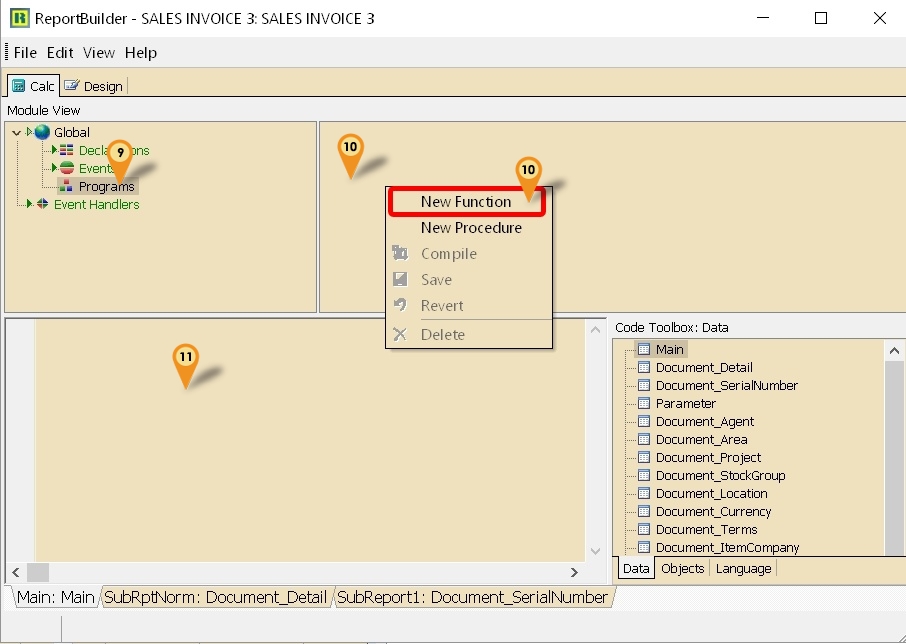
-
Select Programs
-
Right Click > New Function
-
Copy Function Script
function FormatSQLDate(D: TDateTime): String;
   var AFormat: string;
   begin
   AFormat := 'dd mmm yyyy'; //'dd/mmm/yyyy' if can't
   Result := QuotedStr(FormatDateTime(AFormat, D));
end; -
Click File > Save As... to save the file (eg Sales Invoice 1)
-
Click File > Exit to exit the report design
-
Click Design again in the report designer for the file just save on Steps 12 (eg Sales Invoice 3 (SubTotal)-New)
-
Click SubRptNorm:Document_Detail tab
-
Click DBText icon
-
Click the place you wanted to show/print
-
Select plSQL_1pipeline
-
Type NSeq
-
Save the report
Preview/Print/Export will delay/slow a bit if compare with build in Preview/Print/Export report
Get Data from Available Pipeline
Sometime in the report you might wanted some extra information or further analysis from the report itself but you not able to select in the report design. So you had to self query to get the extra information or further analysis.
Example 1 - Show GST Summary at Last Page
Below is Example doing following actions
- Get data information (Tax, Tax rate, LocalAmount, LocalTaxAmt)
- Group the data by Tax code
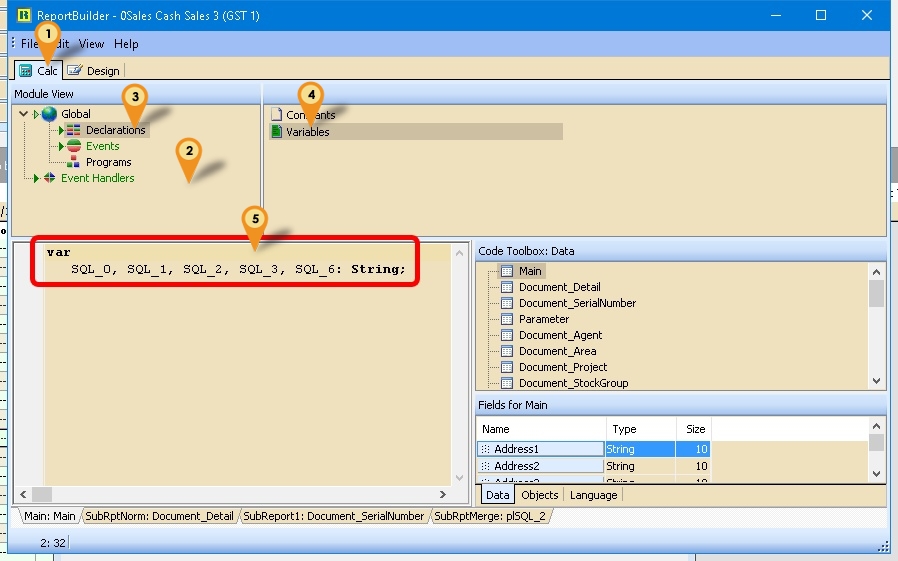
-
Click on Calc Tab
-
Right click here & Select Module
-
Select Declarations
-
Select Variables
-
Add new/to existing as below variable
var
   SQL_6: String;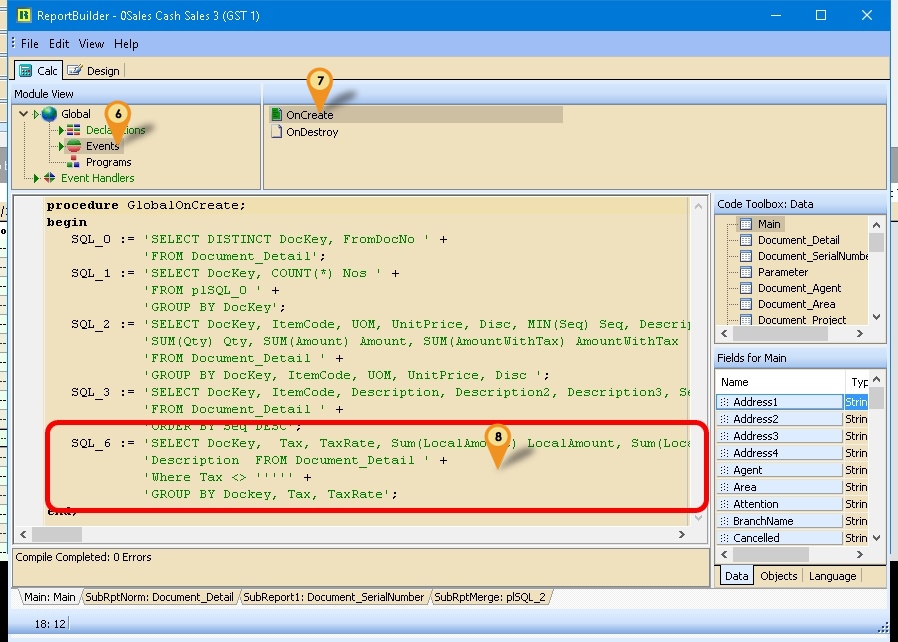
-
Select Events
-
Select OnCreate
-
Copy below script & paste to here
Script
SQL_6 := 'SELECT DocKey,  Tax, TaxRate, Sum(LocalAmount) LocalAmount, Sum(LocalTaxAmt) localTaxAmt, '+

'Description  FROM Document_Detail ' +

'Where Tax \<> ''''' +

'GROUP BY Dockey, Tax, TaxRate';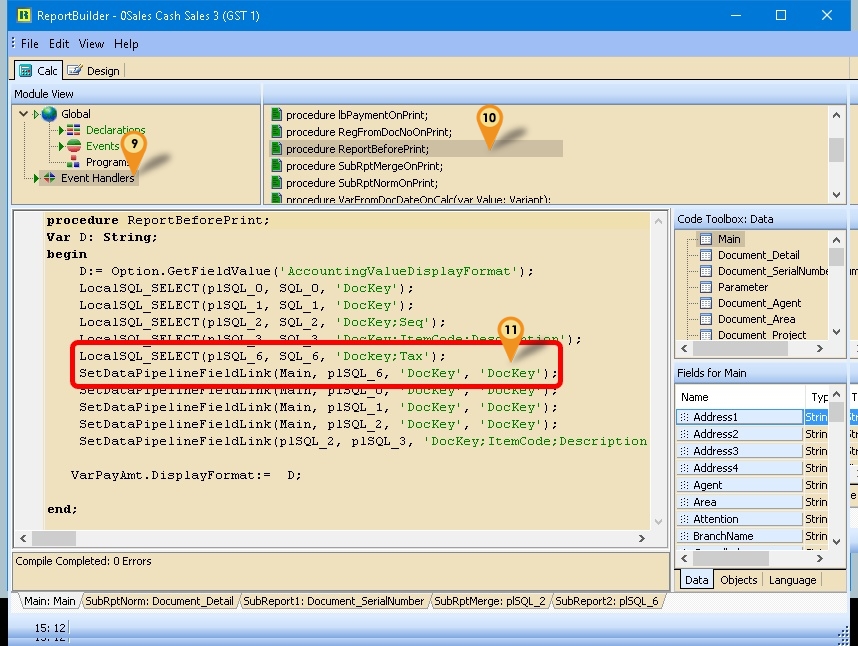
-
Select Event Handlers
-
Select procedure ReportBeforePrint
-
Copy below script & paste to here
Script
LocalSQL_SELECT(plSQL_6, SQL_6, 'Dockey;Tax'); //Create New pipeline

SetDataPipelineFieldLink(Main, plSQL_6, 'DocKey', 'DocKey'); //Link with Main -
Click File > Save As... to save the file (eg 0Sales Cash Sales 3 (GST 1))
-
Click File > Exit to exit the report design
-
Click Design again in the report designer for the file just save on Steps 12 (eg 0Sales Cash Sales 3 (GST 1))

-
Click Subreport icon
-
Click the place you wanted to show/print
-
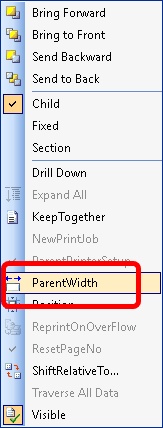
Right click the Sub report
-
Untick the ParentWitdh & manual adjust the sub report width to the width you wanted
-
Select the Pipeline just create (eg plSQL_6)
-
Scroll till end
-
Click SubReport2:plSQL_6 tab
-
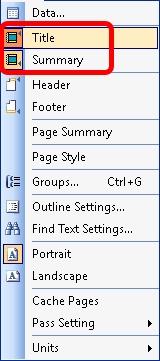
Click Report & set the following setting
- Title - Select
- Summary - Select
- Header - UnSelect
- Footer - UnSelect
-
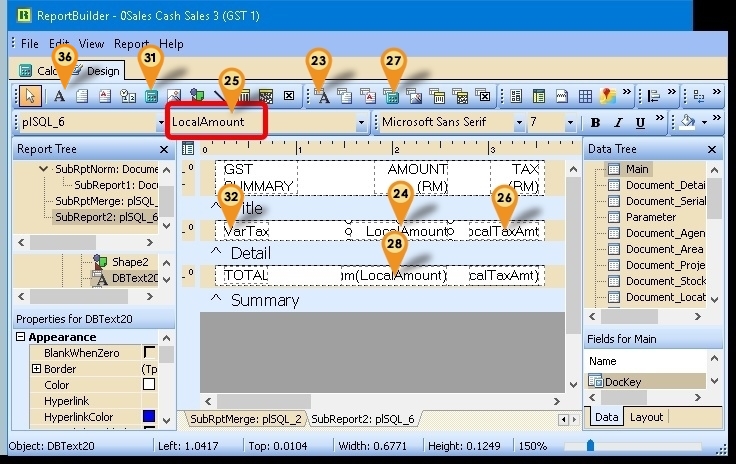
Click DBText icon
-
Click the place you wanted to show/print (in between Title & Detail Band)
-
Select LocalAmount field
-
Repeat Step 23 to 25 for LocalTaxAmt field
-
Click DBCalc icon
-
Click the place you wanted to show/print (in between Detail & Summary Band)
-
Select LocalAmount field (See Step 25)
-
Repeat Step 27 to 29 for LocalTaxAmt field
-
Click Variable icon
-
Click the place you wanted to show/print (in between Title & Detail Band)
-
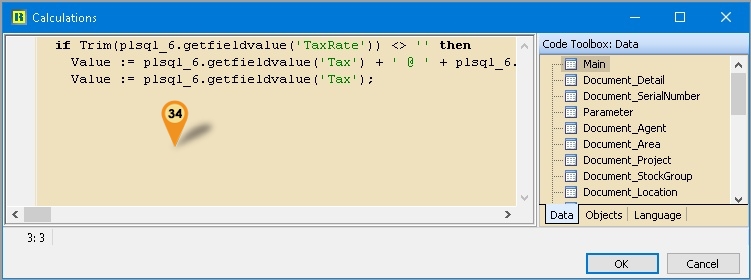
Right Click the variable
-
Copy below script & paste to here
Script
if Trim(plsql_6.getfieldvalue('TaxRate')) \<> '' then

   Value := plsql_6.getfieldvalue('Tax') + ' @ ' + plsql_6.getfieldvalue('TaxRate') else

Value := plsql_6.getfieldvalue('Tax'); -
Click Ok
-
For label can Click Label icon
-
Save the report after done
Example 2 - Show 1st FromDocNo at Header
Below is Example will get FromDocNo Field from the Detail Data
-
Click on Calc Tab
-
Right click here & Select Module
-
Select Declarations
-
Select Variables
-
Add new/to existing as below variable
var
SQL_6: String; -
Select Events
-
Select OnCreate
-
Copy below script & paste to here
SQL_6 := 'SELECT Dockey, Min(Seq) Seq, FromDocDate, FromDocNo FROM Document_Detail '+
'WHERE FromDocType \<> '''' '; -
Select Event Handlers
-
Select procedure ReportBeforePrint
-
Copy below script & paste to here
LocalSQL_SELECT(plSQL_6, SQL_6, 'Dockey'); //Create New pipeline
SetDataPipelineFieldLink(Main, plSQL_6, 'DocKey', 'DocKey'); //Link with Main -
Click File > Save As... to save the file (eg 0Sales Cash Sales 3 (GST 1))
-
Click File > Exit to exit the report design
-
Click Design again in the report designer for the file just save on Steps 12 (eg 0Sales Cash Sales 3 (GST 1))
-
Click DBText icon
-
Click the place you wanted to show/print at the Header
-
Select FromDocNo field
-
For label can Click Label icon
-
Save the report after done
Example 3 - Show Total SVE at Footer
Below Example is to Get total SVE for 6%
-
Click on Calc Tab
-
Right click here & Select Module
-
Select Declarations
-
Select Variables
-
Add new/to existing as below variable
var
SQL_6: String; -
Select Events
-
Select OnCreate
-
Copy below script & paste to here
SQL_6 := 'SELECT DocKey, SUM(LocalAmount)*0.06 SVE FROM Document_Detail ' +
         'WHERE Tax=''SVE'' ' +
'GROUP BY DocKey'; -
Select Event Handlers
-
Select procedure ReportBeforePrint
-
Copy below script & paste to here
LocalSQL_SELECT(plSQL_6, SQL_6, 'Dockey'); //Create New pipeline
SetDataPipelineFieldLink(Main, plSQL_6, 'DocKey', 'DocKey'); //Link with Main -
Click File > Save As... to save the file (eg Sales Invoice 1-New)
-
Click File > Exit to exit the report design
-
Click Design again in the report designer for the file just save on Steps 12 (eg Sales Invoice 1-New)
-
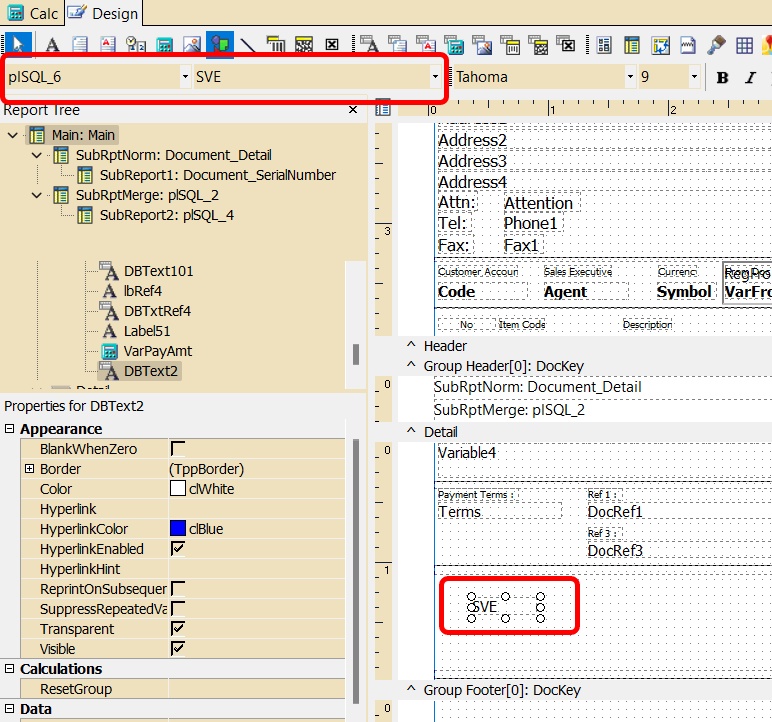
Click DBText icon
-
Click the place you wanted to show/print at the Header
-
Select plSQL_6 pipeline
-
Select SVE field
-
For label can Click Label icon
-
Save the report after done