Maintain Promotion
Use Maintain POS Promotion to configure discounts and special offers for X-Pos. A promotion can be limited by price tag, location, date, time, and day of the week.
Promotion Types
| Type | Description | Example |
|---|---|---|
| Minimum Spend | Applies a discount when the bill reaches a specified amount. | Spend RM100 and receive 10% off, capped at RM5. |
| Item Based | Applies a discount to selected items. | Receive 5% off a selected item. |
| Buy X Discount X | Applies a discount after the customer buys the required items or quantities. | Buy an eligible item and receive another unit free. |
| Mix & Match | Applies a promotional price or discount when the customer buys a qualifying combination of items. | Select any two eligible items for RM150. |
Create a Promotion
- From the main menu, go to POS.
- Open Maintain POS Promotion.
- Click New.
- Enter a unique Code and a meaningful Description.
- Select Active to make the promotion available for use.
- Configure the price tags, locations, schedule, and promotion rules.
- Review the promotion summary on the General tab.
- Click Save.
General Settings
The General tab controls where and when the promotion is available. It also displays a summary of all rules configured for the promotion.
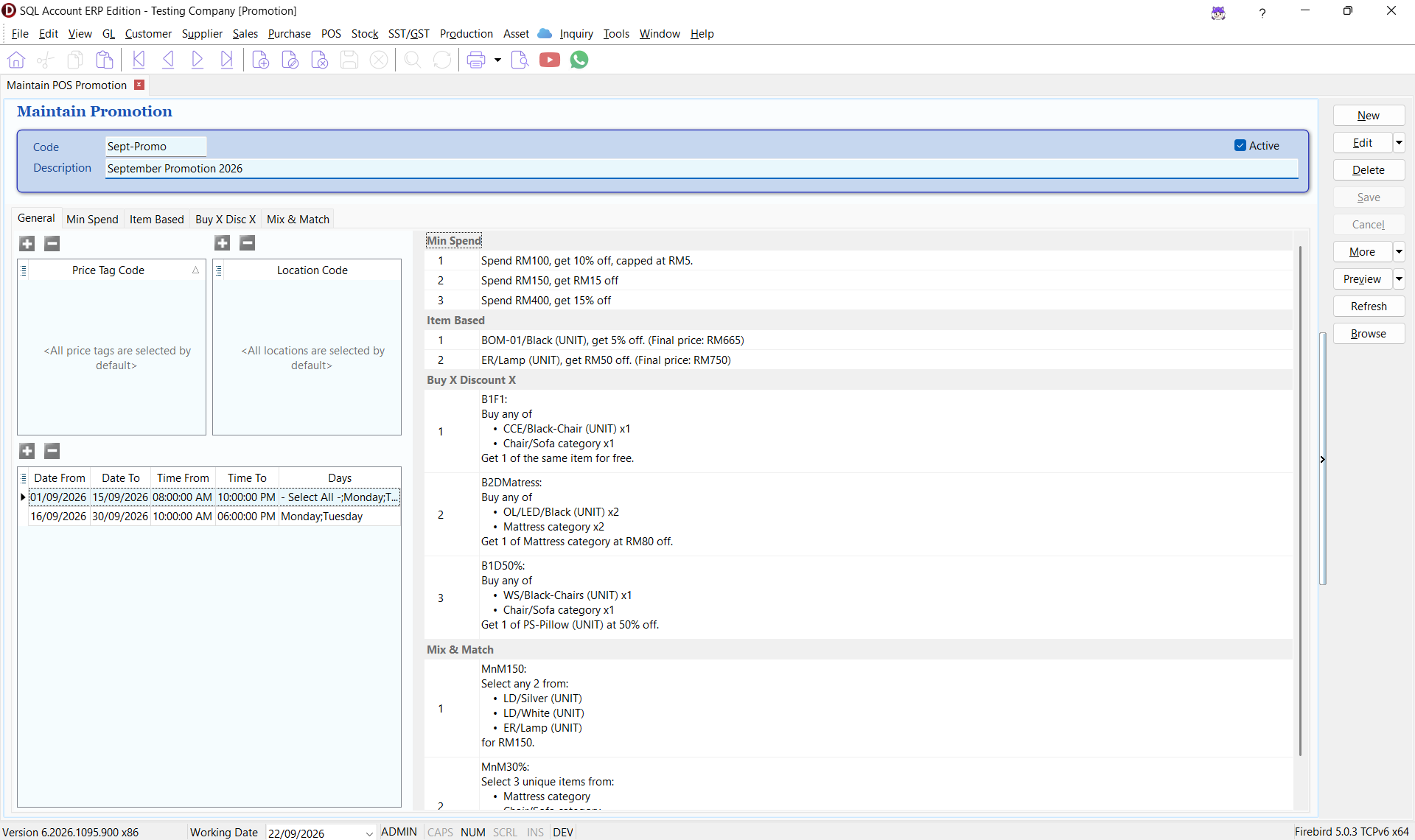
Price Tags and Locations
Use the Price Tag Code and Location Code sections to restrict the promotion.
| Setting | Description |
|---|---|
| Price Tag Code | Specifies the price tags that can use the promotion. If no price tag is added, all price tags are selected by default. |
| Location Code | Specifies the locations where the promotion is available. If no location is added, all locations are selected by default. |
Promotion Schedule
Add one or more schedule rows to control when the promotion is active.
| Field | Description |
|---|---|
| Date From | First date on which the promotion is active. |
| Date To | Last date on which the promotion is active. |
| Time From | Time at which the promotion starts. |
| Time To | Time at which the promotion ends. |
| Days | Days of the week on which the promotion applies. |
Use separate schedule rows when a promotion has different operating periods, such as weekday and weekend hours.
Promotion Overview
The right side of the General tab summarizes the rules entered under Min Spend, Item Based, Buy X Disc X, and Mix & Match. Review this summary before saving the promotion.
Minimum Spend
Use Min Spend to apply a discount when the bill reaches a specified amount.
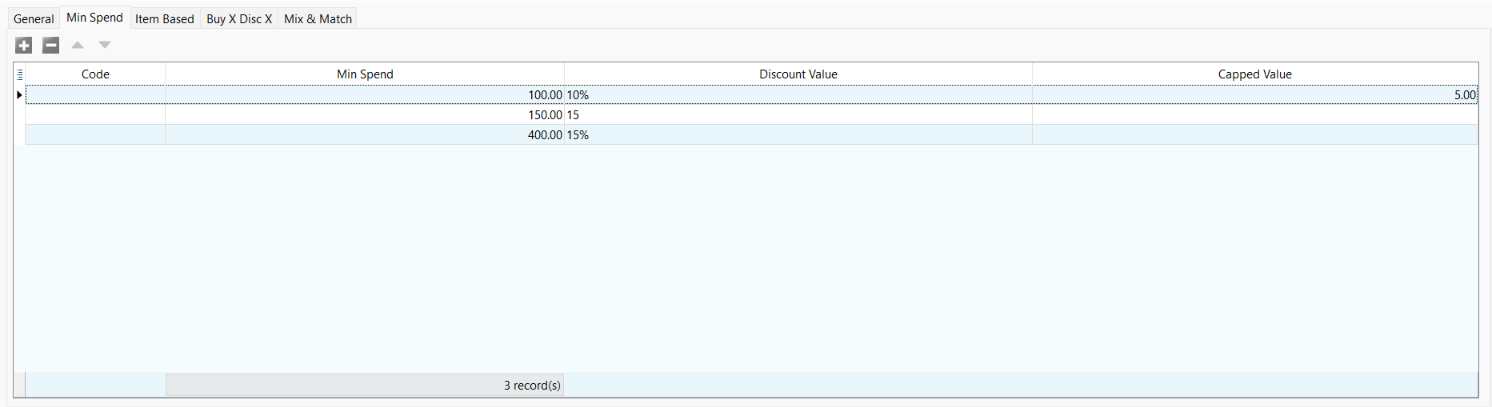
| Field | Description |
|---|---|
| Code | Optional code used to identify the promotion rule. If left blank, the rule can still be saved and applied. |
| Min Spend | Minimum bill amount required to qualify for the promotion. |
| Discount Value | Discount applied after the minimum spend is reached. Enter a percentage with %, or enter a value for a fixed discount. |
| Capped Value | Optional maximum discount amount for a percentage-based promotion. |
Configure a Minimum Spend Promotion
- Open the Min Spend tab.
- Click the add button to create a minimum-spend rule.
- Enter the qualifying bill amount under Min Spend.
- Enter the Discount Value:
- Include
%to apply a percentage discount, such as10%; or - Enter a number without
%to apply a fixed discount, such as15.
- Include
- If using a percentage discount, enter a Capped Value to limit the maximum discount amount. Leave it blank if no limit is required.
- Add more rows if the promotion has multiple spending tiers.
For example, enter 100 under Min Spend, 10% under Discount Value, and 5 under Capped Value to give customers 10% off when they spend RM100, with the discount capped at RM5.
Item Based
Use Item Based to apply a discount directly to selected items.
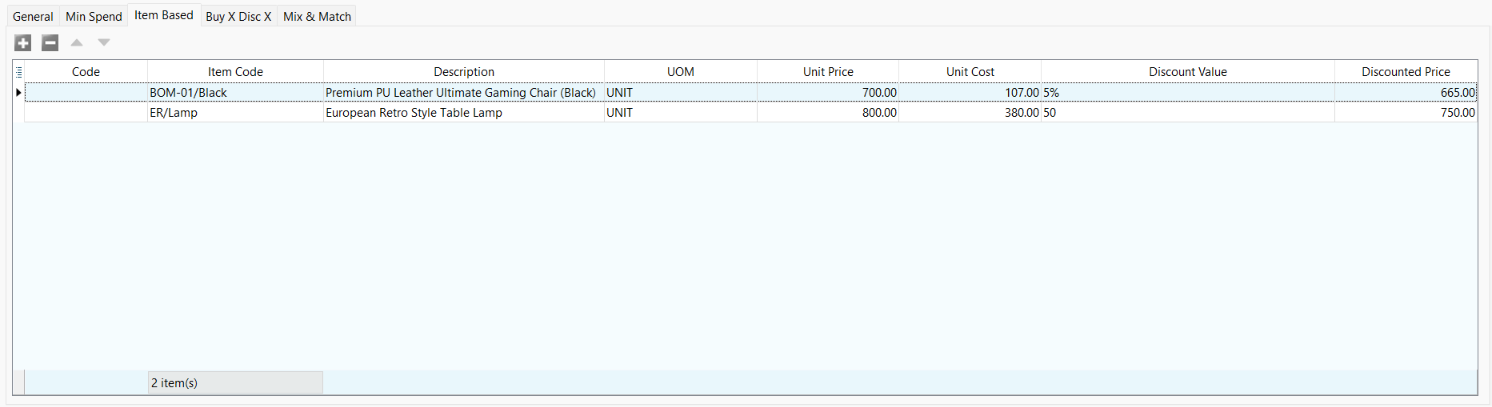
| Field | Description |
|---|---|
| Code | Optional code used to identify the promotion rule. If left blank, the rule can still be saved and applied. |
| Item Code | Item that receives the discount. |
| Description | Description of the selected item. This field is filled automatically. |
| UOM | Unit of measurement to which the promotion applies. |
| Unit Price | Current selling price of the selected item. This field is filled automatically. |
| Unit Cost | Current cost of the selected item, filled automatically and shown for reference. |
| Discount Value | Percentage or fixed discount applied to the item. |
| Discounted Price | Final unit price after the discount is applied. |
Configure an Item-Based Promotion
- Open the Item Based tab.
- Click the add button.
- Select the Item Code and UOM.
- Enter the Discount Value.
- Confirm the calculated Discounted Price.
- Repeat the steps for any additional items.
For example, entering 5% for an item priced at RM700 produces a discounted price of RM665.
Buy X Discount X
Use Buy X Disc X to define the items a customer must buy and the discount they receive.
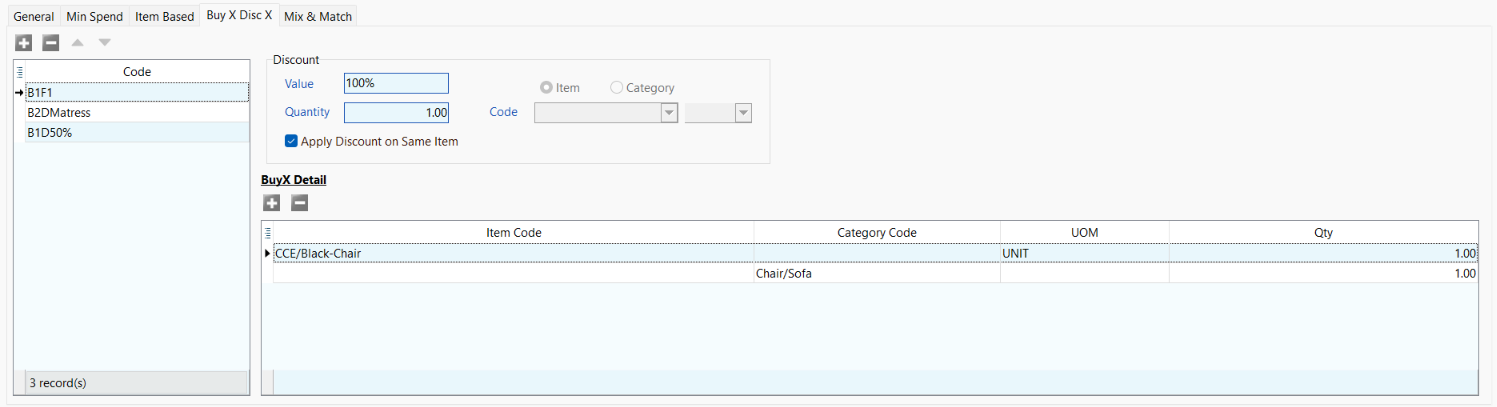
Discount Settings
| Field | Description |
|---|---|
| Code | Unique code used to identify the promotion rule. |
| Value | Percentage or fixed discount applied when the rule is satisfied. |
| Quantity | Quantity that receives the discount. |
| Item / Category | Determines whether the discount applies to a selected item or item category. |
| Apply Discount on Same Item | Applies the discount to the qualifying item when selected. |
Buy X Detail
Use the Buy X Detail section to define the qualifying items or categories.
| Field | Description |
|---|---|
| Item Code | Specific item that counts towards the required purchase. |
| Category Code | Item category that counts towards the required purchase. |
| UOM | Unit of measurement for the qualifying item. |
| Qty | Quantity the customer must buy. |
Configure a Buy X Discount X Promotion
- Open the Buy X Disc X tab.
- Add a rule and enter its Code.
- Enter the discount Value and discounted Quantity.
- Choose where the discount applies:
- Select Apply Discount on Same Item to discount the qualifying item; or
- Clear Apply Discount on Same Item, select Item or Category, and then choose the item or category that receives the discount.
- Under Buy X Detail, add the qualifying items or categories and their required quantities.
Mix & Match
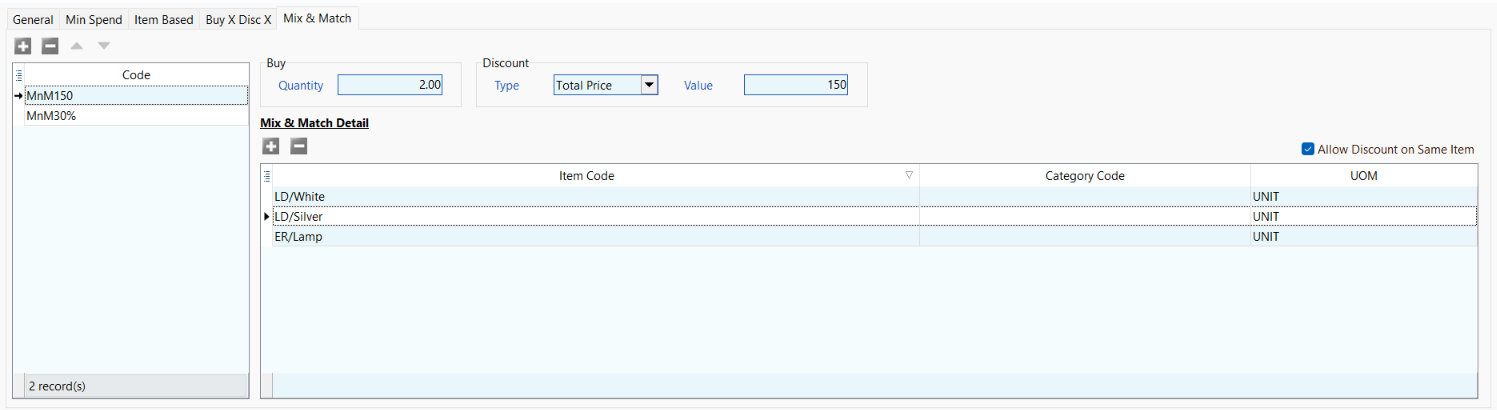
Use Mix & Match to create a promotion from a group of eligible items or categories.
| Field | Description |
|---|---|
| Code | Unique code used to identify the Mix & Match rule. |
| Buy Quantity | Number of eligible items required to qualify. |
| Discount Type | Select a calculation method: Total Price — Sets a fixed combined price for the qualifying items. Percentage (%) — Applies a percentage discount to the qualifying items. |
| Value | Promotional price or discount value, depending on the selected discount type. |
| Allow Discount on Same Item | Allows repeated units of the same eligible item to satisfy the promotion. |
Mix & Match Detail
Add the items or categories that can be included in the promotion.
| Field | Description |
|---|---|
| Item Code | Specific item included in the promotion. |
| Category Code | Item category included in the promotion. |
| UOM | Unit of measurement for the eligible item. |
Configure a Mix & Match Promotion
- Open the Mix & Match tab.
- Add a rule and enter its Code.
- Enter the required Buy Quantity.
- Select the Discount Type and enter its Value.
- Add the eligible items or categories under Mix & Match Detail.
- Select Allow Discount on Same Item if multiple units of one eligible item may satisfy the required quantity.
For example, set Buy Quantity to 2, select Total Price, and enter 150 to let customers choose two eligible items for RM150.
Before Using the Promotion
- Ensure the promotion is marked Active.
- Confirm that its date, time, and selected days are correct.
- Check whether it should apply to all or only selected price tags and locations.
- Review the promotion summary on the General tab.
- Test the promotion with a sample transaction before using it for live sales.