Guide
Maintain Account
-
Creating a New Account
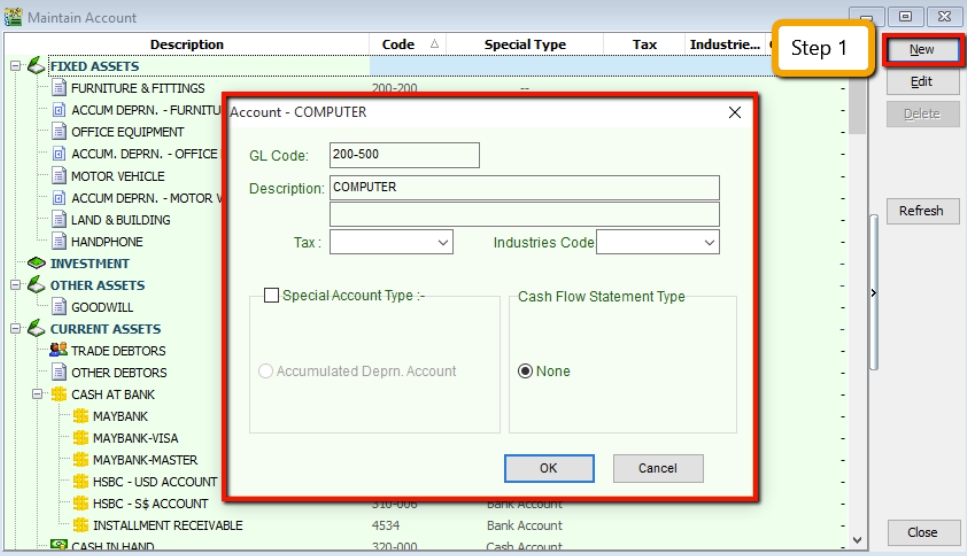
- Go to GL → Maintain Account → Select a category (e.g., Fixed Assets) → New.
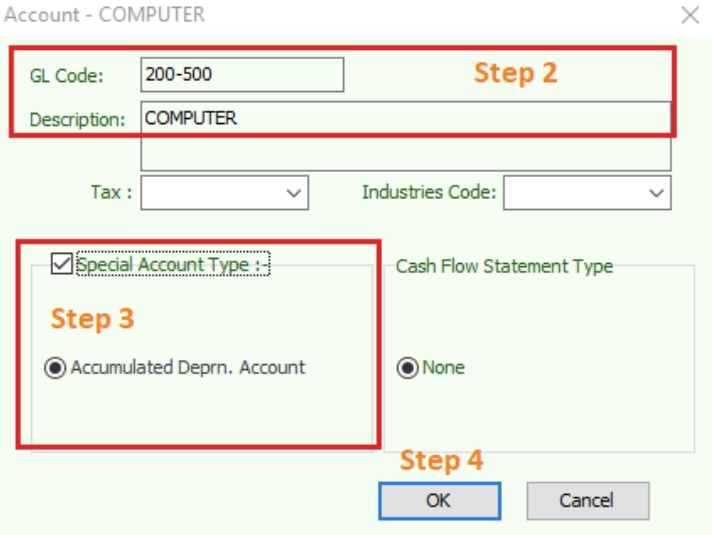
- Enter the GL Code and Description (alphanumeric characters are supported).
- Select the Special Account Type if applicable (e.g., if the account is an Accumulated Depreciation Account for Fixed Assets).
- Click OK. Your new account is now created.
-
Creating a Sub-Account
- Select the parent account (e.g., Cash at Bank).
- Follow the same steps as creating a new account.
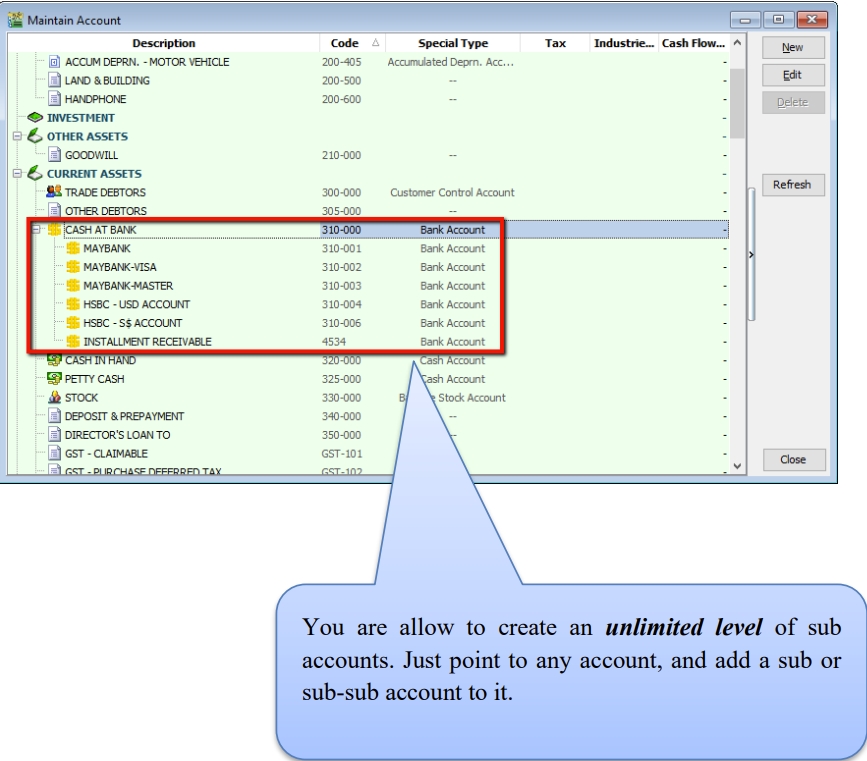
You can create unlimited levels of sub-accounts. Simply select any account and add a sub-account or sub-sub-account to it.
Cash Book Entry
Watch the tutorial video here: YouTube
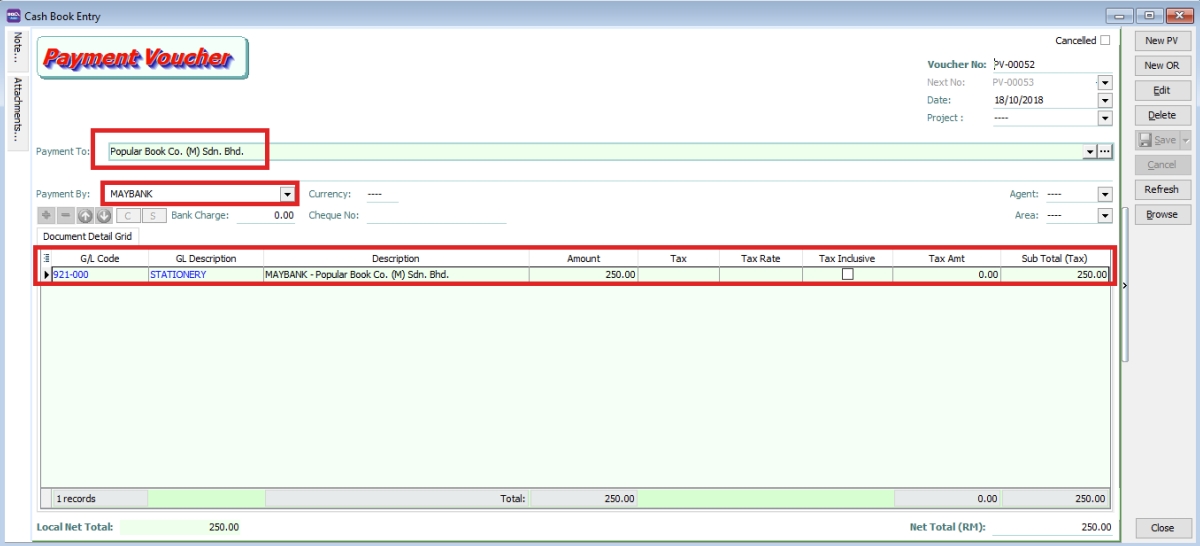
Cash Book Entry is typically used for non-customer/supplier payments or receipts, such as payments for salaries, utilities, etc.
-
Go to GL → Cash Book Entry → New (choose between Payment Voucher or Official Receipt).

-
Enter Payable Name → Select GL Code → Tax → Amount.
Journal Entry
Watch the tutorial video here: YouTube
-
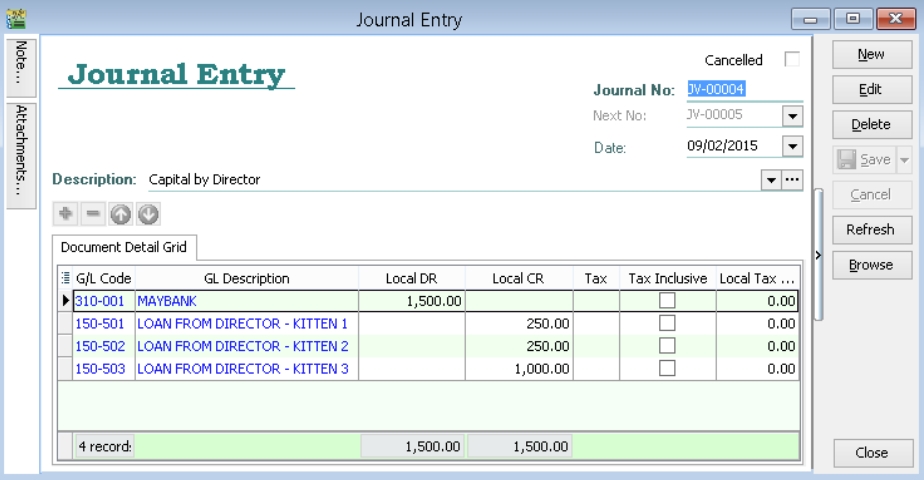
Go to GL → Journal Entry.
-
Enter your double-entry transactions.
-
Click Save. (The system will block the entry if the Debit and Credit amounts do not tally.)
Foreign Bank Adjustment
- Revalue foreign bank balances at the end of each month.
- Automatically calculate and post double-entry transactions for unrealized FOREX gains or losses.
Refer to this ledger example:
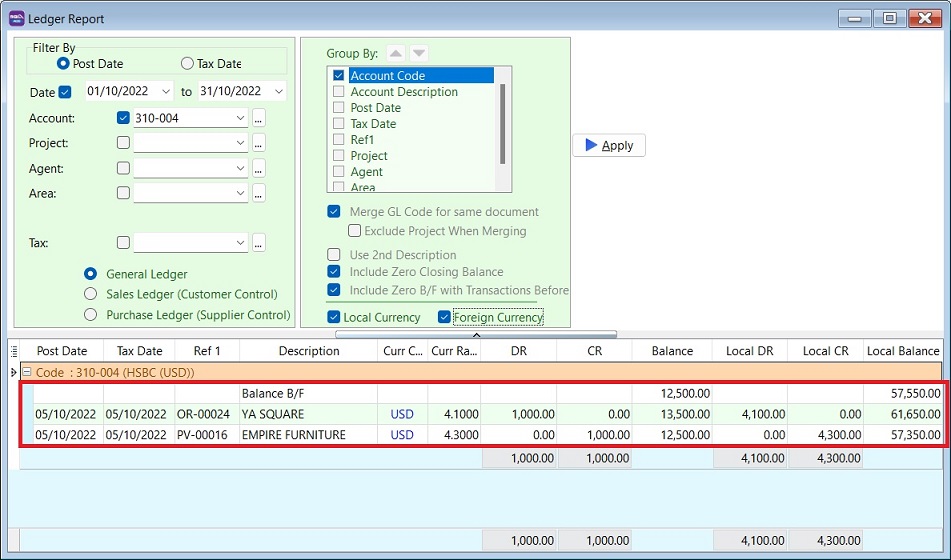
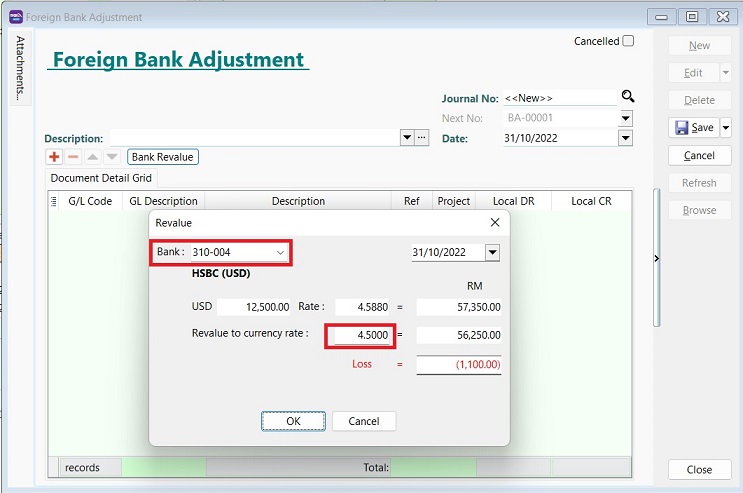
In this scenario, the Local Balance is RM 57,350. You wish to revalue it using a monthly exchange rate of 4.50000 to adjust the local balance to RM 56,250.
Foreign Bank Adjustment Entry
-
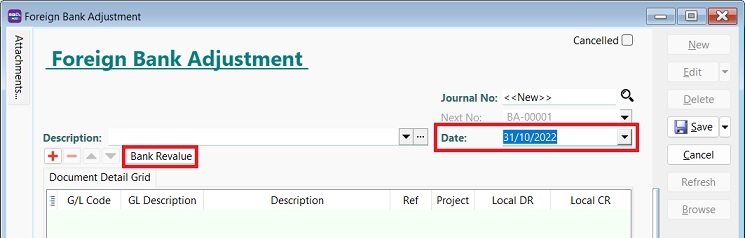
Click New.
-
Enter the date (e.g., the end of the month).
-
Click the Bank Revalue button.
-
Select the foreign bank. The system will retrieve the bank balance from the ledger as of the selected date.
-
Enter the Revalue currency rate (e.g., 4.5000). The system will automatically calculate the unrealized FOREX gain/loss.
-
Click OK to proceed.
-
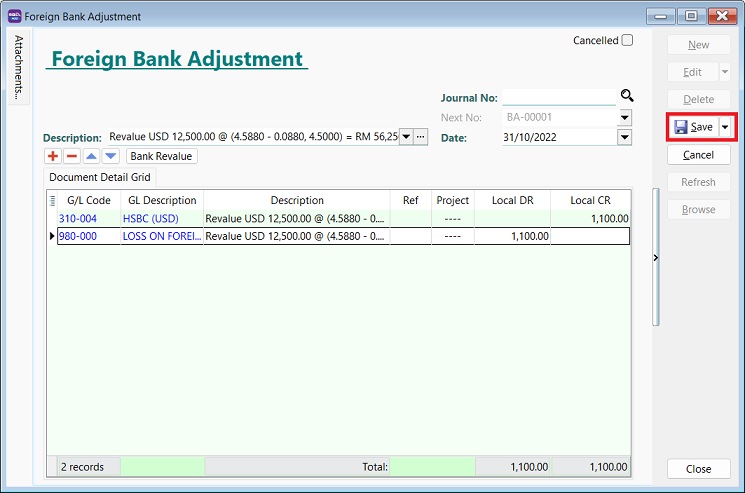
Click Save.
Maintain Opening Balance
-
Go to GL → Maintain Opening Balance.
-
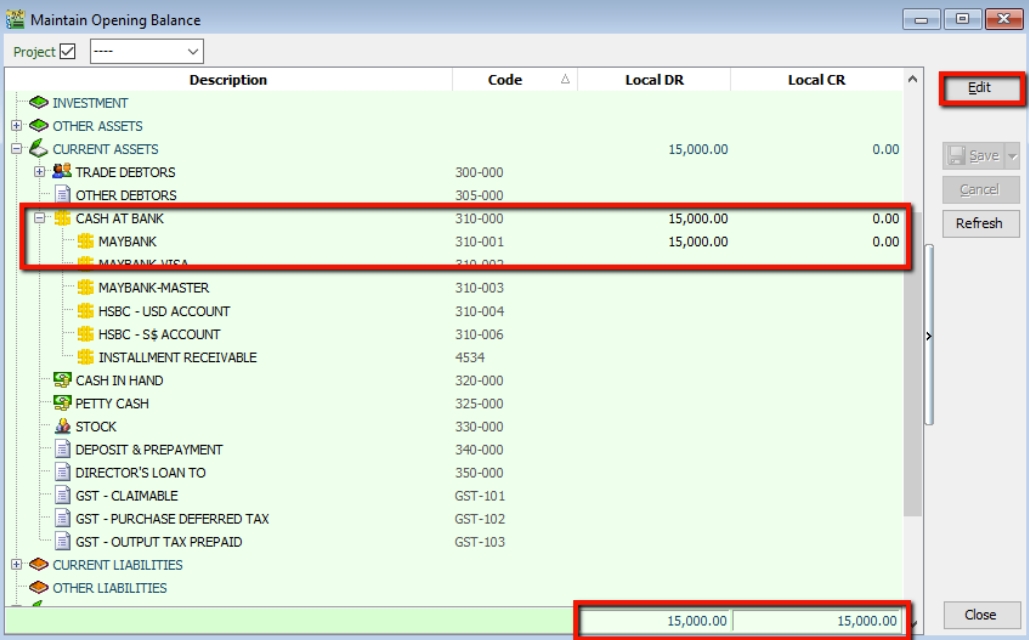
Highlight the account for which you wish to enter an opening balance and click Edit.
-
Enter the amount in Local DR or Local CR, then click Save.
-
Ensure that the total DR and CR figures tally.
Bank Reconciliation
-
Go to GL → Bank Reconciliation → New.
-
Right-click to view Opening Bank Reconciliation.
-
Set the Date (must be before the System Conversion Date).

Maintain Stock Value
-
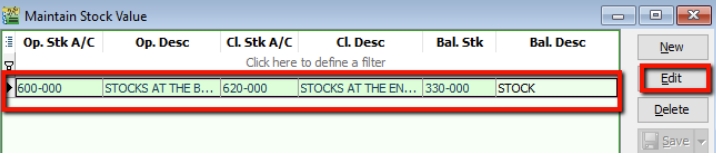
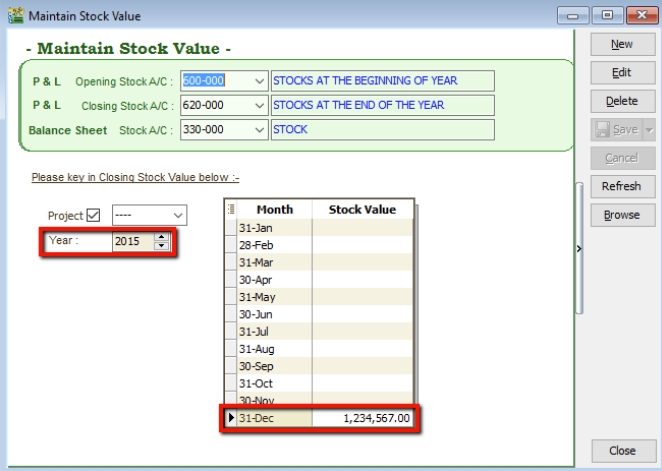
Go to GL → Maintain Stock Value → Edit.
-
Set the Year.
-
Enter the Opening Balance.
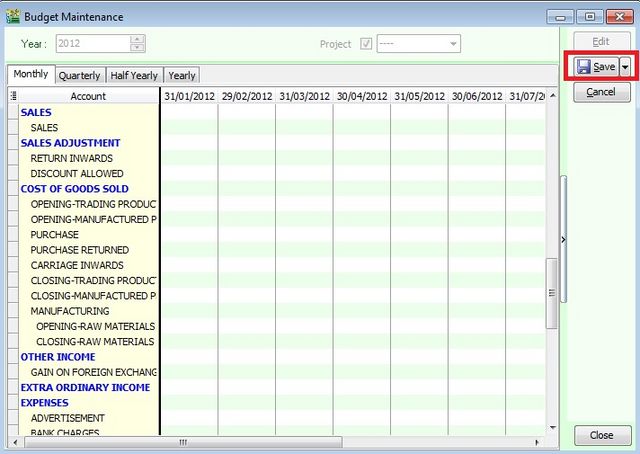
Maintain Budget
-
Click Edit.
-
Enter the budget values for each month.
-
Once finished, click Save.