Guide
Sales Workflow
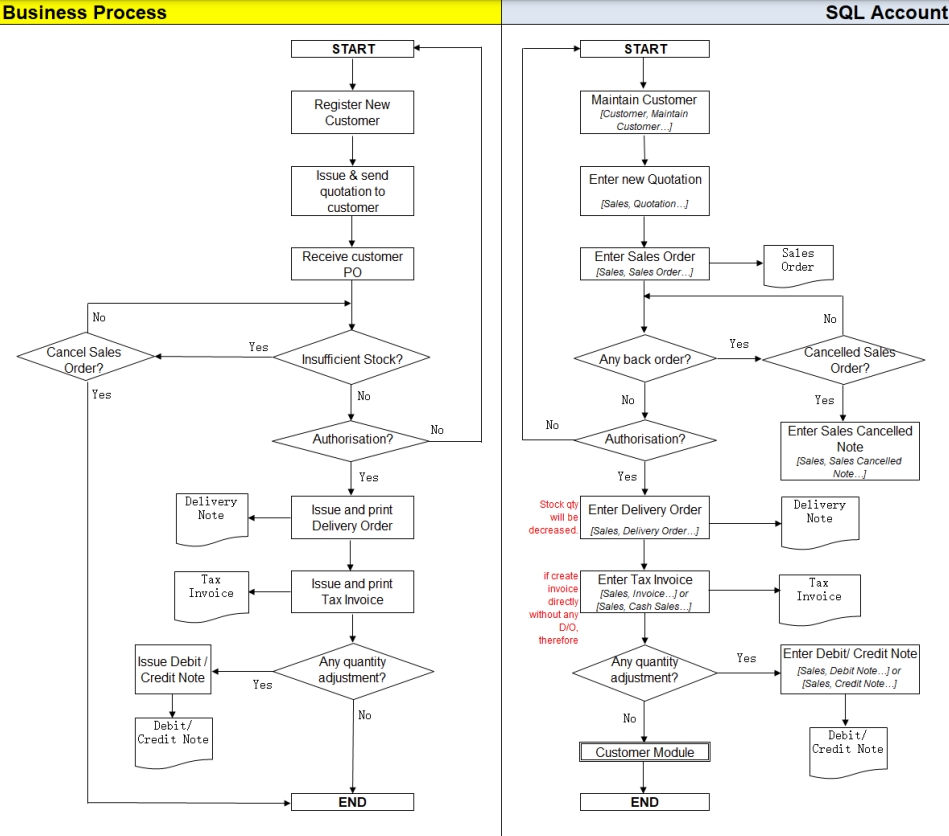
Example of the sales process workflow aligned with the SQL Account flow:
Sales Quotation
Watch the tutorial video here: Sales Quotation
-
Go to Sales → Quotation → New.
-
Select the Customer Code.
-
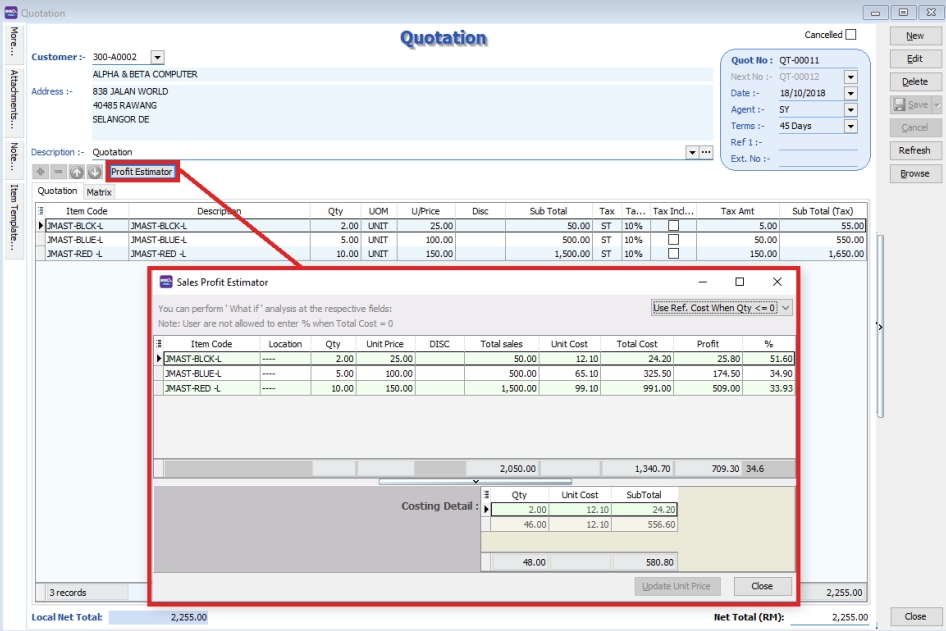
Insert the requested items and estimate profit & loss using the Profit Estimator.
-
Once all details are entered correctly, Save the Sales Quotation.
-
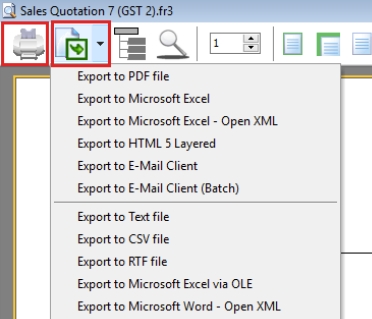
Preview the report to print or export it to PDF, Email, RTF (Microsoft Word), Excel, or other formats.
Project
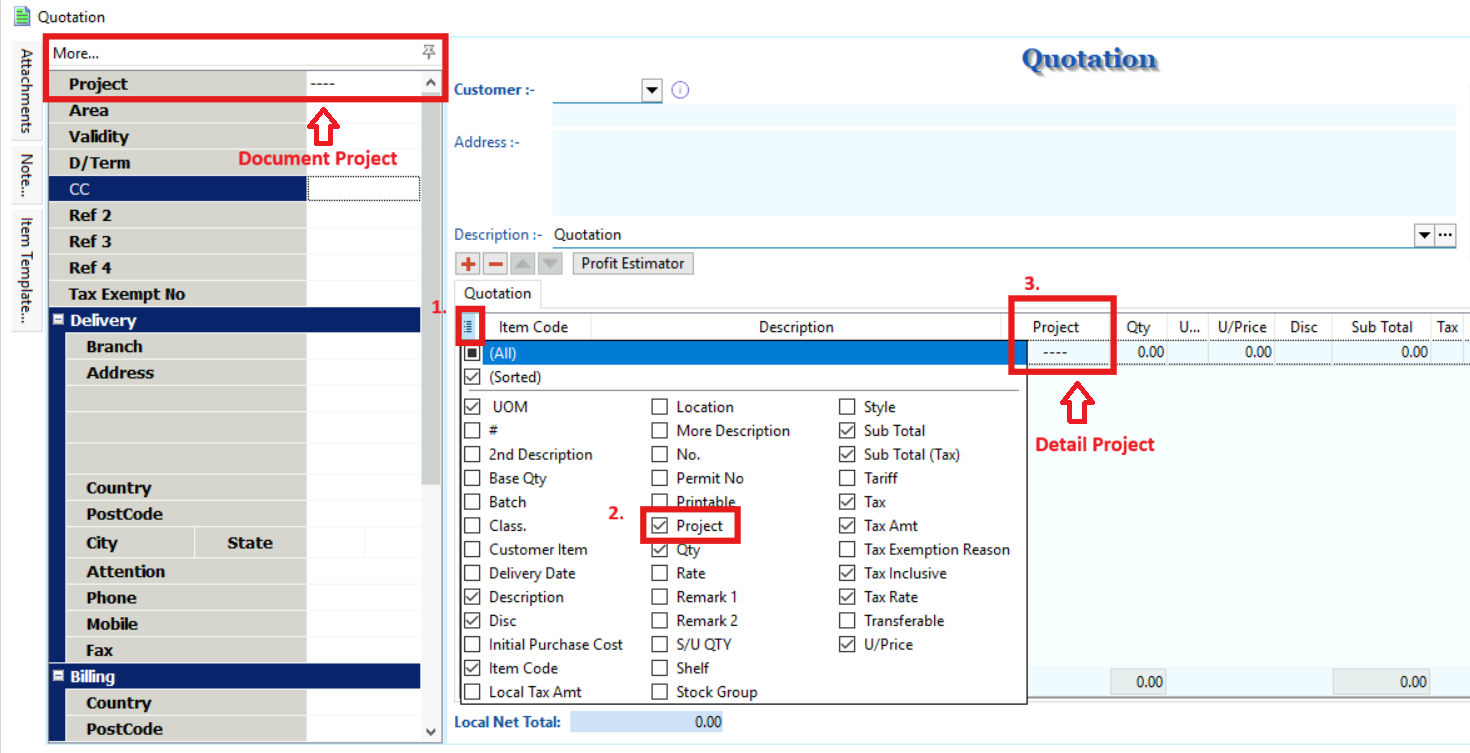
There are two types of projects to note:
-
Document Project: To set a project for the entire document, go to the MORE section on the left sidebar.
-
Detail Project: To set a project for individual items, add the project column using the Field Chooser.
Attachment
Use this feature to attach external PDF, Excel, Word documents, or image files.
-
Click Attachment on the left sidebar.
-
Click the Add (first) icon.
-
Select the file from your computer to attach.

Note
-
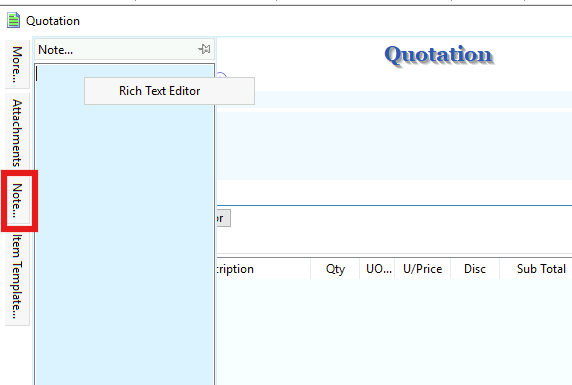
Click the Note section on the left sidebar.
-
Right-click inside the section to open the Rich Text Editor.
-
Enter your notes as needed. See the example below.
-
Click the X button (top-right corner) to exit the editor.
-
A Save changes? prompt will appear. Click Yes to save.
Sales Order
Watch the tutorial video here: Sales Invoicing Sales Order
-
Go to Sales → Sales Order → New.
-
Select the Customer Code.
-
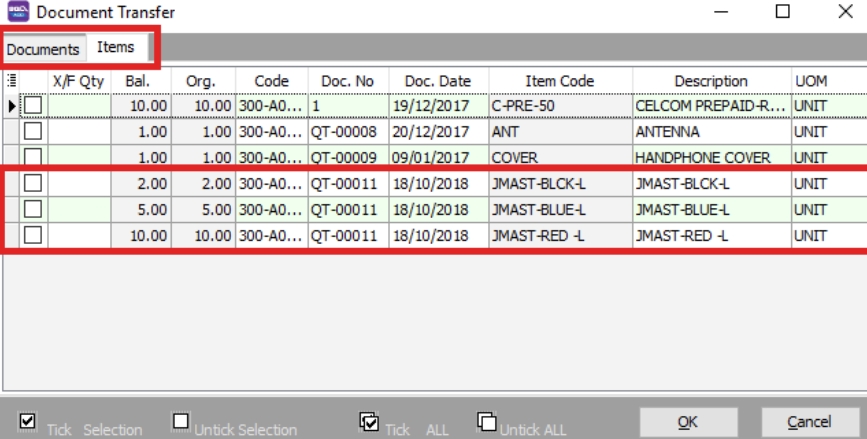
Right-click on the Sales Order title and select Transfer from Quotation. You can transfer the entire quotation or only specific items (requires the Partial Delivery Module).
-
Save the Sales Order.
noteTo view outstanding sales orders, go to Sales → Print Outstanding Sales Document Listing and select Sales Order. This applies to other sales documents as well.
Delivery Order
-
Go to Sales → Delivery Order → New.
-
Select the Customer Code.
-
Right-click on the D/Order title and select Transfer from Sales Order.
-
Save the Delivery Order.
noteSaving the Delivery Order will automatically deduct the stock.
Invoice
Create New Invoice
Watch the tutorial video here: Sales Invoicing Sales Invoice
-
Go to Sales → Invoice → New.
-
Select the Customer Code.
-
Right-click on the Invoice title and select Transfer from Delivery Order.
-
Save the Invoice.
Show Double Entry
Watch the tutorial video here: Ctrl + O
There are two methods to view the double entry for a transaction:
-
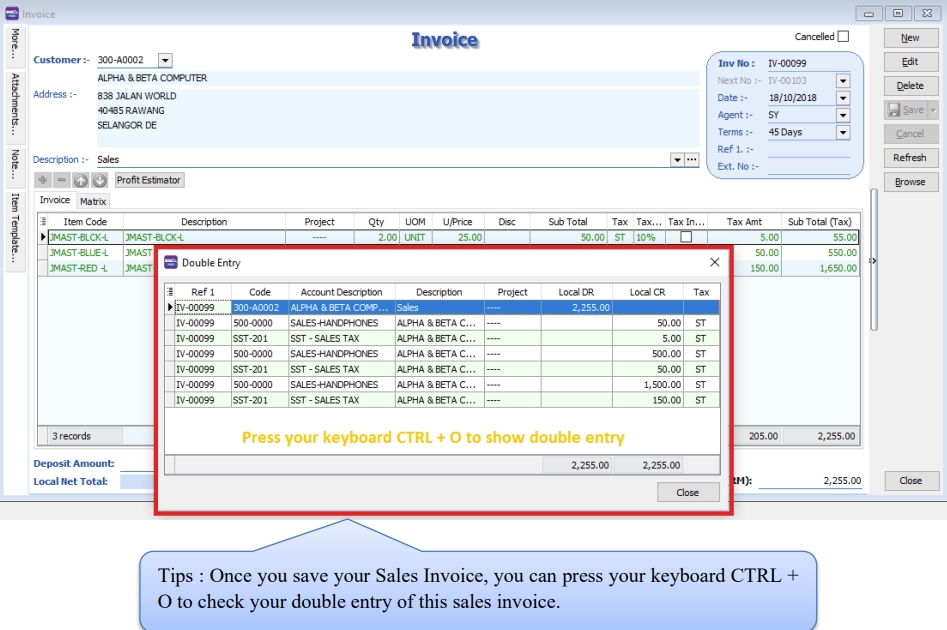
After saving the invoice, press Ctrl + O on your keyboard to display the double entry result.
-
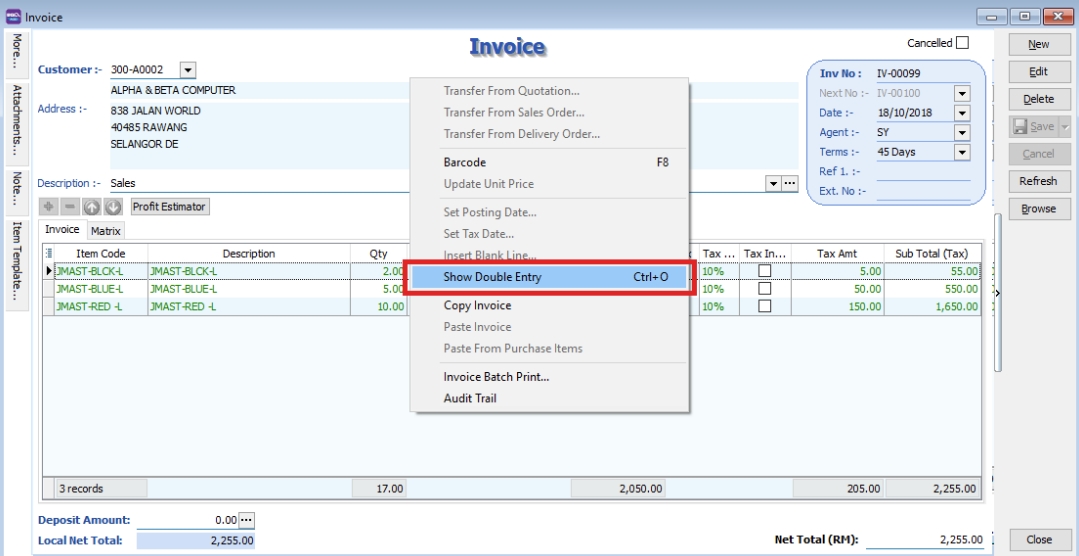
After saving the invoice, right-click on the Invoice title and select Show Double Entry.
Cash Sales
-
Go to Sales → Cash Sales → New.
-
Select the Customer Code.
-
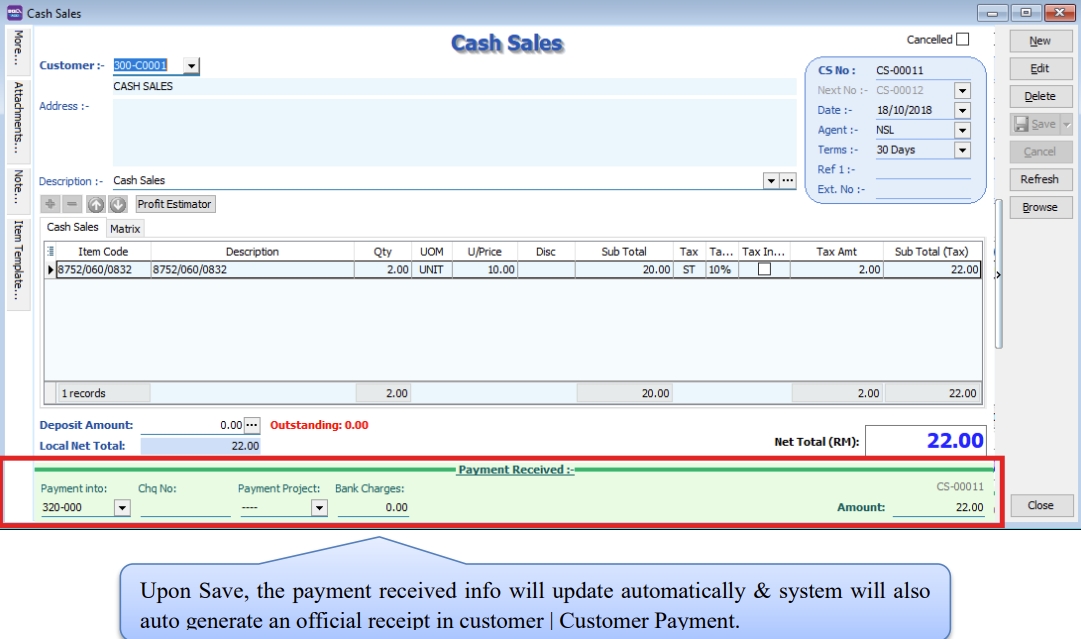
Insert the items and Save the Cash Sales.
-
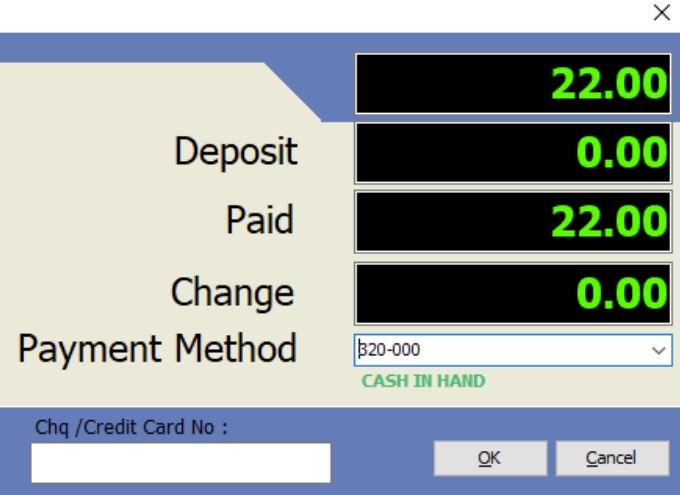
Upon saving, a Payment/Change dialog box will appear.
Credit Note
Watch the tutorial video here: Sales Invoicing Sales Credit Note
-
Go to Sales → Credit Note → New.
-
Select the Customer Code.
-
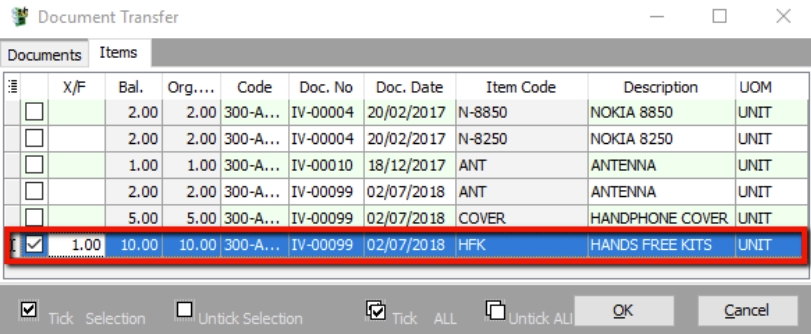
Right-click on the Credit Note title and select Transfer from Sales Invoice/Cash Sales. Enter the returned quantity in the X/F column.
-
Save the Credit Note.
Sales Cancelled Note
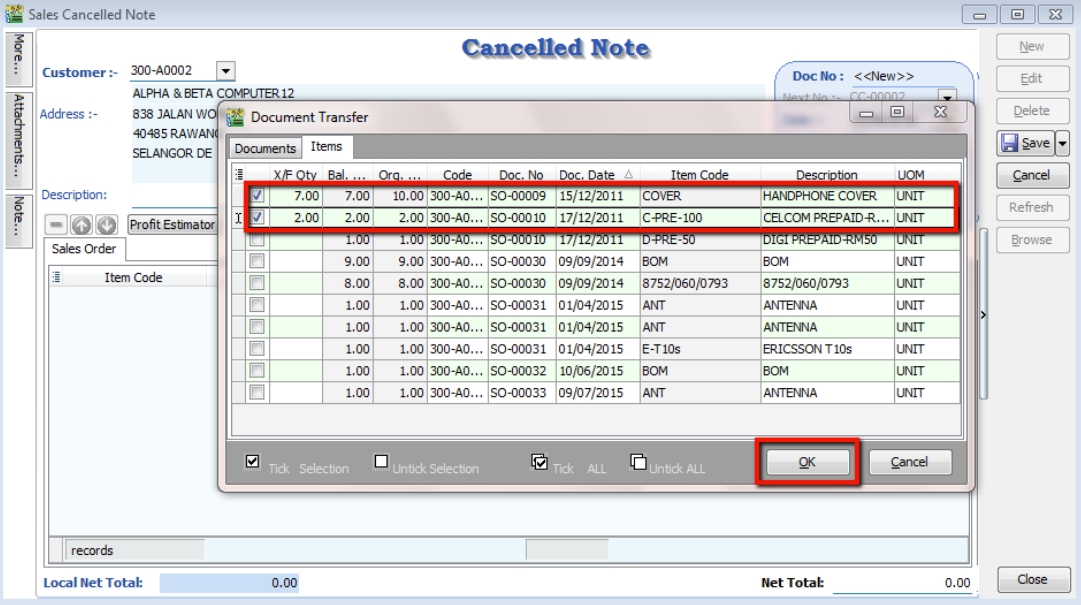
The Sales Cancelled Note is used to cancel outstanding Sales Orders.
-
Go to Sales → Sales Cancelled Note → New.
-
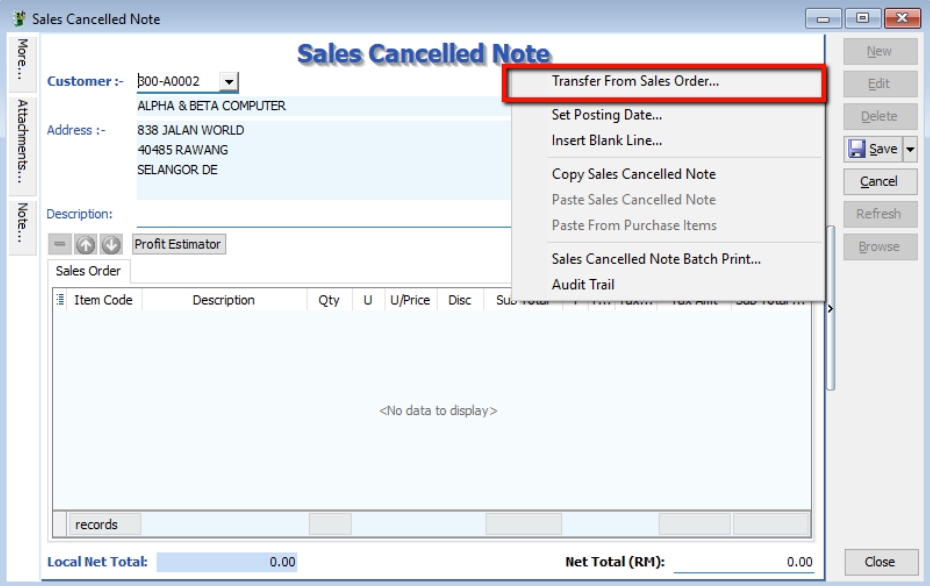
Right-click on the Cancelled Note title and select Transfer from Sales Order. (Note: Items in a Sales Cancelled Note can only be added by transferring from a Sales Order).
-
You can choose to transfer the Sales Order either in full or partially.
-
Save the Cancelled Note.