Reports
Print Sales Document Listing
-
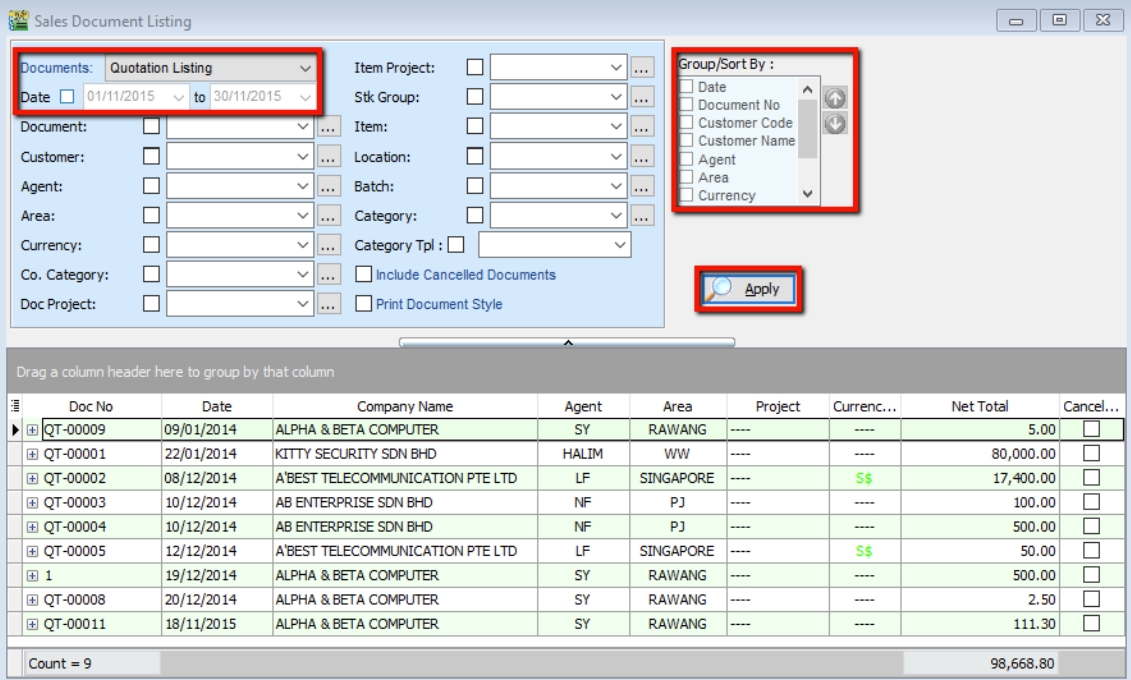
Go to Sales → Print Sales Document Listing. Filter the document type you need, such as Sales Quotation, Sales Order, Delivery Order, or Invoice Listing.
-
Filter by Date. If left unchecked, all periods will be displayed.
-
Filter by Area or other criteria (optional).
-
Use the Group/Sort By feature to group results and provide summaries for different categories.
-
Click Apply to generate the listing. If you change any settings in steps 3 or 4, click Apply again to refresh the results.
Export Report to Excel
-
Right-click on any column header (title bar).
-
Select Grid Export → Export to Excel.

Batch Printing Invoices
To print an entire month's invoices in batch (page-by-page format):
-
Go to Sales → Print Sales Document Listing.
-
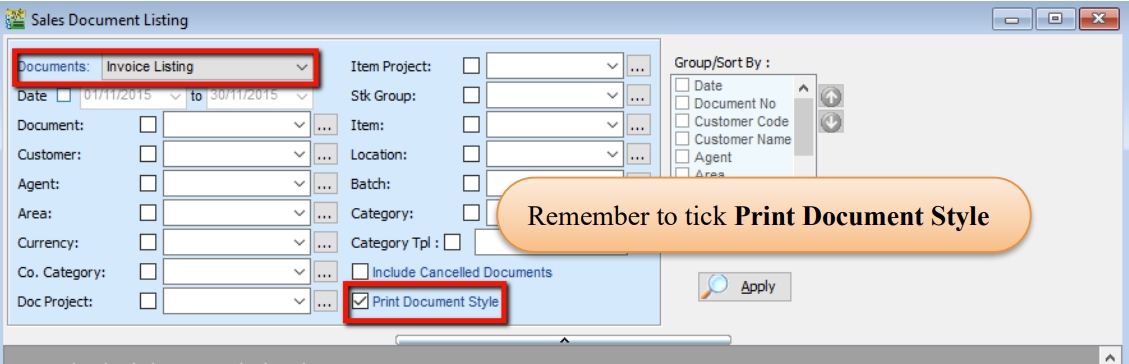
Check the Print Document Style option.
Watch the tutorial video here: Sales Invoicing Batch Print Invoices
Print Outstanding Sales Document Listing
This report helps you track transferred documents, such as identifying outstanding items or seeing which Invoice a Delivery Order (DO) was transferred to.
-
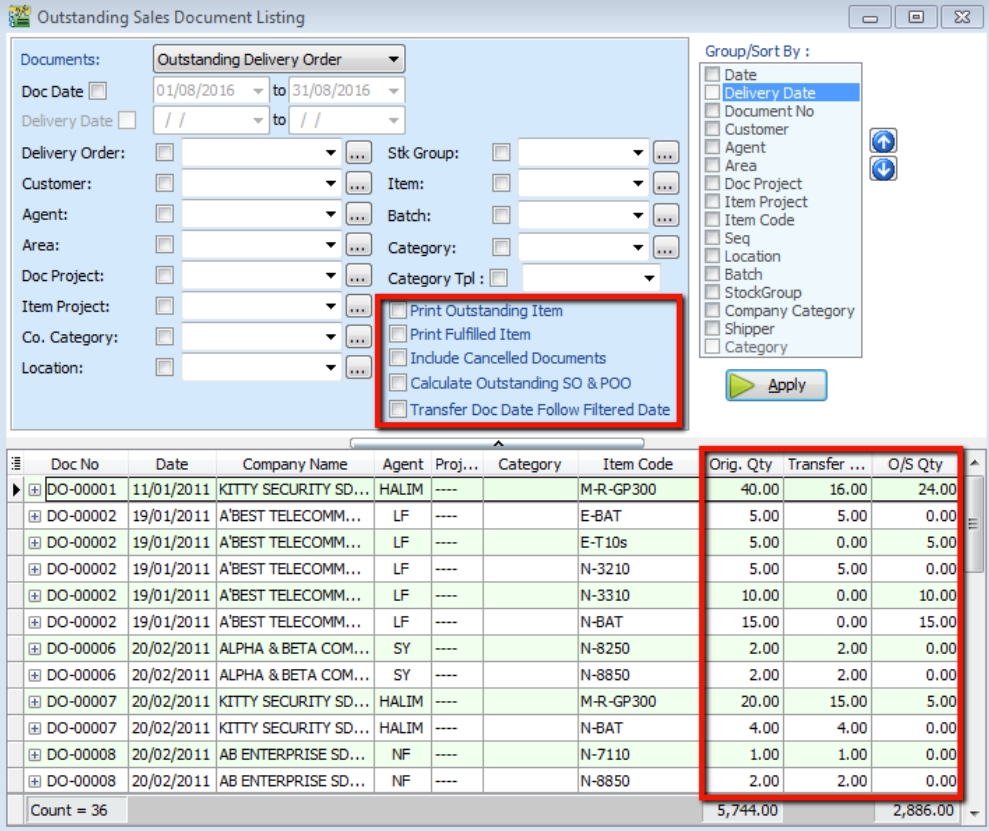
Go to Sales → Print Outstanding Sales Document Listing.
-
Filter the information as needed and click Apply.
-
Criteria Options:
- Print Outstanding Item: To check items that have not yet been transferred.
- Print Fulfilled Item: To check documents that have been fully transferred and identify the target documents.
- Include cancelled documents: Check this to include cancelled documents in the report.
- Outstanding SO & PO: To check the number of outstanding items from both Sales Orders and Purchase Orders.
- Transfer Doc Date Follow Filtered Date: Check this if you want the transfer document date to align with the filtered date range.
-
Click Apply.
-
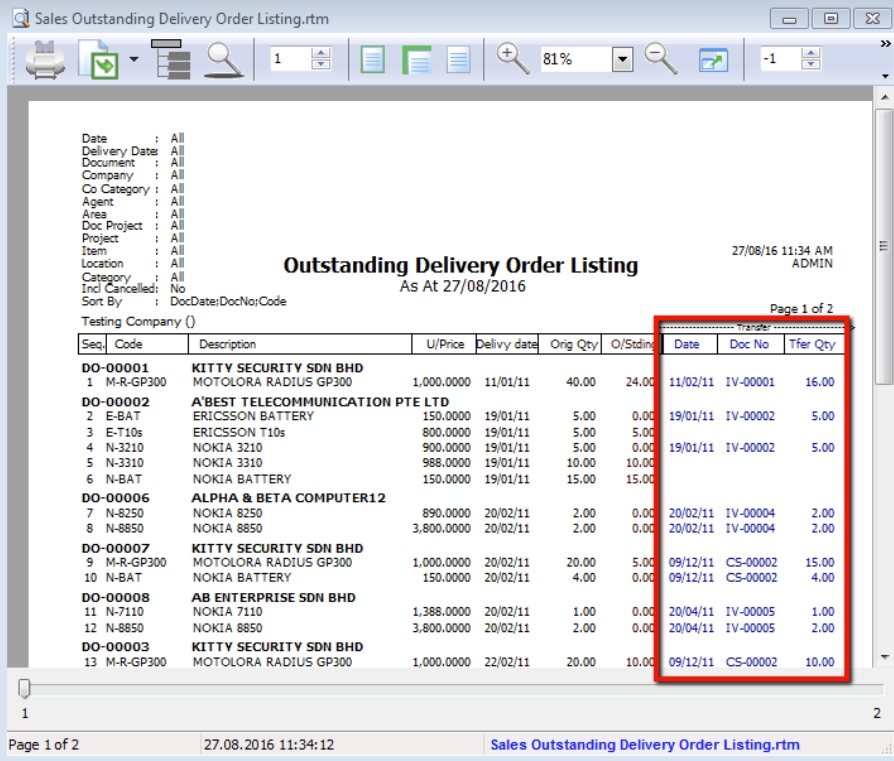
To see where a document has been transferred, Preview the report.