Reports
Print Stock Document Listing
- The Print Stock Document Listing report allows you to view all issued stock adjustment documents.
- This includes Stock Received, Stock Issue, Stock Transfer, and Stock Adjustment listings.
How to Print Stock Document Listing
-
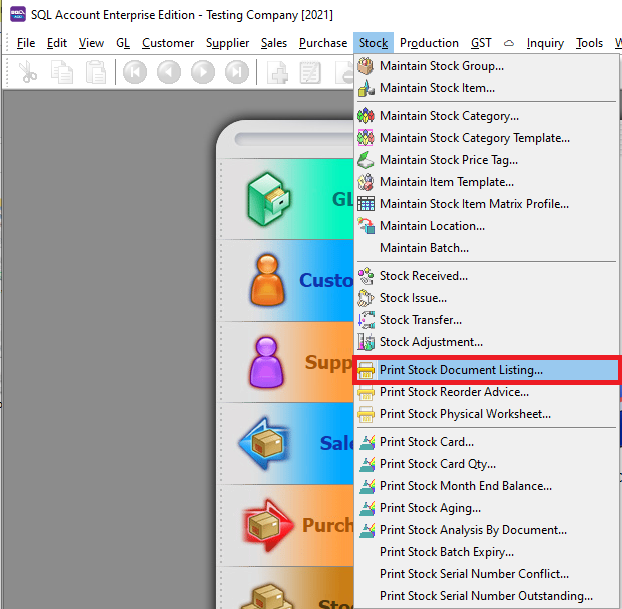
Stock > Print Stock Document Listing.
-
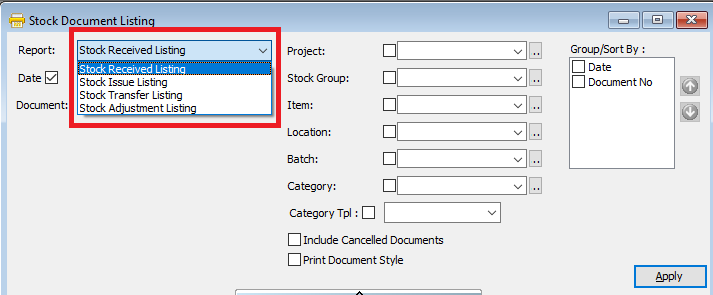
Select the Document Listing you want to view. Follow the image below.
-
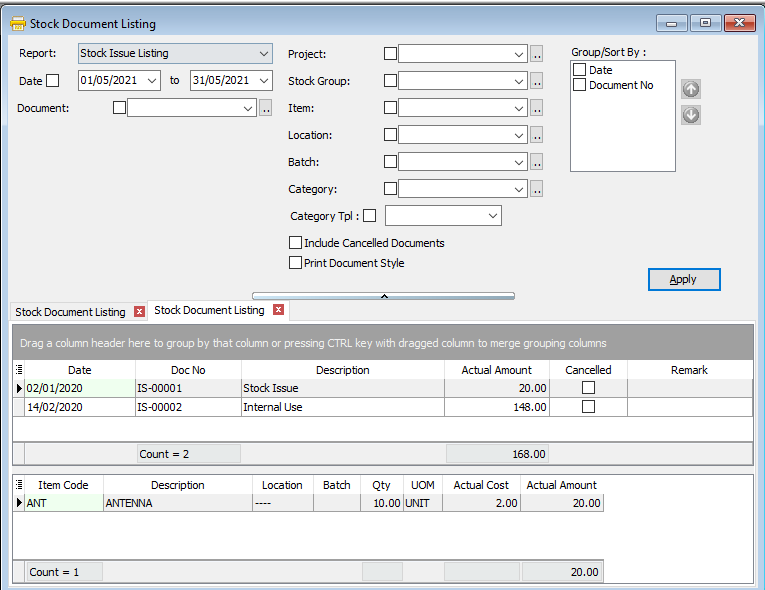
Click the Apply button.
-
Click Preview and select the listing report.
-
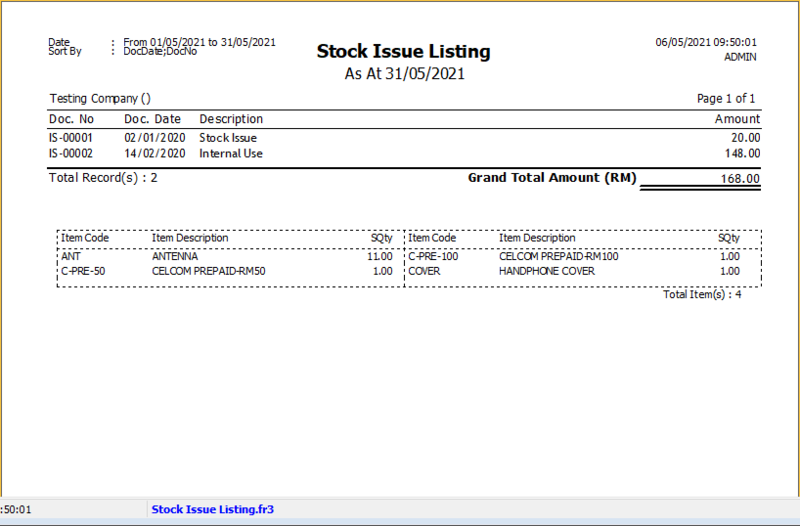
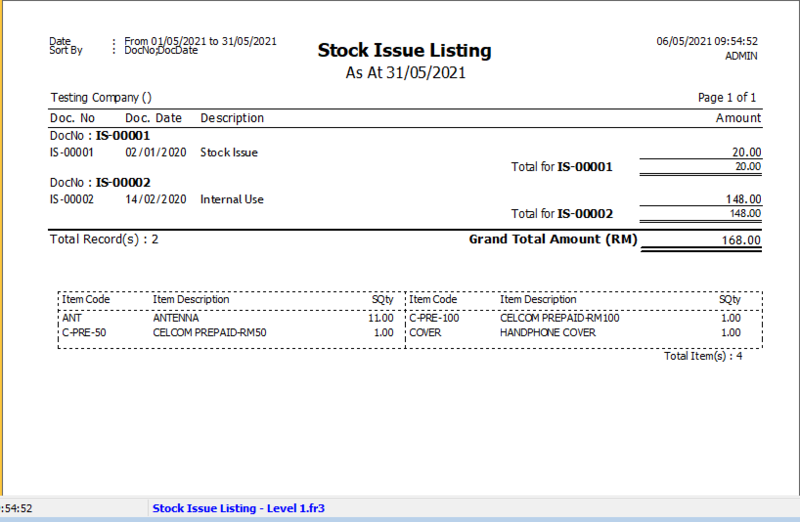
Example of a stock document listing report:
Print Document Style
-
Tick the relevant checkboxes.
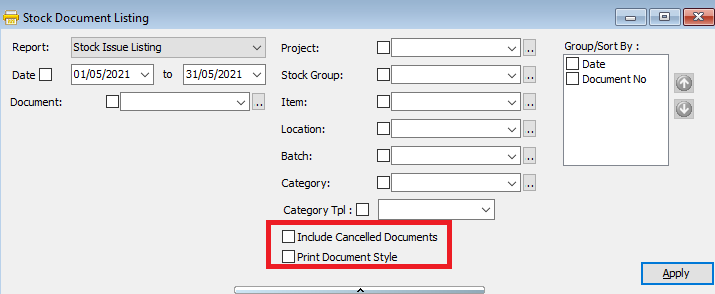
Field Name Explanation Print Document Style Tick this checkbox to print a bulk report or send batch emails. Include Cancelled Documents Tick this checkbox to include cancelled documents in the listing. -
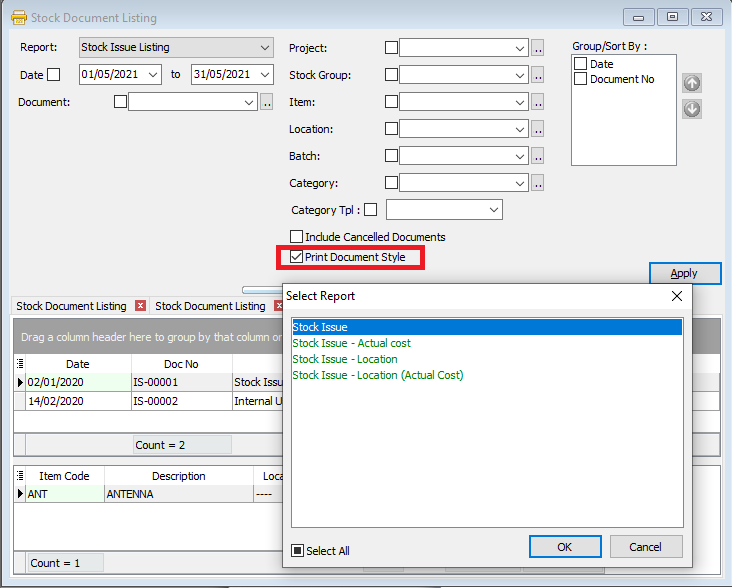
If you tick Print Document Style, you will be able to choose a document report format.
If you want further grouping & sorting, use Group/Sort By:
-
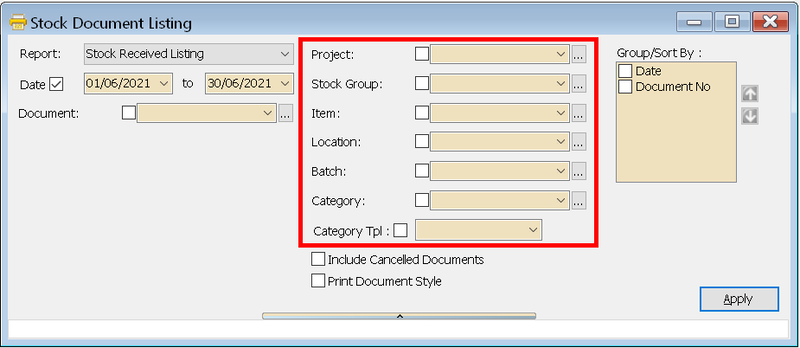
You can filter documents by Project, Location, and Company Category.
-
You can use the Group by/Sort by table to choose how you want to group your report listing.
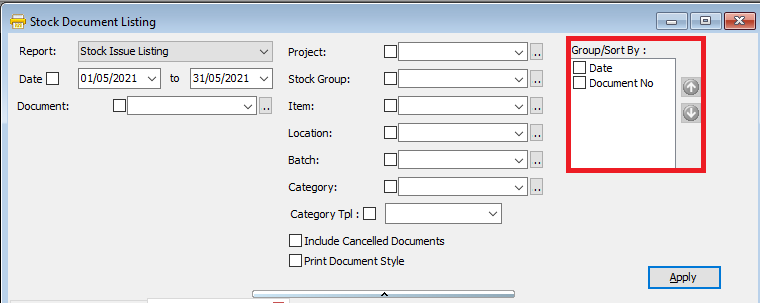
-
Here is an example of the report:
Print Stock Reorder Advice
- The Print Stock Reorder Advice report identifies items with quantities below the reorder level set in Maintain Stock Item.
How to Print Stock Reorder Advice
-
Stock > Print Stock Reorder Advice.
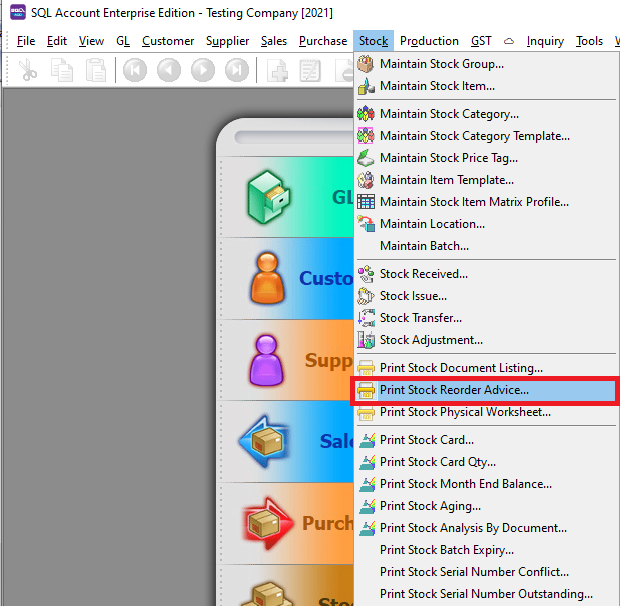
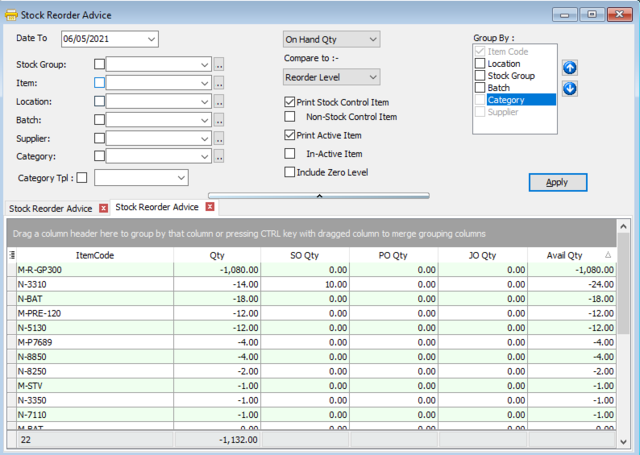

-
Click the Apply button.
-
Click Preview and select the listing report.
-
Example of a stock reorder report:
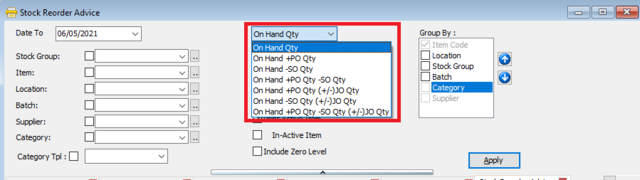
Setting
-
Select the quantity criteria for comparison.
Field Name Explanation On Hand Qty Current stock balance. On Hand + PO Qty & SO Qty Stock balance plus Purchase Order Quantity or Sales Order Quantity. On Hand + PO Qty - SO Qty Stock balance plus Purchase Order Quantity minus Sales Order Quantity. On Hand + PO Qty (+/-) JO Qty Stock balance plus Purchase Order Quantity plus Job Order Quantity. On Hand - SO Qty (+/-) JO Qty Stock balance minus Sales Order Quantity plus Job Order Quantity. On Hand + PO Qty - SO Qty (+/-) JO Qty Stock balance plus Purchase Order Quantity minus Sales Order Quantity minus Job Order Quantity. -
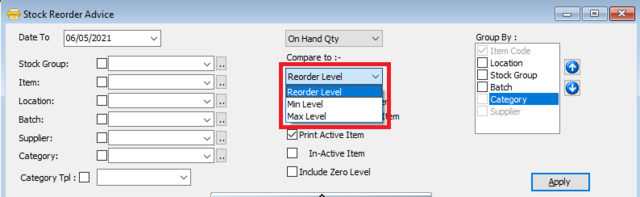
Select the comparison type. The balance quantities will be compared against the Max Value, Min Value, or Reorder Level defined in Maintain Stock Item.
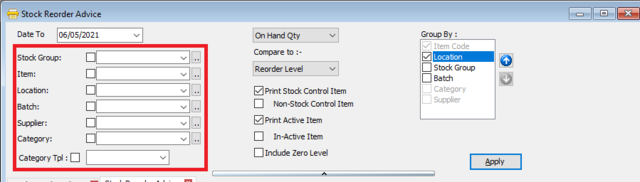
If you want further grouping & sorting, use Group/Sort By:
-
You can filter documents by Item, Batch, and Company Category.
-
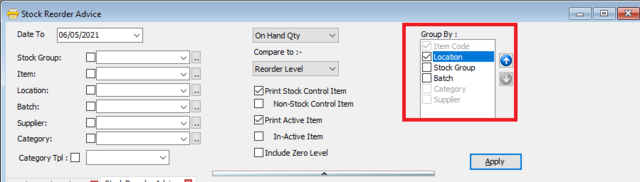
You can use the Group by/Sort by table to choose how you want to group your report listing.
Print Stock Physical Worksheet
-
Go to Stock.
-
Select Print Stock Physical Worksheet.
-
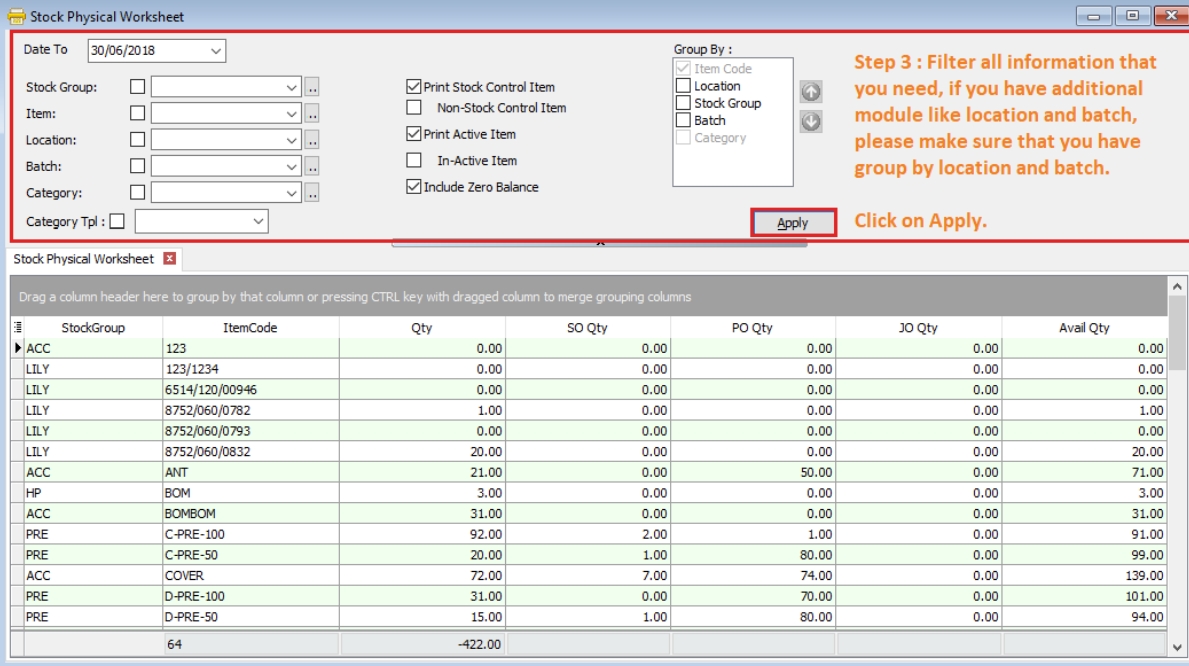
Filter by date, stock group, or other criteria. Ensure you select the correct Location and Batch if these modules are enabled.
-
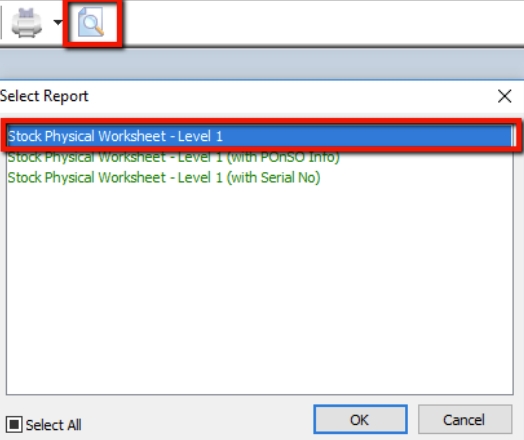
Click Preview and choose your report format.
-
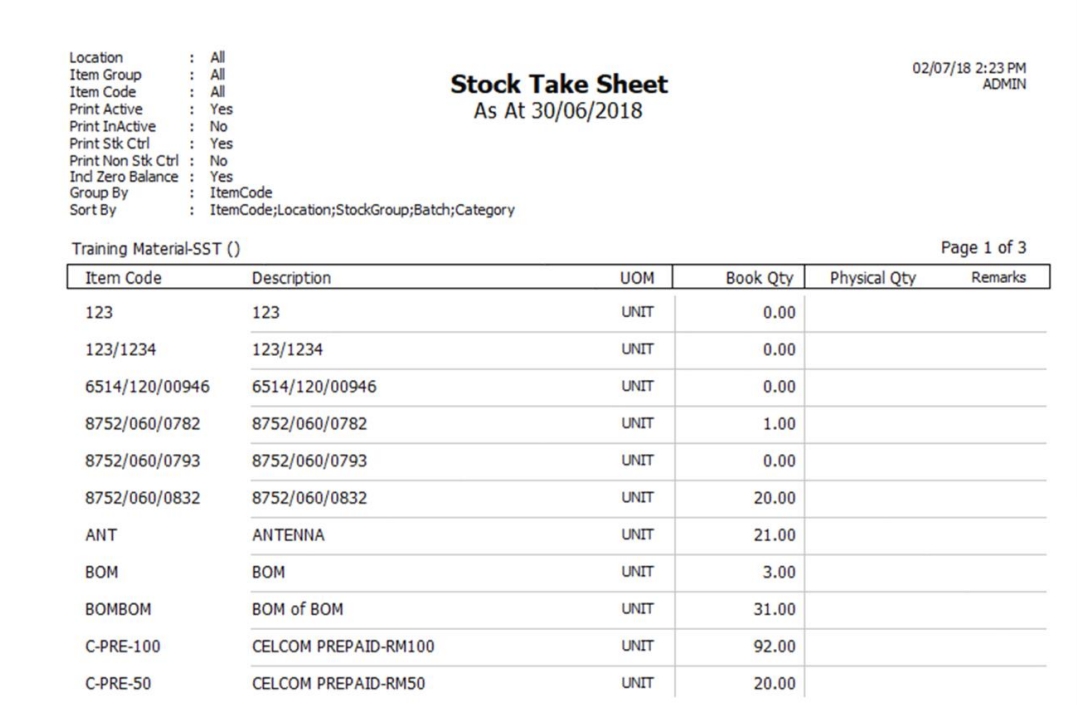
Print the Stock Take Sheet for the storekeeper.
The storekeeper should manually record the actual quantity in the Physical Qty column.
-
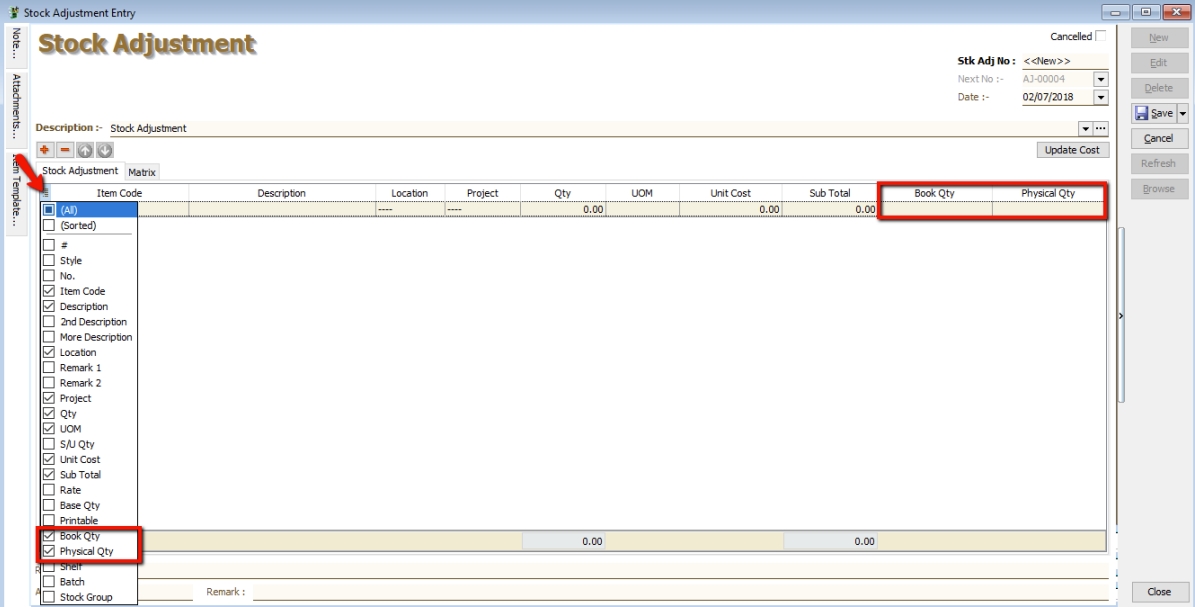
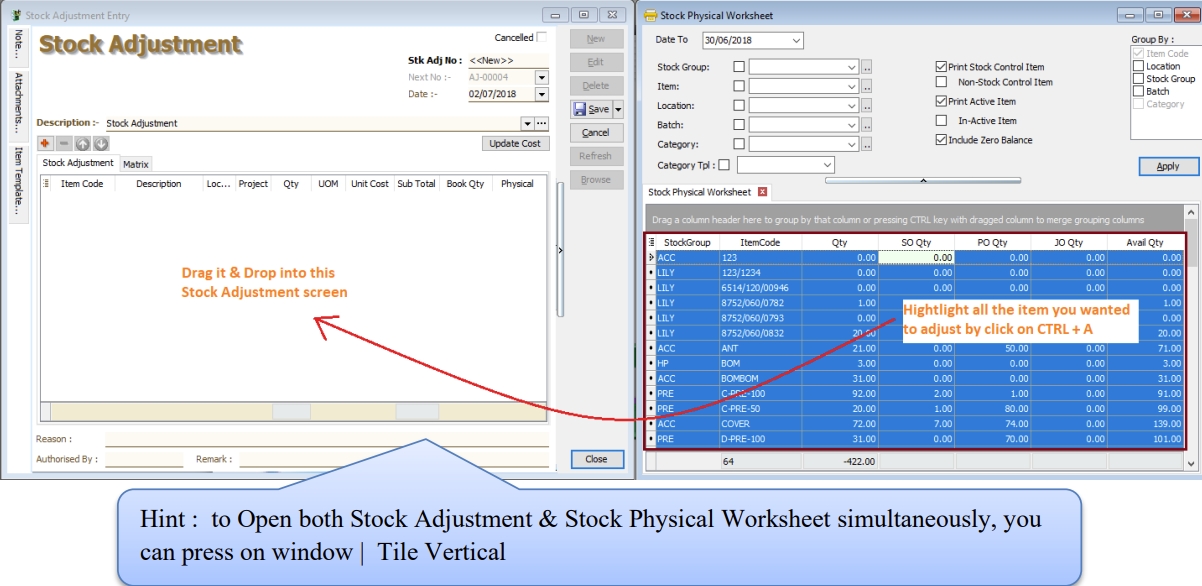
Once the stock take is complete, perform the stock adjustment in the system. Go to Stock > Stock Adjustment. Drag out the Book Qty and Physical Qty columns if they are not visible.
-
Click on the first item in the Stock Physical Worksheet, press Ctrl + A on the keyboard to select all items.
Then Drag & Drop into Stock Adjustment.
-
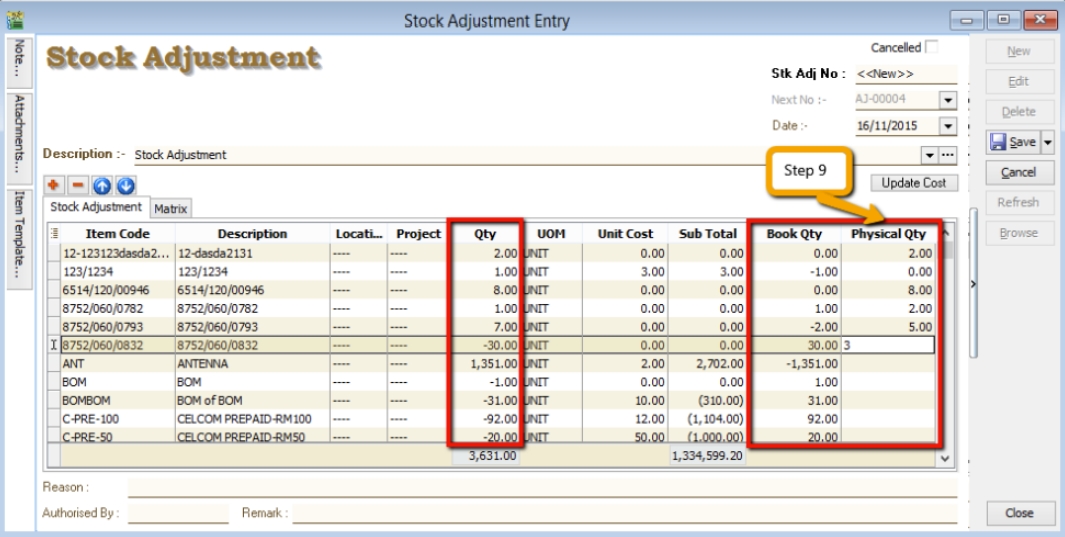
Based on the Stock Take Sheet, enter the actual physical quantity in the Physical Qty column of the Stock Adjustment. The system will calculate the variance against the Book Qty and automatically adjust the Qty column.
infoBook Qty = The quantity recorded in the system.
Physical Qty = Actual Quantity at your warehouse.
Qty = The variance between Physical and Book Quantity. The system will automatically adjust and update accordingly. (Physical Qty – Book Qty)
Print Stock Card & Print Stock Card Qty
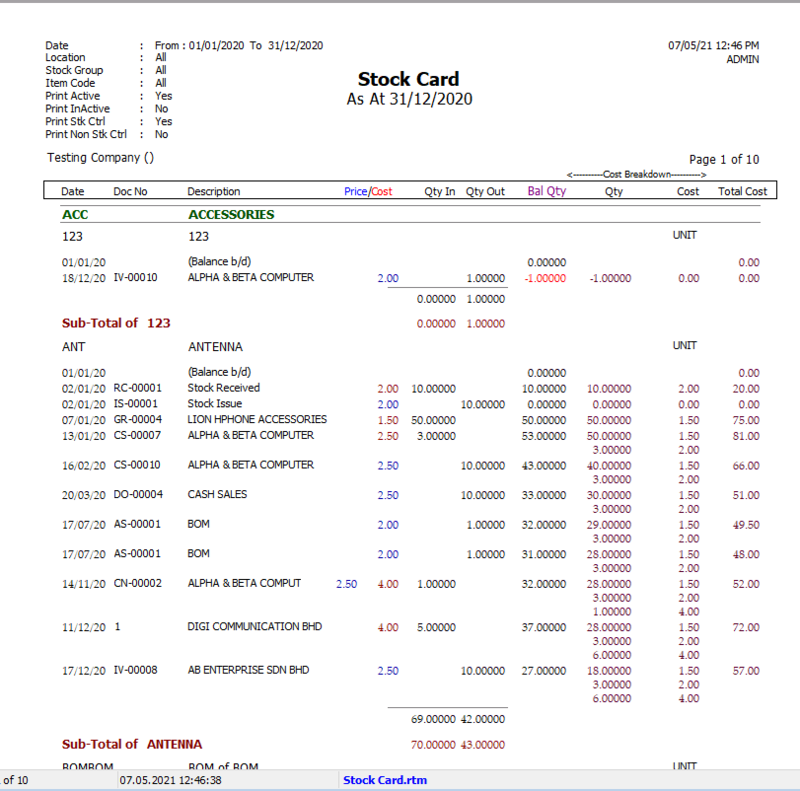
- The Print Stock Card report shows stock movement and costing over a specific period.
- You can view stock movement by Location and Batch.
How to Print Stock Card
-
Stock > Print Stock Document Listing.
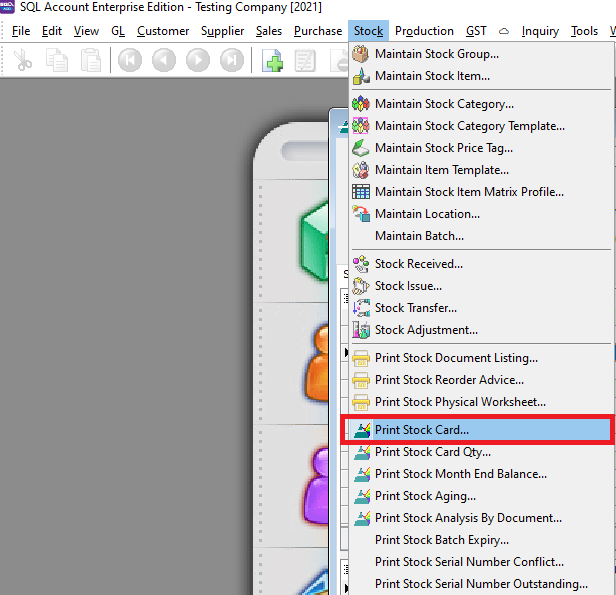
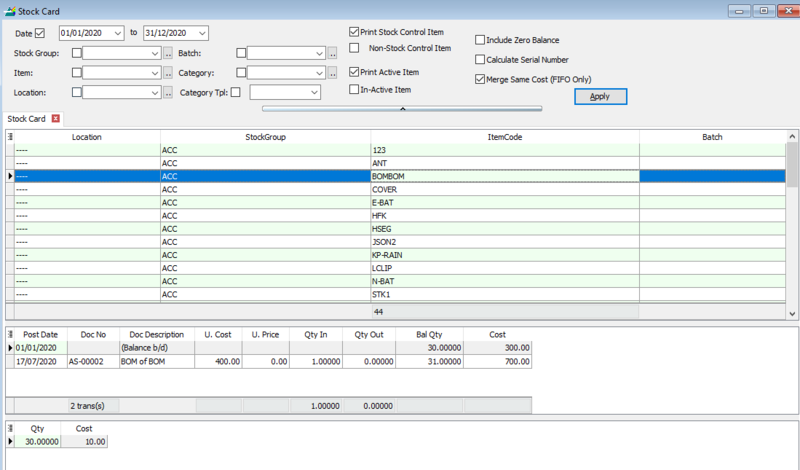
-
Click the Apply button.
-
Click Preview and select the listing report.
-
Example of a stock card report:
How to Print Stock Card Qty
- Similar to the Stock Card, but this report displays only quantities.
Print Stock Month End Balance
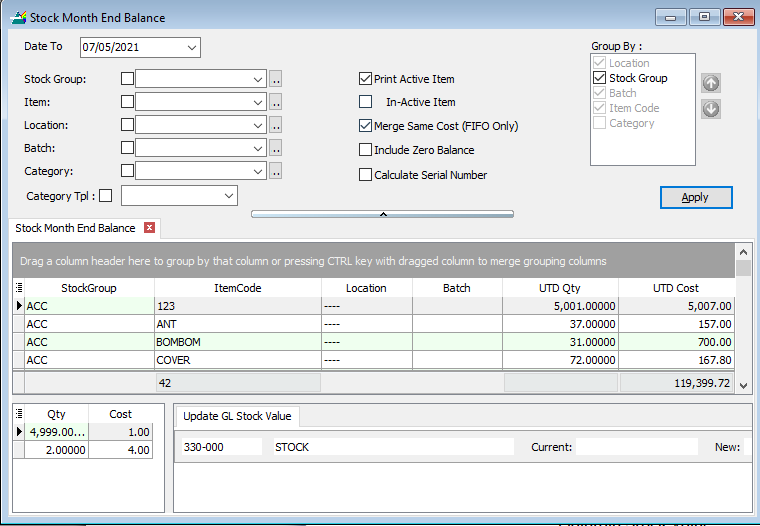
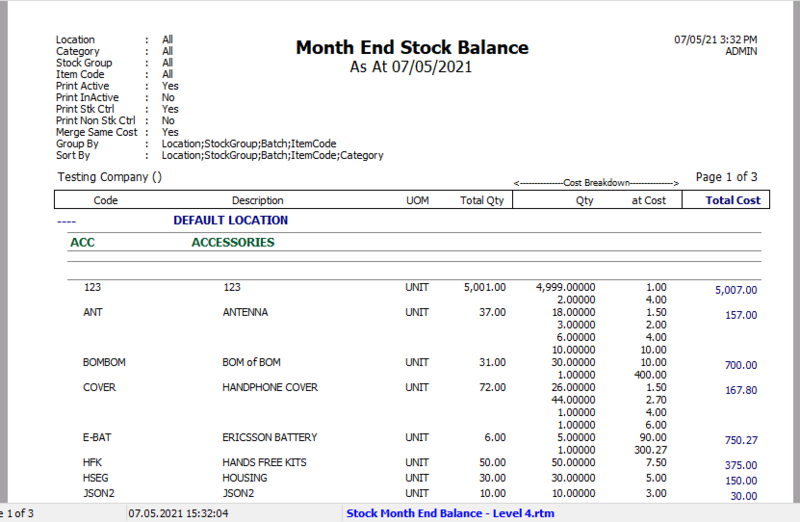
- The Print Stock Month End Balance report shows the month-end stock quantity and total cost.
How to Print Stock Month End Balance
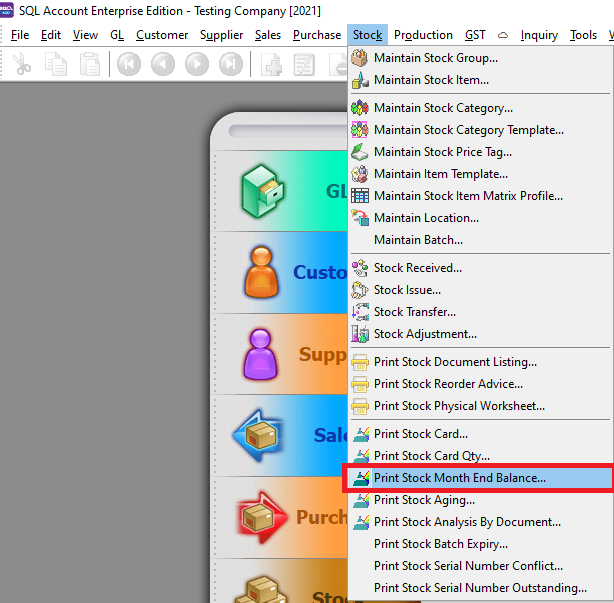
-
Stock > Print Stock Month End Balance.
-
Set the date and click the Apply button.
-
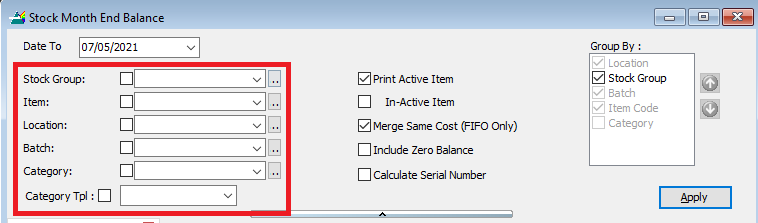
You can filter by Location, Stock Group, and Item.
-
Click the Preview button.
-
Click Preview and select the listing report.
-
Example of a stock month-end report:
Print Stock Aging
-
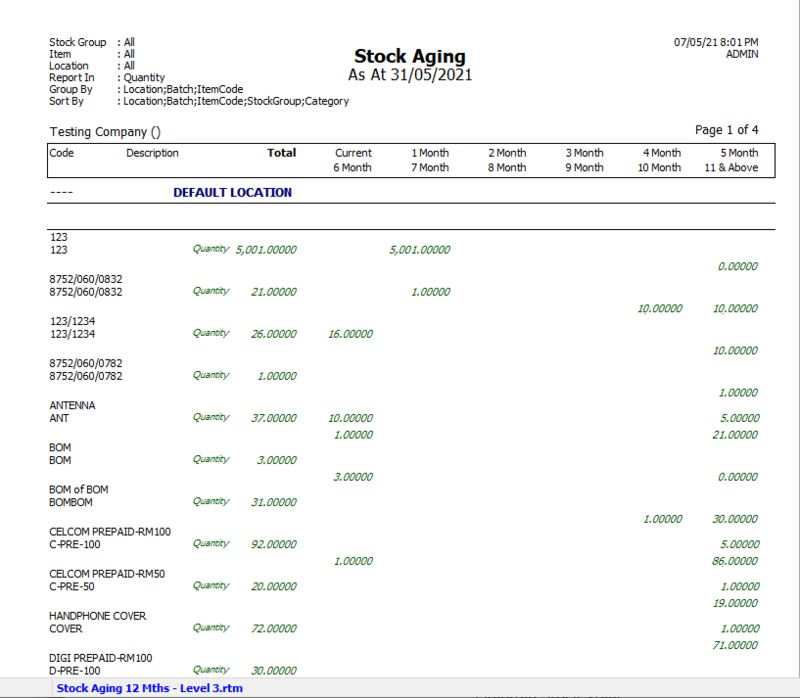
The Print Stock Aging report displays the quantity of stock on hand and its aging status.
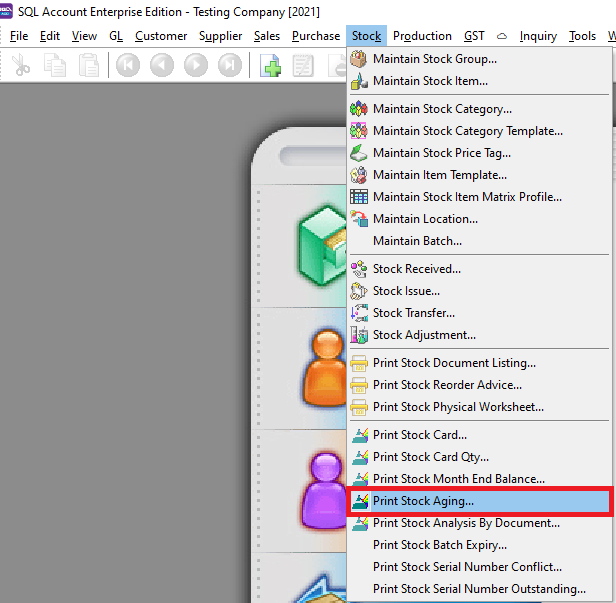
How to Print Stock Aging
-
Stock > Print Stock Aging.
-
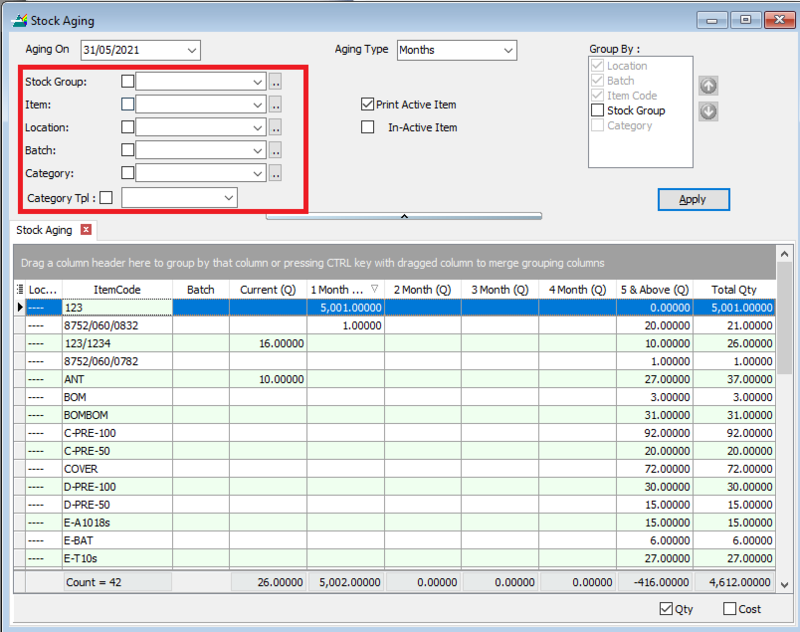
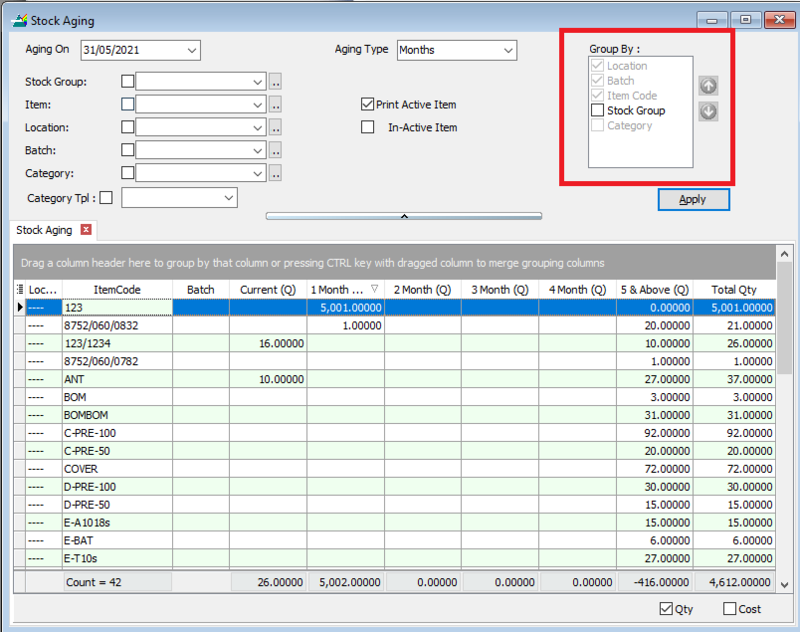
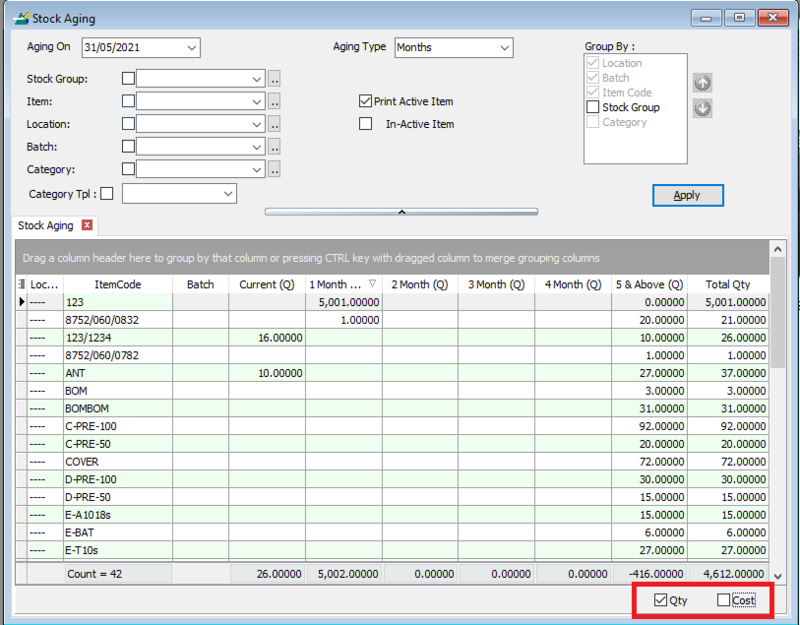
Set your filter options and group by options.
-
Tick Qty and/or Cost to view the aging based on quantity, cost, or both.
-
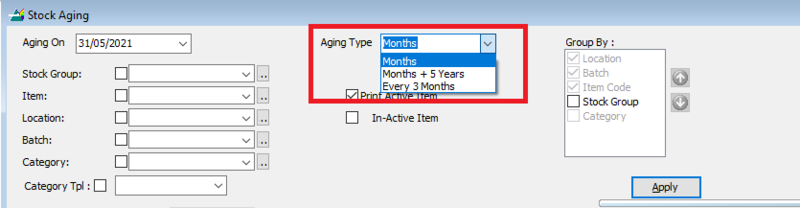
Set the stock aging type.
-
Months: Aging calculated in 1-month intervals.
-
Months + 5 Years: Aging calculated monthly, including items older than 5 years.
-
3 Months: Aging calculated in 3-month intervals.
-
Click the Apply button.
-
Click Preview.
Print Stock Analysis By Document
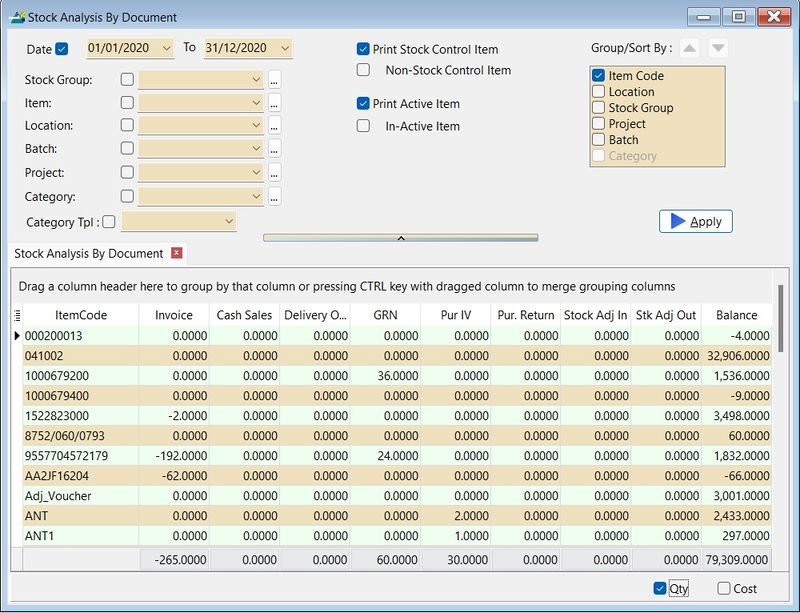
- The Print Stock Analysis By Document report shows stock movement quantities for each document type (e.g., Invoice, Cash Sales, Purchase Invoice).
How to Print Stock Analysis By Document
-
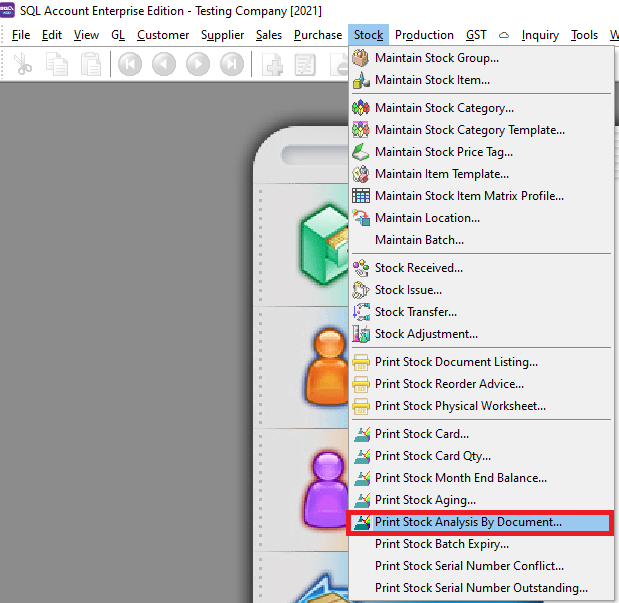
Stock > Print Stock Analysis By Document.
-
Click the Apply button.
-
Click Preview.
-
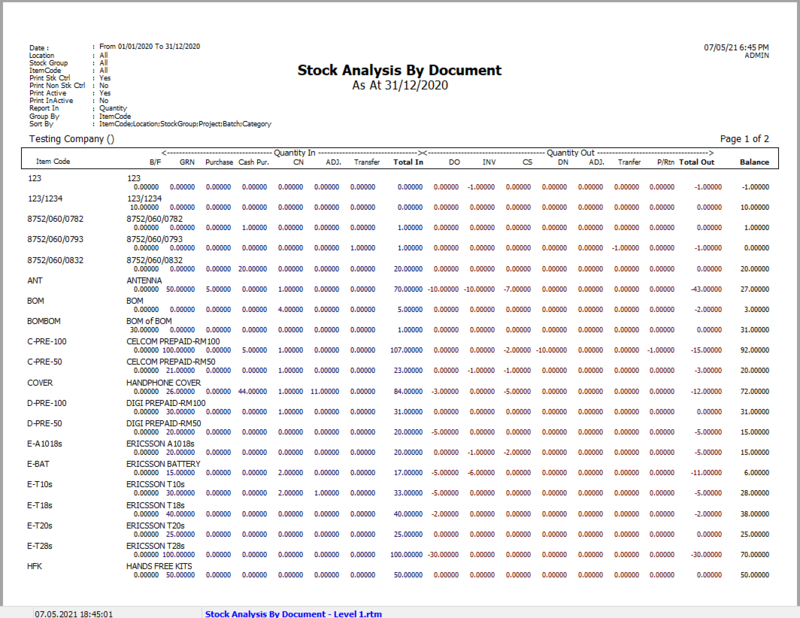
Example of a stock analysis by document report:
Print Stock Batch Expiry
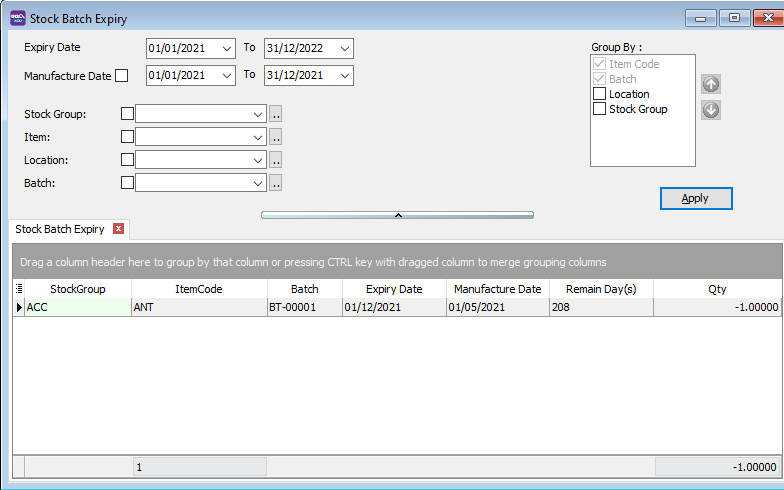
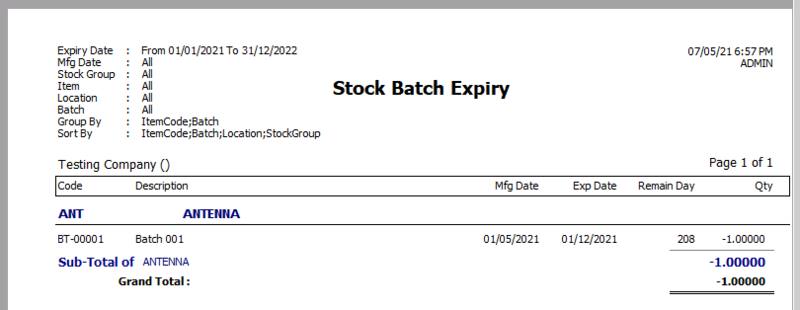
- The Print Stock Batch Expiry report lists all batch items along with their manufacturing and expiry dates.
How to Print Stock Batch Expiry
-
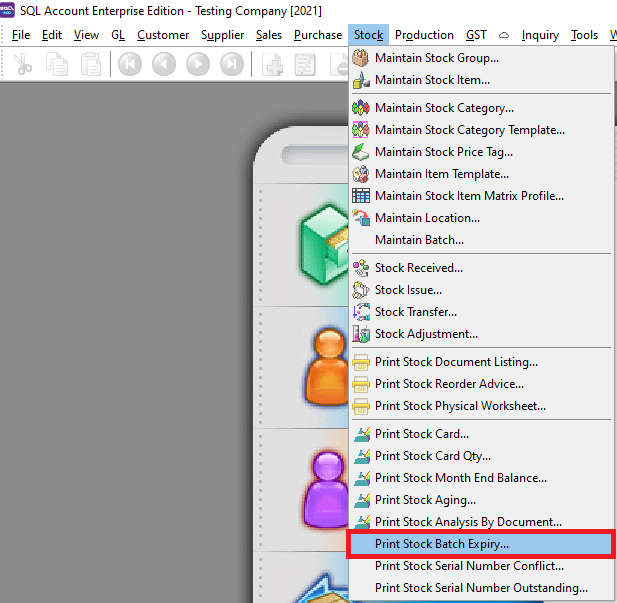
Stock > Print Stock Batch Expiry.
-
Click the Apply button.
-
Click Preview.
-
Example of a stock batch expiry report:
How to Assign a Batch to a Stock Item
-
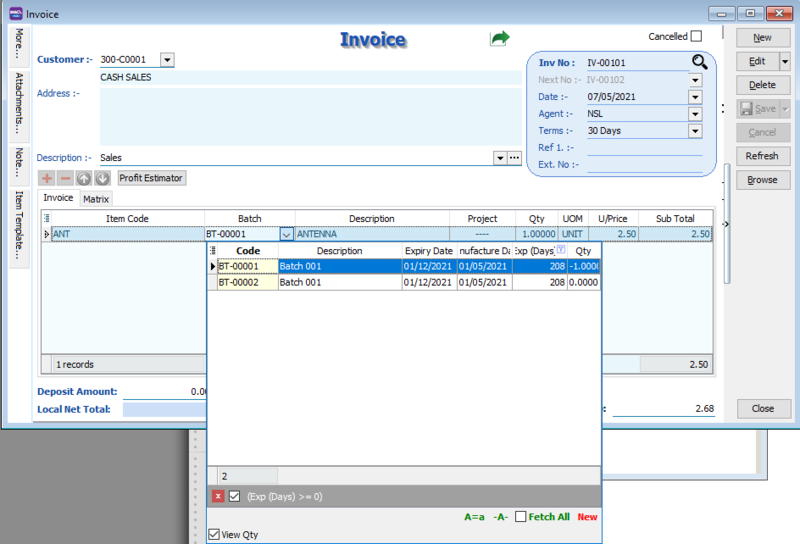
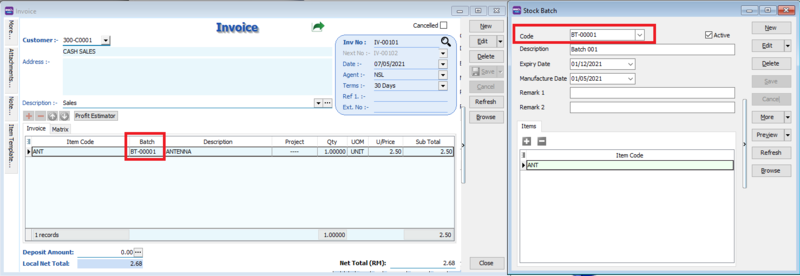
For example, after creating batch codes and assigning items in Maintain Batch, go to Sales Invoice. Select the stock item and then select the batch.
Print Stock Serial Number Conflict
-
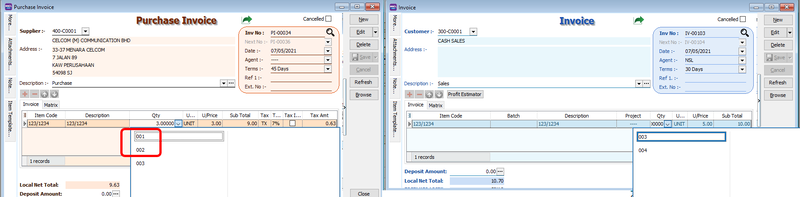
The Print Stock Serial Number Conflict report is used to view:
-
Serial Number (SN) items issued without being received.
-
Duplicate SNs received at the same location and batch.
-
How to Print Stock Serial Number Conflict
-
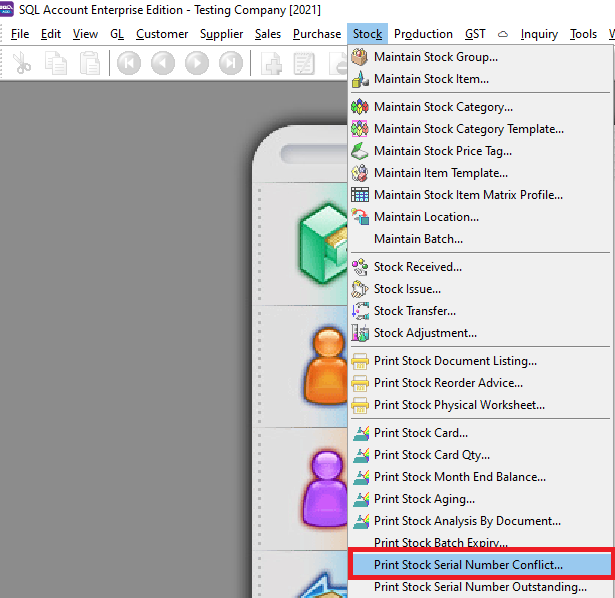
Stock > Print Stock Serial Number Conflict.
-
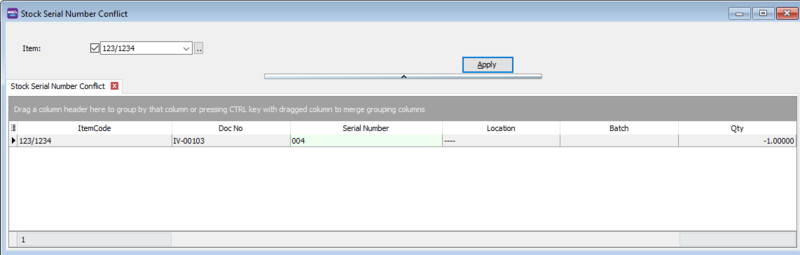
Click the Apply button.
-
Click Preview.
-
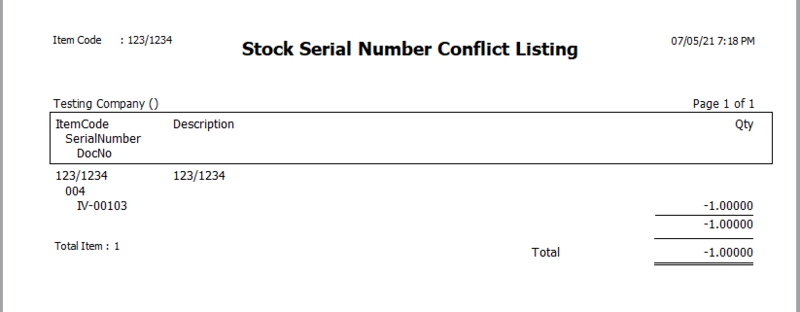
Example of a stock serial number conflict report:
How to Assign a Serial Number to a Stock Item
-
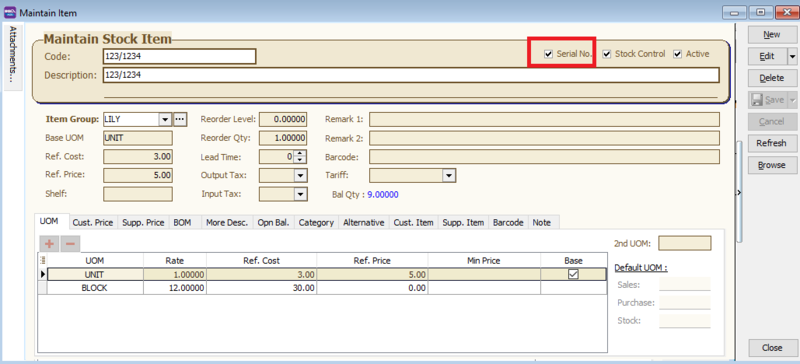
First, go to Maintain Stock Item and tick the Serial No. checkbox.
-
In purchase documents, assign a Serial Number to the stock item. You can enter it manually, import it from a text file, or generate it automatically.
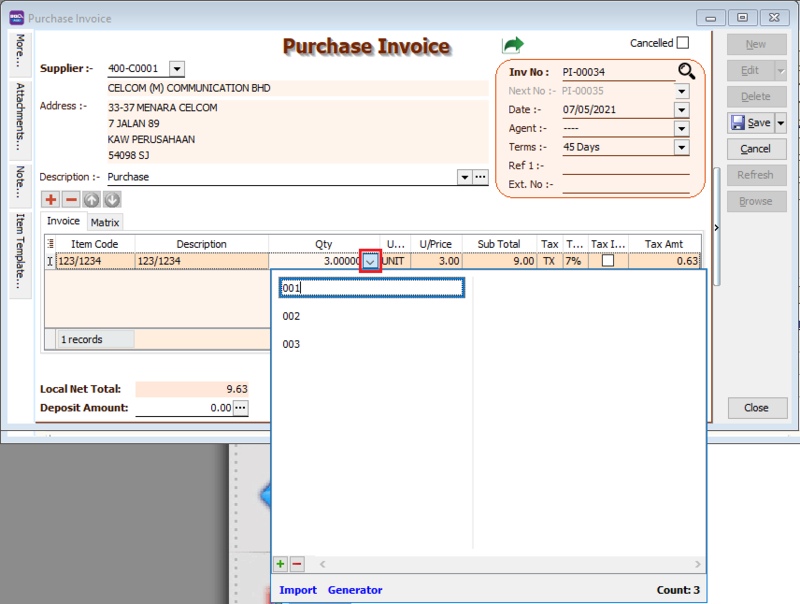
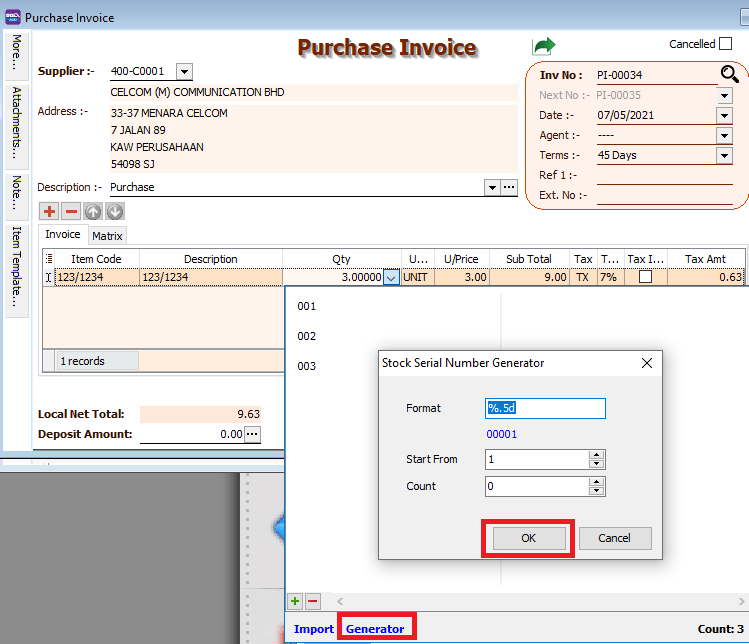
How to Automatically Generate Serial Numbers
- Click the Generator button, set the number format, and click OK.
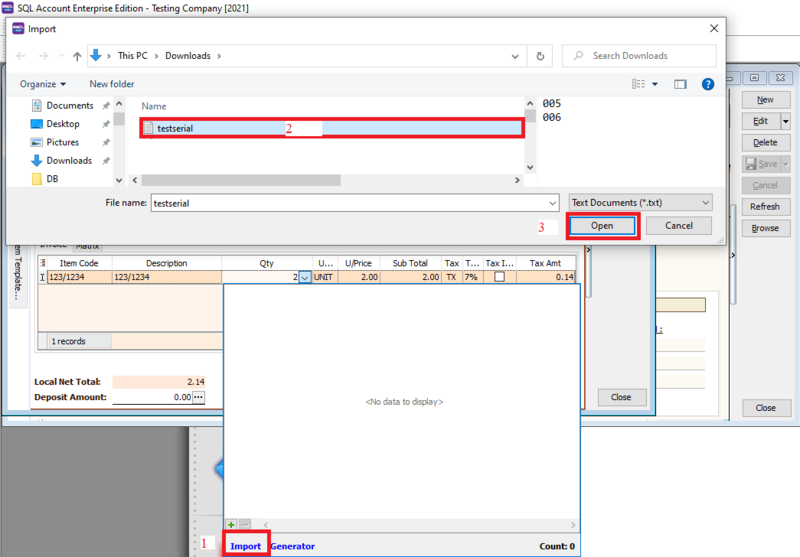
How to Import Serial Numbers from a Text File
-
Click the Import button, select the text file, and click OK.
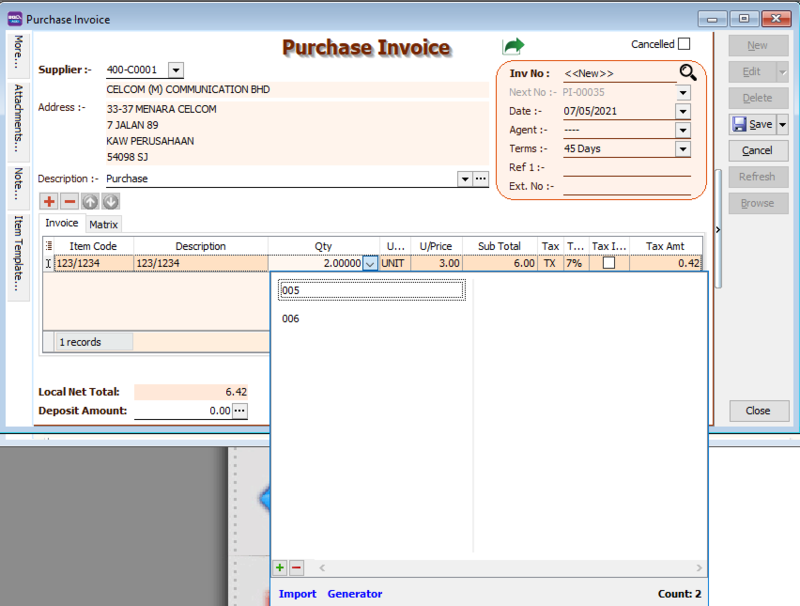
-
The serial numbers will be successfully imported.
Print Stock Serial Number Outstanding
-
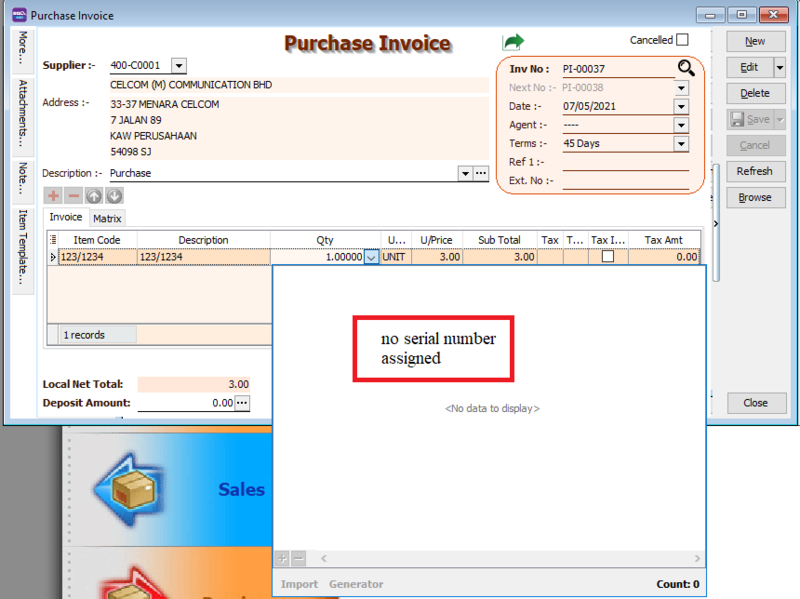
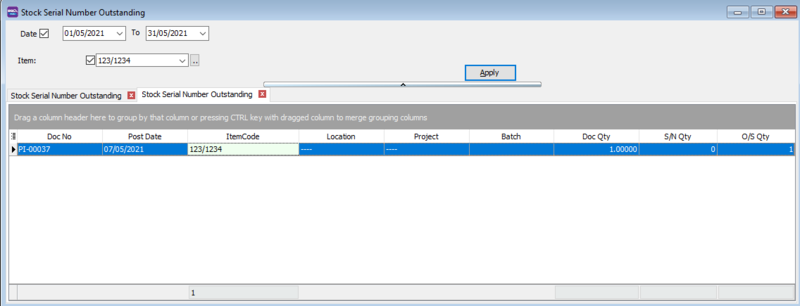
The Print Stock Serial Number Outstanding report checks for purchased stock items that have not been assigned a serial number.
-
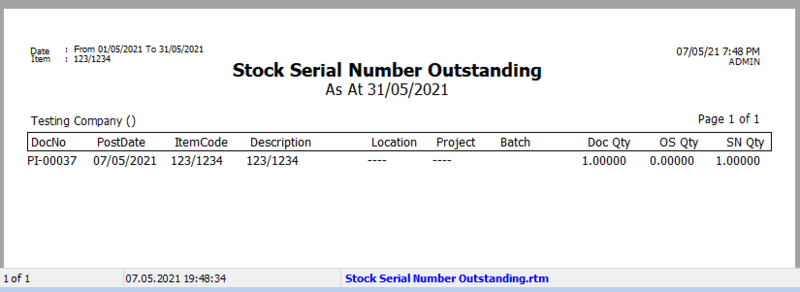
An example of a missing serial number is shown in the purchase invoice below.
How to Print Stock Serial Number Outstanding
-
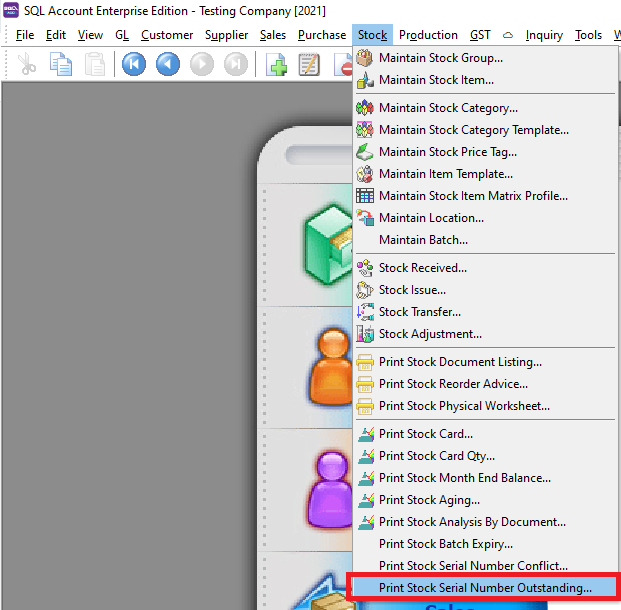
Stock > Print Stock Serial Number Outstanding.
-
Click the Apply button.
-
Click Preview.