Guide
Maintain Stock Group
-
Stock > Maintain Stock Group.
-
It is commonly used to categorize stock based on the following considerations:
- Brandings, e.g., Apple, Sony, Samsung, LG, etc.
- Different costing methods;
- Product types, e.g., raw materials, trading products, manufactured products;
- To report different sales/purchase accounts in the Profit & Loss Statement.
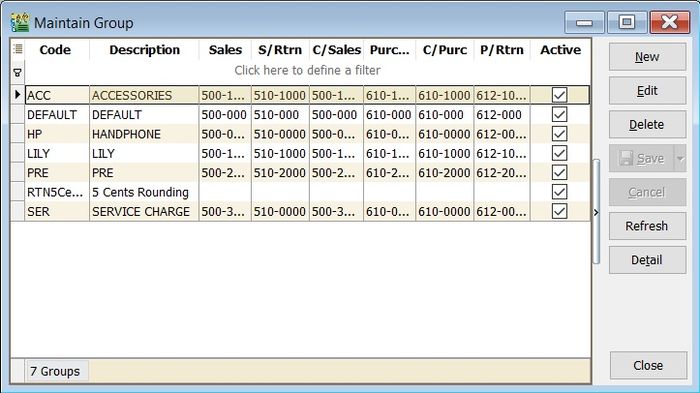
-
The Maintain Stock Group form is shown in the screenshot below.
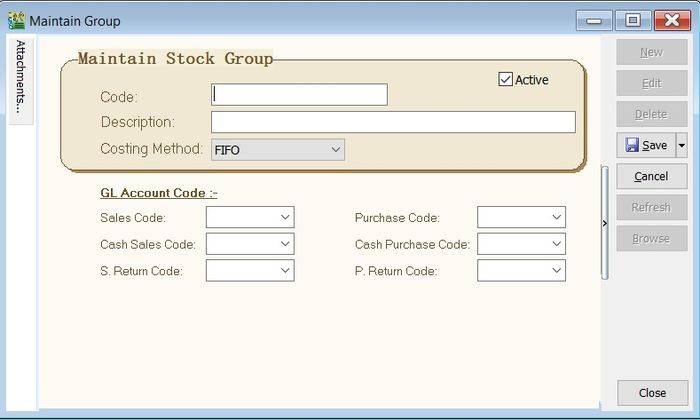
Field Name Explanation & Properties Code • Input the new Stock Group code
• Field type: Alphanumerical
• Length: 20Description • Input the Stock Group description
• Field type: Alphanumerical
• Length: 200Costing Method • Select an appropriate Costing Method for stock valuation
• Options: FIFO, Weighted Average, Fixed CostingSales Code • Select a GL Account for Sales Cash Sales Code • Select a GL Account for Cash Sales S.Return Code • Select a GL Account for Sales Returns Inward Purchase Code • Select a GL Account for Purchase Cash Purchase Code • Select a GL Account for Cash Purchase P.Return Code • Select a GL Account for Purchase Returns Outward
Maintain Stock Item
-
Stock > Maintain Stock Item.
-
Used to set up the stock item list.
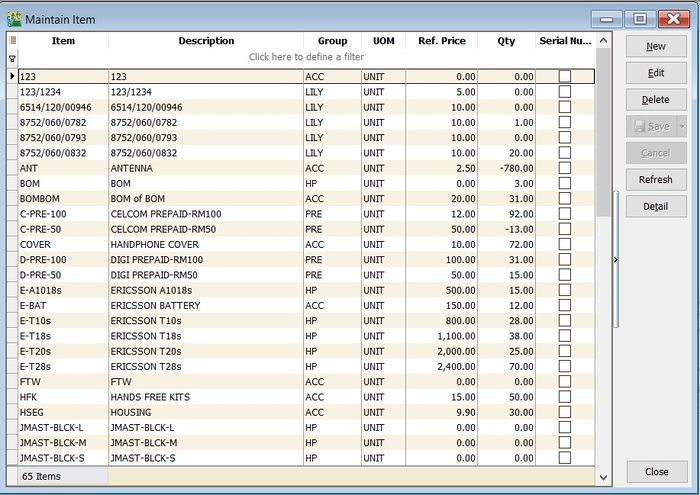
Main Header
-
The Maintain Stock Item entry form is shown in the screenshot below.
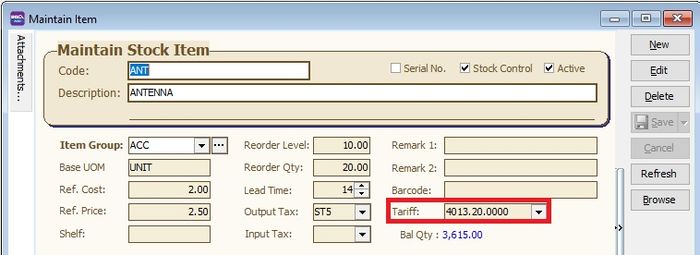
Field Name Explanation & Properties Code • Input the new Stock Code
• Field type: Alphanumerical
• Length: 30Description • Input the Stock Description (This usually appears in most document printouts, e.g., invoices, purchase orders, etc.)
• Field type: Alphanumerical
• Length: 2002nd Description • Input the 2nd Description, e.g., size, alternative product name
• Field type: Alphanumerical
• Length: 200Serial No. • Tick to enable serial control items (Requires Serial Number module)
• Field type: CheckboxStock Control • Tick to enable stock control. The system will check availability to ensure the stock balance does not fall below zero or the reorder level.
• Field type: CheckboxActive • Tick for stock in use
• Untick for discontinued stock
• Field type: CheckboxItem Group • Select an appropriate Stock Group Base UOM • Enter a base UOM for stock valuation, e.g., UNIT Ref. Cost • Enter a standard cost Ref. Price • Enter a standard selling price Shelf • Enter a shelf/rack no., e.g., A-01, A-02, A-03 in location A Reorder Level • Enter a stock reorder level to alert for new orders
• Refer to menu: Stock \ Print Stock Reorder Advice...Reorder Qty • Enter a reorder qty (MOQ) Lead Time • Enter a lead time to receive the goods Output Tax • Enter a default Output Tax Input Tax • Enter a default Input Tax Remark 1 • Free field to enter extra info Remark 2 • Free field to enter extra info Barcode • Enter a barcode (represents base UOM) Tariff • Assign a tariff code
• Lookup from Maintain Tax
• Related Topic: Maintain Customer → Tax Tab, Maintain Supplier → TaxBal Qty • Displays the latest qty balance
UOM
-
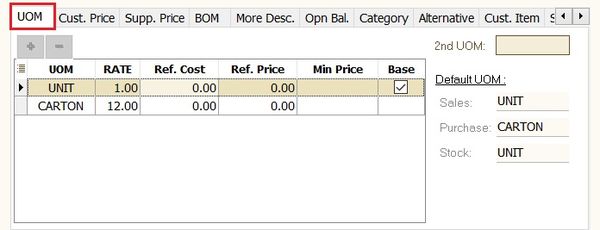
Allows you to set multiple UOMs, e.g., 1 carton = 12 units.
-
Additionally, you can set the default UOM for Sales, Purchase, and Stock entry forms.
-
See the screenshot below.
Cust. Price
-
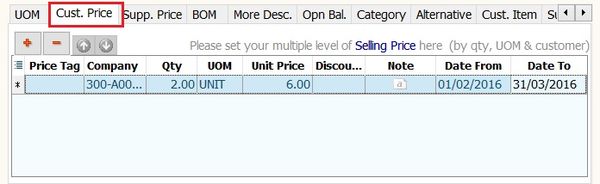
Allows you to set multiple pricing/contract prices for customers.
-
You can use price tags to tag the price for a customer.
-
The Multiple Pricing module is required.
-
See the screenshot below.
Supp. Price
-
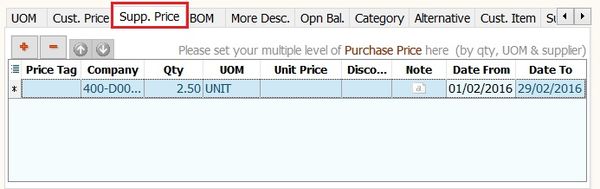
Allows you to set multiple pricing/contract prices for suppliers.
-
You can use price tags to tag the price for a supplier.
-
The Multiple Pricing module is required.
-
See the screenshot below.
- Related Topic : How does the Price Tag work?
Reorder By Location
Reorder Level by Location allows you to set different inventory parameters for the same item at different locations. For each location, you can preset:
- Reorder Level
- Reorder Quantity
- Minimum Quantity
- Maximum Quantity
- Shelf
- Lead Time
This gives you greater flexibility to manage stock levels based on the specific requirements of each location.

Please refer to Reorder Level by Location for setup instructions.
BOM
-
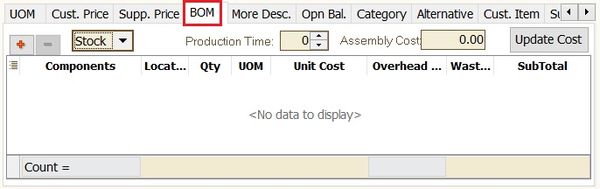
Allows you to set up recipes/ingredients for a manufactured product.
-
The Bill of Materials module is required.
-
See the screenshot below.
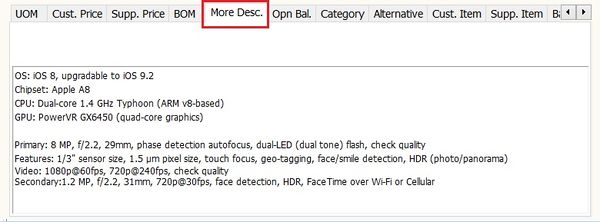
More Desc
-
Enter the product details or specifications.
-
See the screenshot below.
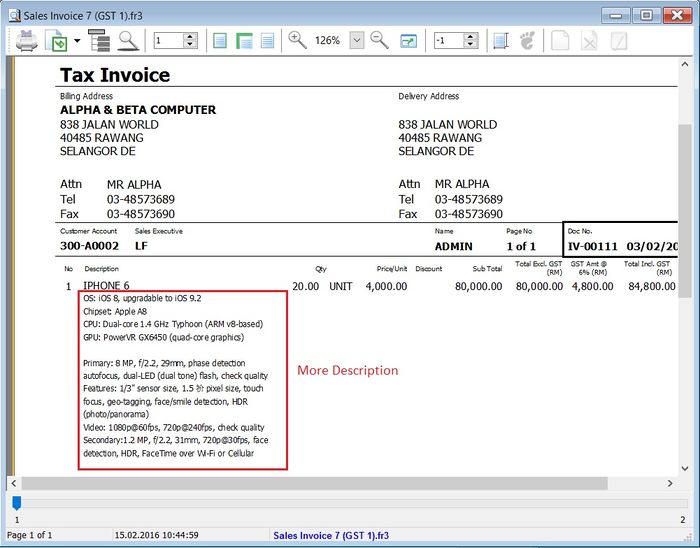
Tips: Example view from Sales Tax Invoice:
Opn Bal
-
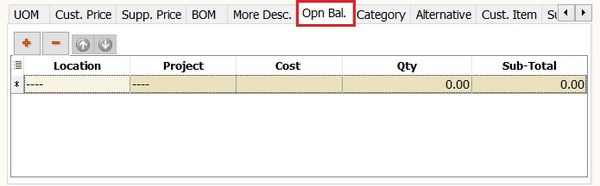
Used to enter the opening stock quantity and value balances.
Category
-
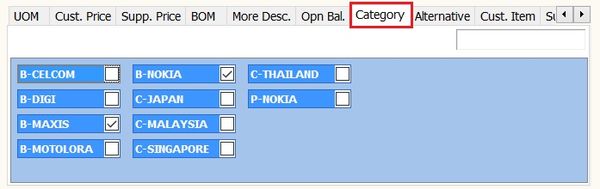
Used to set multiple stock categories for reporting purposes, e.g., country of origin, brands, etc.
-
See the screenshot below.
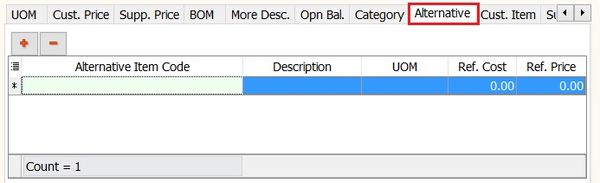
Alternative
-
Enables you to identify alternative items for replacement.
Cust. Item
-
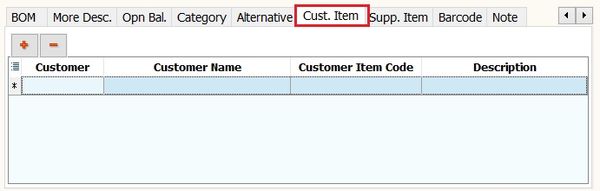
Used to enter the customer item code and description.
-
The purpose is to search for or print the customer item code and description in a tax invoice instead of using the original item description.
Supp. Item
-
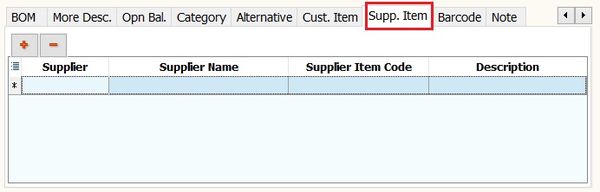
Used to enter the supplier item code and description.
-
The purpose is to search for or print the supplier item code and description in a purchase invoice instead of using the original item description.
Barcode
-
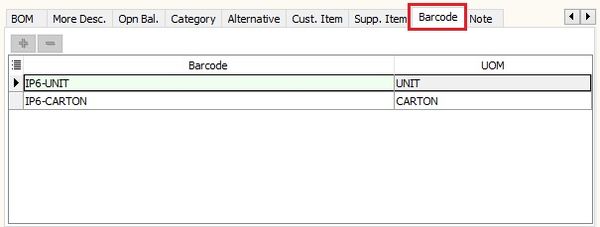
Used to enter the barcode for different UOMs.
-
See the screenshot below.
Note
-
Other stock information.
Field Name Explanation & Properties Item Creation Date • Item creation date.
• Field type: DateItem Matrix • Requires Stock Matrix module.
• Field type: LookupMin Qty • Enter the minimum qty.
• Field type: FloatMax Qty • Enter the maximum qty.
• Field type: FloatPicture • Load a product picture.
• Recommended picture size (jpg or jpeg) less than 16kb.
• Field type: PictureNote • Enter additional product information for internal view.
• Field type: Rich Text -
See the screenshot below.
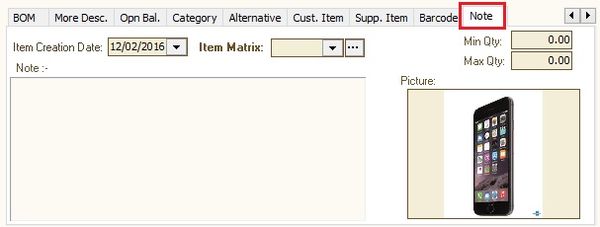
Note: Do not load pictures larger than 16kb to avoid excessive database growth.
Maintain Stock Category
-
It can be used to further categorize stock besides the stock group.
-
It allows you to set multiple stock categories for a stock item code.
-
Commonly used for:
- Brandings, e.g., Apple, Sony, Samsung, LG, etc.
- Country of origin.
- Product types, e.g., raw materials, trading products, manufactured products.
-
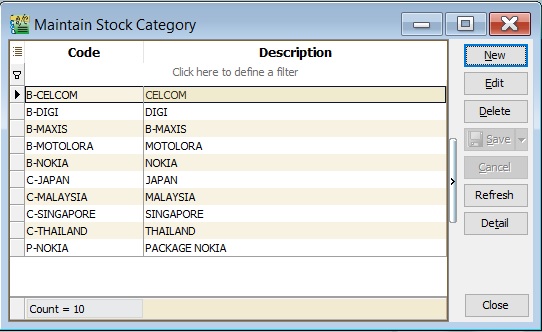
Stock > Maintain Stock Category.
-
The Maintain Stock Category form is shown in the screenshot below.
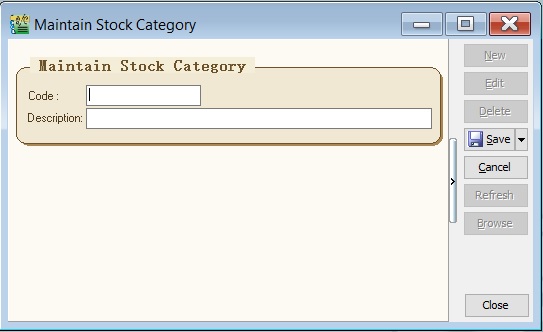
Field Name Explanation & Properties Code • Input the new Stock Category code.
• Field type: Alphanumerical
• Length: 15Description • Input the Stock Category description.
• Field type: Alphanumerical
• Length: 200
Maintain Stock Category Template
-
It pre-defines the conditions for Stock Category use in reports.
-
It allows you to set conditions using AND or OR for stock categories.
-
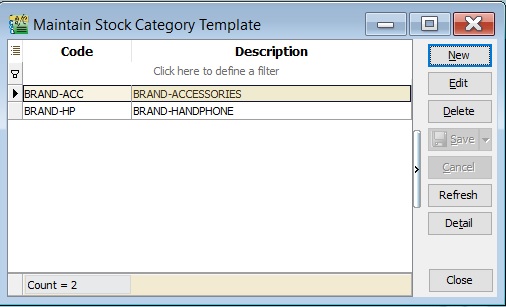
Stock > Maintain Stock Category Template.
-
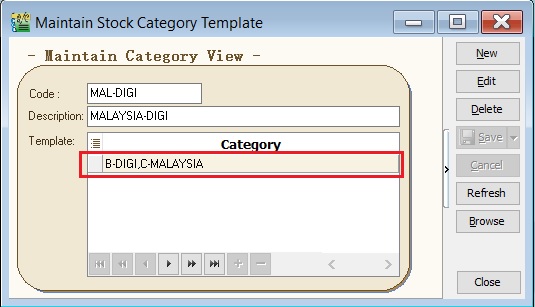
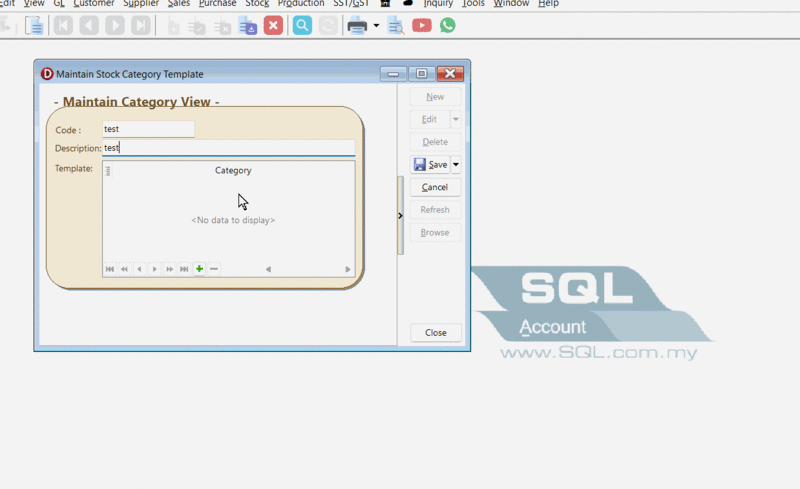
The Maintain Stock Category Template form is shown in the screenshot below.
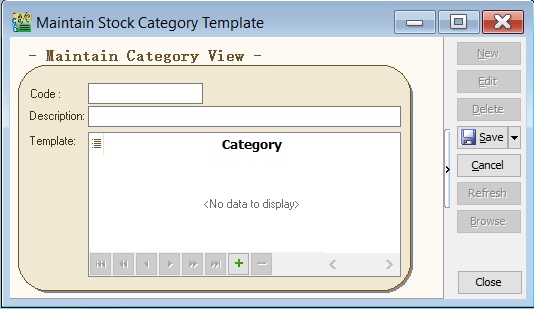
Field Name Explanation & Properties Code • Input the new Stock Category code.
• Field type: Alphanumerical
• Length: 15Description • Input the Stock Category description.
• Field type: Alphanumerical
• Length: 200Template • Used to set pre-defined conditions for stock categories.
How To Set The Template
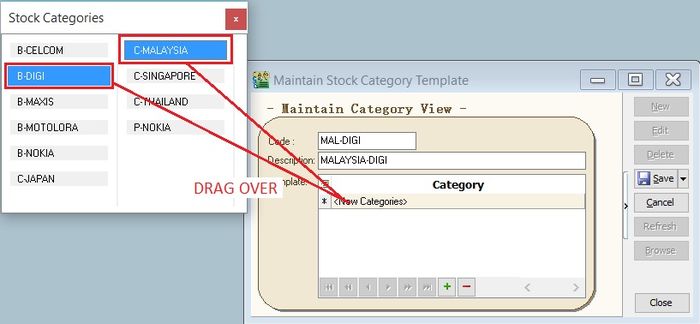
- Use OR condition
-
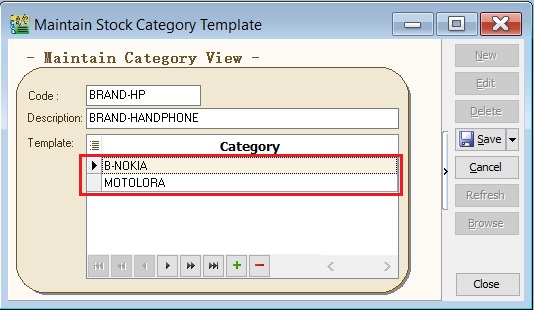
In the Maintain Category View, click the + sign.
-
Drag the selected stock category into the blank line.
-
You will see the stock category added to the template list as shown in the screenshot below.
- Use AND condition
-
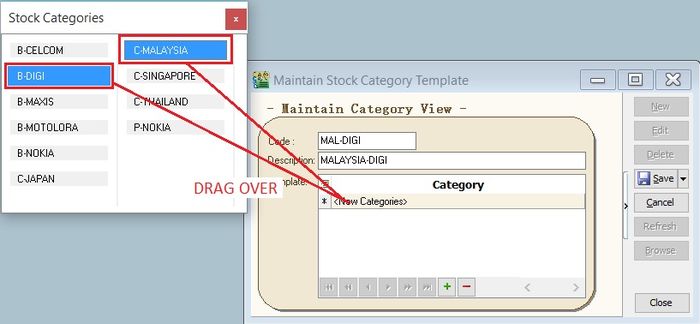
In the Maintain Category View, click the + sign.
-
Select multiple stock categories (Hold CTRL + click on stock category).
-
Drag the selected stock categories into the blank line.
-
You will see the stock categories added to the template list as shown in the screenshots below.
Maintain Item Template
-
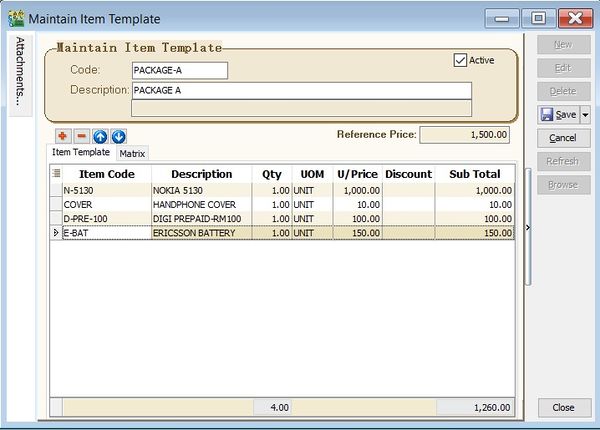
It is usually used for sets or package items.
-
You can create a template consisting of selected items to use in Sales, Purchase, or Stock documents.
-
Stock > Maintain Item Template.
-
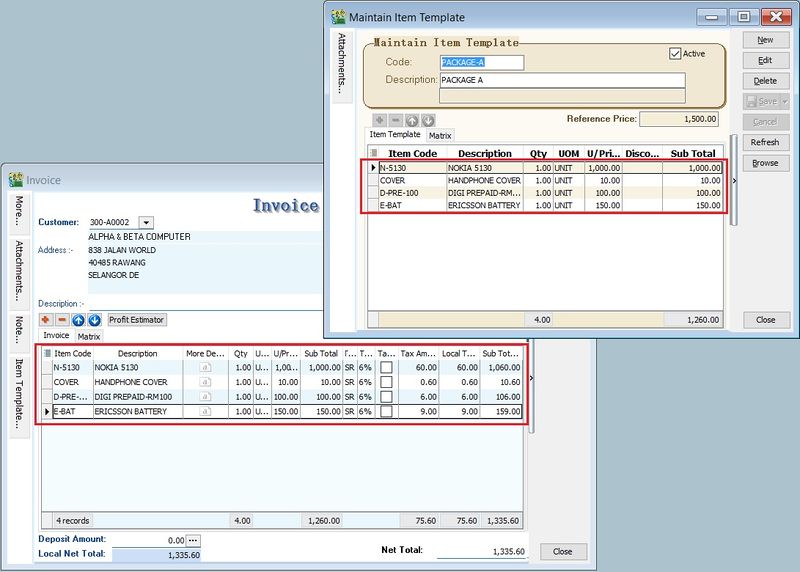
The Maintain Item Template form is shown in the screenshot below.
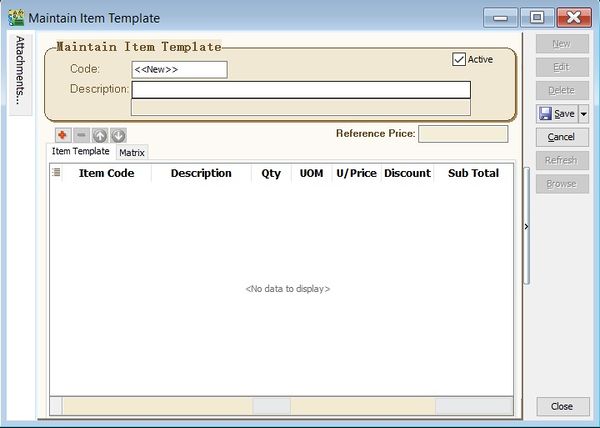
Field Name Explanation & Properties Code • Input the new Item Template code.
• Field type: Alphanumerical
• Length: 20Description • Input the Item Template description.
• Field type: Alphanumerical
• Length: 200Description 2 • Input the Item Template description 2.
• Field type: Alphanumerical
• Length: 200Reference Price • Input the Reference Selling Price.
• Field type: FloatItem Template • Insert the item details. Matrix • Used to load the Matrix profile.
• Requires Stock Matrix module.
How to Use The Template
-
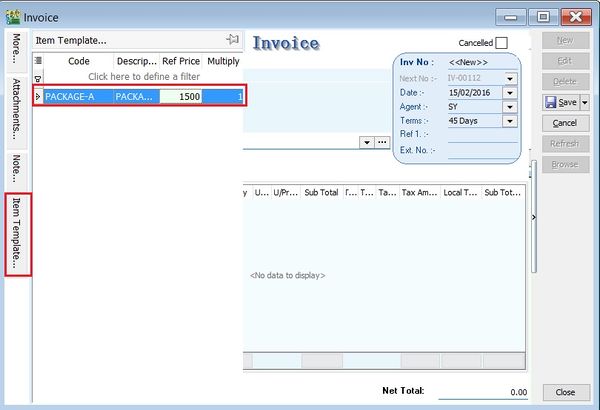
For example, in a Sales Invoice, click on Item Template in the left sidebar.
-
Double-click on the Item Template. See the screenshot below.
-
The list of items is updated in the Sales Invoice details. See the screenshot below.
Maintain Item Matrix Profile
-
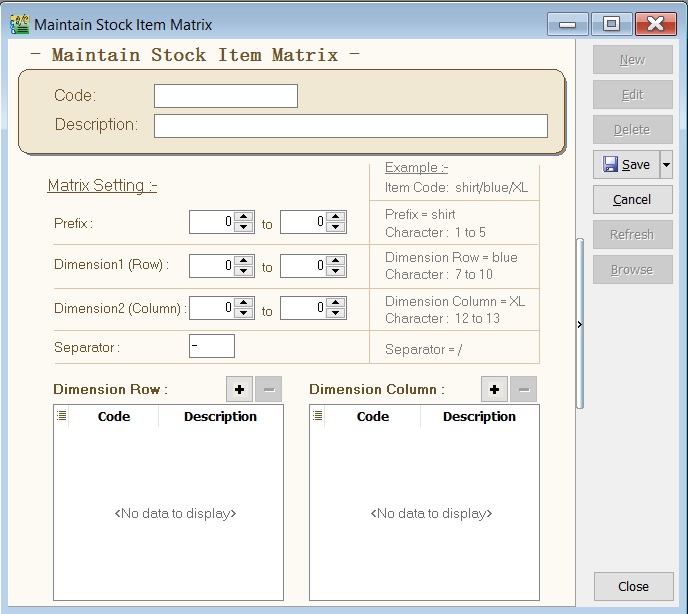
It is commonly used to organize coding requirements for generating item codes. It is frequently used in industries such as apparel, footwear, and electronics.
-
Stock > Maintain Stock Item Matrix Profile.
-
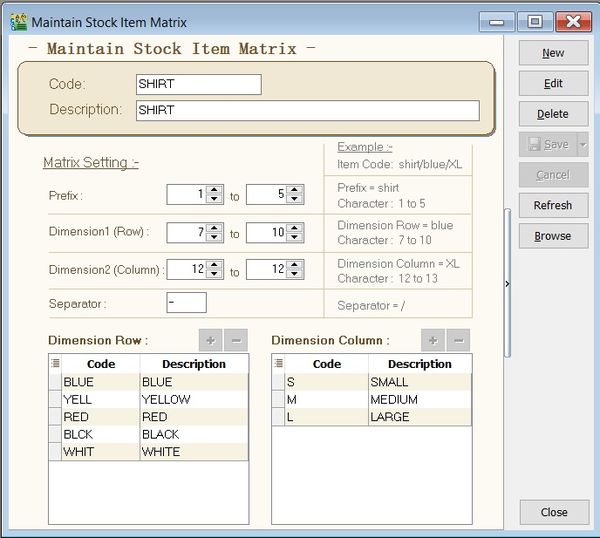
Example of stock item matrix settings to generate T-shirt codes with different sizes and colors.
-
See the requirement settings as shown in the screenshot below.
-
Matrix settings:
Matrix Setting Length Code Note Prefix 1 - 5 5 Enter a prefix when generating the item code. Dimension 1 (Row) 7 - 10 4 BLUE
YELL
BLCK
WHIT
RED_Preset code list. Dimension 2 (Column) 12 - 13 1 _S
_M
_L
XLPreset code list. Separator - 1 A separator between the prefix, dimension row, and column.
Note: Code length must consistently follow the Matrix Settings, especially for Dimension 1 (Row) and 2 (Column).
How It Works
Generate Matrix Item Code
-
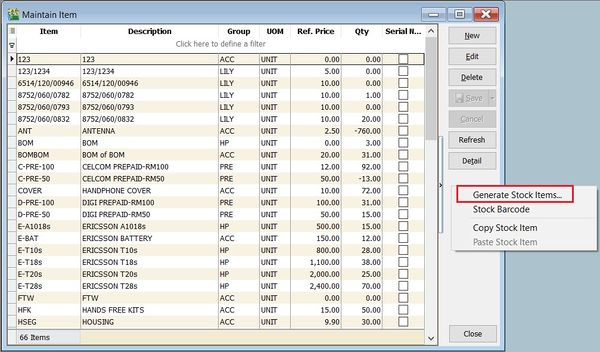
Go to Maintain Stock Item.
-
Right-click the area below the Detail button.
-
Click on Generate Item Code. See the screenshot below.
-
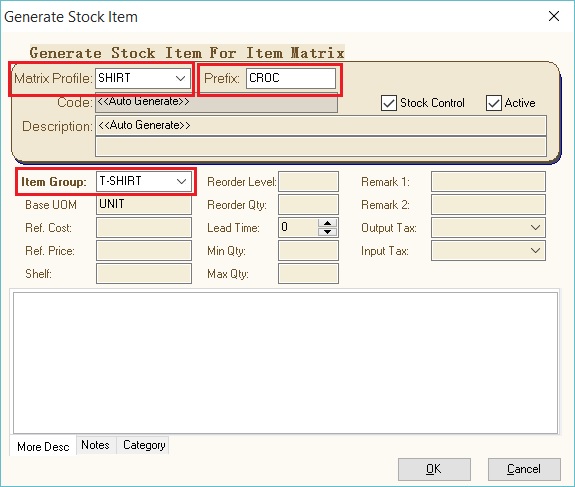
Select the Matrix Profile, e.g., SHIRT.
-
Enter a Prefix, e.g., CROC.
-
Select an Item Group, e.g., T-Shirt.
-
Press OK to start generating.
-
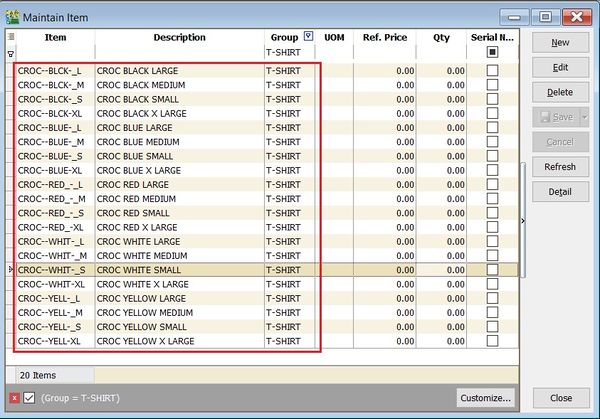
List of CROC item codes created in Maintain Stock Item.
Generate Invoice Using Matrix
-
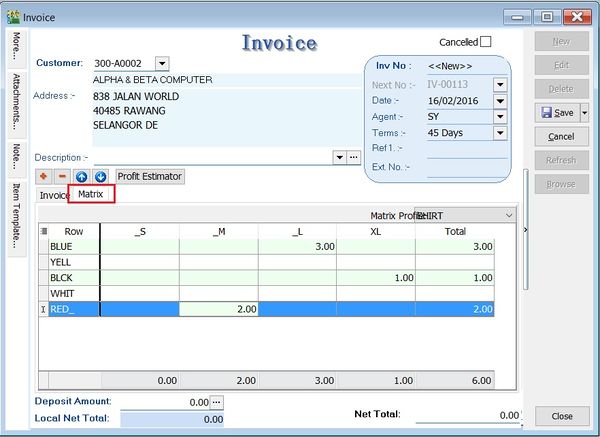
In a Sales Invoice, select one of the prefix item codes, e.g., CROC.
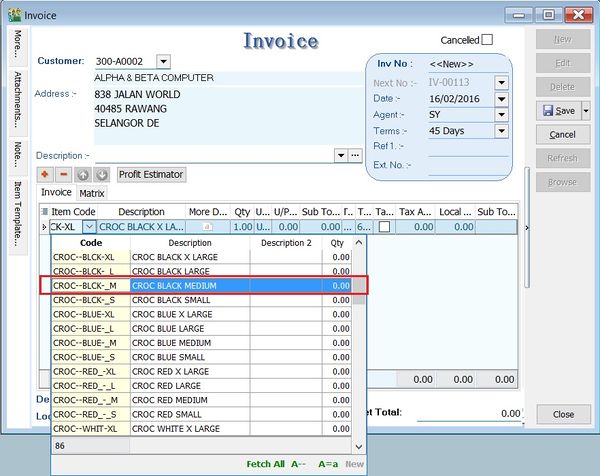
-
Click on the Matrix tab. You can start entering the quantity in the dimension row and column.
-
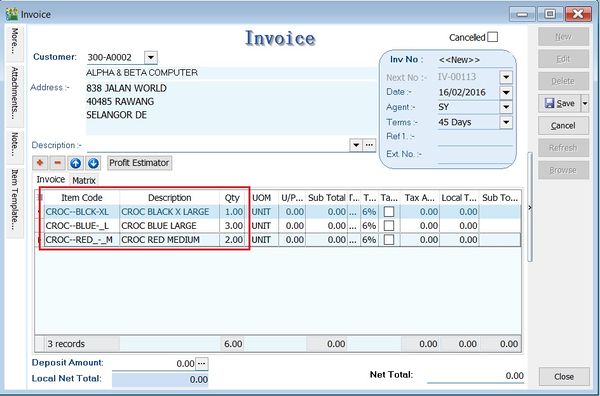
Click back to the Invoice tab. The item code will be inserted automatically.
Maintain Location
-
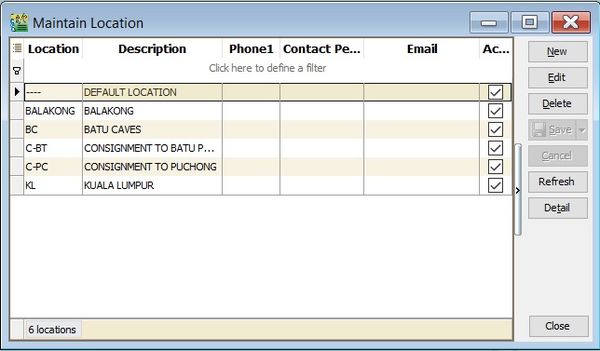
It is used for warehouses, inter-branch transfers, consignment, van sales, etc.
-
The Multiple Location (Warehouse) module is required.
-
Stock > Maintain Location.
-
The Maintain Location form is shown in the screenshot below.
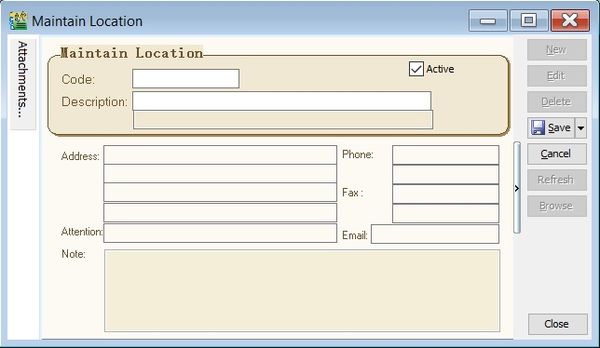
Field Name Explanation & Properties Code • Input the new Location code.
• Field type: Alphanumerical
• Length: 20Description • Input the Location description.
• Field type: Alphanumerical
• Length: 200Description 2 • Input the Location description 2.
• Field type: Alphanumerical
• Length: 200Address Line 1 • Input the Location Address Line 1.
• Field type: Alphanumerical
• Length: 60Address Line 2 • Input the Location Address Line 2.
• Field type: Alphanumerical
• Length: 60Address Line 3 • Input the Location Address Line 3.
• Field type: Alphanumerical
• Length: 60Address Line 4 • Input the Location Address Line 4.
• Field type: Alphanumerical
• Length: 60Attention • Input the contact person's name.
• Field type: Alphanumerical
• Length: 70Phone 1 • Input Phone 1.
• Field type: Alphanumerical
• Length: 30Phone 2 • Input Phone 2.
• Field type: Alphanumerical
• Length: 30Fax 1 • Input Fax 1.
• Field type: Alphanumerical
• Length: 30Fax 2 • Input Fax 2.
• Field type: Alphanumerical
• Length: 30Email • Input the Email.
• Field type: Alphanumerical
• Length: 200ISACTIVE • Set the location to Active or Inactive.
• Field type: CheckboxNote • Input an additional note to describe the location.
• Field type: Rich TextAttachments • Insert attachment files, such as Excel, PDF, pictures, etc.
Maintain Batch
-
Batch numbers are very useful and widely explored for alternative usage. Common usages include:
- Tracing goods purchased from suppliers;
- Tracing which production batch returned goods come from;
- Differentiating the costing of products;
-
Stock > Maintain Batch.
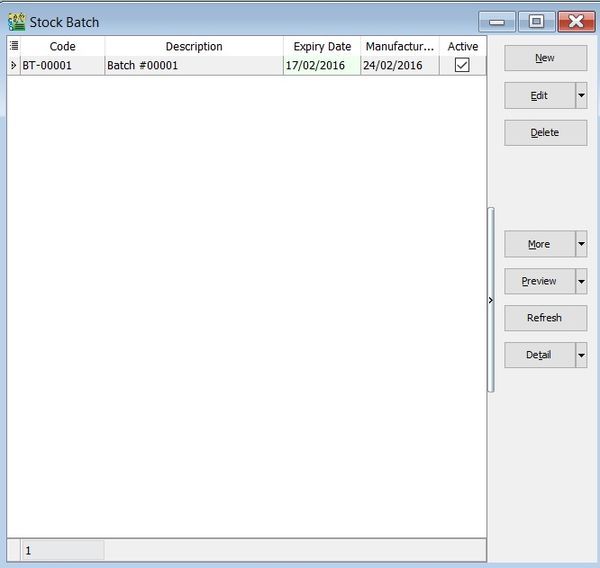
-
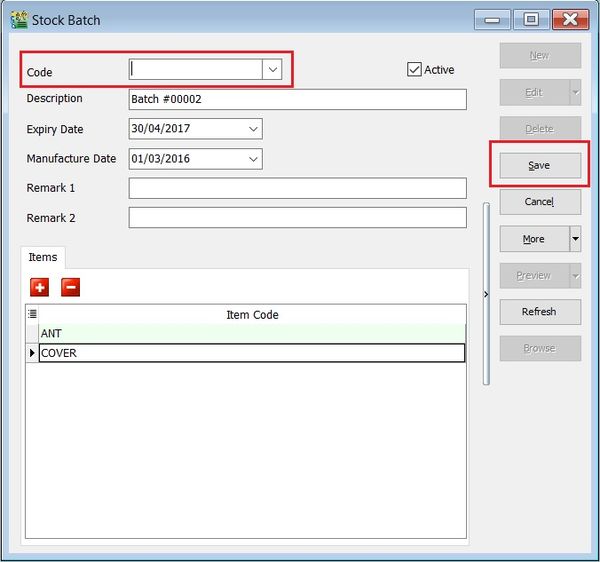
Fill in the batch details. See the screenshot below.
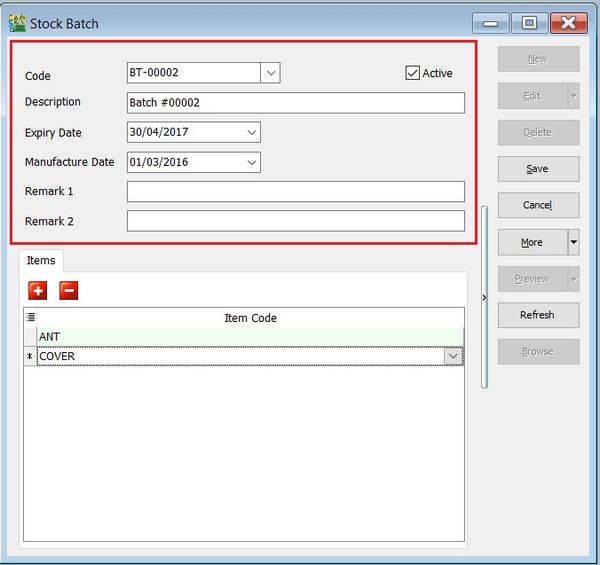
Field Name Explanation & Properties Code • Input the new Batch code.
• Field type: Alphanumerical
• Length: 30Description • Input the Batch description.
• Field type: Alphanumerical
• Length: 160Expiry Date • Set an Expiry Date.
• Field type: DateManufacturing Date • Set a Manufacturing Date.
• Field type: DateRemark 1 • Free field.
• Field type: Alphanumerical
• Length: 200Remark 2 • Free field.
• Field type: Alphanumerical
• Length: 200ISACTIVE • Set the batch to Active or Inactive.
• Field type: Checkbox -
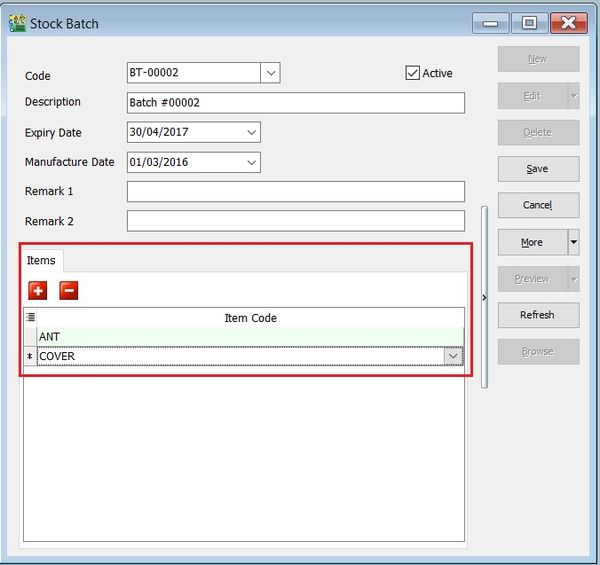
You can choose to lock a stock item to a batch number. The purpose is to prevent other users from assigning the wrong batch number to an item code.
Copy & Paste Function
Append to an Existing Batch Number
-
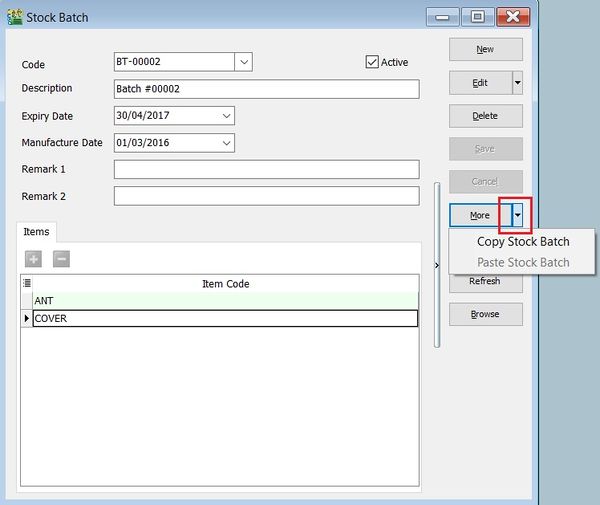
Click on More (down arrow).
-
Select Copy Stock Batch.
-
Click on New.
-
Click on More (down arrow).
-
Select Paste Stock Batch.
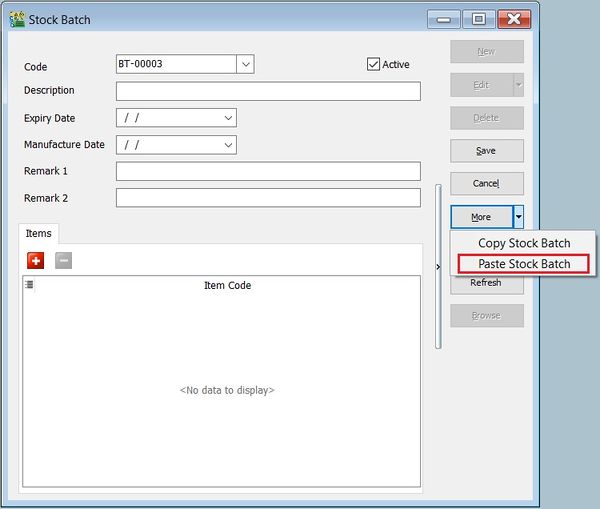
-
The batch code is copied and will be pasted into the new batch code.
-
Append to the batch code and save it.
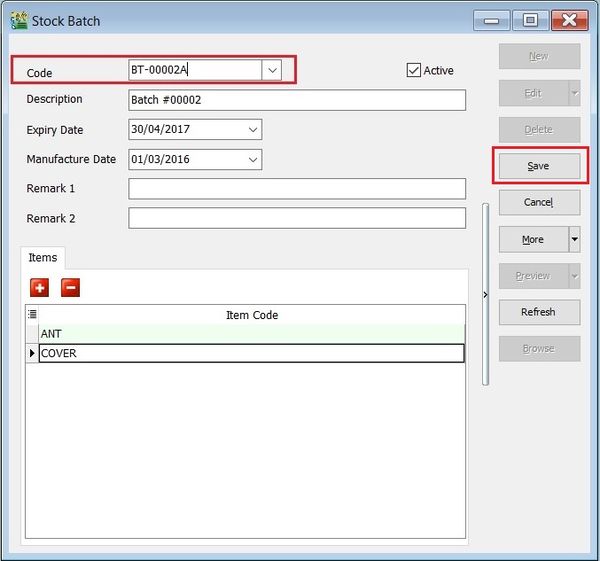
New Batch Number
-
Click on More (down arrow).
-
Select Copy Stock Batch.
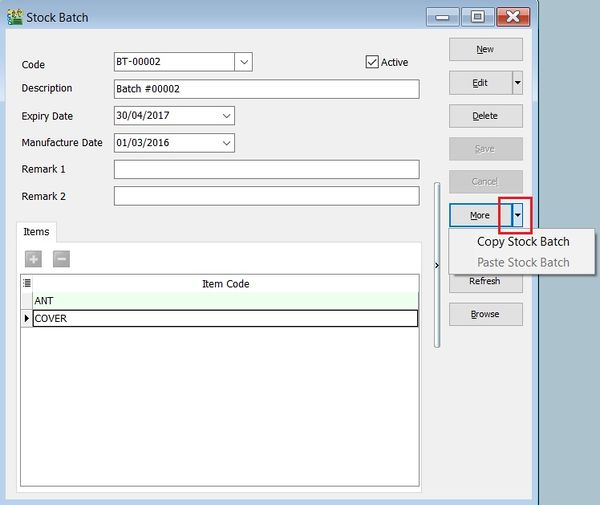
-
Click on New.
-
Click on More (down arrow).
-
Select Paste Stock Batch.
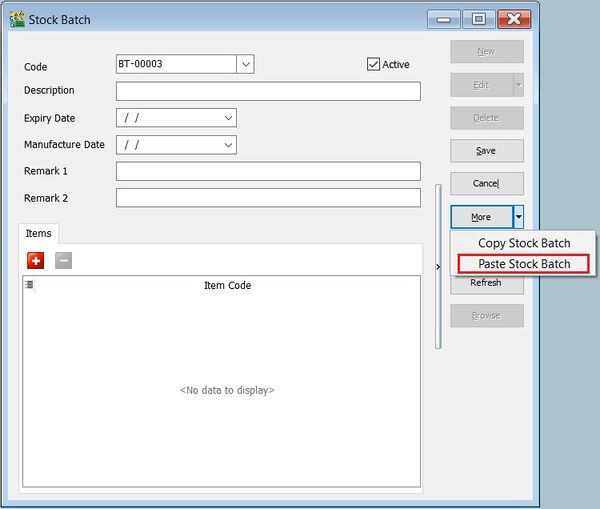
-
The batch code is copied and will be pasted into the new batch code.
-
Remove the batch number.
-
Click on Save. The system will assign a new batch number automatically.
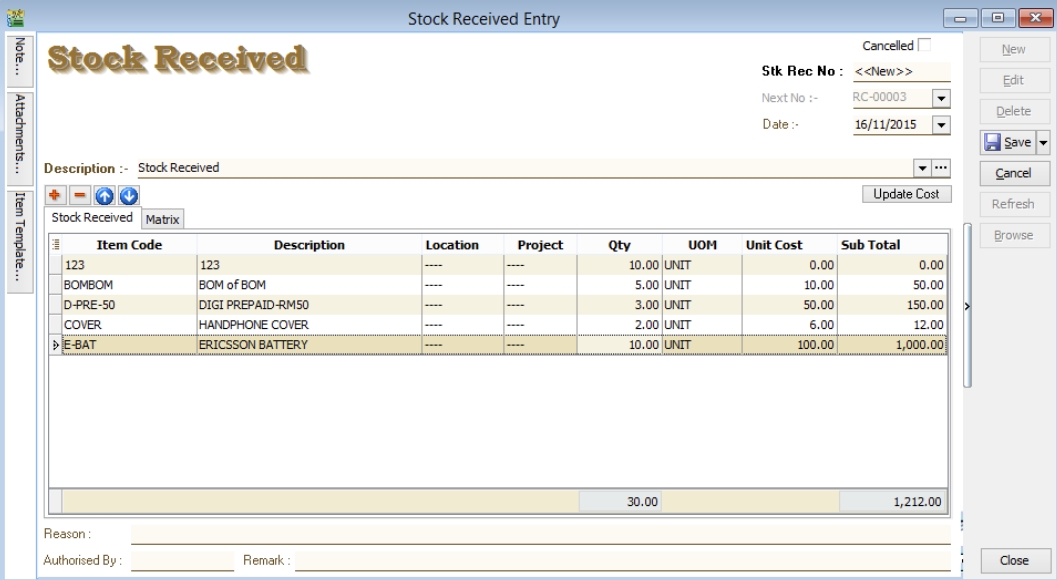
Stock Received
Allows users to increase stock quantity without a purchase. It is normally used when you have assembled or manufactured finished goods. Simply enter the item code, quantity IN, and the cost.
-
Stock > Stock Received > New.
Stock Issue
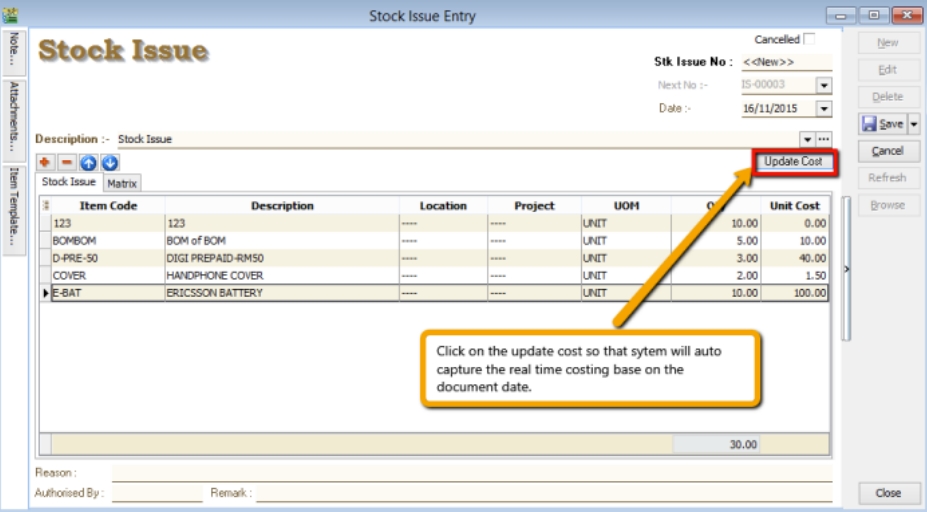
Allows users to decrease stock quantity without a sale. It is normally used when you consume raw materials during assembly, when manufacturing finished goods, or for internal usage. Simply enter the item code, quantity OUT, and the cost. You can also click Update Cost, and the system will automatically detect the actual cost based on the document date.
-
Stock > Stock Issue > New.
Stock Transfer
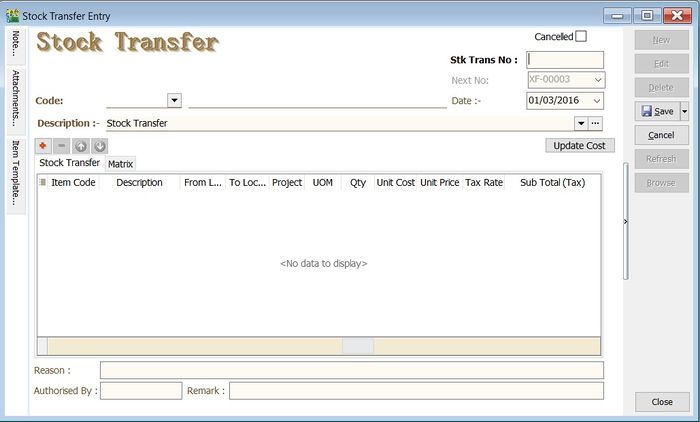
Stock Transfer is an entry used to handle stock movement from one location to another, e.g., from Location A to Location B. Common usages include:
-
Consignment stock;
-
Van sales locations representing vans;
-
Inter-branch transfers;
-
Goods in transit;
-
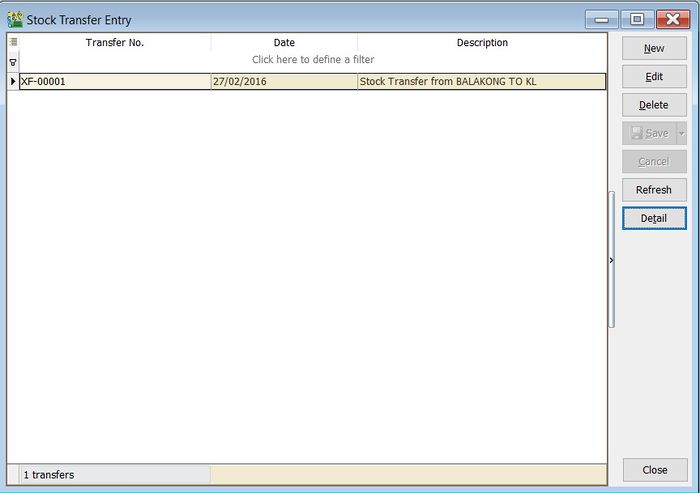
Click on New.
-
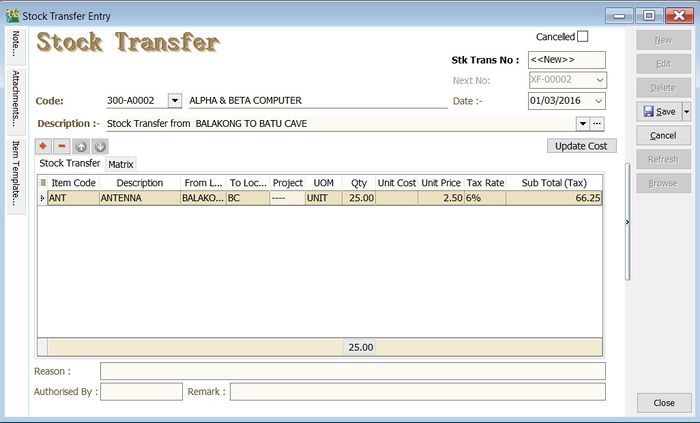
Enter a Description to describe the stock transfer entry, e.g., "Stock Transfer from BALAKONG TO BATU CAVE".
-
Add the items to be transferred.
-
You may enter a reason, remark, and authorized by for future reference.
-
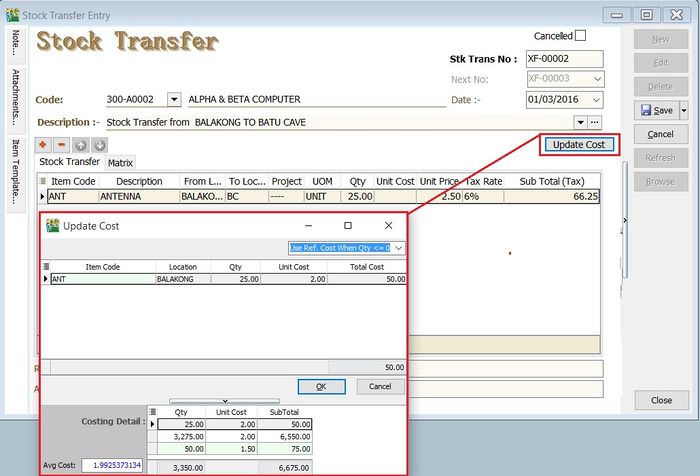
Click on Save to commit the stock movement between locations.
-
In some circumstances, you may need to select a customer code and enter the unit price, tax code, tax amount, and subtotal for consignment sales.
Update Cost
-
You can update the unit cost by clicking the Update Cost button.
-
The system will retrieve the unit cost for each item based on the update cost method. These methods are:
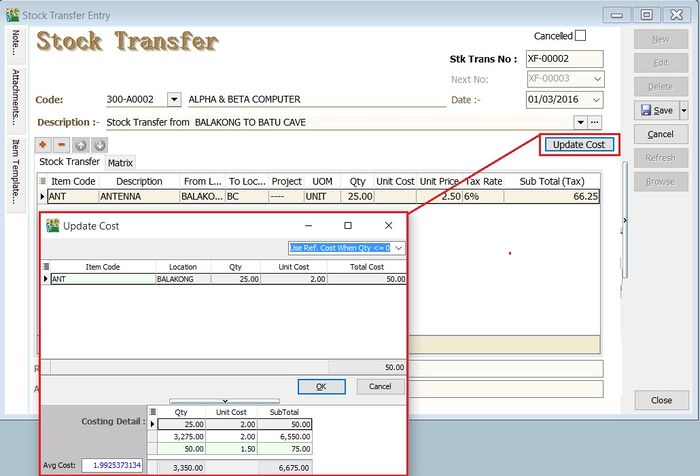
No. Update Cost Method Explanation 1 Use Ref. Cost When Qty <= 0 (default) If the quantity balance is below 0, the unit cost will be updated with the Reference Cost from Maintain Stock Item. 2 Use Strict Costing The unit cost is calculated from the Costing Method set in Maintain Stock Group. 3 Use Serial Number Costing The unit cost will be based on the serial number.
Stock Adjustment
Check out our new stock take app
Allows users to enter quantity in and quantity out in the system, similar to a combination of stock received and stock issue. It is normally used for stock take purposes. (Stock > Stock Adjustment > New)
Watch tutorial video here: youtube
-
Click on Stock
-
Choose Print Stock Physical Worksheet
-
Filter by date, stock group or others information that you want to do for the stock take, please make sure that you choose the correct location and batch if you have these two modules.
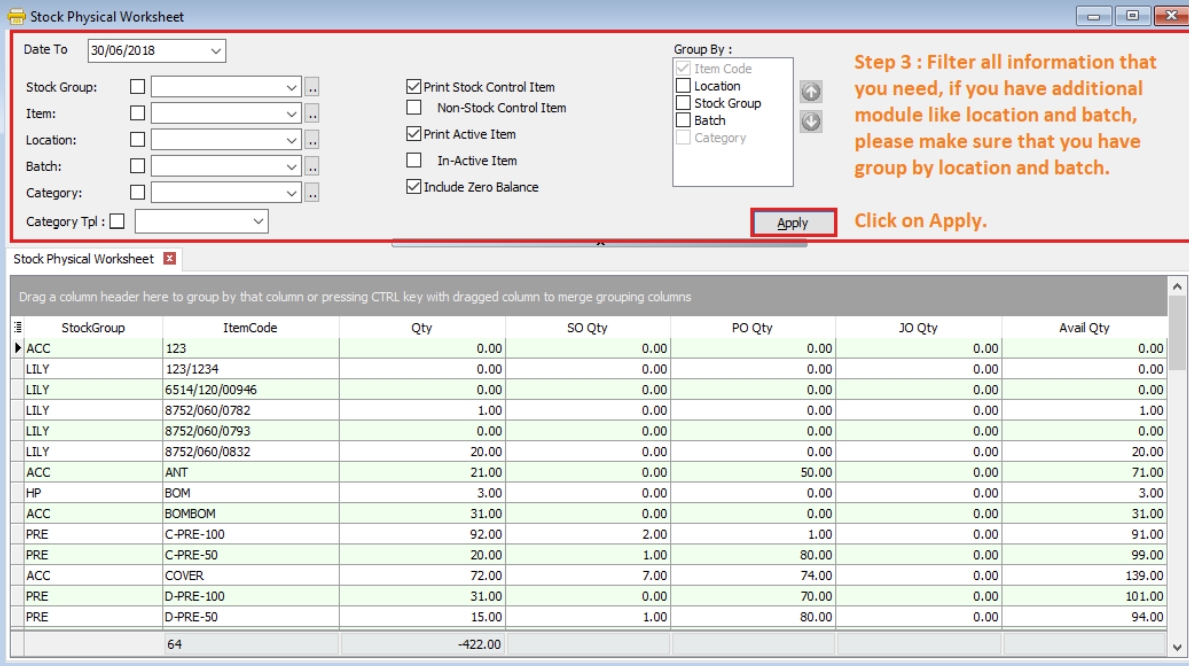
-
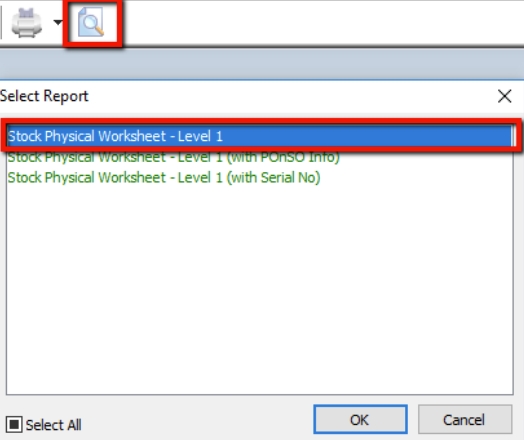
Click on Preview & choose your report format.
-
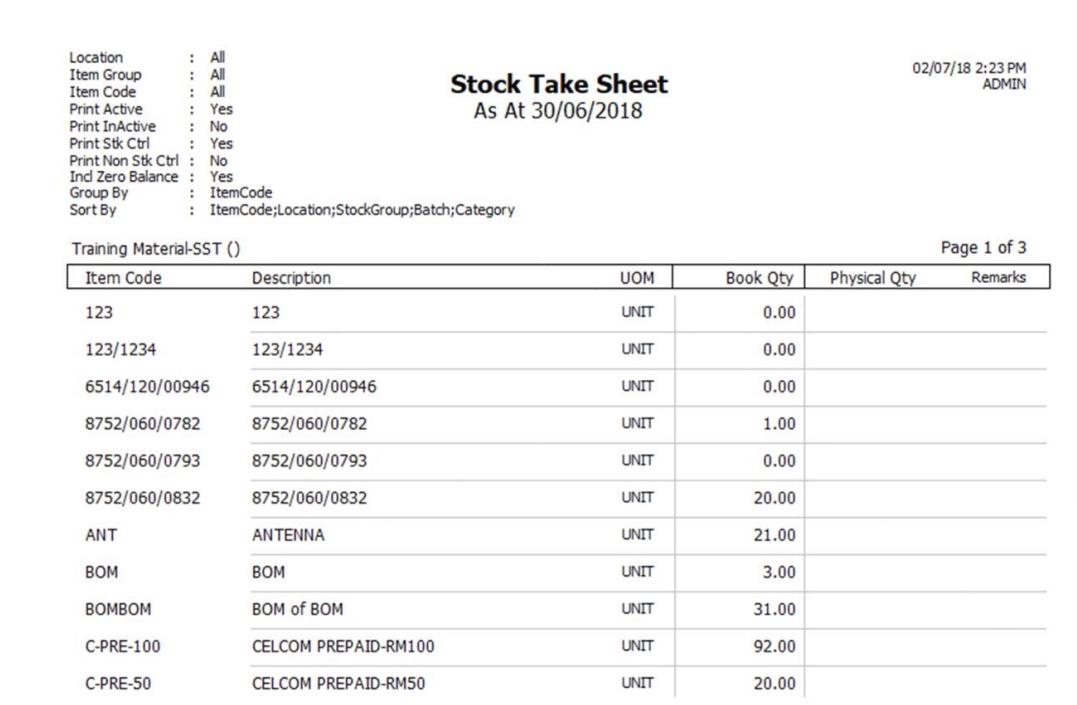
Print out the “Stock Take Sheet” for stock keeper.
The stock keeper should manually fill in the actual quantity into the “physical qty” column.
-
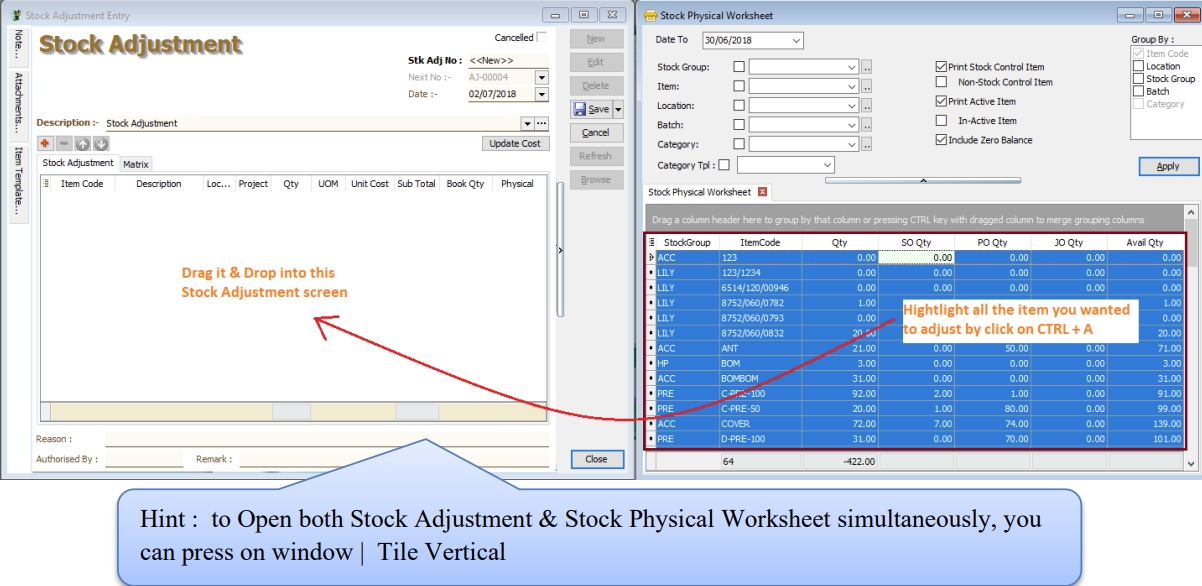
After complete updating the stock take report by your stock-keeper, do your stock adjustment in system from Stock > Stock Adjustment > and drag out Book Qty and Physical Qty.
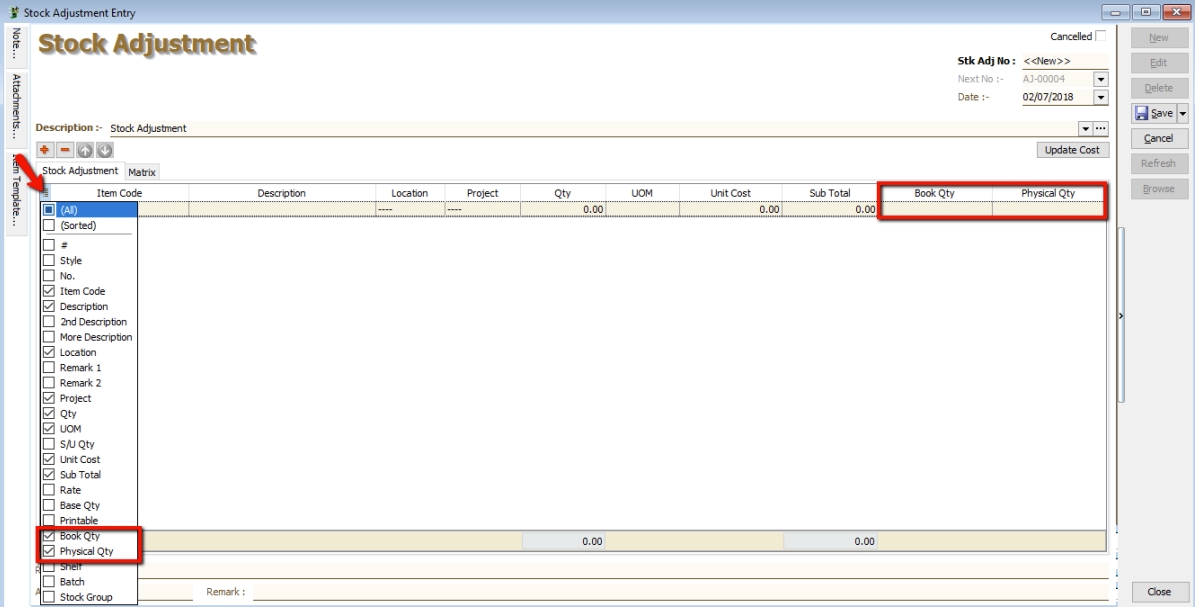
-
Click on the first item in Stock Physical Worksheet, press on Ctrl + A on the keyboard to select all items.
Then Drag & Drop into Stock Adjustment.
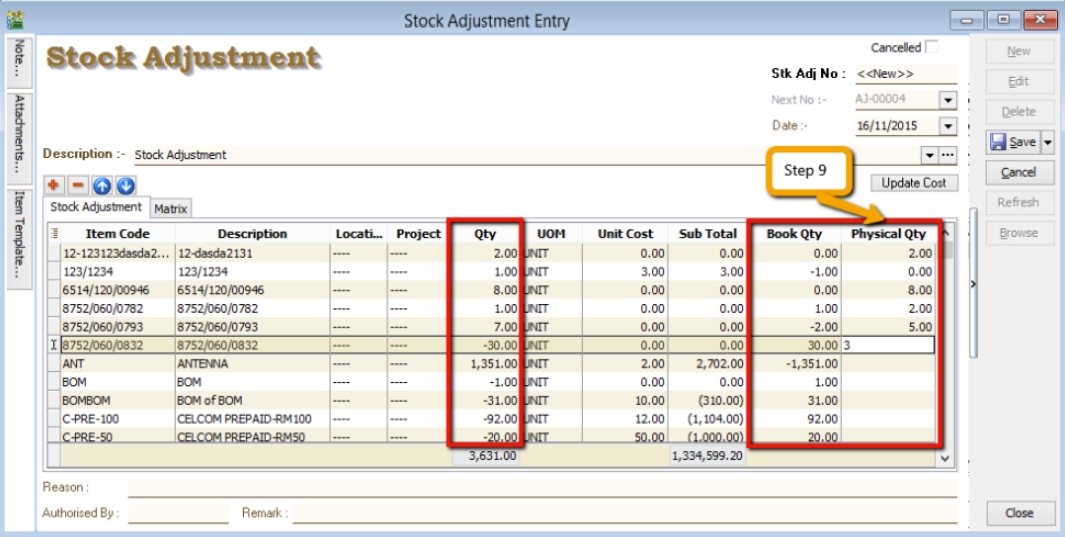
-
Based on the stock keeper’s Stock Take Report, fill in the actual physical quantity in your warehouse into the Stock Adjustment Physical Qty column, the system will calculate the variance based on the Book Qty and apply a correction to the Qty column.
infoBook Qty = Quantity that is recorded in system.
Physical Qty = Actual Quantity at your warehouse.
Qty = Variance between Physical and Book Quantity, system will auto-adjust then update accordingly. (Physical Qty – Book Qty)
Reorder Level by Location
How it works
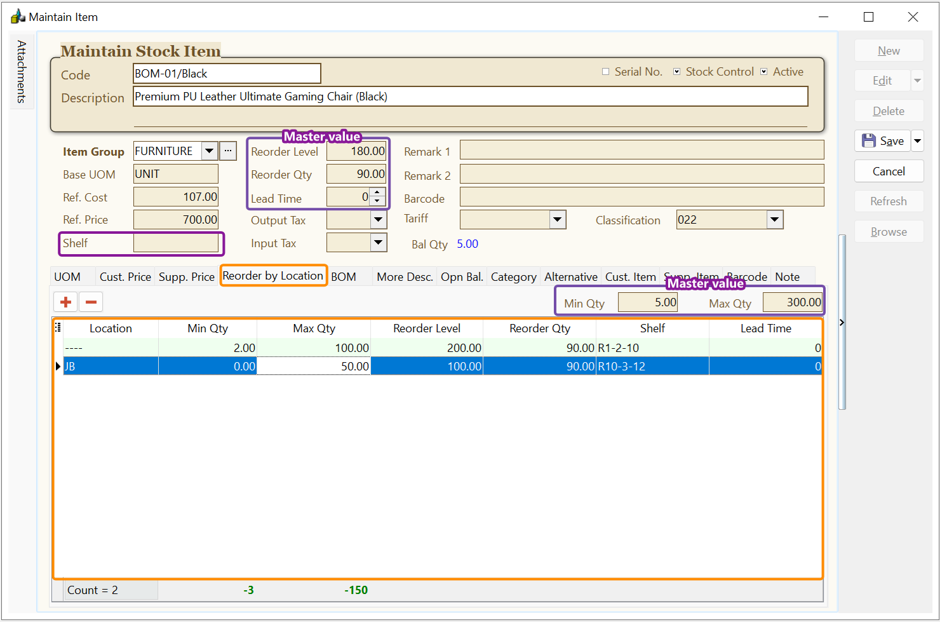
In Maintain Stock Item, a new Reorder by Location tab has been added. You can preset different reorder information for each location here.
-
You may define the reorder information here if it differs from the master info.
Query Reorder Info Priority Sequence
The system will first use the reorder information defined under Reorder by Location.
- If a location is defined here, the system will use its Min Qty, Max Qty, Reorder Level, Reorder Qty, Shelf, and Lead Time settings.
- If no reorder information is defined for the location, the system will use the corresponding master value instead.
Footer Min Qty and Max Qty Value
This indicates the difference between the total Max/Min Qty defined for all locations and the master Max/Min Qty.
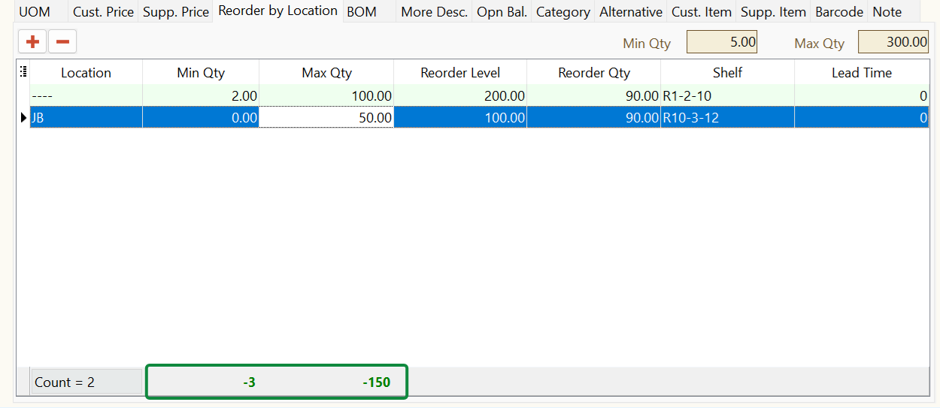
Min Qty = Total Min Qty defined in Reorder by Location − Master Min Qty
        = 2 - 5
        = -3

Max Qty = Total Max Qty defined in Reorder by Location − Master Max Qty
        = 150 - 300
        = -150
A negative value indicates that the total quantity defined for the locations is lower than the corresponding master value.
Master Value Changes Automatically Update Reorder by Location
For Reorder Level and Reorder Qty, if the value defined under Reorder by Location is the same as the corresponding Master Value, changing the Master Value will automatically update the Reorder by Location value accordingly.
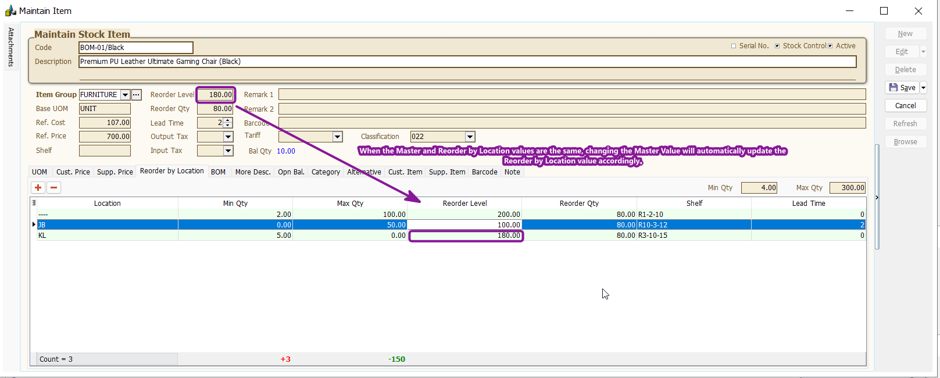
Master Reorder Level = 180
Reorder by Location Reorder Level = 180
If the Master Reorder Level is changed to 200, the Reorder by Location Reorder Level will also be automatically changed to 200.
Print Stock Reorder Advise
- The report will first capture the Reorder Information defined under Reorder by Location for the selected location.
- If no reorder information is defined for the location, the system will use the corresponding Master Value instead.
- Added Shelf and Lead Time columns to Print Stock Reorder Advise.
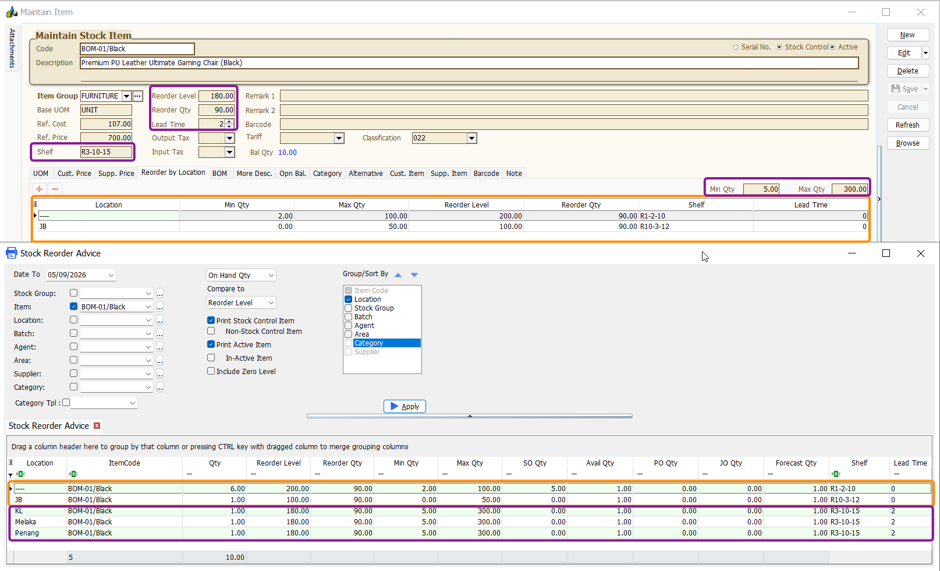
- Location
----andJBare defined under Reorder by Location.- Therefore, the system will capture all reorder information from the Reorder by Location settings.
KL,Melaka, andPenangare not defined under Reorder by Location.- Therefore, the system will capture the reorder information from the Master Value.
Stock Available Balance (Ctrl + F11)
Stock Level Information is captured based on the selected Location.
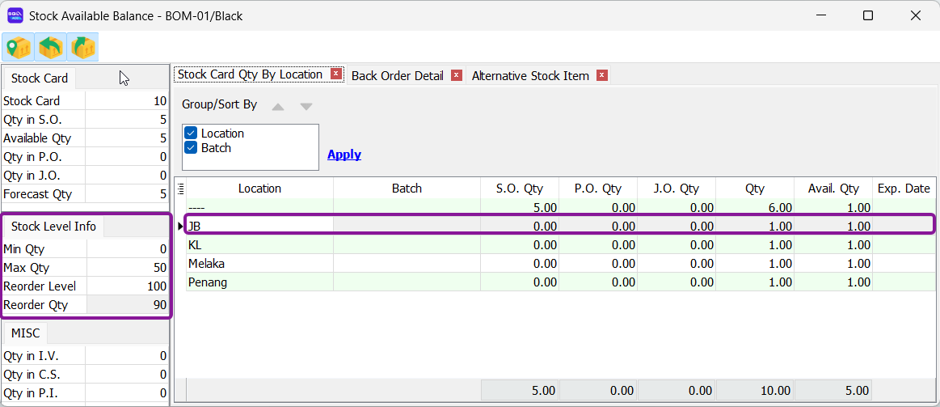
Click on a location to view the respective Reorder Level information for that location.