Upskill Details
Course tab
Manage Upskill
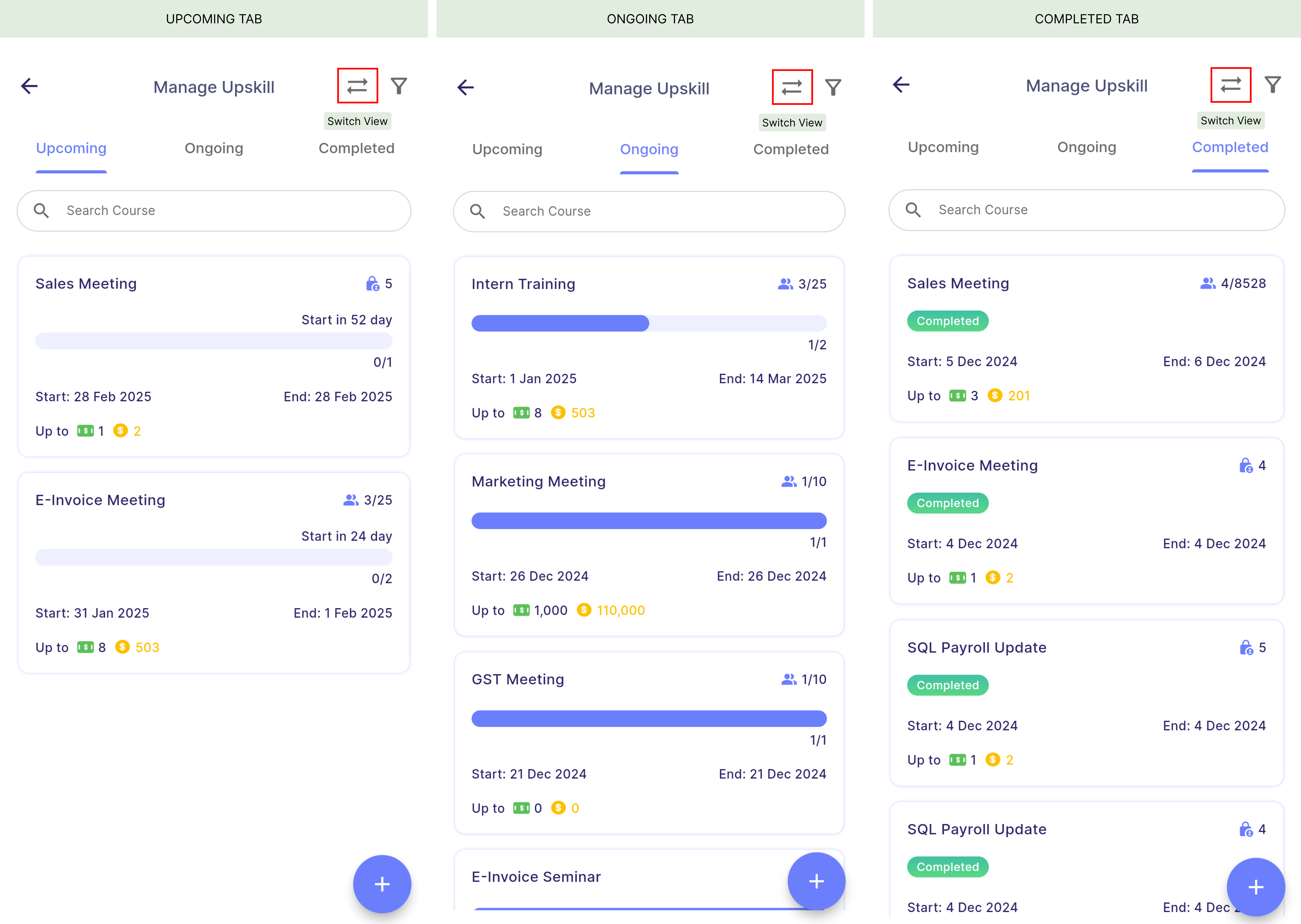
- Upcoming tab: Courses that not not yet started.
- Ongoing tab: Courses start has started.
- Completed tab: Courses that is completed or finalised.
Note
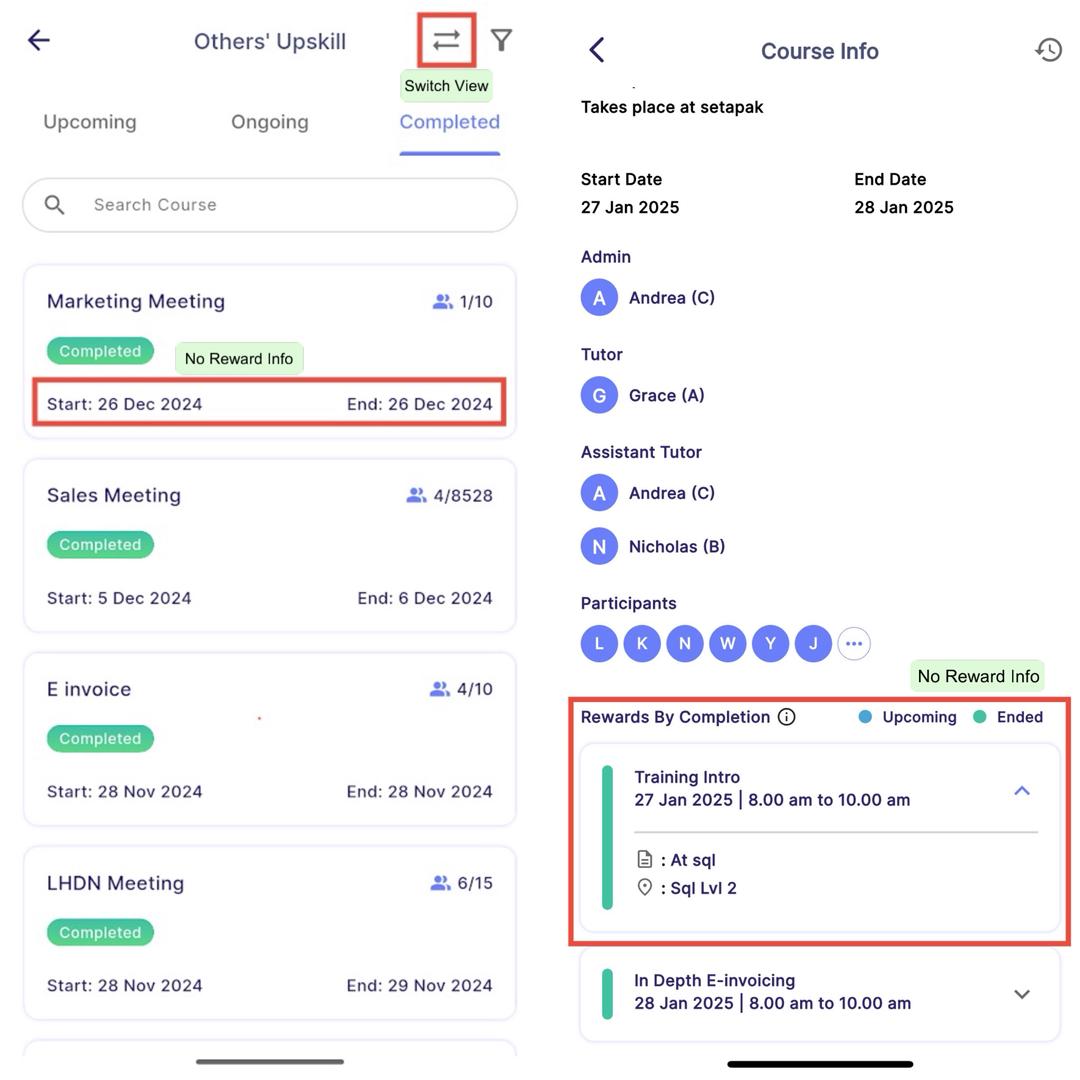
- Manager can tap on the switch view button at the app bar to toggle between manage upskill (can manage) and others' upskill (view only).
- To know more about visibility, click here.
Others' Upskill
- Manager is not allowed to view the rewards available for each course.
- Manager is unable to see private courses, only public courses are accessible.
- Manager can access the course detail by clicking on the course card, but the rewards will remain hidden.
Note
By default, finalized courses are hidden from the course list.
To view them, open the filter settings and tick the Finalised option. This will display all courses that have been marked as finalised.
Transfer Ownership
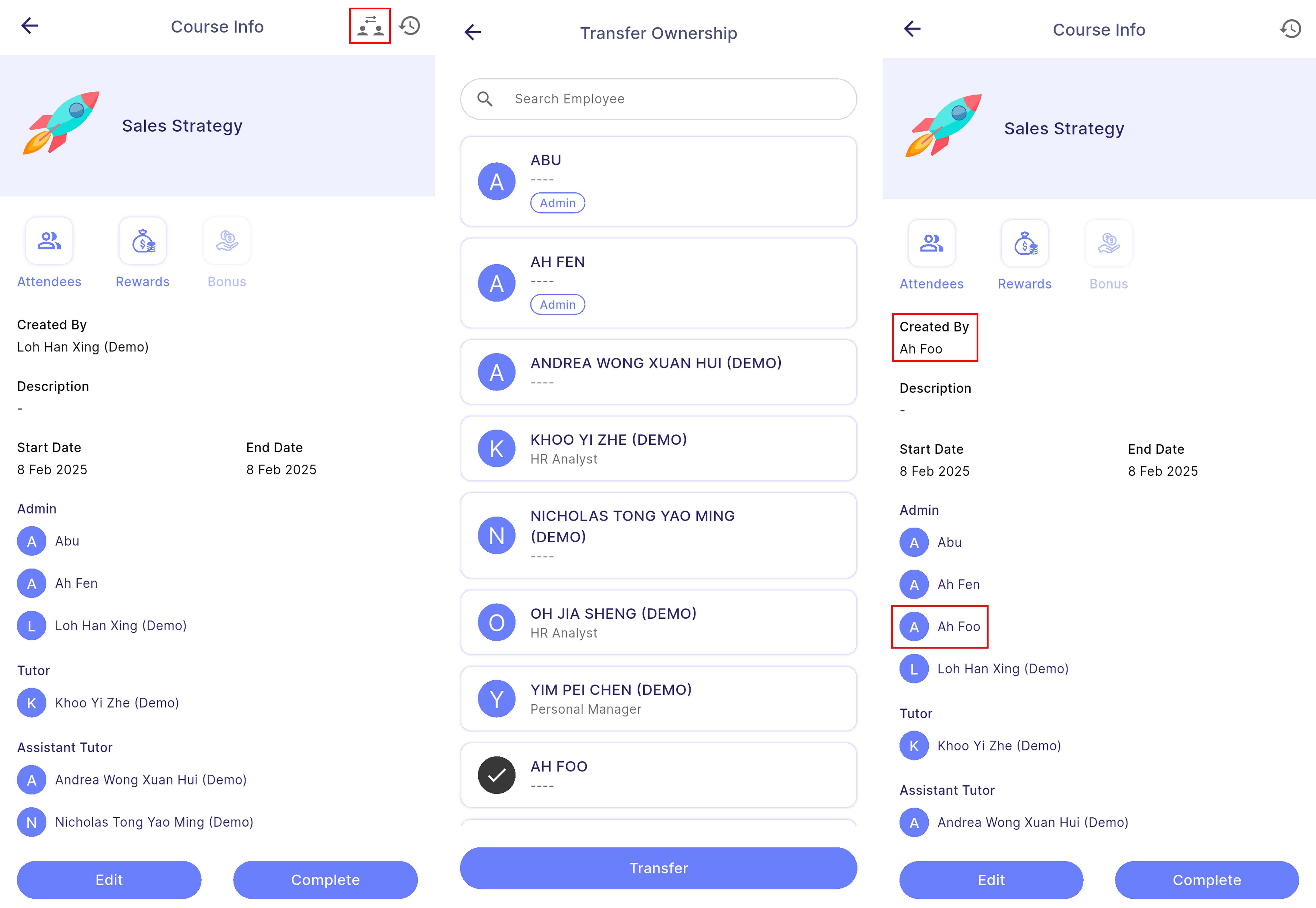
- Only the creator will see the transfer ownership button in the top-right corner of the app bar (highlighted in red).
- If the ownership is transferred to someone who is not an admin, that person will automatically be promoted to admin.
- Once ownership is transferred, the button will no longer be visible to you, as you are no longer the creator.
- In the third diagram below, ownership has been transferred to Ah Foo, making him the new creator. Although he was not originally an admin, he was automatically promoted to admin when he received ownership.
Change Log
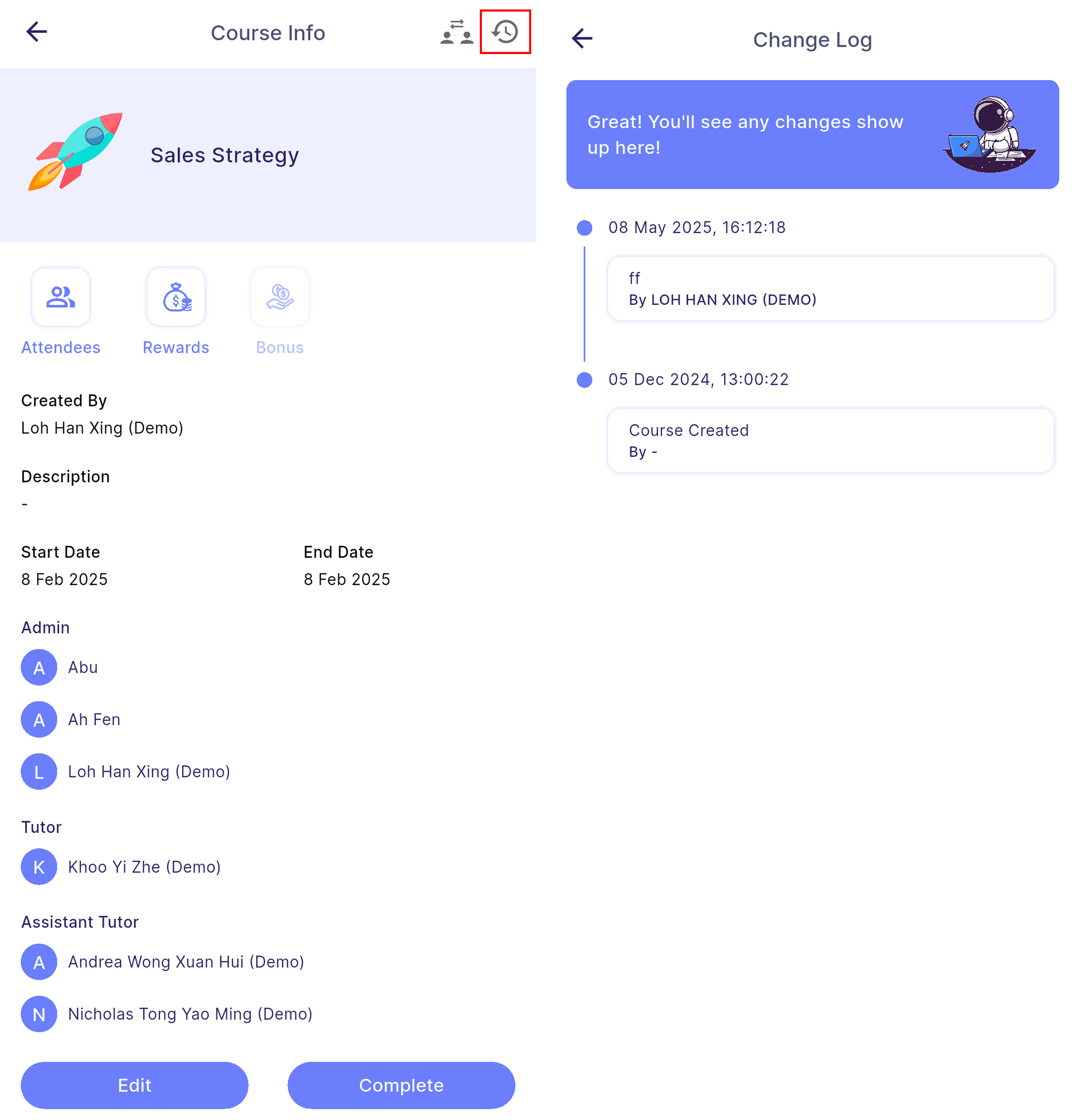
- The change log button (history icon) is located in the top-right corner of the app bar (highlighted in red).
- Only admins, managers, tutors, and assistants have access to view the change log.
- The change log displays a record of course edits, including who made the changes and the details provided by the editor.
Participant List
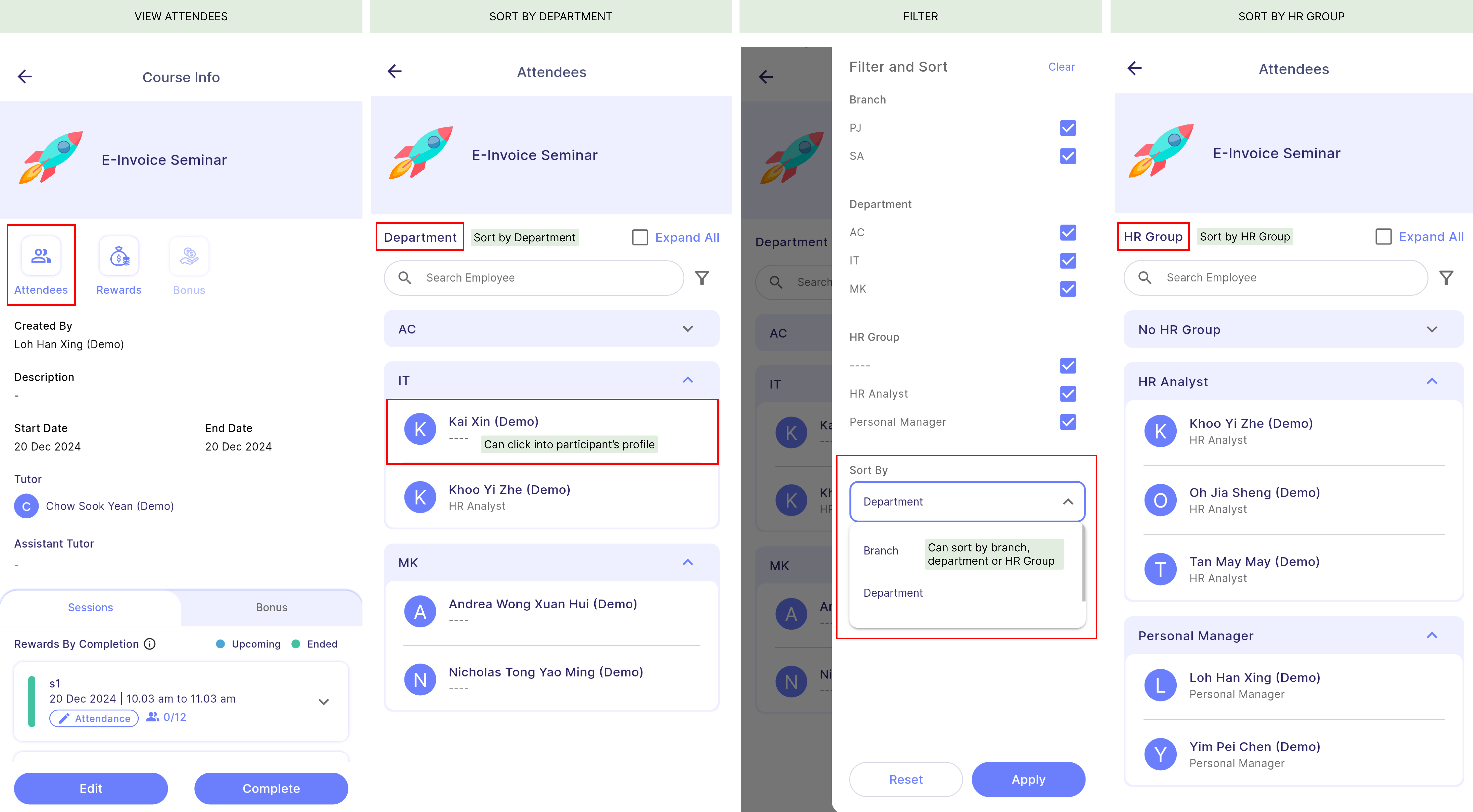
- The manager can view participant list by clicking on the "Attendees" button.
Note
- The attendees can be sorted by Branch, Department or HR group using the filter function.
- By default, the attendees is sorted by Department.
Participant's profile
-
A participant’s profile provides a summary of their attendance and the rewards they have earned, including both session and bonus rewards.
-
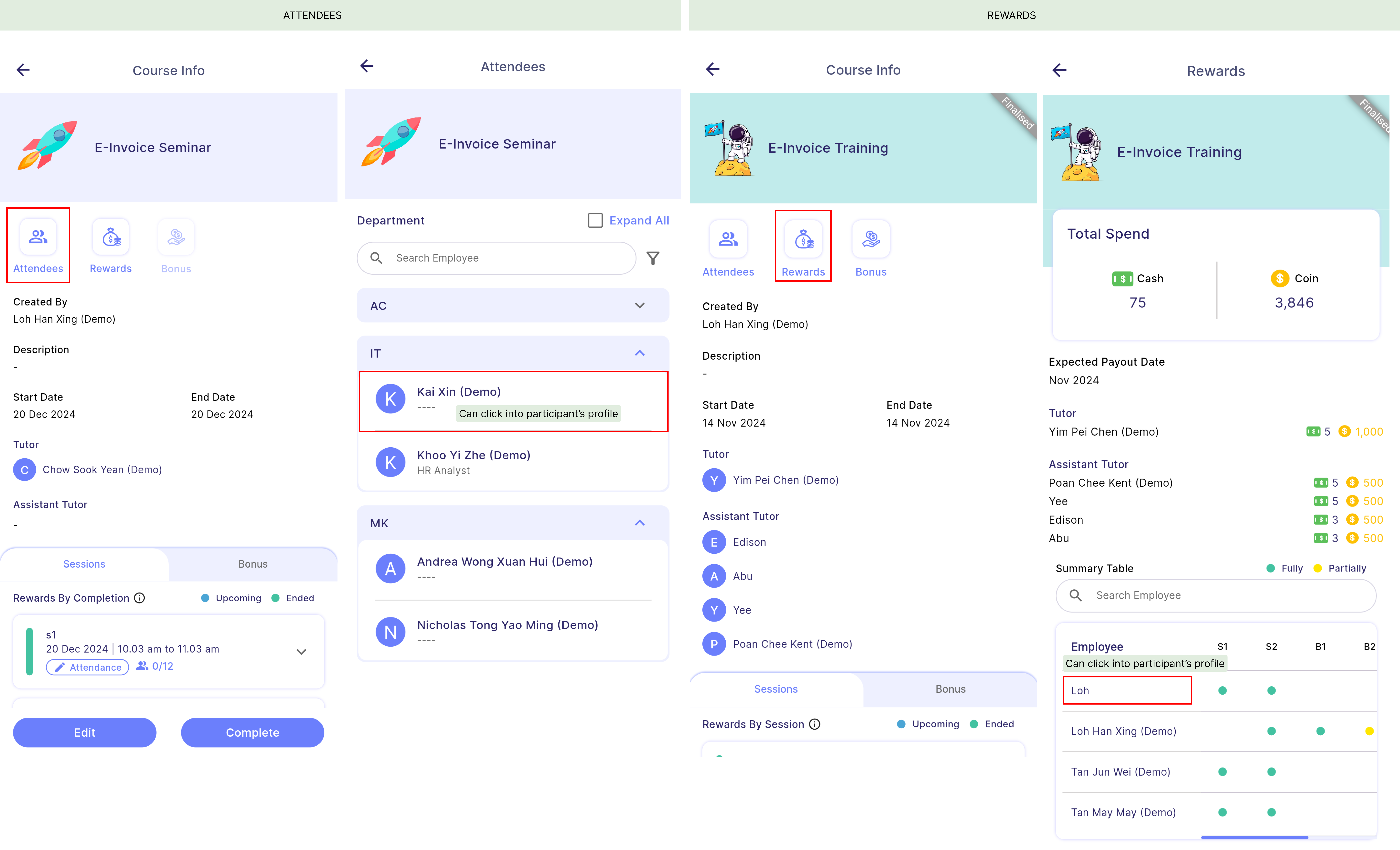
2 ways to access participant's profile:
- Attendees
- Rewards
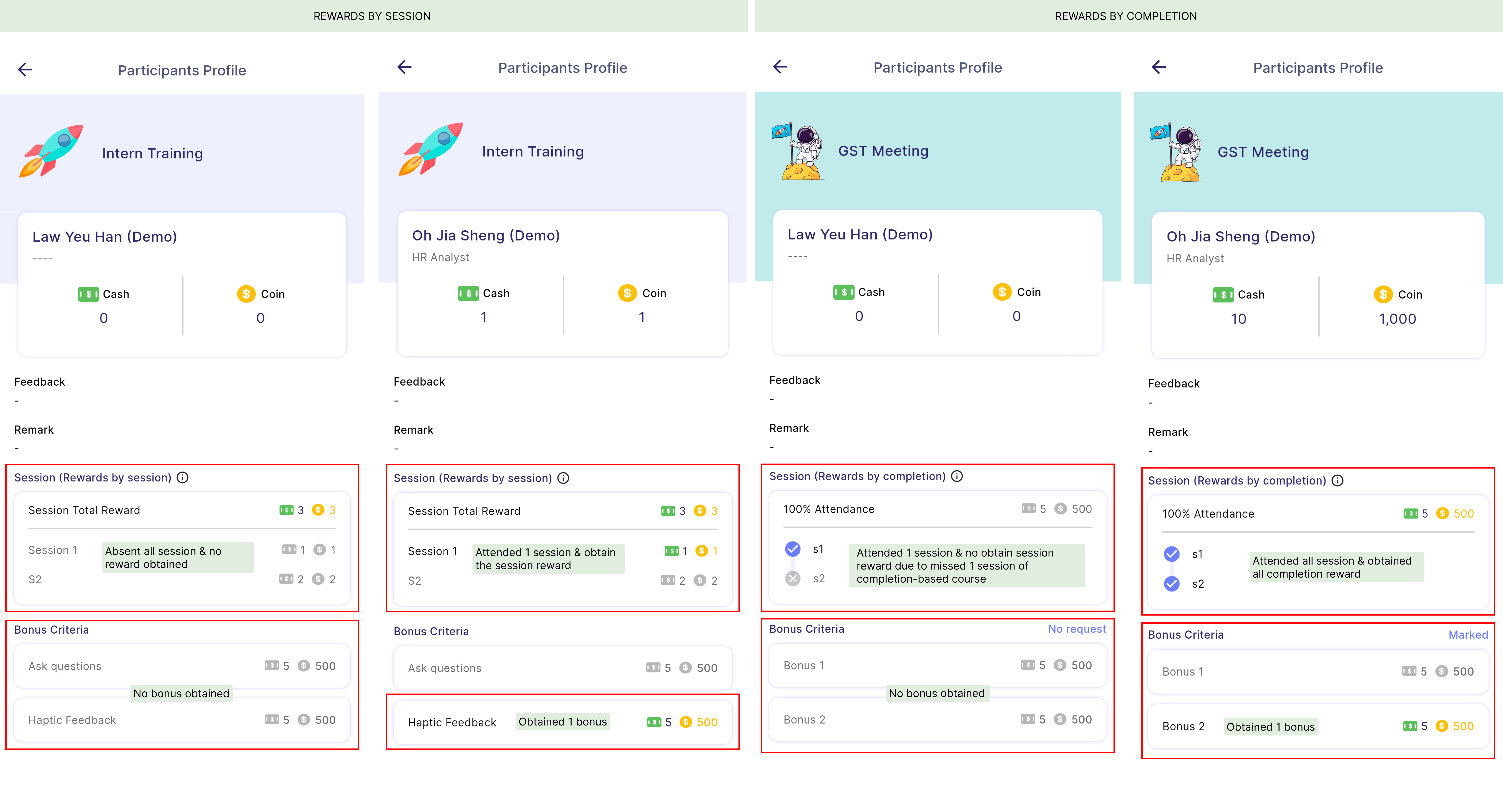
- Sample of participant's profile of session-based & completion-based course:
Note
- A greyed-out reward indicates that the participant is not entitled to it.
- However, as long as the course has not been finalised, any changes made by the manager to a participant’s attendance or bonus reward will be reflected in their profile.
- The bonus request status is exactly the same as the course info page, click here to know more.
Reward Summary
- The manager can view summary of reward by clicking on the "Rewards" button.
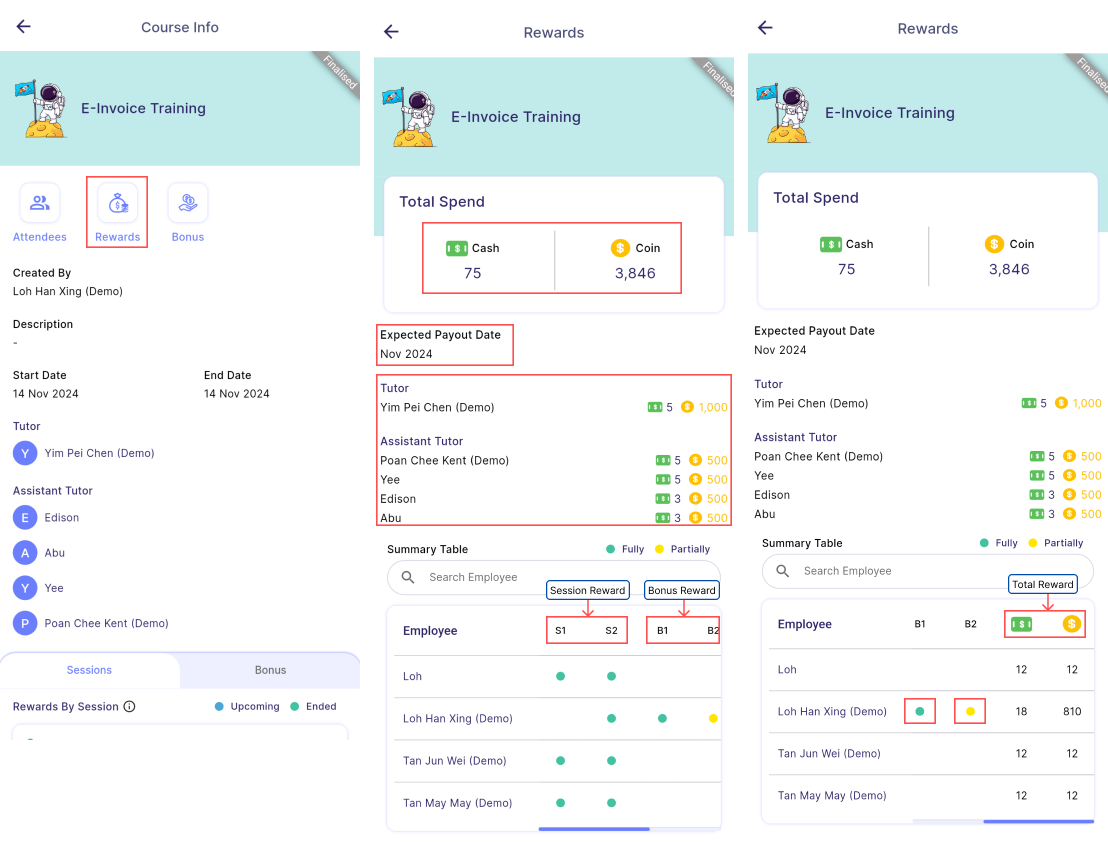
Properties | Description | Note |
|---|---|---|
| Total Spend | To view the total expenses of the company for this course, including rewards allocated to tutors, assistants, and participants. | - |
| Expected Payout Date | To view the expected payout date for this course. | The expected payout date is set in the creation, click here to know more. |
| Tutor & Assistant Rewards | To view the rewards of tutor and assistants. | - |
| Session / Completion reward | To view the session reward entitled by participants. Completion-based reward - Represented by "C". - For completion-based courses, there is always a single reward for session rewards, referred to as "C1". Session-based reward - Represented by "S". - In this case, there are two sessions: "S1" represents the first session and "S2" represents the second session. | To know more about rewards type, click here |
| Bonus reward | To view the bonus reward entitled by participants. | - |
| Total reward | To view the total rewards entitled by participants (session rewards + bonus rewards). | - |
| Fully Achieve (Green dot) | Indicates that participants entitled full amount of the original reward. | Tap on the indicator to view the amount of cash and coins earned.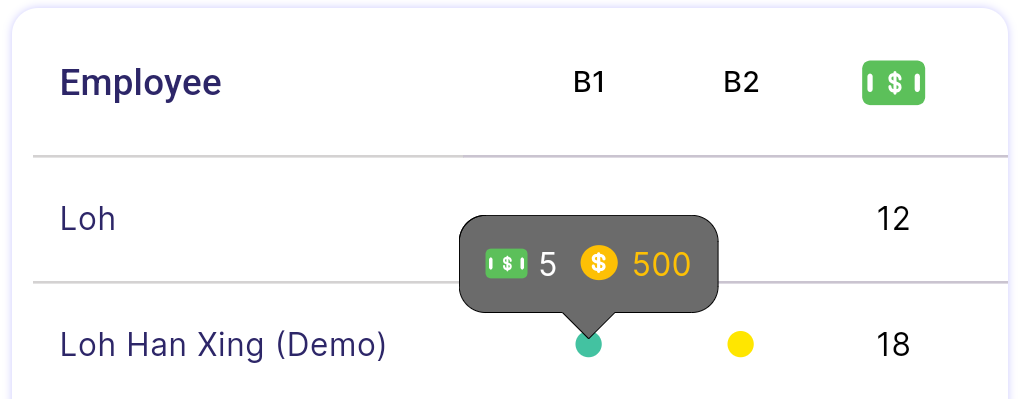 |
| Partially Achieve (Yellow dot) | Indicates that participants entitled partial amount of the original reward. | Tap on the indicator to view the amount of cash and coins earned.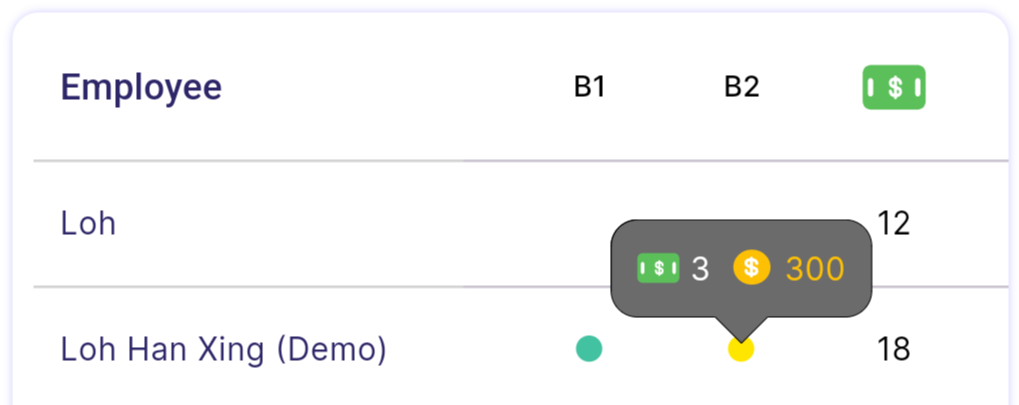 |
tip
- Reward summary table will only be shown after the course is finalised.
- Manager can also click on the participants' name to access to the participant's profile
- To know more about participant's profile, click here.
Bonus requests
View Bonus Requests
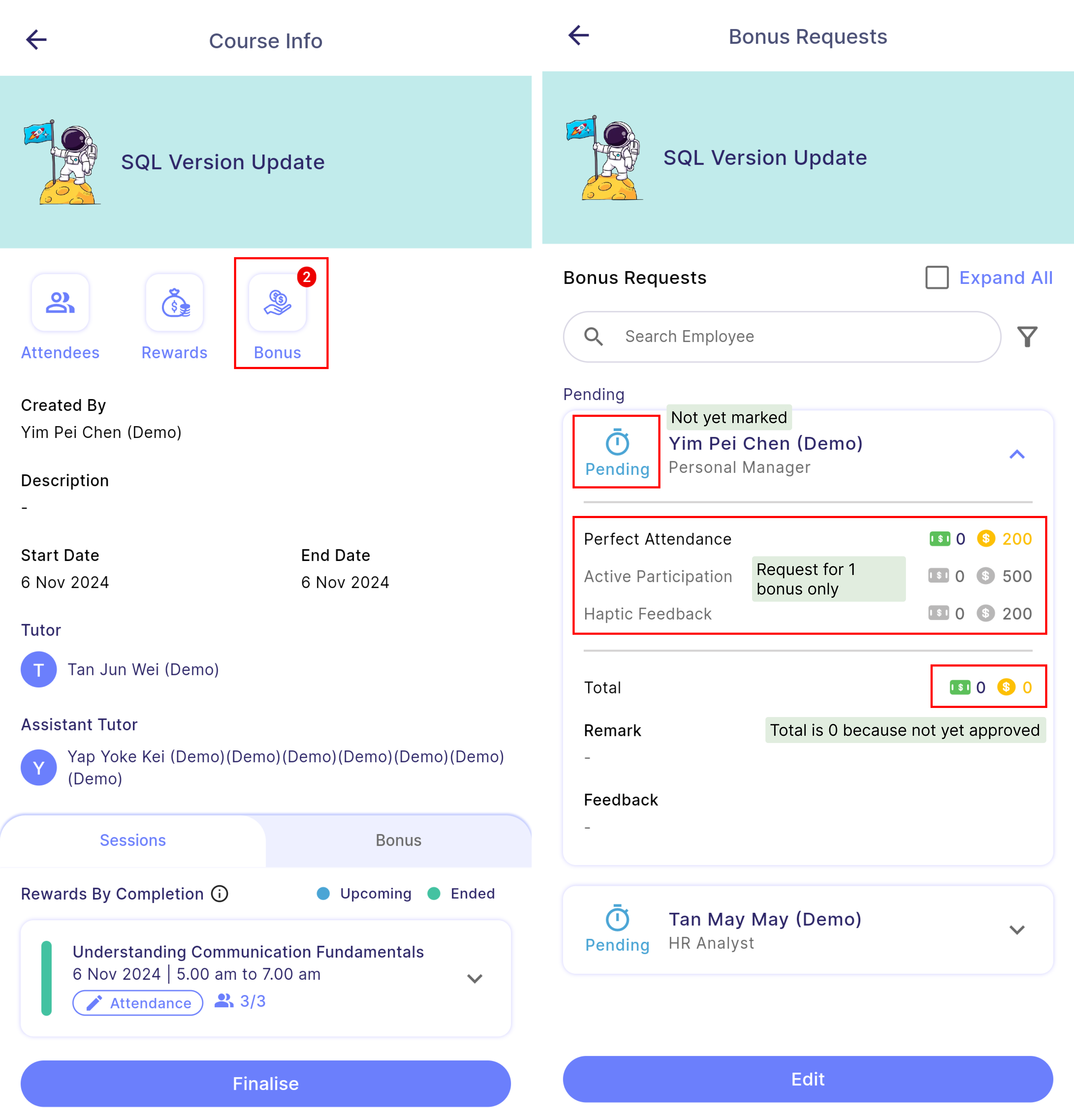
- The manager can view bonus requested by the participants by clicking on the "Bonus" button.
- There are two statuses for bonus requests:
- Pending: The request has not been approved by the manager and is awaiting approval.
- Marked: The request has been approved by the manager but can still be edited.
- The total amount for pending requests is 2 because the request has not yet been approved.
- Remark is the comment entered by participants to detail what they achieved in order to meet the bonus criteria.
- Feedback is the comments provided by the manager or tutor for the participants.
Note
The amount of bonus requested by participant may be different but will not exceed the original amount set.
Enter Edit Mode
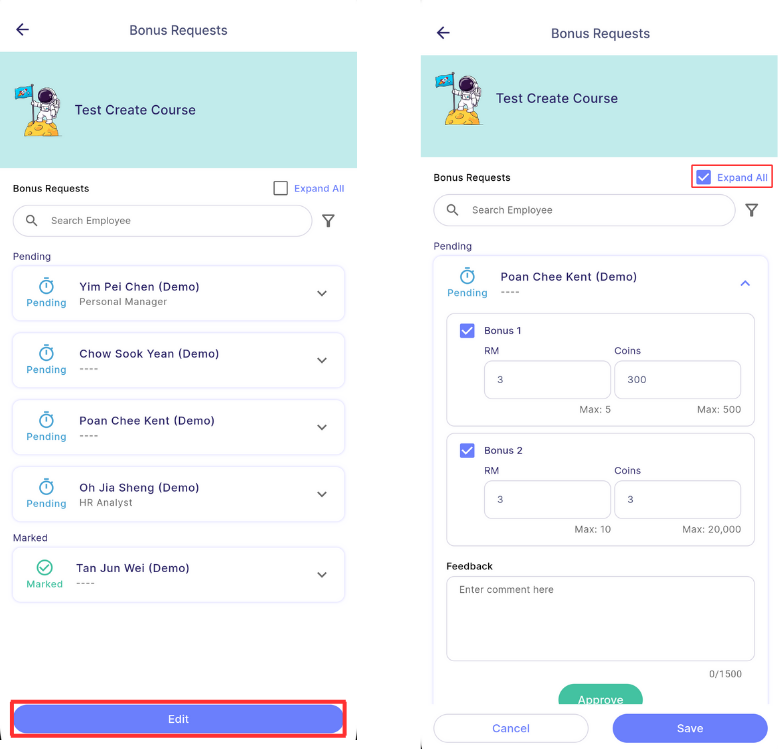
- To approve or edit the bonus request, the manager needs to click on the "Edit" button.
- Once in edit mode, the Expand All will be automatically ticked and all bonus requests will be expanded.
- Manager is able to view and edit the bonus request details of each participant.
Approve or Edit Bonus Requests
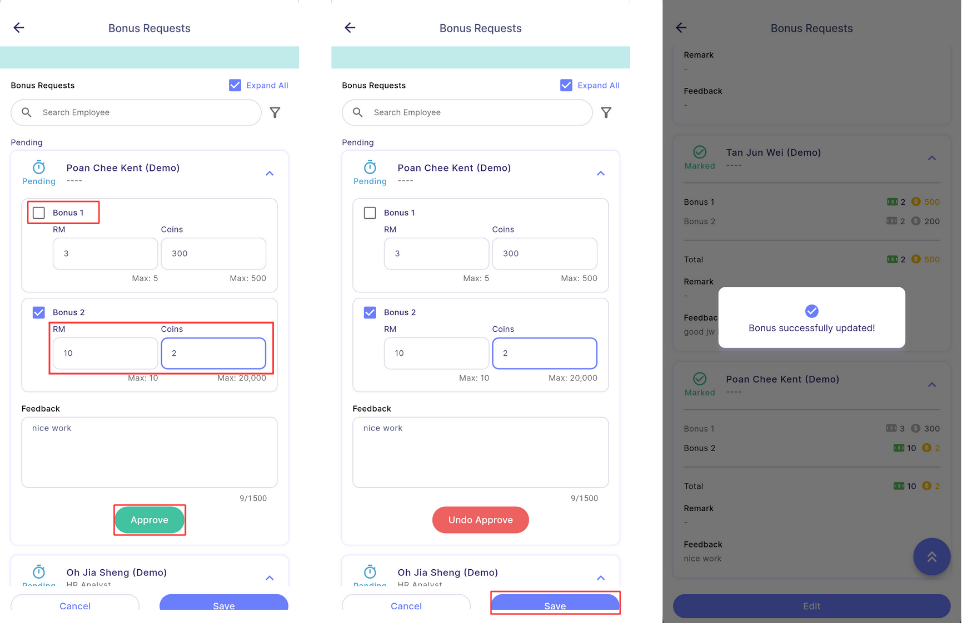
- Tick & Untick: The manager can tick or untick the bonus criteria by tapping on the bonus criteria card or checkbox.
- Edit value: The manager can edit the value, but it cannot exceed the original bonus amount shown at the bottom right corner of the edit field.
- Give feedback: The manager can also leave feedback to evaluate the participants' performance.
- Approve: The manager must tap on the Approve button for each participant to confirm the changes.
warning
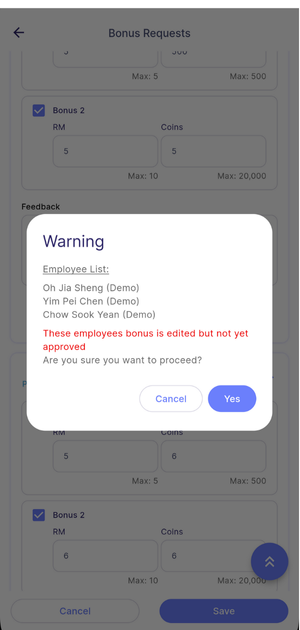
- If a participant's bonus request is edited but not yet approved, a confirmation window will appear to remind the manager to approve the edited request.
- Yes: Discard the unapproved request and save only the approved request.
- Cancel: Continue editing the request.
Attendance
- The attendance must be marked manually.
View Attendance
- The manager or tutor can view attendance summary from the session card.
- Once the session has started, a pen icon will appear beside the attendance which indicates the attendance is editable.
- If session not yet started, there is no pen icon which indicates attendance is not editable and is for viewing only.
- "0/3" indicates that 0 participants are present out of a total of 3 participants.
- The manager or tutor can click on the attendance to view details or mark attendance.

Mark Attendance
- A manager or tutor can only mark attendance once the session has started.
Note
- Manager can edit the attendance anytime before finalising the course.
tip
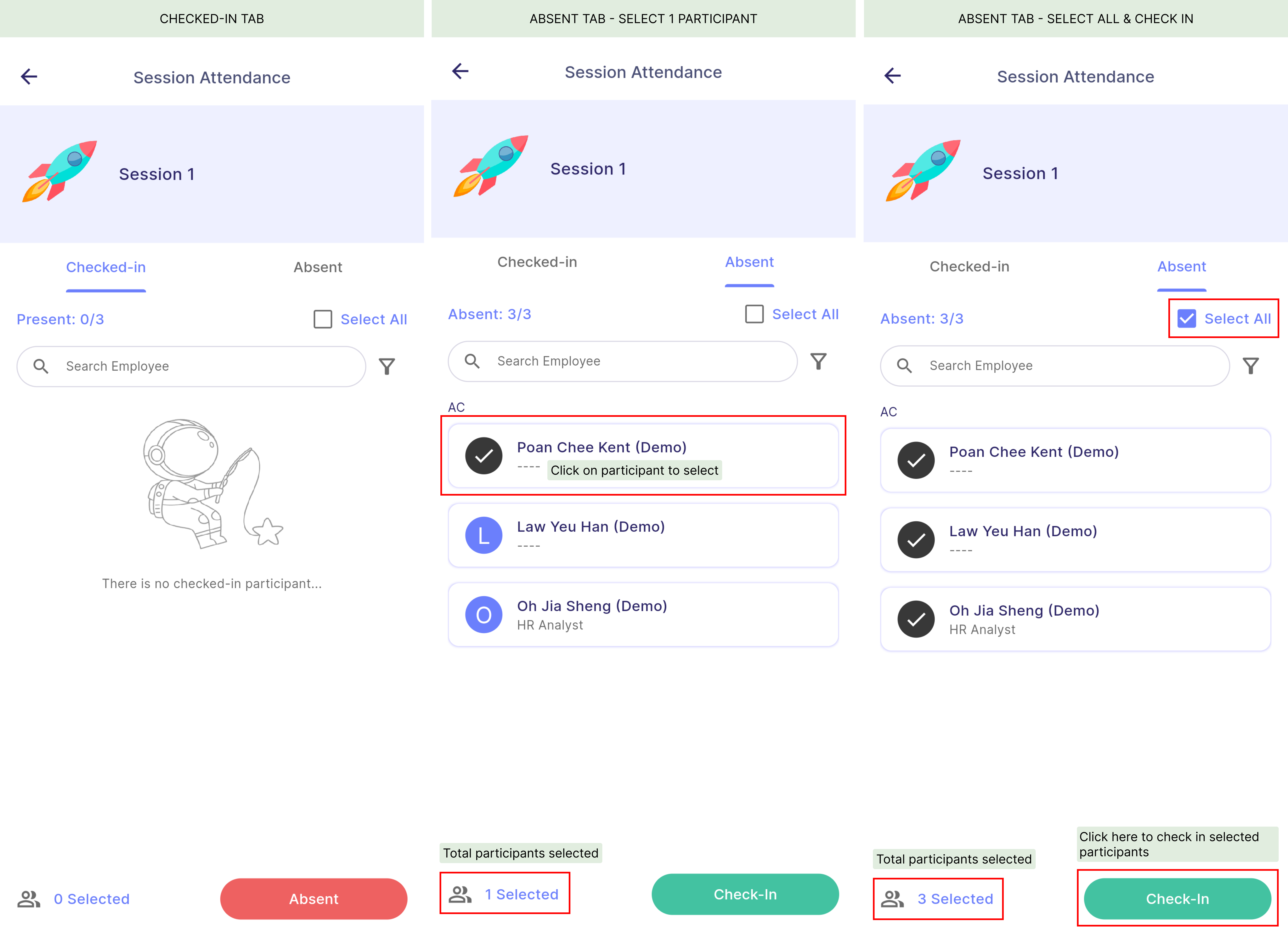
- If the majority participants are present, the manager can select all participants in the "Absent" tab and check them in.
- Then, in the "Checked-In" tab, manager can search for the absent participants and mark them as absent.
Complete Course
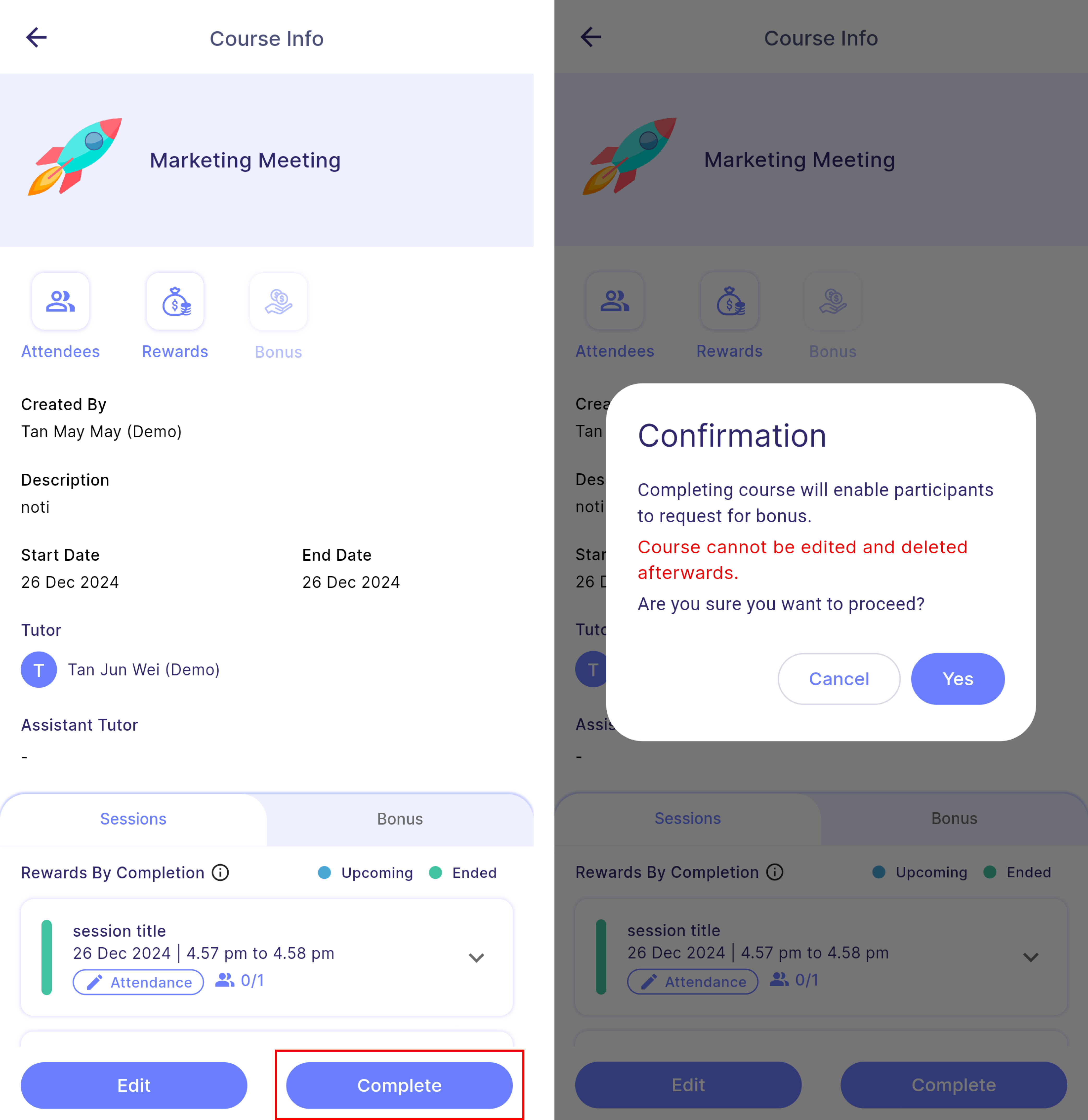
- When all sessions of a course has ended, the complete button will appear in the bottom bar of course info page for manager to manually mark the course as Completed.
- Manager can also choose to edit the course and add more sessions.
warning
Once the course is completed, the course details cannot be edited anymore.
tip
- Participants can only start to request bonus after course is completed.
- Bonus can only be approved after the course is completed.
- To view more actions a manager can perform in a "Completed" course, click here
Finalise Course
- Finalising a course marks an end to the course.
Note
- All course rewards, including those for tutors, assistants, and participants, will be distributed once the course is finalised.
- Coins are awarded immediately, while cash rewards are given based on the expected payout date.
tip
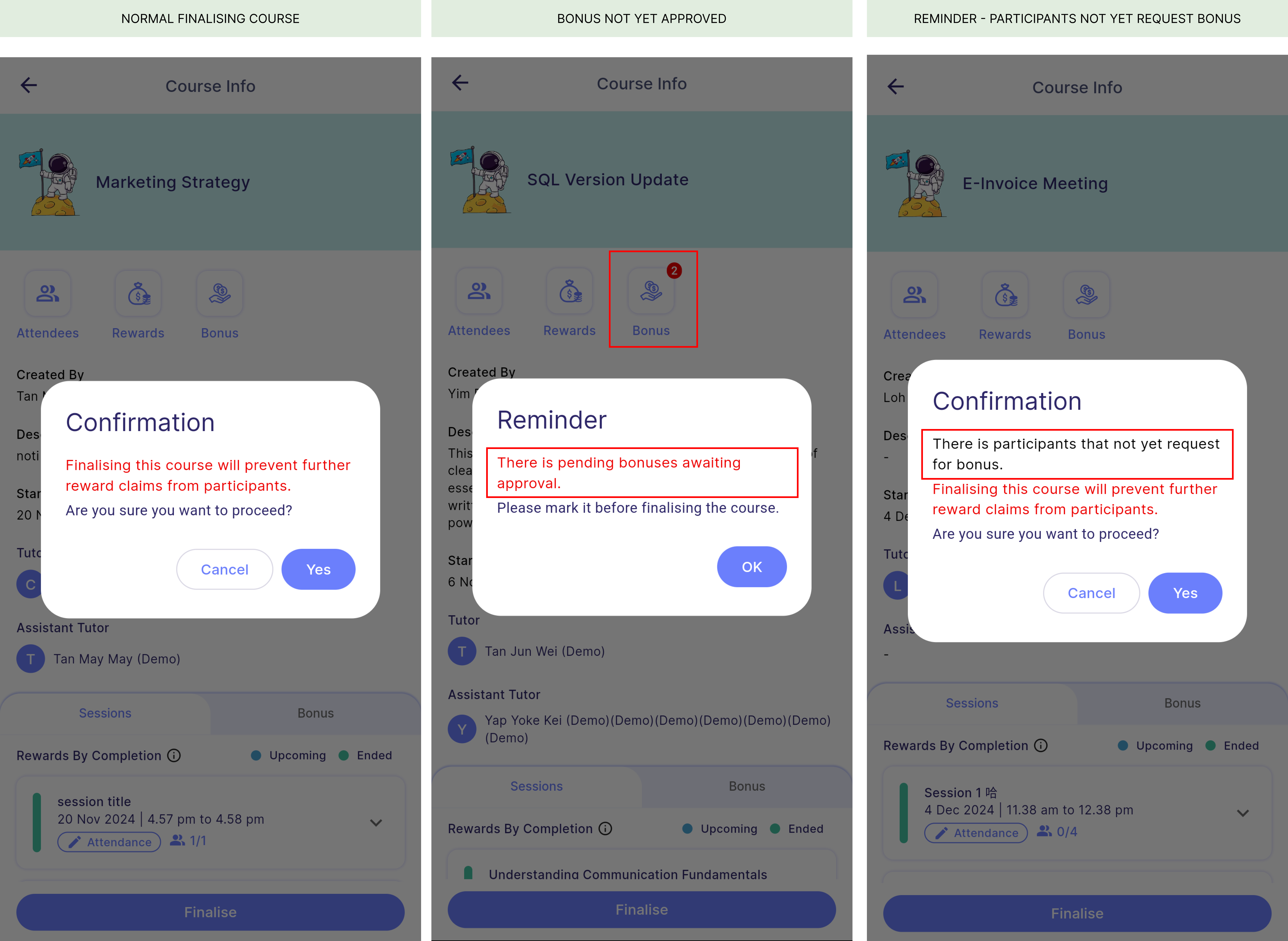
- Before finalising a course, the manager must mark all bonus requests.
- A reminder will be issued if any participants have not yet requested a bonus.
warning
Once the course is finalised, the bonus request cannot be edited anymore.