Recurring Guide
This Customisation is for simple calculation for the management property which normally monthly charge Maintenance, Sinking Fund & etc.
Modules Required
- General Ledger, Customer, Supplier
- Sales, Purchase
- DIY Field
- DIY Script
- Multiple Pricing (Price Tag)
- Multiple Document Number Set
Tutorial Video
Settings
Maintain User
Menu: Tools | Maintain User...
Untick the Access Right for Prompt Replace Unit Price Dialog under Group : Sales
Maintain Customer
Menu: Customer | Maintain Customer...
-
Below fields MUST had Value (minimum is 0 not empty or Null)
-
UDF_WaterReading
-
UDF_ElectricReading
-
UDF_GasReading
-
UDF_IWKReading
-
Price Tag
-
Minimum UDF Fields Required
| Name | Data Type | Size | Sub Size | Caption | Required | Default Value | Display Format |
|---|---|---|---|---|---|---|---|
| WaterReading | Float | 10 | 4 | UDF_WaterReading | False | 0 | #,0;-#,0 |
| ElectricReading | Float | 10 | 4 | UDF_ElectricReading | False | 0 | #,0;-#,0 |
| GasReading | Float | 10 | 4 | UDF_GasReading | False | 0 | #,0;-#,0 |
| IWKReading | Float | 10 | 4 | UDF_IWKReading | False | 0 | #,0;-#,0 |
| UseARPrice | Boolean | Use Maintain Customer Price | False | False | |||
| UPSQFT | Float | 10 | 4 | Unit Price/SQFT | False | 0 | #,0.00;-#,0.00 |
| BuildUp | Float | 10 | 4 | Build Up (sf) | False | 0 | #,0.00;-#,0.00 |
| WaterLastDate | Date | UDF_WaterLastDate | |||||
| ElectricLastDate | Date | UDF_ElectricLastDate | |||||
| GasLastDate | Date | UDF_GasLastDate | |||||
| IWKLastDate | Date | UDF_IWKLastDate |
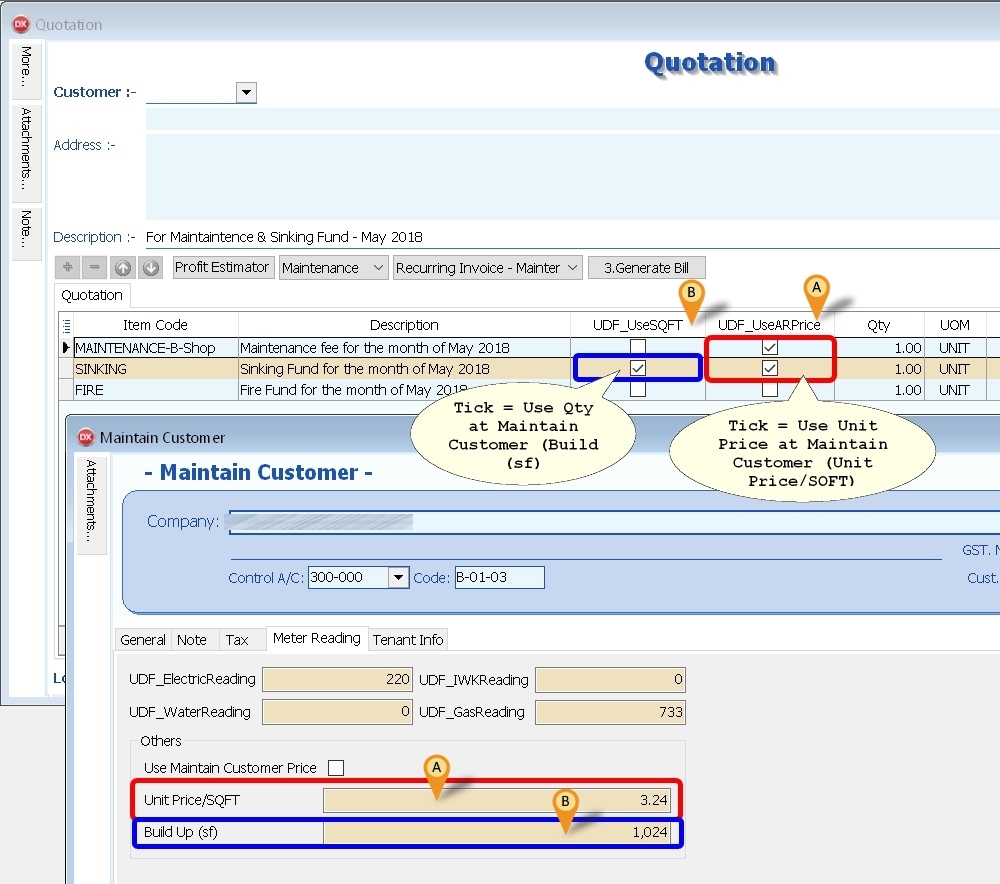
UseARPrice & UPSQFT is use for Recurring by square feet (SQFT) UseARPrice True = the Unit Price is by Customer False = the Unit Price is from Maintain Item Ref Price The Item Code List is filter by Stock Group Code LIKE MAINTENANCE%
Quotation
Menu: Sales | Quotation...
- DocNo Format := CompanyCategoryCode;Type;
 eg
 B-Shop;Main;  => For Maintenance
 B-Shop;Water; => For Water Billing
 B-Shop;Park;  => For Car Park
- For Meter Reading (eg Water, Electric & etc), Detail can be empty cause system will auto APPEND the itemcode
-
Master Description if using
-
1.Generate Maintenance it will use the Quotation Master Description.
-
2.Generate Meter Reading (eg Water, Electric & etc), it will shown how much the meter usage [Master Description (MMM YYYY) - CurrentReading - PreviousReading=Usage@UnitPrice].
-
2.Generate Meter Reading with "Include Grid Detail Info." Option tick it will use the Quotation Master Description.
-
UDF_UseSQFT
-
True := Qty = UDF_BuildUp from Maintain Customer
-
False := Qty = Quotation Qty
-
UDF_UseARPrice
-
True := UnitPrice = UDF_UPSQFT from Maintain Customer
-
False := UnitPrice = Quotation UnitPrice
Quotation - SQFT
Quotation - Utilities - Price Range
Below Example is for Price Range Water Reading
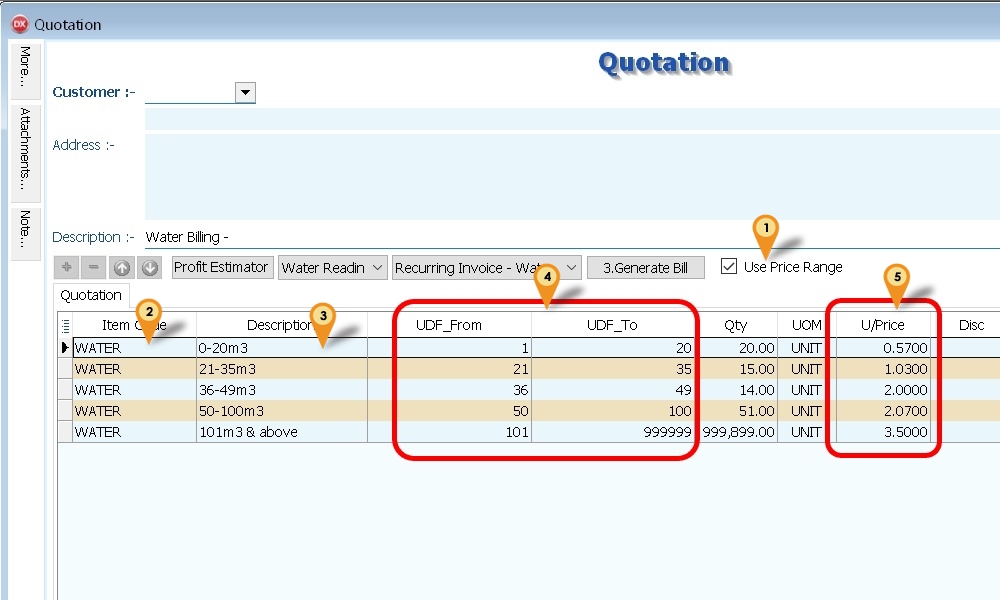
- Tick Use Price Range
- Select Item Code (eg WATER for Water Reading)
- Enter the Description to be shown in Invoice for Each Range
- Enter the Range UDF_From & UDF_To
- Enter the Unit Price
For Last Range the UDF_To may enter as 999999 (6 digit of 9 (max))
- List Field to be copy from Quotation to Invoice
| Master Fields | Detail Fields |
|---|---|
| DocNoEx | Number |
| DocDate | ItemCode |
| Terms | Description |
| Agent | Description2 |
| Description | Description3 |
| DocRef1 | Remark1 |
| DocRef2 | Remark2 |
| DocRef3 | Location |
| DocRef4 | Project |
| Project | DeliveryDate |
| Validity | Qty |
| DeliveryTerm | UOM |
| CC | UnitPrice |
| Tax | |
| Disc |
- Minimum UDF Fields Required (Header Fields)
| Name | Data Type | Caption | Required | Default Value |
|---|---|---|---|---|
| DocNoSet | Integer | UDF_DocNoSet | False | 0 |
| Type | Integer | UDF_Type | False | 0 |
| IsPrcRange | Boolean | UDF_IsPrcRange | False | False |
| IncZero | Boolean | UDF_IncZero | False | False |
- Minimum UDF Fields Required (Item Fields)
| Name | Data Type | Caption | Required | Default Value | Display Format |
|---|---|---|---|---|---|
| From | Integer | UDF_From | False | 0 | #,0;-#,0 |
| To | Integer | UDF_To | False | 0 | #,0;-#,0 |
| UseSQFT | Boolean | UDF_UseSQFT | False | False | |
| UseARPrice | Boolean | UDF_UseARPrice | False | False |
Invoice
Menu: Sales | Invoice...
- Minimum UDF Fields Required (Items Fields & Headers Fields)
| Name | Data Type | Size | Sub Size | Caption | Required | Default Value | Display Format |
|---|---|---|---|---|---|---|---|
| LastReading | Float | 10 | 4 | UDF_LastReading | False | 0 | #,0;-#,0 |
| CurrReading | Float | 10 | 4 | UDF_CurrReading | False | 0 | #,0;-#,0 |
Debit Note
Menu: Sales | Debit Note...
- Minimum UDF Fields Required (Items Fields)
| Name | Data Type | Size | Caption | Required | Default Value | Display Format |
|---|---|---|---|---|---|---|
| IVDocNo | String | 20 | UDF_IVDocNo | False | ||
| IVDocDate | Date | UDF_IVDocDate | ||||
| IVDueDate | Date | UDF_IVDueDate | ||||
| IVDocAmt | Currency | UDF_IVDocAmt | False | 0 | #,0.00;-#,0.00 | |
| IVOSAmt | Currency | UDF_IVOSAmt | False | 0 | #,0.00;-#,0.00 |
Stock Item
Menu: Stock | Maintain Stock Item...
-
Item Code to be create
-
WATER
-
ELECTRIC
-
GAS
-
IWK
-
RTN5Cents => For Rounding Mechanism
-
OVERDUE => For Overdue Charge (Just set at Ref Price & enter 0.1 for 10% pa)
-
MINCHARGE => For Utilities Price Range
-
REBATE => For Utilities Price Range
-
Price Tag => For Different UnitPrice for Meter Reading (eg WATER, ELECTRIC & etc)
Use Disc column as Rebate & Min Charge => Format := Rebate+MinCharge eg
Lead Time Setup
| Lead Time | Type | Description | Input Value |
|---|---|---|---|
| 0 | Both | Rebate 11.75 & MinCharge 5 | 11.75+5 |
| 1 | Rebate Only | Rebate 12.30 & MinCharge 0 | 12.30+0 |
| 2 | Min Charge Only | Rebate 0 & MinCharge 5 | 0+5 |
- Lead Time => 0: Both, 1: Rebate Only, 2: Min Charge Only
- For MinCharge make sure it had Value else set at 1
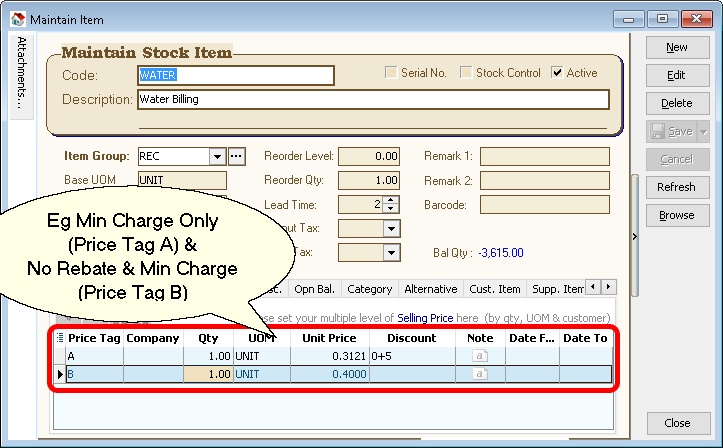
- Using above example => Min. Qty := 5 / 0.3121 = 16.0205
- if the Qty is below or equal 16.0205 then Amount will Reset to 5
Customer Payment
Menu: Customer | Customer Payment...
- Auto Generate Sales DN for overdue IV if UDF_PostDN (in DIY Fields) Default Value is set to True (Default is False)
- Only Knock-off to DN will not regenerate DN again if overdue
- Formula for Age
Age := CurrentWorkingDate - Knock off Invoice Due Date
- Formula For Qty
if Age < DayOf(CurrentWorkingDate) then
      Qty := Age else
      Qty := DayOf(CurrentWorkingDate);
- Formula for UnitPrice
Unit Price := Rate/365 * Knock off amount (Excluding GST)
- Minimum UDF Fields Required (Header Fields)
| Name | Data Type | Size | Caption | Required | Default Value |
|---|---|---|---|---|---|
| PostDN | Boolean | UDF_PostDN | False | False | |
| TaxRate | String | 10 | UDF_TaxRate | False | 0% |
Customer Due Listing
Menu: Customer | Print Customer Due Document...
- Auto Generate Sales Debit Note for overdue Invoice & Debit Note (can untick the option if don't wanted to be included before click Apply button)
- It will Generate 1 Customer Code 1 Sales Debit Note
- The rate is from Ref Price of OVERDUE itemcode (just enter 0.1 for 10% pa)
- Formula Qty
if Age < DaysInAMonth(edDueDate.Date) then
      Qty := Age else
      Qty := DaysInAMonth(edDueDate.Date);
- Formula UnitPrice
Unit Price := Rate/365 * Outstanding amount (Excluding GST)
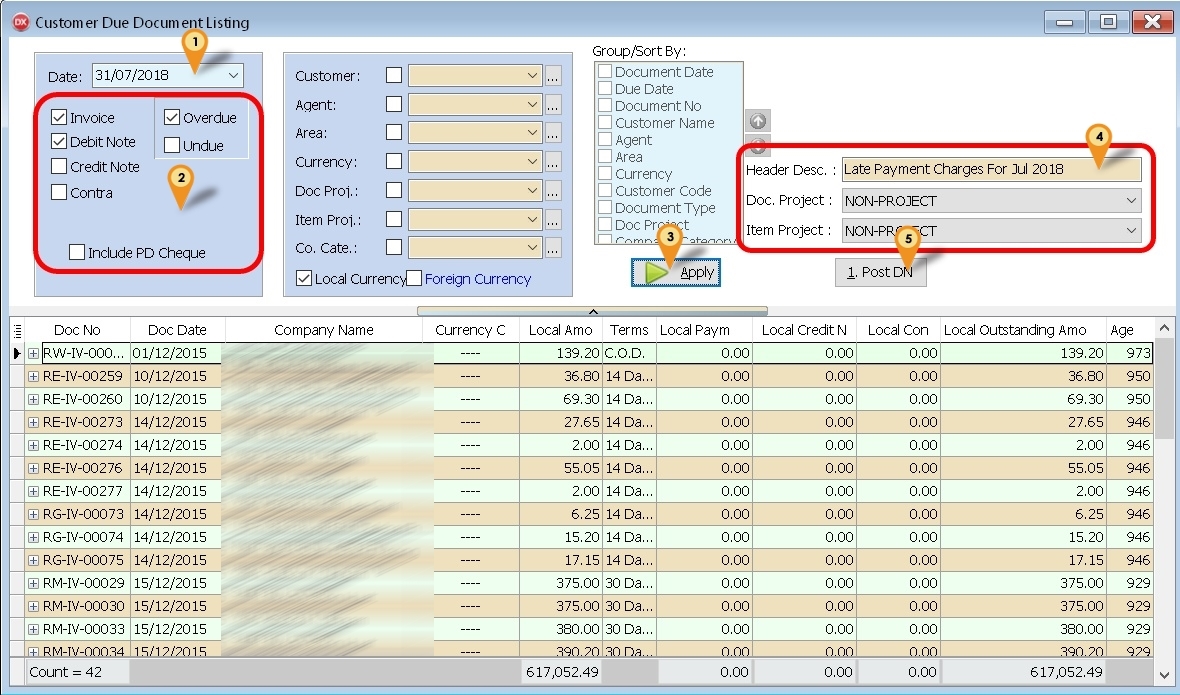
-
Set the Date to generate Overdue
-
Tick the following option
- Invoice
- Debit Note (if you wanted to include in calculation overdue)
- Overdue
-
Click Apply button
-
Select & Enter the DN Information
-
Click 1. Post DN button
For more accurate calculation for Unit Price, try set the Unit Price to 4 Decimal points
Sales Document Listing
Menu: Sales | Print Sales Document Listing...
-
Is a batch
-
Delete Document
-
Copy From 1 Document type & Paste To Same or Other Document Type
Base on the parameter selected & result shown in the grid
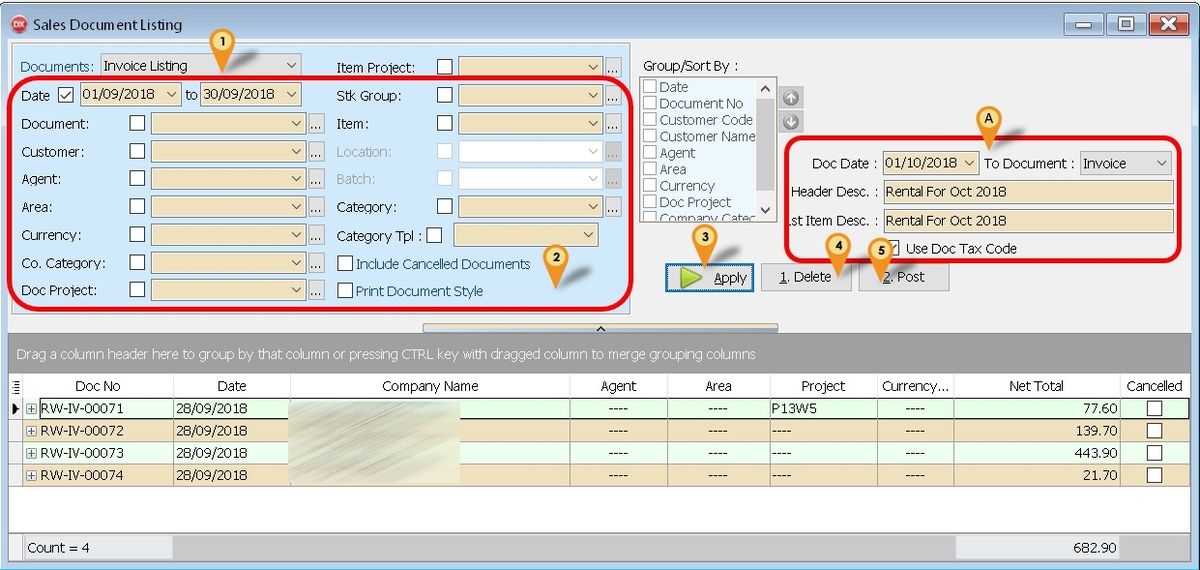
Batch Delete Document
Below is example to delete Invoice
- Select Invoice Listing
- Select Range Date or any parameter you prefer
- Click Apply button
- Click Delete button
Only Select follow filter
- Date
- Customer
- Agent
- Area
- Company Category
- Doc. Project
Batch Copy & Paste Document
Below is example to Copy from Invoice to Invoice
-
Select Invoice Listing
-
Select Range Date or any parameter you prefer
-
Click Apply button
-
In the section A (See icon A)
-
Click Post button
Steps
Maintain Customer
Menu: Customer | Maintain Customer...
Generating Maintenance - SQFT
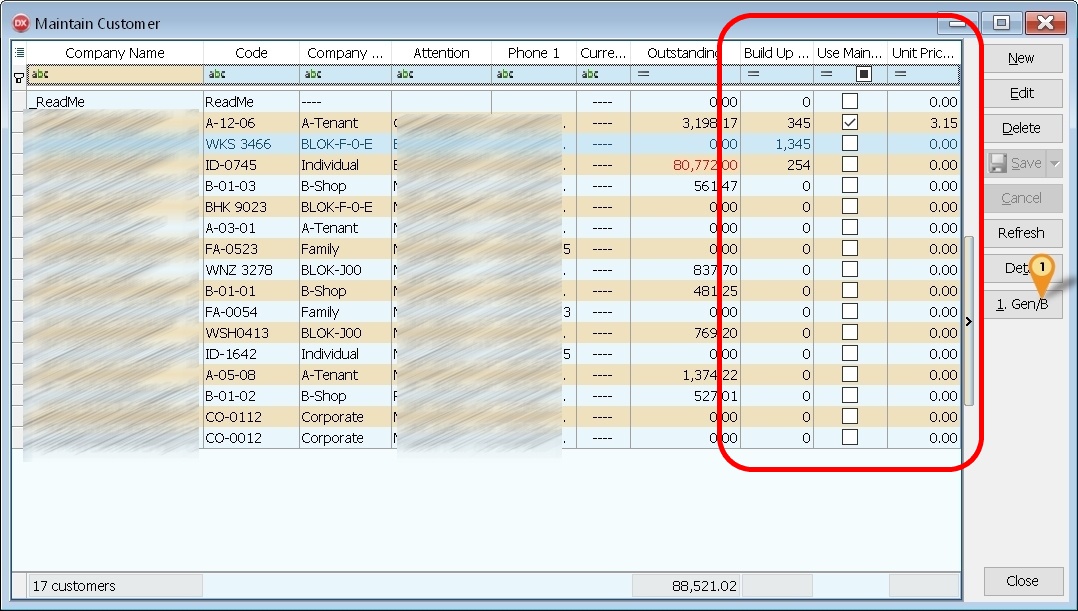
-
Click 1. Gen/B button.
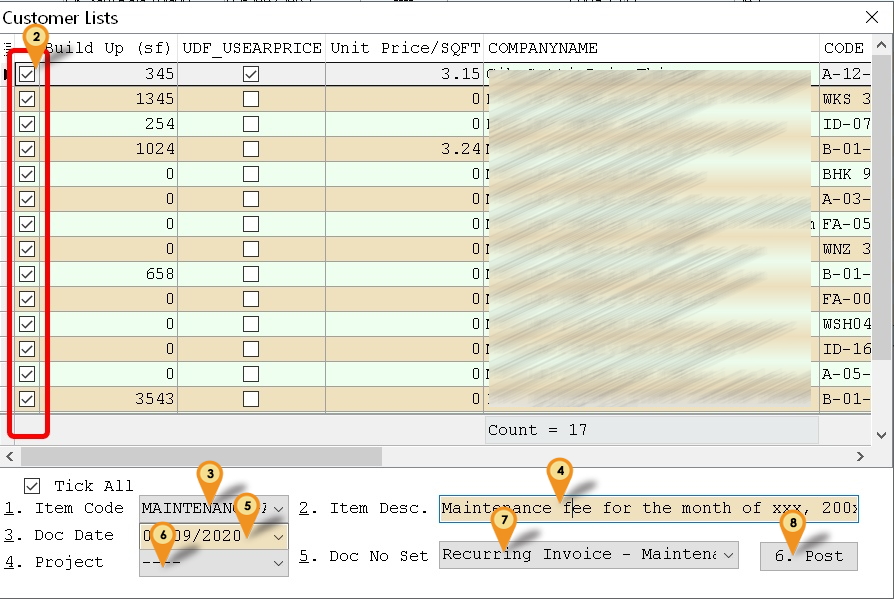
-
Untick any Customer you don't wanted to Generate
-
Select the Item Code.
-
Enter the Item Description.
-
Enter the Document Date.
-
Select Project (Optional)
-
Select Document Number Set to use
-
Click Post to generate
Just click Yes to avoid keep prompt again
Make sure the Build Up (sf), Use Maintain Customer Price & Unit Price/SQFT Column is shown at Browse Screen before Click the Gen/B button
Quotation
Menu: Sales | Quotation...
Generating Maintenance
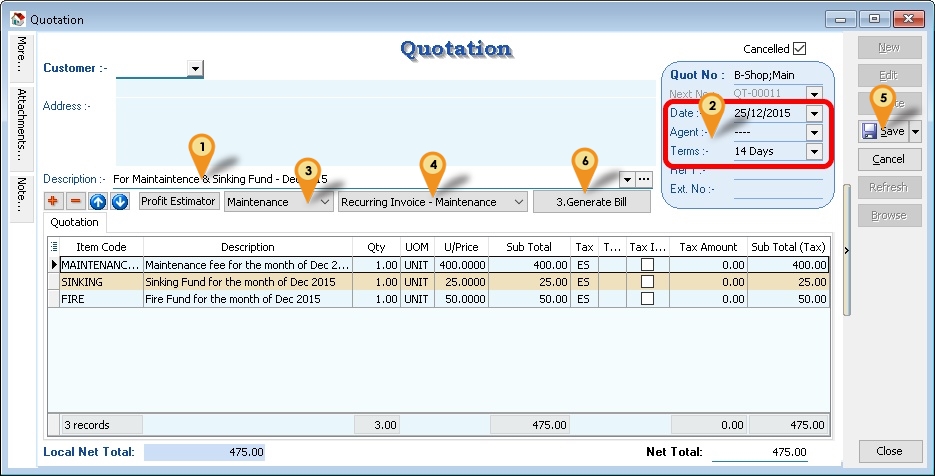
- Enter/Change the Description to be shown in Sales Invoice & Customer Statement
- Enter/Change the Date & Terms & other Information in Detail
- Select Recurring Type (i.e. Maintenance).
- Select Document Number Set to use.
- Click Save button.
- Click 3. Generate Bill button.
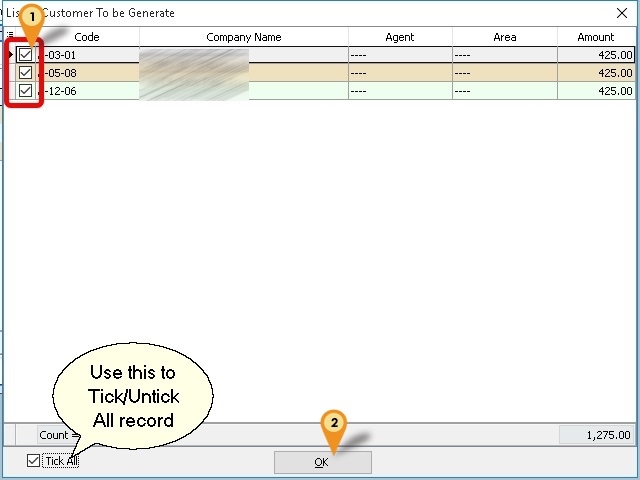
- Untick any Customer you don't wanted to Generate
- Click Ok button to generate
Generating Meter Reading
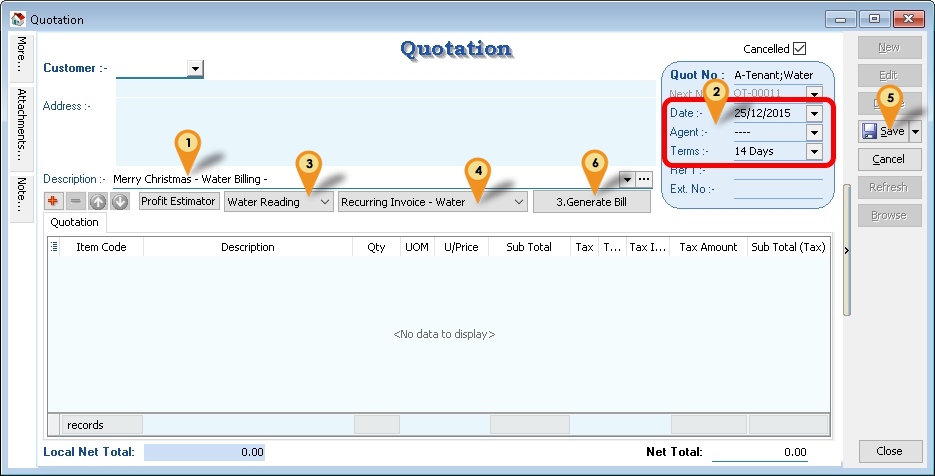
- Enter/Change the Description to be shown in Sales Invoice & Customer Statement
- Enter/Change the Date & Terms & other Information in Detail
- Select Recurring Type (i.e. Water Reading).
- Select Document Number Set to use.
- Click Save button.
- Click 3. Generate Bill button.
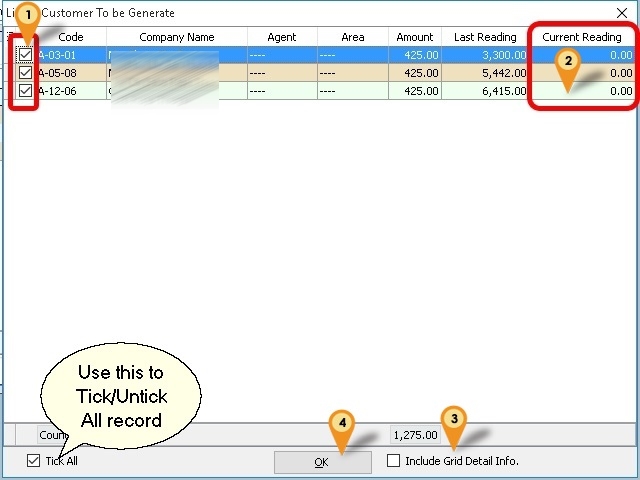
-
Untick any Customer you don't wanted to Generate
-
Enter the Current Reading for each Customer
-
Tick Include Grid Detail Info. (optional & available if Use Price Range is UnTick)
- if you wanted combine Generate Maintenance
- Must use the Generate Maintenance Template(Quotation)
-
Click Ok button to generate
Just click Yes to avoid keep prompt again
Customer Payment
Menu: Customer | Customer Payment...
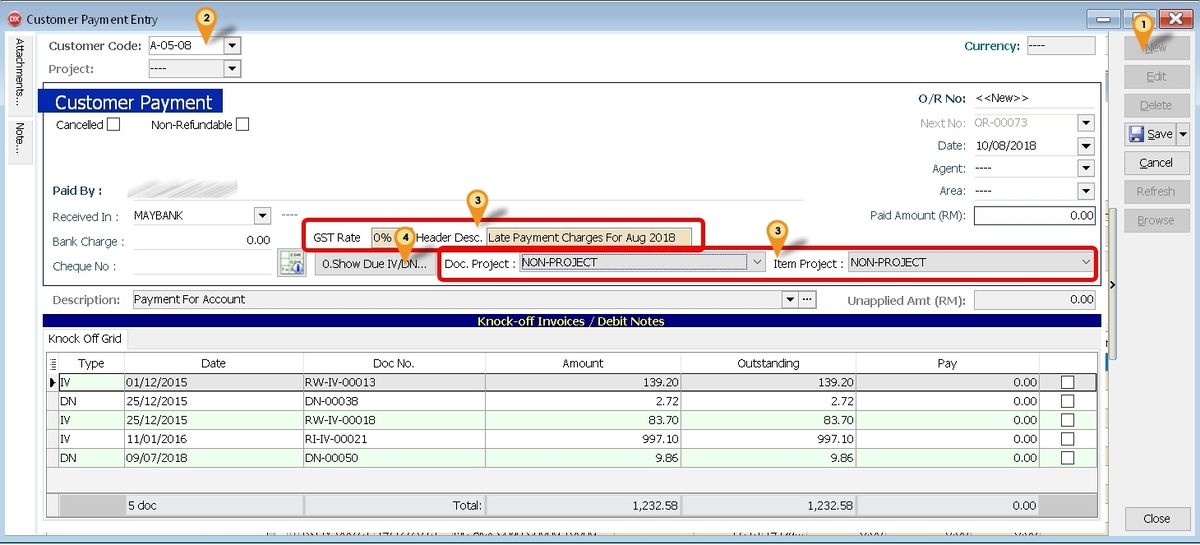
Below is example for Generating Due Interest from Customer Payment
-
Click New button
-
Select Customer Code
-
Enter & Select the DN Information
-
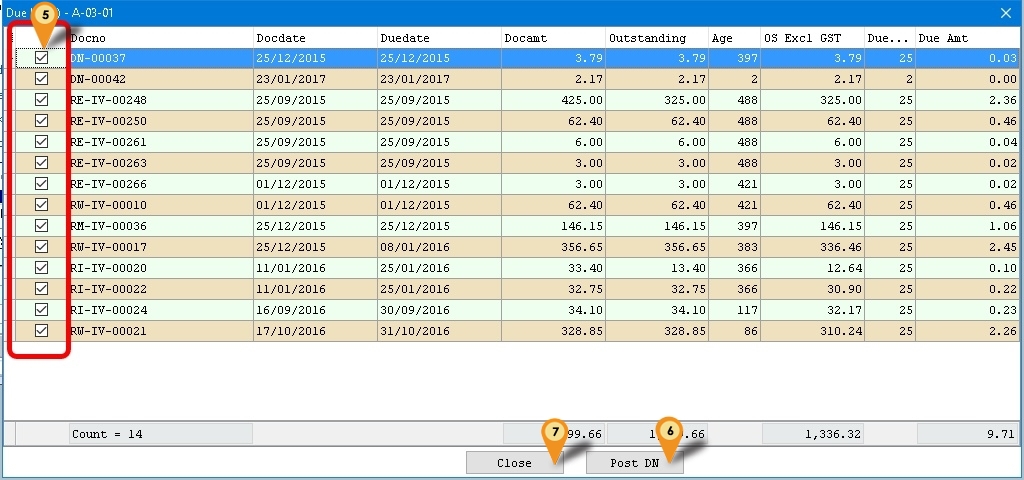
Click 0. Show Due IV/DN... button
-
May untick which don't wanted to include the Due Interest Calculation.
-
Click Post DN Button to Post/Generate Due Interest DN
-
Click Close
Make sure the UDF_PostDN Default is Set to False else will double posting
The Age calculate to System Working Date.
The UnitPrice is round to 4 Decimal Point.
The GST Rate field is use to Pre-Calculate the Due Amount before posting Only.
The GST rate is still base on the GST Tax code you set in Maintain Item or Tools | option or Maintain Customer.
Recurring FAQ
Where to Generate the Cust Local - Payment Listing (GST 1) - Knock Off Doc No Set - Cross report?
Menu : Customer | Print Customer Document Listing... | Customer Payment Listing_
How the Column Description shown in Cust Local - Payment Listing (GST 1) - Knock Off Doc No Set - Cross report?
Menu : Tools | Maintain Document Number...
It use
- Description field as Caption
- First 2 Character Format field as Grouping (eg Format RE-IV-%.5d it will group by RE)
Where to Generate the Sales Customer Price History - ItemCode - Cross report?
Menu : Sales | Print Print Sales Price History...
Select Customer in Group/Sort By : Option
My company not using Rebate & Min. Charge. What Input Value I need to set?
Just set the Discount Value to 0+0
How is the Rebate & Min.Charge is Work?
Default System will Calculate the Min. Charge then Only Rebate
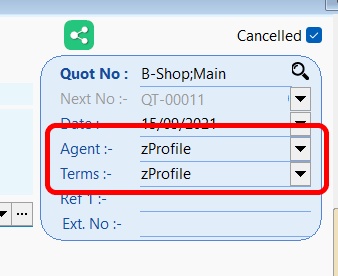
Can I use Maintain Customer Agent/Terms code instead use Quotation Agent/Terms code?
Yes can just Create & set the Code as zProfile for Agent and/or Terms
Can I use Maintain Customer Agent/Terms code instead of using Quotation Agent/Terms code?
Yes can just Create & set the Code as zProfile for Agent and/or Terms
Why at Maintain Customer Gen/B I can't select the Itemcode?
Make sure you had Stock Group begin with MAINTENANCE & all itemcode is set to this Stock Group